.png)
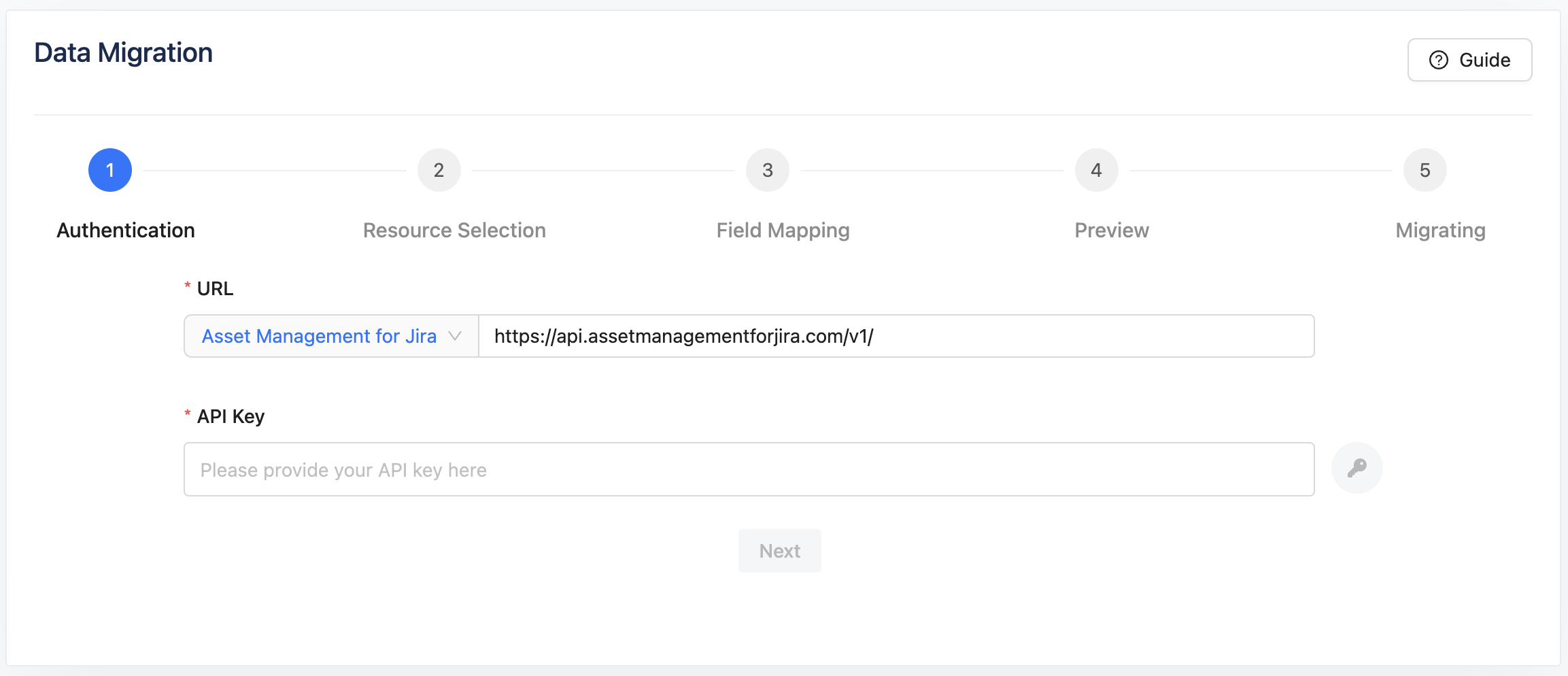
Navigate to Settings -> Data Migration in AssetIT, select Asset Management for Jira from the URL dropdown, and follow the steps outlined below.
Step 1: Authentication
-
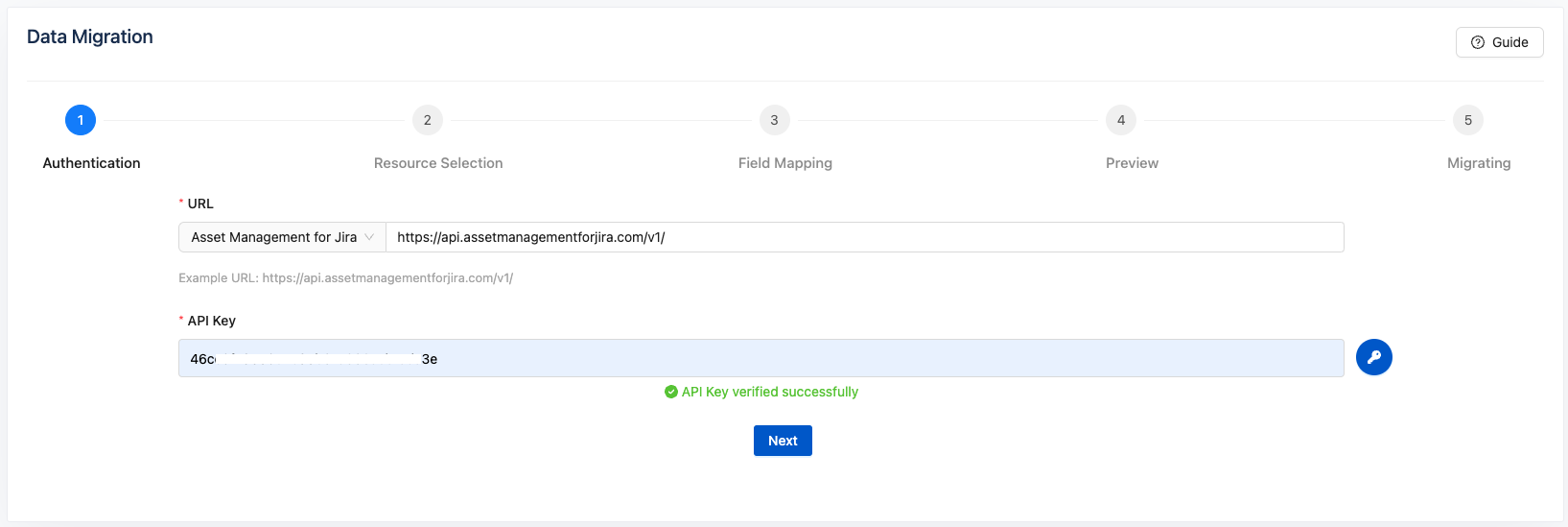
Enter the API key copied from the AMFJ app.
-
Click the

-
Once successfully verified, click

To obtain your API key from the AMFJ app:
-
Open the AMFJ app and go to Settings.
-
Navigate to the API & Events tab.
.png?cb=0fcb2083c074b6fbdc45eb8375cbd3d4)
-
Press the Create API Key button and copy the generated key.
-
Paste the API key into the corresponding field in AssetIT’s authentication verification screen.
Step 2: Resource Selection
-
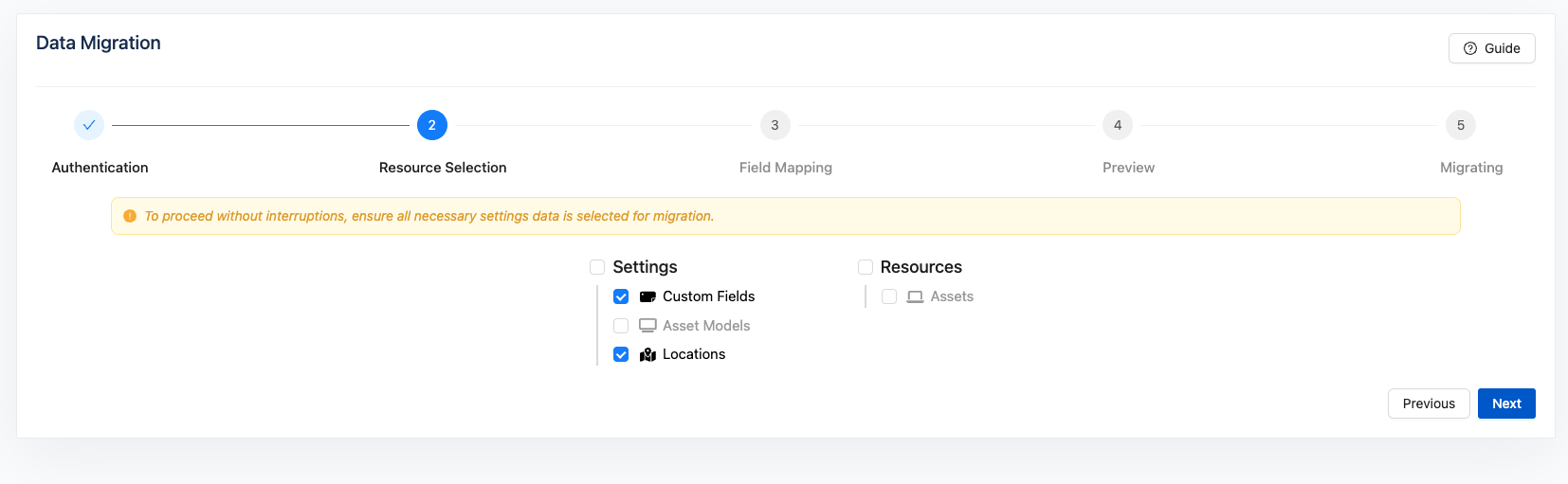
Select the data you want to migrate from AMFJ to AssetIT.
-
Ensure all necessary data types, such as Custom Fields, Locations, or Suppliers, are selected to avoid interruptions during migration.
-
Click Next to continue.
Step 3: Field Mapping
-
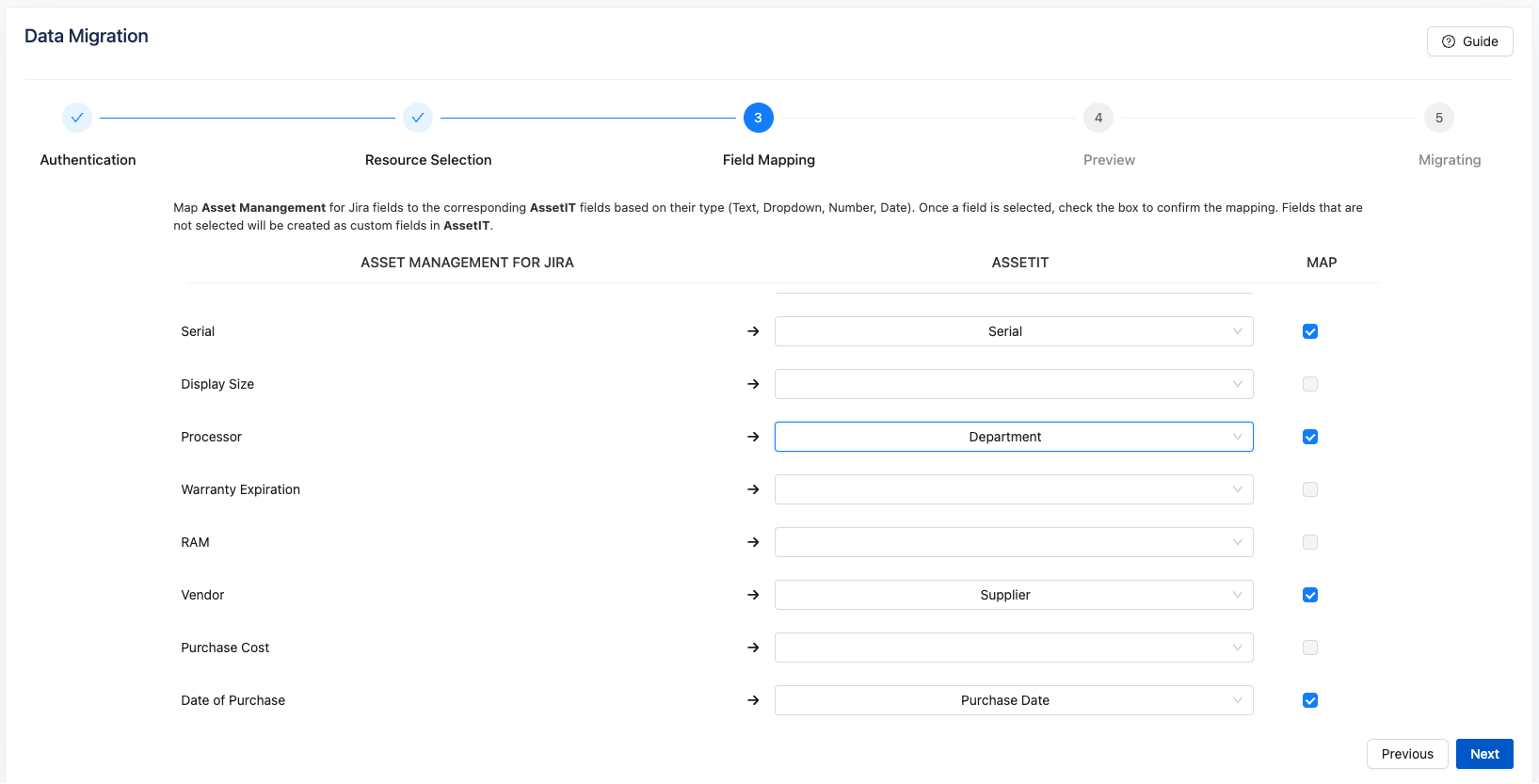
Map the fields from AMFJ to their corresponding fields in AssetIT based on their field type.
Common field types in AMFJ: Text, Dropdown, Number, and Date.
-
Use the checkboxes to confirm mappings for selected fields. Unmapped fields will be created as custom fields in AssetIT.
-
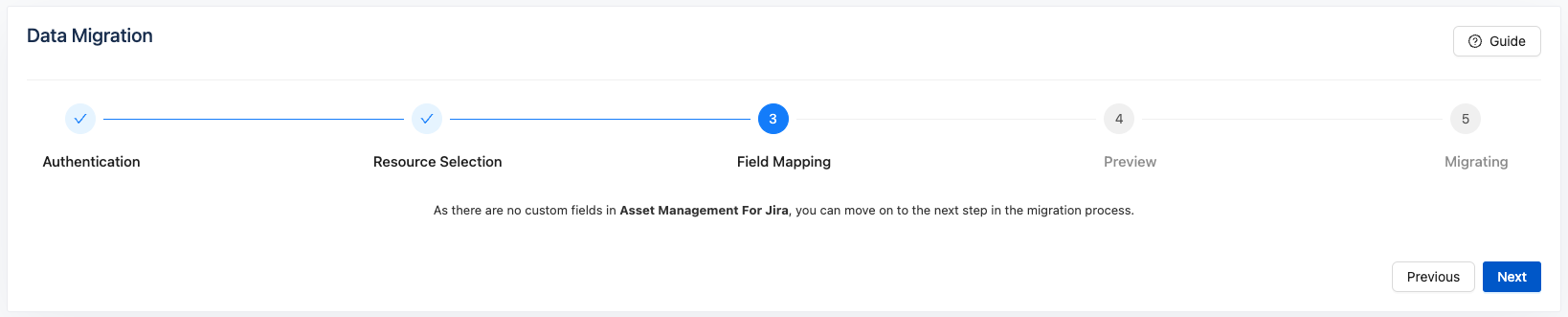
If there are no custom fields associated with the selected resources (e.g., no location data in AMFJ), you can skip this step and proceed to the next stage.
-
Click Next after confirming the field mappings.
Step 4: Preview
-
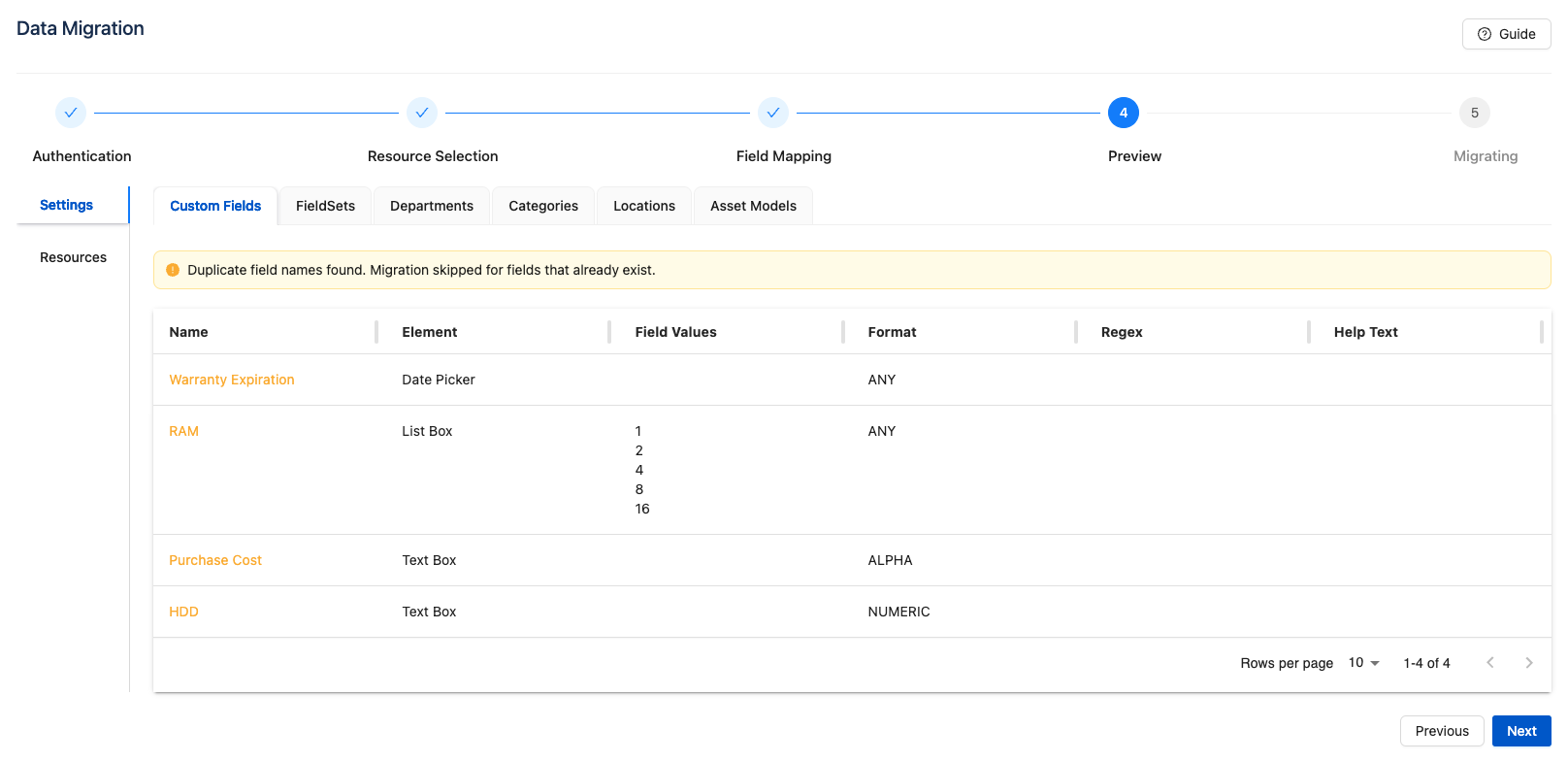
Review the data that will be migrated:
-
Switch between tabs to preview different data types.
-
The system will highlight any errors or issues.
-
Fields with duplicate names in AssetIT will be skipped automatically, as they already exist in the app.
-
-
If necessary, go back to the Field Mapping step to adjust mappings.
-
Once ready, click Next to proceed.
Step 5: Migration
-
AssetIT will begin the migration process, which may take a few minutes depending on the data volume.
-
Once the migration is complete, click Done to finish.
Important Notes:
-
Default fields from AMFJ, such as Asset Name and Asset Types, will automatically be migrated into AssetIT as Asset Name and Asset Models, respectively.
-
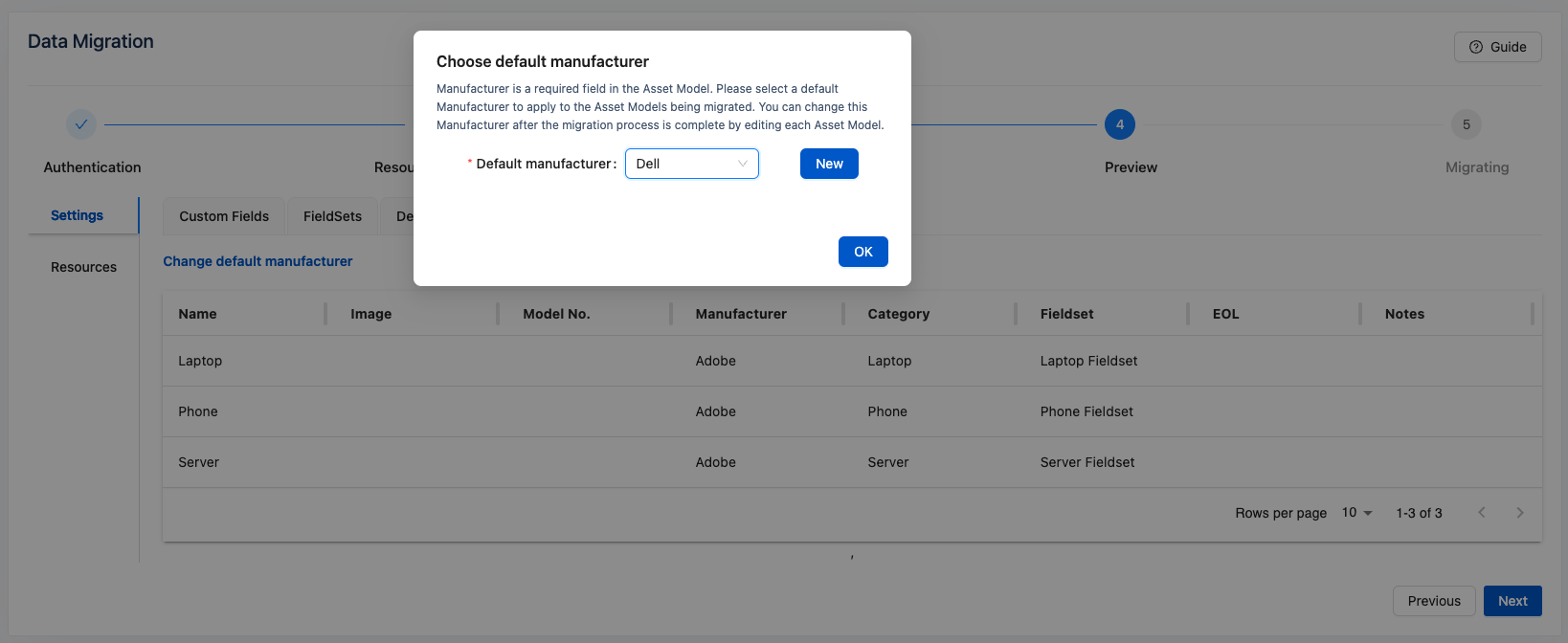
AssetIT requires a mandatory field called Manufacturer for all Asset Models. To ensure a smooth migration process, you will need to select a default Manufacturer to apply to the Asset Models being transferred. This default can be updated during the Preview step or adjusted post-migration by editing the relevant Asset Models directly within AssetIT.