.png)
Notes
-
Rate Units can be reused across Resources, Projects, and Groups.
-
Only App Admins and Billing Admins have permission to configure or update these rates. To grant these permissions, please visit here.
In the TeamBoard TimePlanner, A Rate Unit defines how much 1 hour of work costs. It’s a reusable pricing rule you can apply to resources, groups, or projects.
Creating a Rate Unit
-
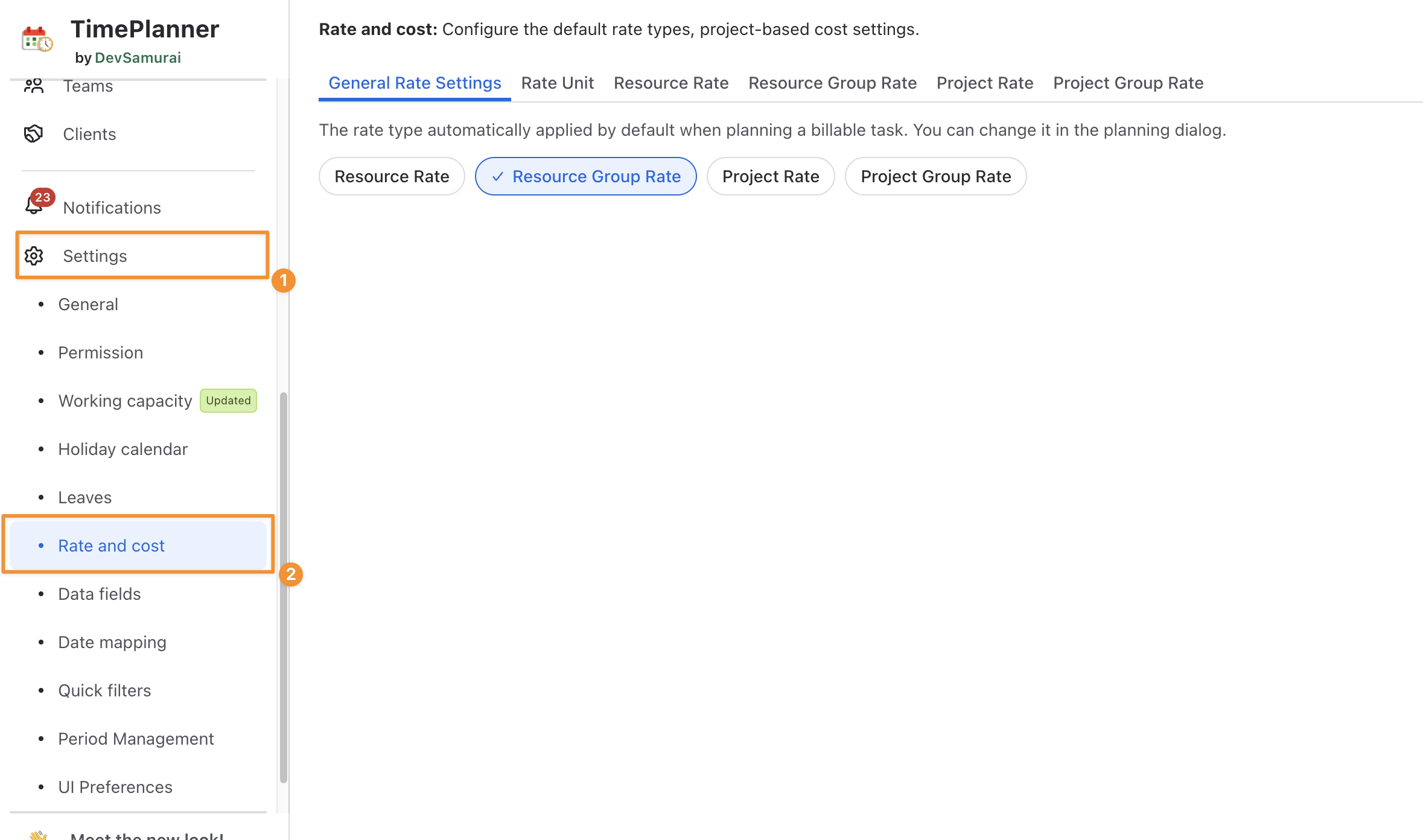
Navigate to ⚙️ Settings from the left sidebar > Select the Rate and Cost section.
-
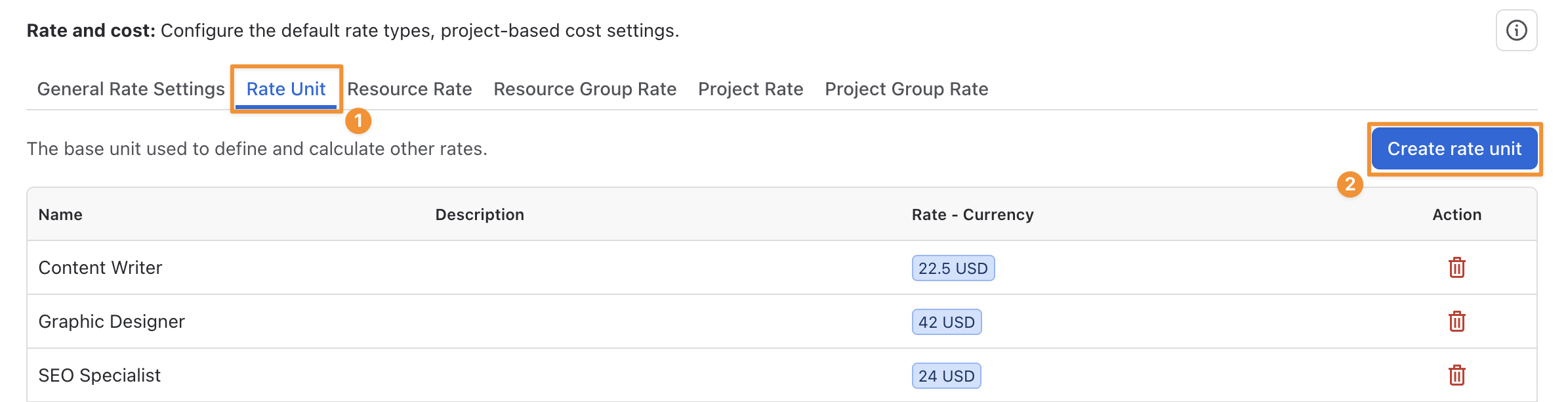
Go to the Rate Unit tab > Click

-
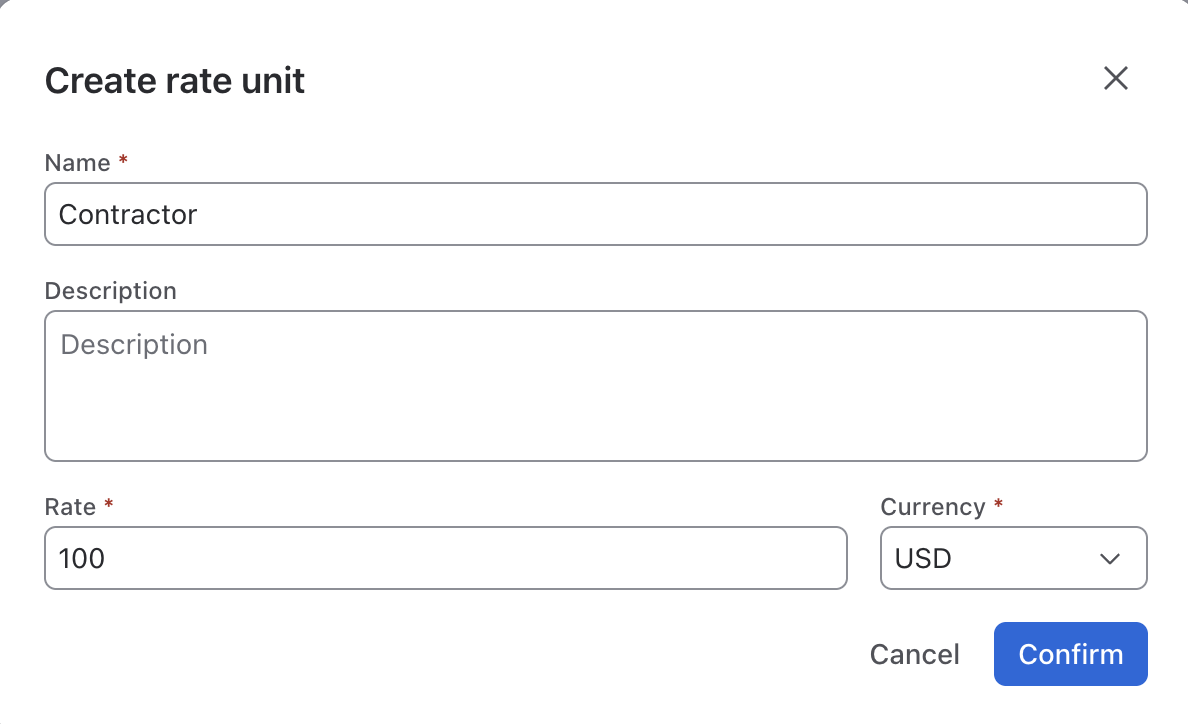
Fill in the fields in the Pop-up:
-
Name: A descriptive title for the rate.
-
Description: Optional notes to explain the purpose or context of this unit.
-
Rate: The numerical value for the cost per unit of time.
-
Currency: Select from the available currencies configured in Fields Data (e.g., USD, EUR, SGD).
If the currency list is empty, or you need another one, click 
-
Click

Editing a Rate Unit
To edit an existing rate unit, follow these steps:
-
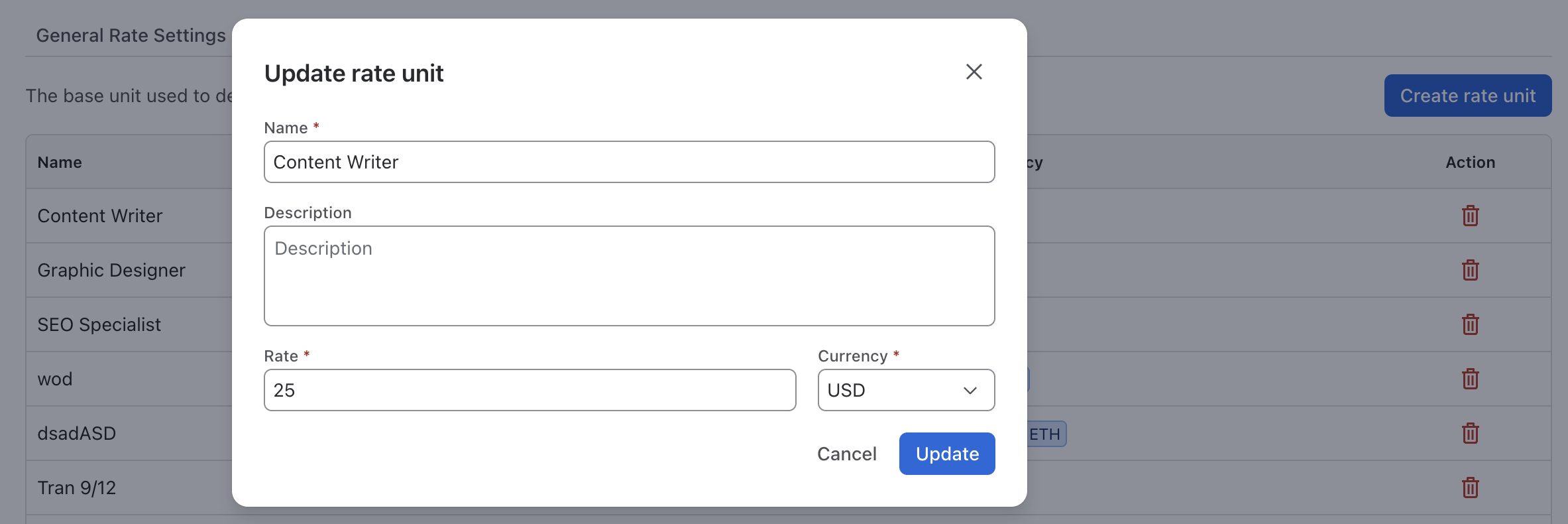
From the Rate Unit page, locate the rate unit you want to edit and click on it.
-
In the pop-up window, make the necessary changes to the fields:
-
Name: Update the title of the rate unit.
-
Description: Modify or add any explanatory notes.
-
Rate: Adjust the rate if needed.
-
Currency: Choose a different currency if required.
-
Click

Deleting a Rate Unit
To delete a rate unit, follow these steps:
-
From the Rate Unit page, find the rate unit you want to delete.
-
Click

-
Confirm the deletion when prompted.
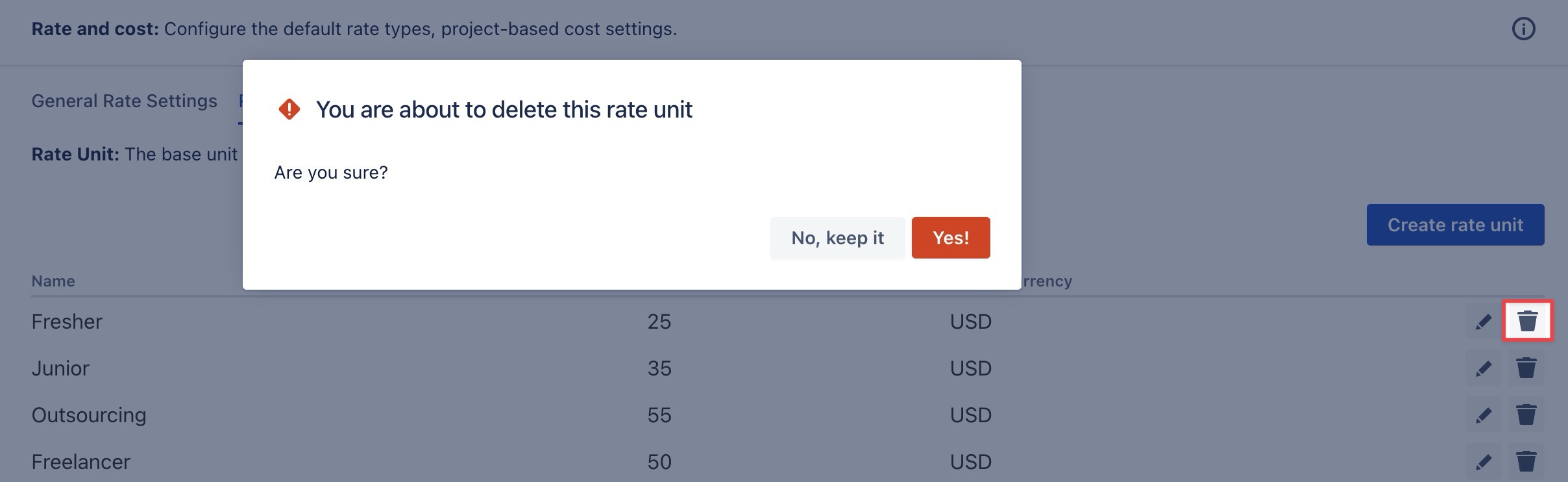
Note: Be cautious when deleting rate units, as it will remove the unit from all associated resources, groups, or projects where it was applied.