.png)
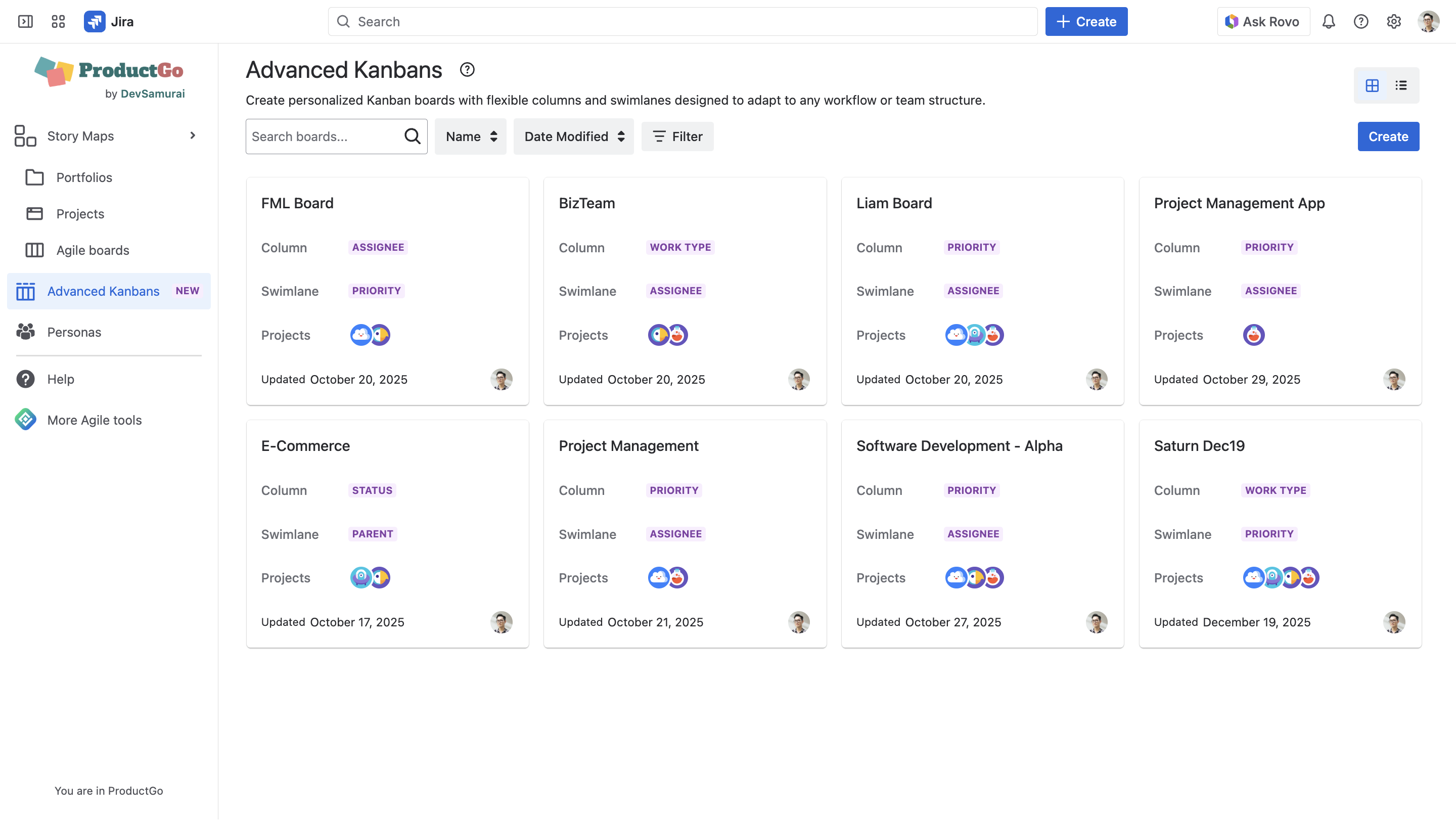
Advanced Kanban lets you create and manage multiple boards to organize your team’s workflows. You can access, create, and configure boards directly within the app.
Access the Feature
To open Advanced Kanban, go to Apps → ProductGo → Advanced Kanban.
You’ll see a list of all existing boards.
Click a board card to open and view its details.
Create a Board
To create a new board, click Create, then follow these steps:
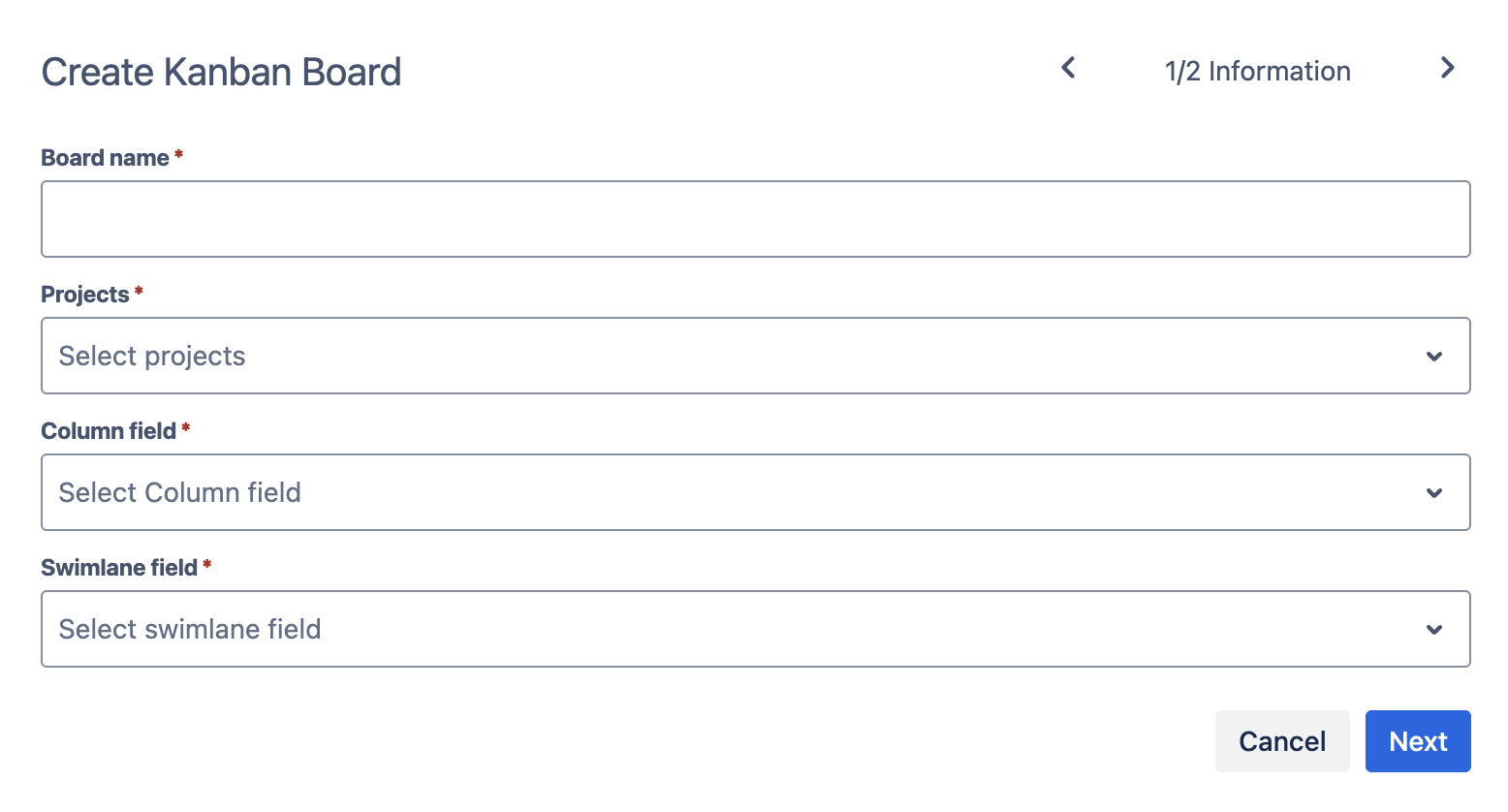
Step 1: Information
-
Board name: Enter a clear, descriptive name for your board.
-
Projects: Select one or more projects to include.
-
Column field: Choose the Jira field to define your columns.
-
Swimlane field: Choose the Jira field to define your swimlanes.
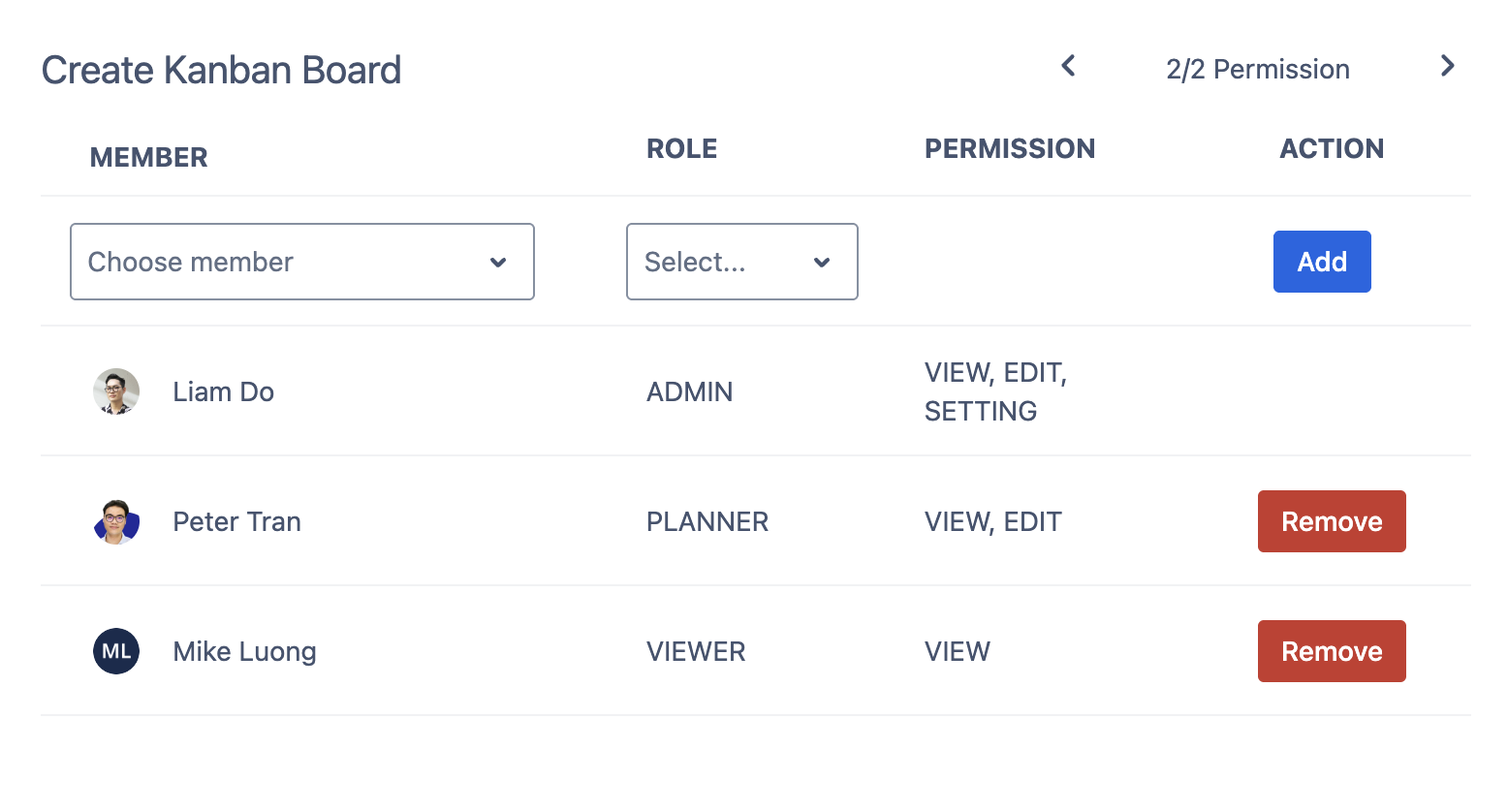
Step 2: Permission
Assign access to team members and define their roles:
-
Admin: View, edit, and manage settings.
-
Planner: View and edit board content.
-
Viewer: View only.
Click Create to save your new board.
Manage Boards
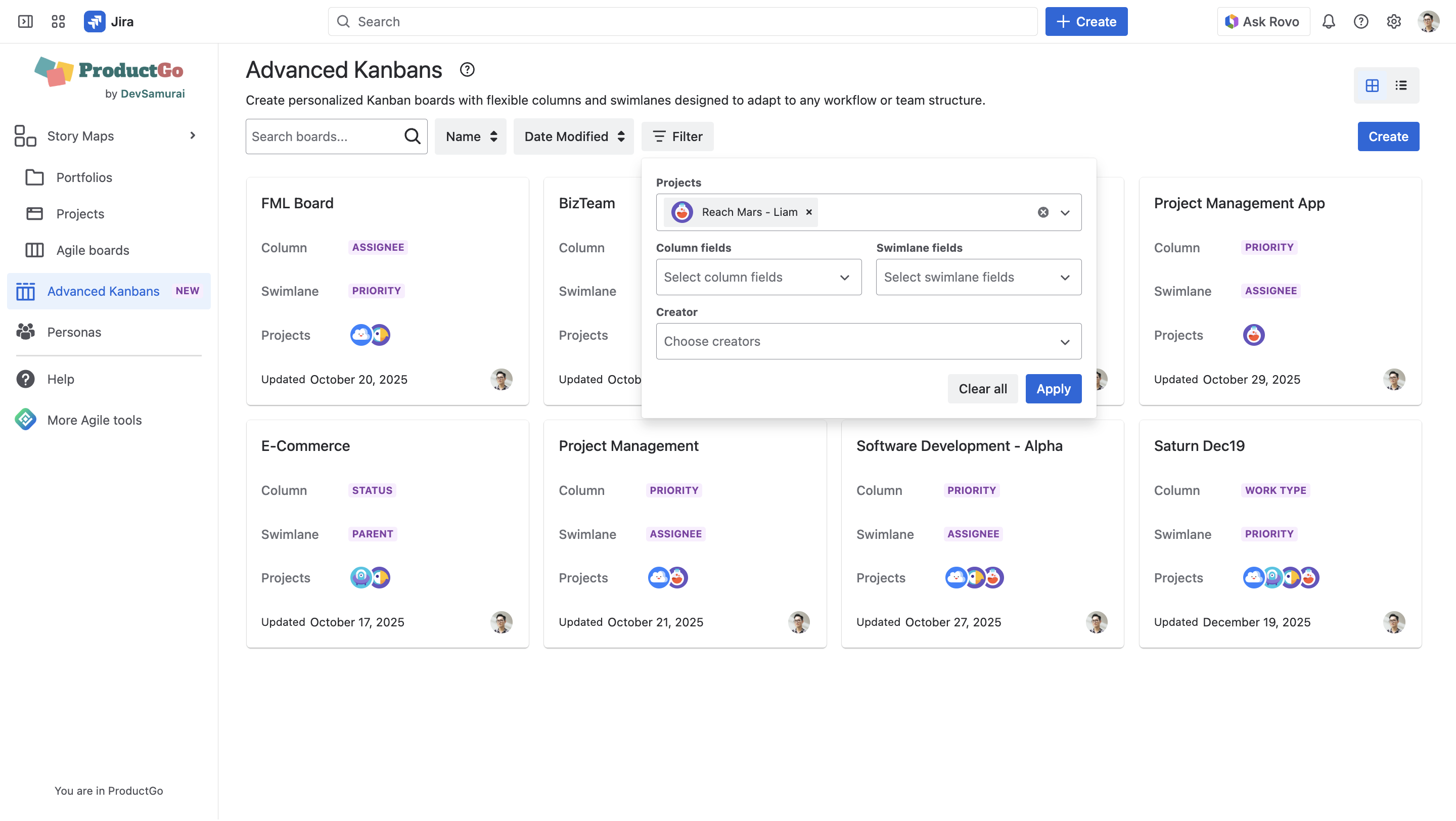
You can manage your existing boards in several ways:
-
View boards: Switch between Grid or List views.
-
Search boards: Find a board by name.
-
Filter boards: Narrow your view by:
-
Projects
-
Column fields
-
Swimlane fields
-
-
Sort boards: Organize by:
-
Name
-
Date Modified
-
-
Board settings: Edit or delete a board from its settings menu.