.png)
The Search and Filter options in Advanced Kanban help you quickly find and focus on the work items that matter most. You can search for specific tasks, apply filters to refine your view, and even save customized quick views for future use.
Search
Search Box
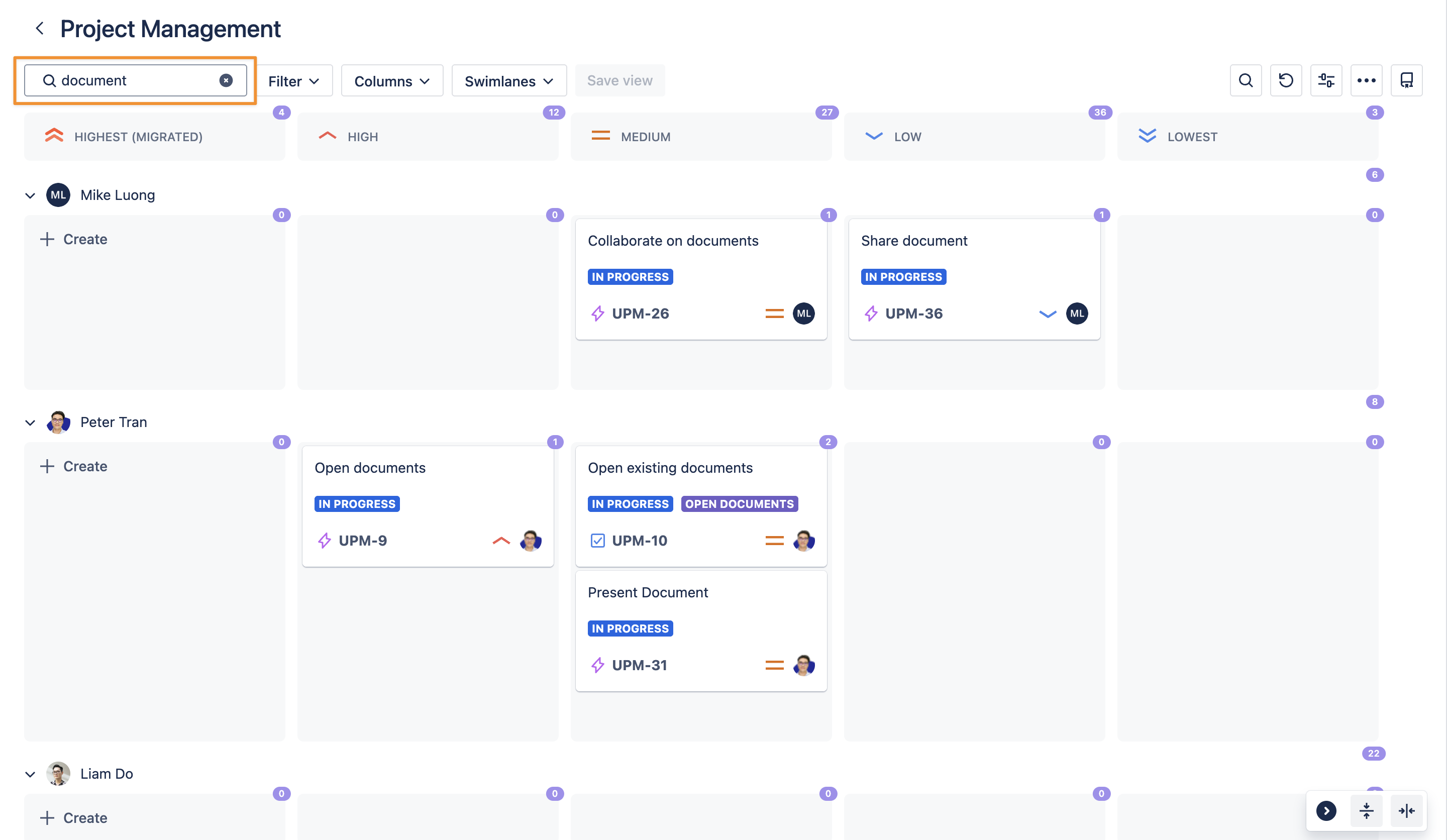
Use the search box at the top left of your Kanban board to find specific work item cards.
Type part or all of a work item’s summary, and matching cards will be shown to your board.
Search Work Items
-
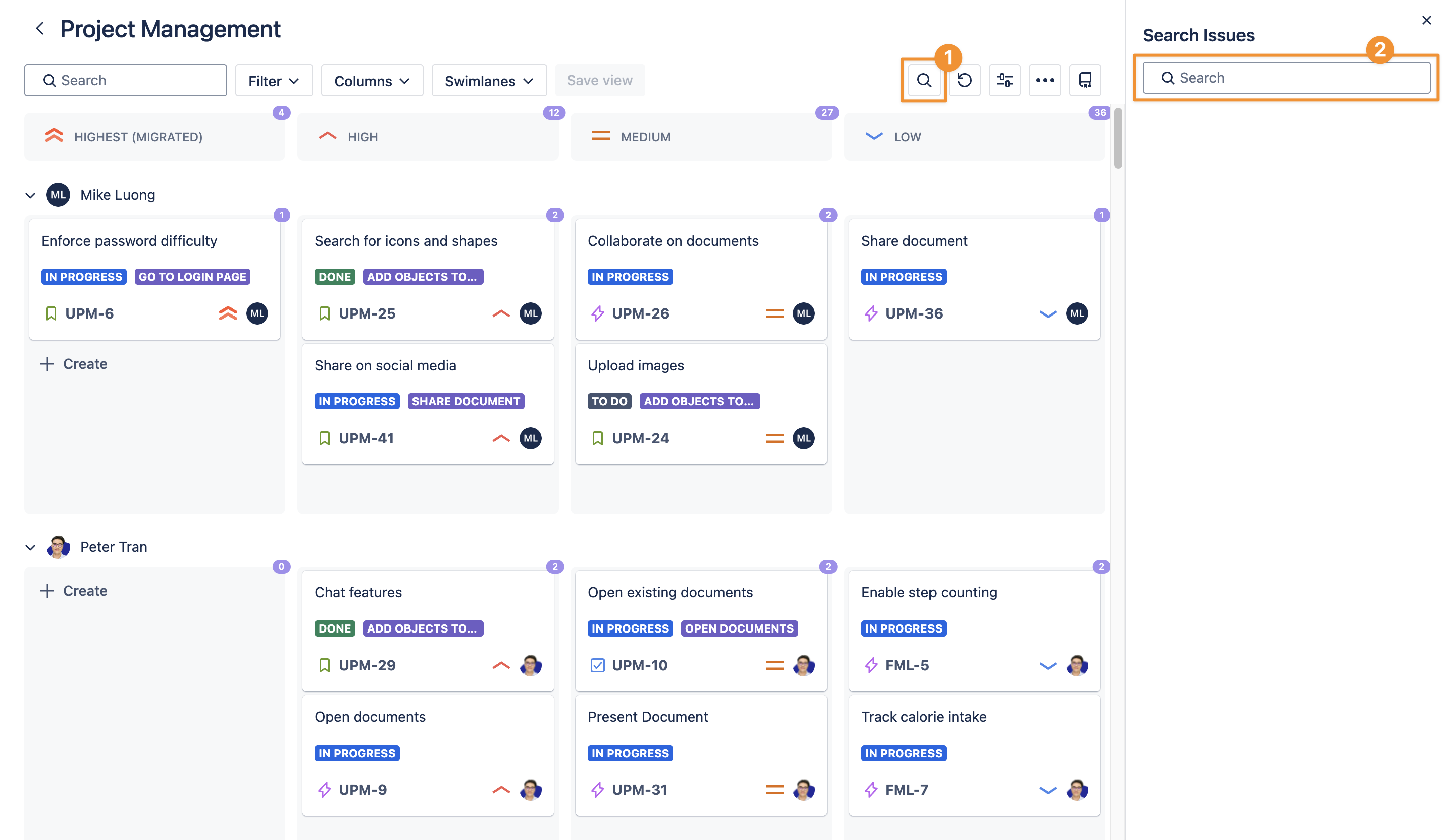
You can also start a search by clicking the magnifier icon at the top of the board.
-
Enter a keyword or phrase in the search box to locate matching cards.
Results will be highlighted for easy identification.
To clear your search, click the delete icon next to the search field.
Filters
Filters allow you to refine your view and focus on specific tasks based on defined conditions. You can apply multiple filters, combine them, or use advanced options for more precise results.
Basic Filter
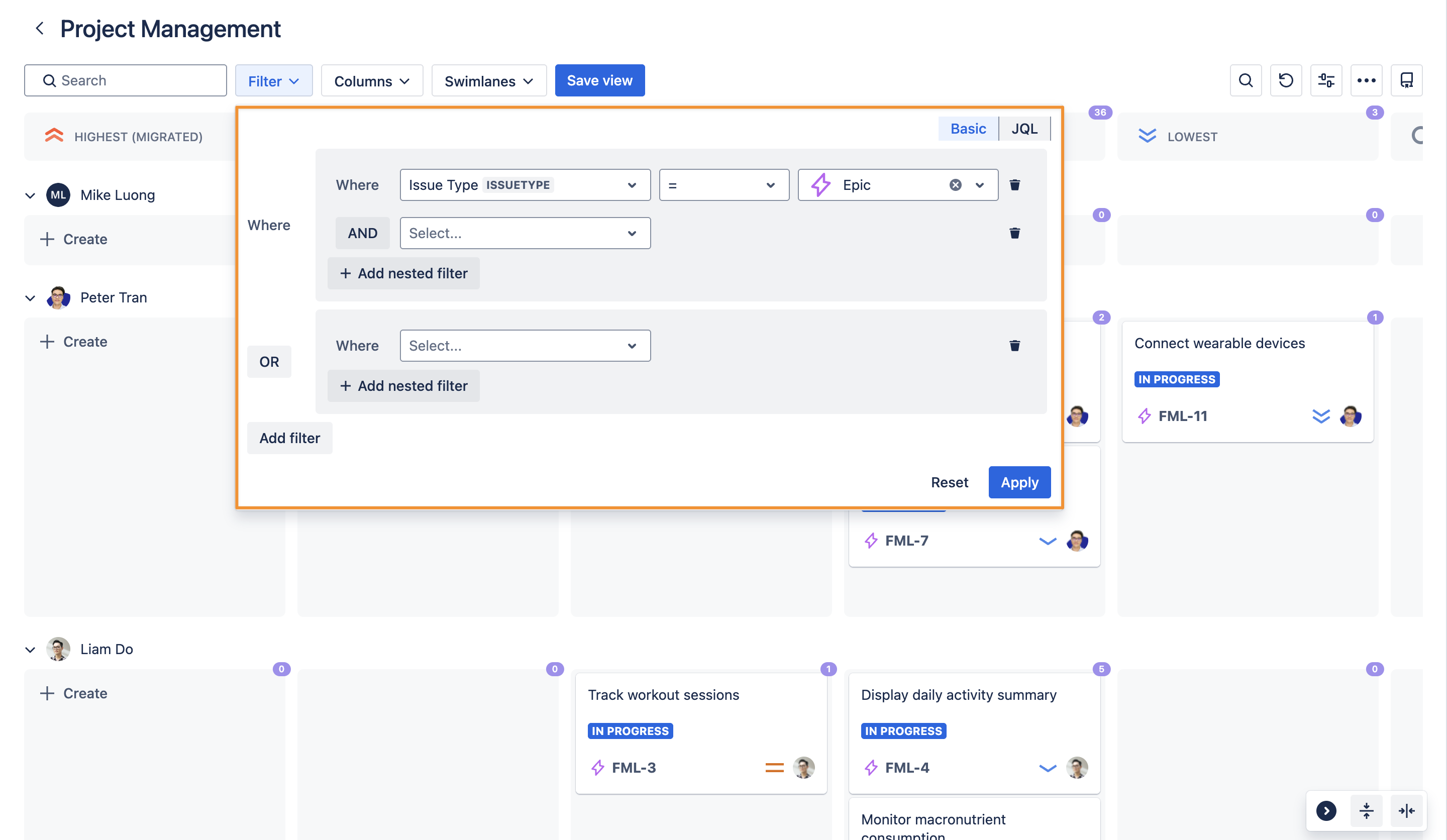
To apply a basic filter:
-
Select a supported field from the list.
-
Choose a supported operator (e.g., equals, contains, is empty).
-
Enter the field value you want to filter by.
-
Click Apply.
You can add multiple filters using AND or OR conditions, and also create nested filters for more complex searches.
To delete a filter, click the trash icon next to it.
JQL Filter
For advanced filtering, you can use Jira Query Language (JQL) to create more precise queries. This option is ideal for users familiar with Jira’s advanced search syntax.
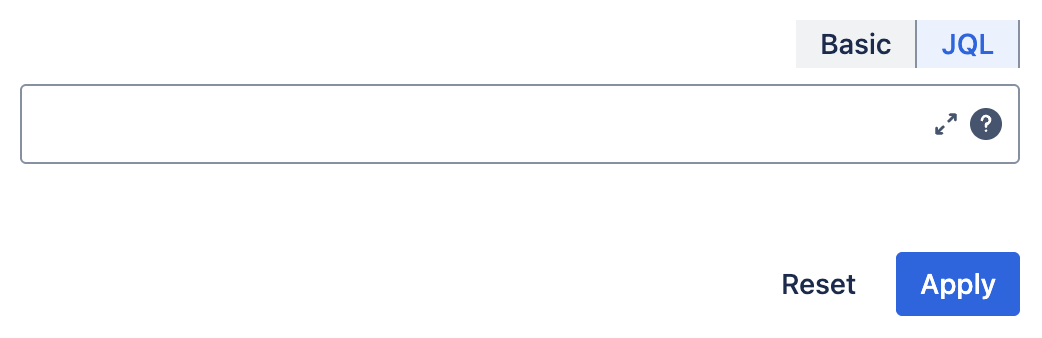
Learn more here: Use advanced search with Jira Query Language (JQL)
Column Filter
You can control which columns are displayed on your board to focus your view.
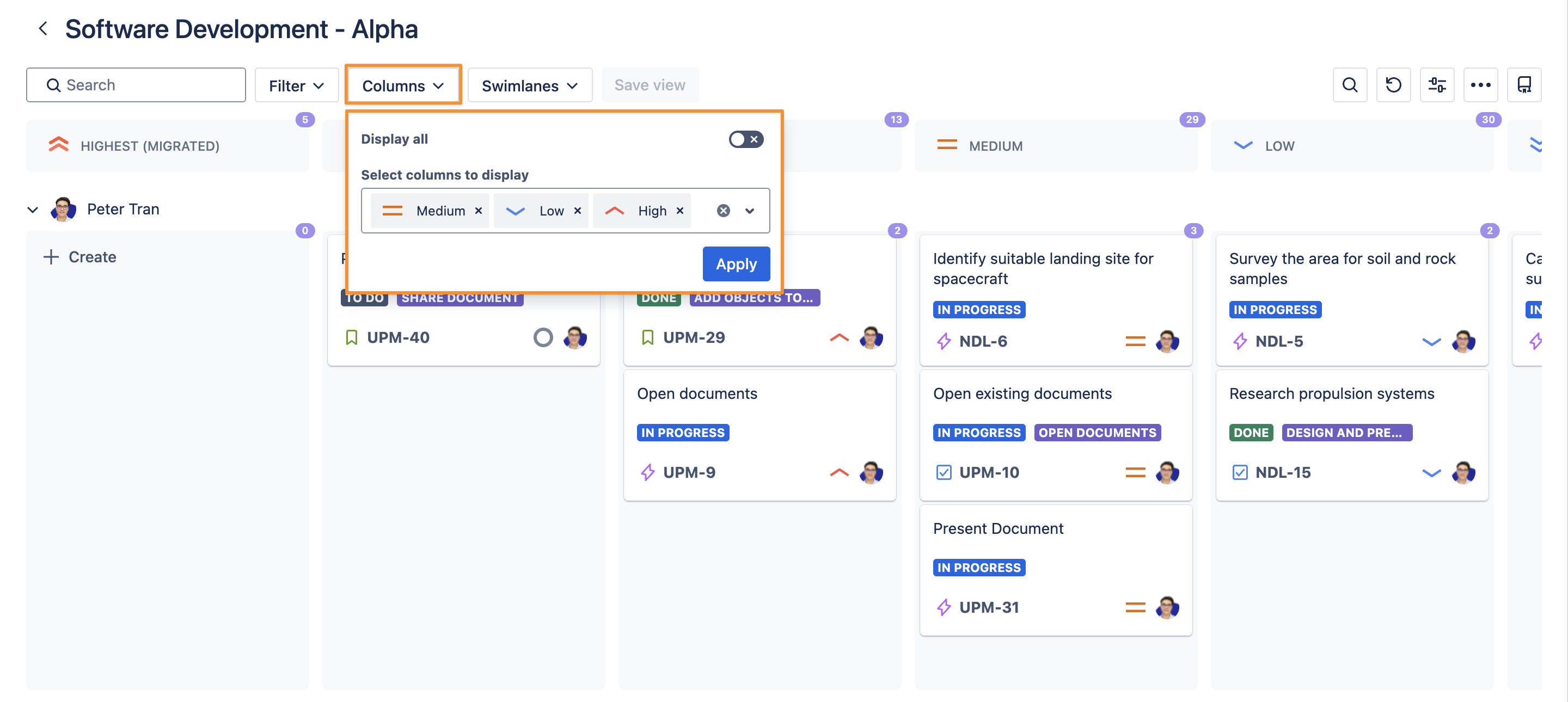
To adjust visible columns:
-
Click the Columns option at the top of the board.
-
Turn off the Display all toggle.
-
Select the specific columns you want to show by checking their fields.
-
Click Apply to confirm.
This helps reduce visual clutter and focus only on relevant stages of your workflow.
Swimlane Filter
Similarly, you can choose which swimlanes are visible on your board.
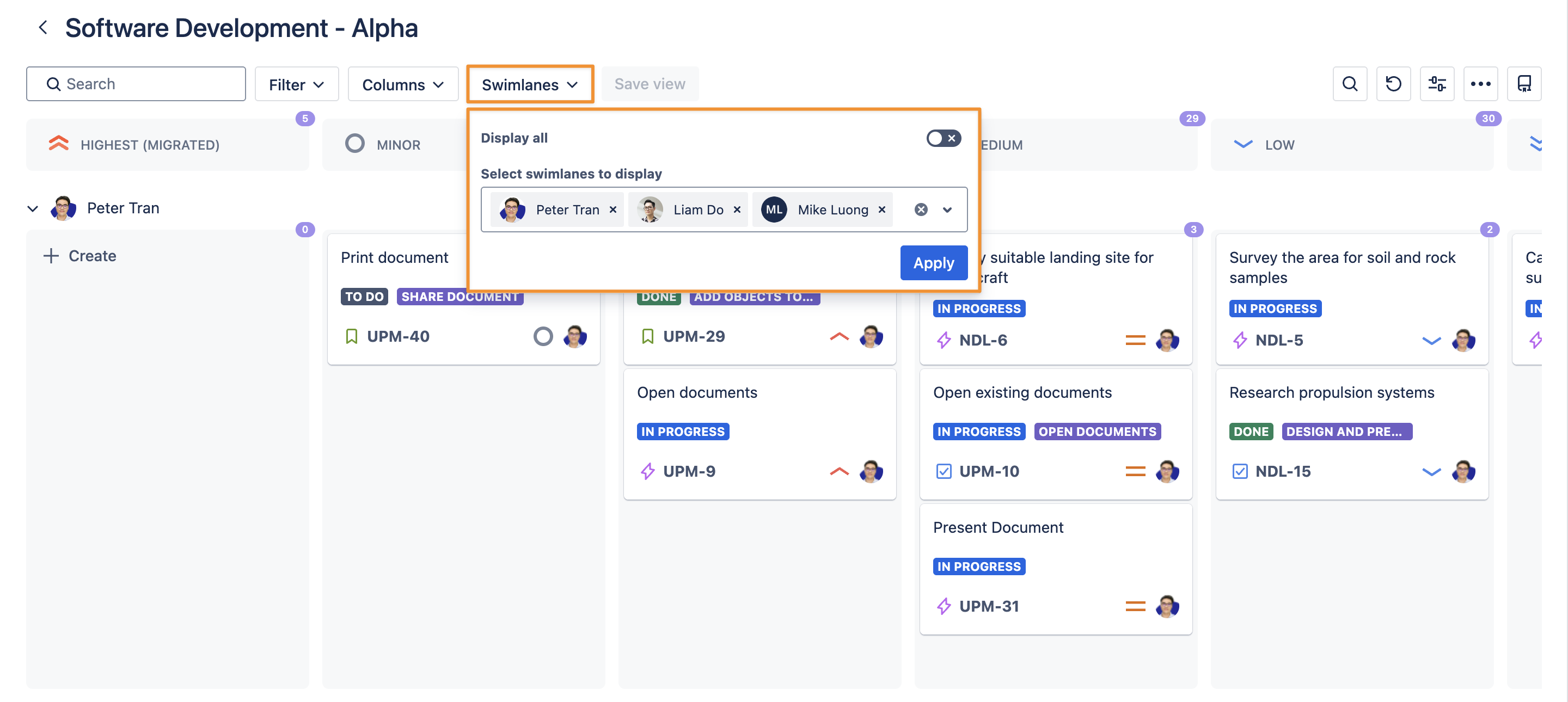
To adjust visible swimlanes:
-
Click the Swimlanes option at the top of the board.
-
Turn off the Display all toggle.
-
Select the swimlanes you want to show by checking their corresponding fields.
-
Click Apply to update your board.
This lets you narrow your focus to specific teams, priorities, or categories.
Save Quick View
Once you’ve created a search or applied filters, you can save it as a quick view for easy access later.

To save a view:
-
Click the Save view button.
-
Enter a name for your view.
-
Click Submit.
Your saved views will allow you to return to your preferred board configurations quickly, without recreating filters or searches each time.