.png)
The PPM Widget is designed to streamline your project management by providing quick access to essential project information. With this widget, you can view active projects, tasks, and workload distribution, all in one place alongside other Monday.com widgets on your dashboard.
How to Add the PPM Widget to Your Dashboard?
-
Open Your Dashboard in Monday.com
Start by opening the workspace where you want to add the PPM widget.
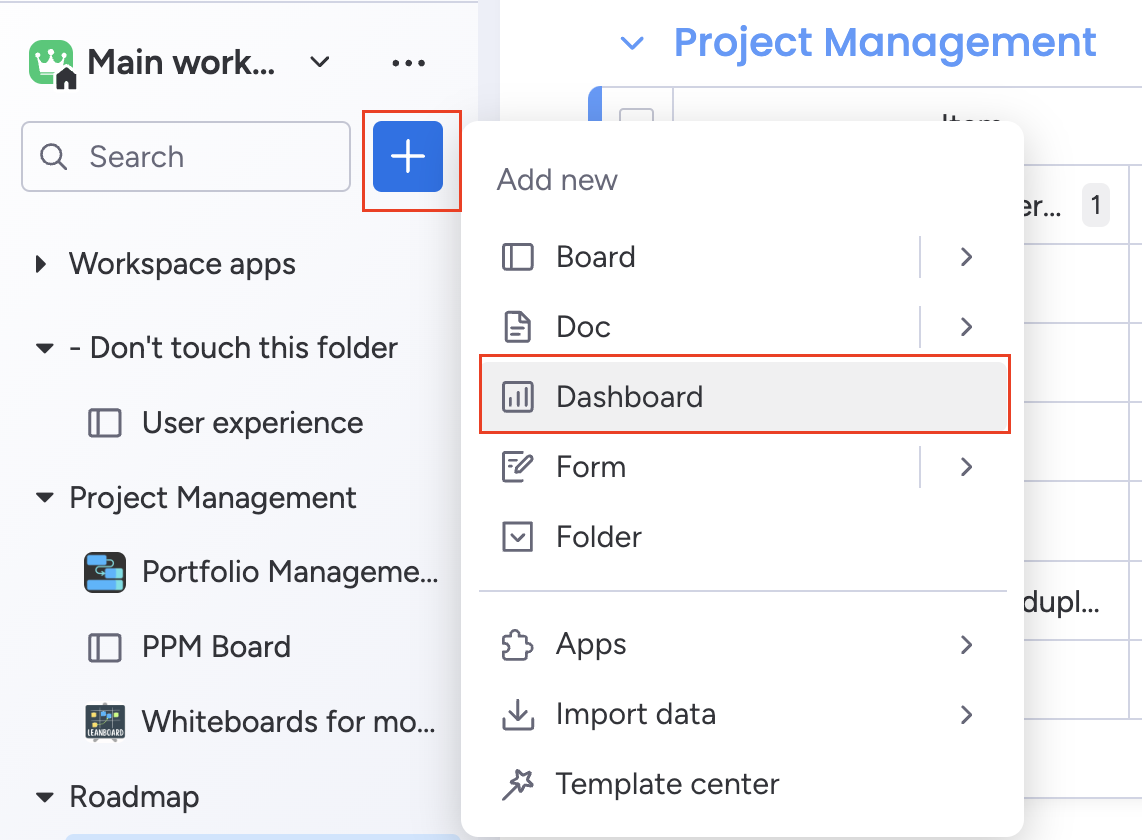
On your workspace’s menu, select Dashboard to open your main dashboard view.
-
Click “Add Widget”
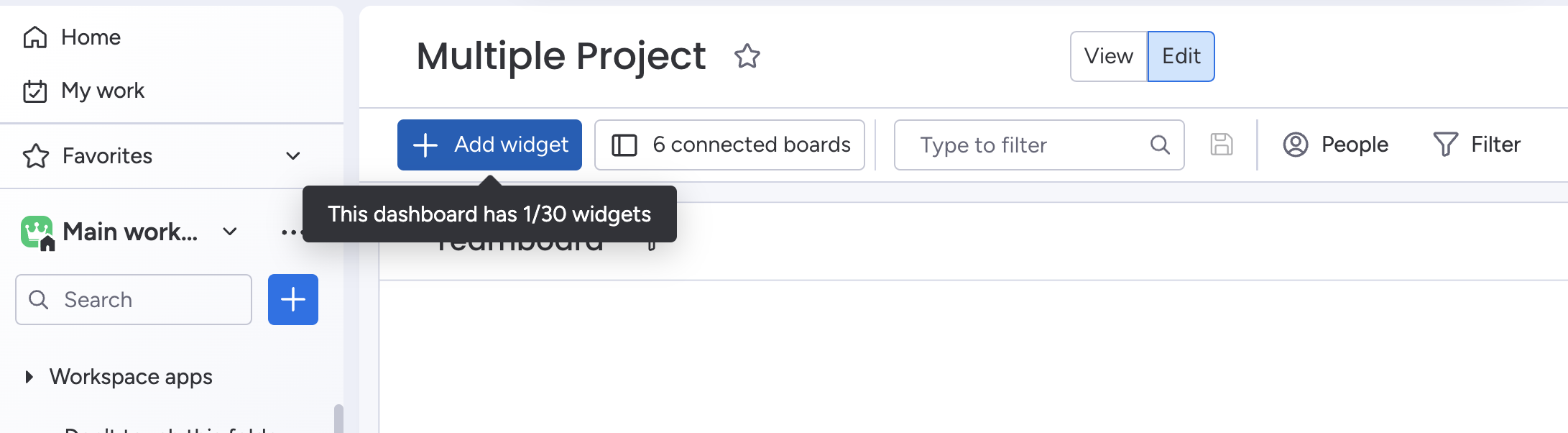
Inside the dashboard, look for an Add Widget button (usually located at the top right or within a customization menu). Click it to open the widget selection panel.
-
Select “App” from the Widget Options
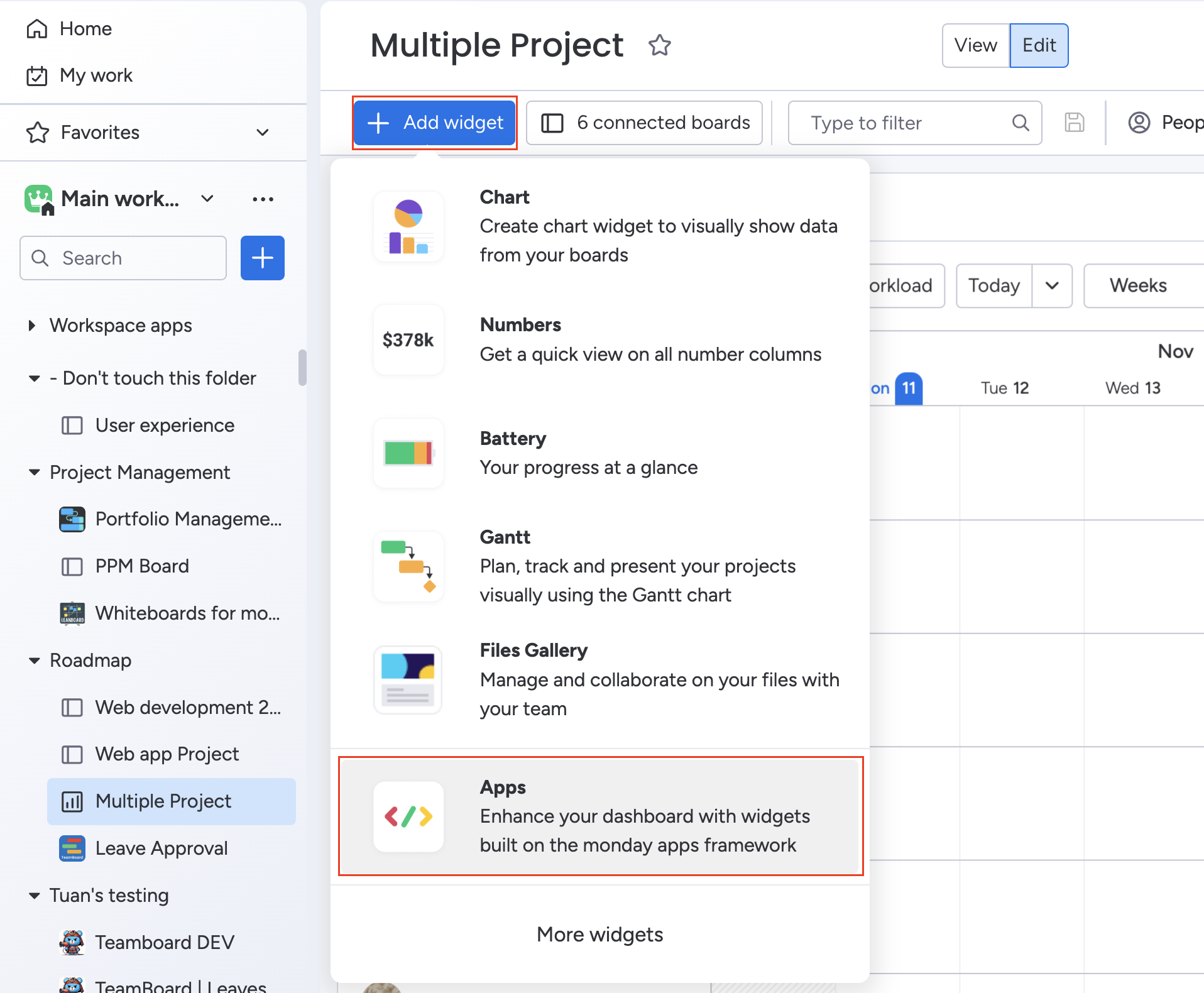
In the widget selection panel, choose App. This will display a list of available widgets related to different applications within your workspace.
-
Search for "Project Portfolio Management - PPM"
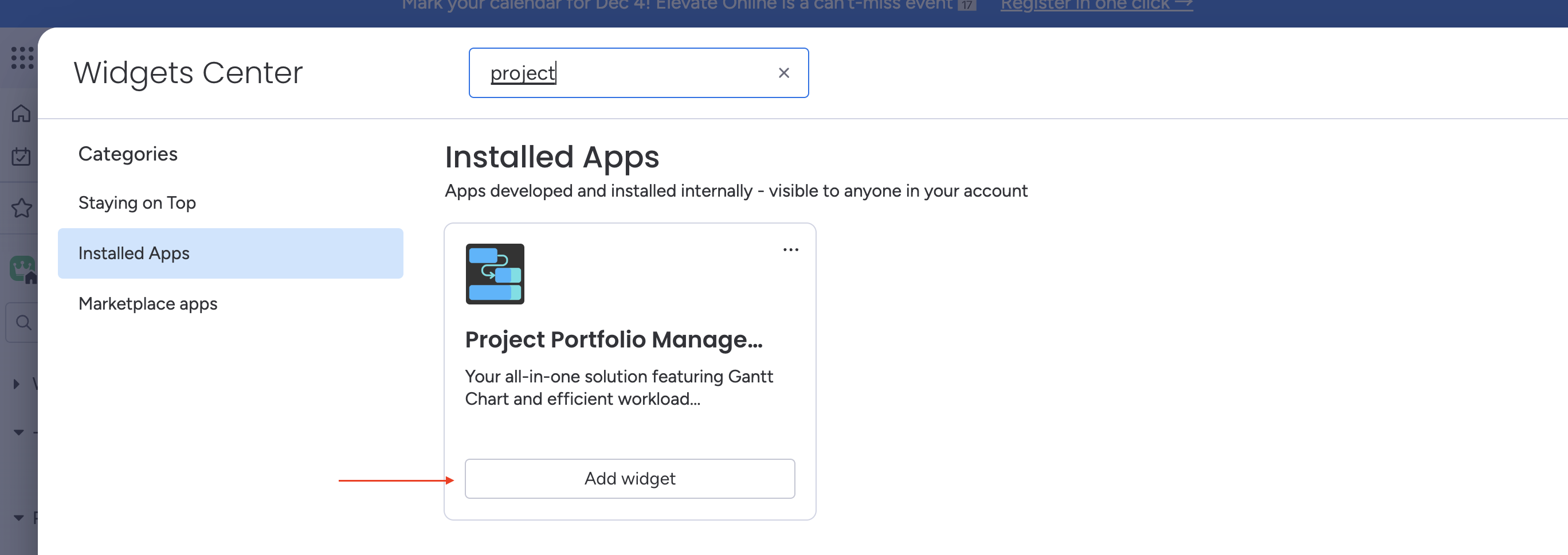
Use the search bar or scroll down to find Project Portfolio Management - PPM. This is the widget you’ll be adding to your dashboard.
-
Click “Add Widget”
Once you locate the PPM widget, click on Add Widget to place it on your dashboard. You should now see the PPM widget appear in your dashboard view.
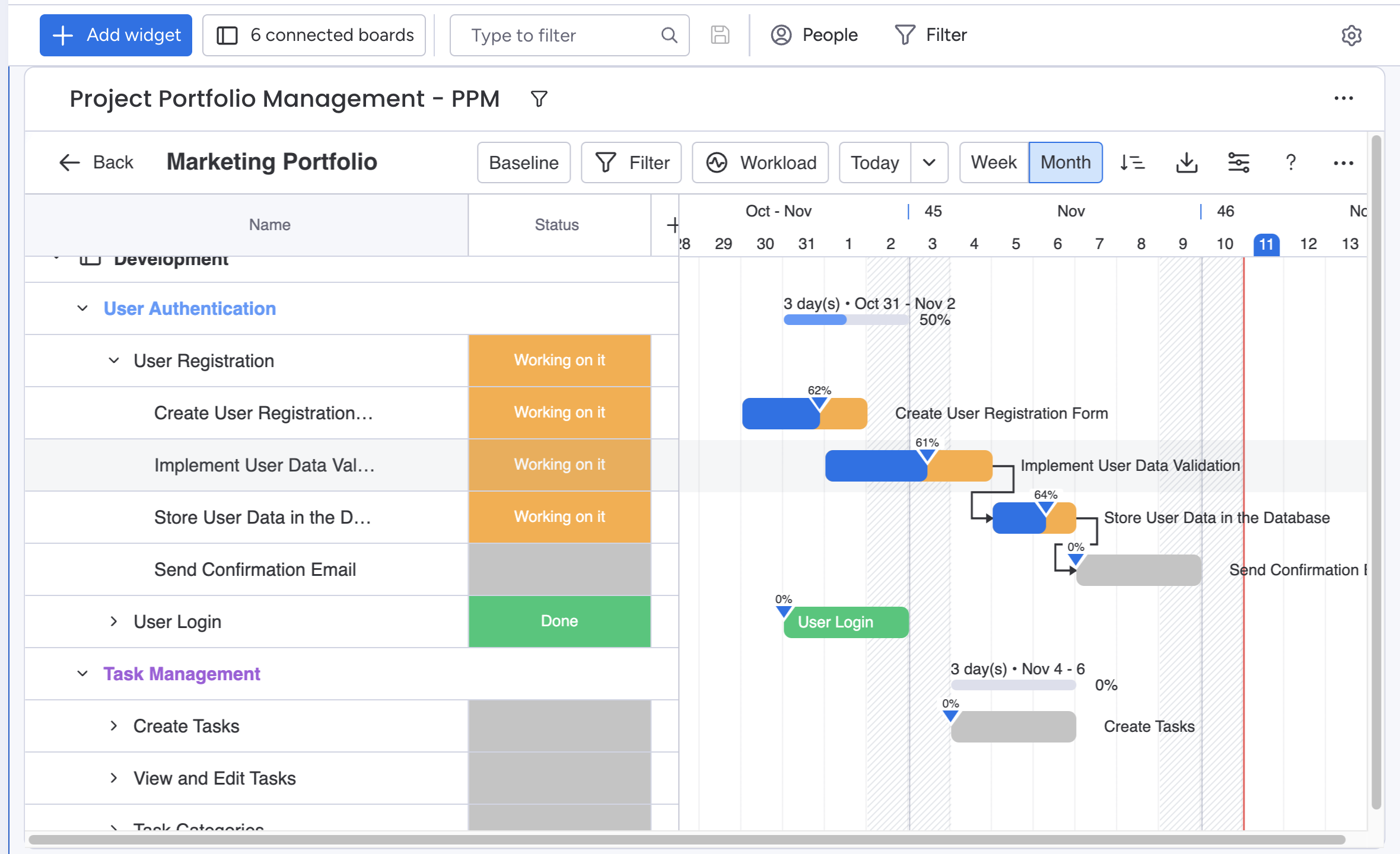
Some widgets may experience a delay in updating. Refreshing the dashboard should resolve this, but if not, try adjusting widget settings or contacting support.
Thank you for choosing PPM as your trusted Project Portfolio Management solution. For any assistance or feedback, please don't hesitate to reach out to our support team. Enjoy managing your projects with us!
📫 Email us: hello@teamboard.cloud