.png)
There are 02 ways to create new licenses: bulk import and manual set up .
Manual Set Up
On the top right of the Licenses page, click on 
-
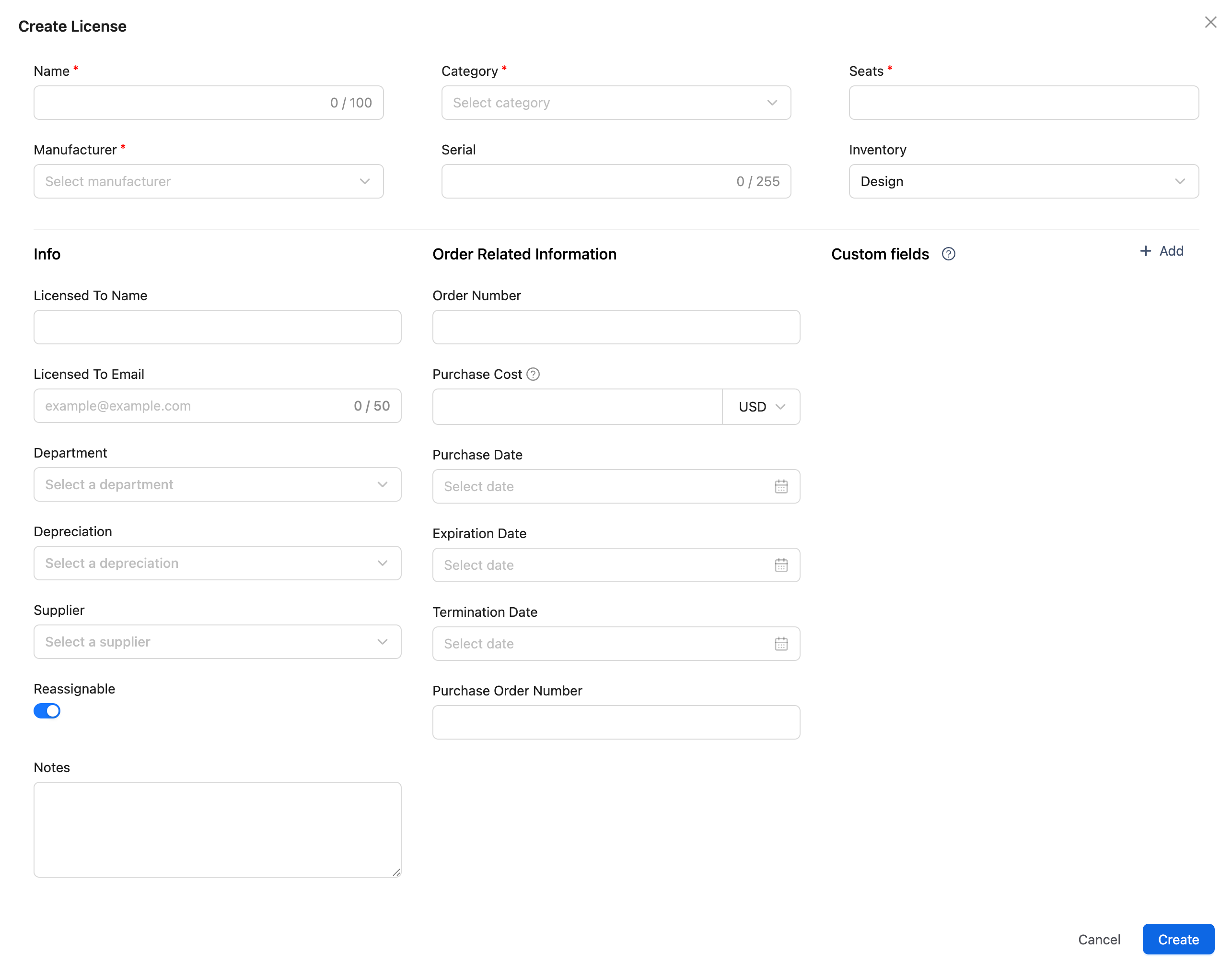
Fill in the Required Information:
-
Software Name: Provide a descriptive name for the software (e.g., "Microsoft Office 365").
-
Category: Choose the category that best describes the software. Use the New button to add a new category if one doesn’t exist.
-
Seats: Specify the number of licenses or user seats available for this software.
-
Manufacturer: Select the software manufacturer from the list. You can add a new manufacturer by clicking New.
-
-
Optional Fields:
-
Serial, Department, Depreciation, Inventory, Suppliers, etc: Use these fields to add further details about the license.
-
Reassignable: Check this box if the license can be reassigned to another user, which means it can be checked in.
-
-
Order Related Information:
-
Order Number: Enter the unique order number for tracking purposes.
-
Purchase Cost: Specify the cost of the license, using up to two decimal places.
-
Purchase Date: Select the date the license was purchased.
-
Expiration Date: Choose the date the license will expire. This is crucial for receiving notifications.
-
Termination Date: If applicable, enter the date the license agreement ends.
-
Purchase Order Number: Input the purchase order number related to this license for reference.
-
To set up when you want to be notified about an upcoming license expiration, go to Preferences.
-
After filling in all the necessary details, click the Create button to create the new license in AssetIT.
Bulk Import
-
On the top right of the Licenses page, click on the dropdown of
-
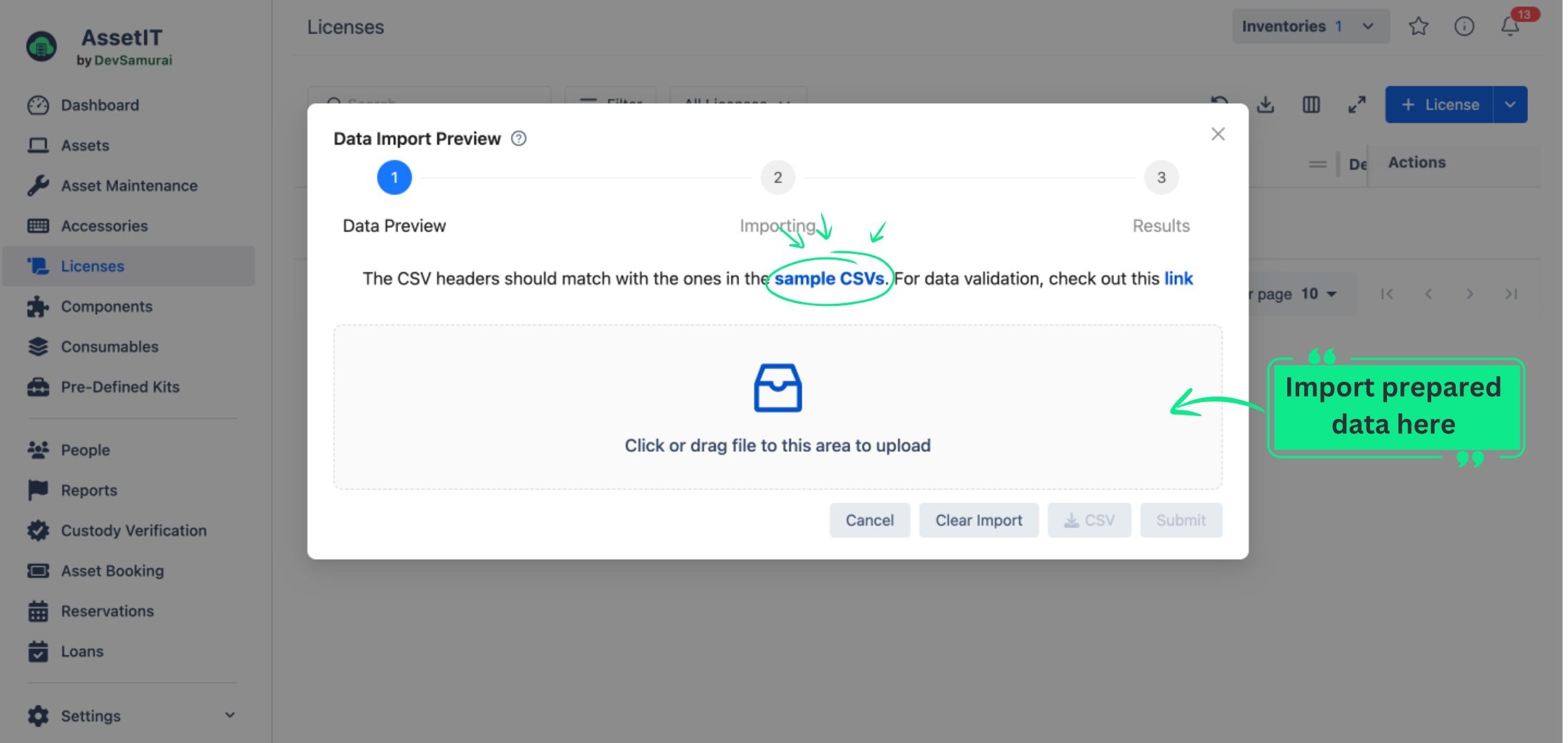
You will see a table that instructs you to use the sample CSV file for data preparation.
-
Once you finish preparing your data, import it into the app. You will then be taken to the Data Preview stage.
-
In the Data Preview stage, the app will highlight any fields with errors, allowing you to make adjustments directly.
-
To modify data information, click on the Edit button.
-
To automatically generate missing data for Department , Inventory , Category , Location , Supplier , Manufacturer , Depreciation , and Status Label , click on the “Generate Data” button.
-
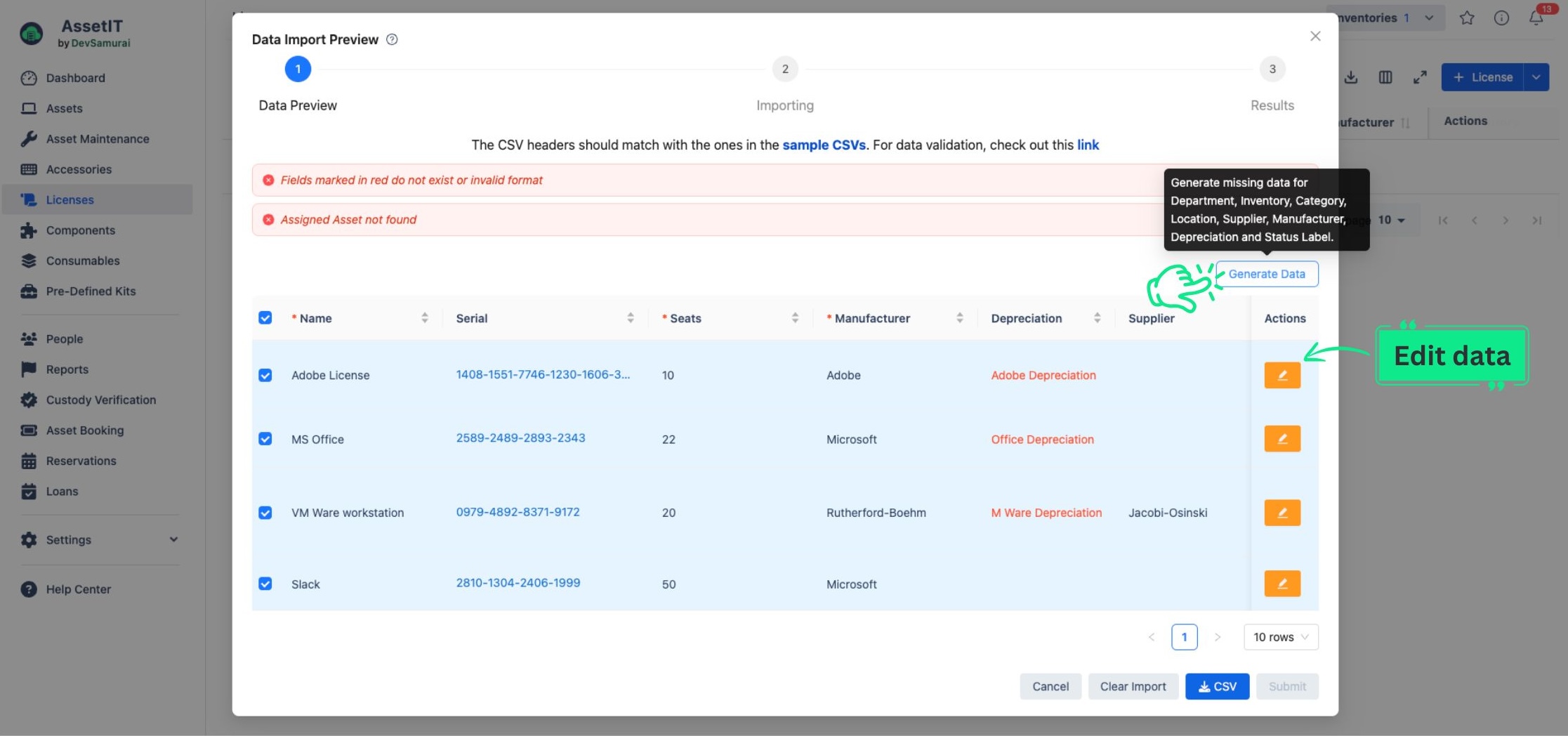
You can also download the most recently modified data into a CSV file for further customization by clicking the 
-
Click on Submit to finish importing your licenses.
-
You should now see a list of your licenses on the Licenses page.