.png)
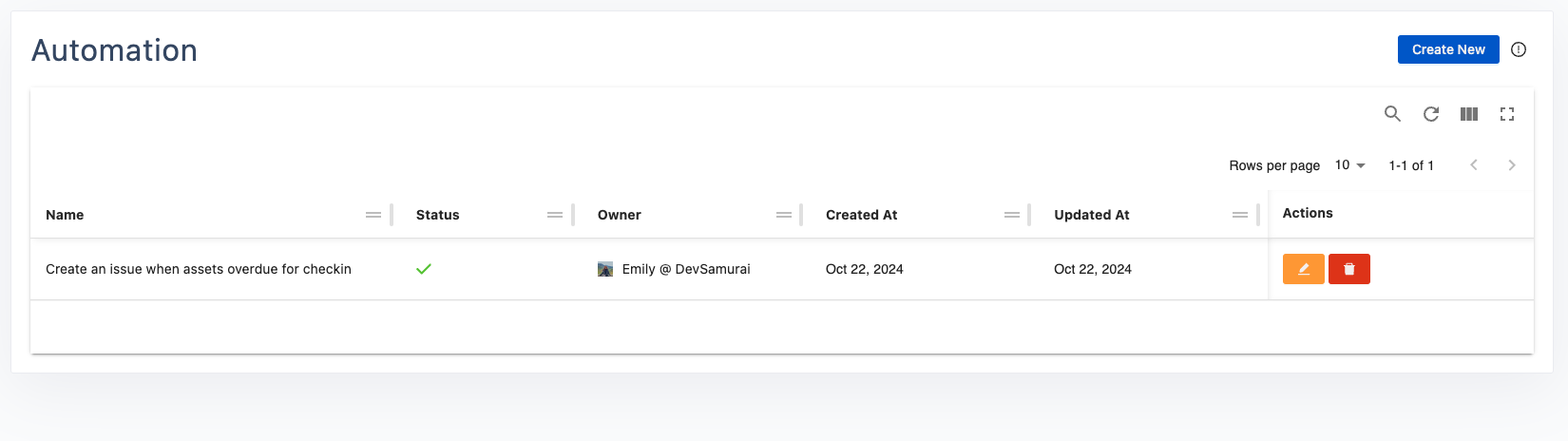
This rule is designed to automatically generate a Jira issue when an asset is overdue for its expected check-in date. By setting this rule, you can ensure timely follow-up and resolution of overdue assets.
1. Set Up the Trigger
Purpose: the rule will activate when an asset is overdue by 1 day from the expected check-in date.
-
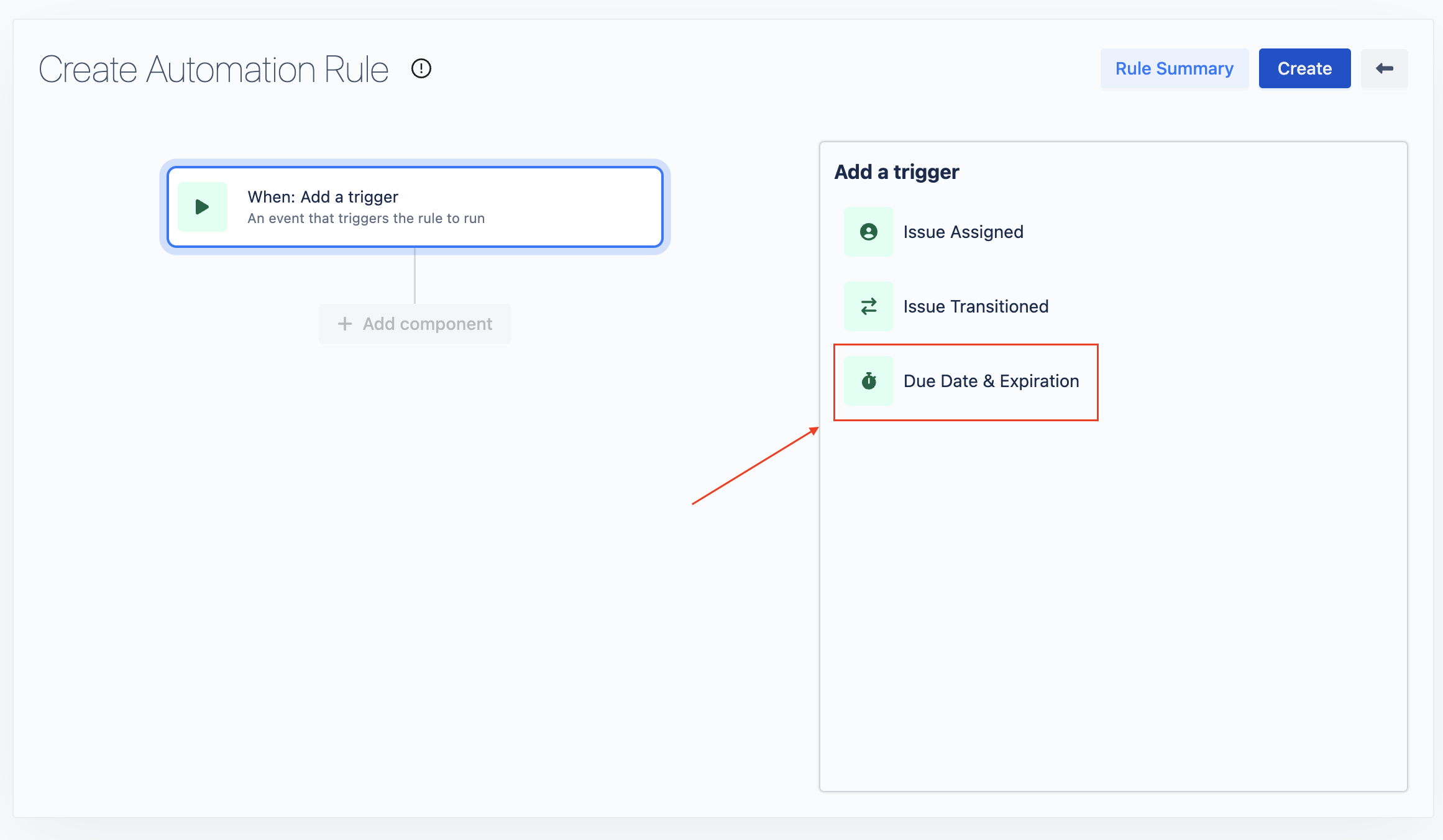
Trigger: Due Date & Expiration
-
Configuration:
-
Resource Type: Choose Asset.
-
With: Select Expected Checkin.
-
Days Overdue: Enter 1.
-
Click Next to proceed.
-
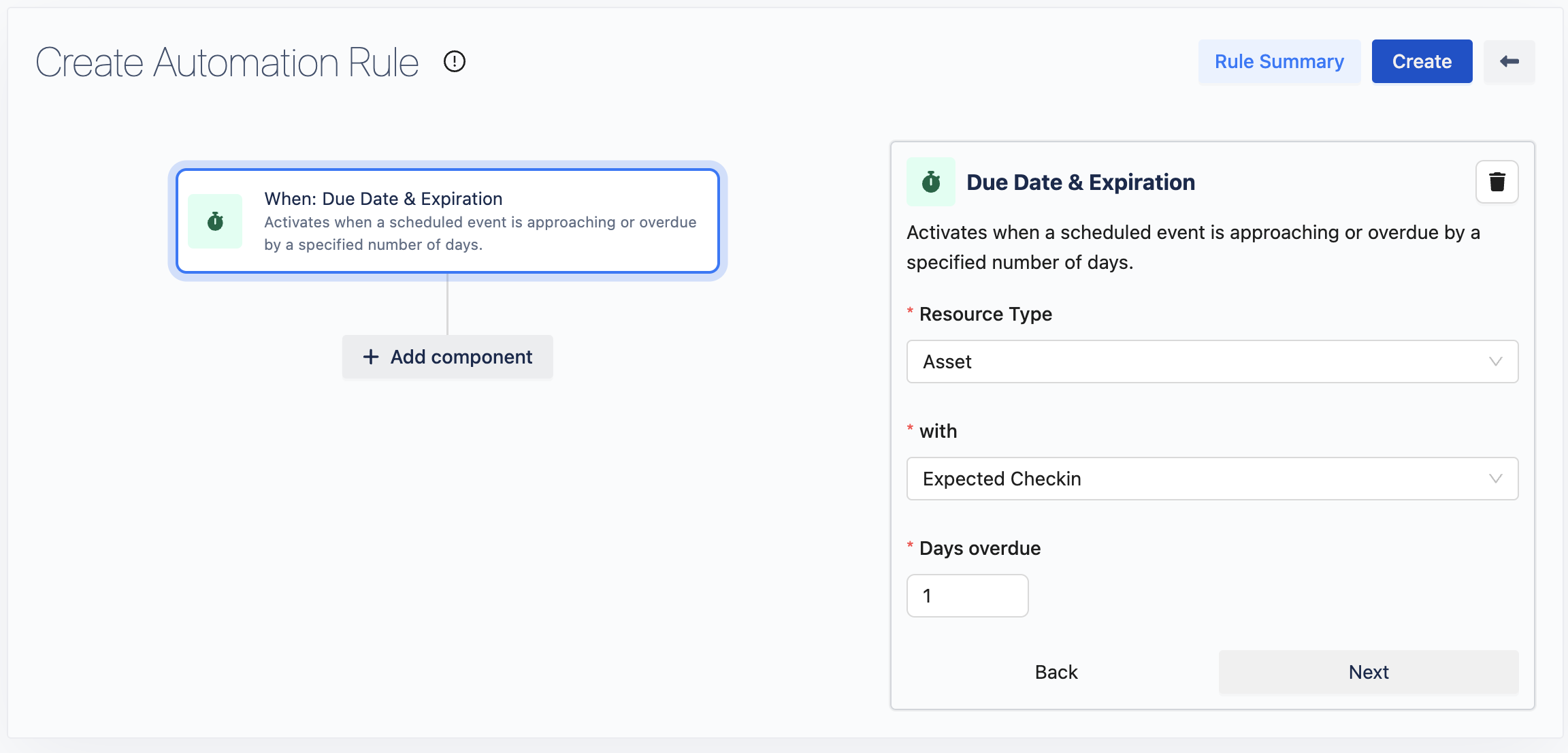
2. Add an Action
-
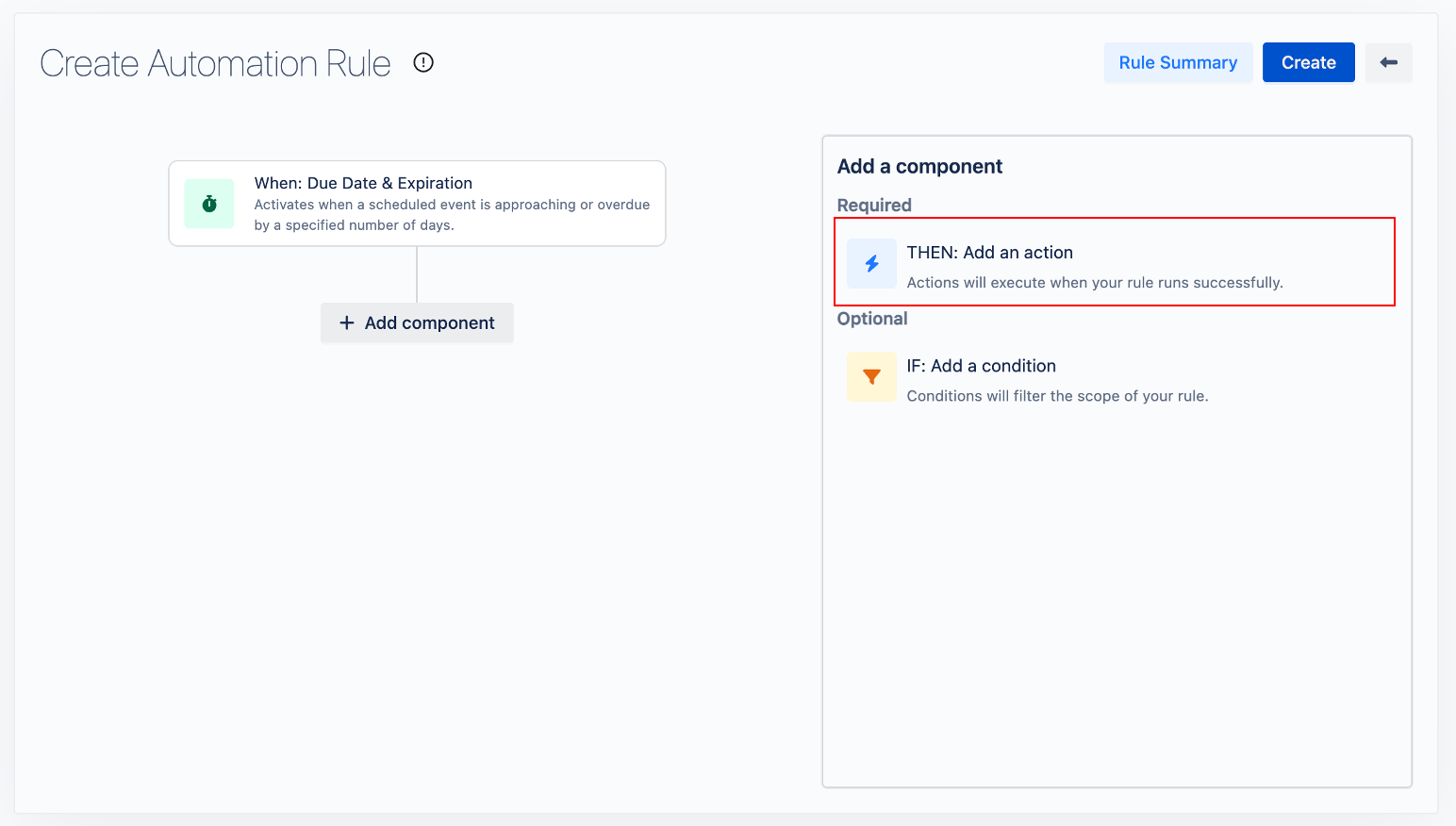
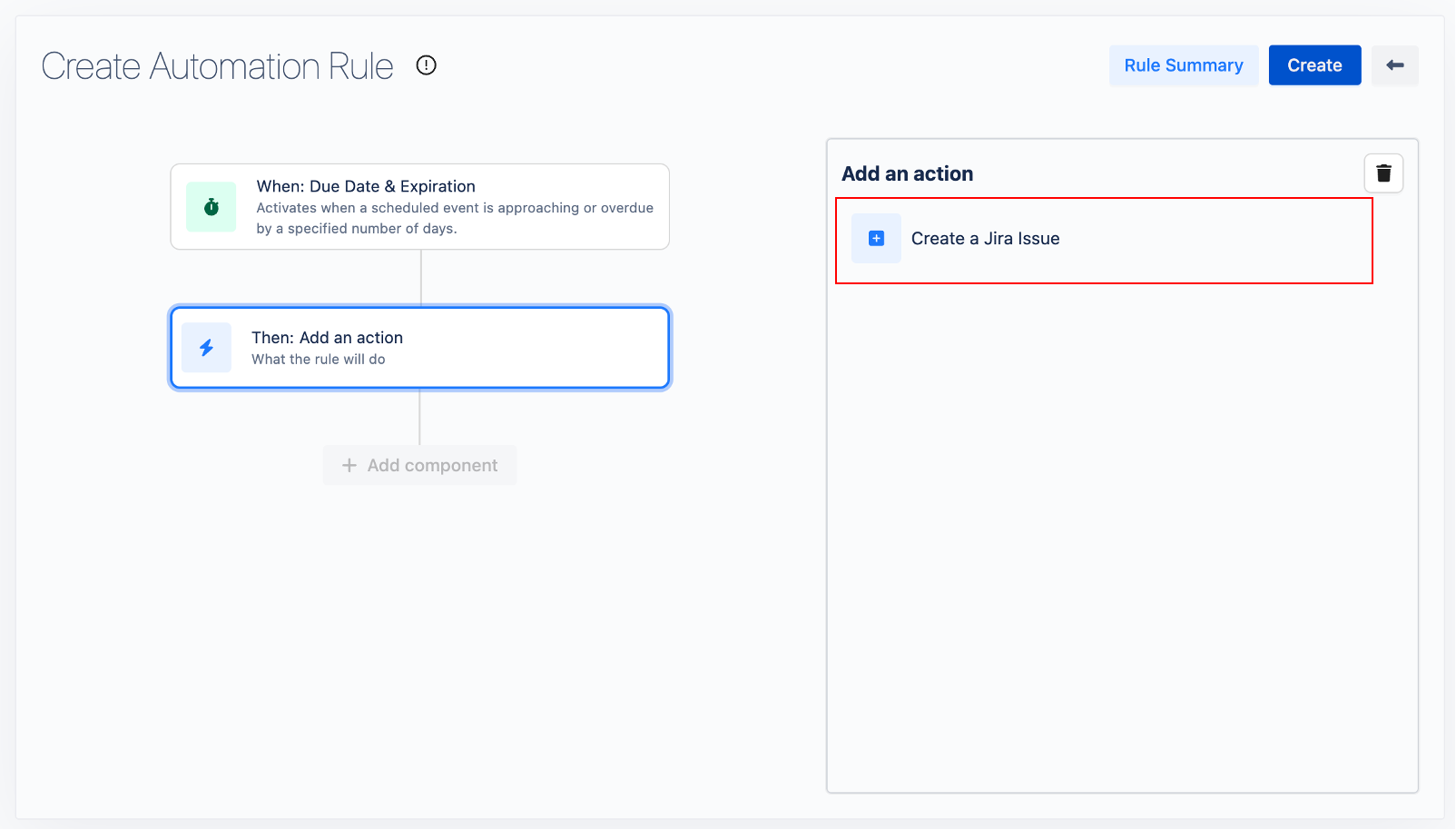
Choose a Component: After clicking on Add a component, select Add an action from the dialog that appears.
-
Action Selection: You will be directed to the action selection stage. Click on Create a Jira Issue.
-
Configuration:
-
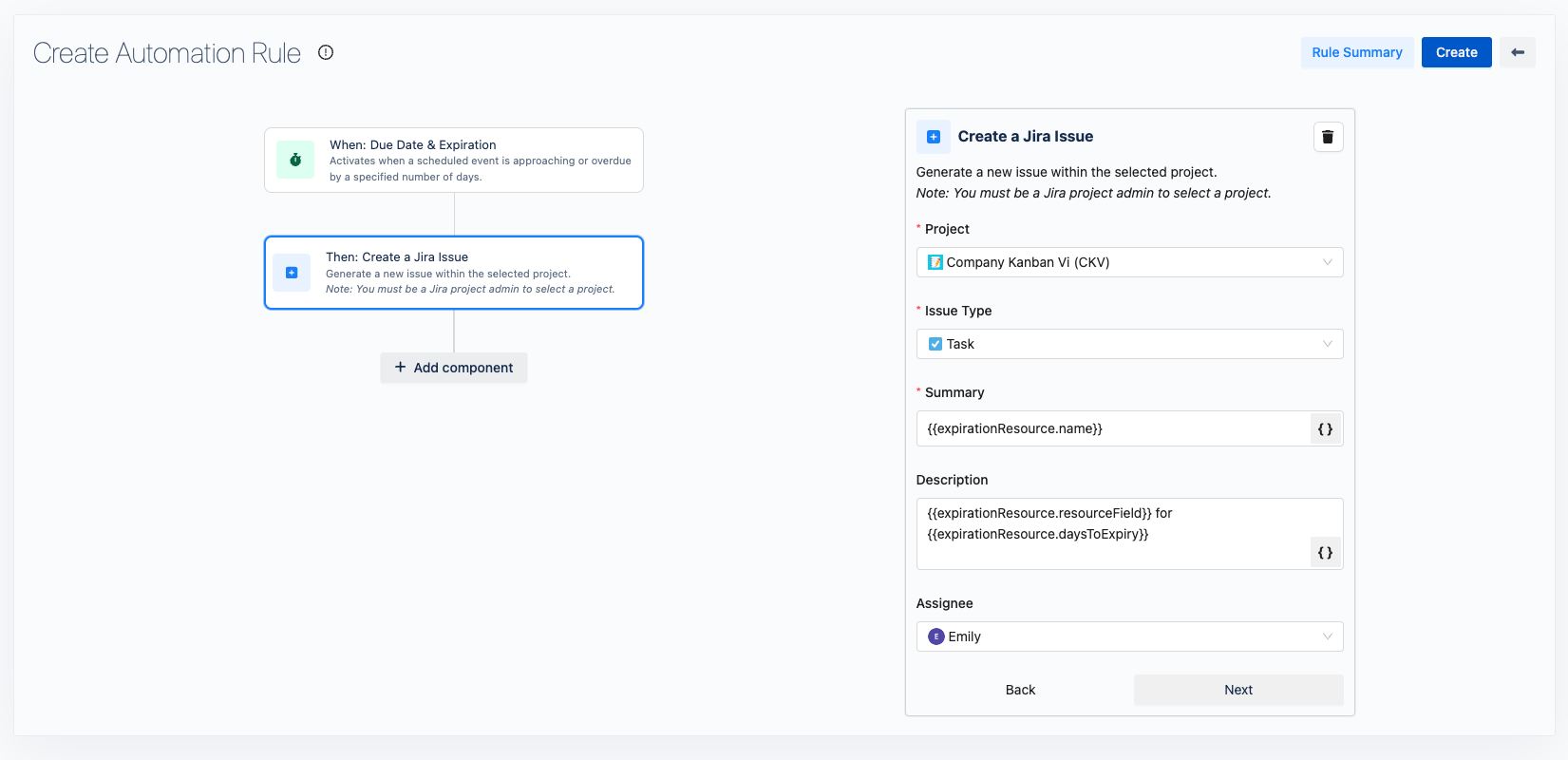
Project: Select the relevant Jira project from the dropdown menu.
-
Issue Type: Choose the type of issue from the dropdown menu.
-
Summary: Provide a summary of the issue. You can use the Smart Value Overdue/Expiration Resource - Name to dynamically insert the resource name.
-
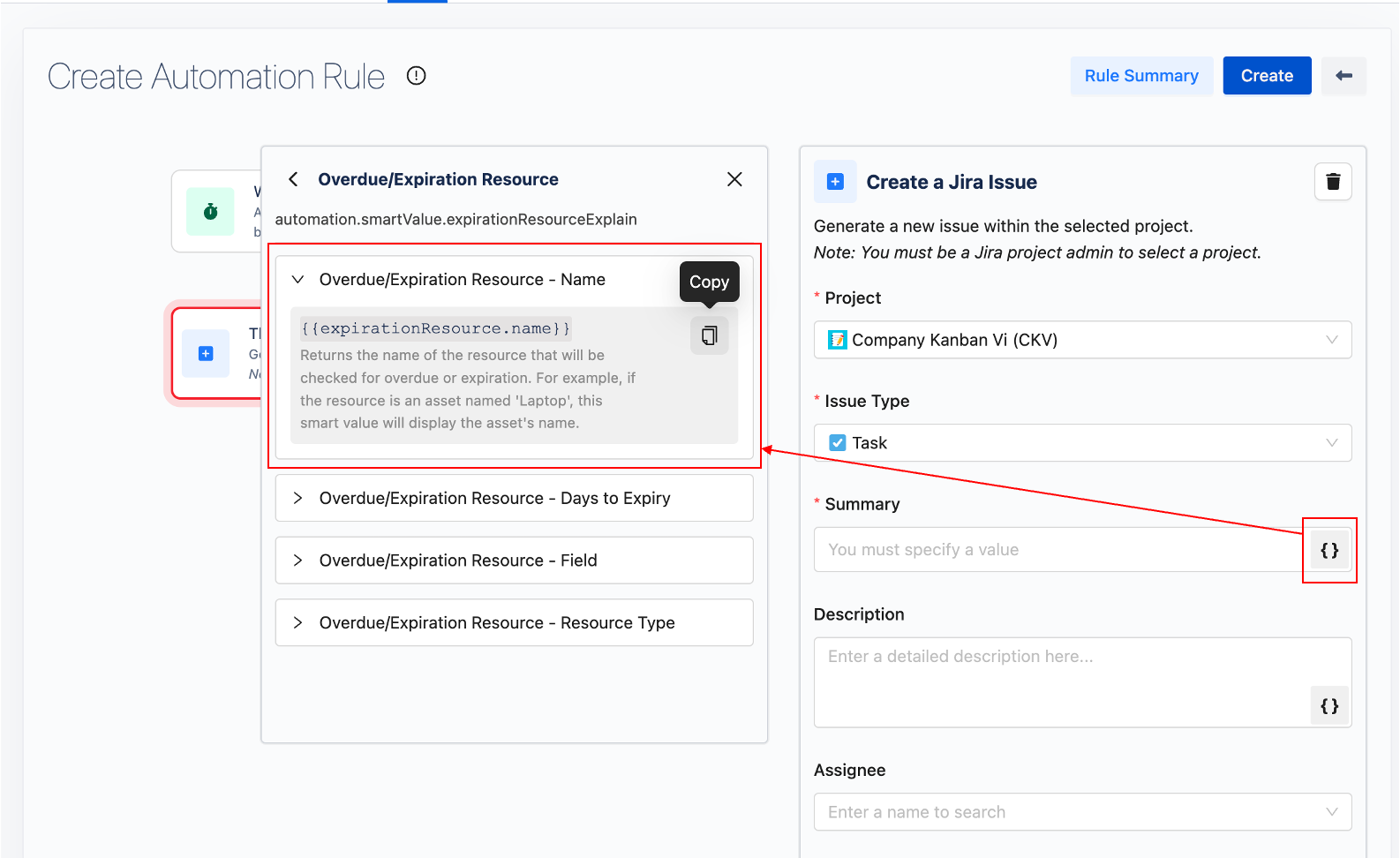
Description: Enter a detailed description of the issue.
Assignee: Optionally, specify who the issue will be assigned to.
Action Completion: Click Next to proceed.
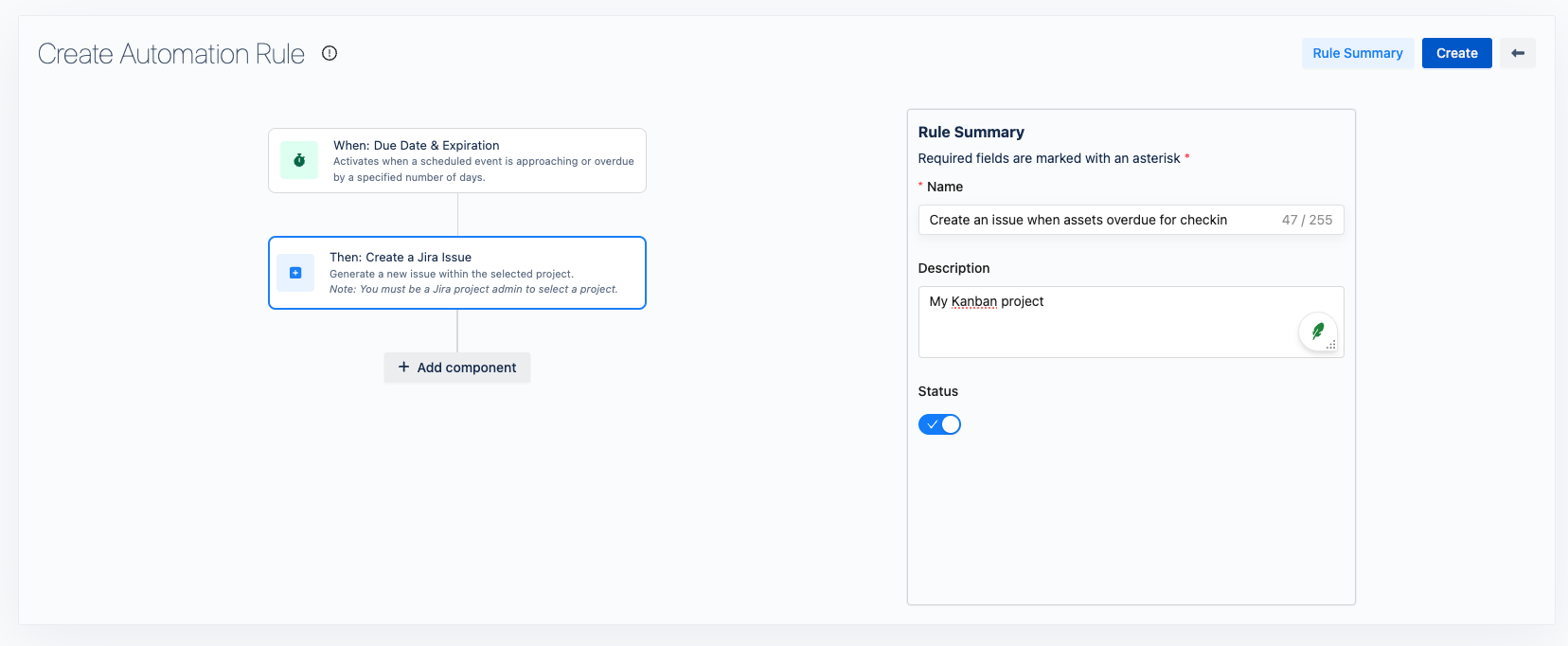
3. Add Rule Summary
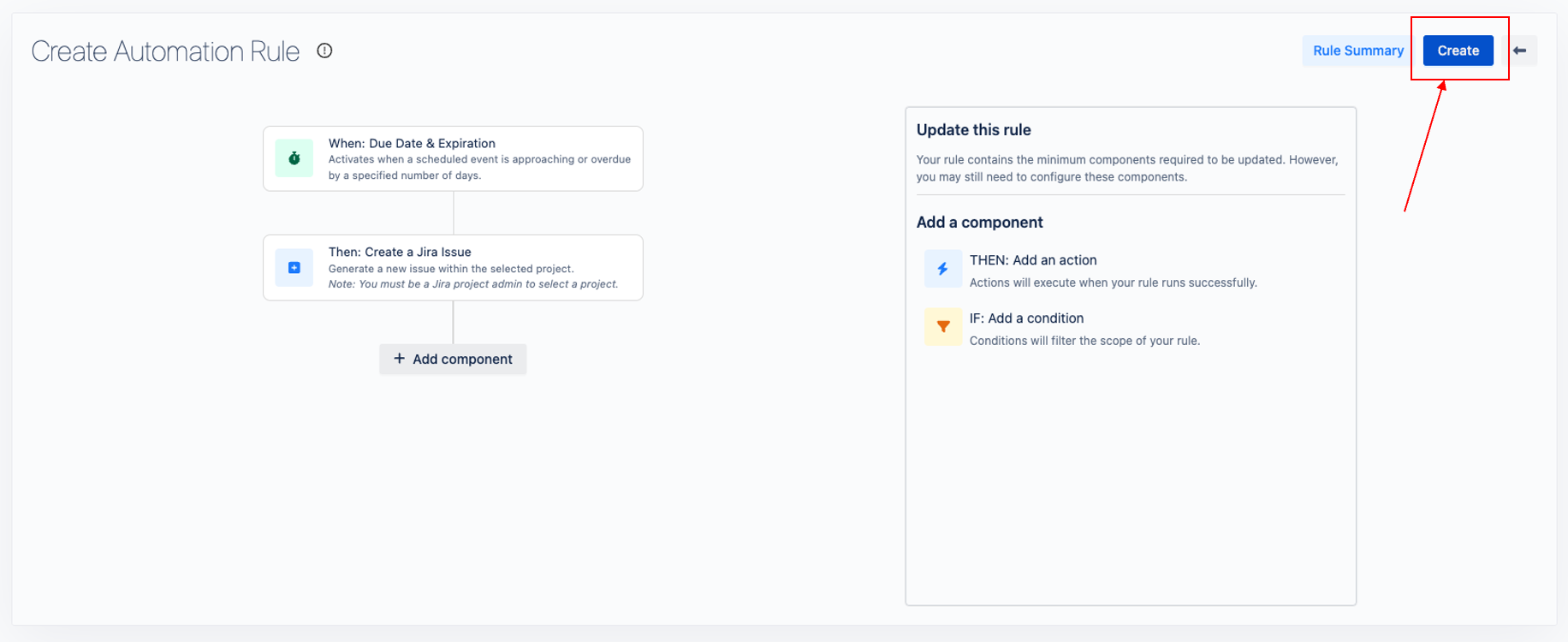
Click on 
-
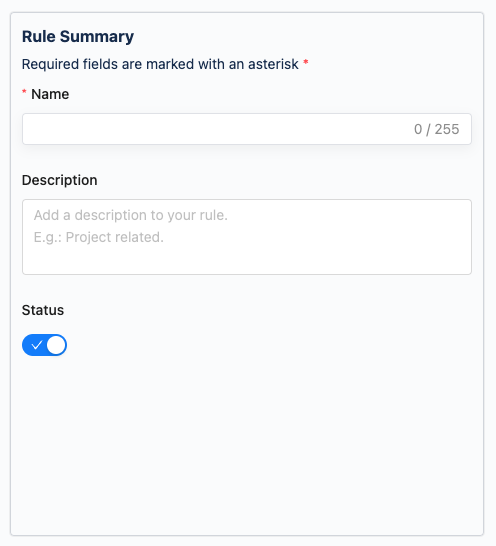
Inputs Required:
-
Rule Name: Enter a descriptive name for your rule.
-
Description: Optionally, add a description for clarity.
-
Toggle Status: Choose to enable or disable the rule.
-
-
Completion: After filling in the required information, click the