.png)
The Email Integrations feature in Sales & CRM for Jira allows you to connect your Gmail or Outlook account and send emails directly from the app.
By integrating your email, you can:
-
Send and receive emails without leaving Sales & CRM for Jira.
-
Maintain consistent communication by applying custom email signatures.
Sales & CRM currently supports integrations with:
-
Gmail
-
Outlook coming soon
Once connected, your emails become part of your CRM workflow, ensuring all communication is tracked and visible within Jira.
You can send up to 2000 recipients a day.
How to Integrate Sales & CRM for Jira with Email Systems
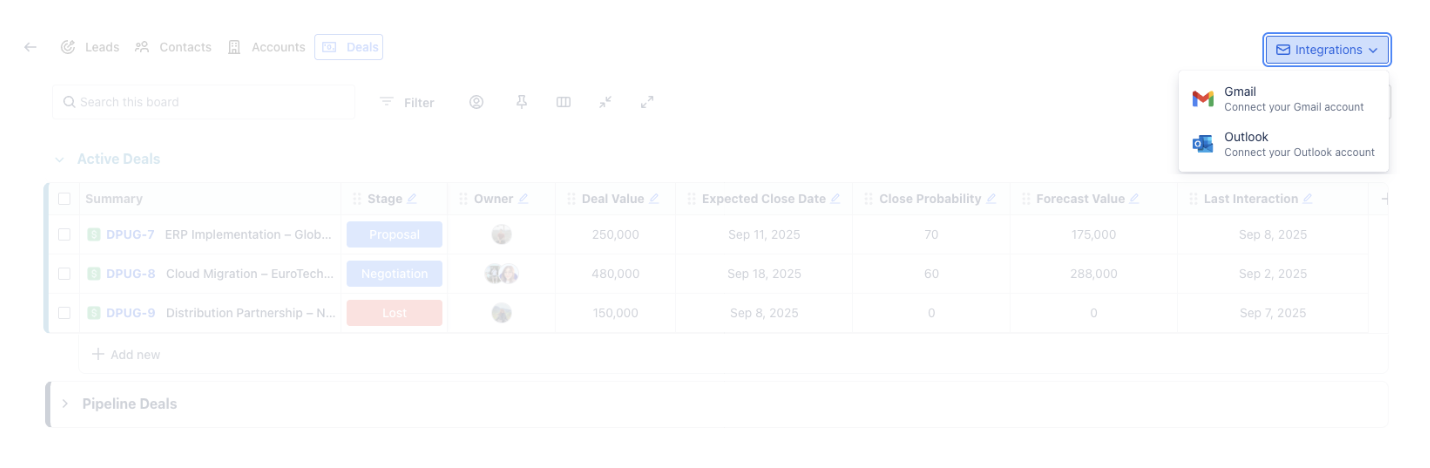
Step 1: Open the Integrations Menu
From the top-right of any board (Leads, Contacts, Accounts, or Deals), click 
and select your preferred email system.
Step 2: Navigate to Integration Settings
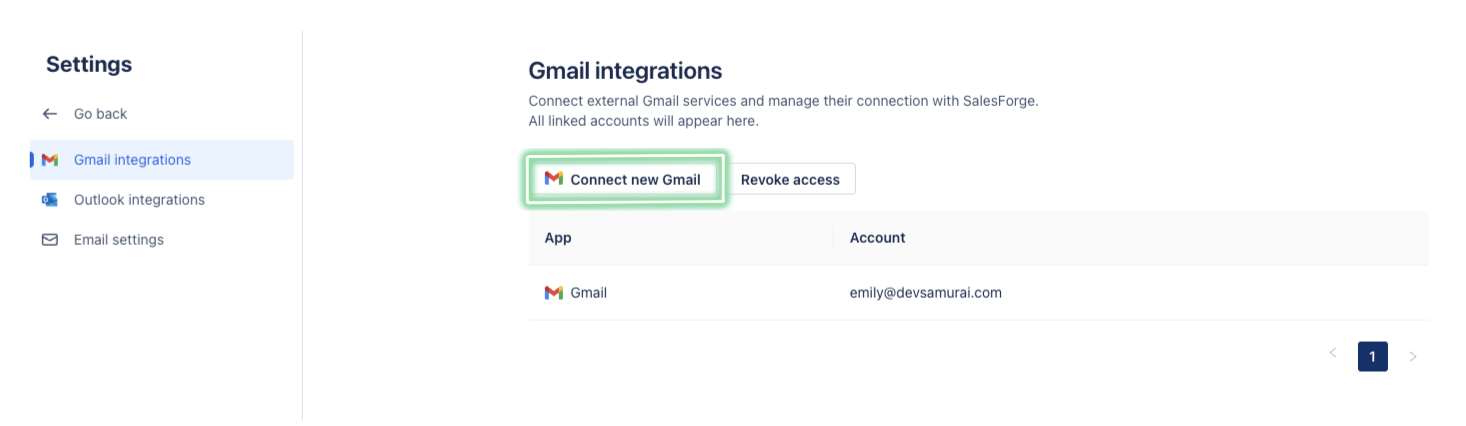
You will be navigated to the Integration Settings page for the selected email system.
-
For Gmail → Click Connect new Gmail account.
-
For Outlook → Click Connect new Outlook account.
Step 3: Authorize Access and Configuration
At times, Sales & CRM may require additional permissions to proceed with the integration.
Click 
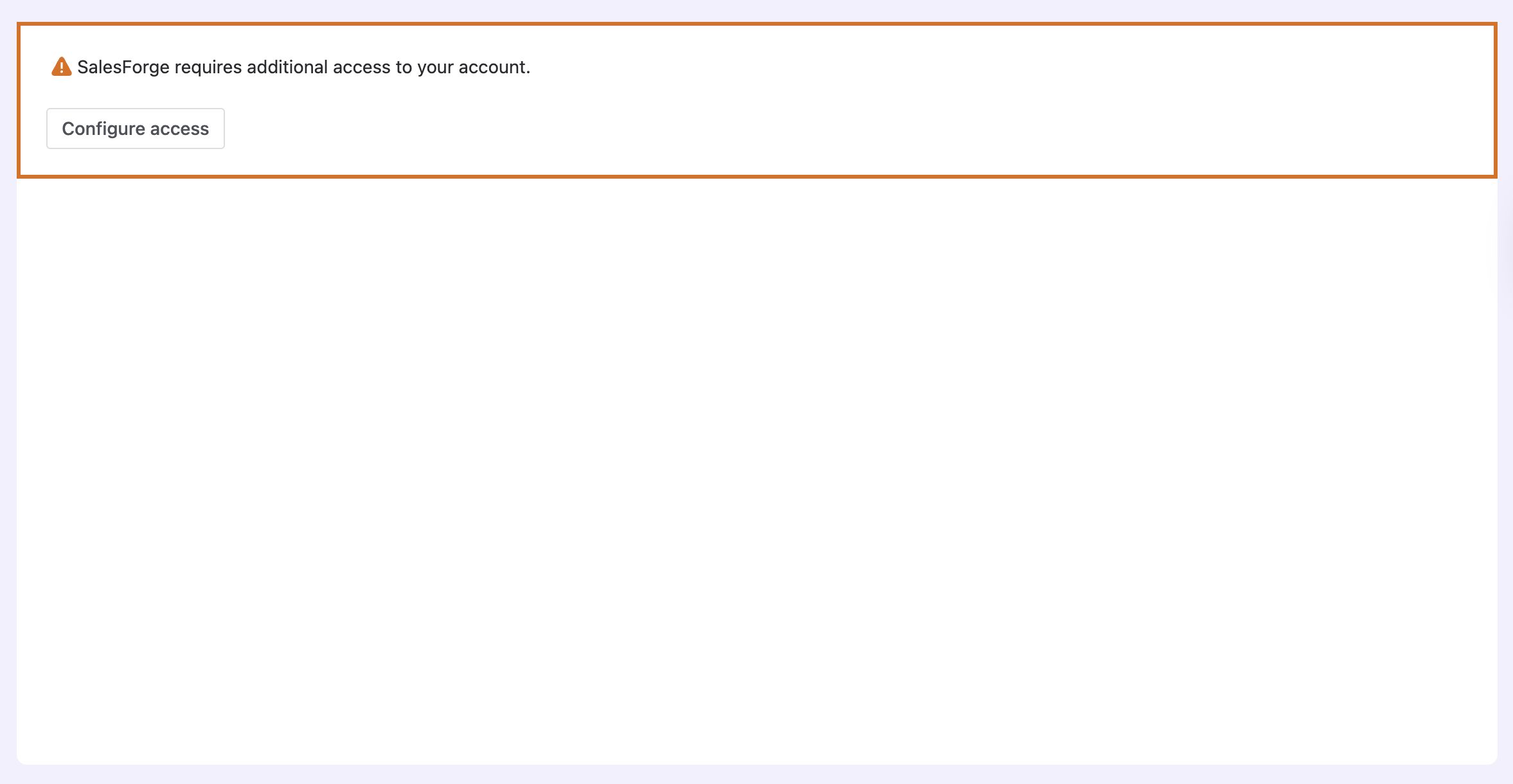
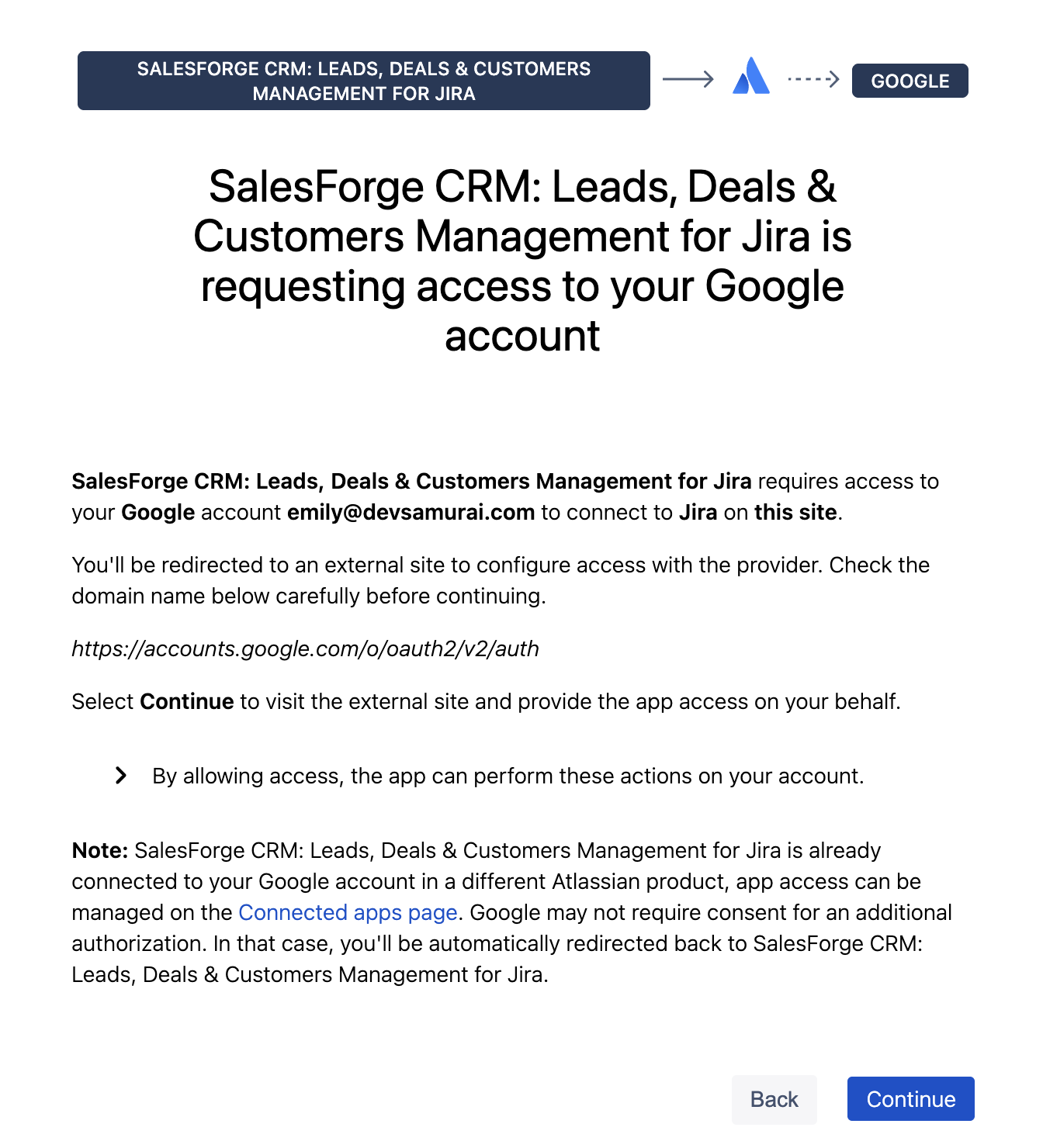
Next, review the request message. It confirms that Sales & CRM for Jira requires access to your Google account to enable email integration.
-
Review the request details carefully.
-
Click Continue to proceed.
Step 4: Select Account and Grant Permission
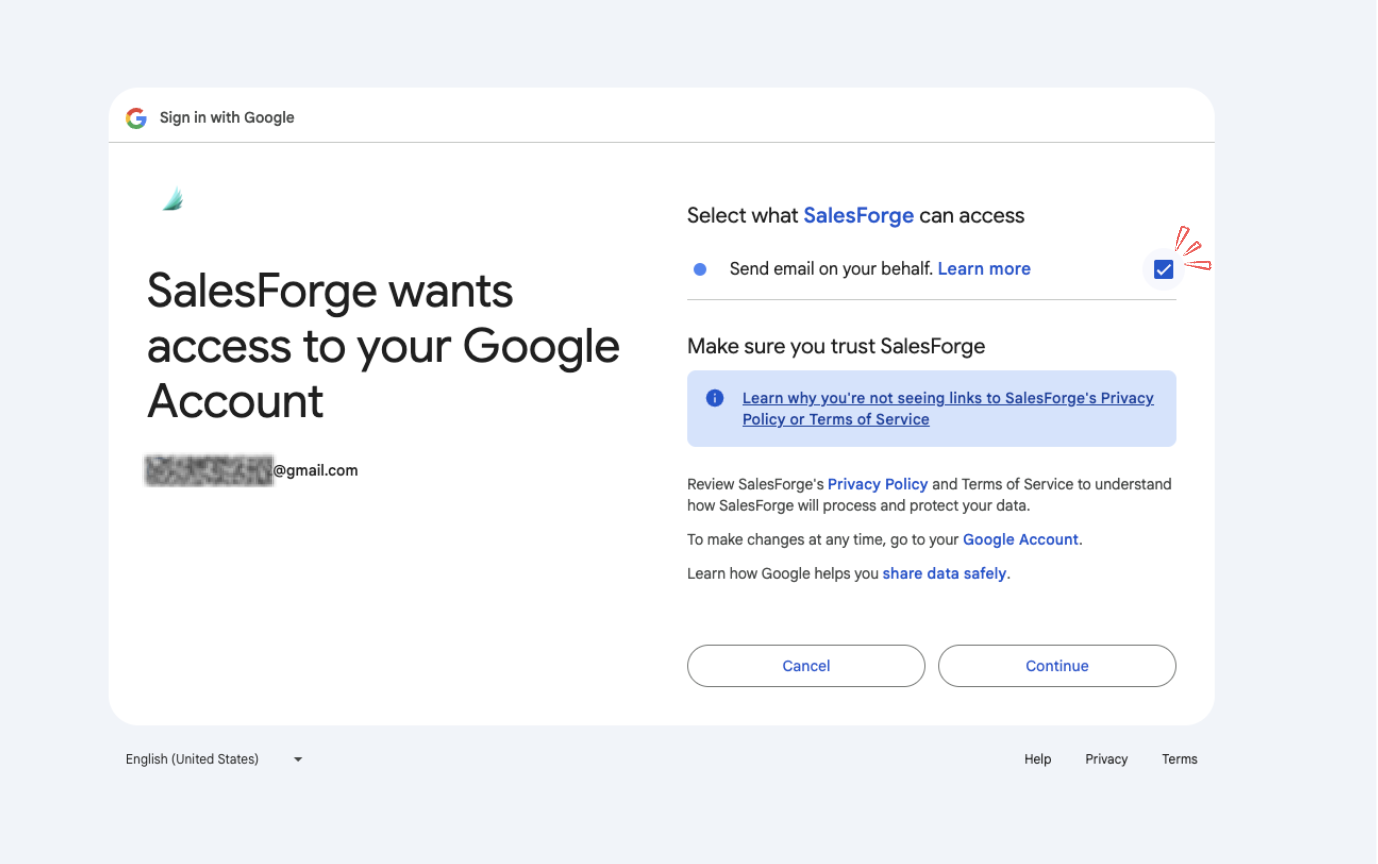
You’ll be redirected to the provider’s authorization page:
-
Choose the email account you want to connect, or sign in with another account.
-
Review the permission to send emails on your behalf, and click Continue.
✅ You’re all set! Your Sales & CRM boards are now linked with your email system, and you can now send emails directly from Sales & CRM for Jira.
-
You can connect multiple accounts if needed.
-
At any time, you can Revoke access to disconnect an account.