.png)
Add a work log
You have several options to log your work.
-
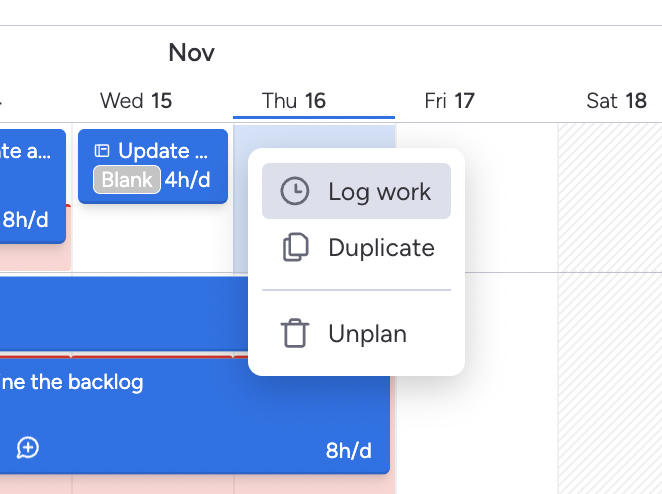
Click on
Log workfrom the context menu of the planned item on the schedule board.
-
In the Time Tracking screen, Click on
+ Worklogat the top-left or Click ➕ icon on the table.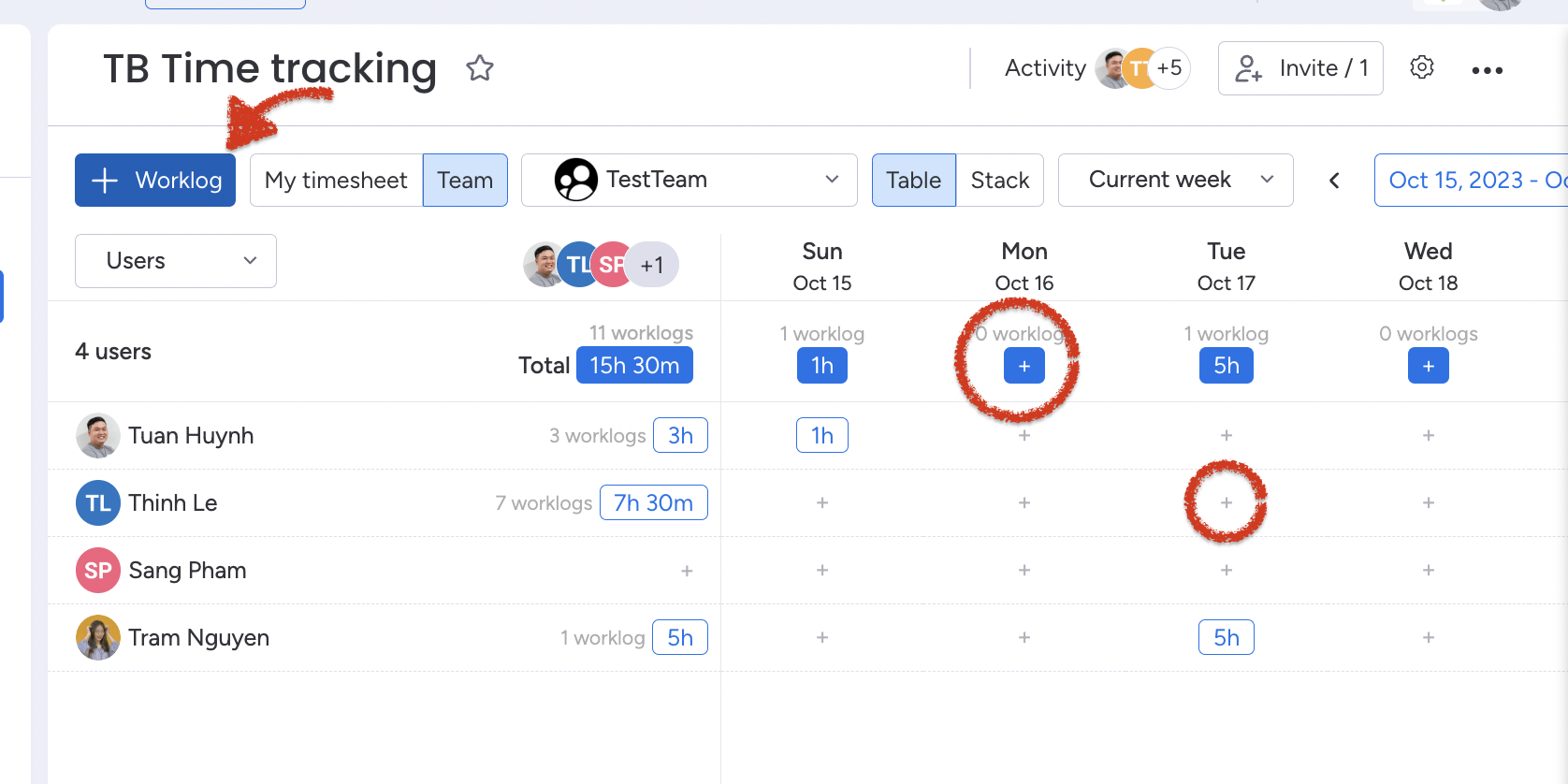
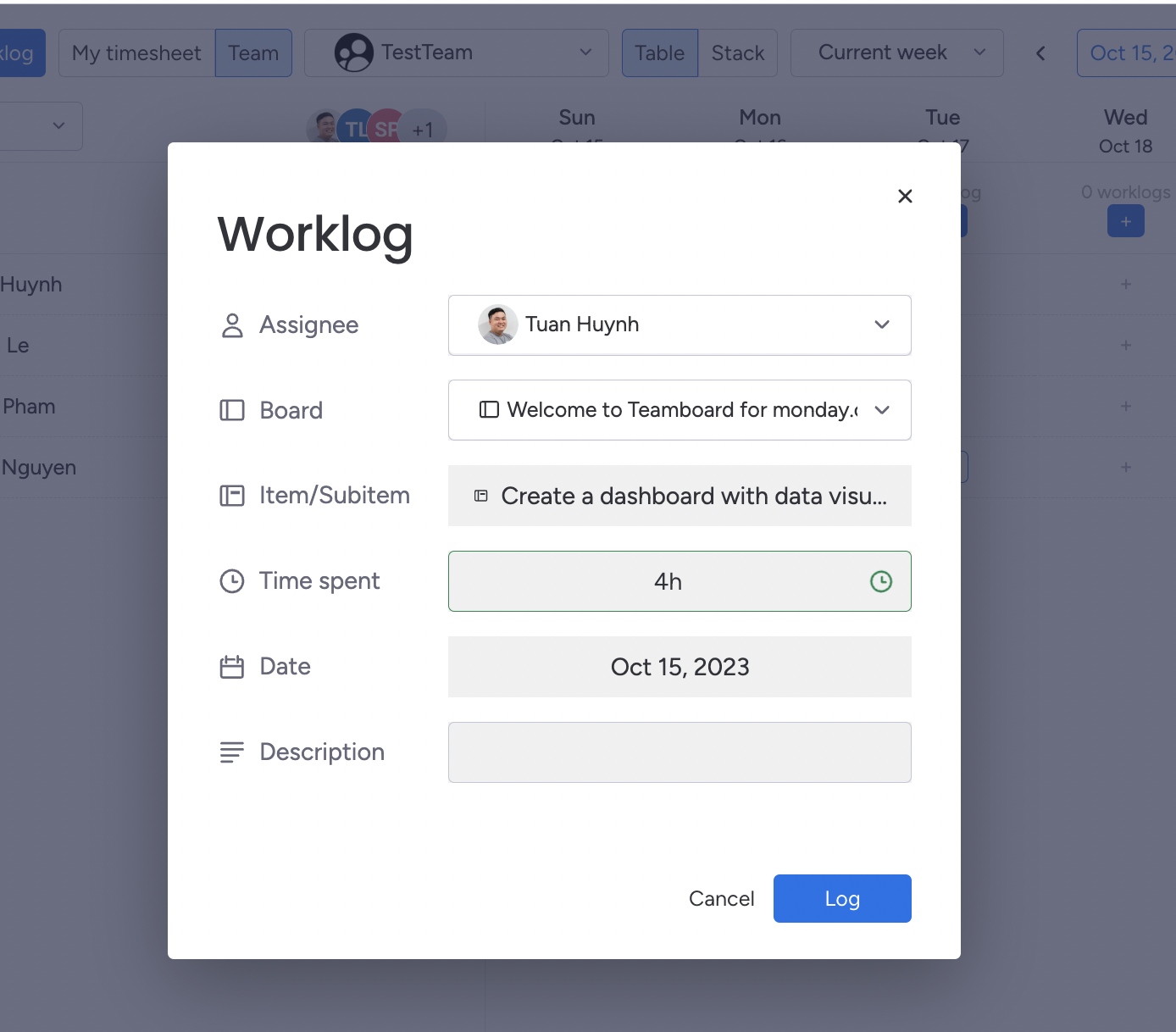
A dialog will appear where you can fill in the information for the work log.
Log work in item page
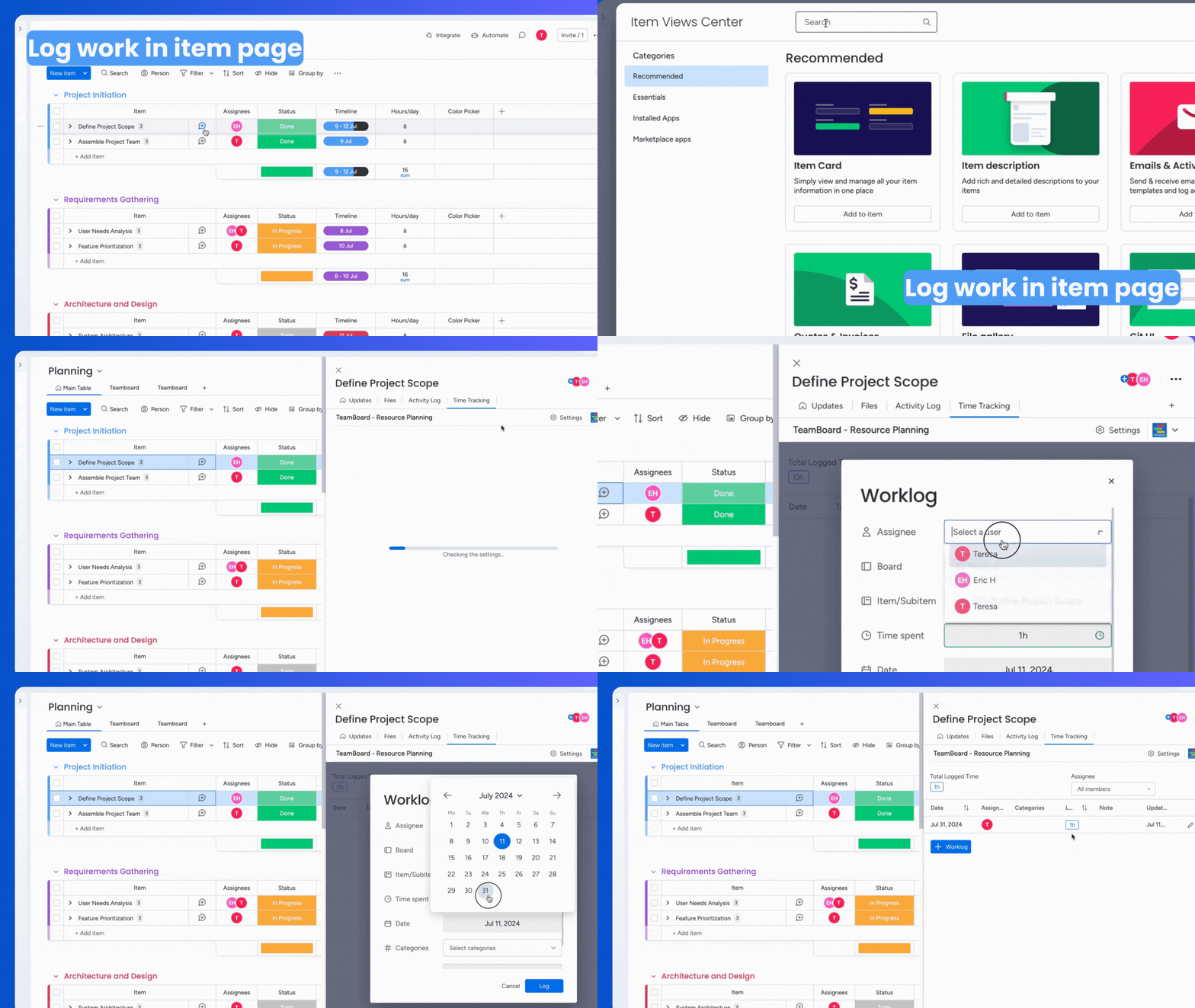
You can now log your work directly on the item page by following these steps:
-
Click the plus (+) icon to add a new view.
-
Choose "TeamBoard" from the options.
-
Click to add a worklog and begin logging your work.
Manage Work Logs
-
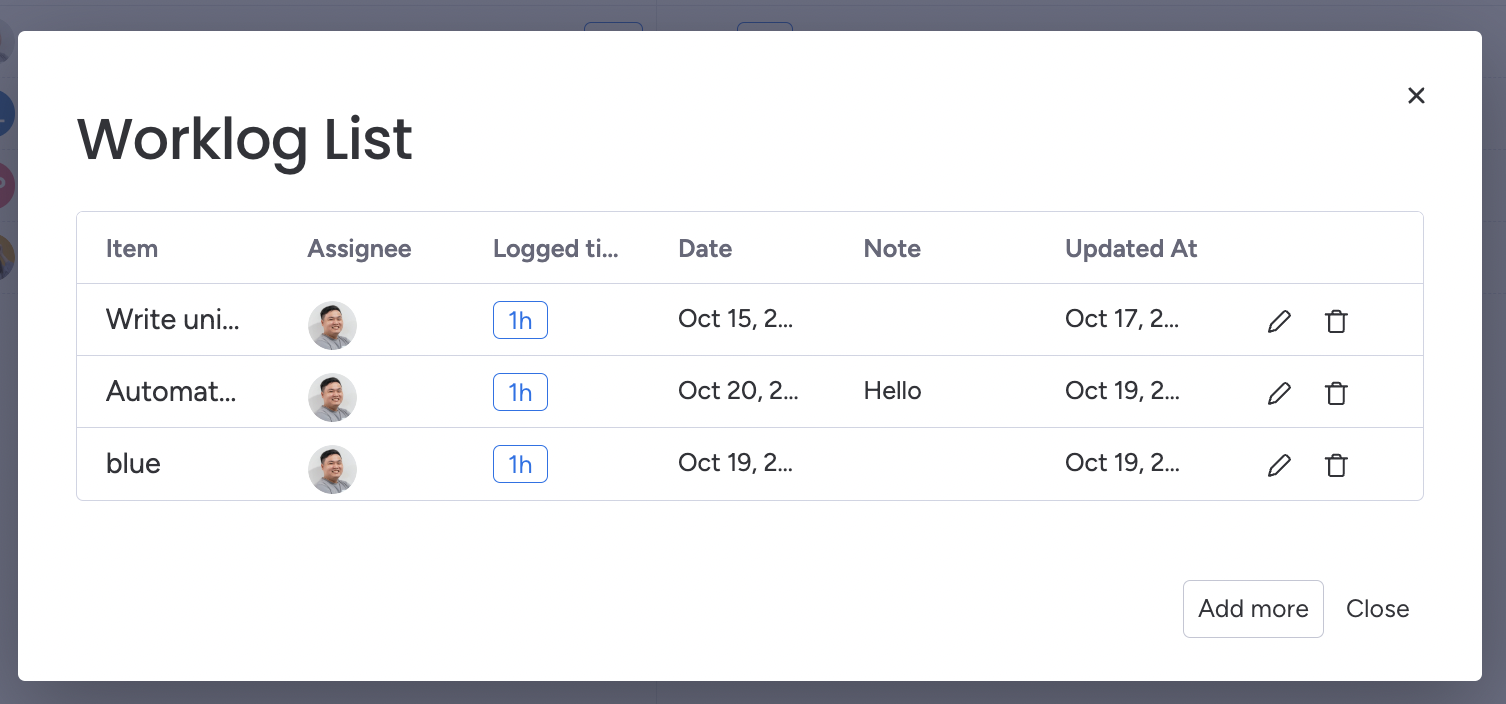
View the Work Logs List
-
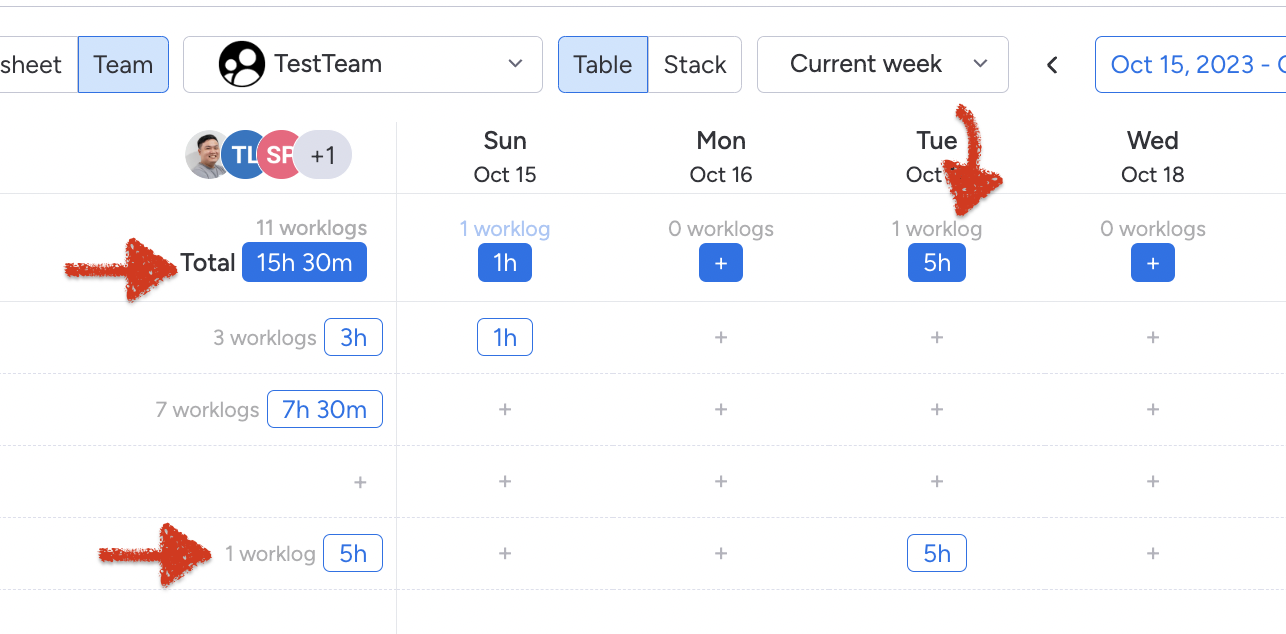
Easily view work log details by clicking on the total hour number.
-
-
Update and Delete Entries:
Within the work logs list, each work log item provides options to either update or delete.
-
Adding More Entries
Add more will be helpful for you in case you want to log a new one.
As a normal user, you're limited to logging and managing only your own work logs. Meanwhile, as an administrator, you have the ability to switch to the 'Team' view to inspect the work logs of specific teams. In particular, an admin can log work for other members as well.