.png)
This guide will walk you through the key features of the Board View Mode in TimePlanner and advanced tools like the "Today" Button and Date Picker, with instructions on how to use them efficiently.
1. Board View Mode
Board View Mode in TeamBoard TimePlanner refers to a calendar-based scheduling interface that allows users to manage and visualize their tasks, events, and team schedules across various timeframes. It provides a user-friendly way to track and organize workloads, projects, and timelines with flexibility and clarity.
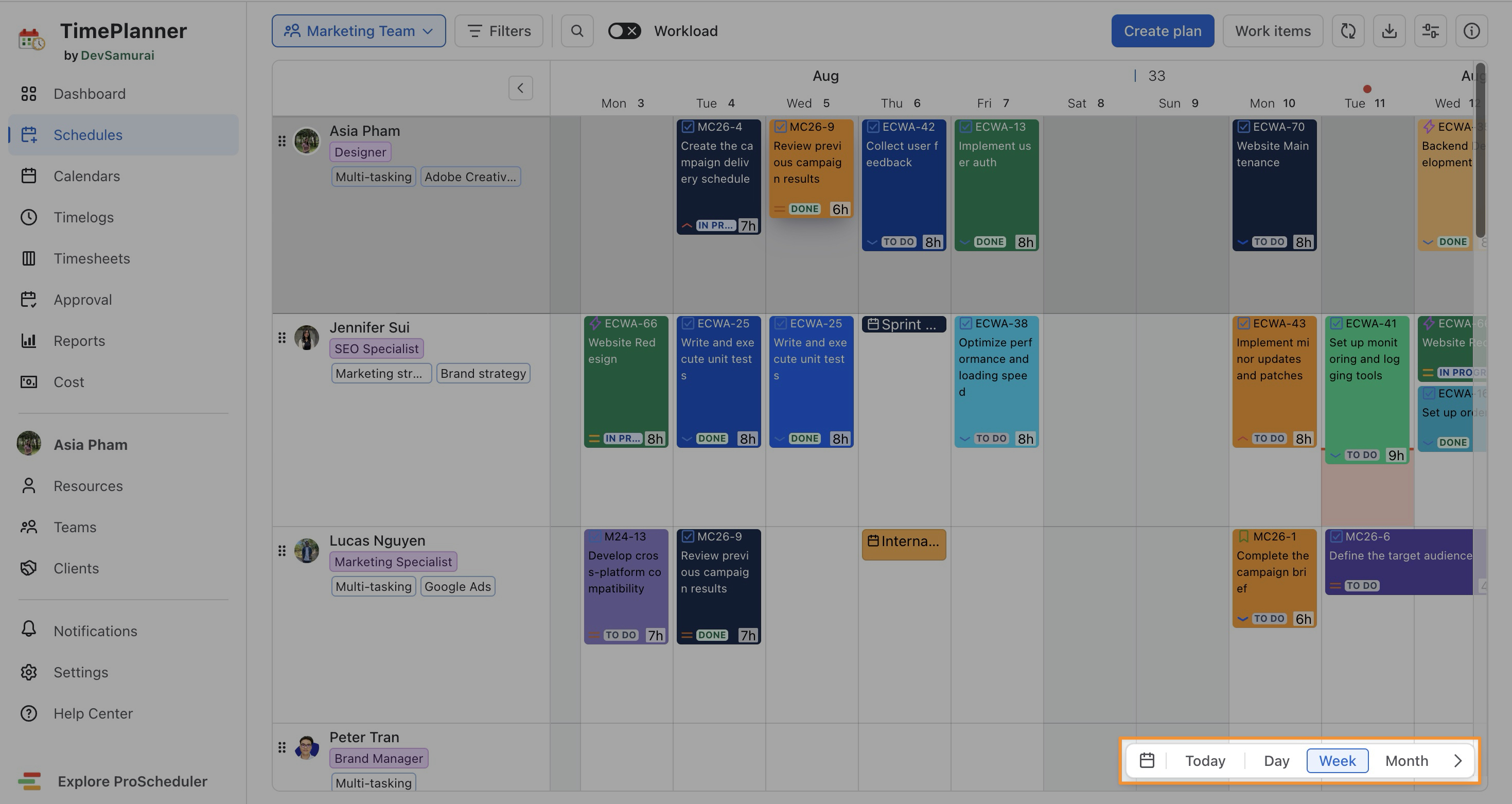
👉 How it works:
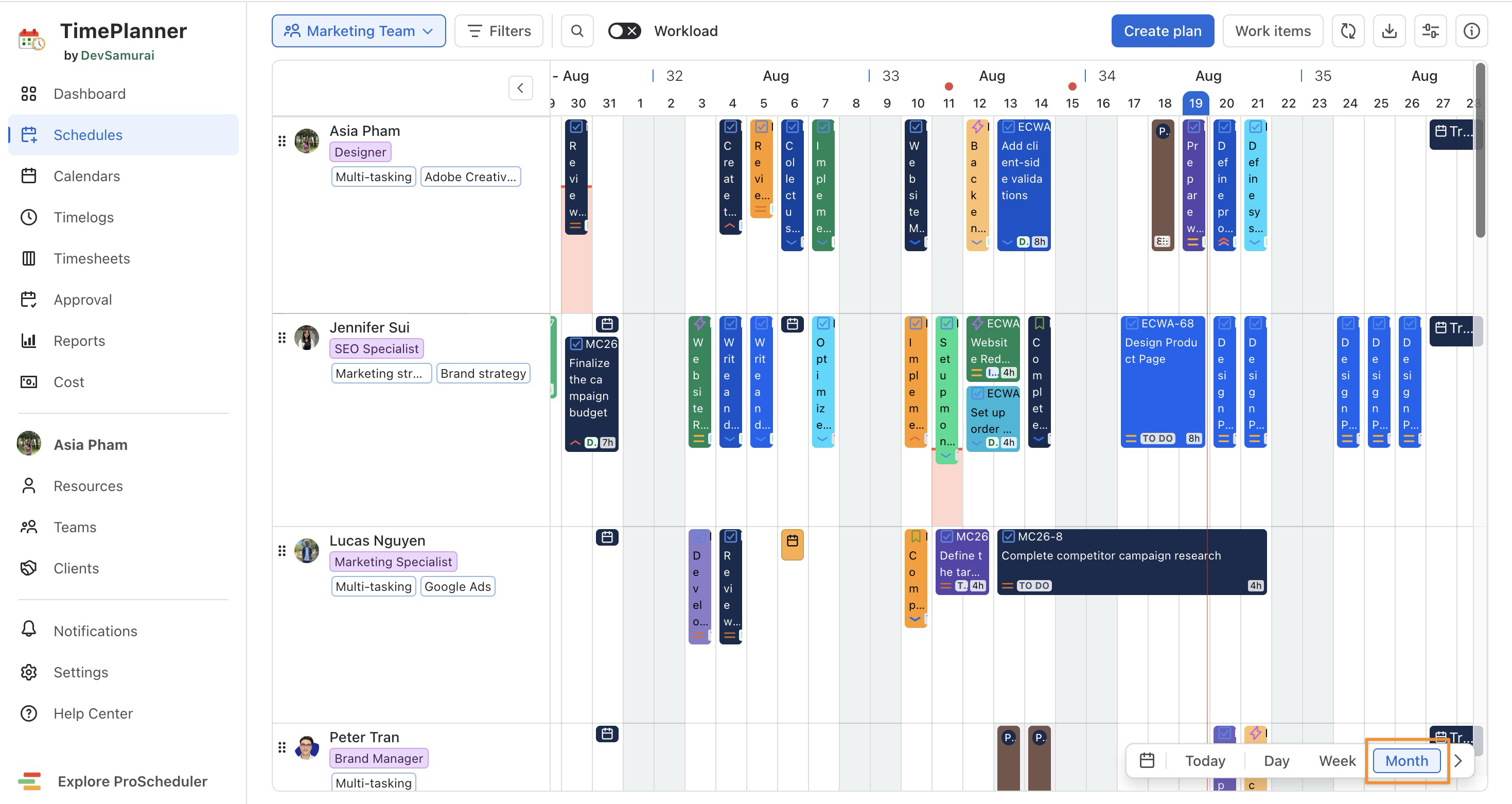
The board offers three distinct View Modes tailored to suit different planning needs:
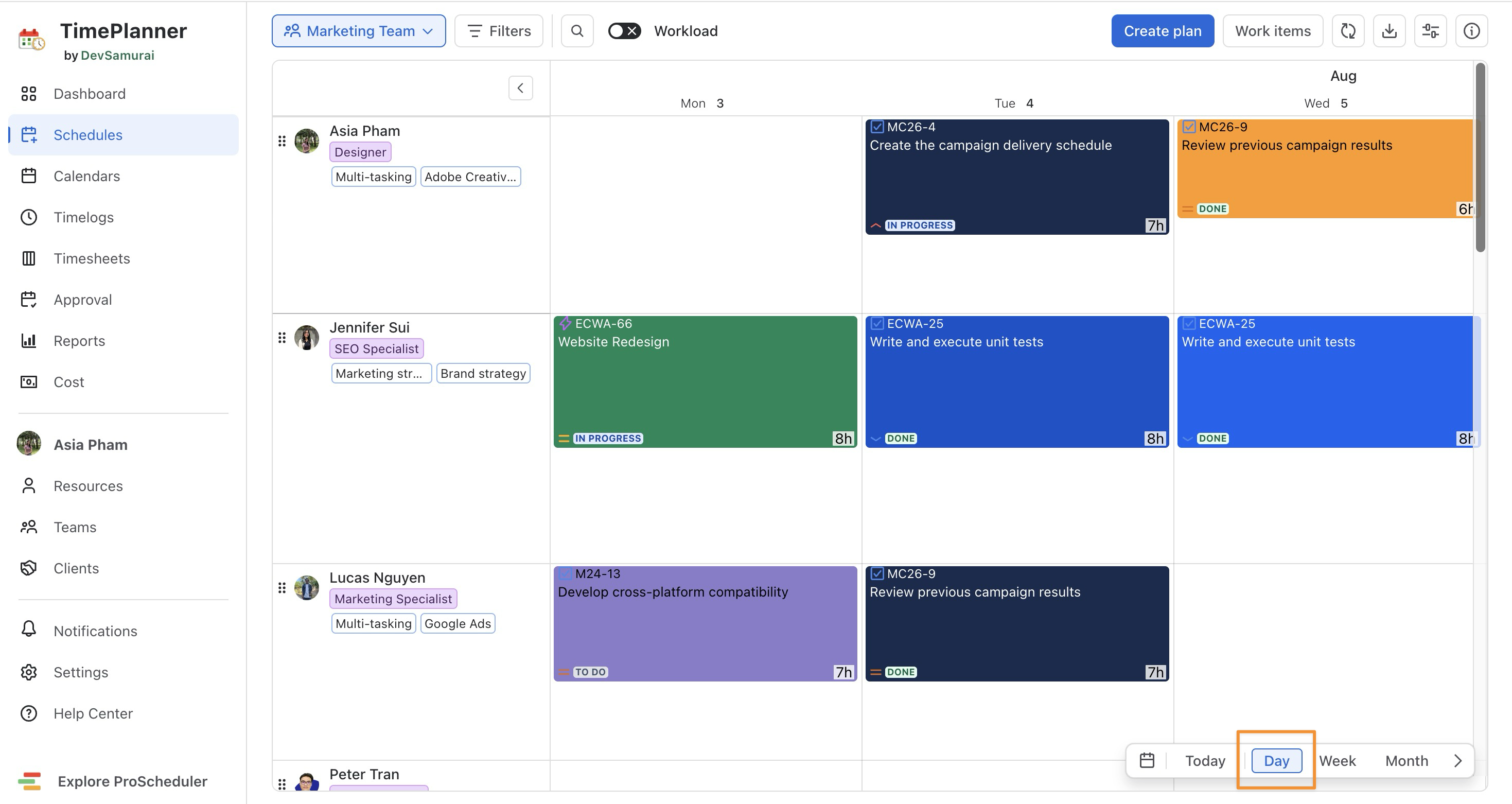
Day View
→ It is ideal for short-term planning and daily reviews. |
|
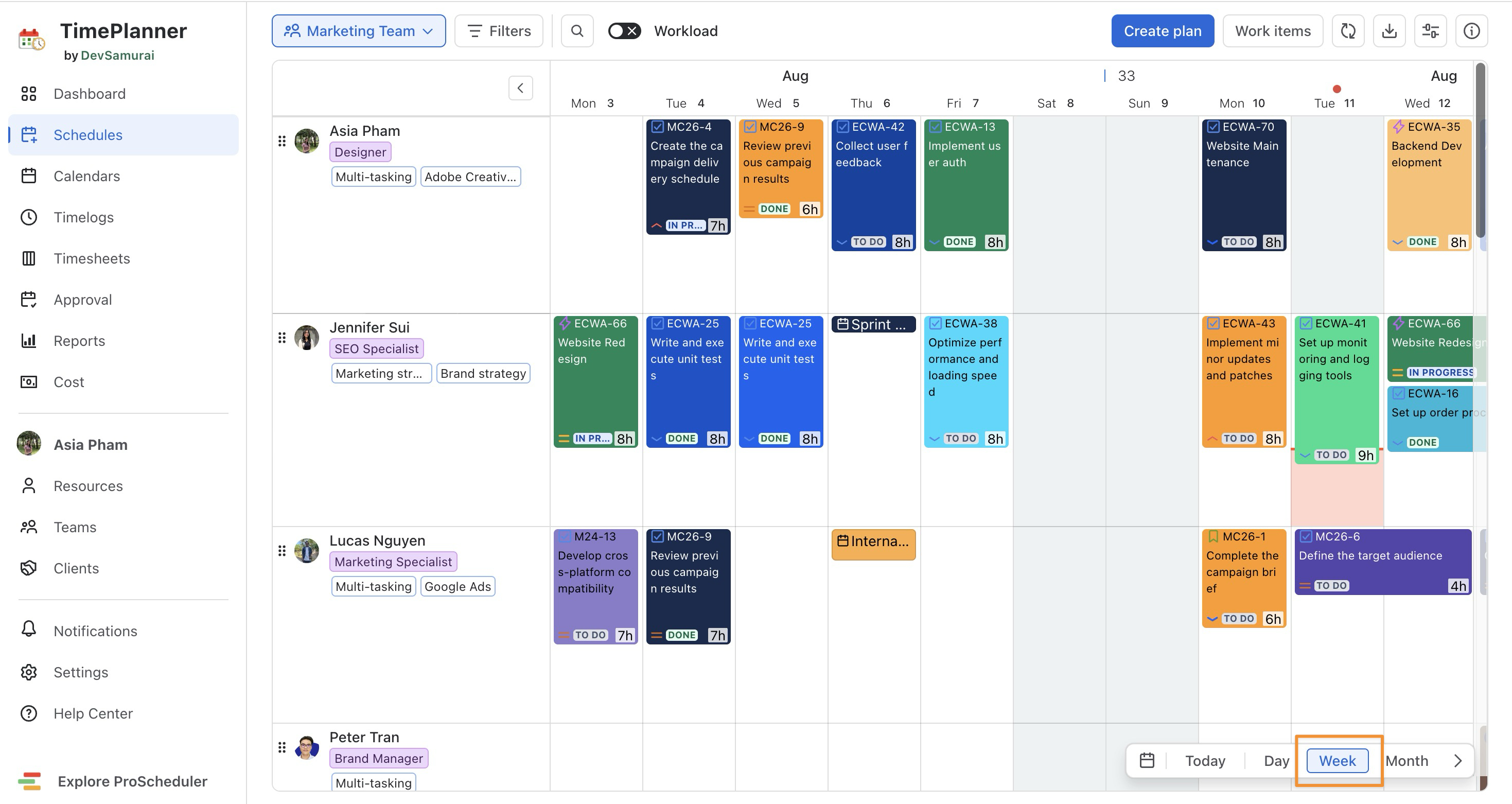
Week View
→ Ideal for managing team schedules over the next 7 days and coordinating short-term tasks.
|
|
Month View
→ Best for strategic planning and long-term forecasting. |
|
2. Today’s Scroll View & Date Picker
Today's Scroll View
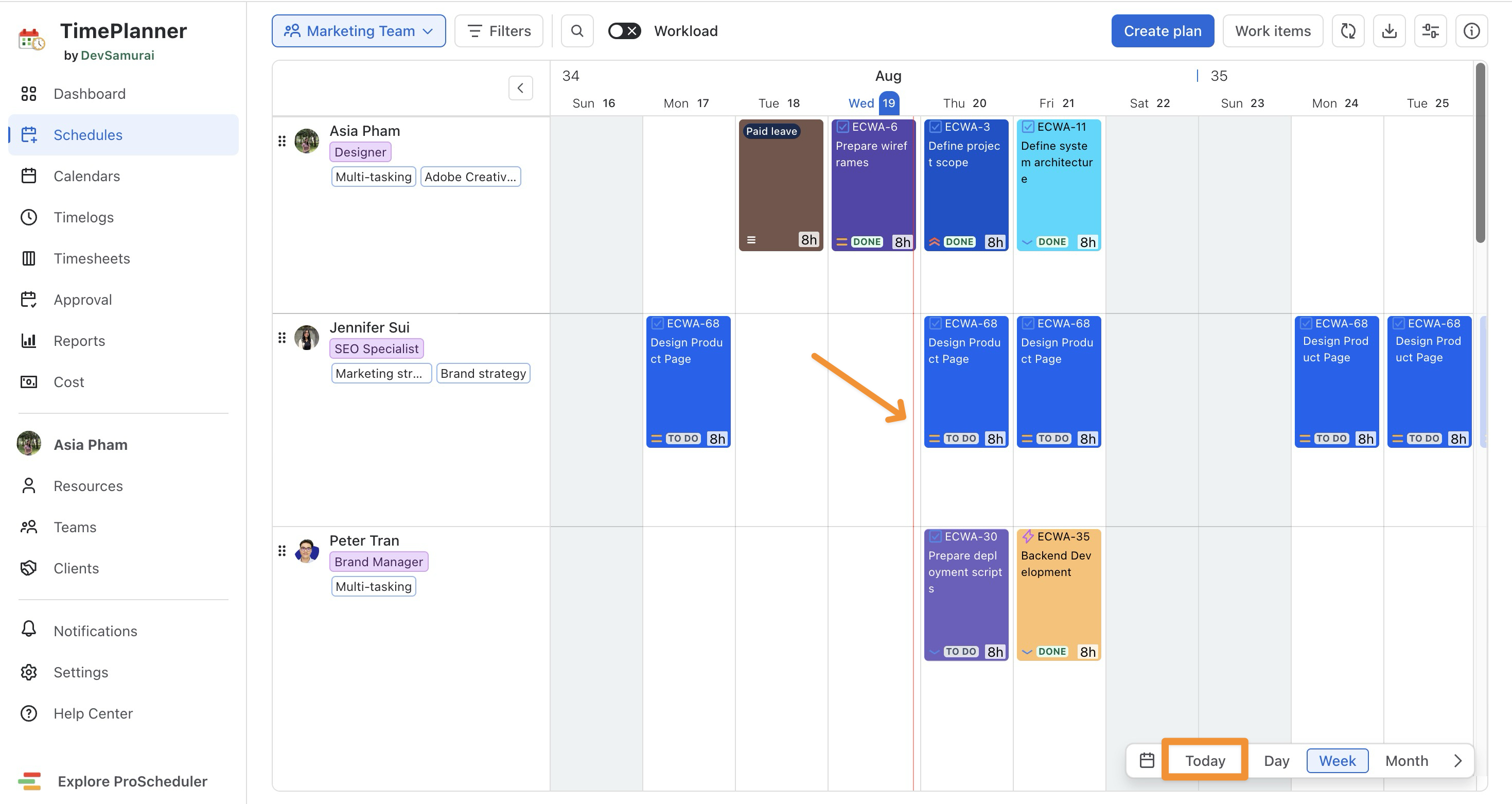
The Today button helps you quickly return to the current date on the Schedule Board.
When you click Today:
-
The board automatically scrolls back to the current day, week, or month based on the selected view.
-
A red vertical line marks the current date on the timeline, making it easy to see where today falls within the schedule.
-
In Day view, the board focuses on the current day.
-
In Week view, it returns to the current week.
-
In Month view, it returns to the current month.
Date Picker
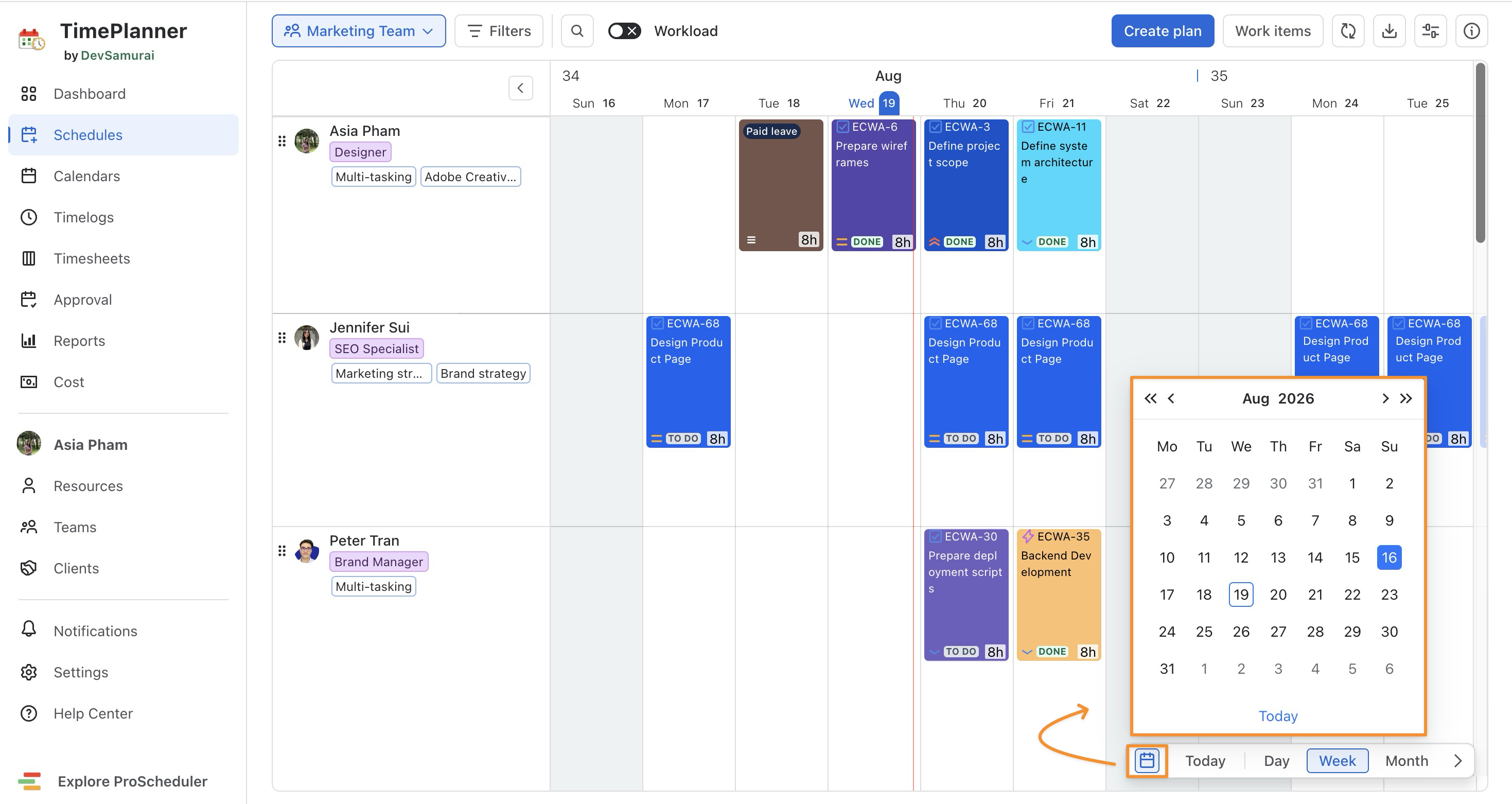
Use the Date Picker when you want to jump directly to a specific date.
-
Click the

-
Select the date you want to view.
-
The Schedule Board moves to the selected date while keeping your current Day, Week, or Month view.