.png)
A Member Profile brings together the professional and work-related information connected to a TimePlanner member. It helps teams understand each member’s skills, experience, workload, capacity, holiday calendar, and cost information when planning work and assigning resources.
Members can open their own profile, while other users can view profiles from the Members page. The tabs and available actions depend on the viewer’s permissions.
Accessing your own profile
To open your profile:
-
Go to the left-hand navigation menu.
-
Select [Your name] – My Profile.
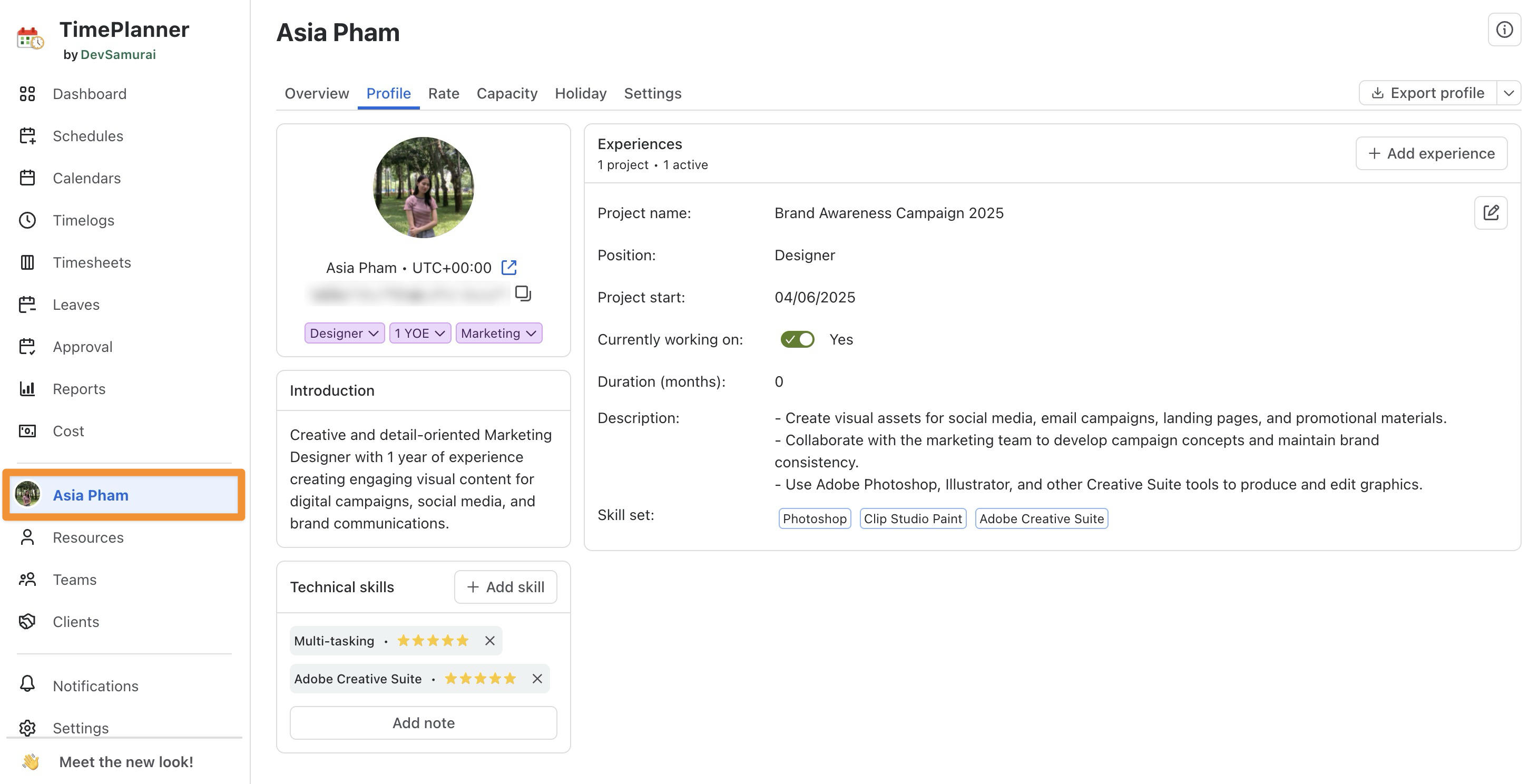
This opens your profile page, where you can review and manage the information available to your account.
Accessing another member’s profile
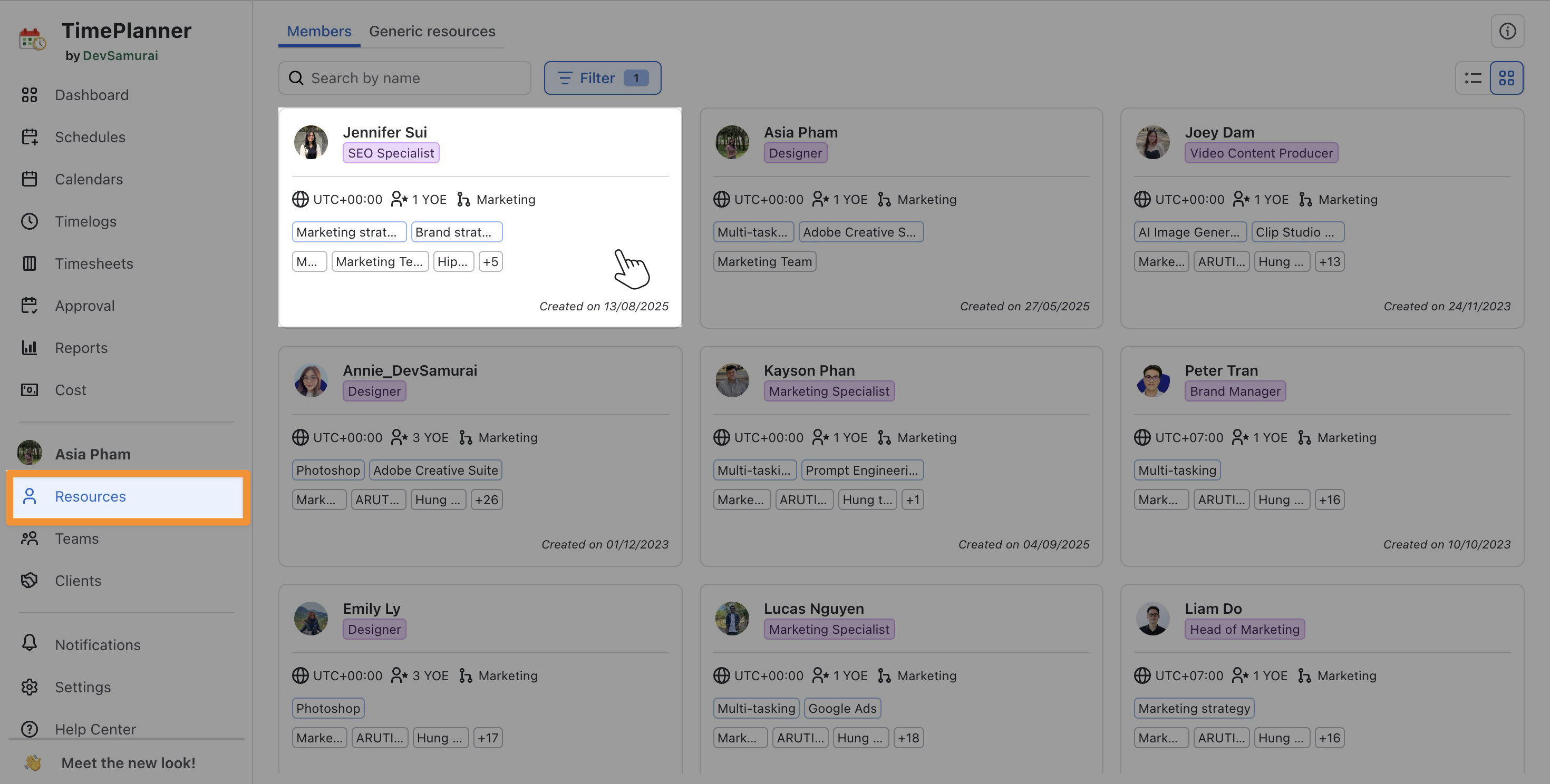
Users with the required access can view another member’s profile from the Members page:
-
Go to Resources → Members.
-
Find the member you want to view.
-
Select the member’s card.
The profile opens with the tabs and information available to your permission level.
Profile Page
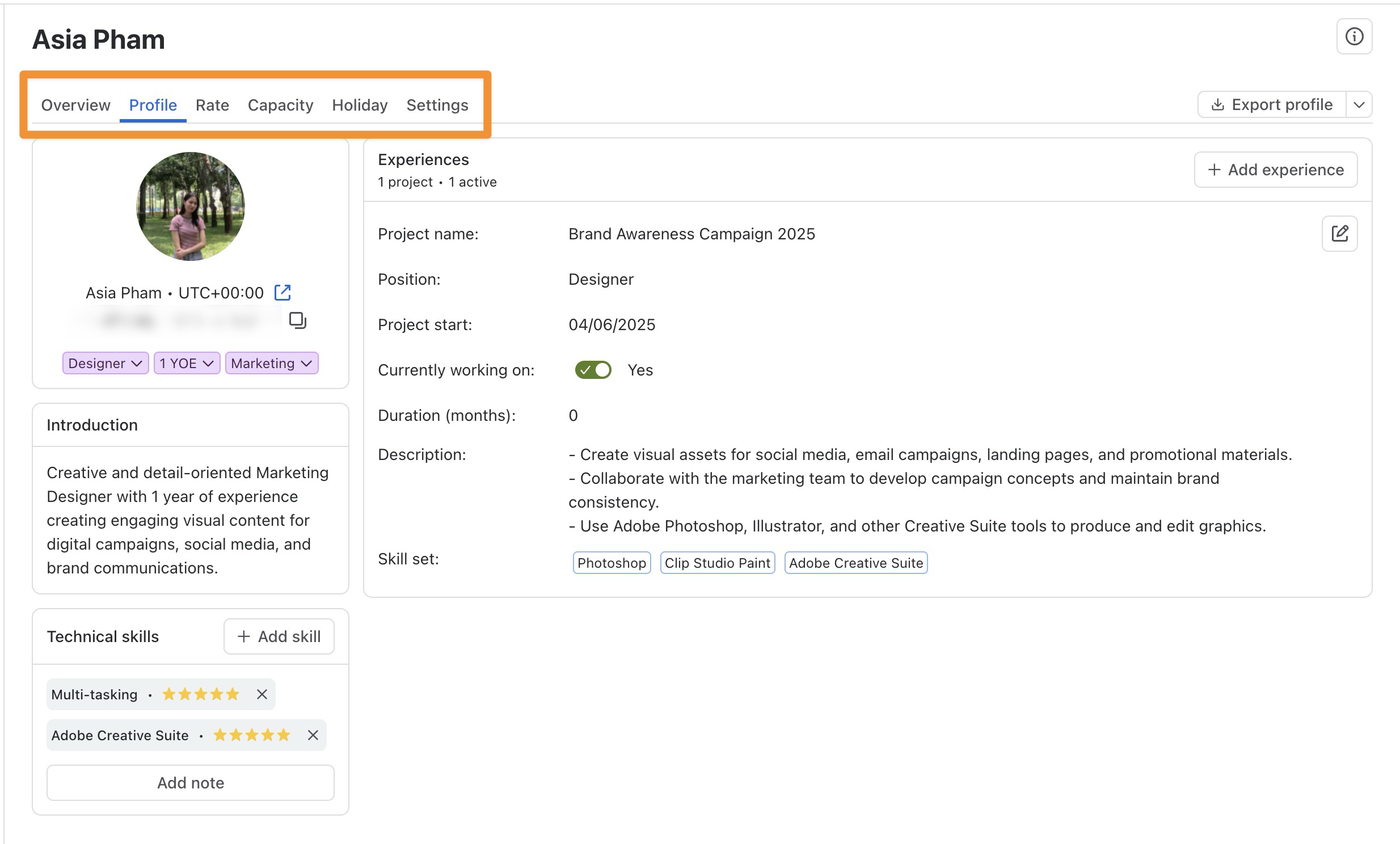
The profile page may include the following tabs:
-
Overview: Review a summary of your workload, capacity, scheduled time, logged time, overtime, and utilization for the selected period.
-
Profile: View and update your professional information, introduction, technical skills, and project experience.
-
Rate: View and manage resource cost rates. This tab is available only to App Admins and users with Billing or Cost permissions.
-
Capacity: Review your available working time and the current or previous capacity schemes assigned to you.
-
Holiday: View your assigned holiday calendar and non-working days used in capacity, availability, and scheduling calculations.
-
Settings: Manage your personal approvers, date and time formats, Jira worklog synchronization, and notification preferences.
The tabs and actions available depend on the viewer’s permissions. The Settings tab is private and can be accessed only by the profile owner.