.png)
Only users with the “Leave Approver” permission can review and manage leave requests.
--> Admins can assign this permission in the Permission Settings.
The Leave Approval feature in TeamBoard TimePlanner is designed for managers or designated approvers to review and take action on employee leave requests. Approvers can quickly check pending requests, approve or reject them, and even revoke previously approved leaves when necessary.
How to Access Leave Approval
-
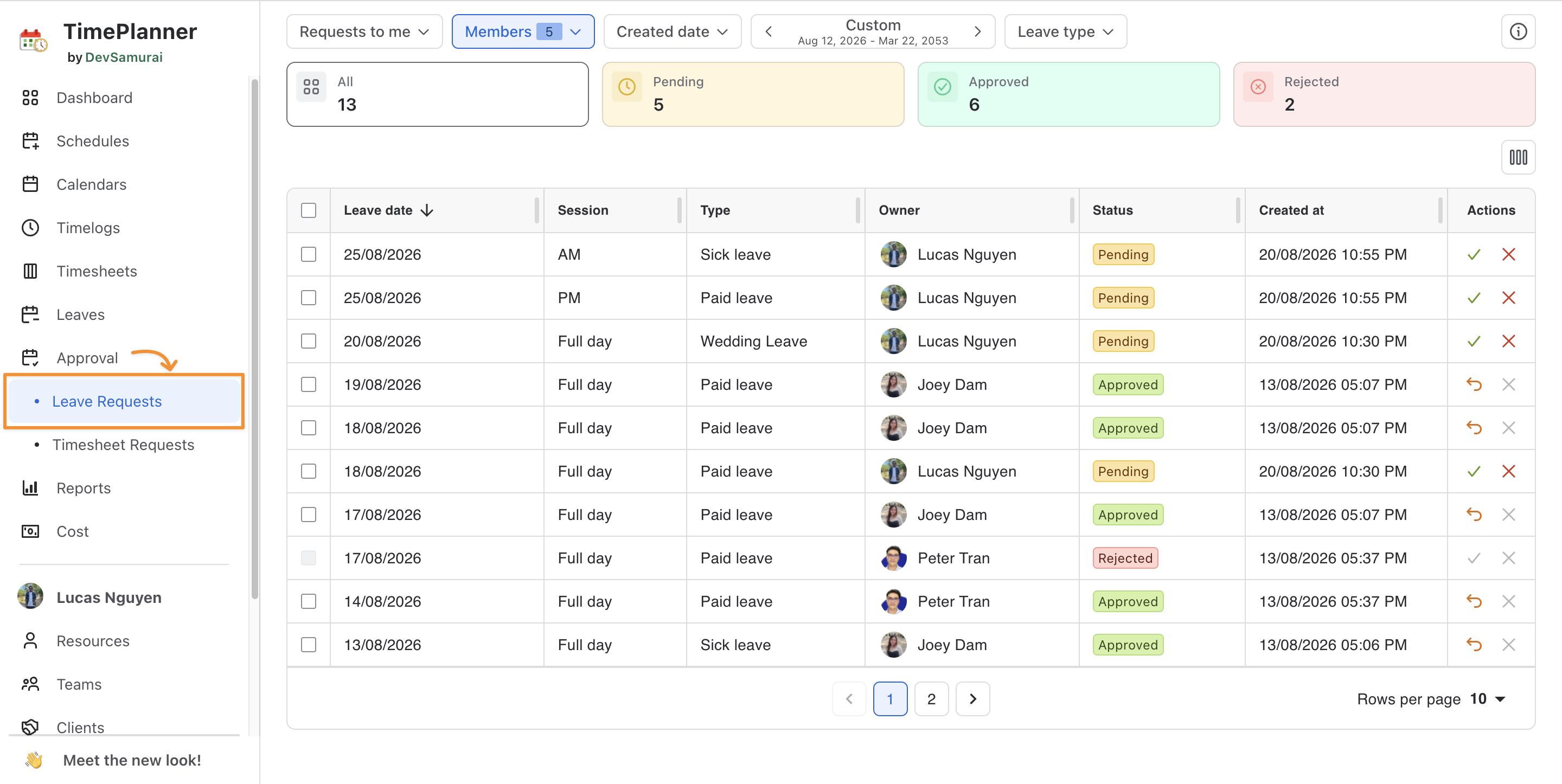
In TeamBoard TimePlanner, click on Approval from the left sidebar.
-
Select Leave Requests from the list of approval options.
→ This opens the leave requests page, where all leave requests awaiting action are listed.
Leave Approval Page Overview
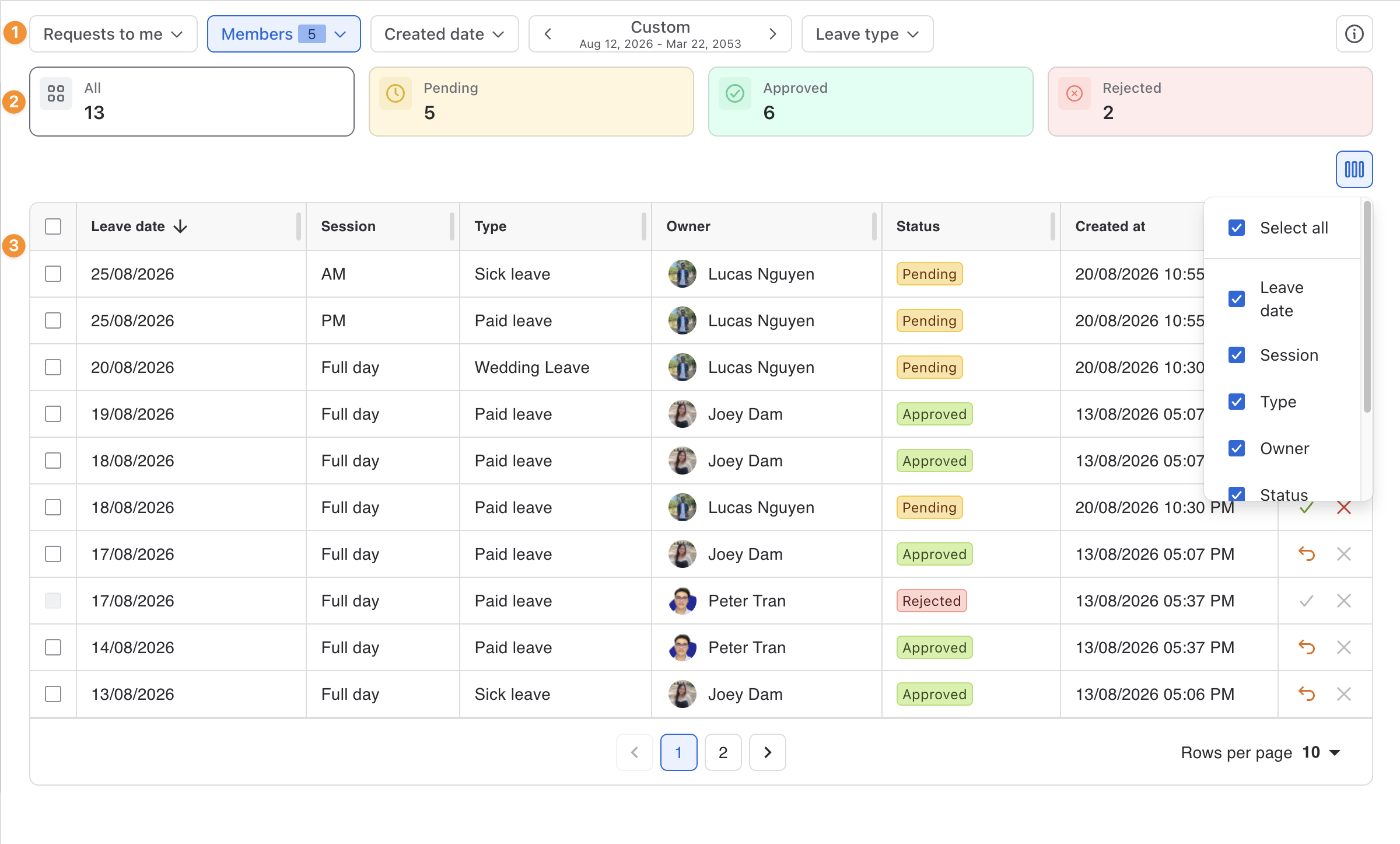
The Leave Approval page is divided into three main sections that help approvers review, filter, and take action on leave requests efficiently.
1. Filters and Selectors
This section allows you to refine what appears in the list below:
-
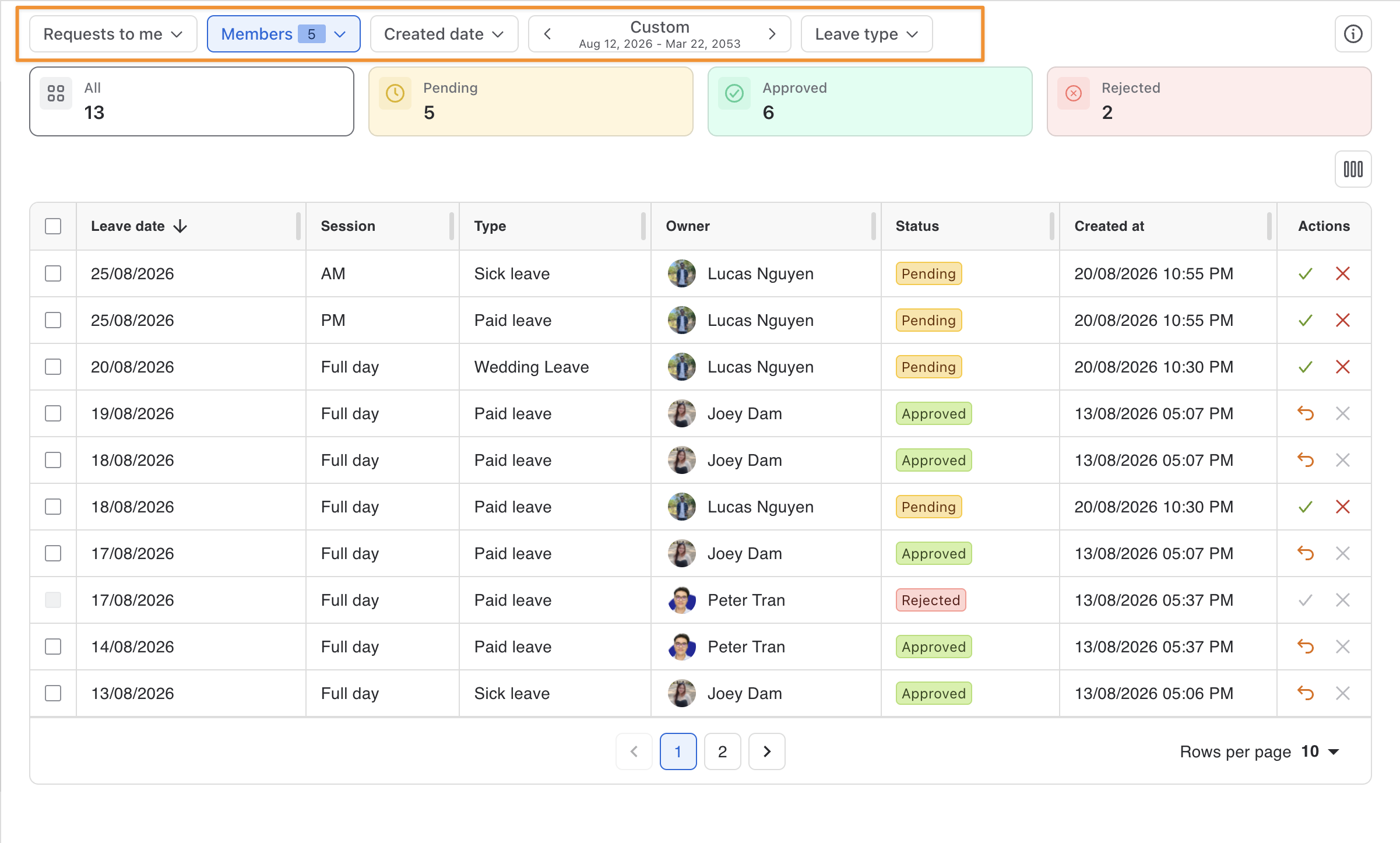
Teams / Members filter: Choose a specific team or individual to view their leave requests.
-
Date range selector: Define a custom date range to display requests within a specific period.
-
Leave type: Allow selecting specific leave types to view in the request table.
2. Status Summary
This top section displays the total number of leave requests, grouped by status:
-
All requests: The total count of every leave request submitted, regardless of its processing stage.
-
Pending: Requests that are still under review and awaiting a decision.
-
Approved: The total number of leave requests that have been approved.
-
Rejected: The total number of leave requests that have been declined.
Tip: Click any status card to filter the list and display only the requests in that category.
3. Request Details Table (or List View)
This section displays the actual list of leave requests that match the selected filters and status category with the column display:
-
Column Display – Select which columns you want to show or hide in the table.
Approving or Rejecting a Leave Request
-
Select the Date Range and Member/Team
On the Leave Requests page:
-
Use the Teams / Members filter to choose the team or individual whose leave request you want to review.
-
Use the date range selector to specify the period you want to view.
-
In the Actions column, choose one of the following actions:
-
To approve: Click ✔️ to confirm the employee’s request.
-
To reject: Click ❌ to reject the employee’s request. (You may also provide a reason in the notes for clarity.)
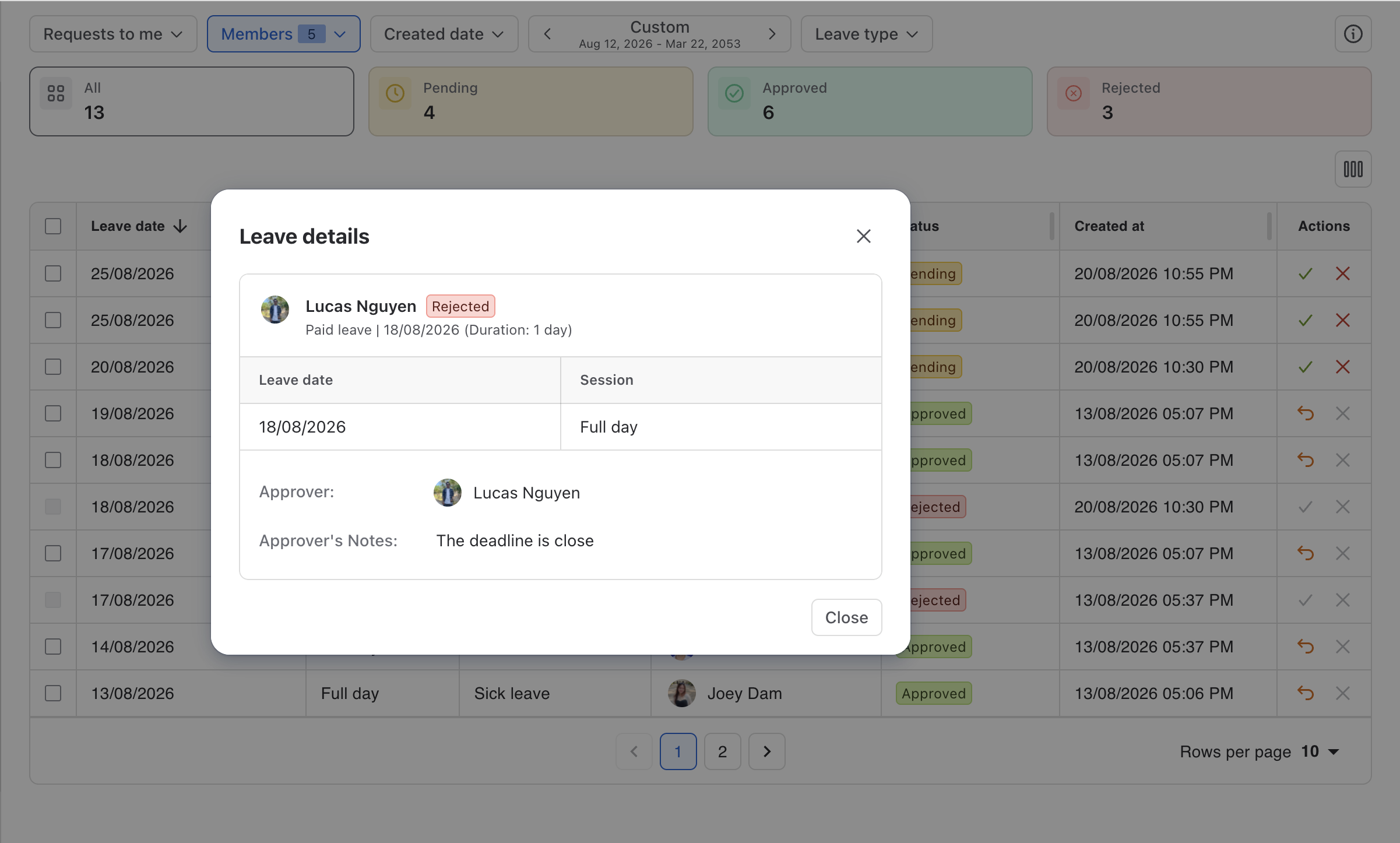
Note: Check for the note icon on the leave request row; it signals that the leave request includes comments you should review before approving.

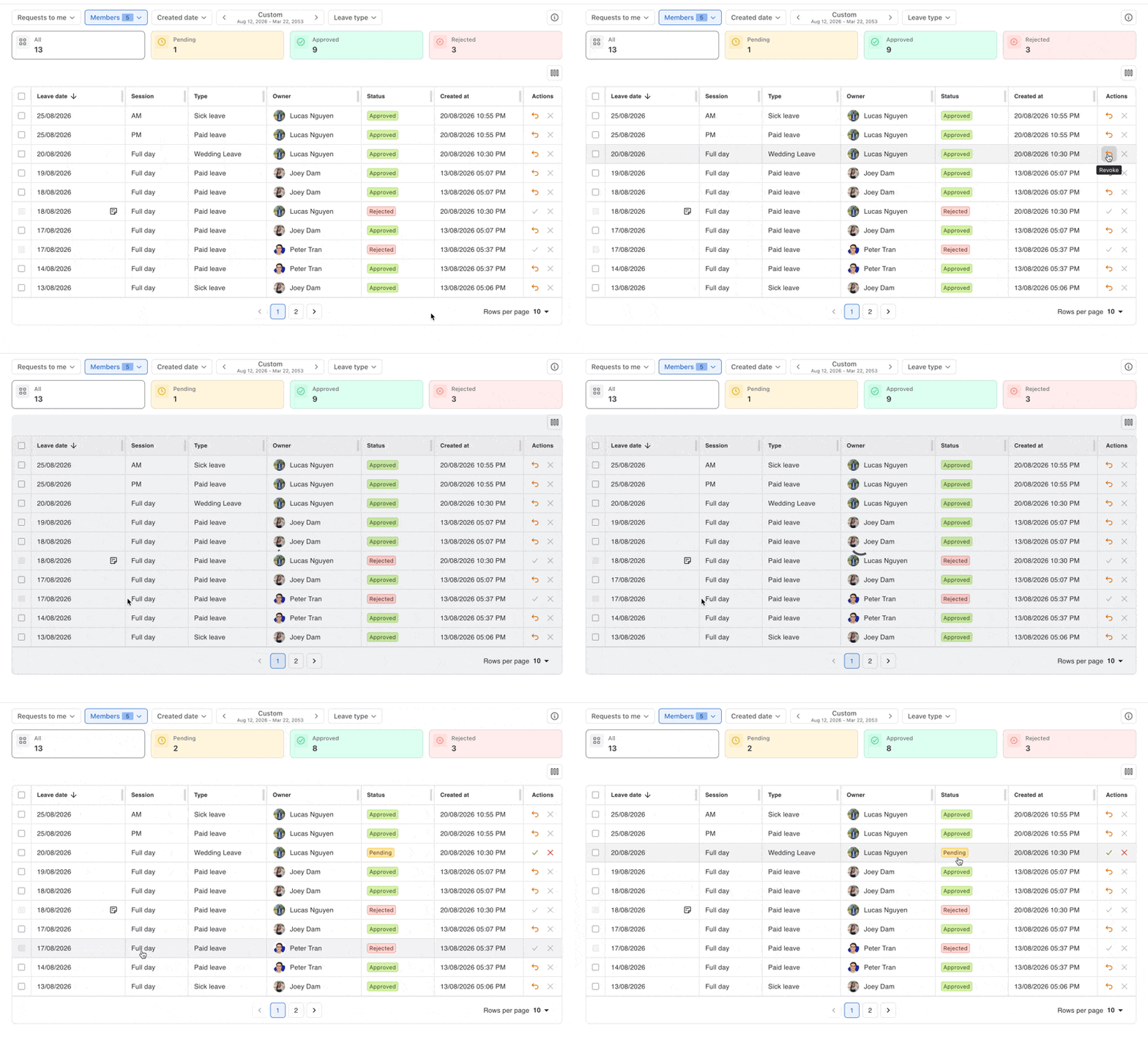
Revoking an Approved Request
Sometimes an approved leave needs to be canceled, for example, if an employee recalls their request or business needs change.
To revoke a request:
-
Locate the approved request in the list.
-
Click the

-
The leave will be revoked and returned pending status. The employee’s leave balance will be updated accordingly.
Managing Multiple Requests
To save time, approvers can take bulk actions on several requests at once:
-
In the Leave Requests list:
-
Check the boxes next to the requests you want to process.
-
You can also click the select-all checkbox at the top to choose all visible requests.
-
Once selected, bulk action buttons will appear at the top of the page. Choose one of the following:
-
Approve – Approve all selected requests.
-
Reject – Reject all selected requests.
-
Revoke – Cancel all selected approved requests.
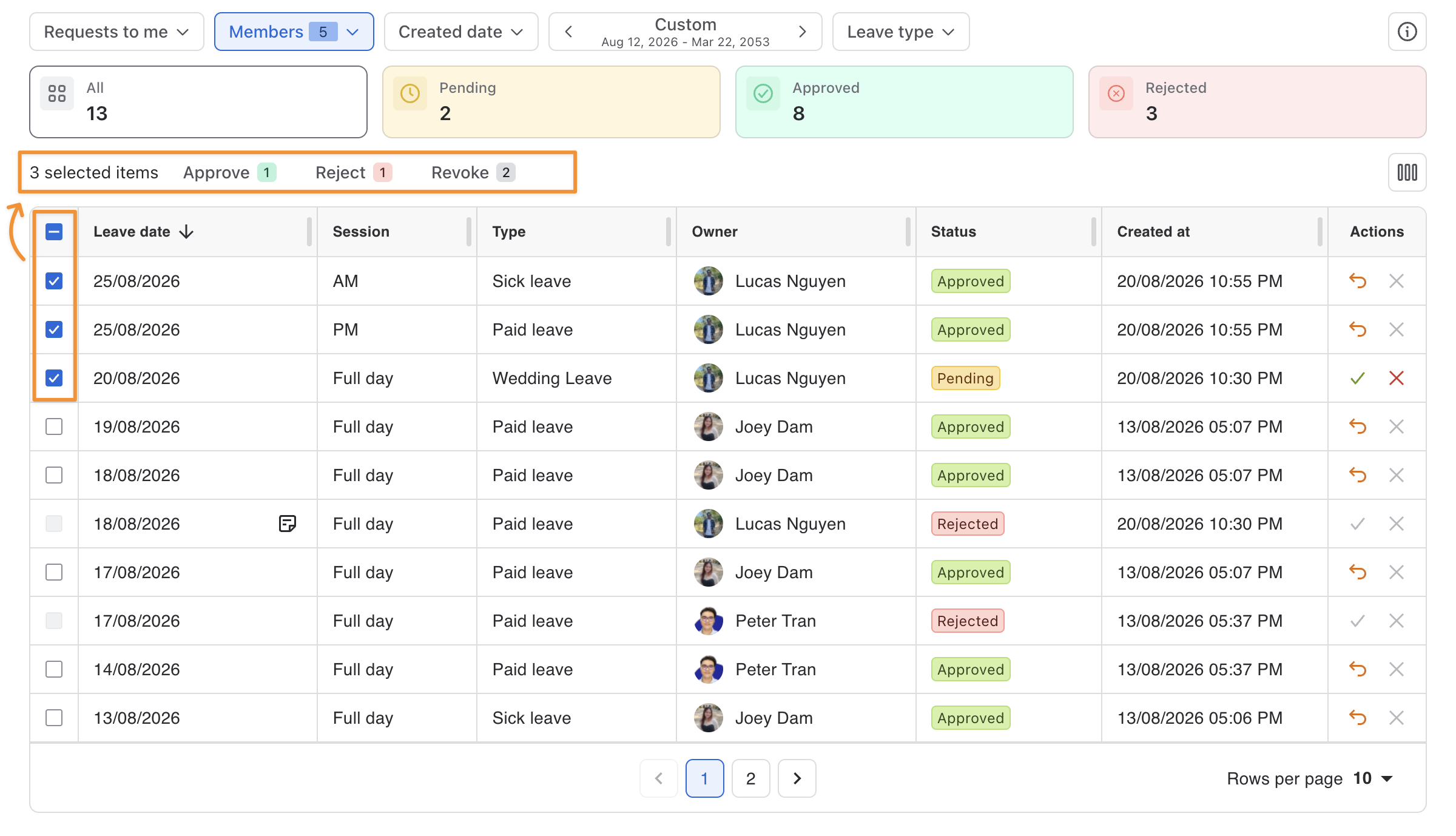
Bulk actions are especially useful during busy leave periods (such as holidays) when many requests are submitted at once.