.png)
Accessing Portfolio Boards
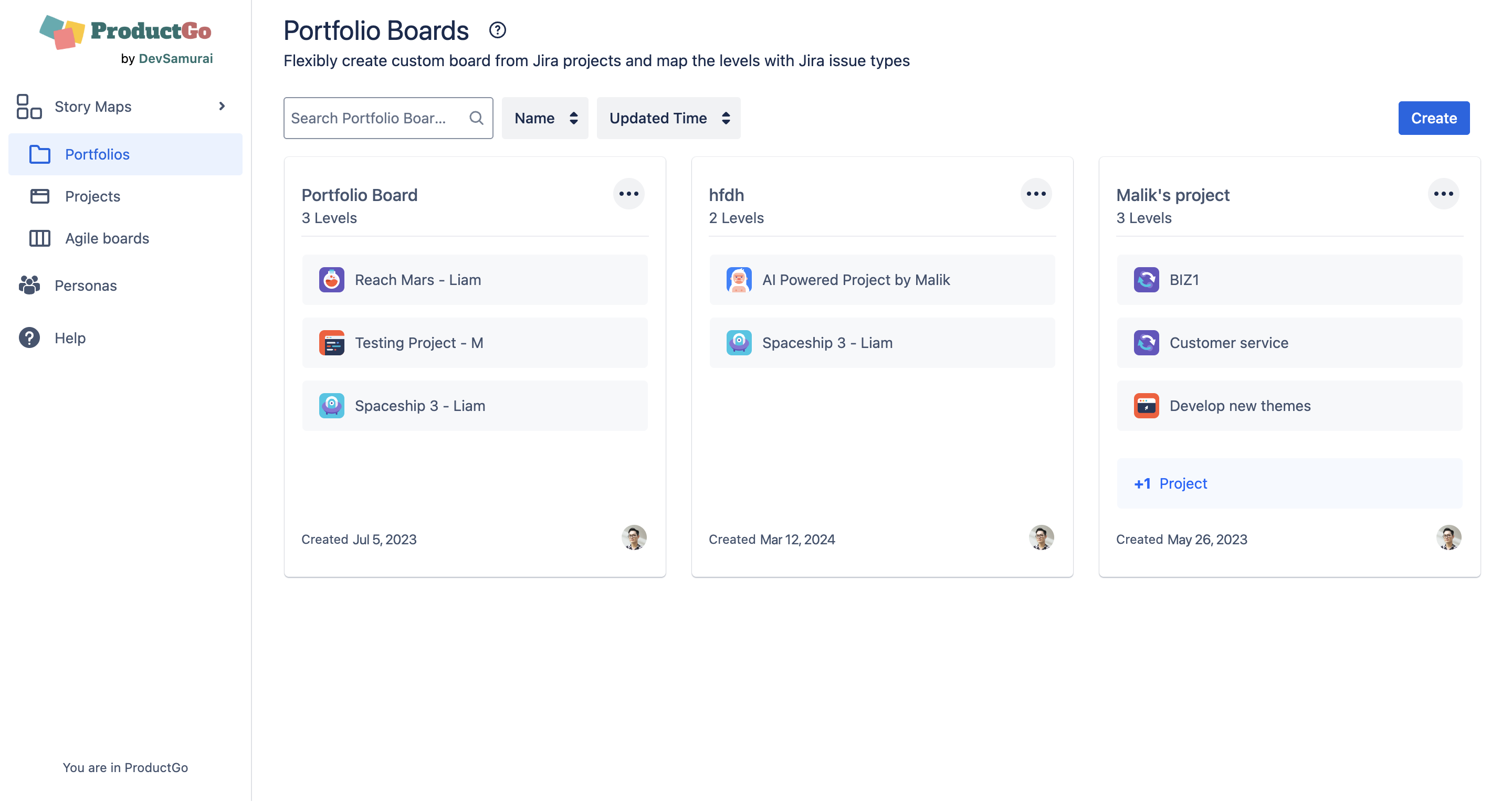
To access the Portfolio Board, go to Apps → ProductGo → Portfolios. Here, you’ll see a list of existing boards, which you can search and sort by title or last updated time.
Click on the card to access to each portfolio board
Creating Portfolio Board
To create a new board, click the Create button and follow these steps:
1. Information
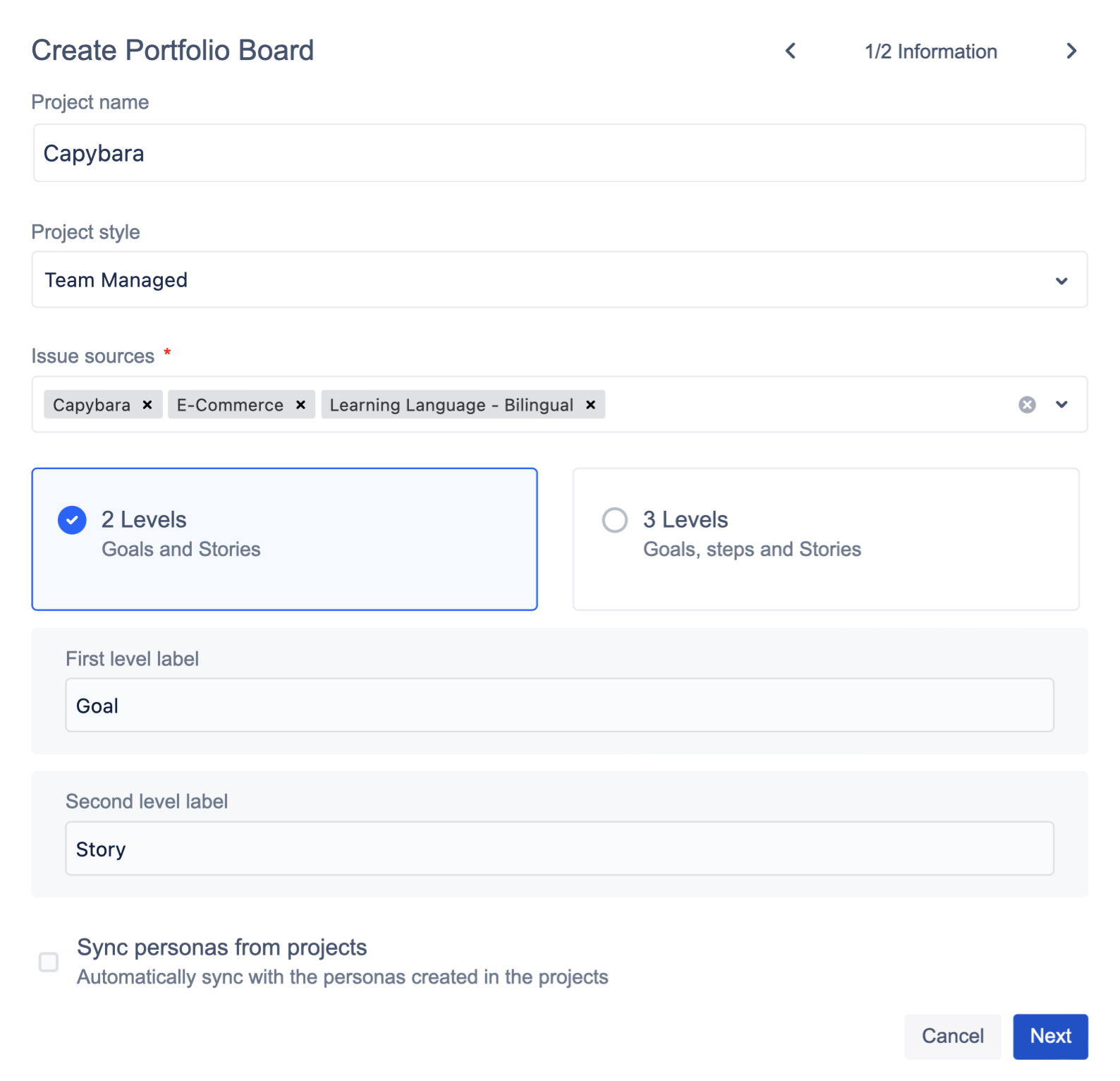
Enter Board Details
-
Board Name: Give your board a clear, descriptive name.
-
Project Style: Choose between Team-managed or Company-managed projects. You cannot mix both types within a single board.
-
Issue Sources: Select the Jira projects you want to include.
Choose Board Style
-
Select either a 2-level or 3-level user story map hierarchy, depending on your project’s needs.
Configure Levels
The issue types mapping only applies to Company-managed projects.
-
First Level: Map this level to one Jira issue type (required).
-
Second Level:
-
Issue Types Mapping: When ON, only selected issue types can be used; when OFF, any issue types in the project are allowed.
-
-
Third Level:
-
Issue Types Mapping: Same as above.
-
Sync Personas
-
Check this option to sync all personas from the selected projects to the portfolio board.
-
If unchecked, only personas created within the board will be visible.
2. Set Permissions
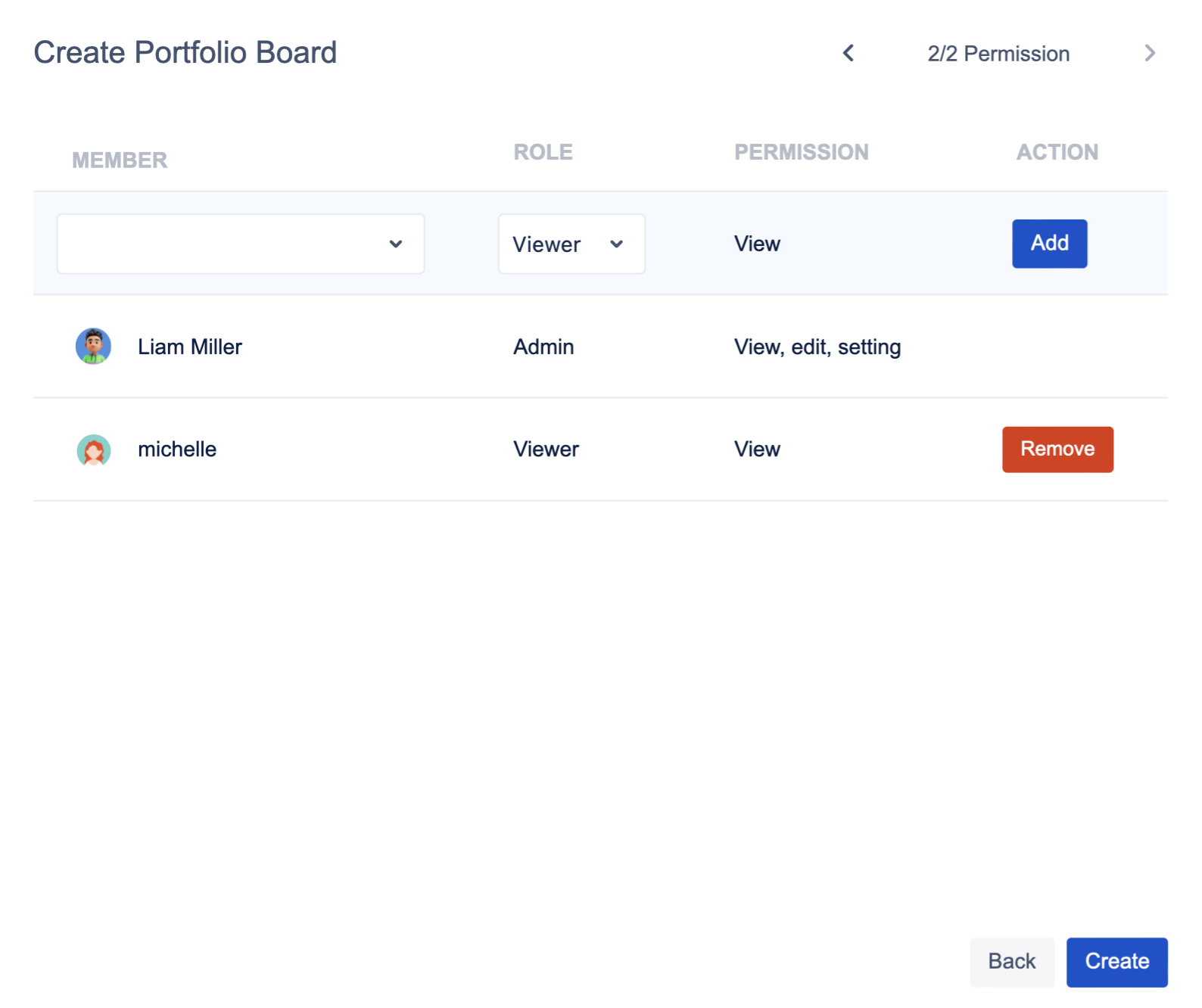
Members
-
Select users from your Jira user list.
Roles
-
Viewer: Can view the board only.
-
Planner: Can view and update the board.
-
Admin: Has full access, including board settings.
Finally, click Create to save your new portfolio board.
This setup process helps you build a flexible, well-structured portfolio board tailored to your team’s needs and your Jira configuration.