.png)
Cards are the core elements of your Advanced Kanban board. Each card represents a Jira issue (work item) that matches the fields defined for the board’s columns and swimlanes.
Cards help visualize and manage your team’s work directly from the board, making it easy to track progress and update tasks in real time.
What Is a Card?
A card displays an individual Jira issue on your Kanban board.
Each card appears in a specific column and swimlane based on the field values configured for your board. For example, if your columns are based on the Status field and your swimlanes are based on Assignee, each card is automatically placed according to its Jira issue’s status and assignee.
Card Movement and Field Updates
When you move a card to another column or swimlane, its Jira field values automatically update to match the destination container.
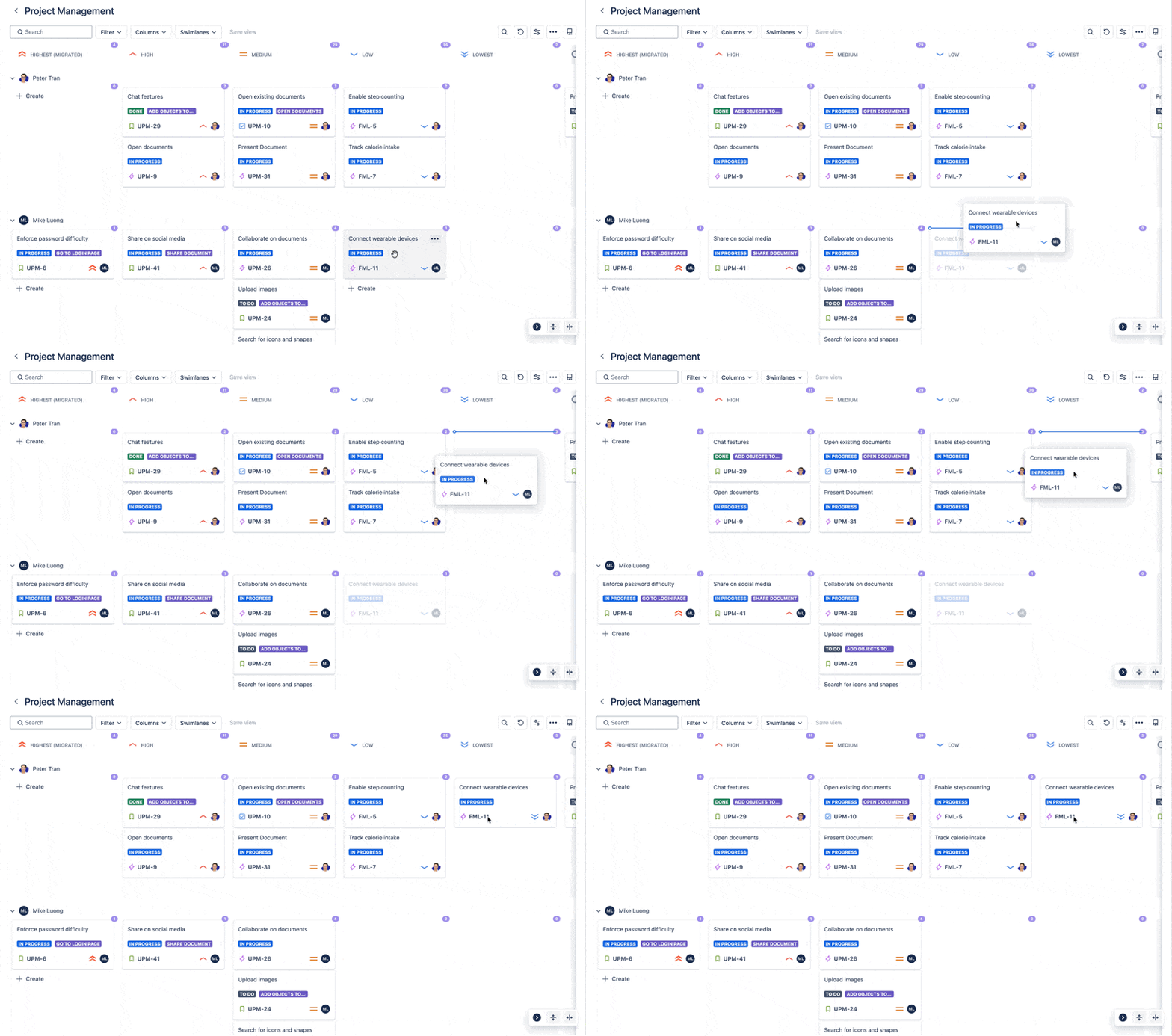
This means that when a card is dragged to a new position, ProductGo updates the related field—such as status, assignee, or priority – based on the settings of that column or swimlane.
Example
If your columns represent Status and you move a card from In Progress to Done, the issue’s status in Jira automatically changes to “Done.”
Similarly, if your swimlanes represent Assignee and you move a card to another user’s lane, the issue’s assignee is updated accordingly.
This behavior helps teams manage and update work effortlessly, keeping the board and Jira always in sync.
Creating a Card
You can create a new card directly from any column or swimlane container.
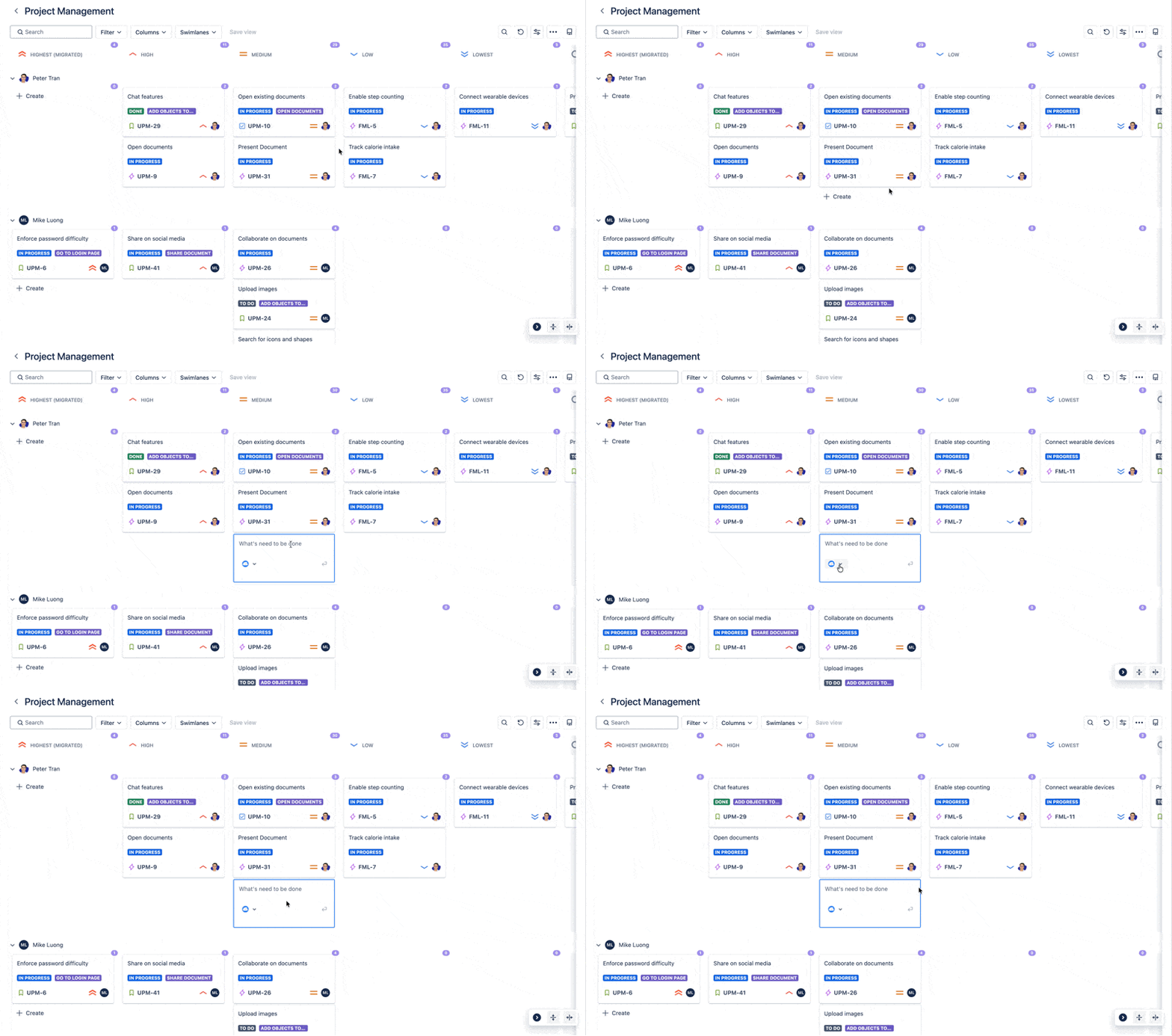
To create a card:
-
Click the Create button inside a container.
-
Enter the card summary (title).
-
Choose the project the card belongs to.
Once created, the card automatically inherits the field properties of its column and swimlane, ensuring consistency with your board setup.
Card Details
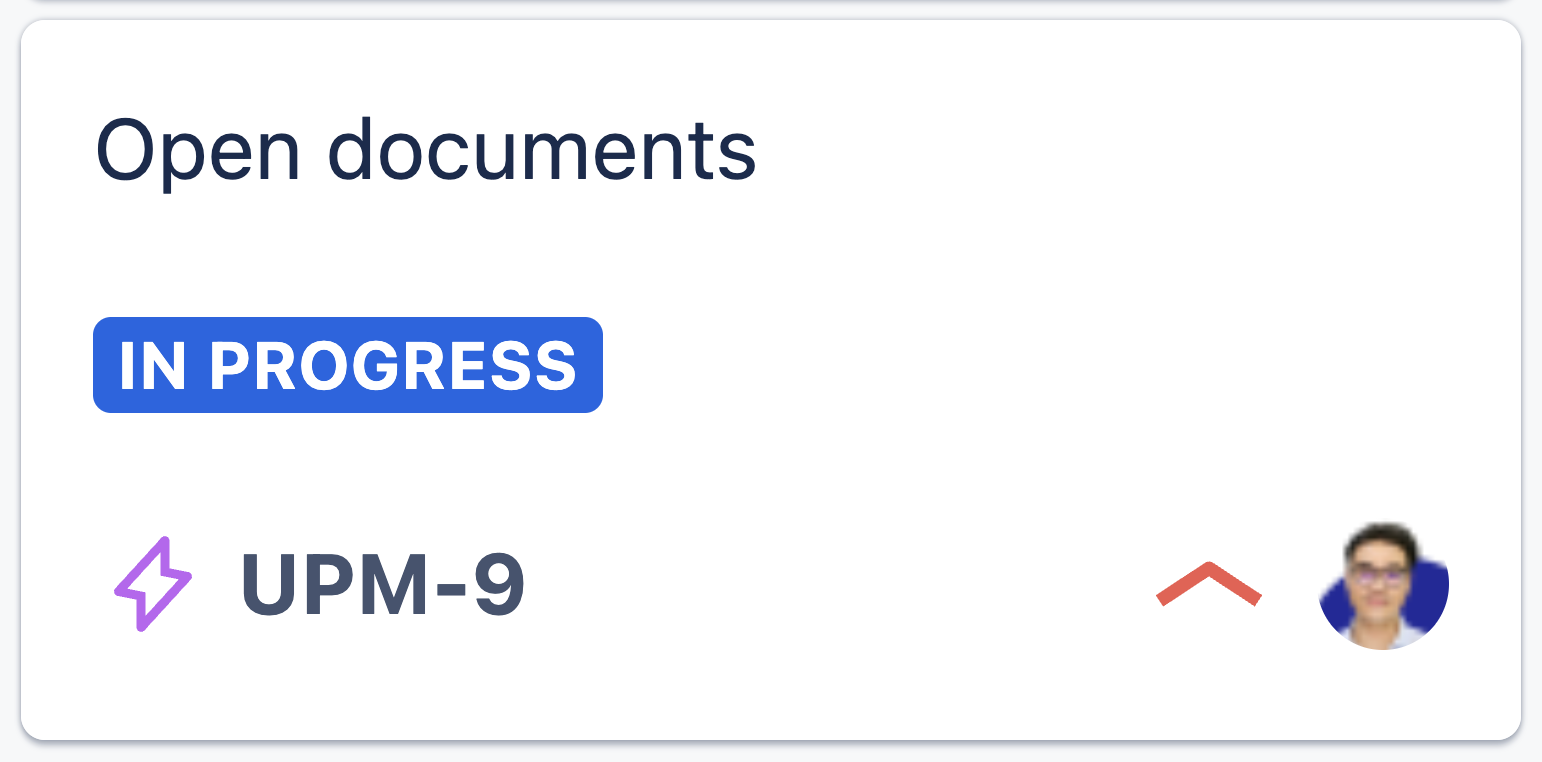
Each card displays key information about the issue, helping you understand its context at a glance.
Default fields displayed on the card include:
-
Summary
-
Work (issue) type
-
Priority
-
Status
-
Assignee
-
Epic
-
Work item key
Except for the Summary, all other fields can be shown or hidden based on your preferences.
You can adjust card display options in User settings.
Editing Cards
Some fields can be edited directly on the card without opening the issue details. Editable fields include:
-
Parent (Epic)
-
Summary
-
Assignee
-
Status
-
Priority
-
Work type
Inline editing makes it quick and easy to update task details while working on the board.
Card Actions
Open a card’s details to access additional actions. You can:
-
Copy issue key
-
Copy issue link
-
Add parent (assign an Epic to the card)
-
Move to another column or swimlane
-
Move to top of container
-
Move to bottom of container
-
Remove the card from the board
These actions give you the flexibility to organize and manage your work directly within the Kanban board.