.png)
You can customize your Kanban board experience by adjusting User Settings. To access these settings, click the tuning icon in the top-right corner of the board.
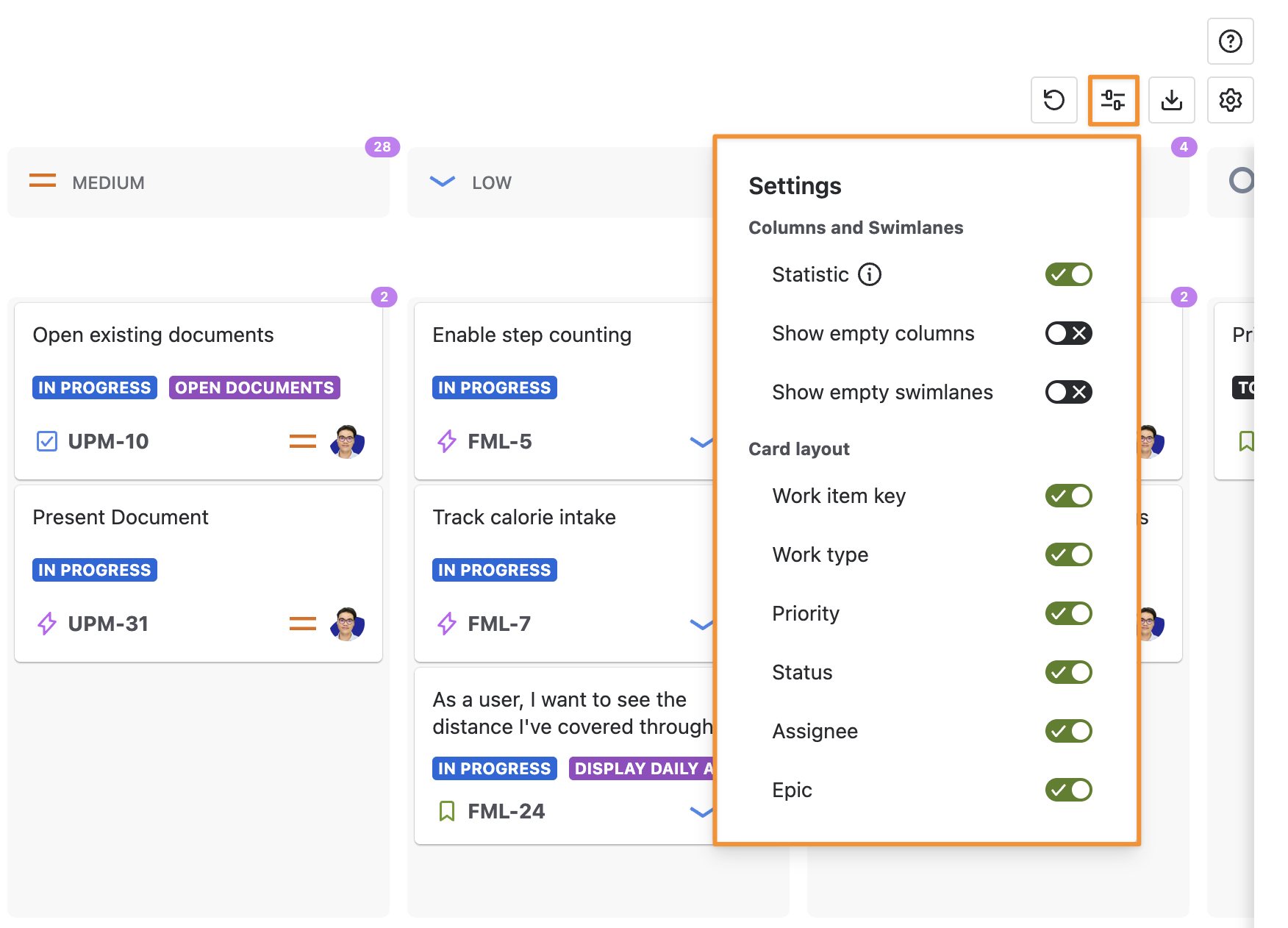
Please note that User Settings are individual and only apply to the user who makes the changes. These settings do not affect other users on the board.
User Settings Include
Columns and Swimlanes
Statistics
You can show or hide the statistics. The Statistics display the number of issues in each column, swimlane, and grid. This helps you quickly assess the workload distribution across your board.
Show Empty Columns
You can choose to show or hide empty columns that do not have any work item cards. This helps keep the board view clean and focused on active tasks.
Show Empty Swimlanes
Similar to columns, you can also show or hide empty swimlanes without work item cards. This allows for a more streamlined view, especially when swimlanes are not in use.
Card Layout
You can customize the Card Layout to control which fields appear on each work item card. You can choose to show or hide the following fields on your cards:
-
Work Item Key
-
Work Type
-
Priority
-
Status
-
Assignee
-
Epic
This flexibility ensures that you can tailor your card layout to display the most relevant information for your workflow.
By adjusting these User Settings, you can optimize your board to suit your specific needs and preferences.