.png)
This guide explains the basic structure of a Cucumber & Behave JSON report, helping you understand how AgileTest reads and displays report data. Additionally, you can learn how to customize the report to add attachment details.
1. Common structure of Cucumber & Behave report
Below is the common structure of the Cucumber and Behave JSON report.
Since both frameworks are similar in many ways, their report also hold much resemblance in their structures. Both types of report contain basic blocks, namely Feature, Scenario, Given, When, and Then.
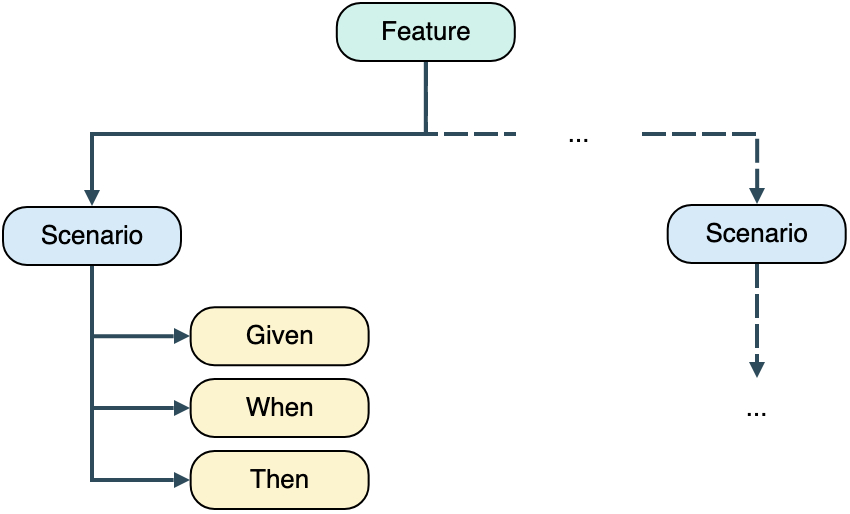
Once you understand the structure of a Cucumber or Behave report, the next step is to see how AgileTest interprets this data when the report is imported. AgileTest reads specific elements in the JSON file to create test cases and determine their execution status.
2. How AgileTest would parse a Cucumber or Behave report
For Cucumber and Behave, users must include the issue key in the report before uploading it to AgileTest. Otherwise, the import will fail.
Since Agile Test doesn’t create new tests in case of importing Gherkin reports, only test case result and attachments will be parsed and attached to pre-existing tests in your instance.
Each report file, after execution, contains xUnit status values automatically mapped to AgileTest Test Results. Therefore, you do not need extra setup to read test results.
Below are explanations for the supported status of the xUnit reports in AgileTest.
Prioritization rule for determining the test status in AgileTest:
-
If multiple tags are added to a single
<test>element, the tag with the highest priority will be used as the test status in AgileTest. -
The priority of status tags in AgileTest is as follows: failed > blocked > retest > skipped > query > Passed .
Each step has a result status. Test Case status is calculated based on the total combination of status properties of the step tag. The following table shows how status values are mapped to AgileTest execution statuses.
|
Test case status |
Description |
|
|
Passed → Test case yields the expected result. |
|
|
failed → Test case returns the actual result, not as expected. |
|
|
blocked → Test case is considered blocked due to a specific reason. |
|
|
skipped → Test case is skipped in the test run. |
|
|
retest → Test case should be rerun again. |
|
|
query → The test case requires more details to have the final result. |
|
|
todo → Test case is not yet run. It’s the default status of every Test case in AgileTest. |
3. Test Result with attachments
By default, many reports do not include attachments. This section explains how to add attachments to your test reports.
To allow AgileTest to recognize attachments in the report, you need to follow a specific JSON element structure.
 "embeddings": [
              {
                "data": "<BASE64_ENCODED_FILE>",
                "mime_type": "<mime type>"
              }
            ]
For example, you can put this Element structure into your report like this:
[
  {
    "elements": [
      {
        ...
        "steps": [
          {
            ...
            "embeddings": [
              {
                "data": "SGVsbG8gd29ybGQ=",
                "mime_type": "text/plain"
              }
            ]
          }
        ]
      }
    ]
  }
]
Should you need any assistance or further AgileTest inquiries, please contact us here!