.png)
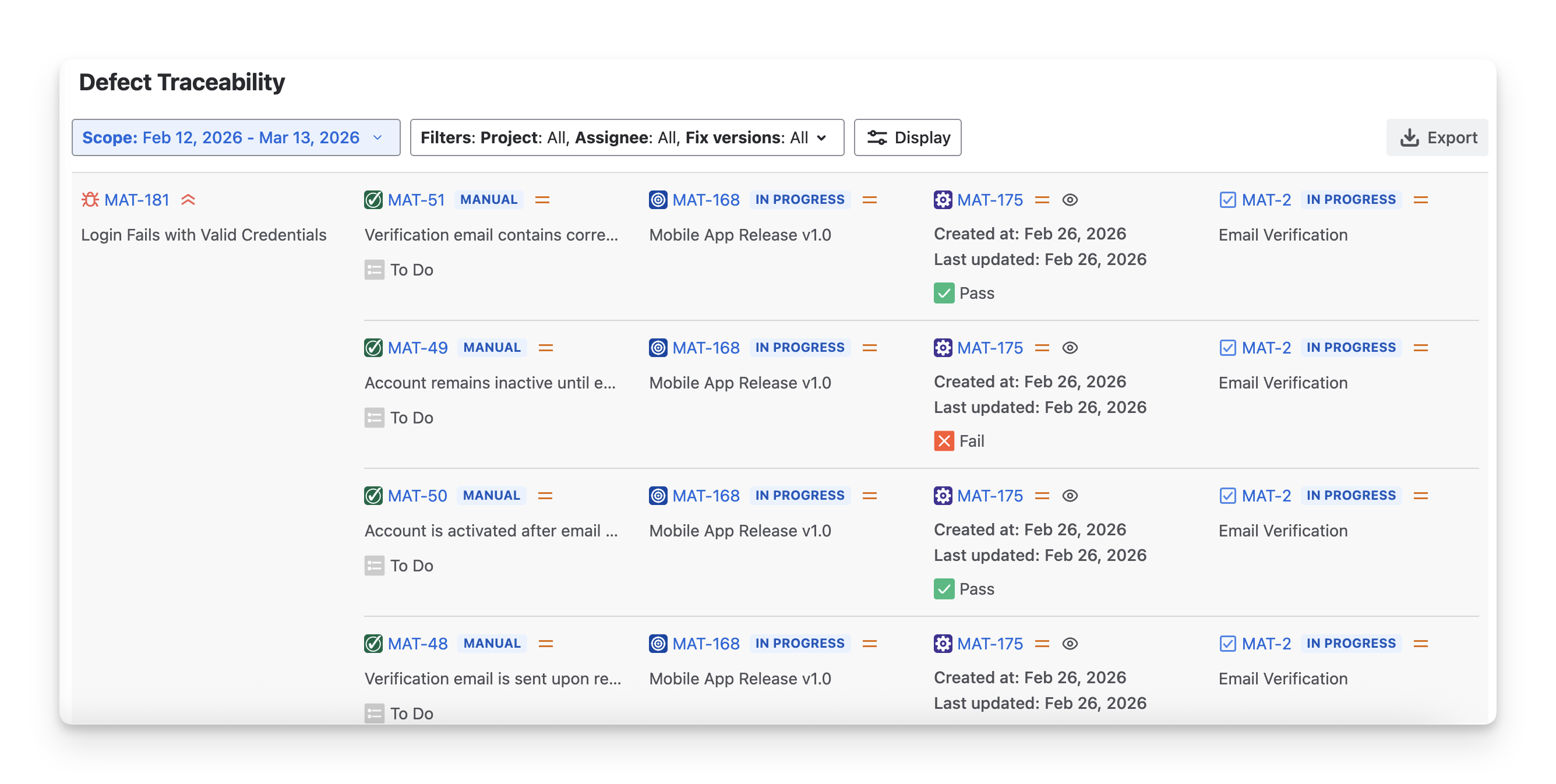
The Defect Traceability Report in AgileTest provides a traceability relationship between a defect and its linked items. By allowing teams to trace each defect back to the related test cases, test plans, test executions, and requirements, the report provides a backward traceability view, complementing the forward traceability provided by the Test Traceability Report.
This report helps teams quickly identify where defects were discovered, how they were detected during testing, and which parts of the system are impacted
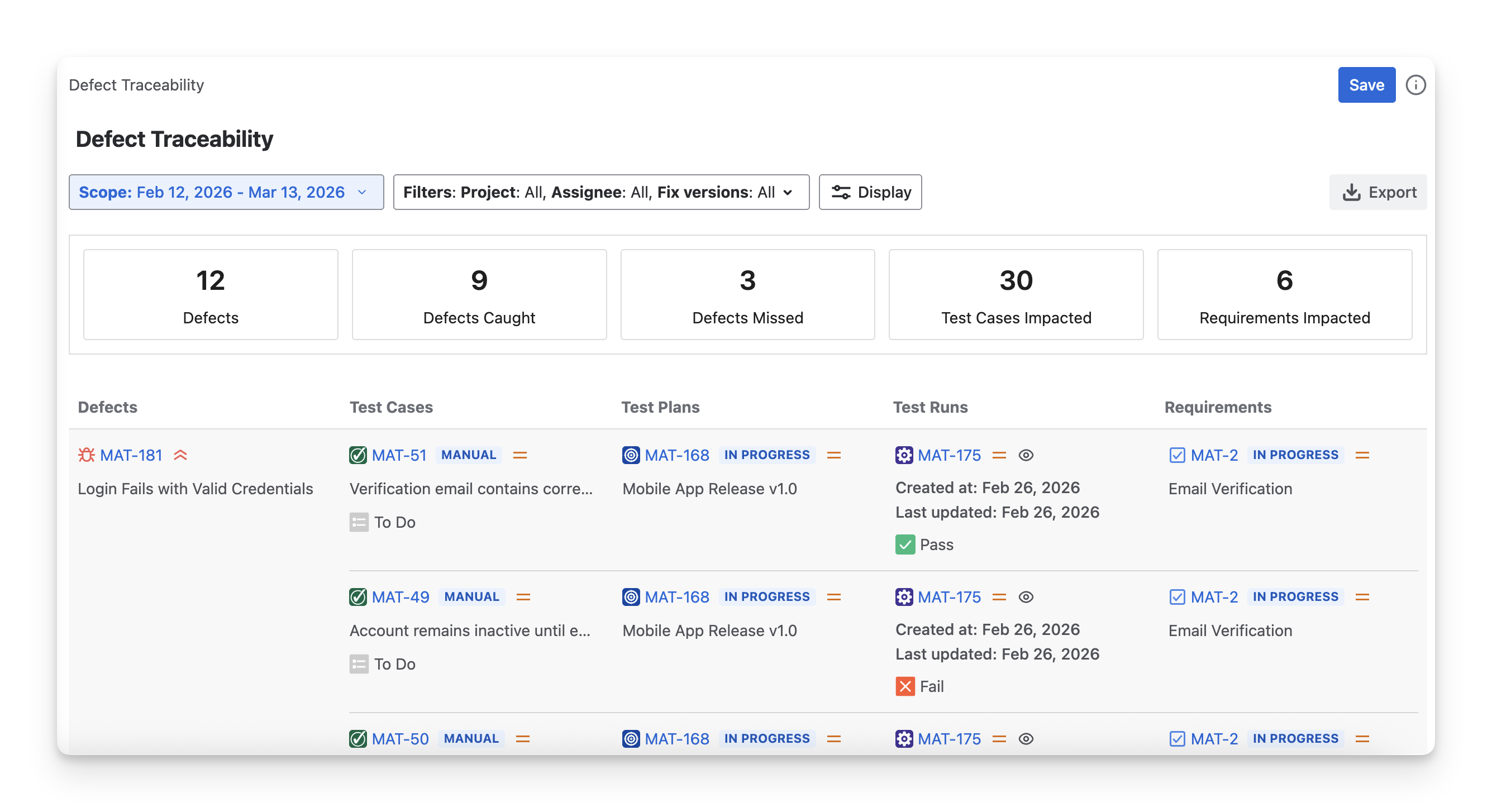
In each Defect Traceability Report, you will see 2 sections:
-
Defect Overview: A summary of defect-related metrics within the selected scope.
-
Defect Traceability Table: A detailed table that shows the relationships between defects and their associated testing artifacts.
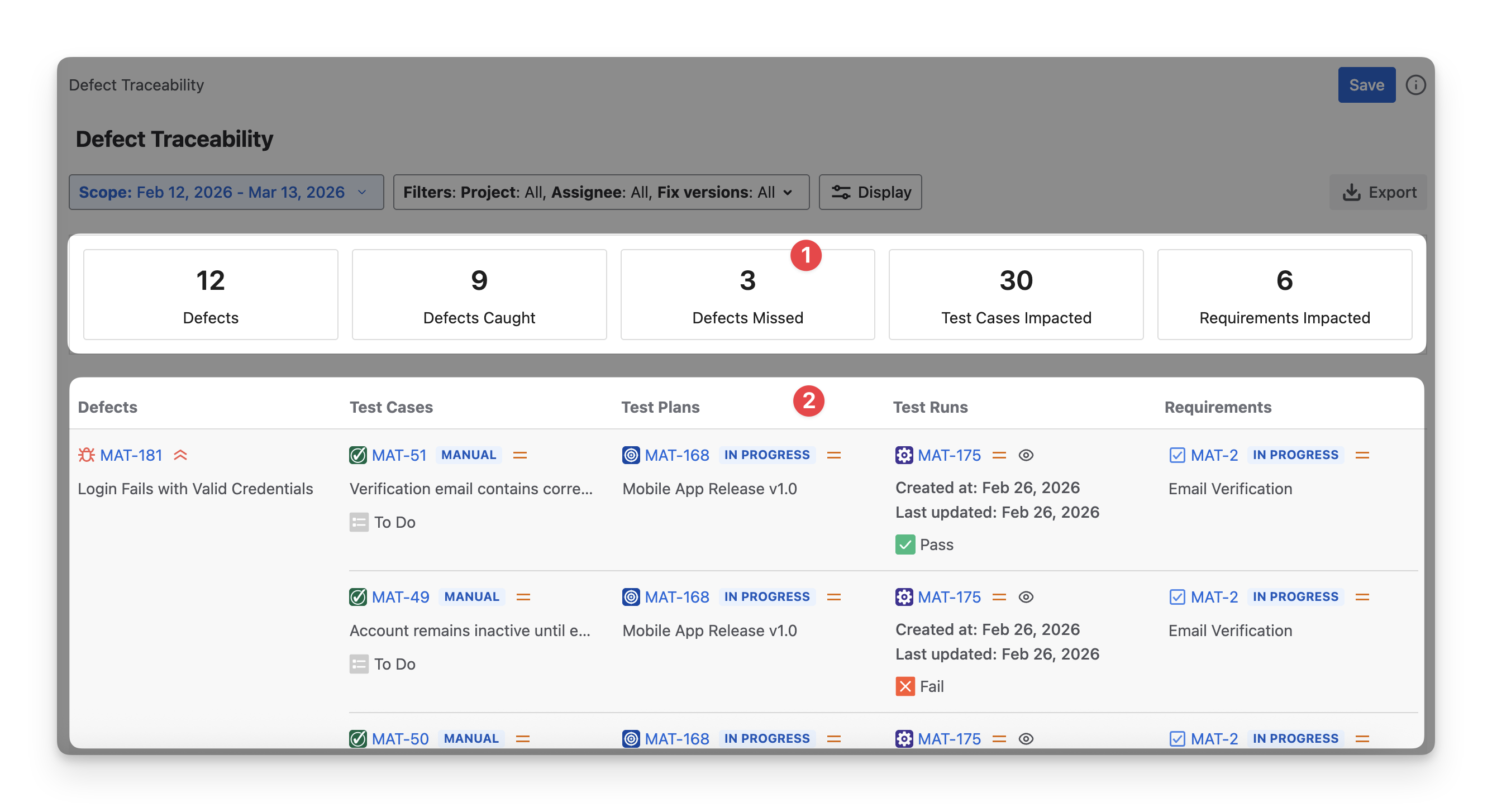
1. Defect Overview
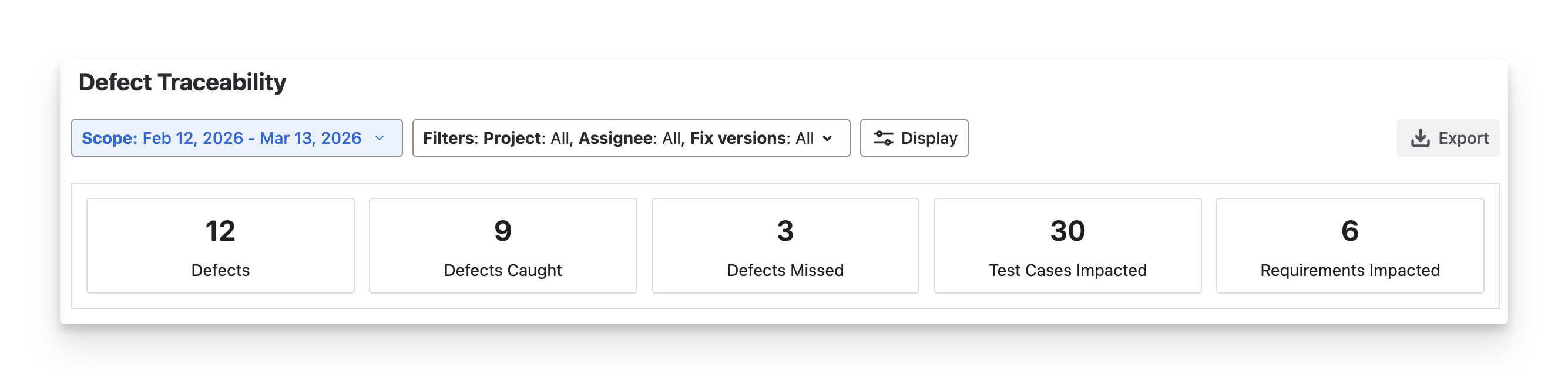
The Defect Overview section helps teams quickly understand the effectiveness of defect detection and the overall impact of defects on testing and requirements. The summary includes the following metrics:
-
Defects: The total number of defects in your project. This value is the sum of Defects Caught and Defects Missed.
-
Defects Caught: The total number of new and existing defects that were linked to test items such as test cases or test steps during executions.
-
Defects Missed: The total number of defects that were created without being linked to any test case execution.
-
Test Cases Impacted: The total number of test cases that are linked to the reported defects.
-
Requirements Impacted: The total number of requirements that are associated with test cases linked to the reported defects.
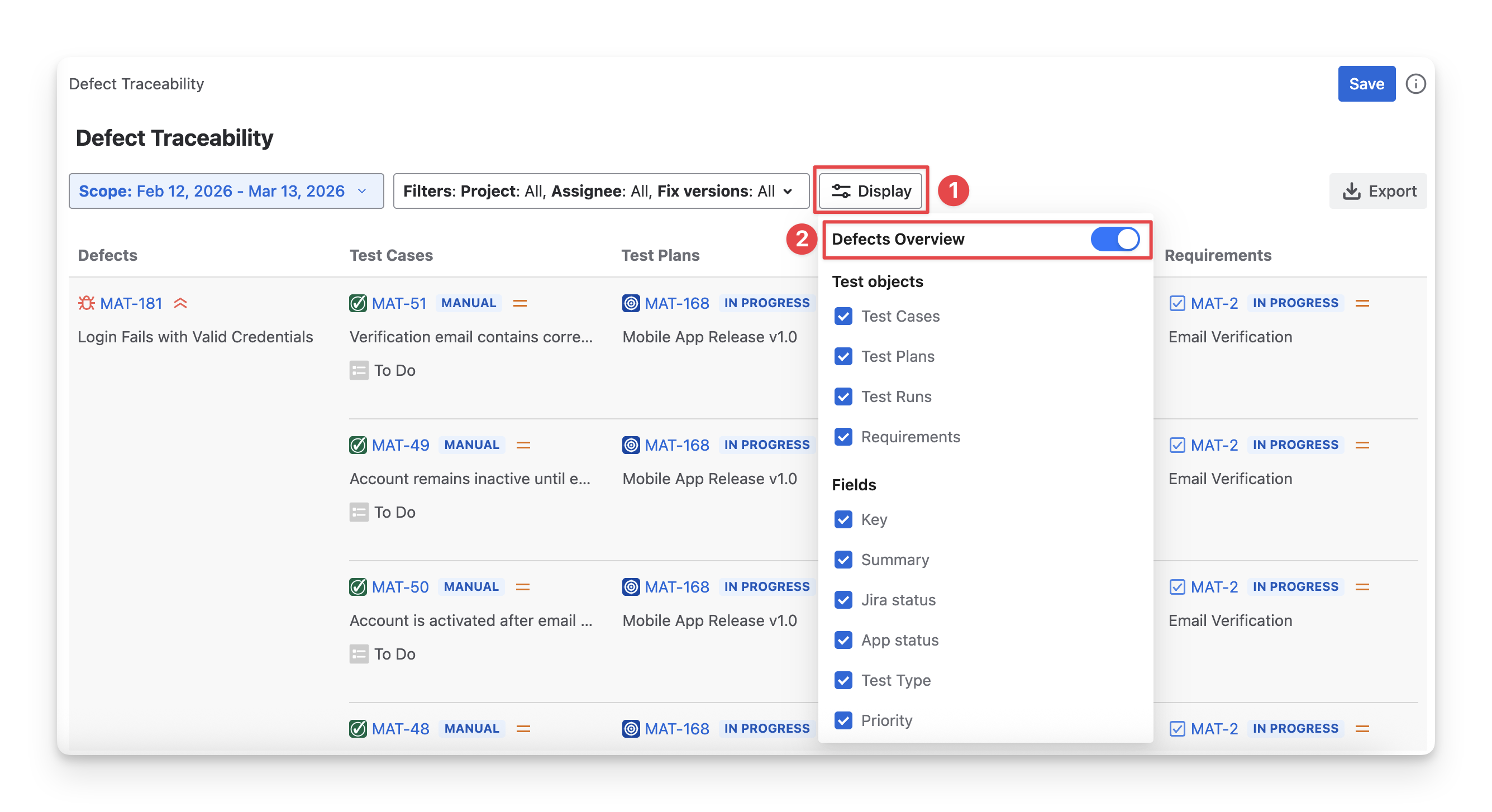
To show or hide this summary in the report:
-
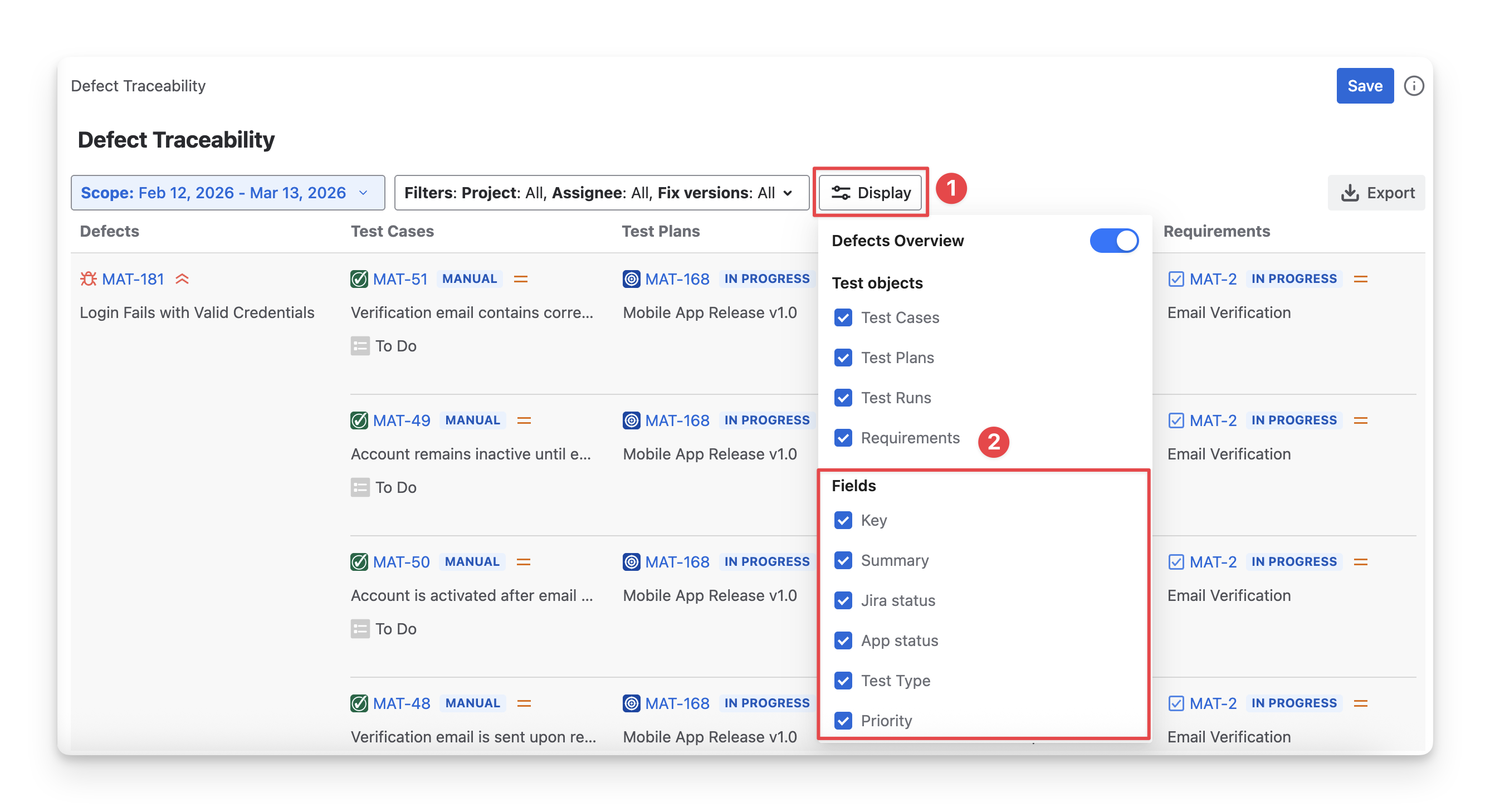
Click the Display button.
-
Tick or untick the options to show or hide the Defect Overview section.
2. Defect Traceability Table
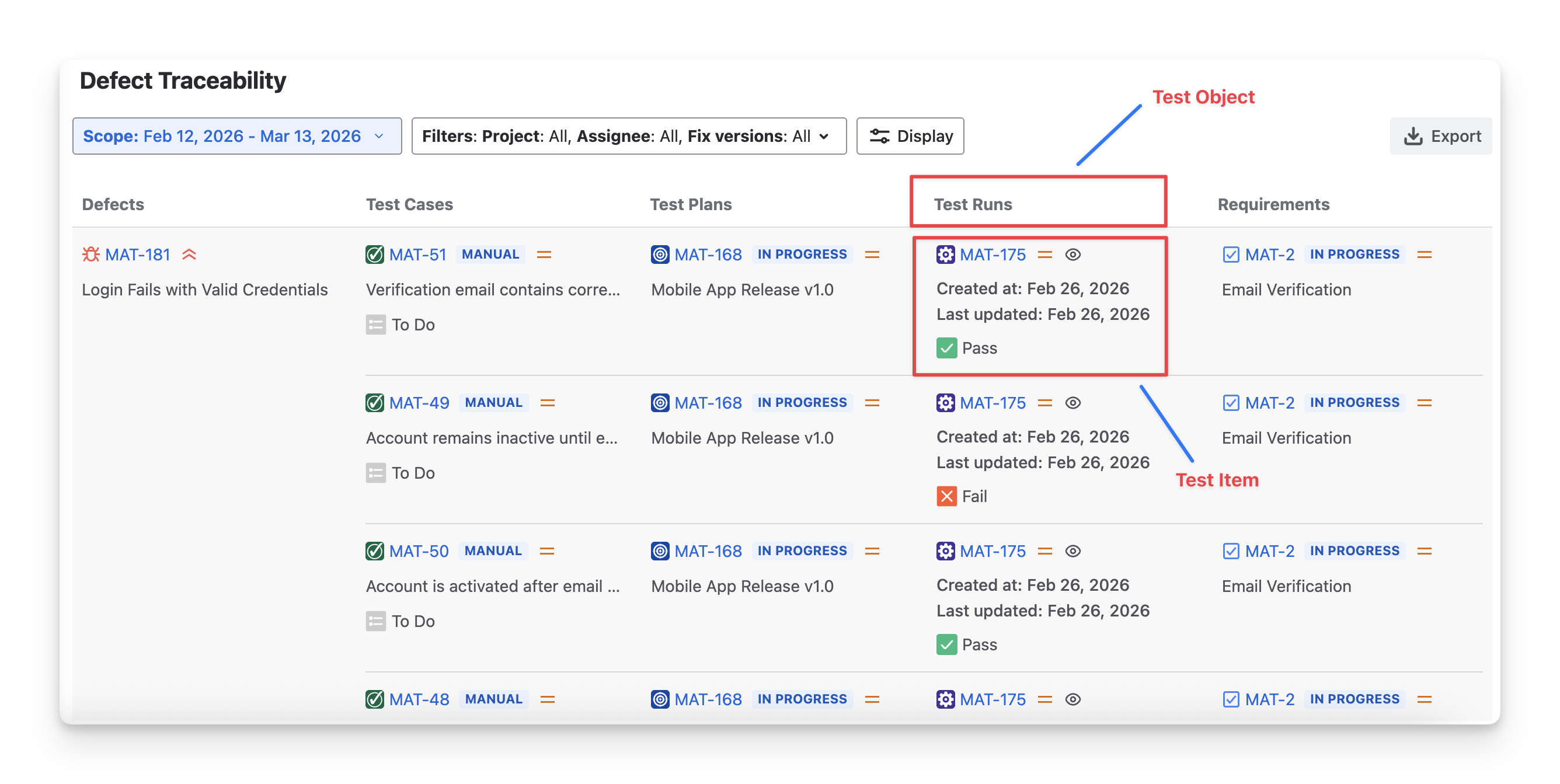
In the Defect Traceability table, you can view a table with five columns, each representing one of the five main components in the testing process: defect, test case, test plan, test run, and requirement. These are referred to as test objects, which are the high-level elements you interact with during testing.
Each test object contains multiple test items, which are individual elements related to the object, such as specific test cases, test executions, or defect records.
2.1 Test Objects
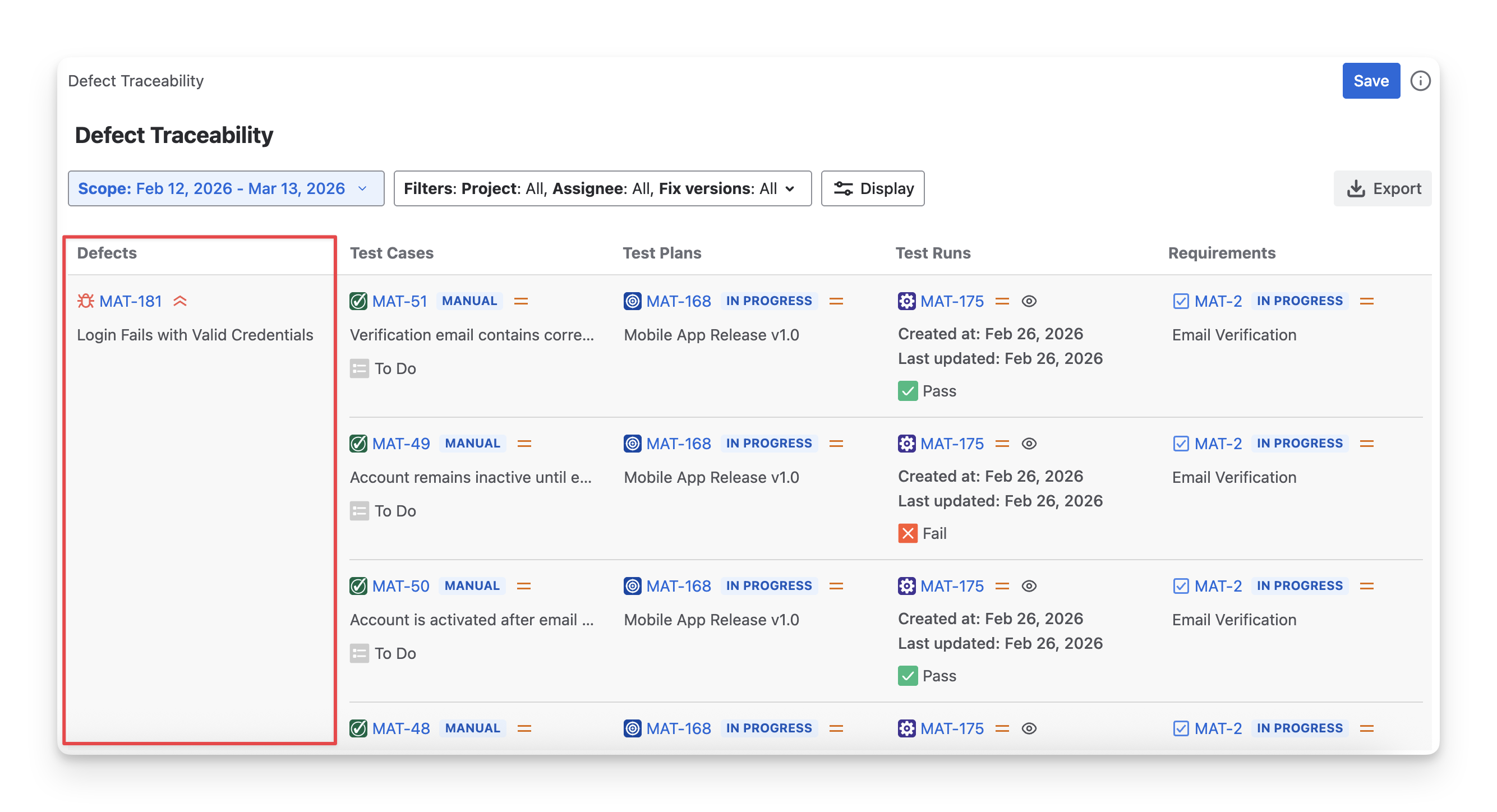
In the Defect Traceability Report, the defect is the core object. It anchors traceability in defect analysis and allows teams to understand how defects relate to testing activities and requirements.
From each defect, you can trace its relationships with the following test items:
-
Test Cases: Test cases linked to the defect, indicating where the issue was discovered during testing.
-
Test Plans: Test plans that include the test cases associated with the defect.
-
Test Runs: Test executions where the defect was identified during test case execution.
-
Requirements: Requirements associated with the impacted test cases, showing which functional areas are affected.
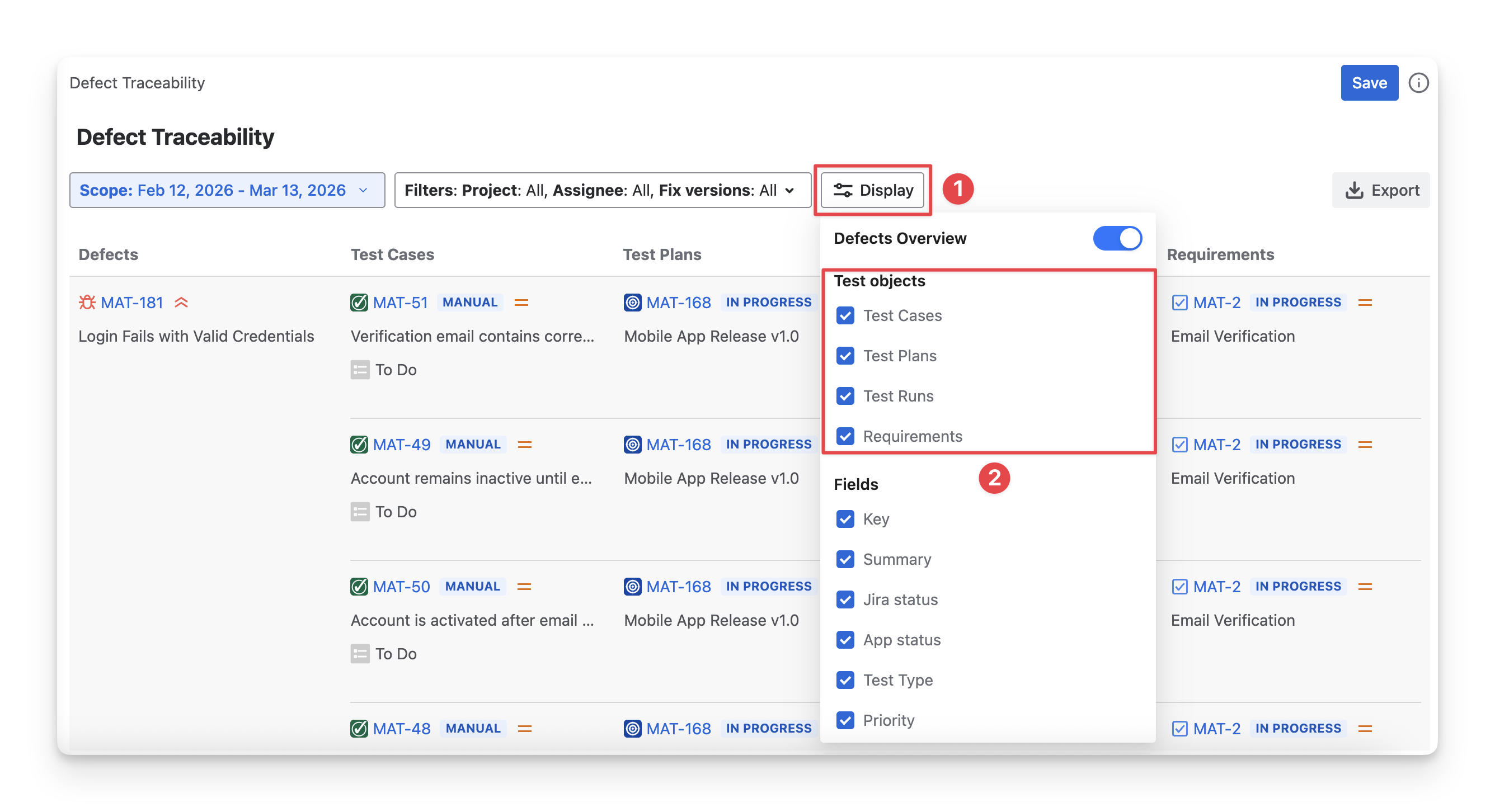
To show or hide these traceability columns in the report:
-
Click the Display button.
-
Tick or untick the options to show or hide columns in the Defect Traceability Report.
2.2 Test Items
Defect Traceability items are the work items linked to each defect and displayed across the Defect Traceability Table. They provide visibility into how a defect is connected to testing artifacts and requirements.
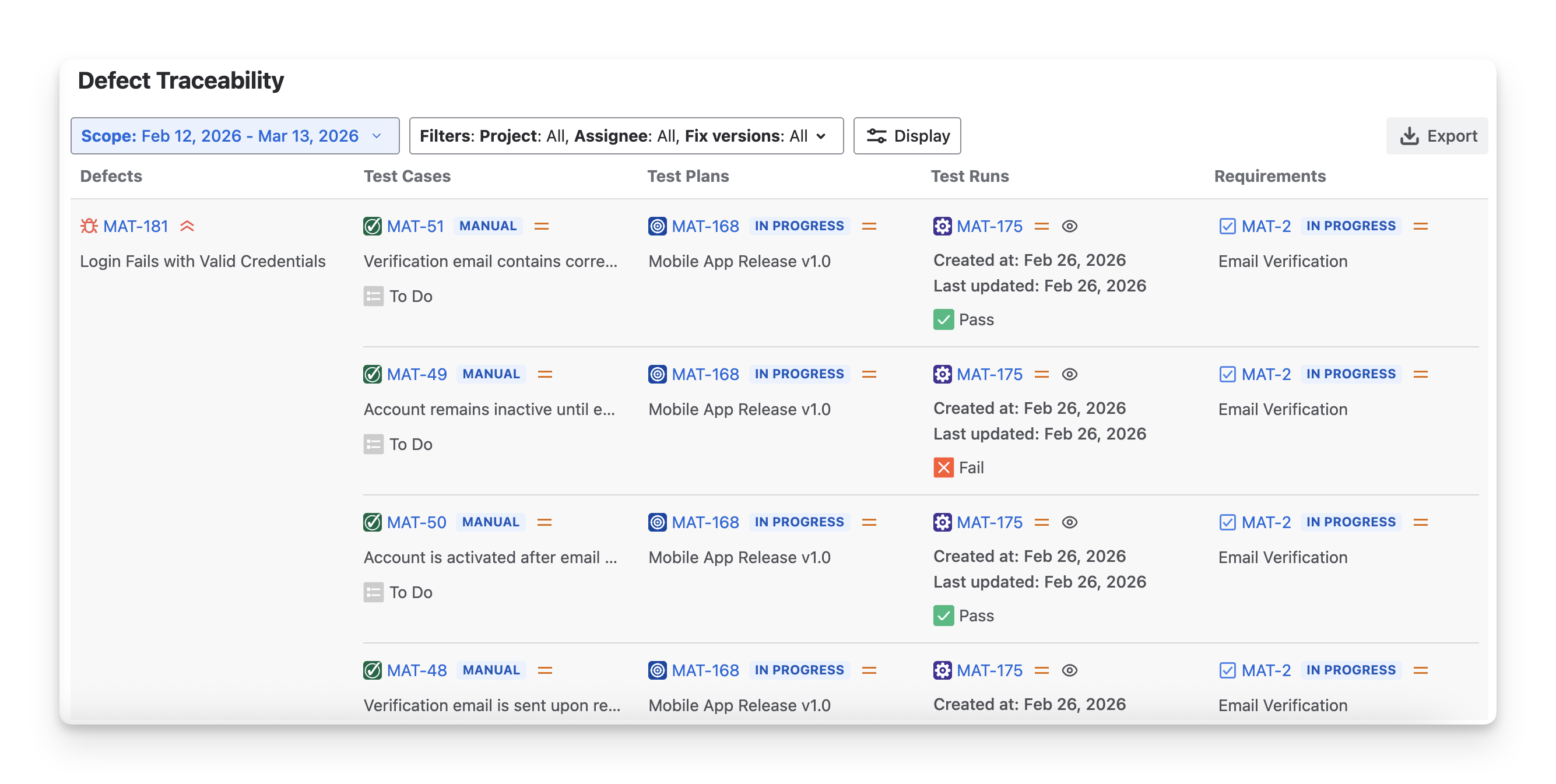
Each test item includes some of the following fields:
|
Field |
Description |
|---|---|
|
Key |
The Jira unique identifier for each test item (defect, test case, test plan, test execution, requirement). This helps you quickly locate, reference, and track a specific issue. |
|
Summary |
A brief title describing the purpose or scenario of each test item. |
|
Jira Status |
The current Jira status of the work item ticket ( todo ; in progress done ) indicates its lifecycle stage. |
|
App Status |
The test execution status of each test case ( Fail pass skipped blocked query todo retest ). |
|
Test Type |
The type of test case( Manual ; Cucumber ; Generic ) indicates how the test is designed and executed. |
|
Priority |
The importance and urgency of the work item help teams decide what should be addressed first. |
To show or hide these fields in the report:
-
Click the Display button.
-
Tick or untick the options to show or hide fields in the Defect Traceability Report.
3. Configurations with Defect Traceability Report
You can perform the following actions with this report:
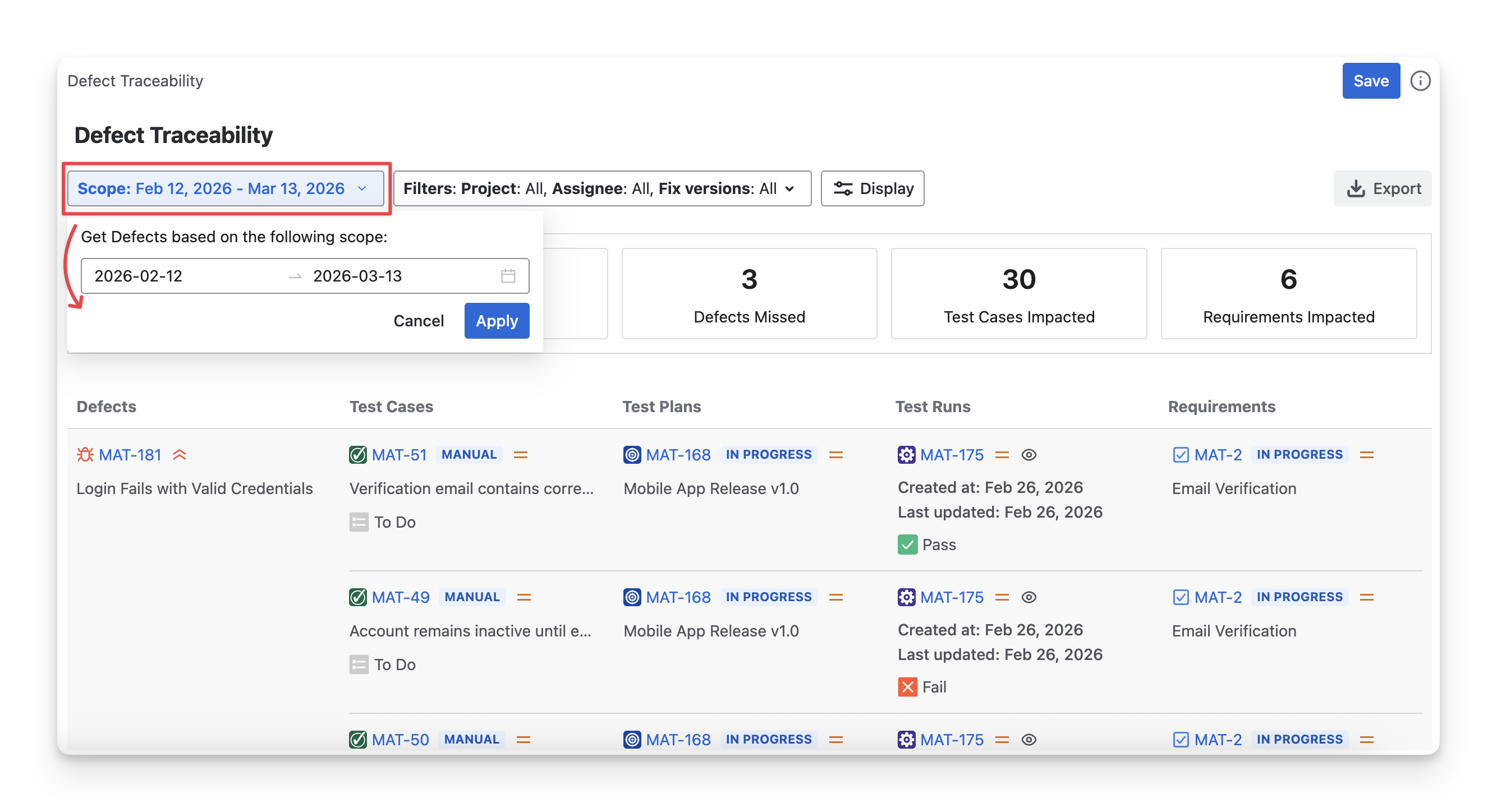
3.1 Scope
To select the time range to apply for the report, click on the Scope” button and choose a suitable timeline.
3.2 Filter
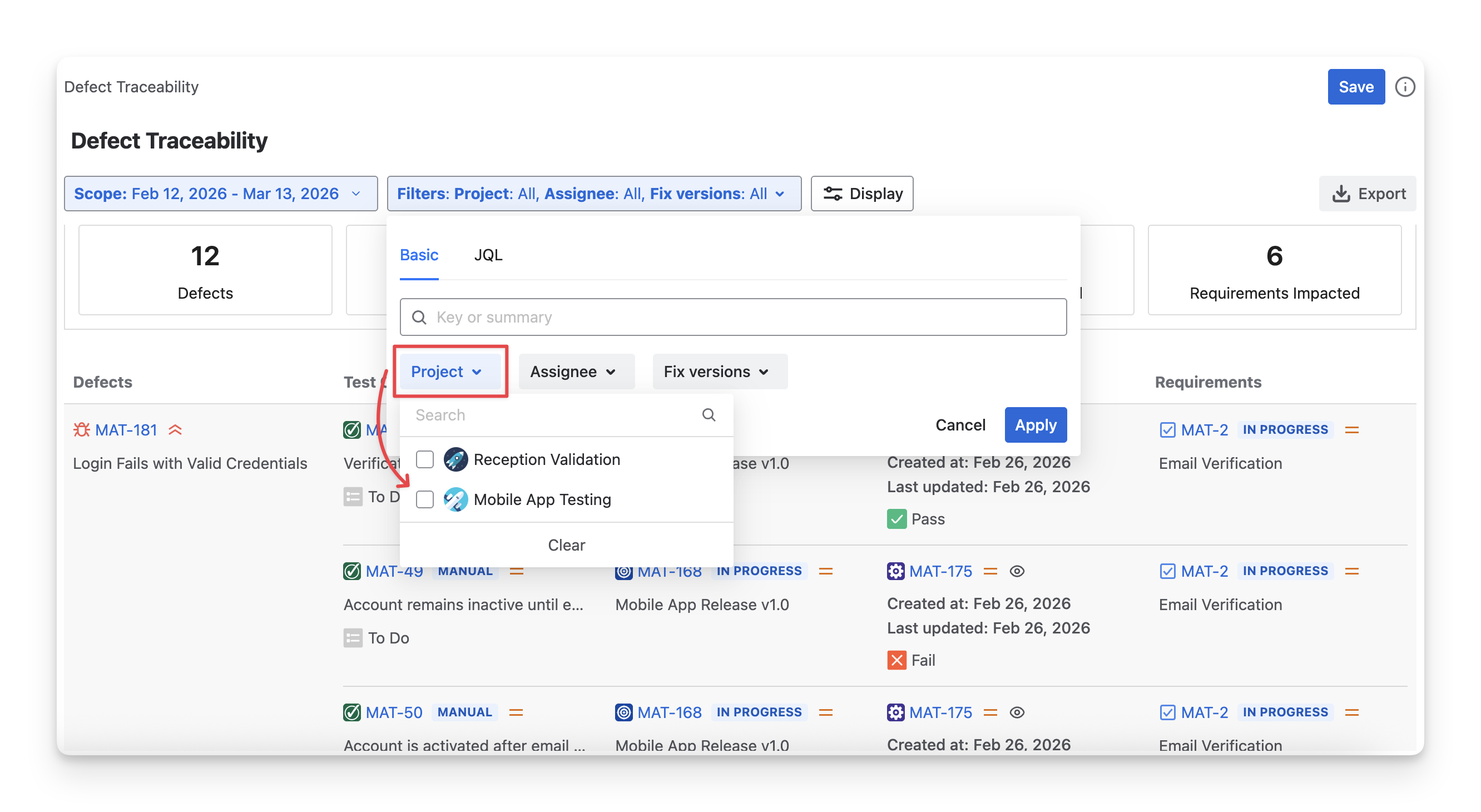
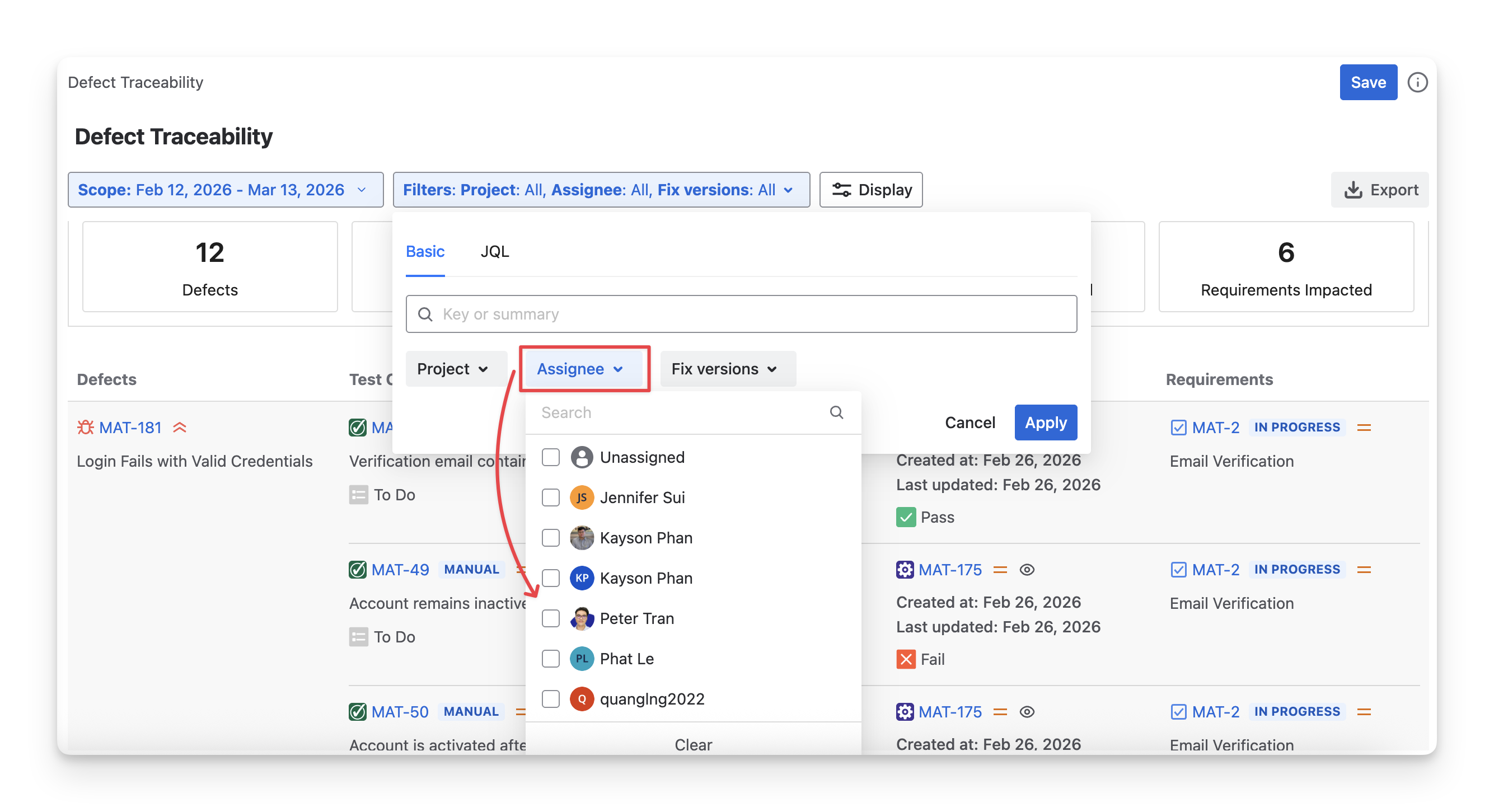
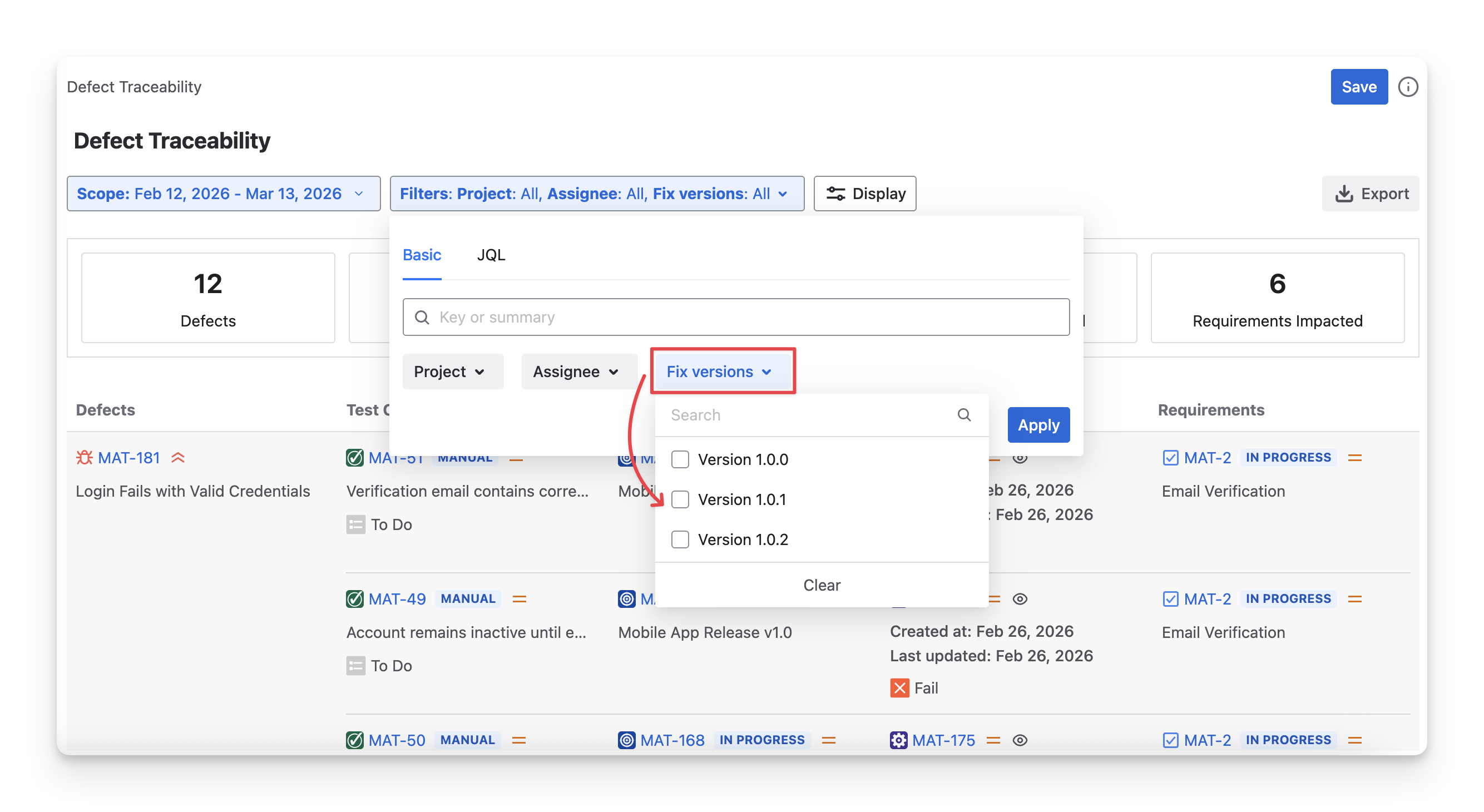
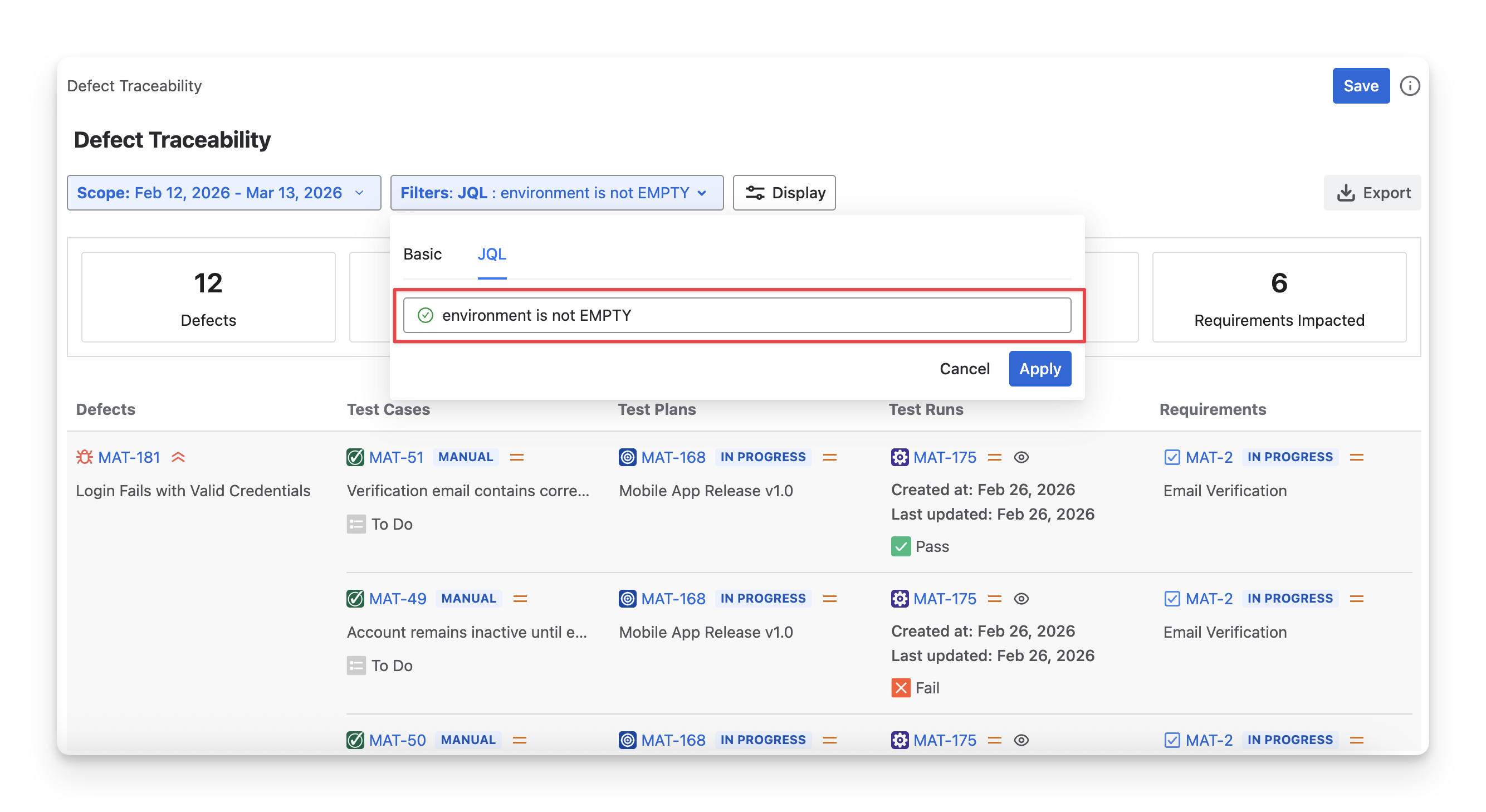
You can apply the filters to display some specific defects that meet certain conditions.
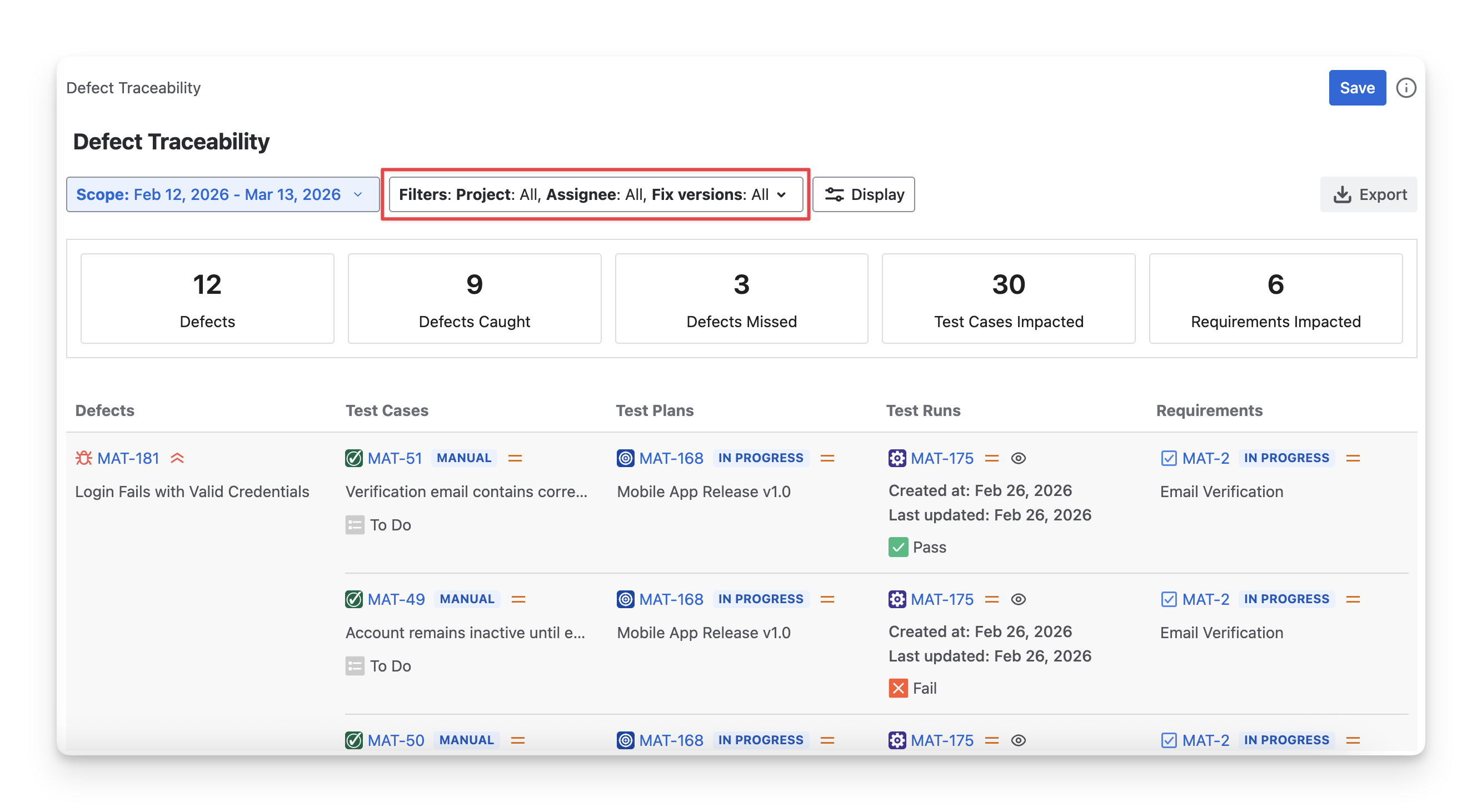
AgileTest supports you to filter by:
-
Project: Select the project whose defects will be included in the calculation.
-
Assignee: Filter defects based on the assignee.
-
Fix versions: Filter defects with those associated with specific Jira fix versions.
-
Or switch to JQL and enter your custom search.
4. Save, Share & Export Report
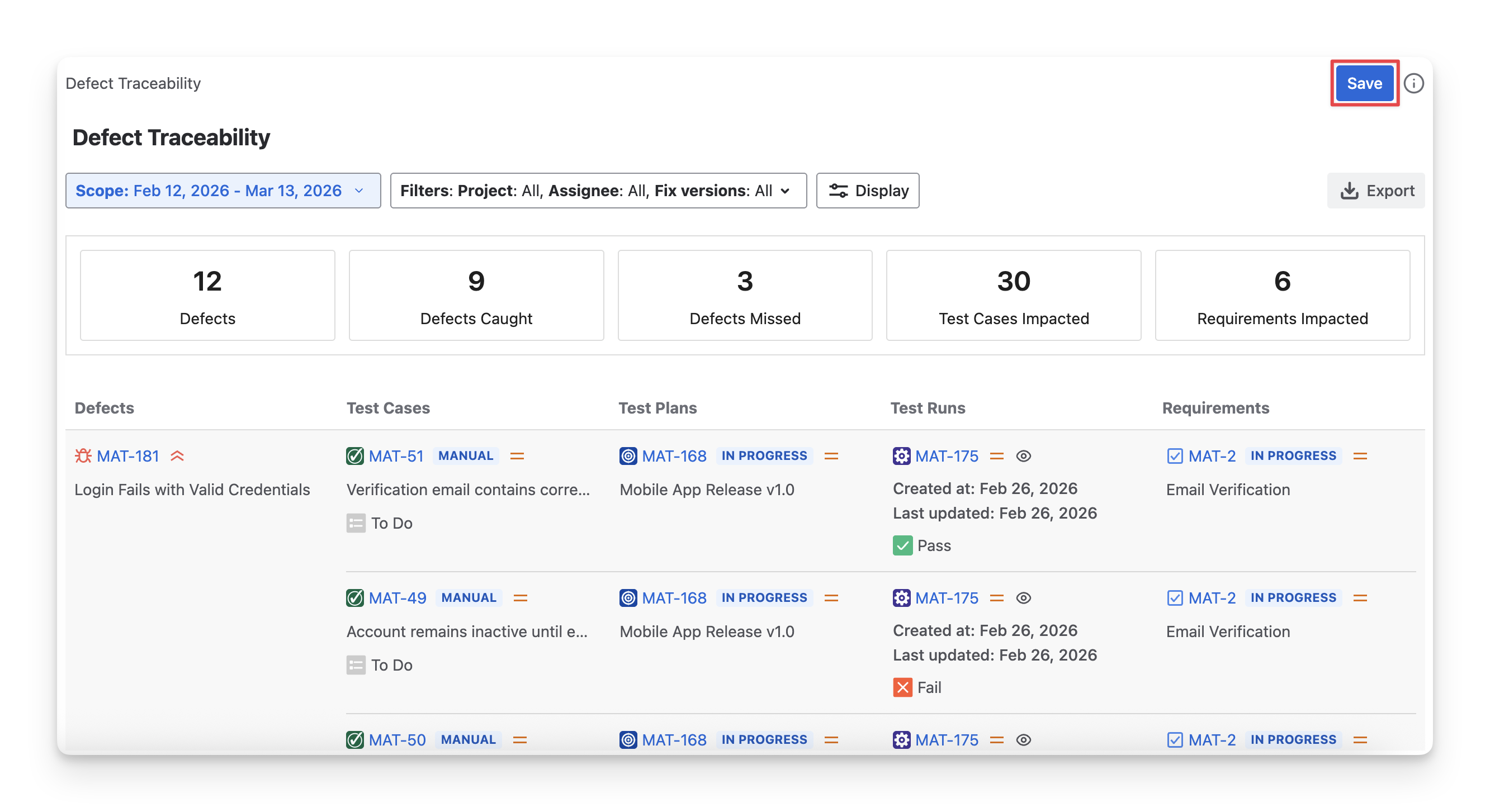
After modifying the Defect Traceability Report, click the Save button. When you reopen the report, your settings will restore automatically, so you won’t need to configure it again.
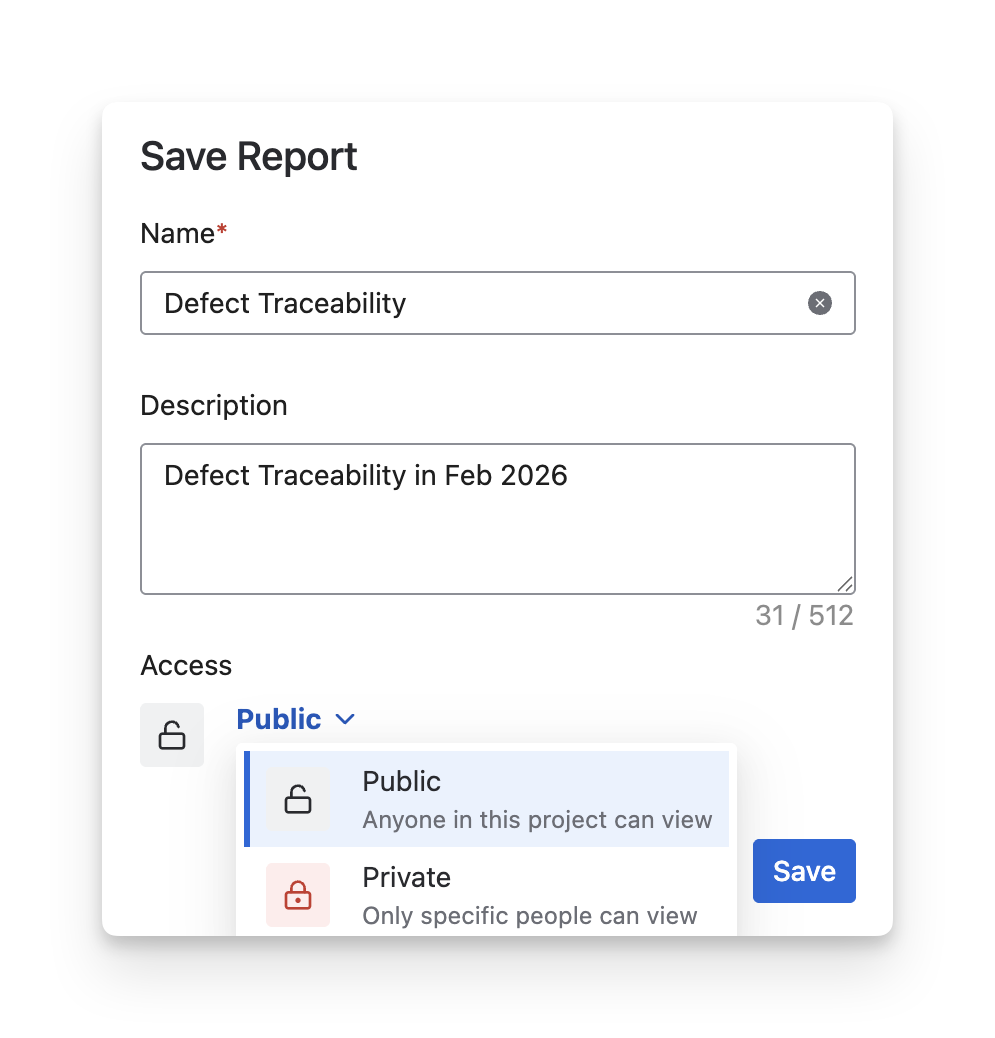
Set the report's accessibility:
-
Choose Private to restrict viewing to some members.
-
Choose Public to allow all members to view the result.
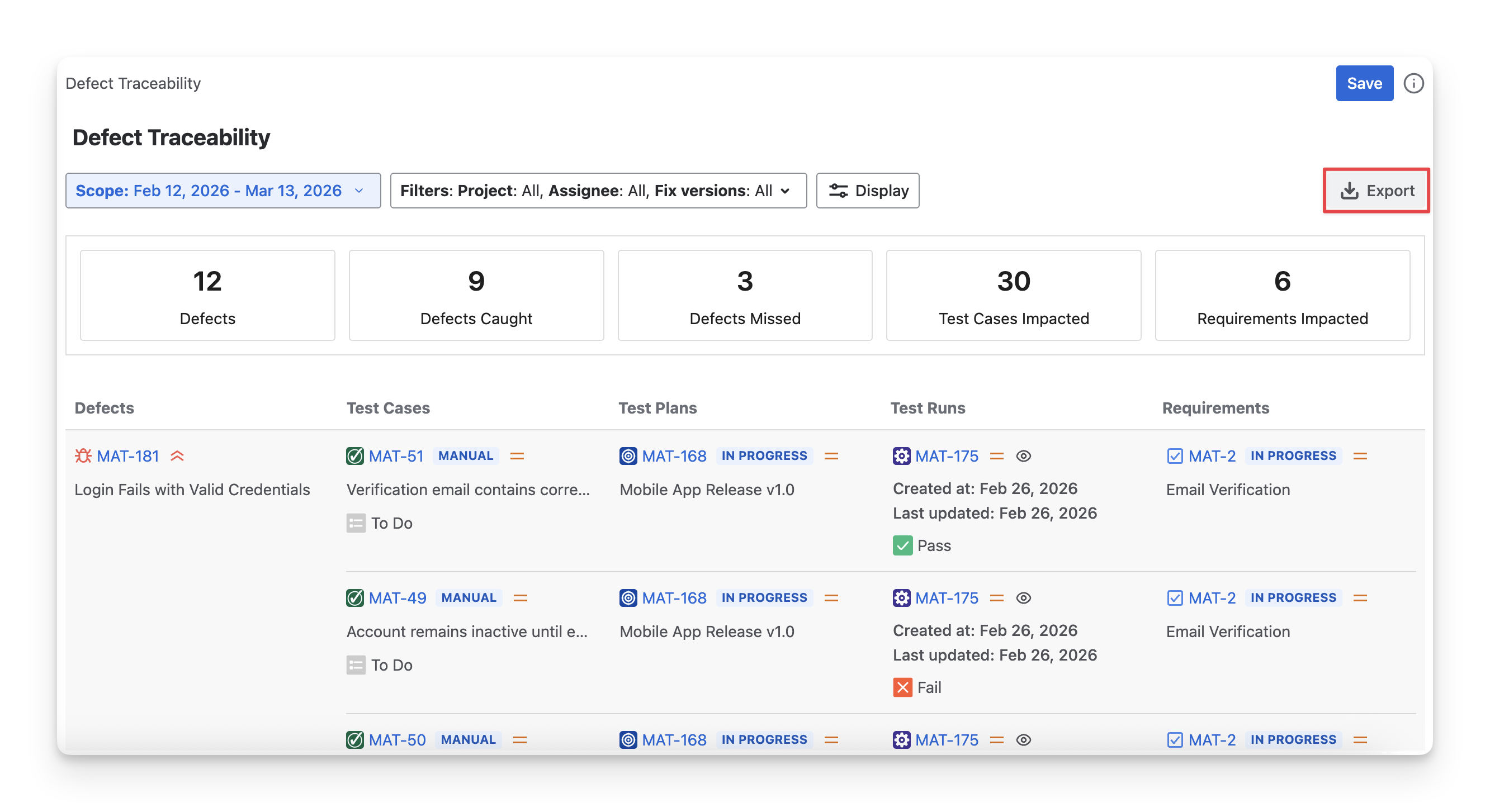
To download the Defect Traceability report, click the Export button. AgileTest lets you export this report as PDF or Excel files, including all displayed content.
Should you need any assistance or further AgileTest inquiries, contact our 24/7 Support Desk.