.png)
1. Overview
In AgileTest, Reports provide a consolidated view of your testing activities. There are 6 types of reports:
-
Test Coverage Report: Analyze each requirement's status based on its linked test cases' results. Use this report to track testing completeness and identify gaps in your initial testing requirements.
-
Test Traceability Report: Visualize the relationships between requirements, test cases, test plans, and execution results, ensuring full forward and backward traceability throughout the testing lifecycle. This makes it ideal for ensuring requirements are fully tested and for tracking test dependencies.
-
Defect Summary Report: Provide an overview of reported defects, including their status, severity, and distribution, enabling teams to monitor defect trends and assess overall product quality. This report is essential for defect management and release readiness.
-
Project Metrics Report: Offer key insights into the overall performance of your testing efforts. It includes metrics such as the number of test cases created, executed, etc. This report helps teams track the overall test projects and make data-driven decisions for future test planning and execution.
-
Cross-Execution Comparison Report: Enable you to compare test results across multiple executions, providing insights into changes in test outcomes over time. This comparison can highlight critical test cases that fail repeatedly and require further attention.
-
Defect Traceability Report: Offer backward traceability, linking defects to their corresponding requirements, test cases, and test plans. It helps identify the root causes of defects and prioritize their resolution, ensuring full visibility into how defects impact the product’s quality.
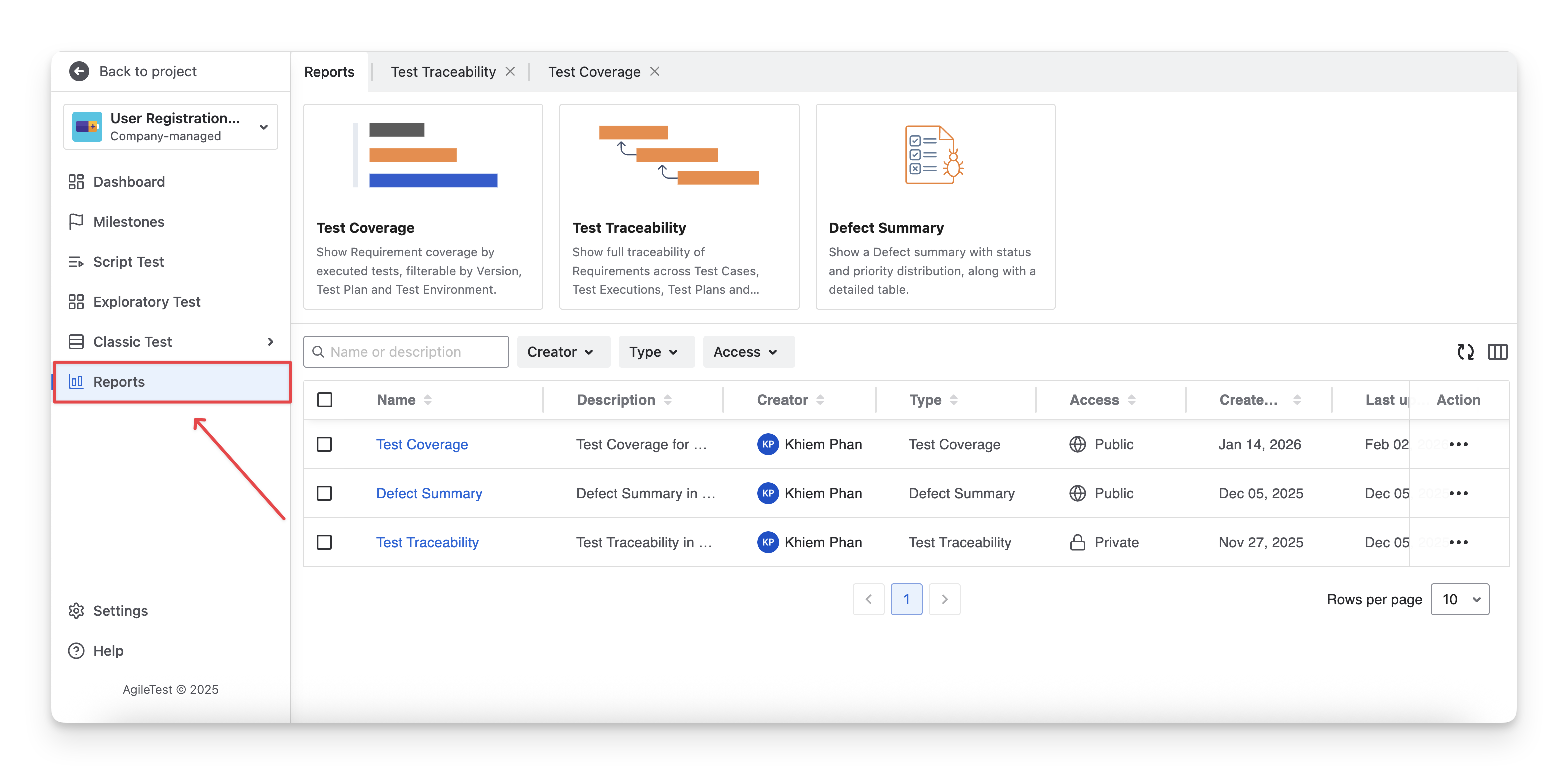
To view the reports in AgileTest, you can navigate to the Report section on the left-hand side menu bar.
2. Create Reports
To create reports inside the Report screen of AgileTest, follow these steps:
-
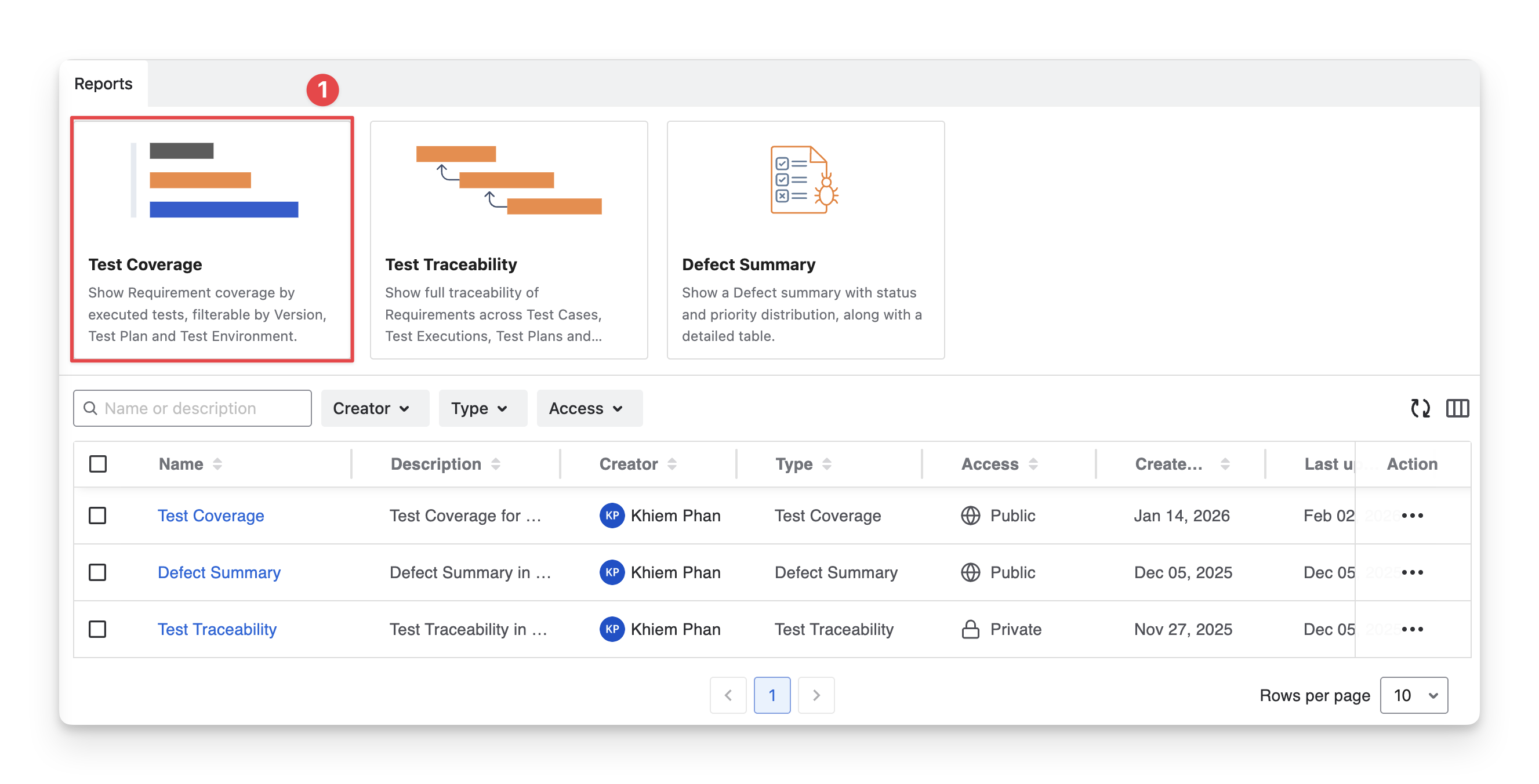
Select a template to create reports that suit your preference.
-
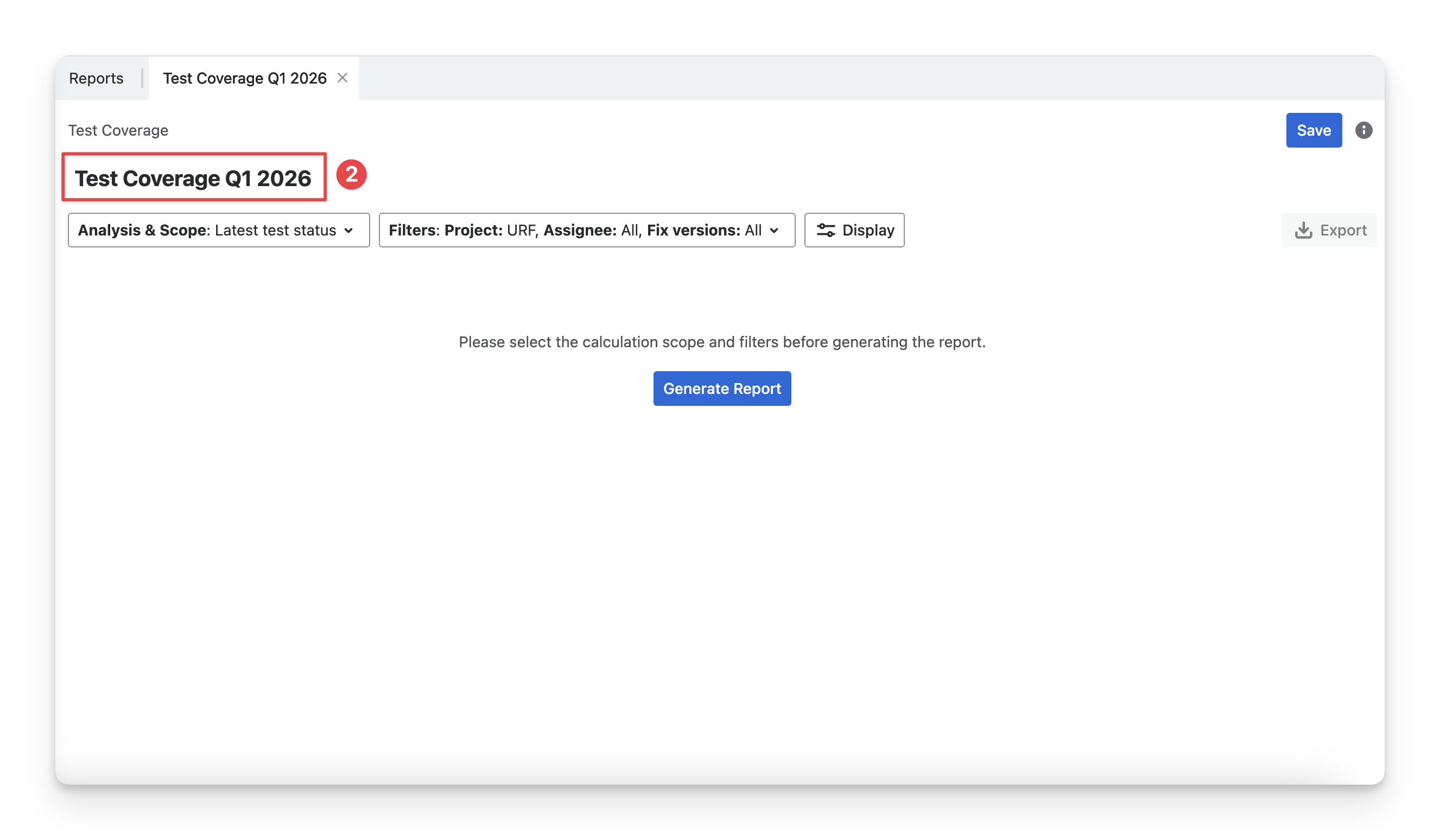
You will be redirected to another report tab. Rename your report by clicking the title space.
-
AgileTest allows users to narrow down the scope of a report by applying calculation scopes and filters. The available options may vary depending on the report type.
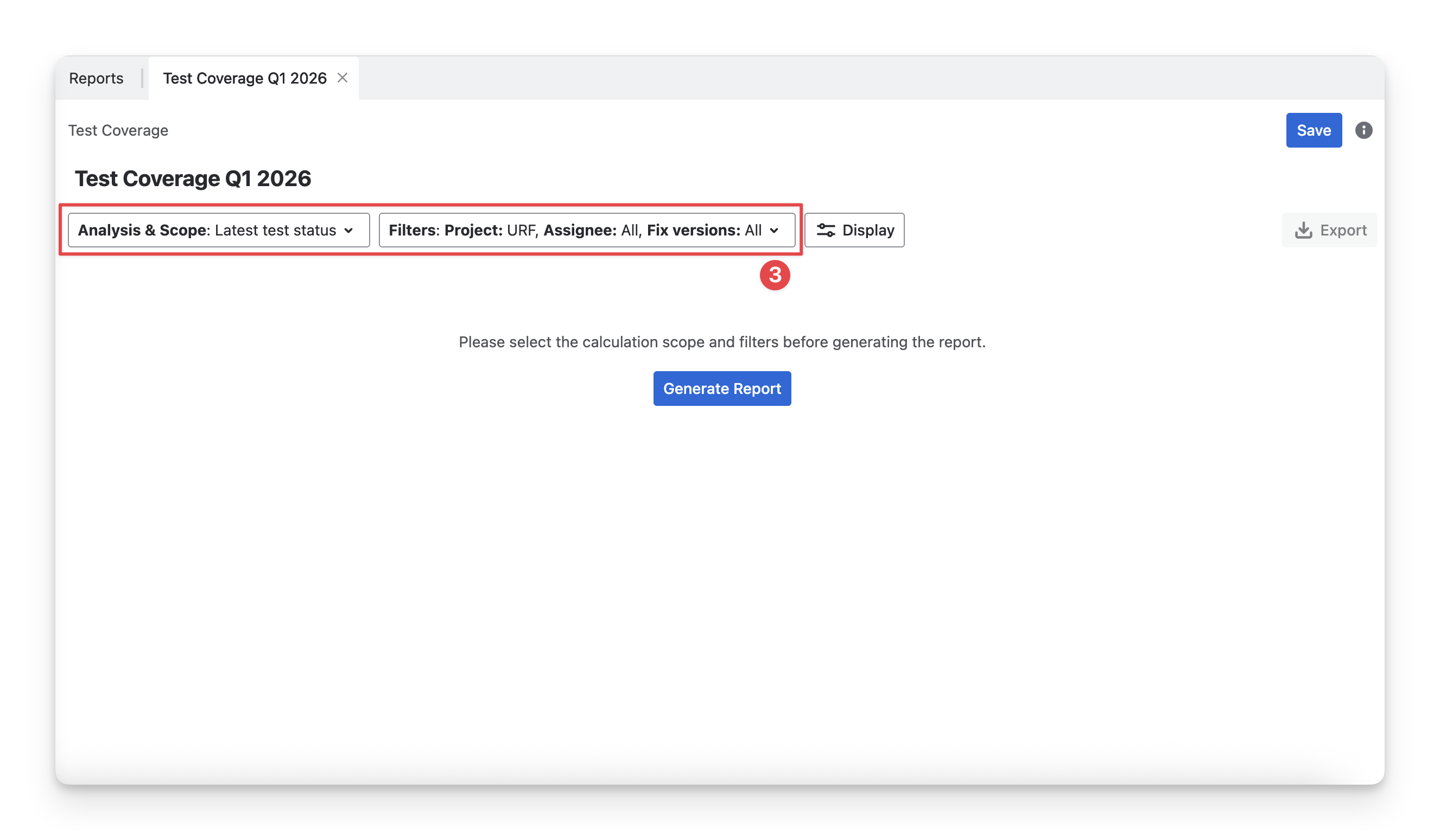
You can generate a report without applying any configuration initially. In this way, the report will calculate data from all existing work items. After the report is created, you can then adjust the calculation scope or apply filters to refine the results based on your specific analysis needs.
-
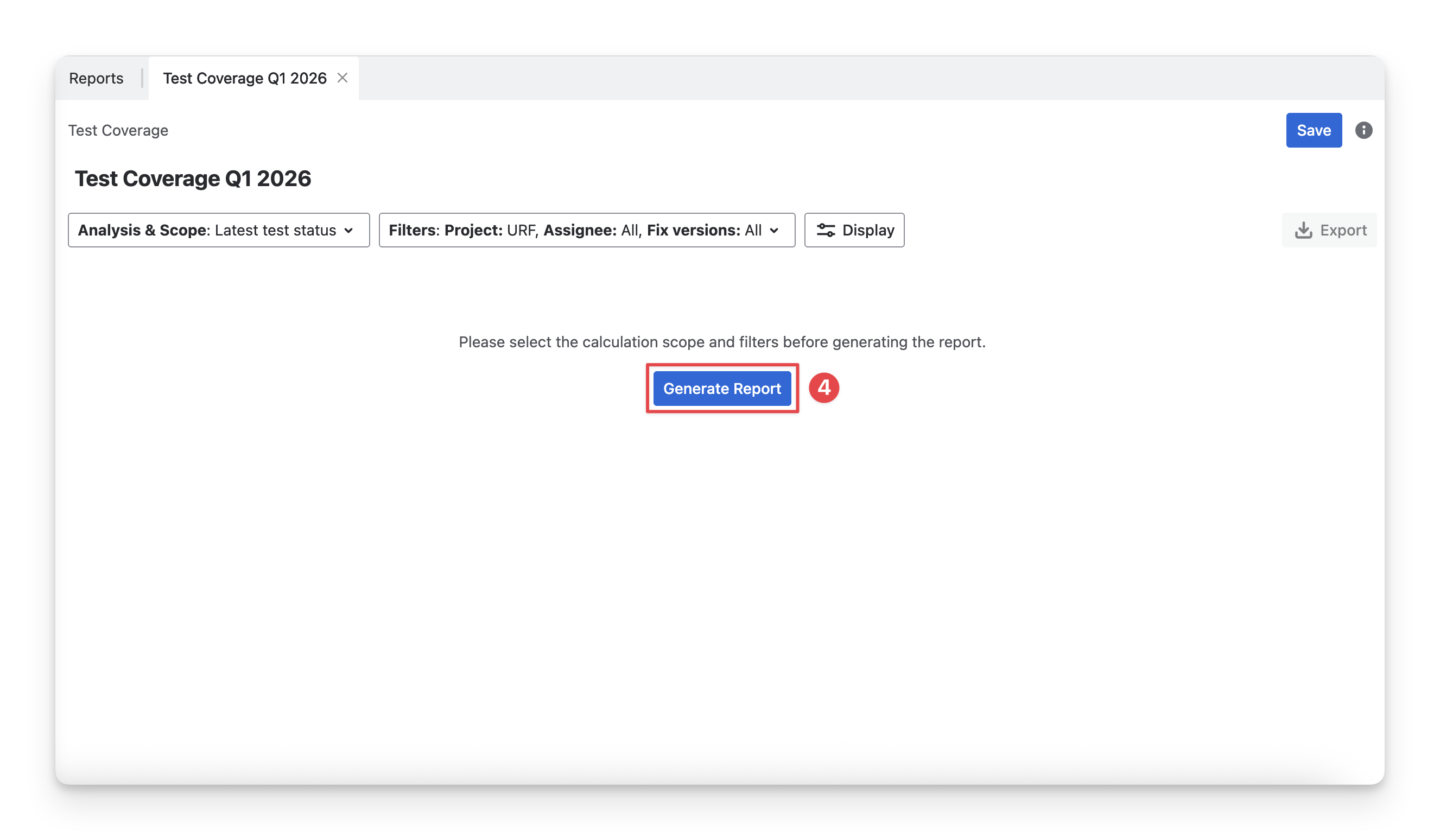
Click on the “Generate Report” button to finish.
3 Manage Reports
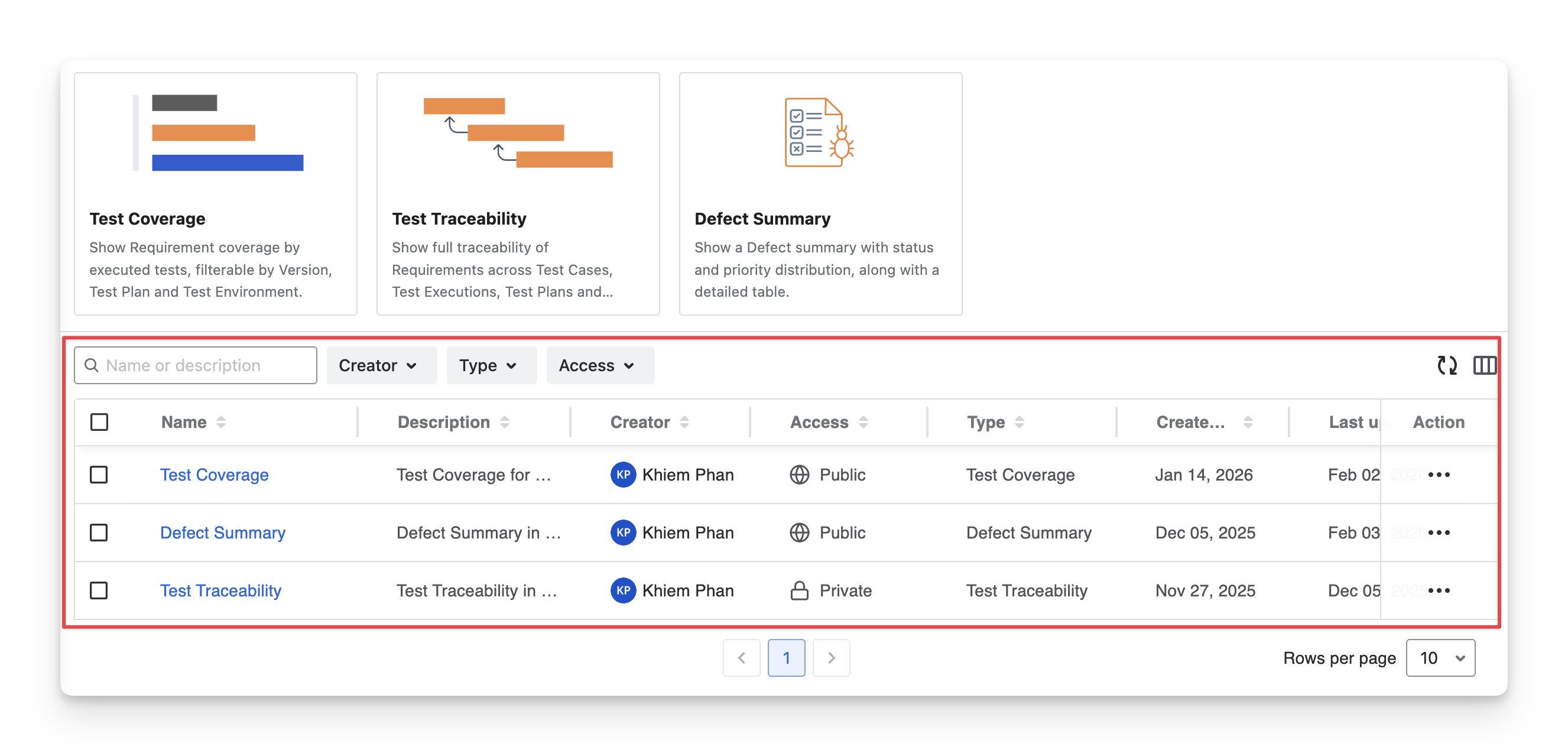
All of your saved reports will be displayed in the report table.
3.1 Report Table
In the Report table, you can see a list of reports with key data:
|
Types of Information |
Explaination |
|---|---|
|
Name |
The title of the report |
|
Description |
A brief summary of what the report contains or analyzes |
|
Creator |
The user who created the report |
|
Type |
The report category (Test Coverage, Test Traceability, Defect Summary) |
|
Access |
The accessibility of the report (Public or Private) |
|
Create At |
The date the report was first created |
|
Last Updated |
The most recent date when the report was modified |
3.2 Report Table Actions
3.2.1 Show/Hide Column In The Table
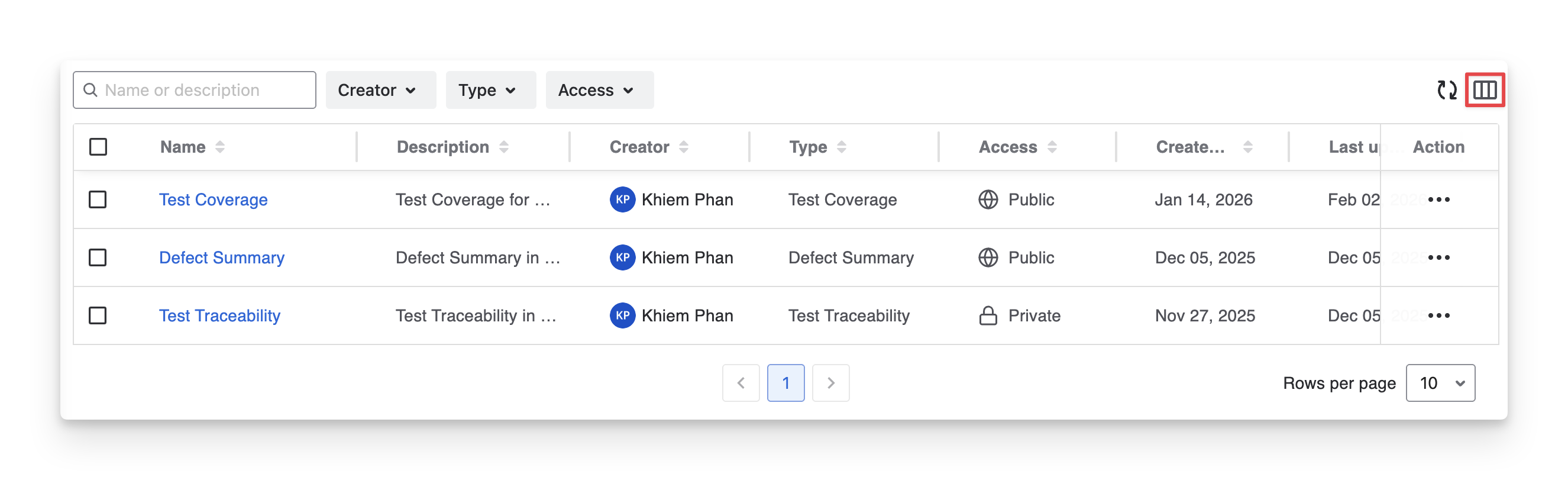
You can show or hide columns in the report table by clicking the “Display” button and selecting/deselecting the checkbox to display/hide the desired columns in the test report table.
The Name and Description Columns are two System Fields, which cannot be hidden.
3.2.2 Rearrange Report Column Orders
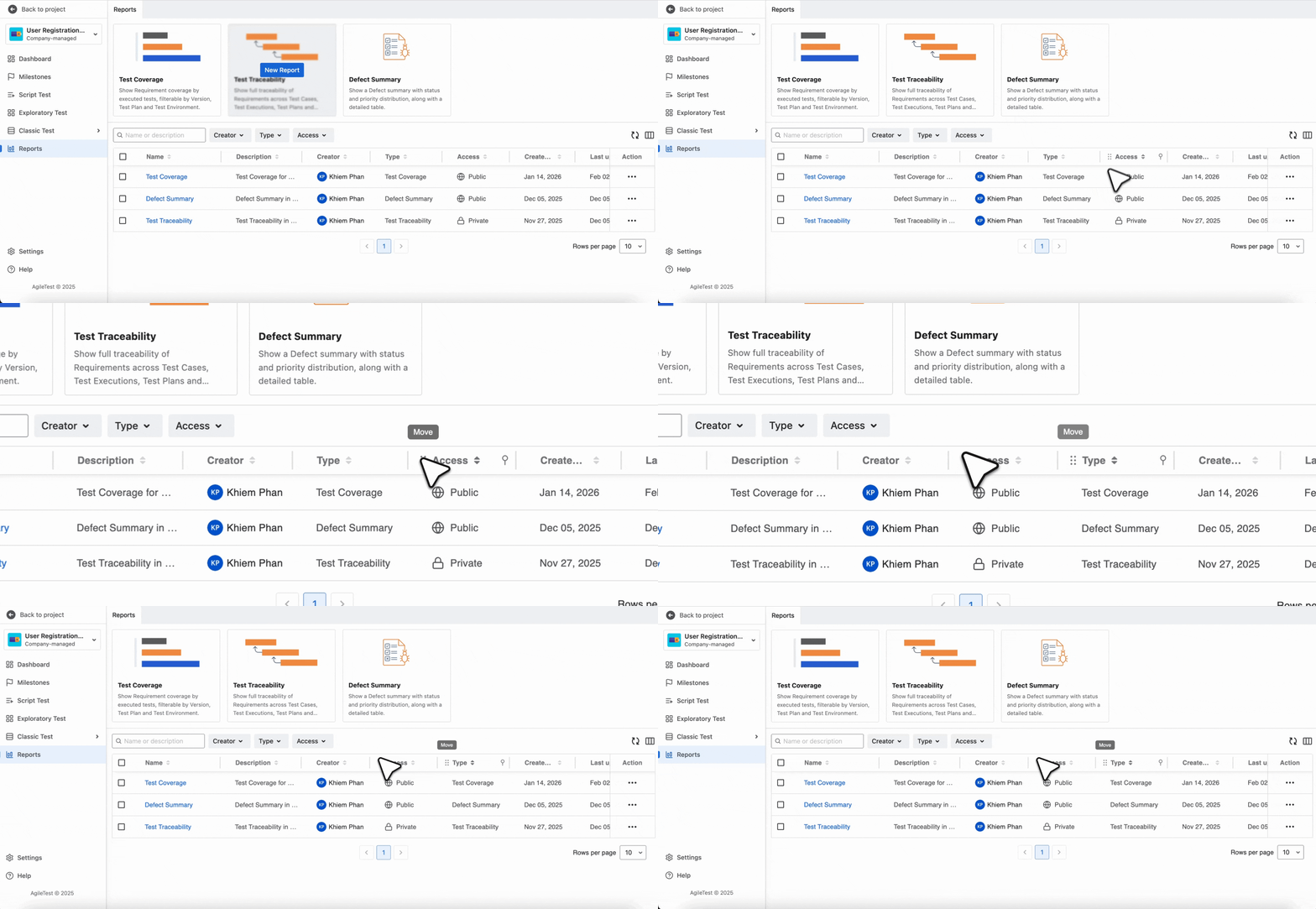
To change the display order of columns, drag and drop each column to your preferred position.
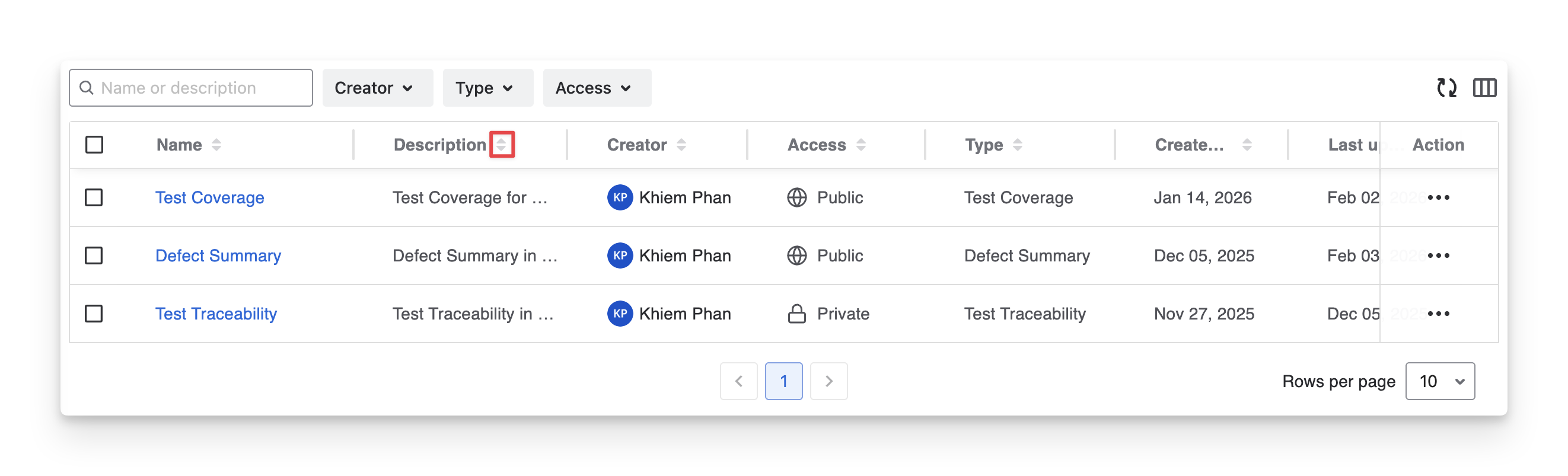
3.2.3 Sort Reports
To sort any column and view the data in ascending or descending order, you can:
-
Choose the 🔼 to sort ascending.
-
Choose the 🔽 to sort descending.
3.2.4 Filter Reports
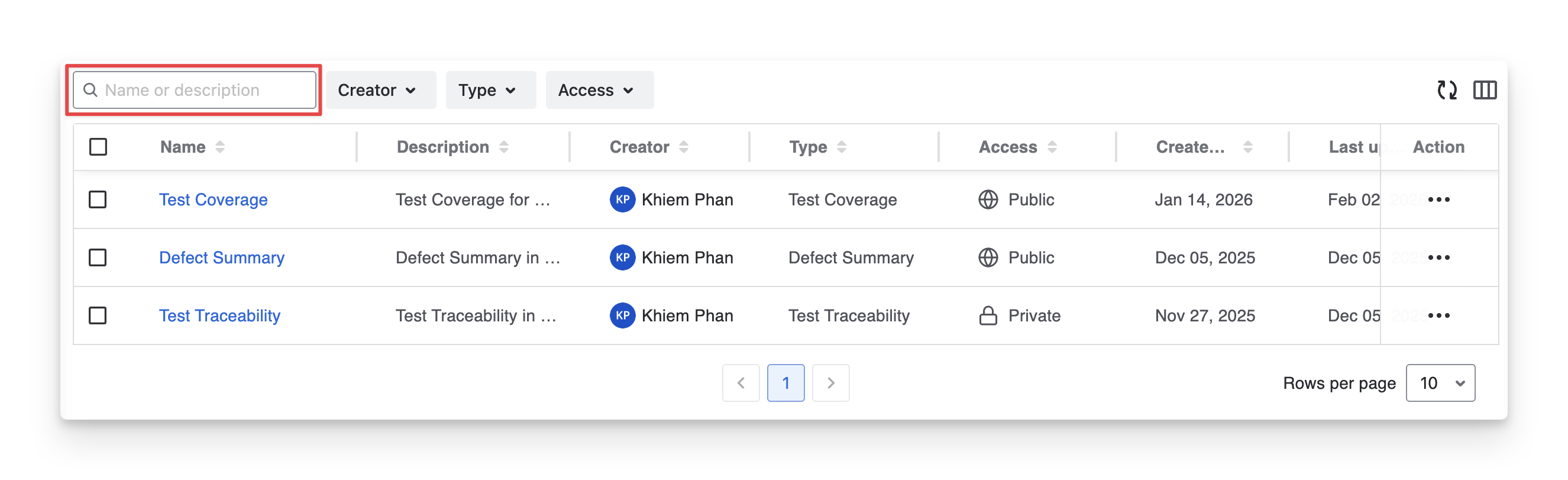
To quickly identify a specific report, you can:
-
Provide the Report Name or Description to find the exact report.
-
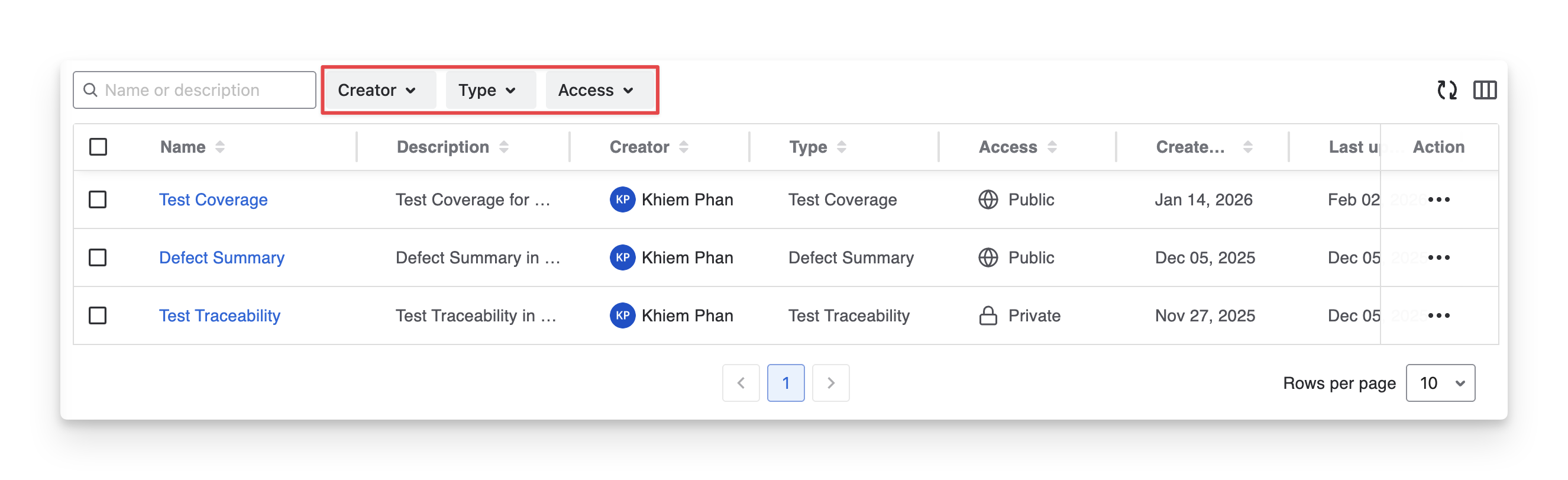
Apply Filters to narrow down the list. You can filter reports by:
-
Creator: Filter reports created by specific users
-
Type: Filter reports based on the report type (Test Coverage, Test Traceability, Defect Summary)
-
Access: Show reports based on access level (Private or Public)
-
3.2.5 Copy Link
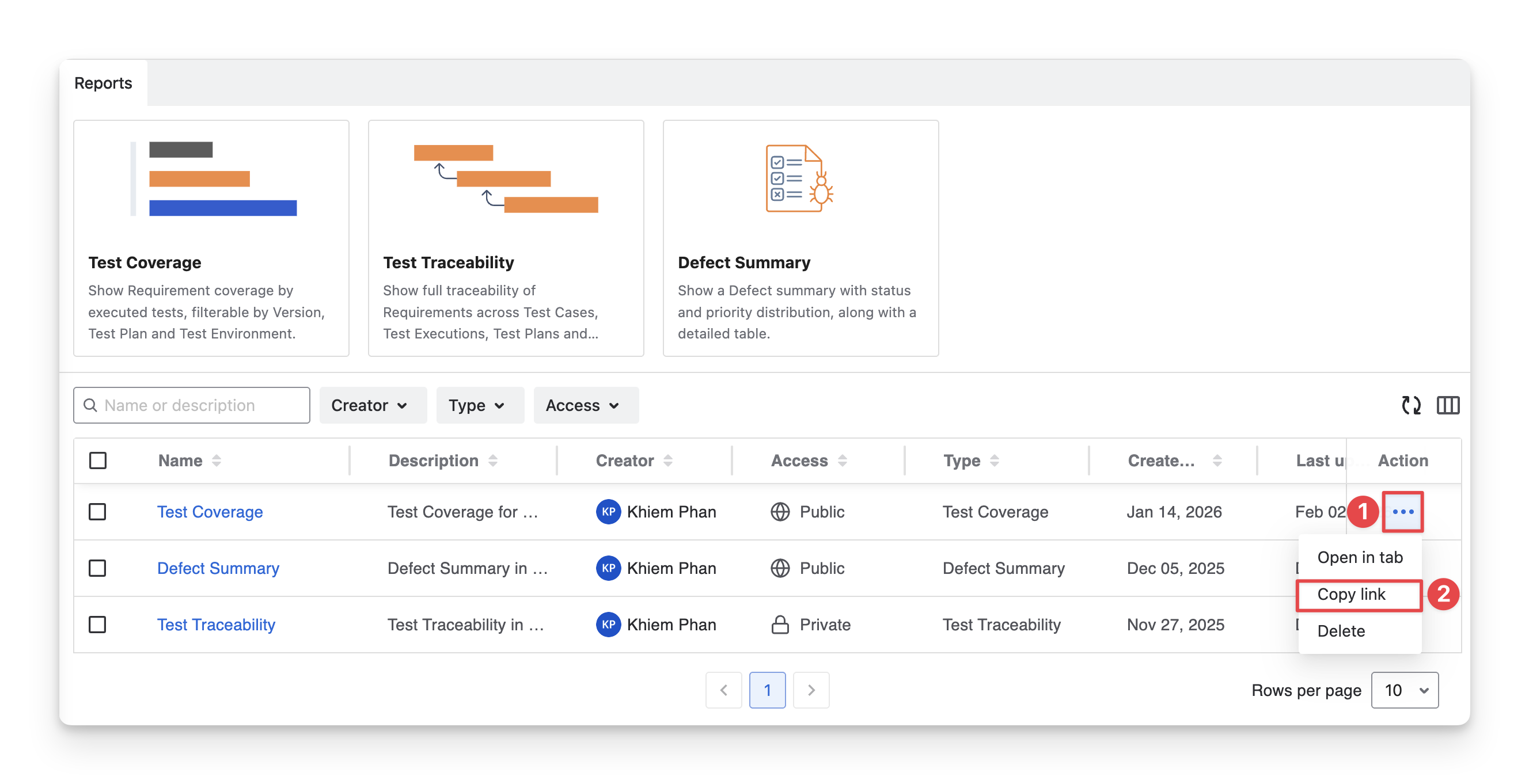
You can copy the Report link to share with team members. To do this, follow these steps:
-
Navigate to the report you want to get the link for. Click on the “
-
Select the “Copy Link” option.
-
The report link has been copied to your clipboard.
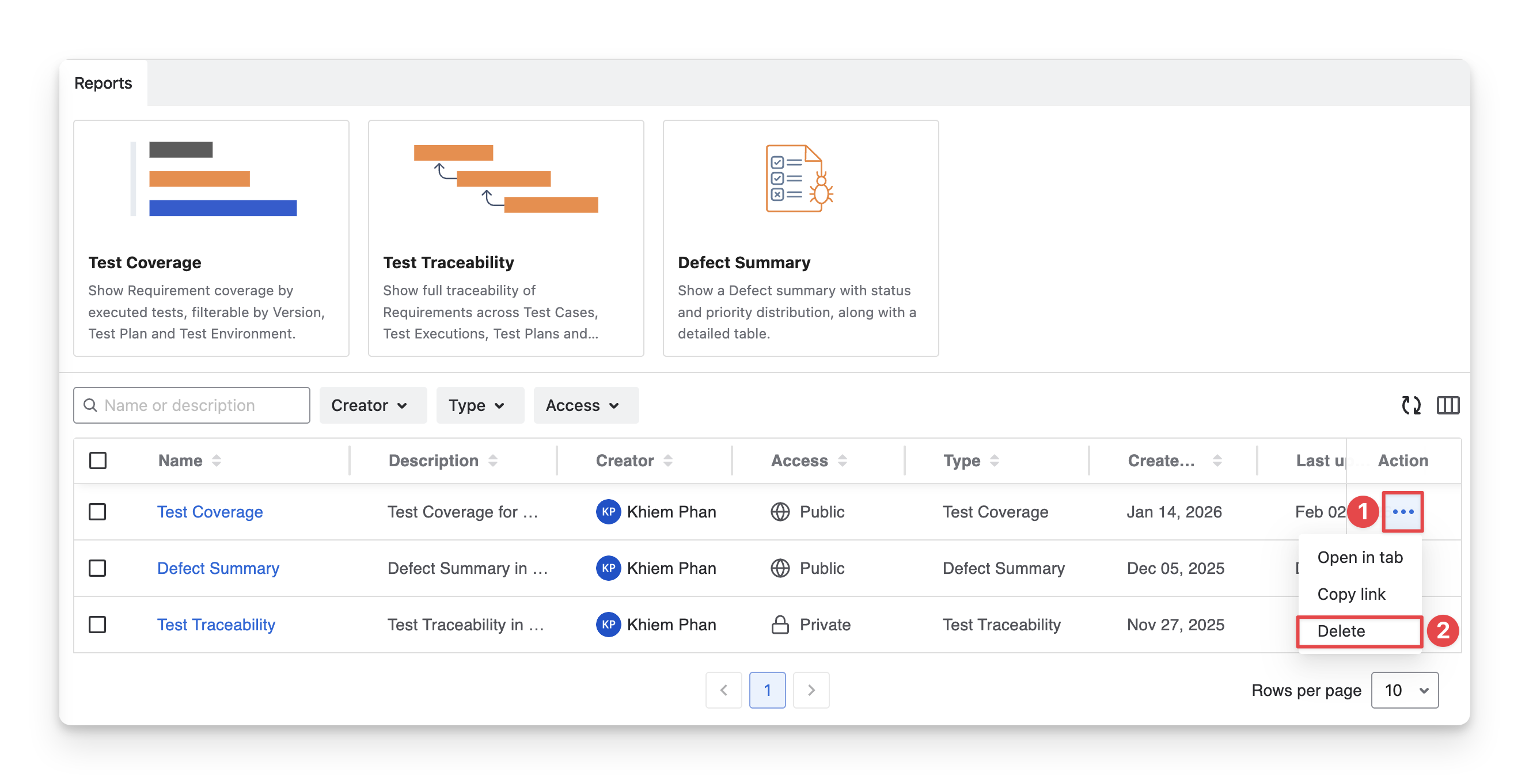
3.2.6 Delete Reports
To delete reports, follow these steps:
-
Navigate to the report you want to delete. Click on the “
-
Select the “Delete” option.
Explore more about AgileTest reports:
Should you need any assistance or further AgileTest inquiries, contact our 24/7 Support Desk.