.png)
Prerequisites:
-
Rovo must be activated on the instance (Available for Cloud plans - Standard, Premium, Enterprise.
-
AgileTest must be installed on the instance → Learn how to install AgileTest.
The Track Work Items feature helps you monitor all work items related to your project, providing a clear view of progress and ownership. These items include test cases, test plans, and test executions you created.
AgileTest Summary & Analyzer Agent can quickly fetch and display work items based on your needs, whether you want to view all items assigned to a specific user or focus on a particular type of work item.
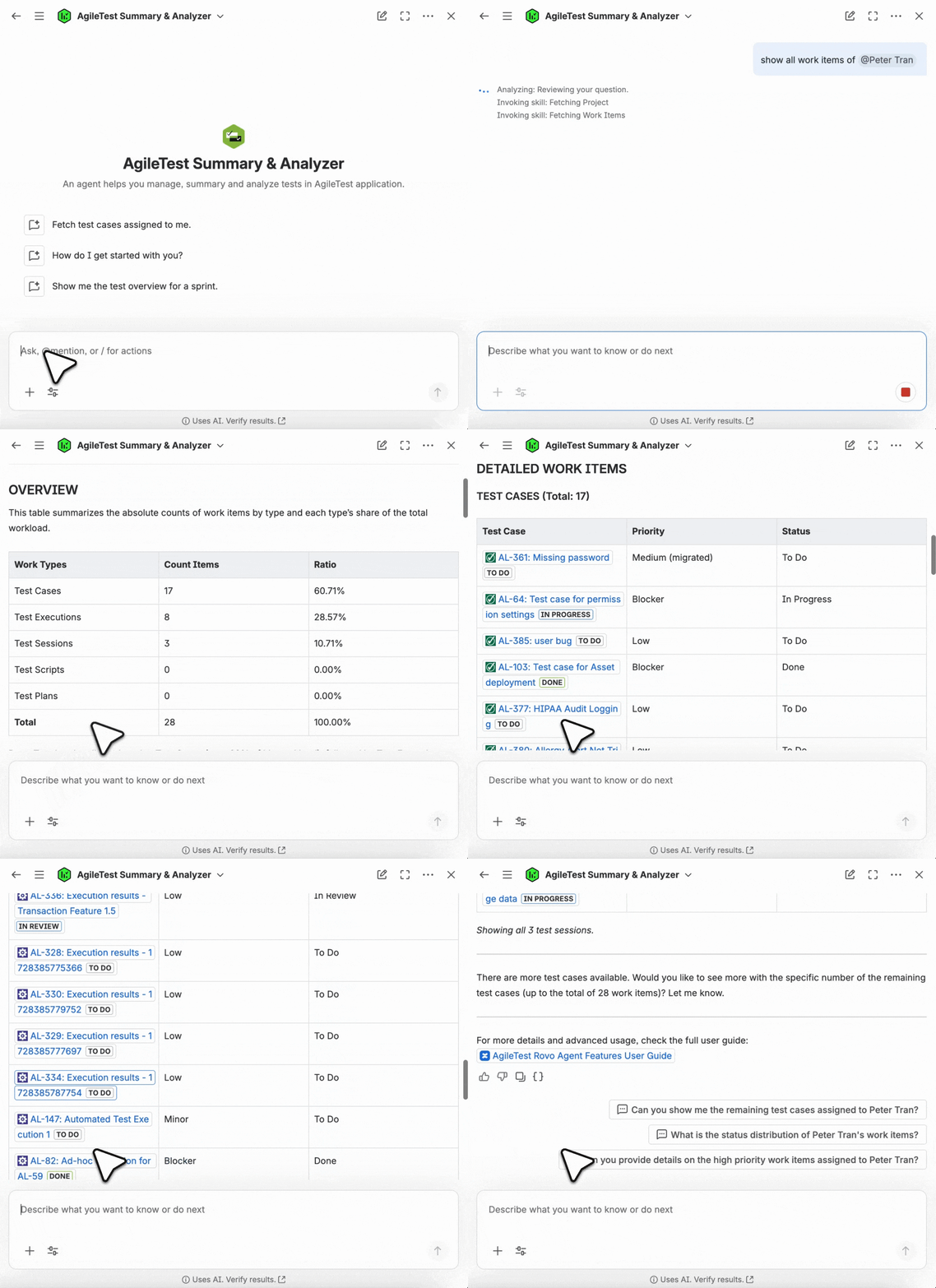
Scenario 1: Provide with only User Names
To collect all work items or issues for a team member, use the command show all work items of + @user name
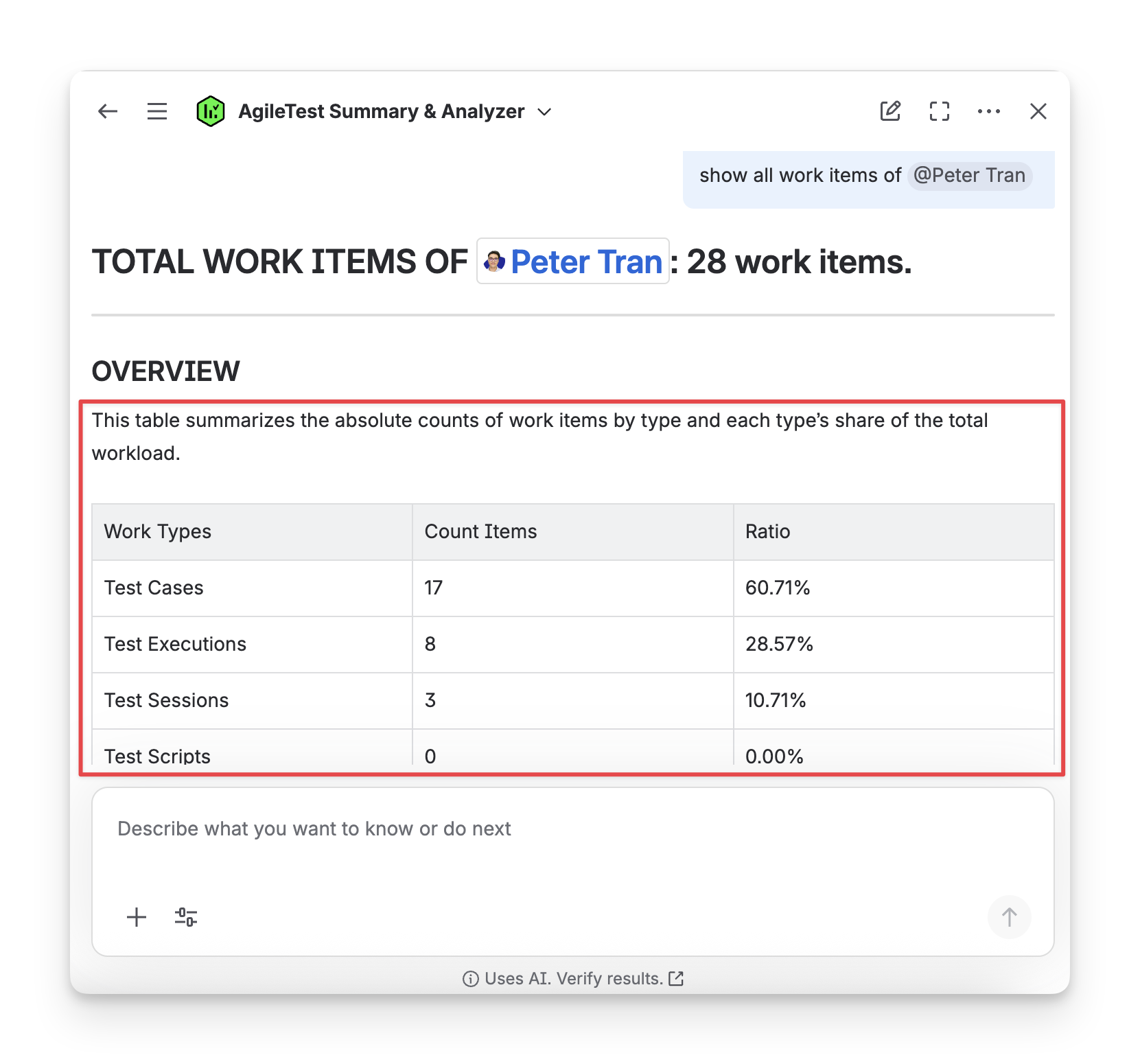
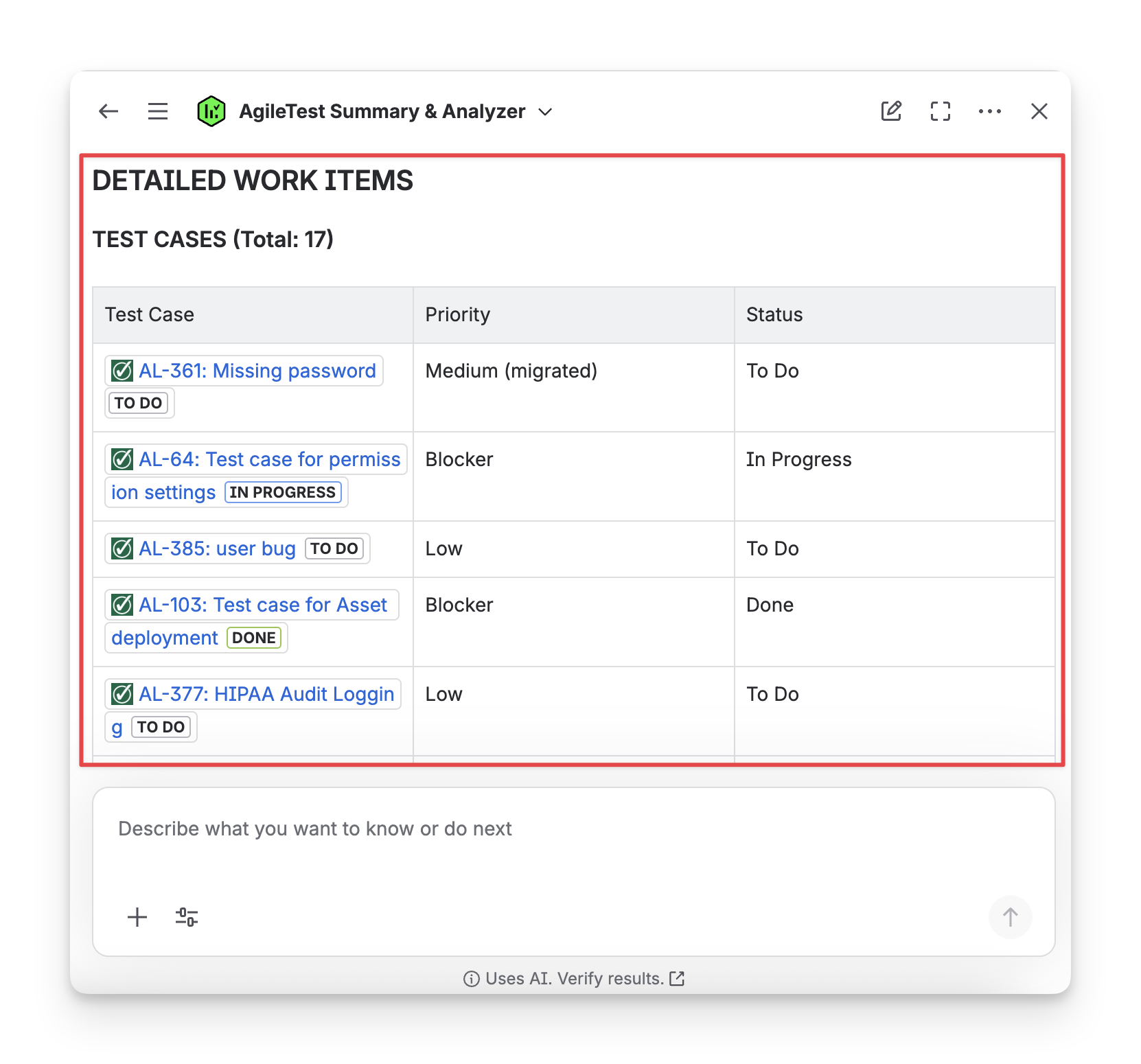
You can ask AgileTest Agent to collect work items of multiple team members
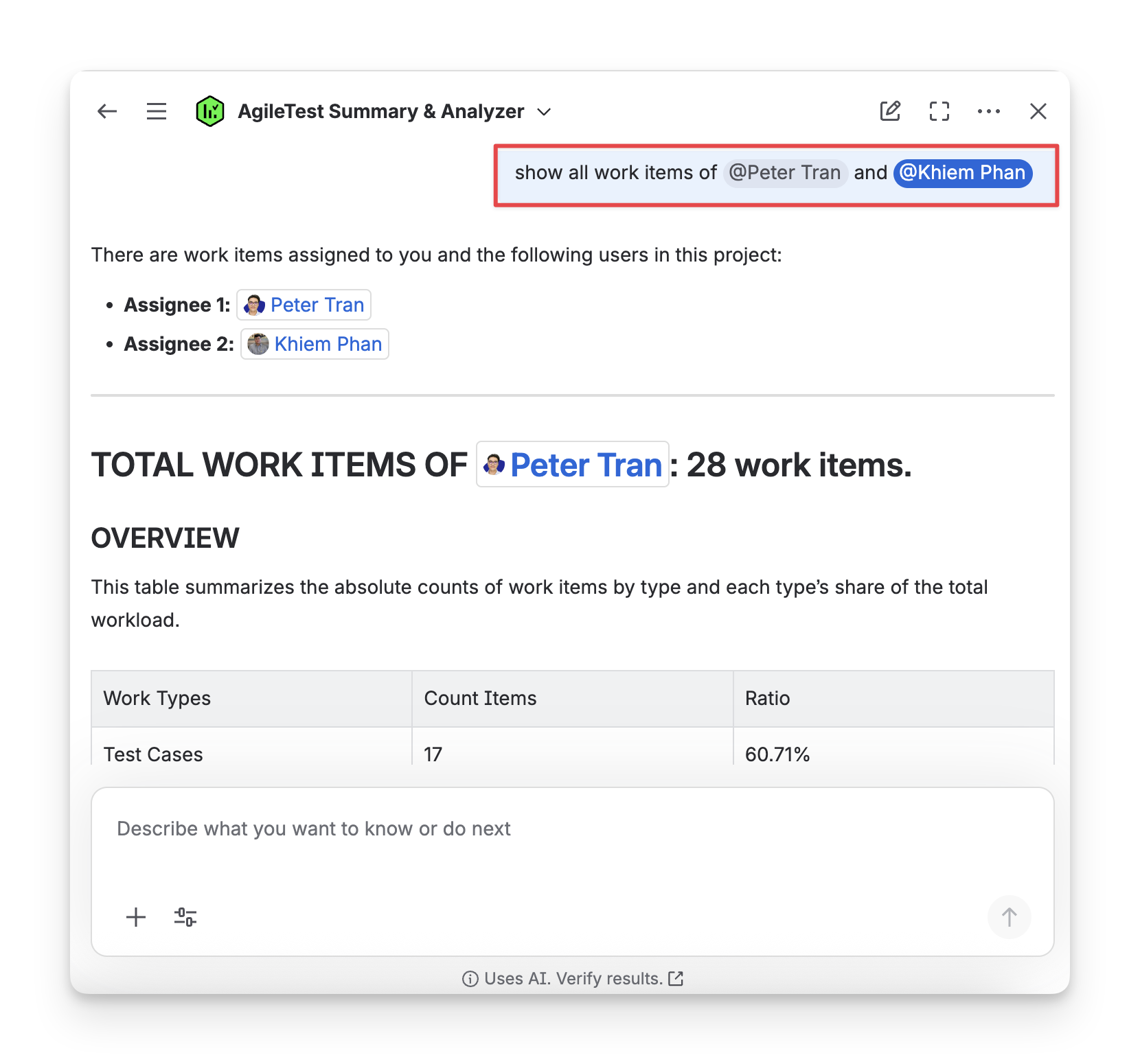
Tips: You can use self-referential commands to quickly gather your own work items or issues without tagging your username. For example: show all my work items
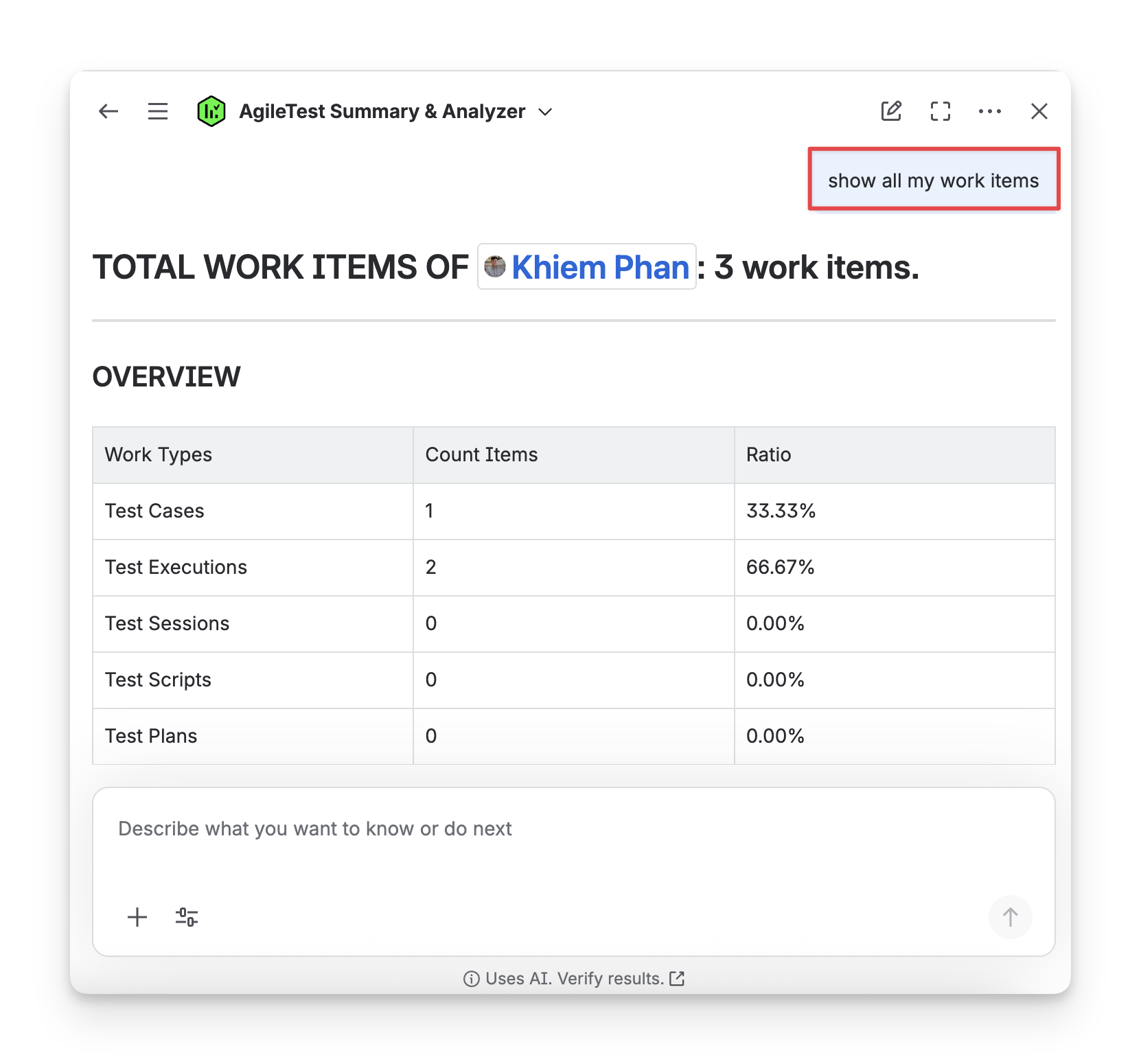
Scenario 2: Provide with User Names & Work Item Types
To display a specific work item of an assignee, you can clarify your command, for instance: show + work item types + @user name
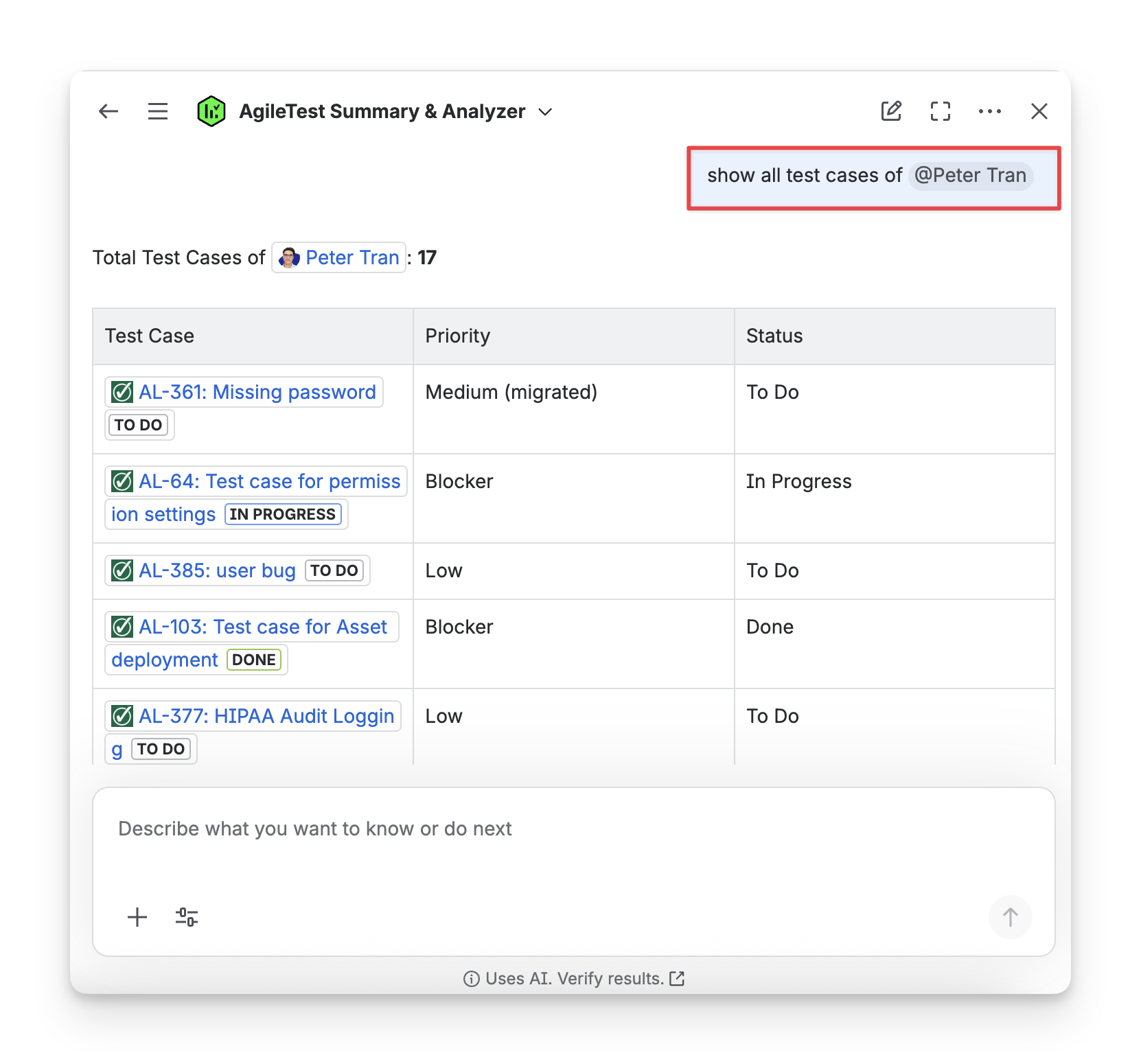
Scenario 3: Provide with User Names, Work Item Types & Sprint Names
To display work items in an exact sprint, you can add the sprint name to your command with the format: show + work item types + @user name + sprint name
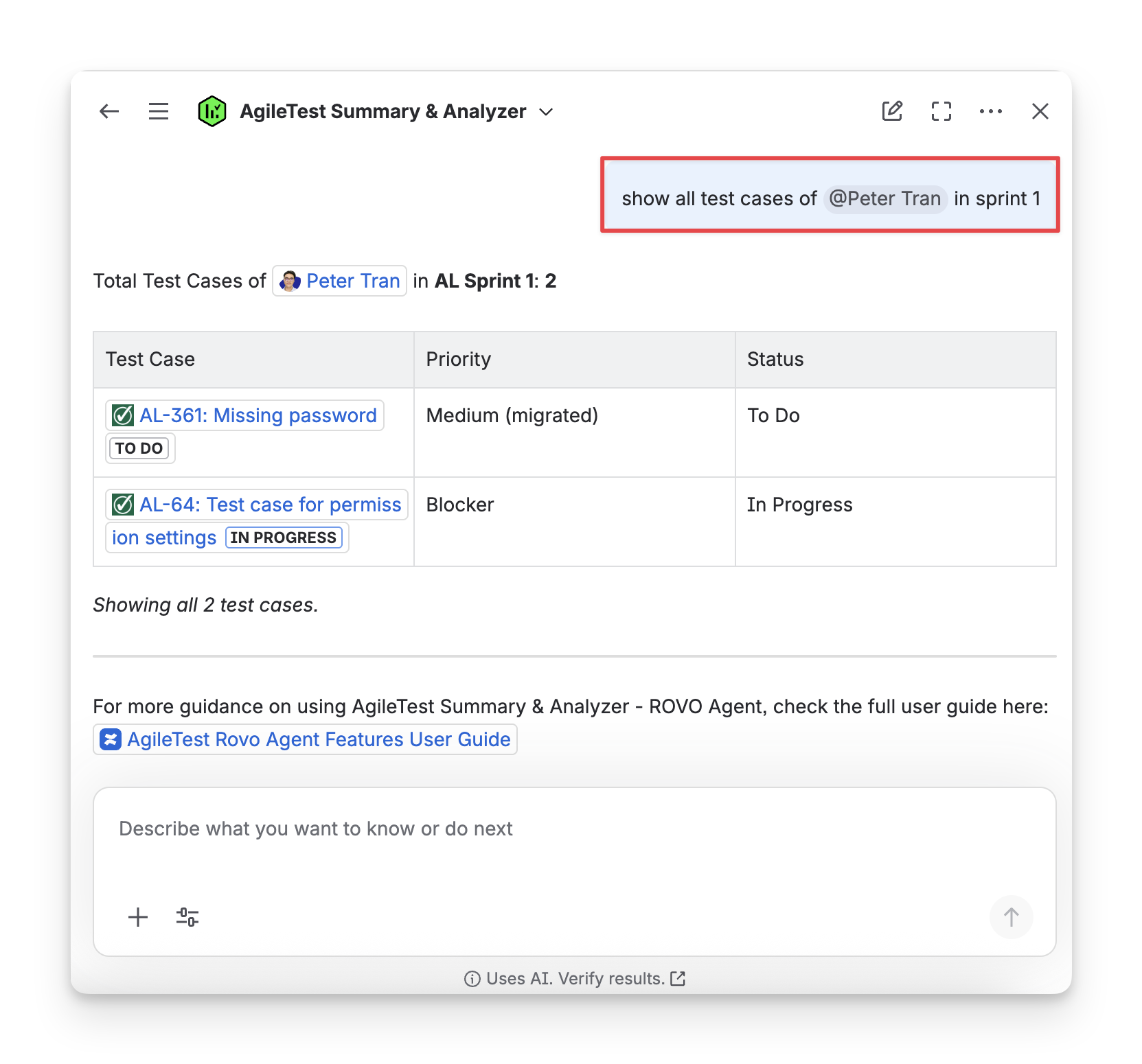
AgileTest Agent Answer Format:
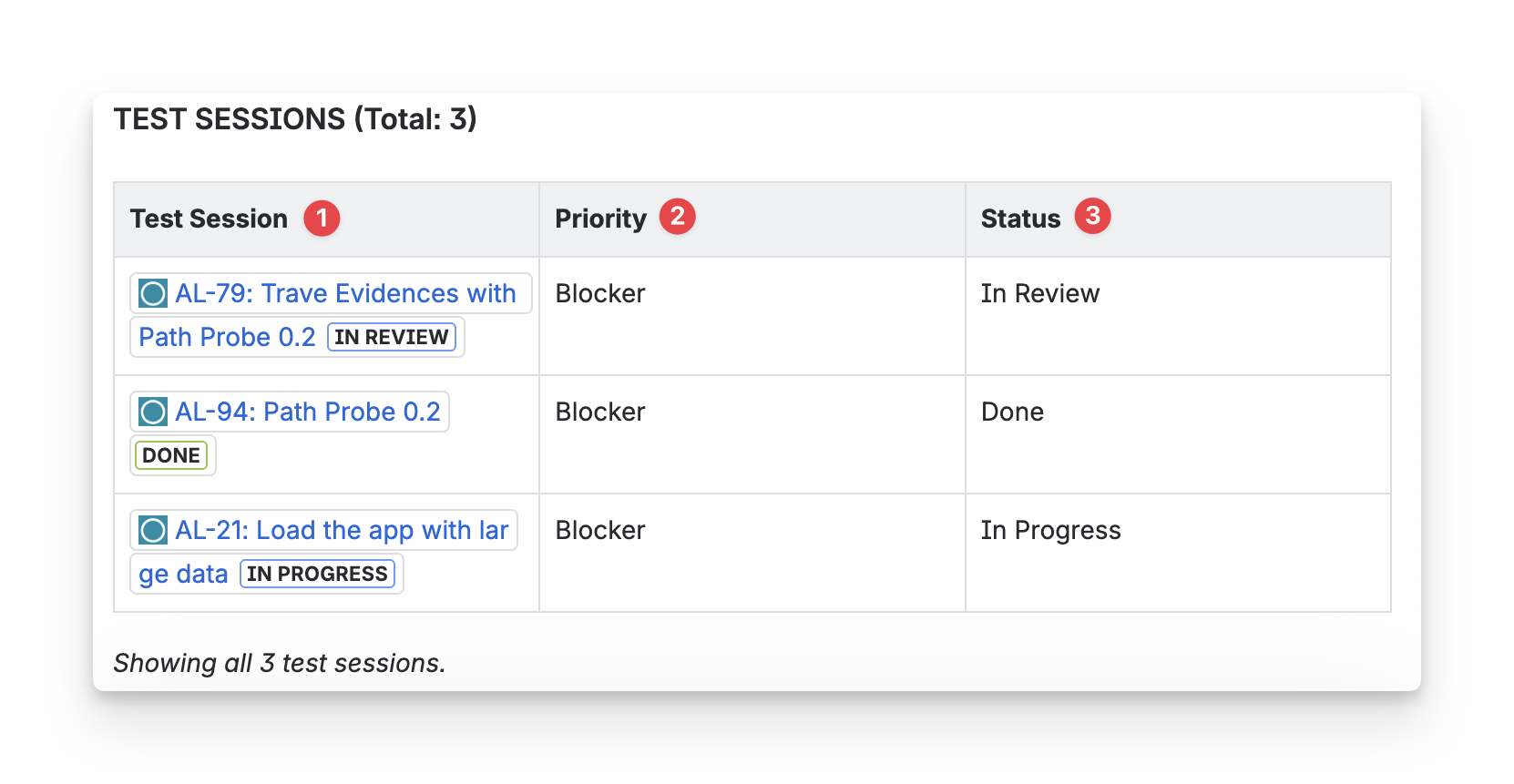
By default, the answer from AgileTest Agent will include:
-
Work Item Key: the ID of each work item or issue, allowing you to reference or trace it in your project quickly.
-
Priority: the priority level assigned to the work items, which indicates its importance or urgency. (High, Medium, or Low).
-
Status: the current stage of your work item (To Do, In Progress, Completed)
-
Labels: the Jira labels (free-form, keyword-based tags that you can add to issues for informal and flexible categorization, filtering, and searching).
Should you need any assistance or further AgileTest inquiries, contact our 24/7 Support Desk!