.png)
To approve timesheets in TeamBoard TimePlanner, a user must have the Timesheet Approver permission.
The Timesheet Approval feature in TimePlanner allows managers and designated approvers to review, approve, or reject timesheets submitted by employees. This ensures the time logged is accurate and aligned with project or organizational requirements.
How to Access Timesheet Approvals
-
In TeamBoard TimePlanner, click on

-
Select

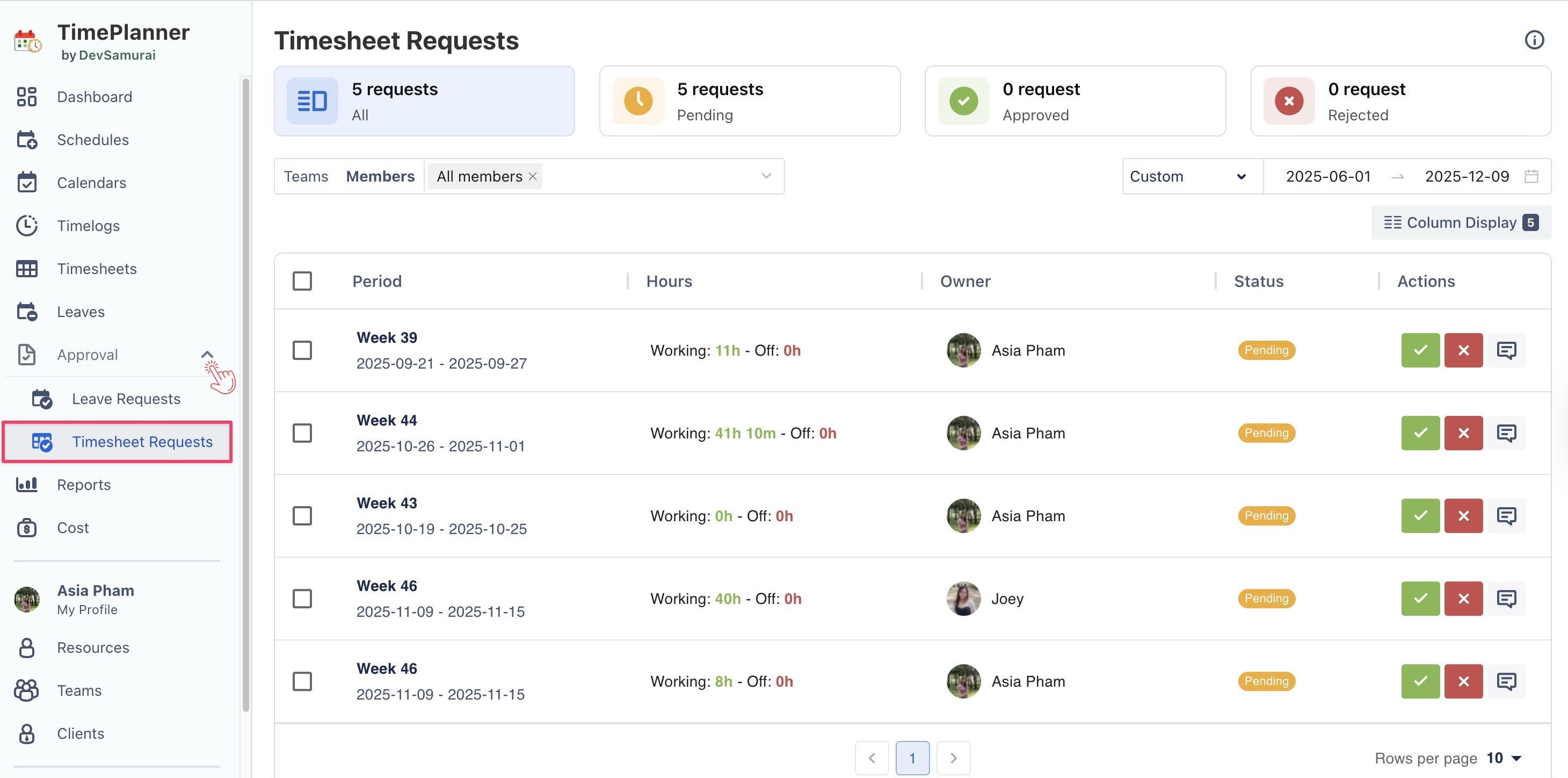
Timesheet Approval Page Overview
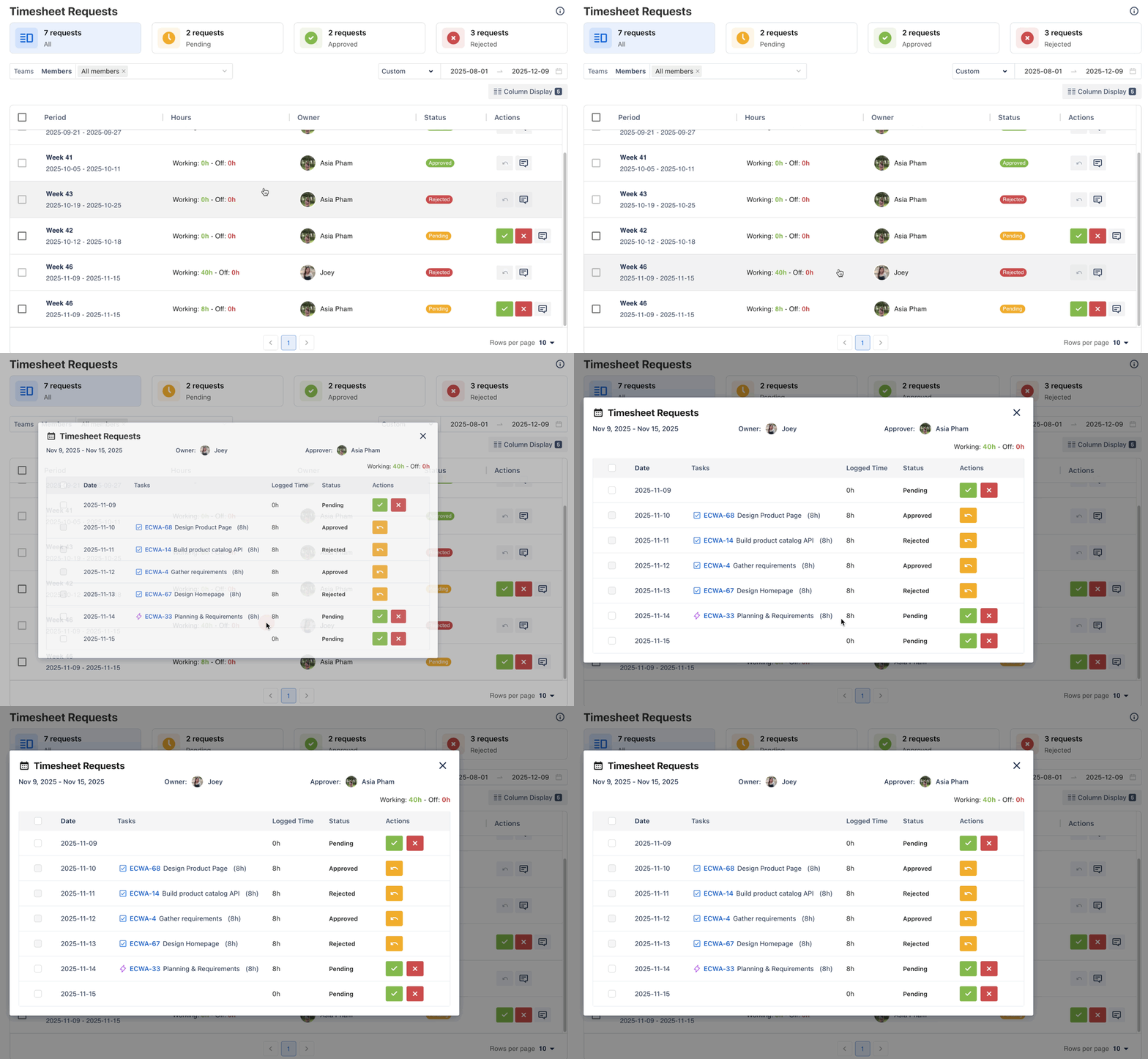
The Timesheet Approval page is divided into three main sections that help approvers review, filter, and take action on Timesheet requests efficiently.
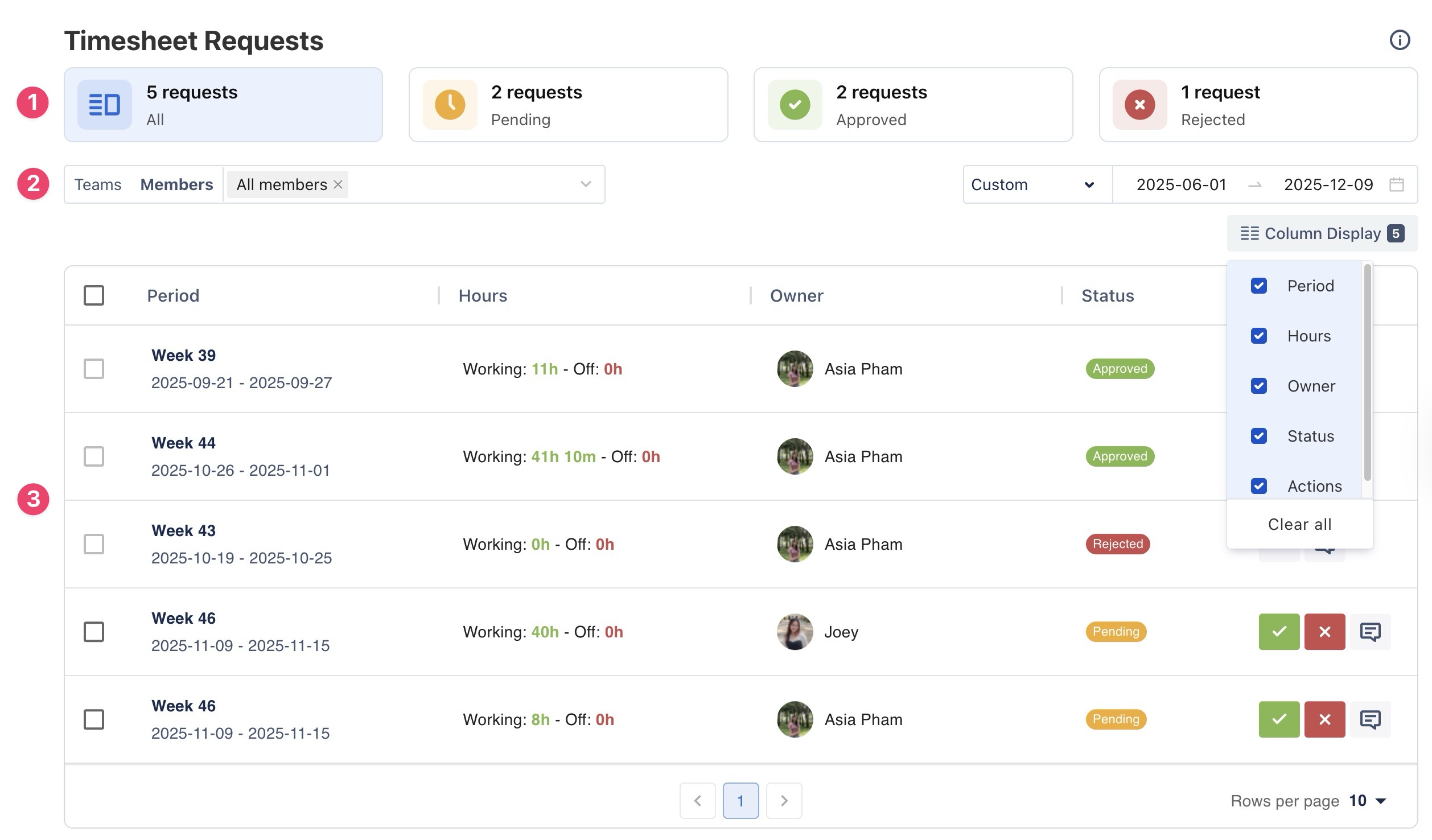
1. Status Summary
This top section displays the total number of Timesheet requests, grouped by status:
-
All requests – Shows the total number of submitted timesheets.
-
Pending – Timesheets that are waiting for review.
-
Approved – Timesheets that have been accepted.
-
Rejected – Timesheets that were declined and may require adjustments.
Tip: Click any status card to filter and display only the timesheets in that category.
2. Filters and Selectors
Use this section to refine the list of timesheet requests:
-
Teams / Members filter – Select a specific team or individual to view their timesheet submissions.
-
Date range selector – Choose a preset or custom date range for displaying requests.
-
Column Display – Select which columns you want to show or hide in the table.
3. Timesheet Details Table (or List View)
This section displays the actual list of Timesheet entries that match the selected filters and status category.
Approving or Rejecting a Timesheet
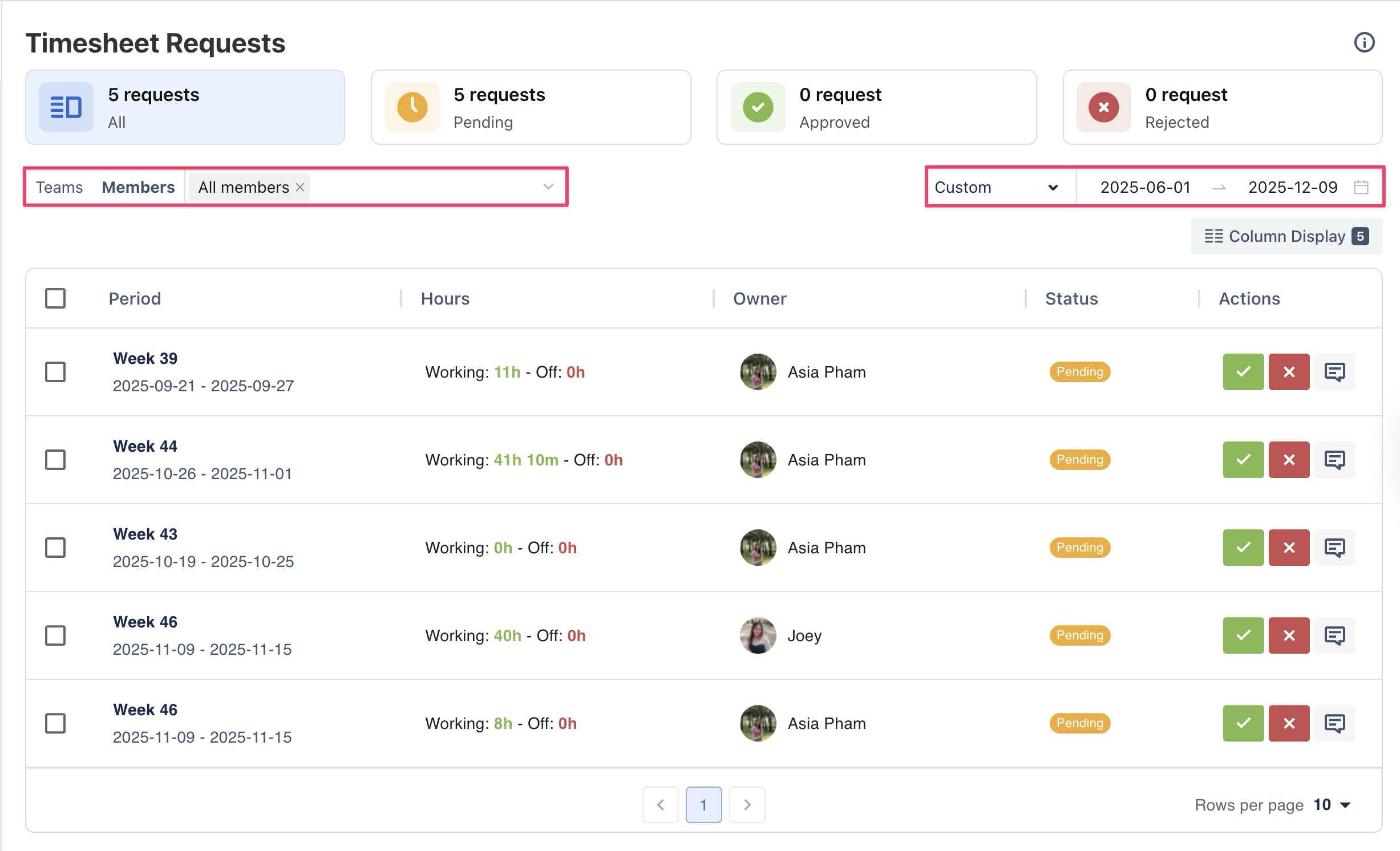
1. Select the Date Range and Member/Team
On the Timesheet Requests page:
-
Use the Teams / Members filter to choose the specific team or individual whose timesheet you want to review.
-
Use the date range selector to set the period you want to view.
-
Open a Timesheet Entry to View Details
-
Click any timesheet entry in the list to open its details.
-
A Timesheet Requests detail pop-up will appear, showing all daily logs for that week, including logged hours, tasks, and status for each day.
-
Approve or Reject the Timesheet
-
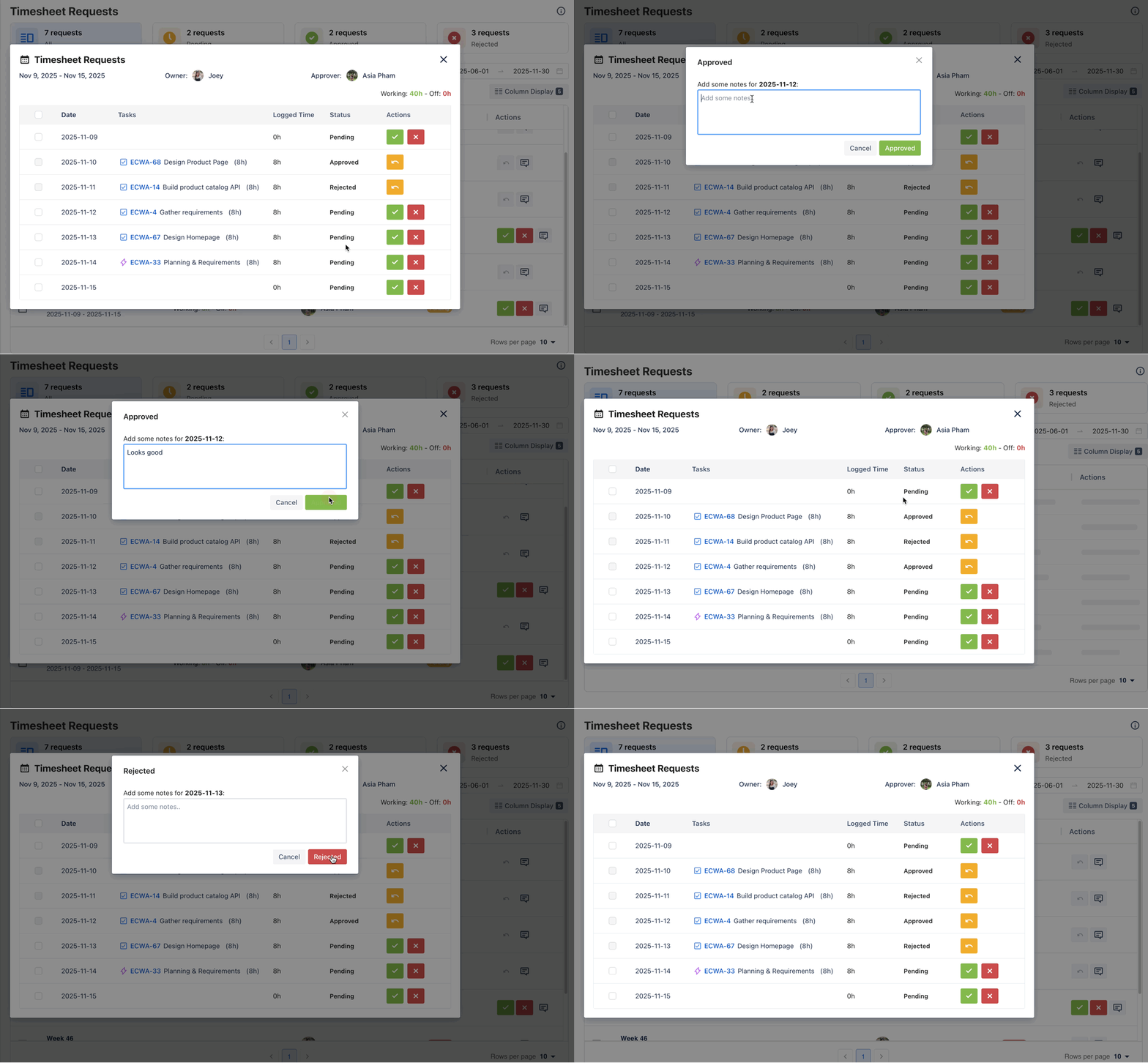
Click Approve ✅ to accept the timesheet.
-
Click Reject ❌ to decline it.
-
(Optional) You may also provide a reason in the notes for clarity.
Approving or Rejecting Multiple Timesheets
Approving or Rejecting Multiple Days Within a Week
-
In the Timesheet Requests list, click any timesheet entry to open the pop-up.
-
In the pop-up, check the boxes next to each day you want to approve or reject.
-
Click Approve or Reject in the bulk action bar that appears at the top.
Approving or Rejecting Multiple Weeks at Once
-
In the Timesheet Requests list view:
-
Check the boxes next to the timesheet entries you want to approve or reject.
-
You can also click the select-all checkbox at the top to choose all visible entries.
-
-
Once selected, the bulk action bar appears at the top.
-
Click Approve or Reject to apply the action to all selected weeks.
Revoking Timesheet Approval
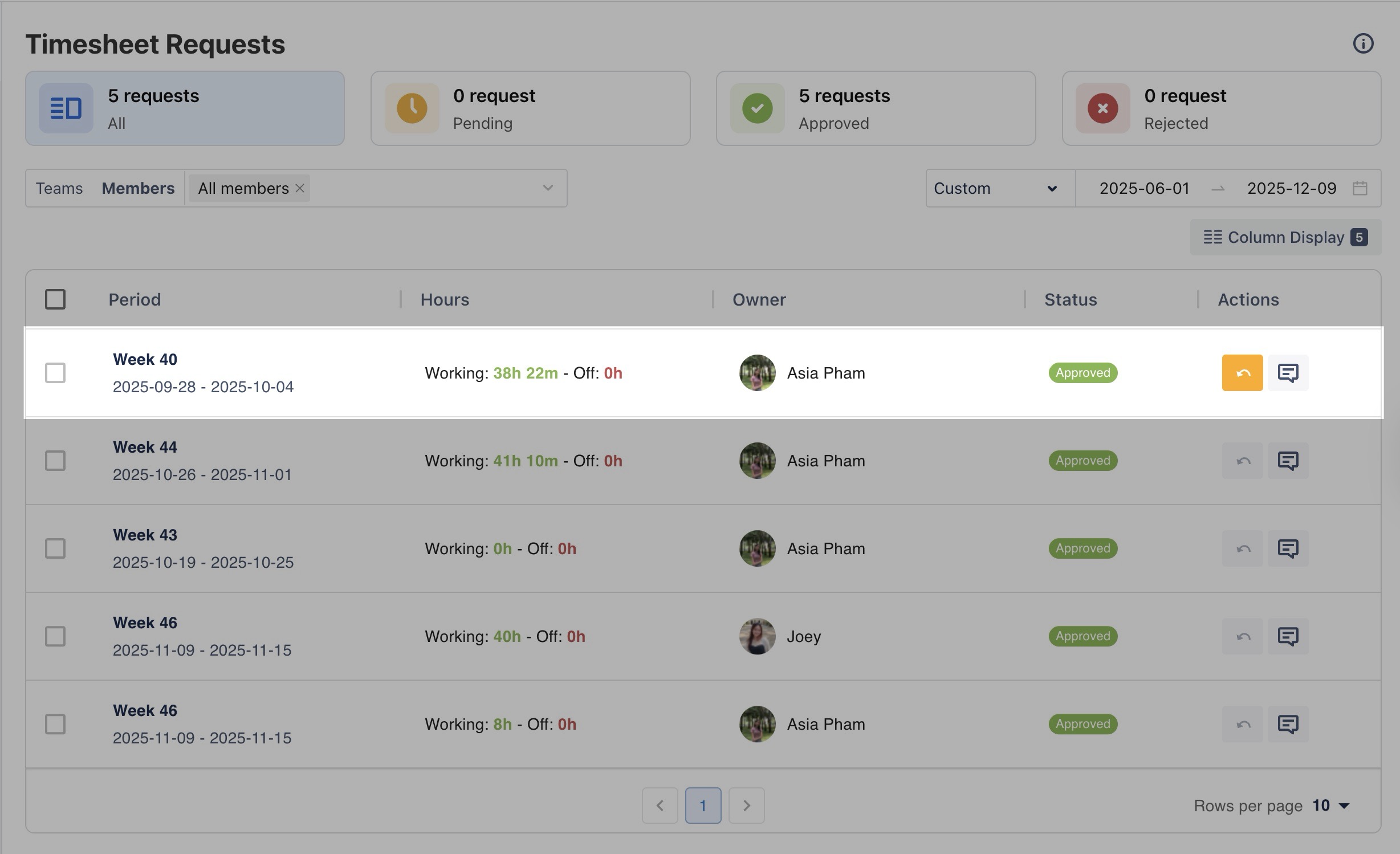
If an employee needs to update a previously approved timesheet, they can submit a recall request. Approvers will see these recall requests directly in the Timesheet Requests list.
To revoke the approval:
-
Click the Revoke button (

-
Confirm the action in the dialog box.
Once revoked, the timesheet status returns to Open, and the employee can re-submit after making changes.