.png)
When you remove a plan from the Schedule Board, it only removes the task from the board view — it does not delete the Jira work item.
You can remove a recurring task in three ways:
option 1 From the Task Card
-
Go to the Schedule Board from the left-hand menu.
-
Hover over a task card that belongs to the recurring series you want to remove.
-
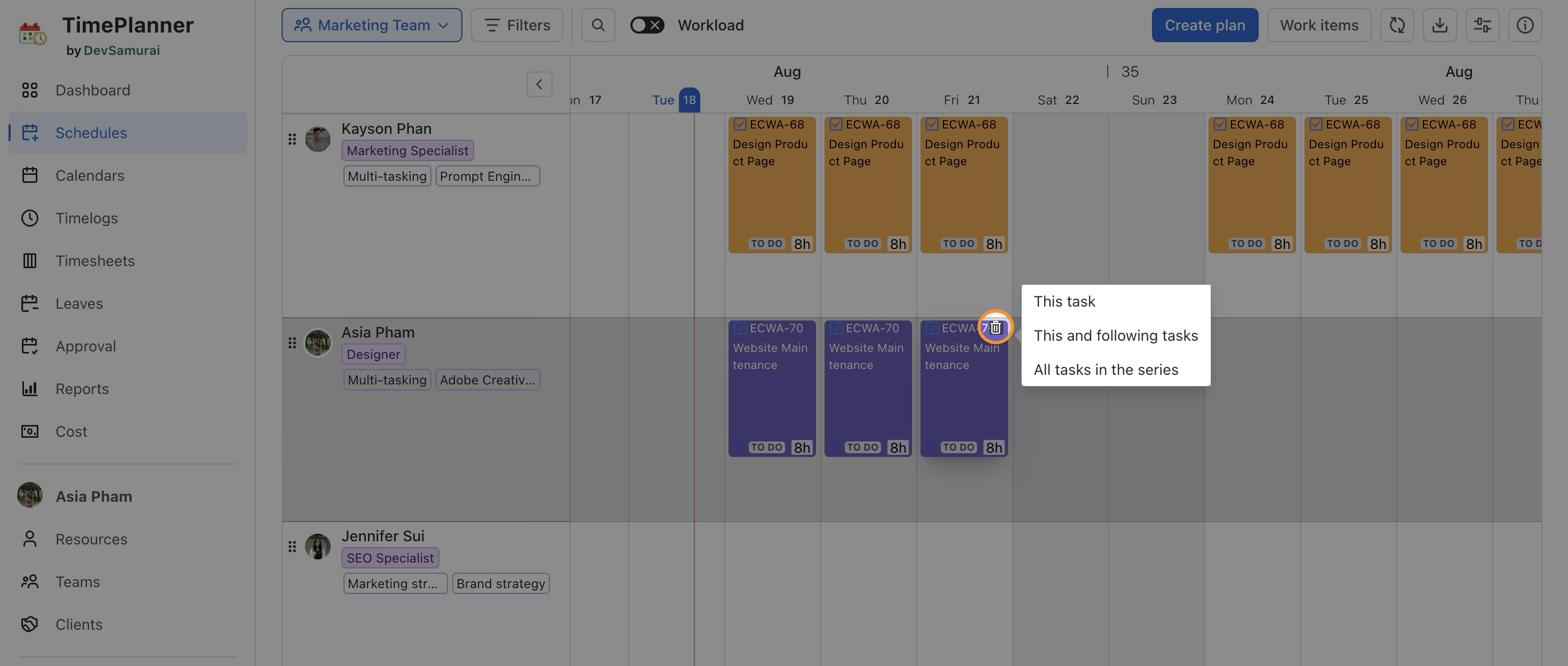
Click

-
Choose how you want to remove the recurring task:
-
This task: Only remove the selected task.
-
This and following tasks: Remove the selected task and all future tasks in the series.
-
All tasks in the series: Remove every task in the series, including past and future ones.
Option 2 From the Context Menu
-
Go to the Schedule Board from the left-hand menu.
-
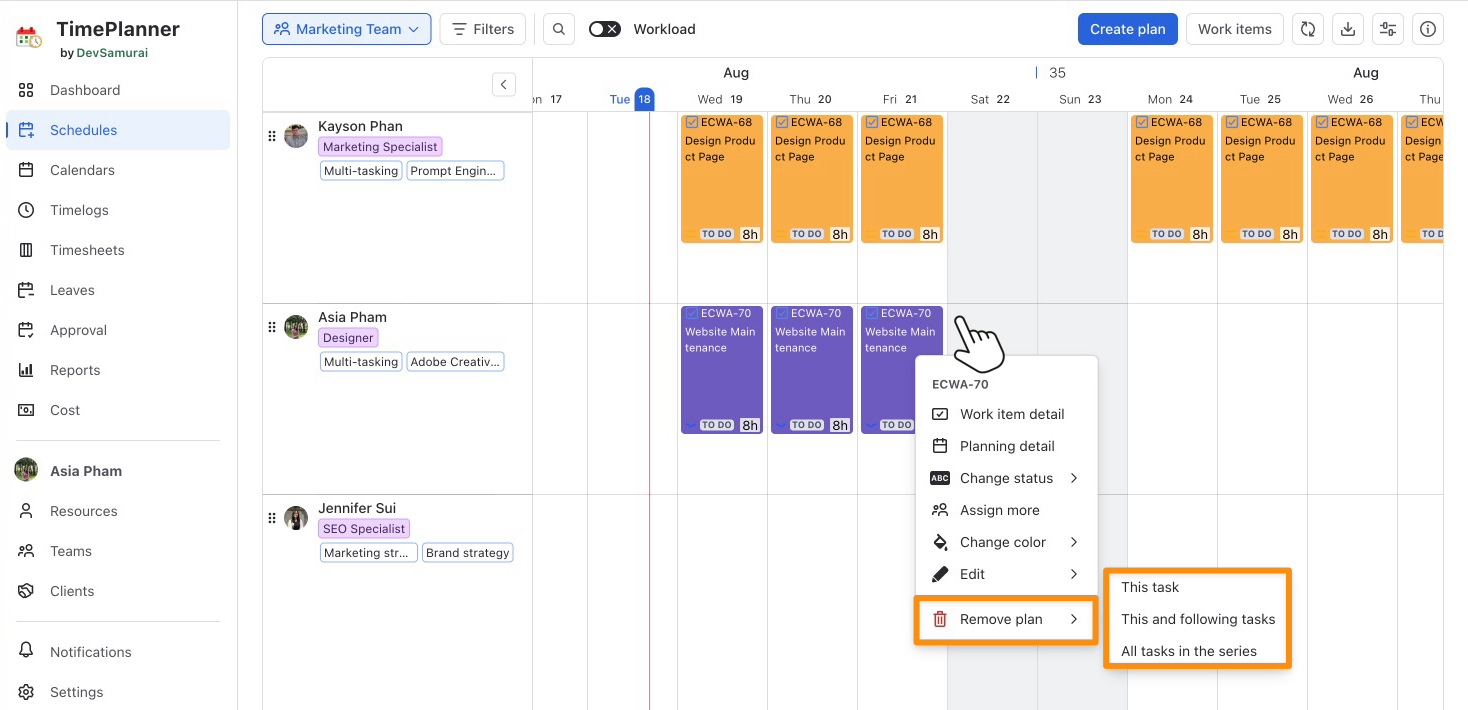
Right-click on a task card that belongs to the recurring series you want to remove.
-
From the context menu, click

-
A prompt will appear asking how you want to remove the task. You’ll have three options:
-
This task: Only remove the selected task.
-
This and following tasks: Remove the selected task and all future tasks in the series.
-
All tasks in the series: Remove every task in the series, including past and future ones.
-
You can also unplan tasks from the Calendar Board.
Option 3 From the Planning Detail Panel
-
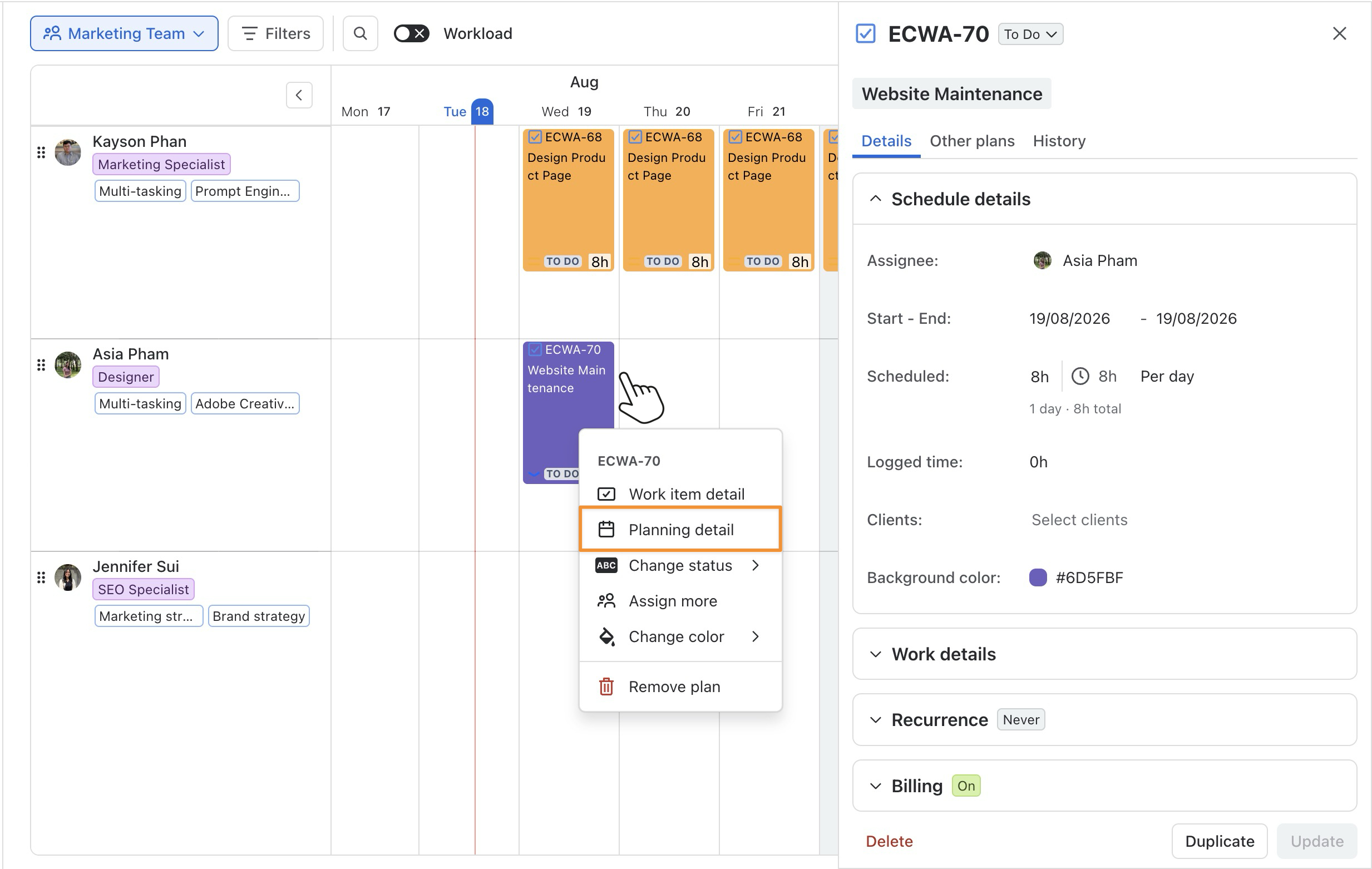
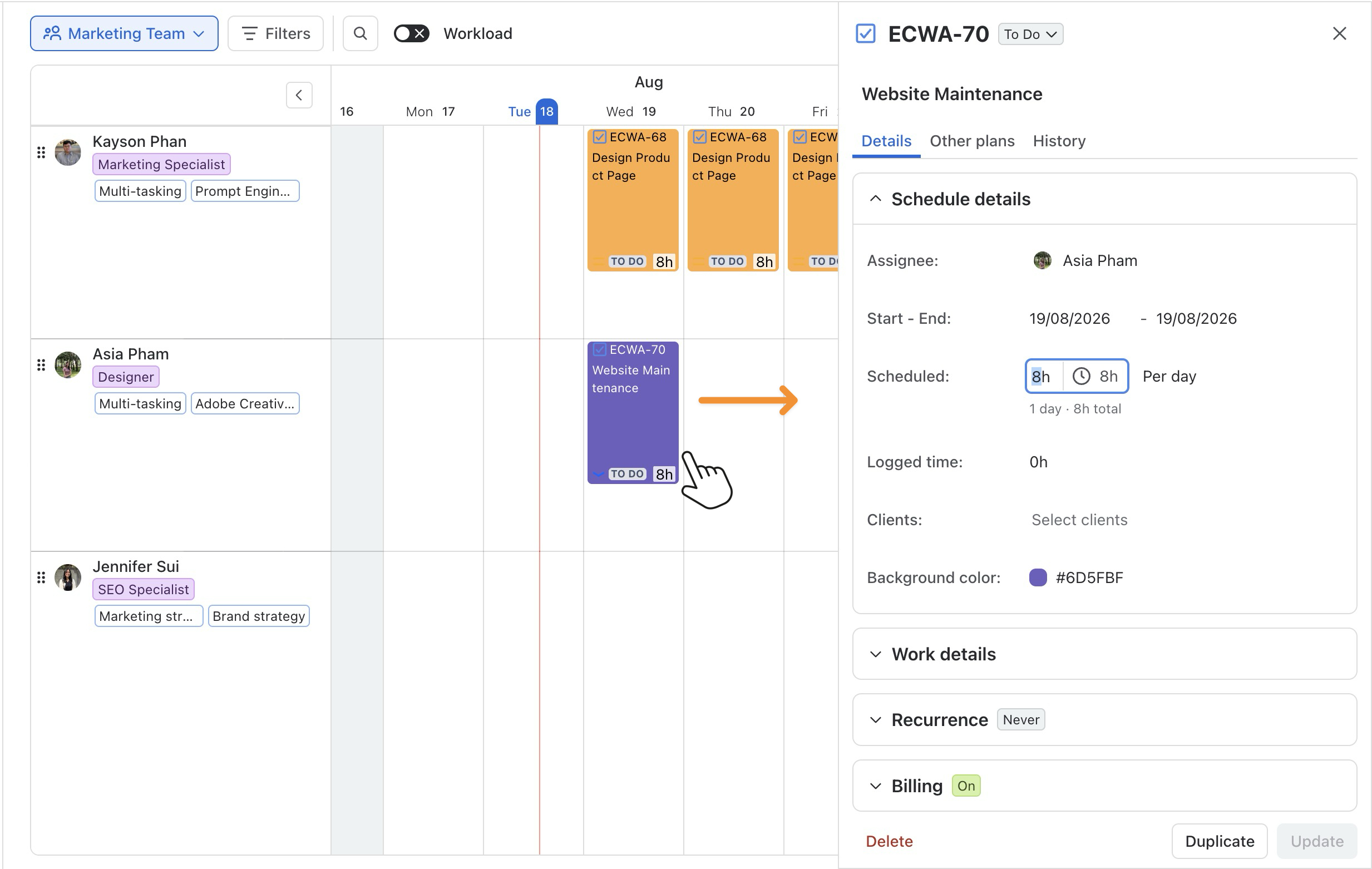
From the Scheduler Board, you can open the Planning Detail panel in one of two ways:
-
Right-click on the task card and select

-
Simply click directly on the task card to open the Planning Detail panel.
You can also use the Planning Detail from the Calendar Board and follow the same steps as on the Schedule Board.
-
Click Delete in the upper-left corner of the Planning Detail panel.
-
Choose how you want to remove the recurring task:
-
This task: Remove only the selected task.
-
This and following tasks: Remove the selected task and all future tasks in the series.
-
All tasks in the series: Remove all tasks in the recurring series, including past and future tasks.
-
You can also open the Planning Detail Panel from the Calendar Board.