.png)
Columns are a core part of your Kanban board. They represent how work is organized and tracked across your workflow.
In ProductGo, columns are flexible – you can assign any Jira field to define them, such as Status, Priority, or Project Phase. This gives you full control over how your board reflects your team’s process.
What Is a Column?
A column defines one category or stage of your workflow on the Kanban board. Each column represents a value of the field you’ve selected for your board (for example, each Status value or Priority level).
You can adjust and manage your columns to align perfectly with your team’s workflow.
Create a Column
To create a new column:
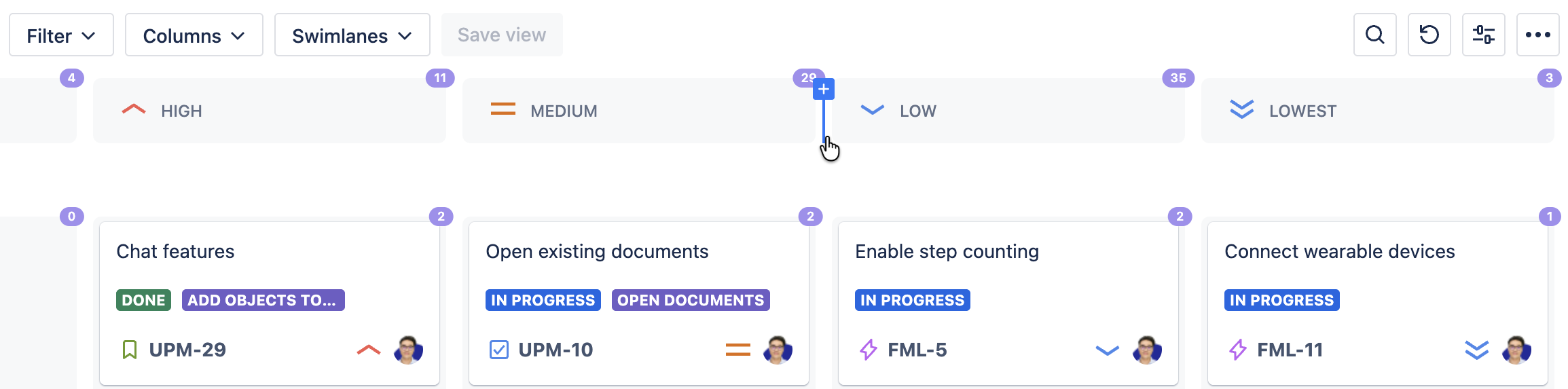
-
Hover over the left or right edge of an existing column until the blue + button appears.
-
Click the button to open the creation dialog.
-
Fill in the details:
-
Project: Select the project the column belongs to.
-
Name (Optional): Enter a name for the column field.
-
Field property: Select a property from the dropdown list or type a new one.
-
Description: Add details or context for the column field.
-
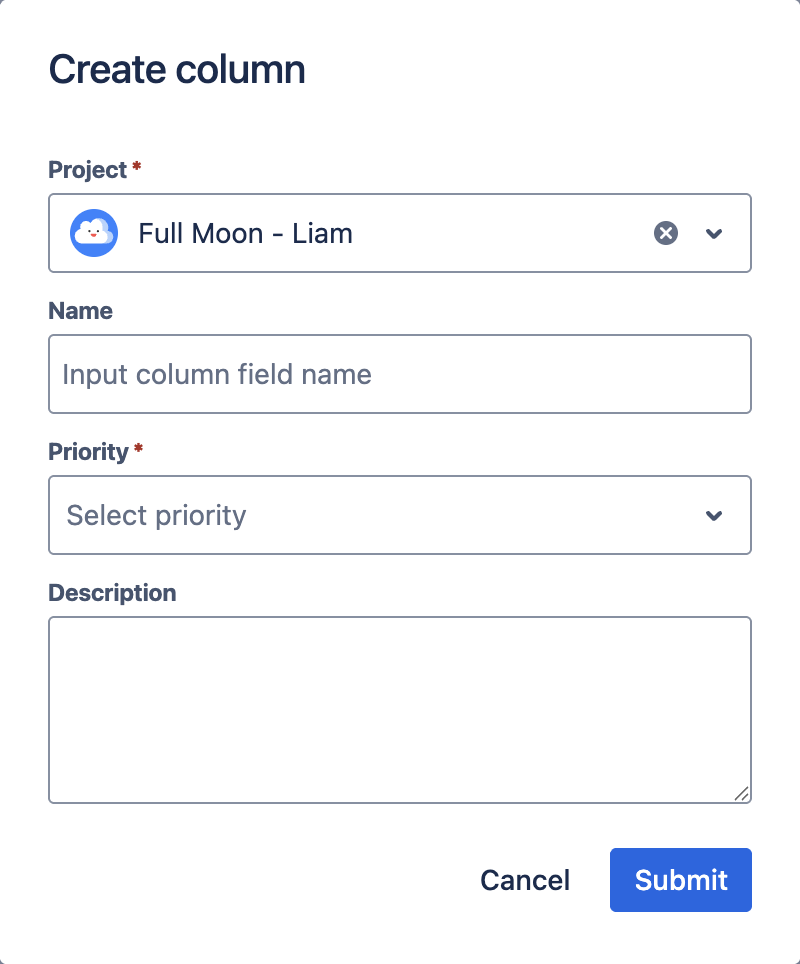
When you create a column, a matching property is also added to the selected field in the linked project.
Column Display
Each column shows:
-
Field name
-
Field symbol (if available)
This helps you quickly identify the column’s purpose and the data it represents.
Edit Columns
To edit a column:
-
Hover over the column to reveal the ⋯ (more) icon.
-
Select one of the following options:
-
Collapse column: Shrink the column horizontally to display only the number of cards in each swimlane.
-
Edit column: Modify the column name.
-
Delete column: Remove the column and all work item cards within it from the board.
-
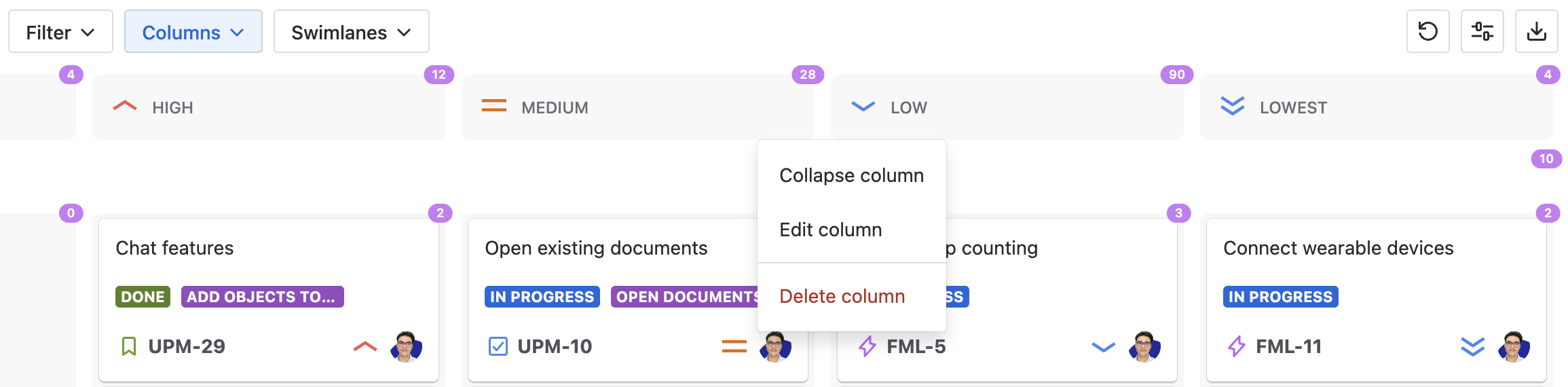
You can restore a deleted column by re-adding the column with the same field.
Reorder Columns
You can reorder columns by dragging them to a new position on the board.
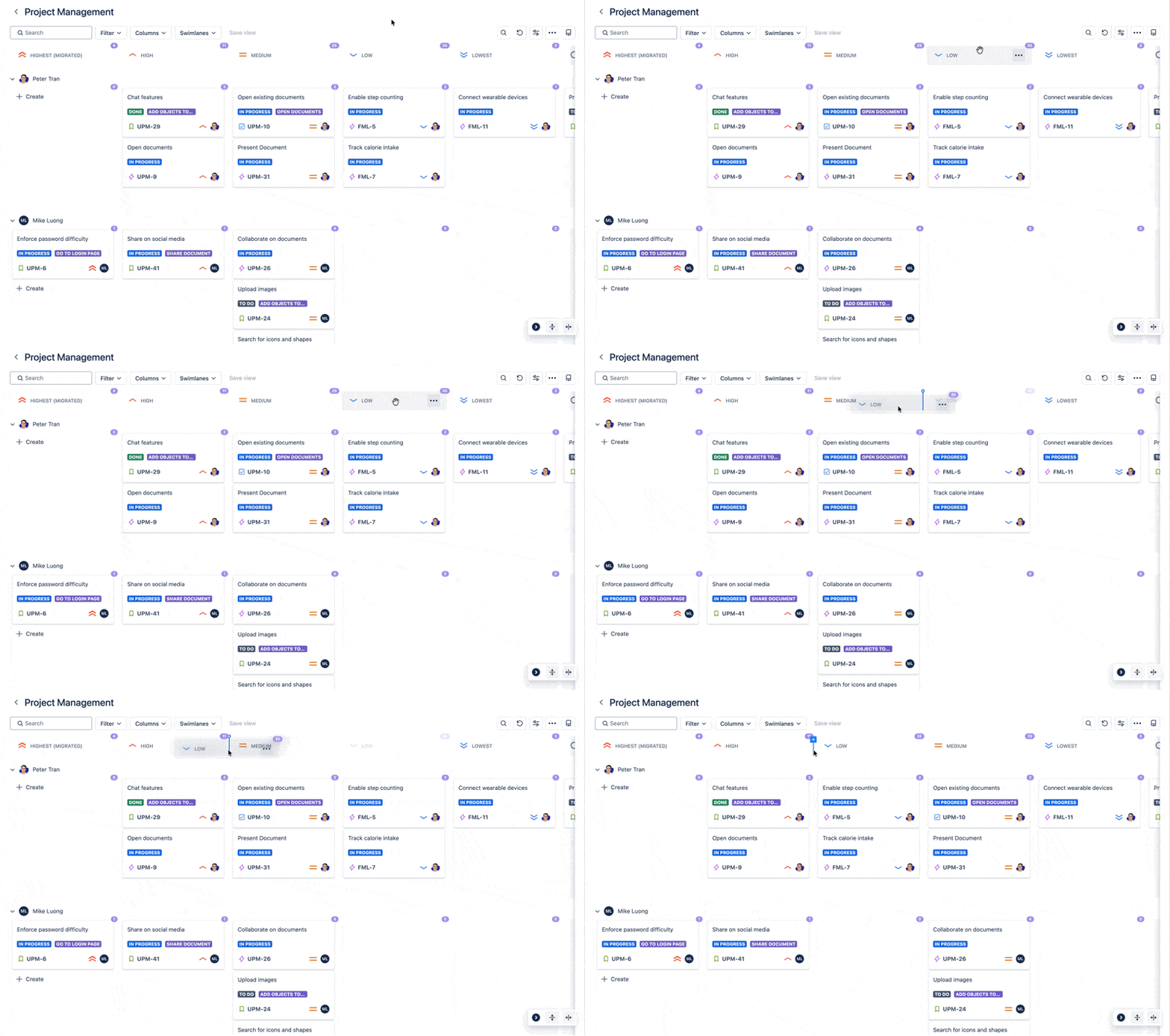
When you move a column, all of its associated cards move with it, ensuring your workflow remains consistent and organized.
Change Column Field
Go to Board settings to change the field that defines your columns
The board will automatically refresh to display the updated configuration.
Show or Hide Empty Columns
You can control whether columns without cards are visible in User settings.