.png)
AgileTest supports you in creating Preconditions under 2 main approaches:
1. Create Preconditions Manually
To create a new precondition, follow these steps:
-
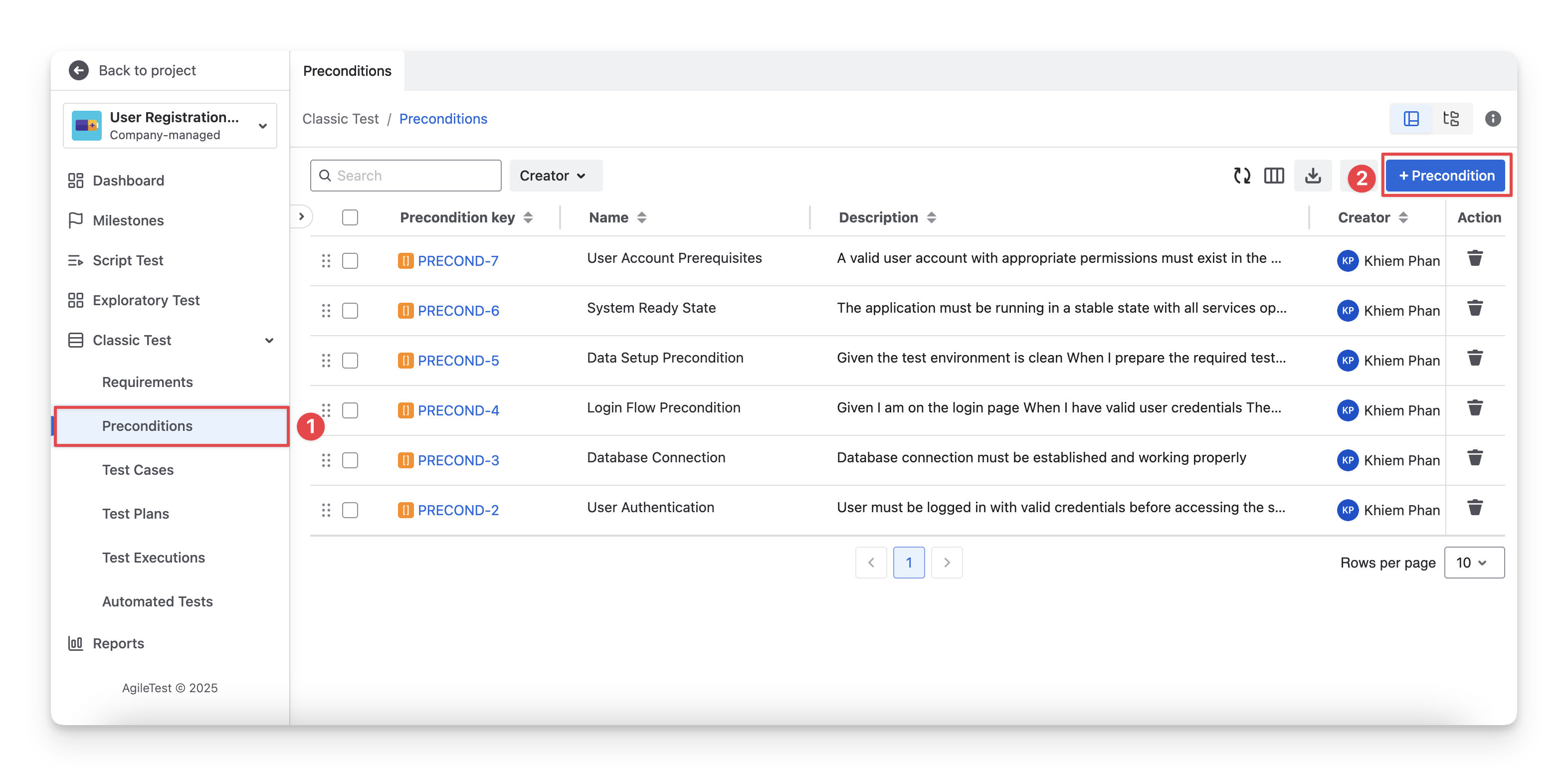
On the left-hand side menu sidebar, navigate to Classic Test → Preconditions.
-
Click on the “+ Precondition” button.
-
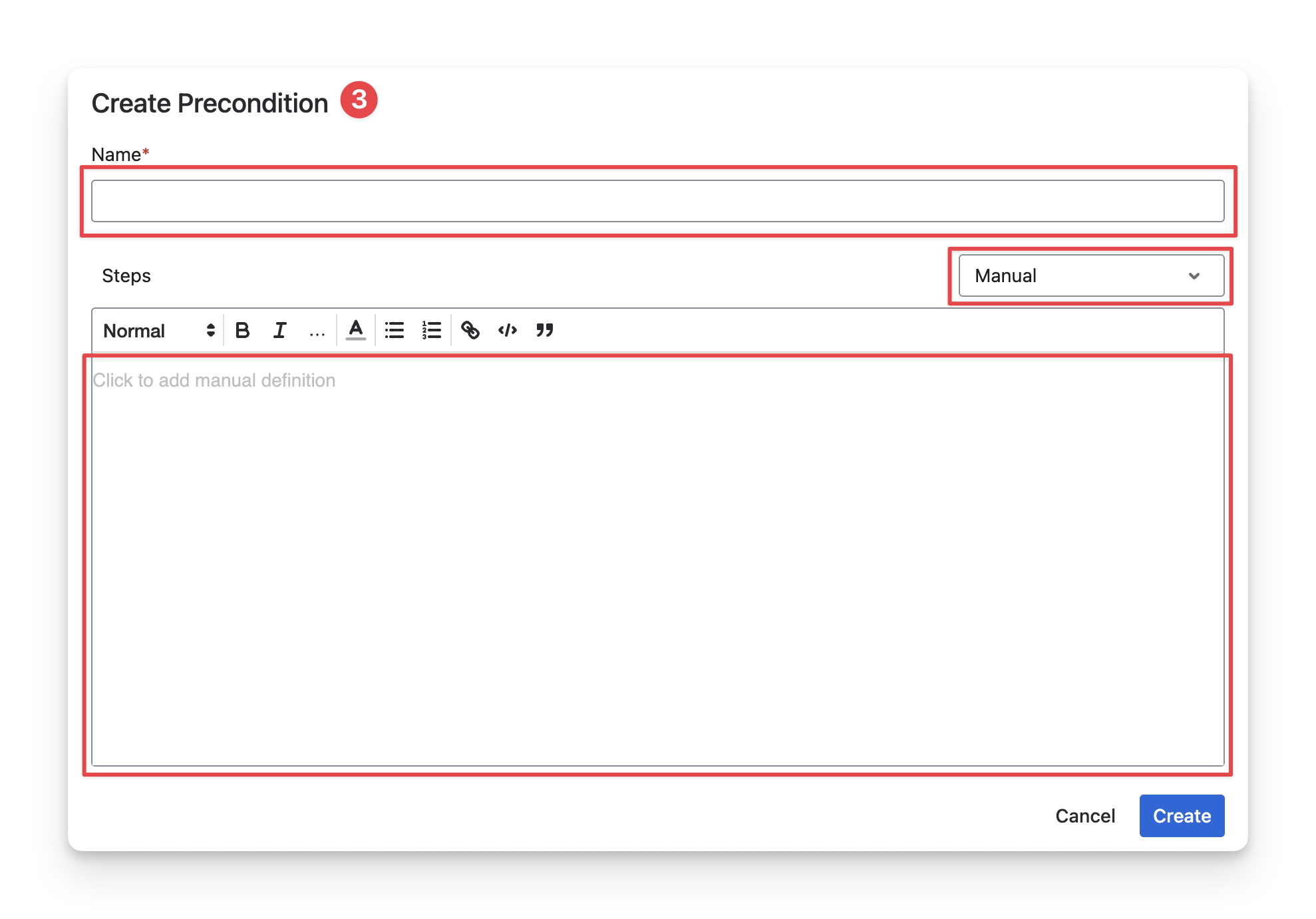
Fill in Precondition details.
-
Name: the summary of your Precondition. For example: Data Setup, Database Connection, etc.
-
Type: select one of the precondition types from the dropdown.
-
Manual: A precondition defined with structured steps.
-
Cucumber: A precondition written in Gherkin (Given–When–Then) format.
-
Generic: A precondition defined as free-form text.
-
The precondition type must match the linked test cases' type. For example, Cucumber test cases can only be linked with Cucumber preconditions.
-
Details section: Each Precondition type displays a different details section to match how your team prepares for testing
-
Manual: The app provides a space where you can list setup steps or required conditions before running test cases.
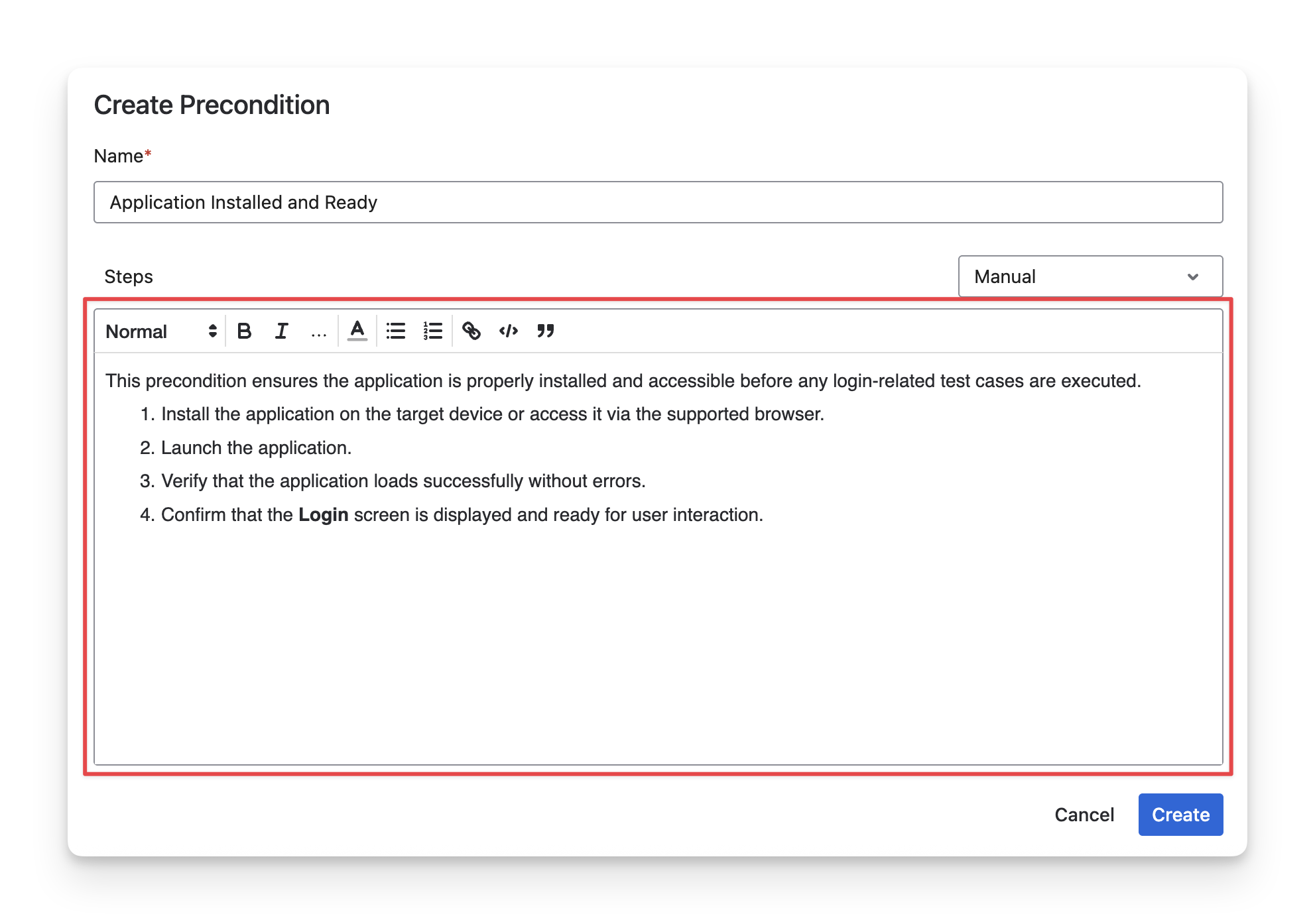
Manual Precondition Type -
Cucumber: The app provides a structured text area where you can write preconditions using the Given – When – Then format. This is useful for teams familiar with behavior-driven testing.
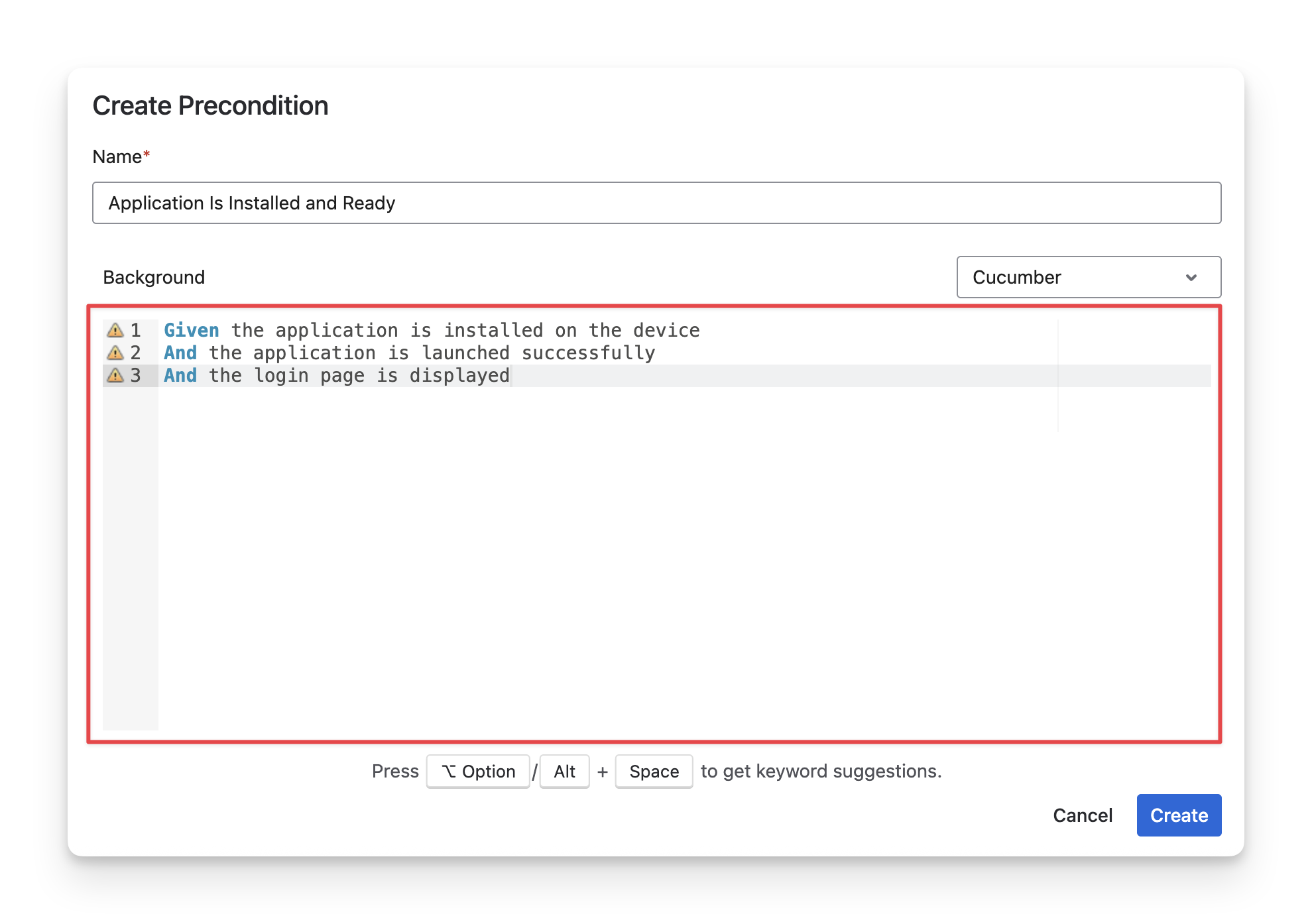
Cucumber Precondition Type -
Generic: The app provides a space where you can write notes, reminders, or checklists that your team should review before testing.
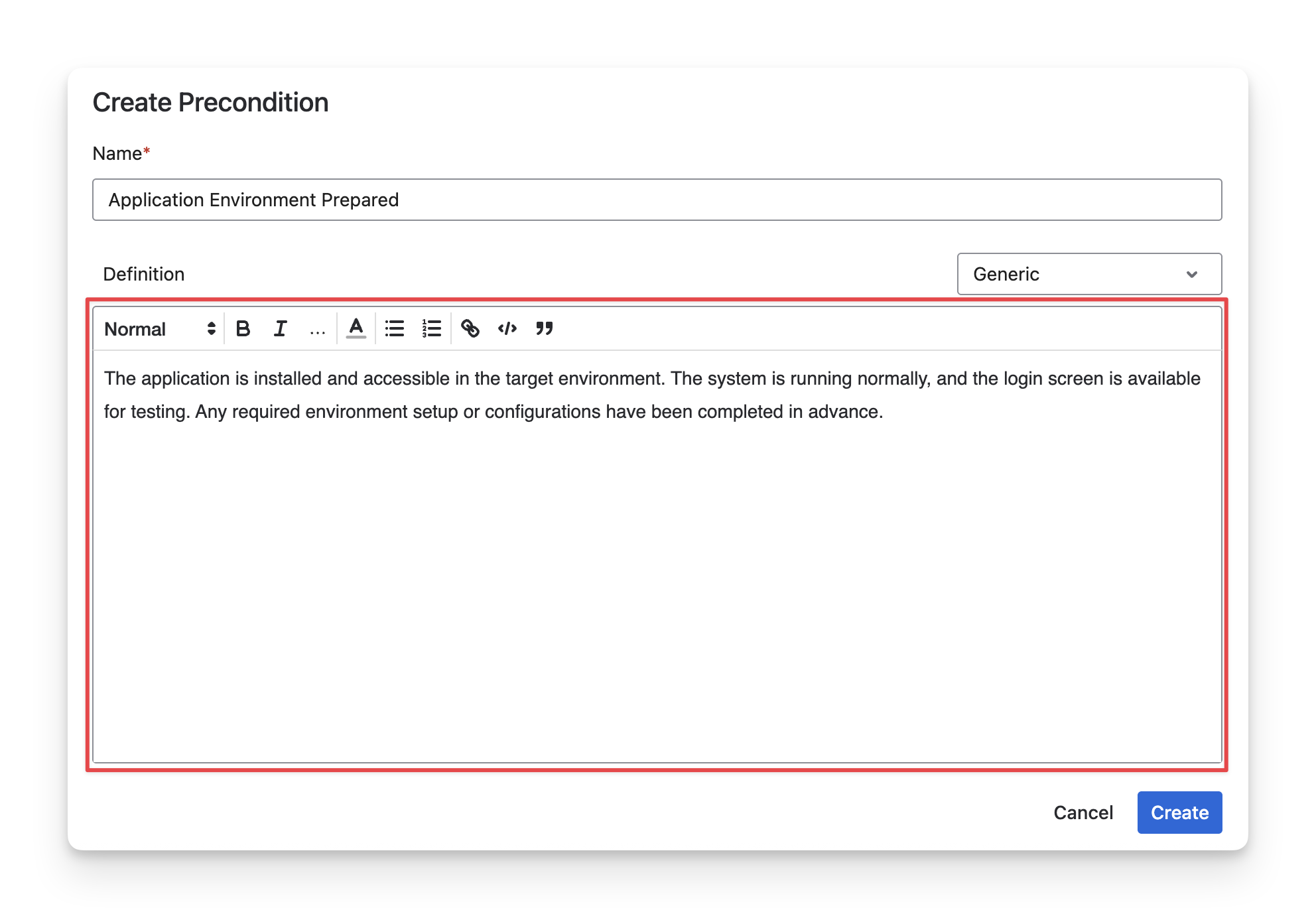
Generic Precondition Type
-
When Should You Use Each Precondition Type?
 Manual Precondition:
Used when the precondition requires actions or checks to be performed by the tester before executing the test.
Best used when:
-
The tester needs to log in, configure settings, or prepare data manually
-
The setup requires human verification
-
The test case itself is a manual test
Cucumber Precondition:
Used for automated tests written in Gherkin format, where the precondition acts as background logic executed before Cucumber scenarios.
Best used when:
-
The setup should run automatically before scenarios
-
The same background conditions apply to multiple scenarios
-
Your team uses Cucumber-based automation
Generic Precondition:
Used when the precondition is handled outside AgileTest, such as through external tools, scripts, or environment configurations.
Best used when:
-
Preconditions are prepared by external tools, scripts, or environments
-
You want to document assumptions, configurations, or dependencies
-
The test is automated, and the setup is not visible to the tester
2. Import Preconditions Via CSV Files
If you already have a list of preconditions, you can export them from your current testing tools to CSV files and import them directly into AgileTest.
To import preconditions from CSV files, follow these steps:
-
On the left-hand side menu sidebar, navigate to Classic Test → Preconditions.
-
Click on the “Import” button.
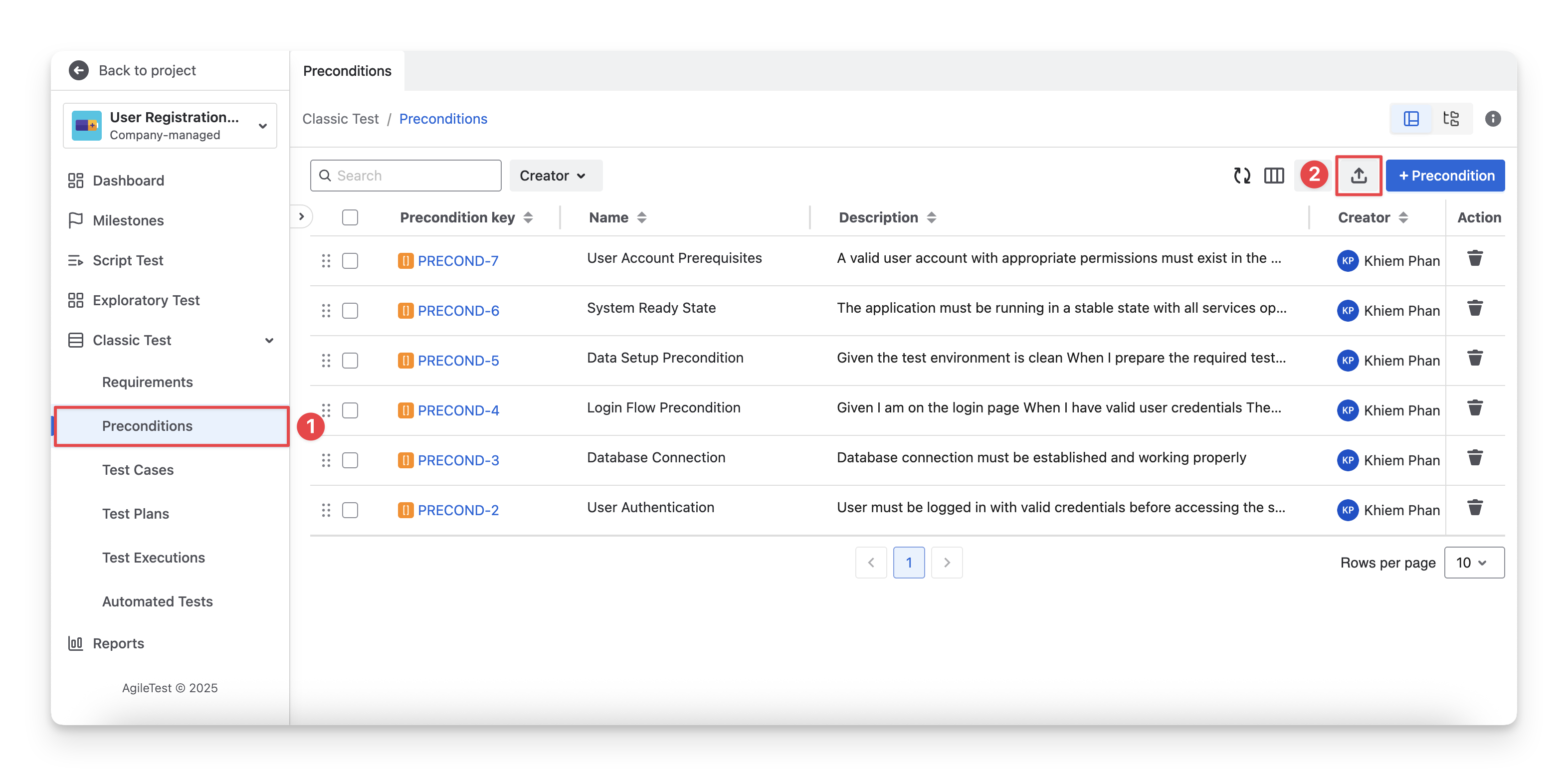
-
Download the sample file and customize your data. Then, you can upload your CSV files to AgileTest. Each file should not exceed 25MB.
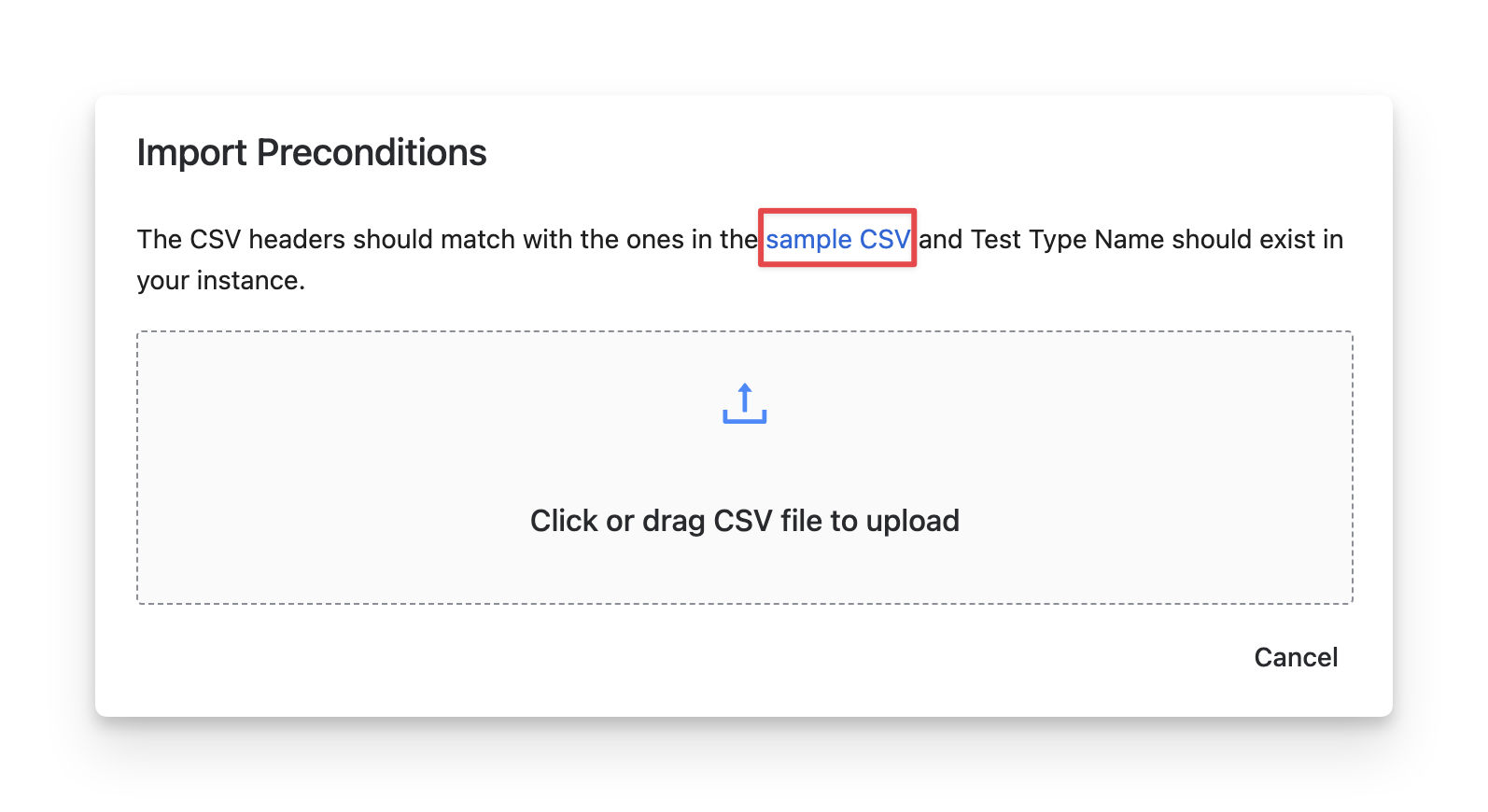
-
Select or deselect preconditions from your file by ticking or unticking the checkboxes to choose which ones you want to import into AgileTest. By default, all preconditions are selected and will be imported. Click Import to complete the process.
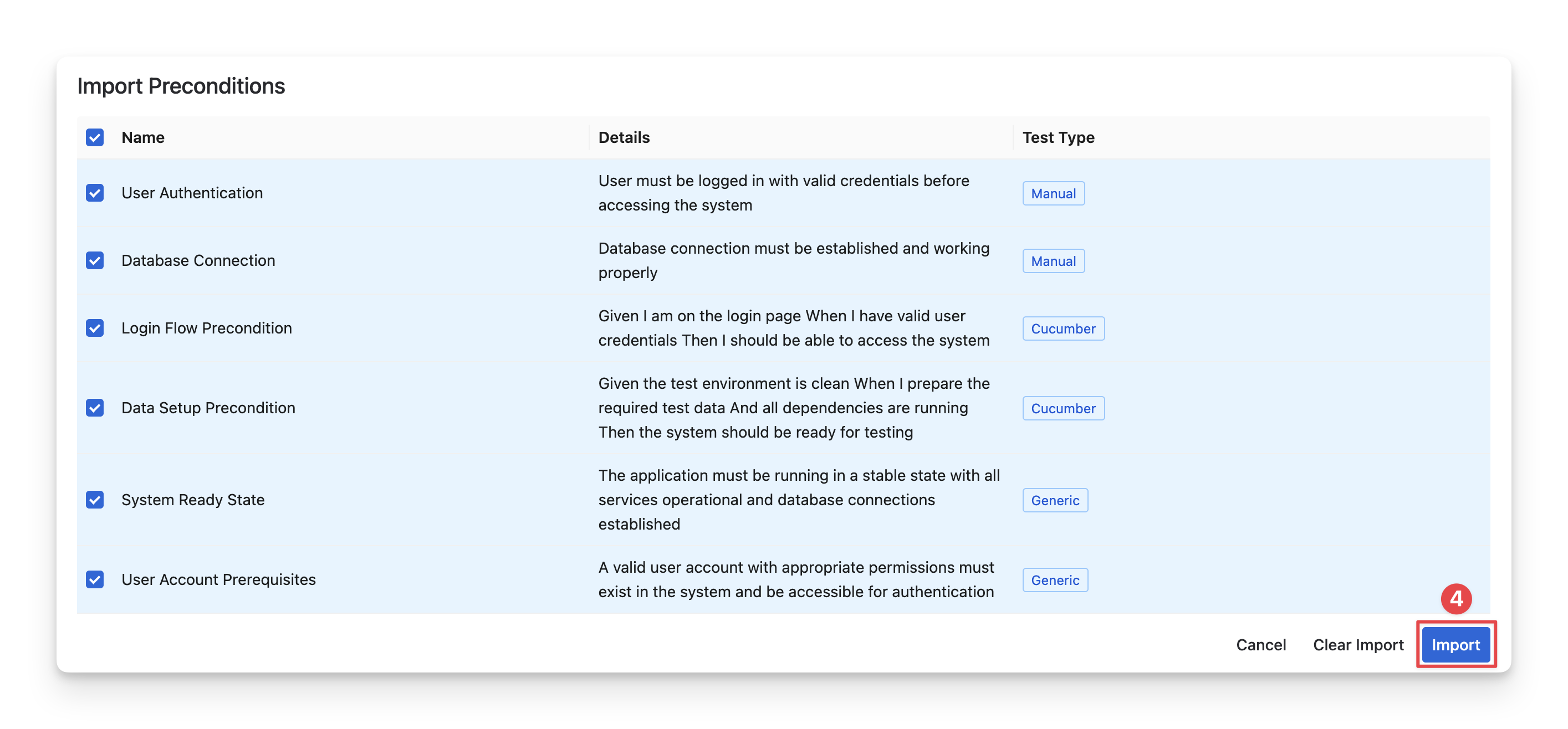
To avoid errors during the import process, please make sure your CSV data follows the supported structure and validation rules outlined below.
|
Field |
Value |
Length |
|---|---|---|
|
Name |
Any Text |
Maximum: 255 characters |
|
Details |
Any Text |
N/A |
|
Test Type |
Test Types configured in the Settings → Apps → Agile Test → Test Types. |
N/A |
What if your team wants to create a new type of precondition?
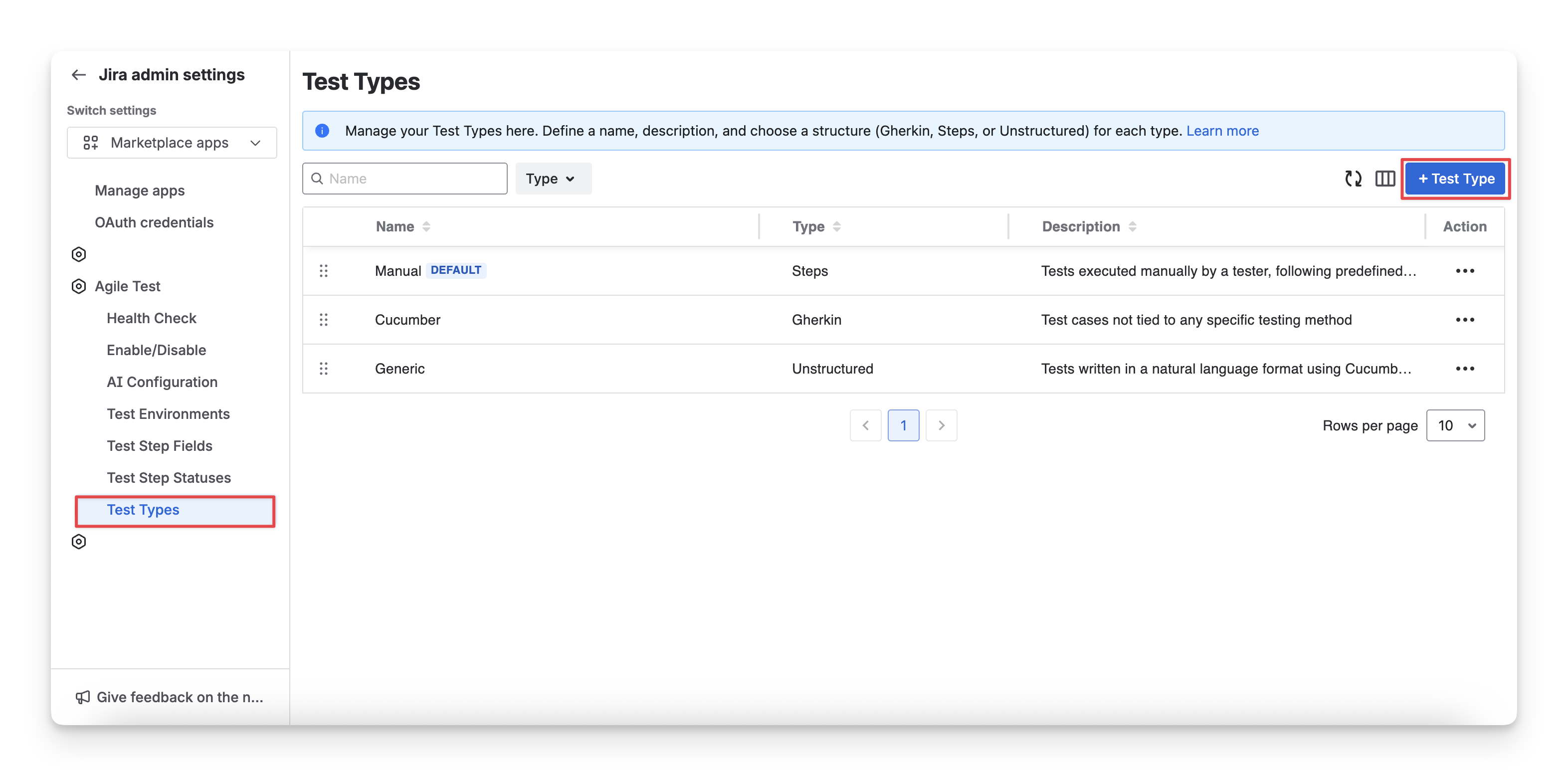
If your files contain precondition types not on the instance, you can add more types to suit your needs. To configure this, go to ⚙️ → Apps → Agile Test → Test Types.
Should you need any assistance or further AgileTest inquiries, contact our 24/7 Support Desk!