.png)
Requirement, Precondition, and Test Case folders all follow the same creation workflow.
1. Create Test Folders
To better organize your test assets, you can create test folders by following these steps:
-
Go to the section you need to create a folder (Requirement, Precondition, or Test Case).
-
Click on the “New Folder” button.
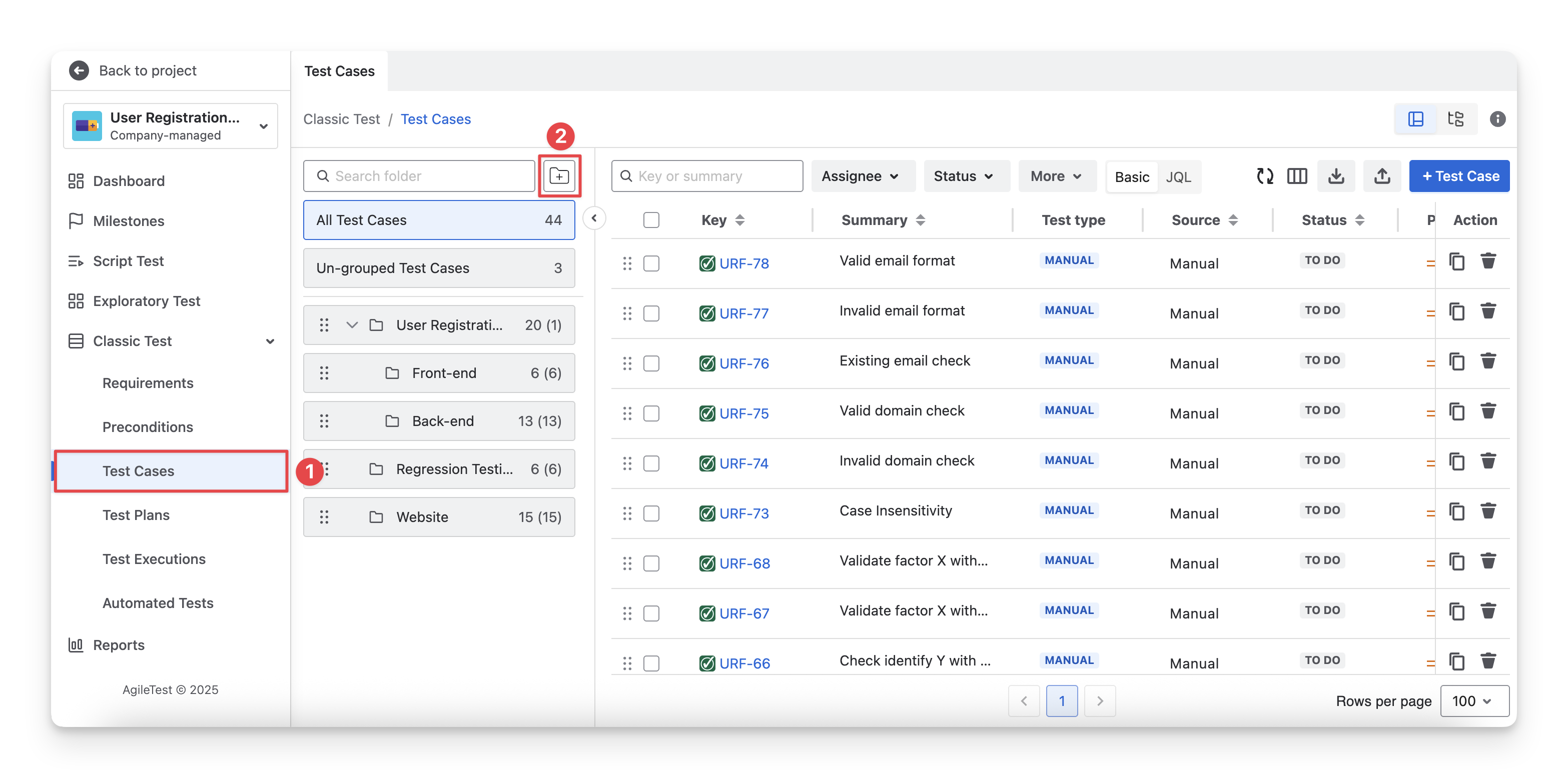
-
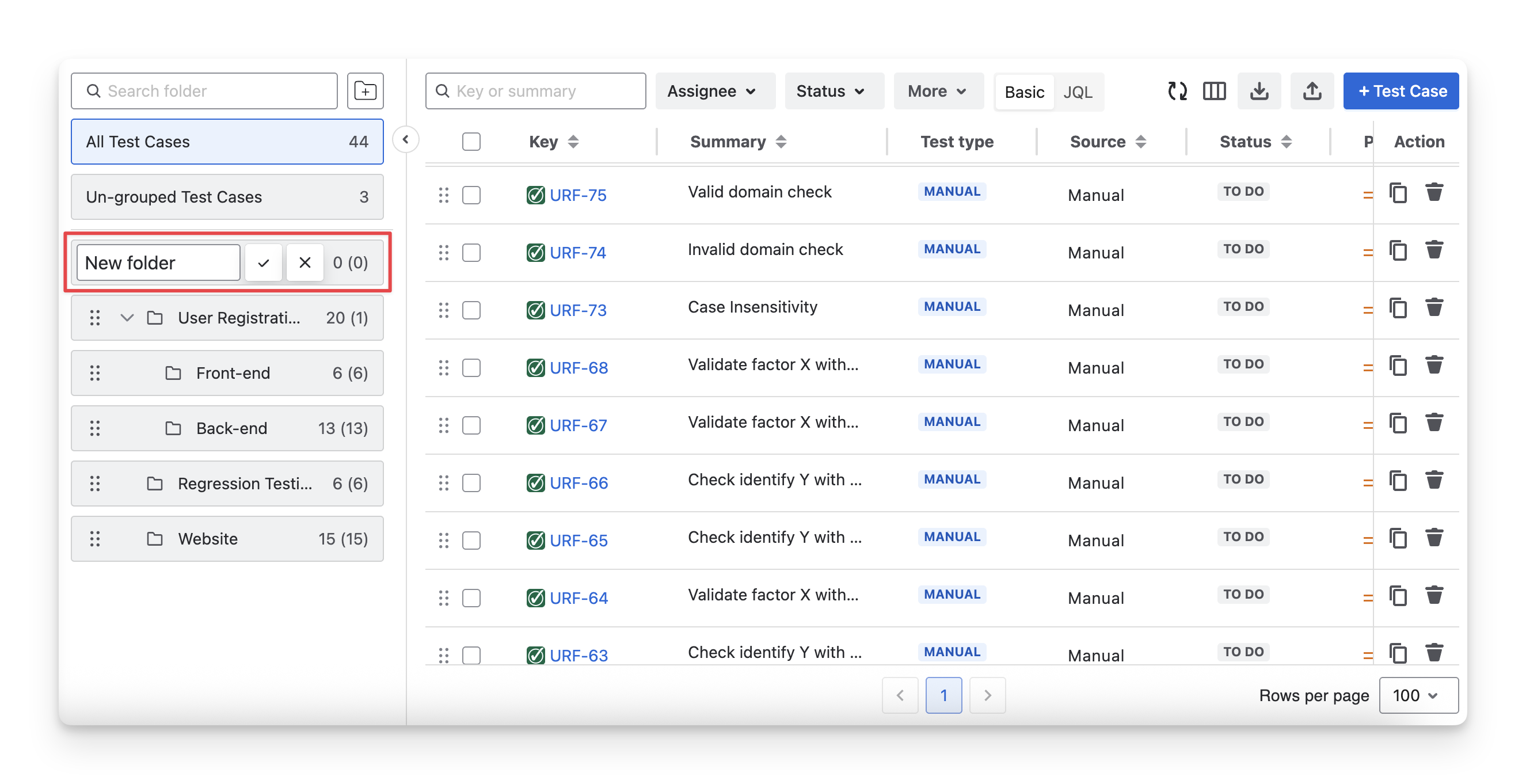
Name this folder. Click
/
to save and discard your changes.
2. Create Sub-folders
To create a test folder, you can follow these steps:
-
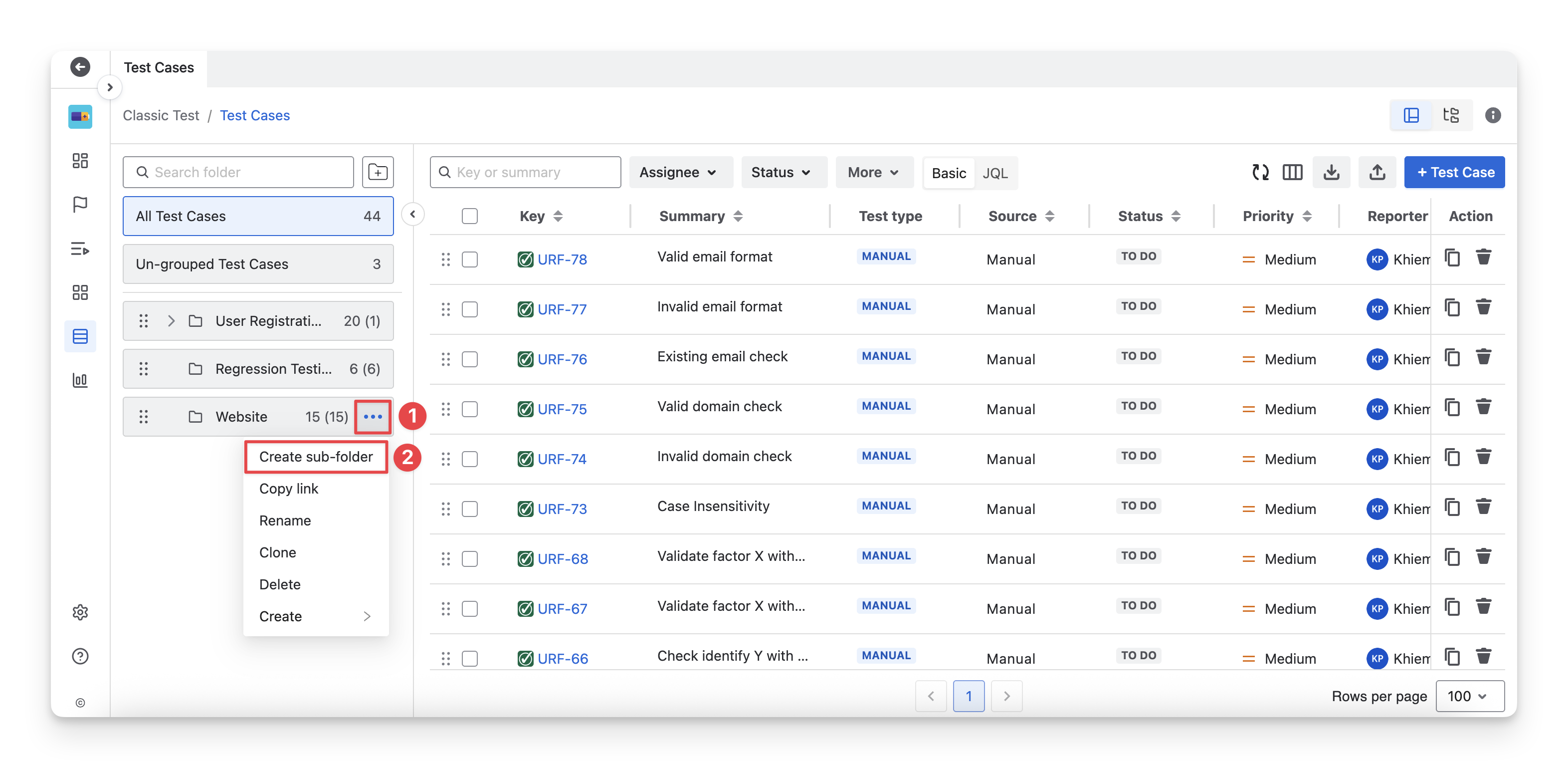
Navigate to a folder/subfolder you want to create subfolders in. Click on the “
-
Select the “Create Sub-folder” option.
-
Name this sub-folder. Click
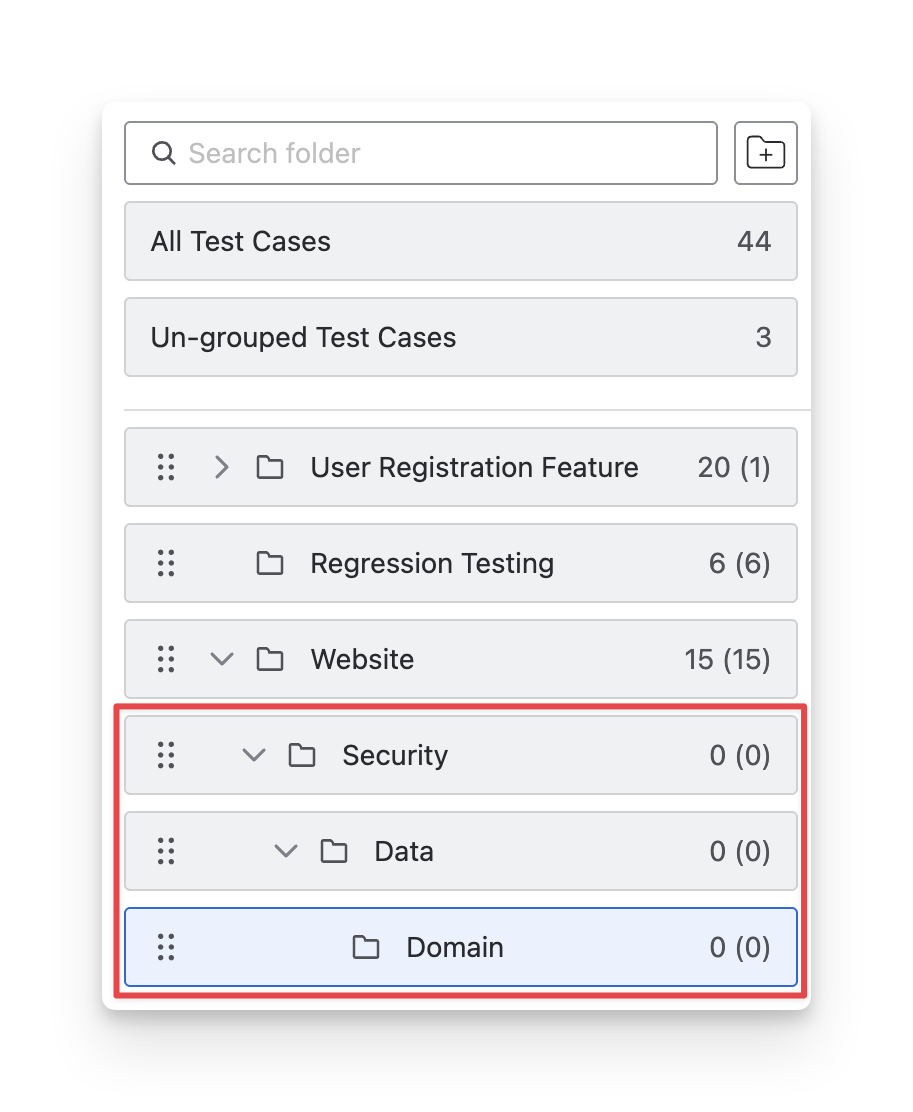
You can create multiple levels of subfolders, allowing subfolders to be placed under other subfolders.
Should you need any assistance or further AgileTest inquiries, contact our 24/7 Support Desk!