.png)
1. Overview
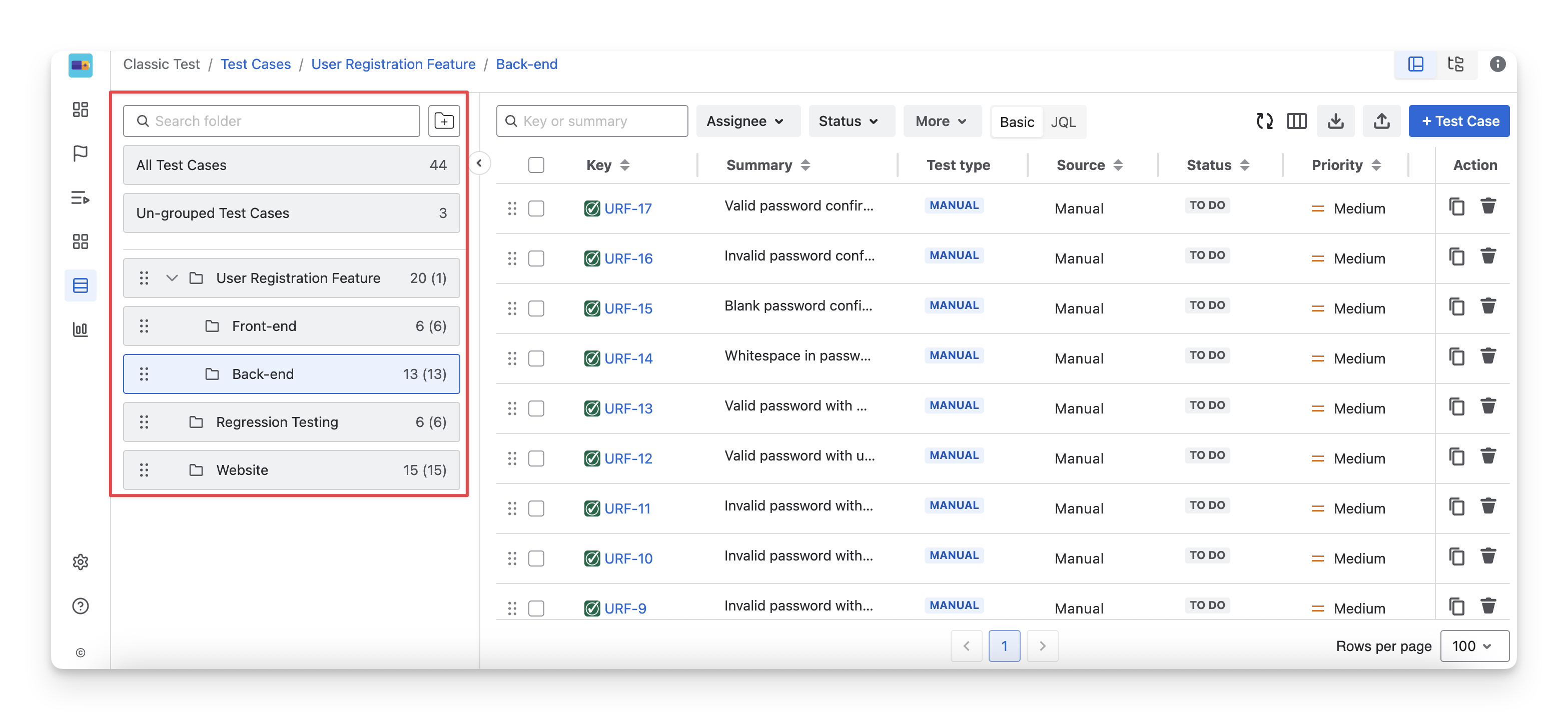
Test folders in AgileTest help you organize requirements, preconditions, and test cases into logical groups, making them easier to find, manage, and maintain. By using folders and subfolders, QA teams can keep related testing items together and maintain a clear structure as the number of tests grows.
2. Locate Test Folders
AgileTest provides three main types of folders: Requirement, Precondition, and Test Case folders. These folders share nearly identical features and differ only in where they appear within the application.
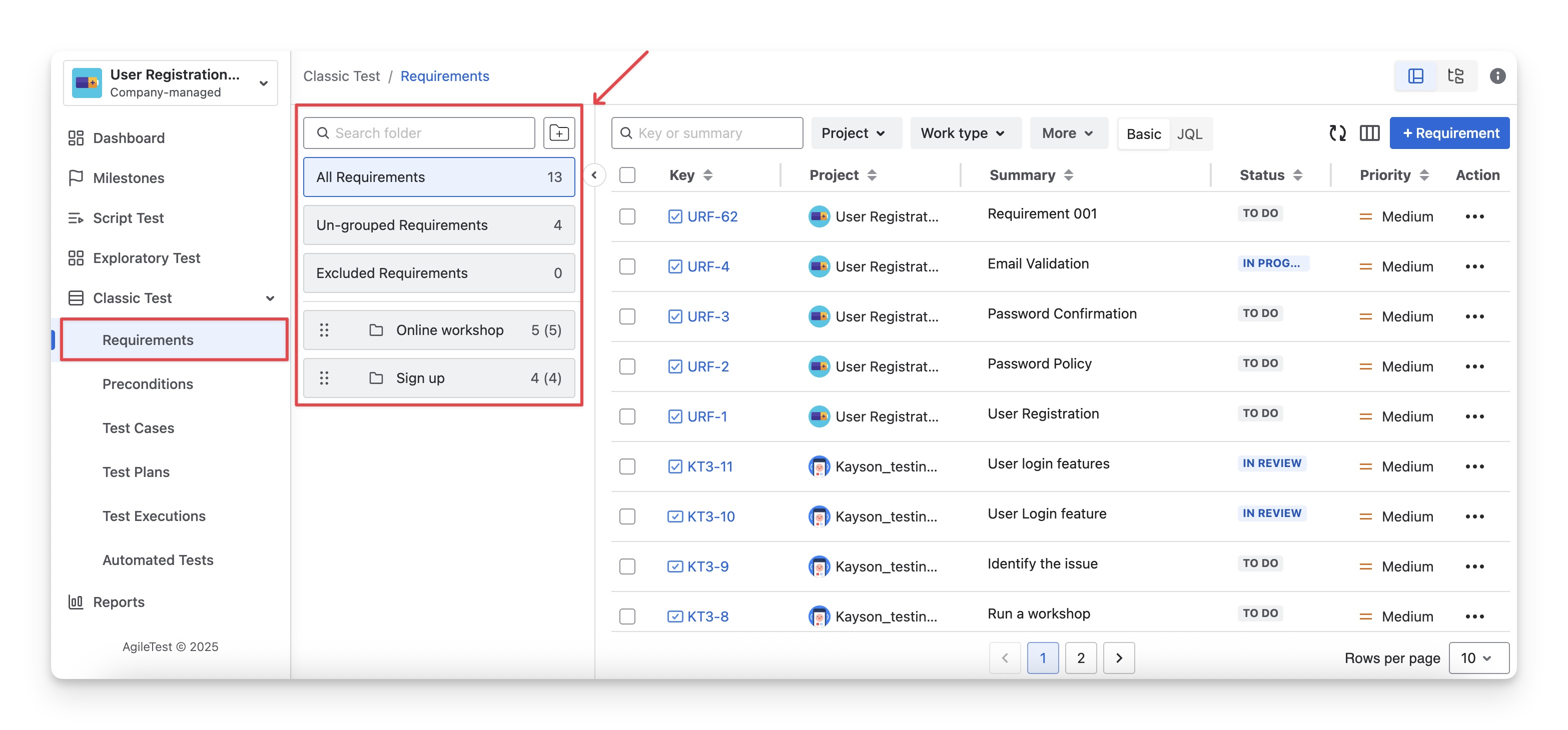
2.1 Requirement Folders
To view Requirement Folders, navigate to the Requirements section inside the Classic Test on the left-hand side menu bar. You will see the list of requirement folders displayed in the folder panel.
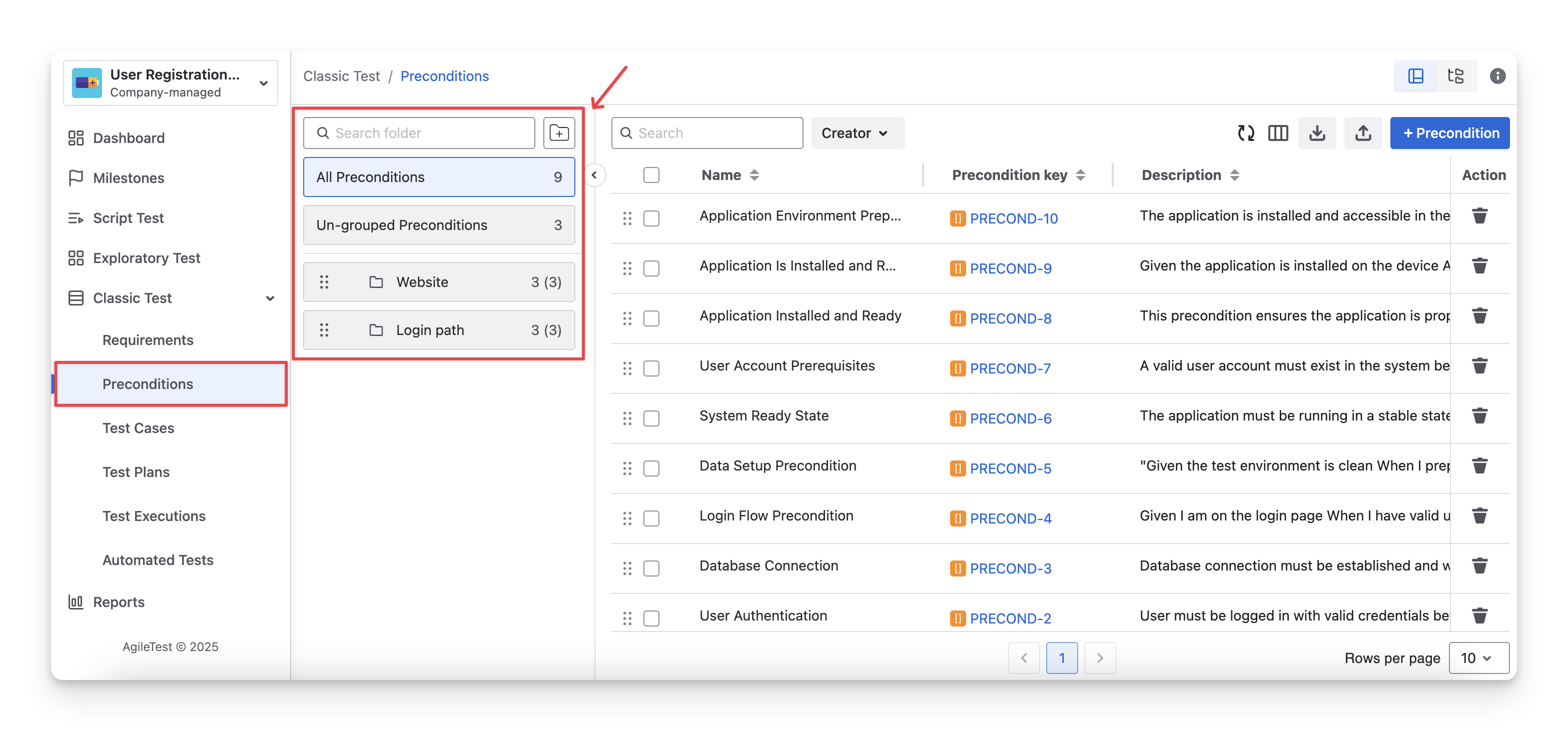
2.2 Precondition Folders
To view Precondition Folders, navigate to the Preconditions section inside the Classic Test on the left-hand side menu bar. You will see the list of precondition folders displayed in the folder panel.
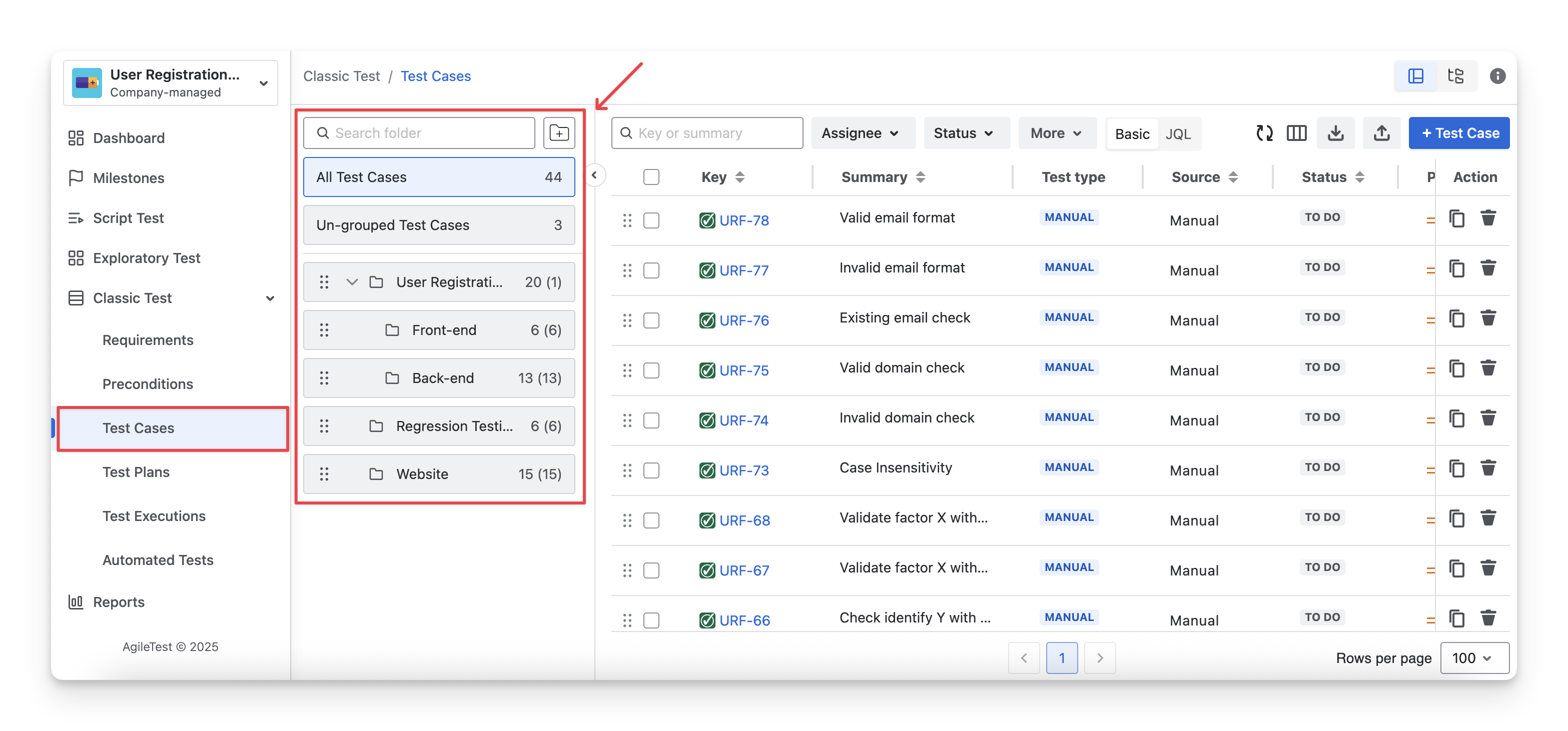
2.3 Test Case Folders
To view Requirement Folders, navigate to the Test Cases section inside the Classic Test on the left-hand side menu bar. You will see the list of test case folders displayed in the folder panel.
3. View Test Folders
AgileTest has 2 ways of viewing test items: Sidebar view and Tree view.
3.1 Sidebar view
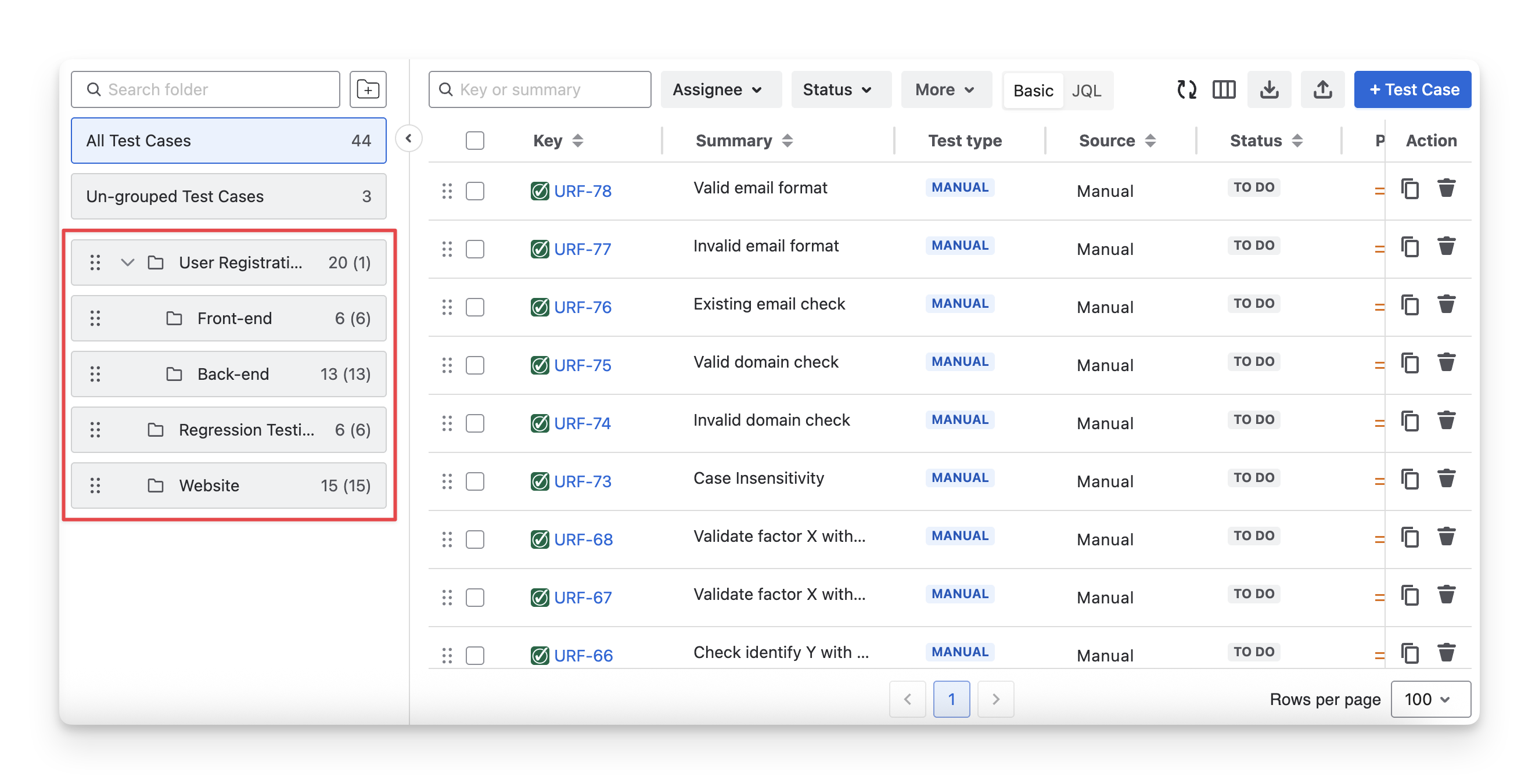
The Sidebar view displays test folders in a vertical panel on the left-hand side of the screen. Folders and subfolders are shown in a collapsible list, allowing you to expand or collapse each level to reveal its contents. When you click a folder/sub-folder, its work items appear in the main table on the right.
3.2 Tree View
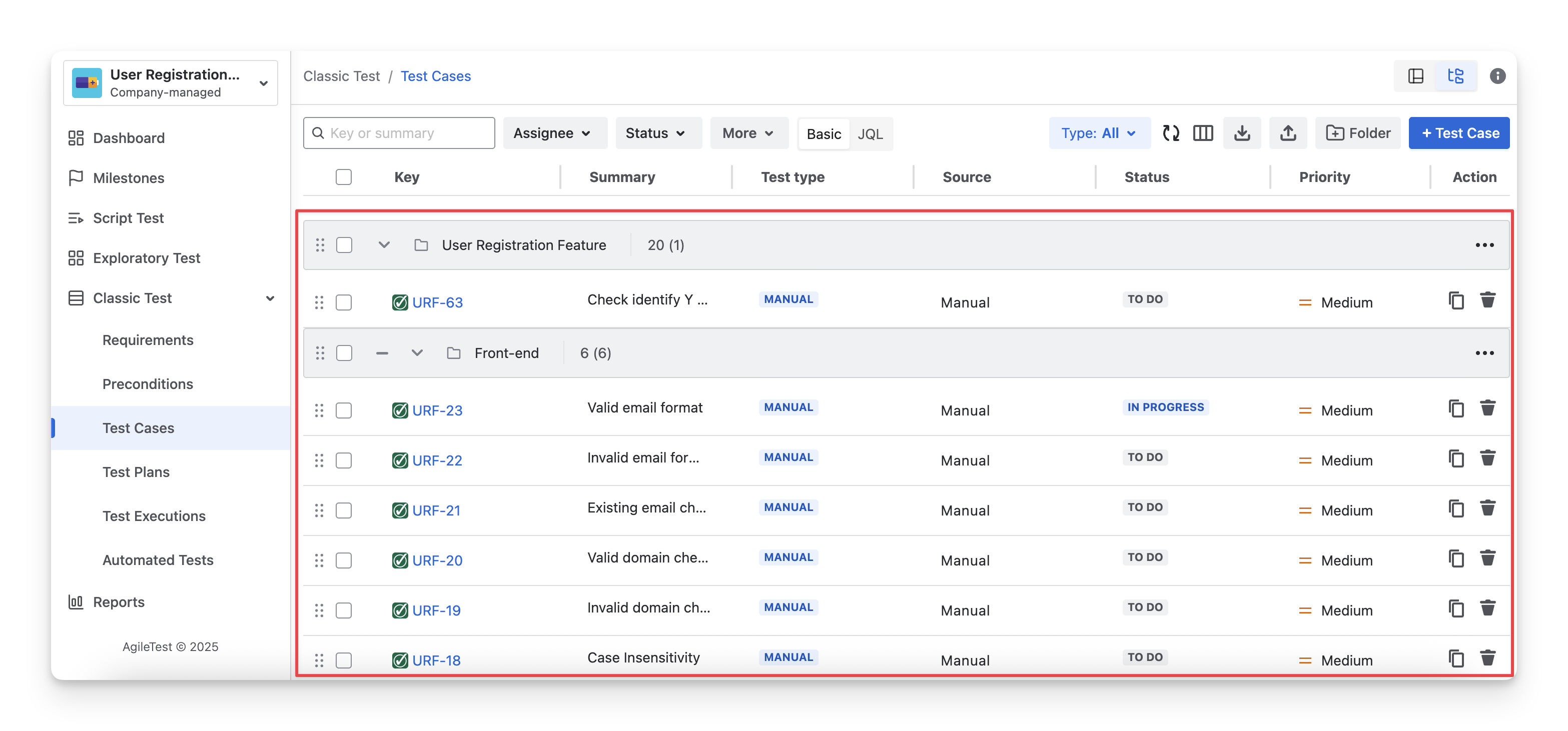
The Tree view displays test folders and subfolders directly within the main test case list. Folders appear as expandable rows, and their test cases are shown underneath them in a hierarchical structure. You can expand or collapse each folder to show or hide its contents, making it easy to see both the folder structure and the test cases together in one view.
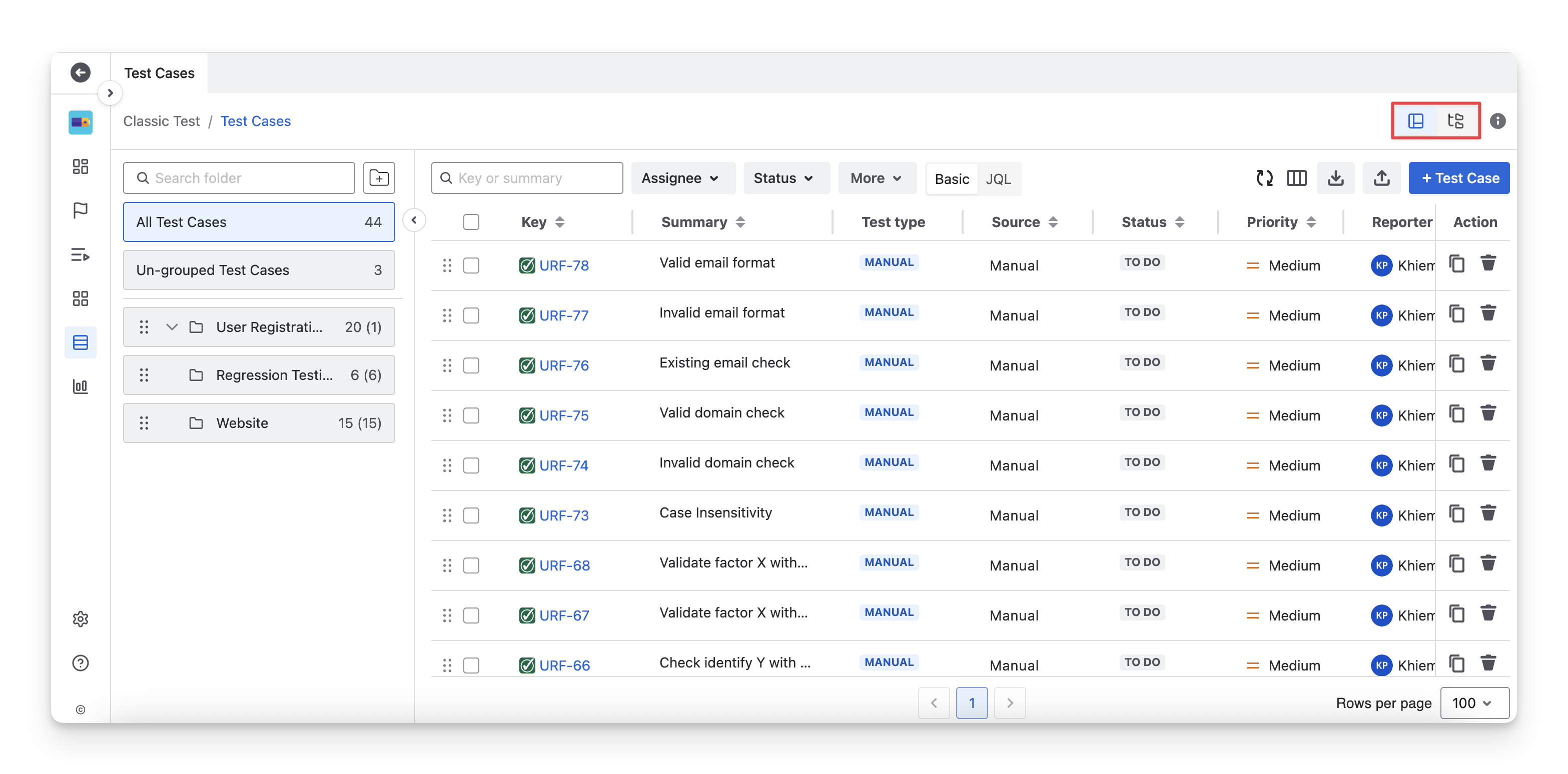
You can switch between the Sidebar view and the Tree view to browse test folders in the way that best fits your workflow. Click the “Switch View” button to change between views.
When should you use each View?
 Sidebar View
Use the Sidebar view when you want to:
-
Quickly navigate between folders while focusing on one folder at a time
-
Work with a deep or complex folder structure
-
Keep the folder list visible while filtering, editing, or selecting test cases
-
Manage test cases as separate groups without visual clutter
This view is best for day-to-day navigation and focused test case management.
Tree View
Use the Tree view when you want to:
-
See folders and test cases together in one place
-
Review or organize test cases across multiple folders
-
Select, move, or rearrange test cases while keeping their folder context
-
Get a full overview of test coverage within folder hierarchies
This view is ideal for planning, reviewing, and reorganizing tests.
Explore more about AgileTest Folders:
Should you need any assistance or further AgileTest inquiries, contact our 24/7 Support Desk!