.png)
This guide explains the basic structure of a JUnit XML report, helping you understand how AgileTest reads and displays report data. Additionally, you can learn how to customize the report to add attachment details.
1. Common structure of JUnit report
Below is the common structure of the JUnit XML report.
Under this structure, test cases contain their related test results and are grouped into test suites. Many test suites are grouped inside a <testsuites> element.
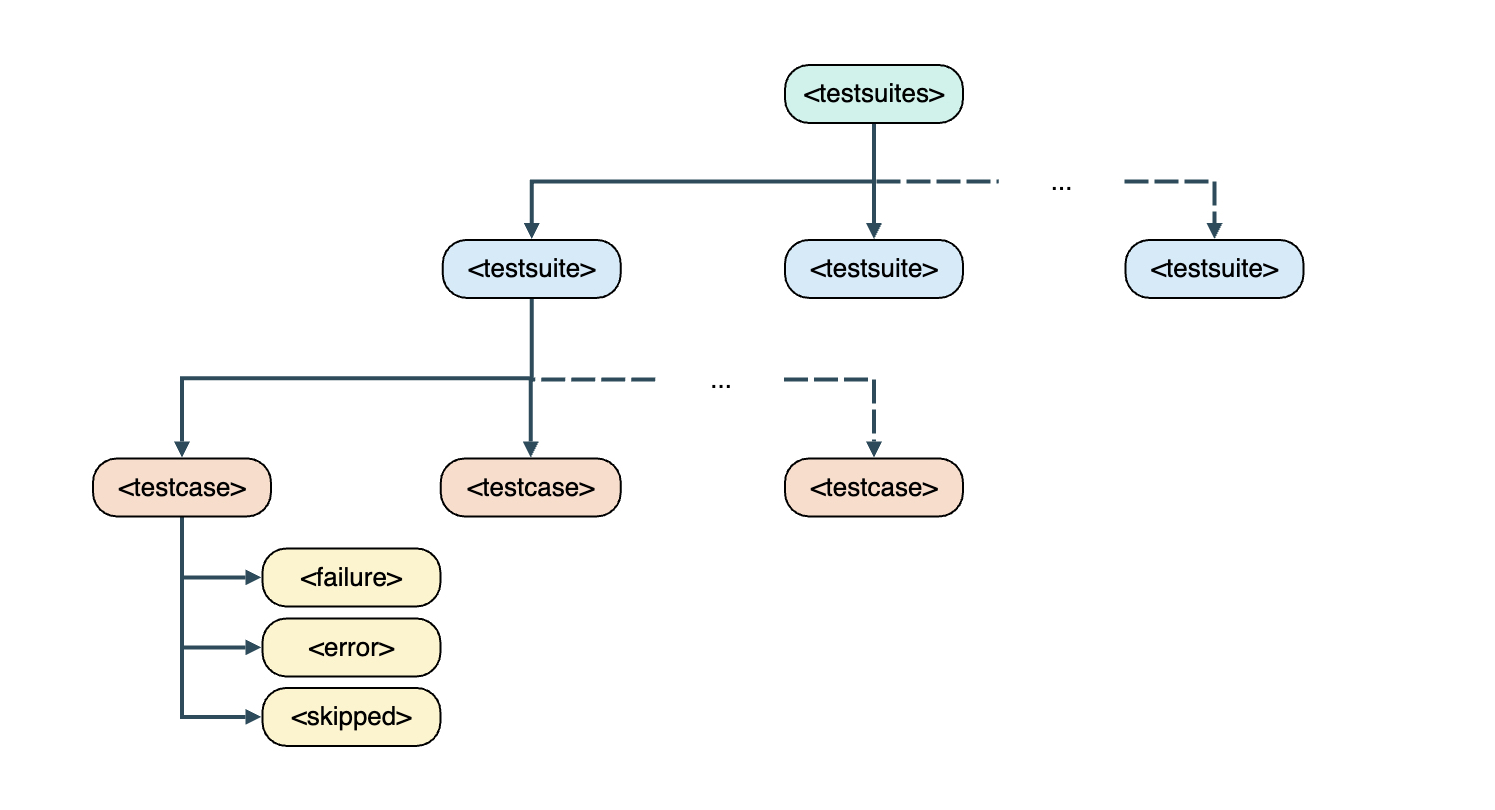
In a basic JUnit report, you should find common tags depicting test suites and test cases.
Once you understand the structure of a JUnit report, the next step is to see how AgileTest interprets this data. AgileTest reads specific elements in the XML file to create test cases and determine their execution status.
2. How AgileTest would parse a JUnit report
Imported test cases are distinguished by the classname and name attributes parsed from the XML file. The combination of these attributes is referred to as the Test Definition in AgileTest. Users can find the Test Definition located just below the Description area of the test case tickets. The Summary of each test case issue corresponds to the value of the name attribute.
Each report file, after execution, contains JUnit status values automatically mapped to AgileTest Test Results. Therefore, you do not need extra setup to read test results.
Below are explanations for the supported status of the JUnit reports in AgileTest.
Prioritization rule for determining the test status in AgileTest:
-
If multiple tags are added to a single
<testcase>element, the tag with the highest priority will be used as the test status in AgileTest. -
The priority of status tags in AgileTest is as follows: failed > blocked > retest > skipped > query > Passed .
The JUnit reports can display results in 2 formats:
2.1 Test Results without steps
If your initial JUnit files include only test cases without steps, the report results will show test results without steps.
The following table shows how JUnit status values map to AgileTest test results without step statuses.
|
Test case status |
Description |
|
|
Passed → Test case yields the expected result. |
|
|
failed → Test case returns the actual result, not as expected. |
|
|
blocked → Test case is considered blocked due to a specific reason. |
|
|
skipped → Test case is skipped in the test run. |
|
|
retest → Test case should be rerun again. |
|
|
query → The test case requires more details to have the final result. |
|
|
todo → Test case is not yet run. It’s the default status of every Test case in AgileTest. |
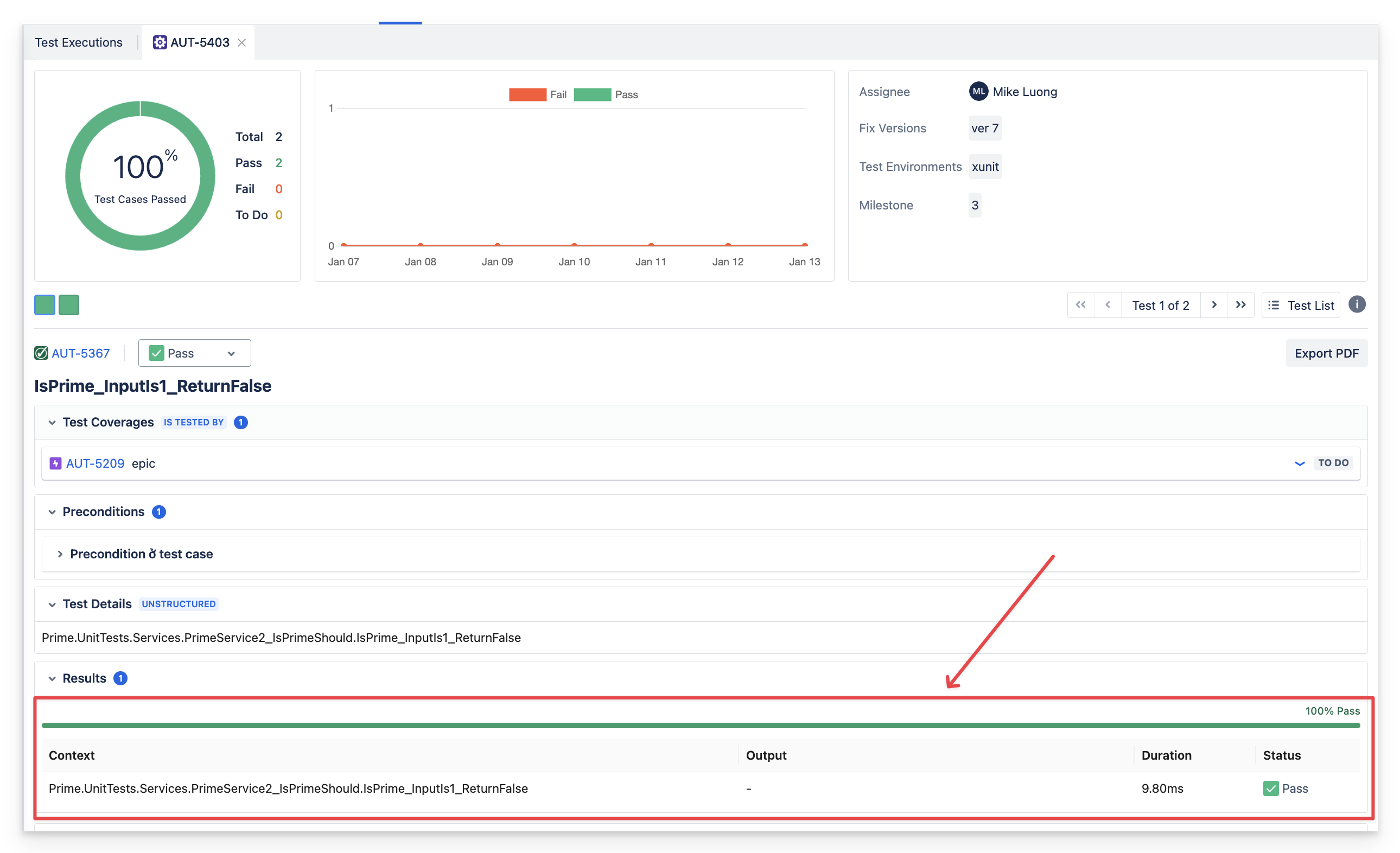
The context information will be reflected, and each row shows the result of each time the script reruns the test. Let’s take a look at the example below.
The result will be displayed in Context section in each Test Execution.
-
Context name is constituted by “TestSuite” and name attribute of
<testsuite>element. -
Test run status will be parsed accordingly following the prioritization rule.
-
Duration is the duration value of
<testcase>element. -
Status is the status value of
<testcase>element.
2.2 Test Results with steps
In case your JUnit files include test cases with test steps, the <property> element will be used to store these steps in the report. This format slightly differs from the standard test result structure, as it allows more detailed tracking of each step within the test case.
The following table shows how JUnit status values are mapped to AgileTest Test Results with step statuses.
|
Test step status property |
Description |
|
|
Passed → Test case yields the expected result. |
|
|
failed → Test case returns the actual result, not as expected. |
|
|
blocked → Test case is considered blocked due to a specific reason. |
|
|
skipped → Test case is skipped in the test run. |
|
|
retest → Test case should be rerun again. |
|
|
query → The test case requires more details to have the final result. |
|
|
todo → Test case is not yet run. It’s the default status of every Test case in AgileTest. |
Elements would be parsed similarly to Test result without steps, but with some enhancements.
-
Context name is constituted by “TestSuite” and name attribute of
<testsuite>element. -
Test run status will be parsed accordingly following the prioritization rule.
-
Duration is the duration value of
<testcase>element. -
Step status is based on the text inside the square brackets (case insensitive)
3. Add attachments in JUnit reports
By default, many reports do not include attachments. This section explains how to add attachments to your test reports.
AgileTest supports 3 structures for integrating attachments into your JUnit test reports. You can choose the most suitable method based on your needs and how you want attachments to appear in the report.
3.1 Default attachment structure of JUnit
By default, without any customization, the JUnit framework generates attachments and stores them in the test report with the structure as follows.
<system-out>
  <![CDATA[
  [[ATTACHMENT|file path or base64 content]]
  ]]>
</system-out>
For instance, your report will be:
<testcase>
  <system-out>
    <![CDATA[
    [[ATTACHMENT|test-failed-1.png]]
    ]]>
  </system-out>
</testcase>
3.2 Attachment element with name attribute and content inside
To store attachments with the name attribute and content inside the report, you need to follow a specific XML element structure.
<attachment name="filename"> base64 content </attachment>
For example, you can put this Element structure into your report like this:
<test>
  <attachments>
    <attachment name="test.png">iVBORw0KGgoAAAANSUhEUgAAADIAAAAyCAYAAAAeP4ixAAAAQ0lEQVR42u3PQREAAAgDINc/9Mzg14MGZNrOAxERERERERERERERERERERERERERERERERERERERERERERERERERuVh9TJWdbWjzsQAAAABJRU5ErkJggg==</attachment>
  <attachments>
<test>
3.3 Attachment element with separate name and content elements inside
Alternatively, you can split the attachment name and content into separate elements. This structure can also be used to include attachments in your report.
<attachment>
  <name> filename </name>
  <rawcontent> base64 content </rawcontent>
</attachment>
For example, your report will look like:
<test>
  ...
  <attachments>
    <attachment>
      <name>test.png</name>
      <rawcontent>iVBORw0KGgoAAAANSUhEUgAAADIAAAAyCAYAAAAeP4ixAAAAQ0lEQVR42u3PQREAAAgDINc/9Mzg14MGZNrOAxERERERERERERERERERERERERERERERERERERERERERERERERERuVh9TJWdbWjzsQAAAABJRU5ErkJggg==</rawcontent>
    </attachment>
  </attachments>
</test>
Should you need any assistance or further AgileTest inquiries, please contact us here!