.png)
All users with Edit permission can manage Test Cases, but only the Project and the Jira admins can delete them.
1. Test Case Table Explanation
On the Left-hand menu sidebar, navigate to the Classic Test → Choose “Test Cases” to access this section.
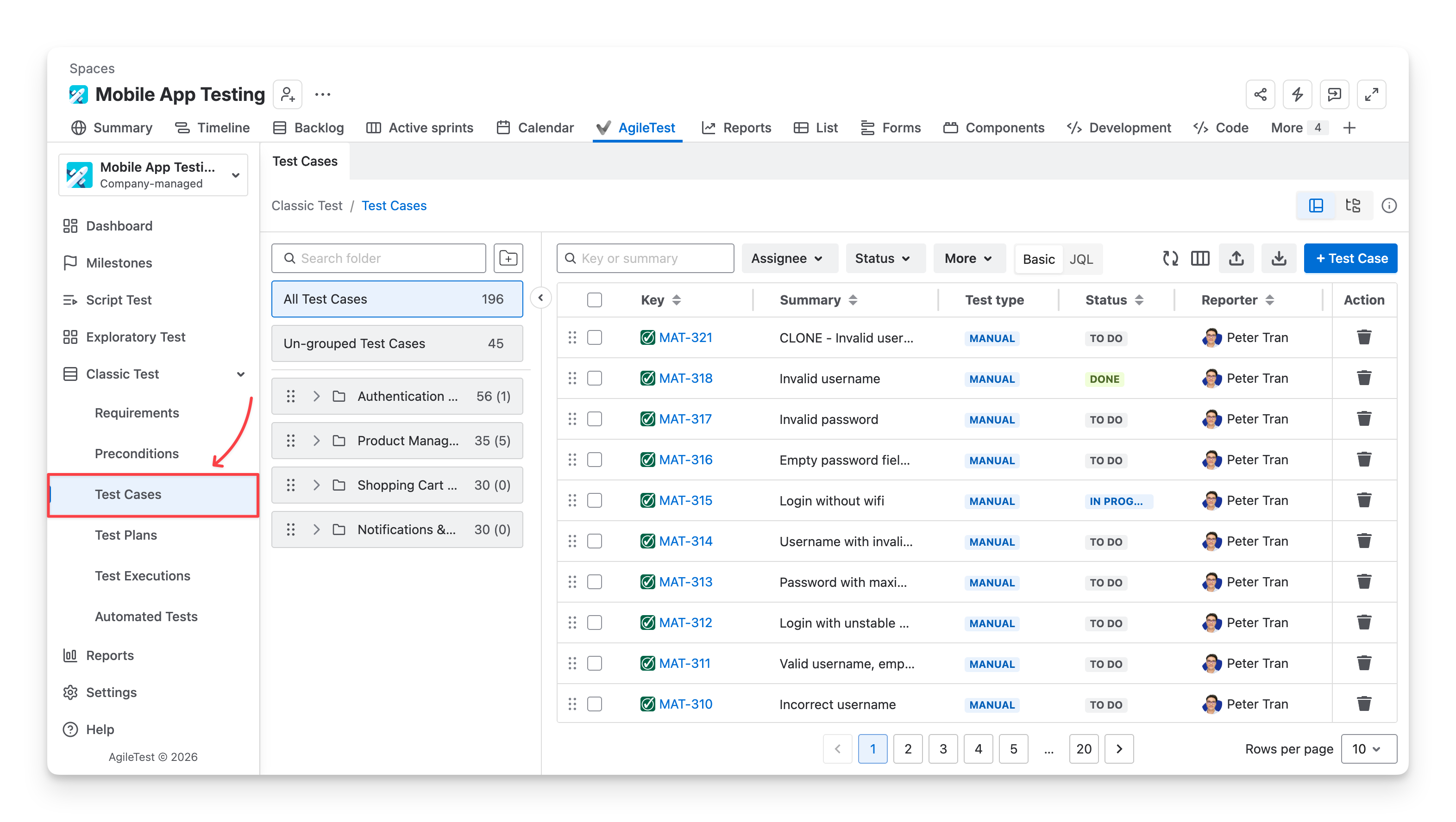
Here, you can see a list of test cases.
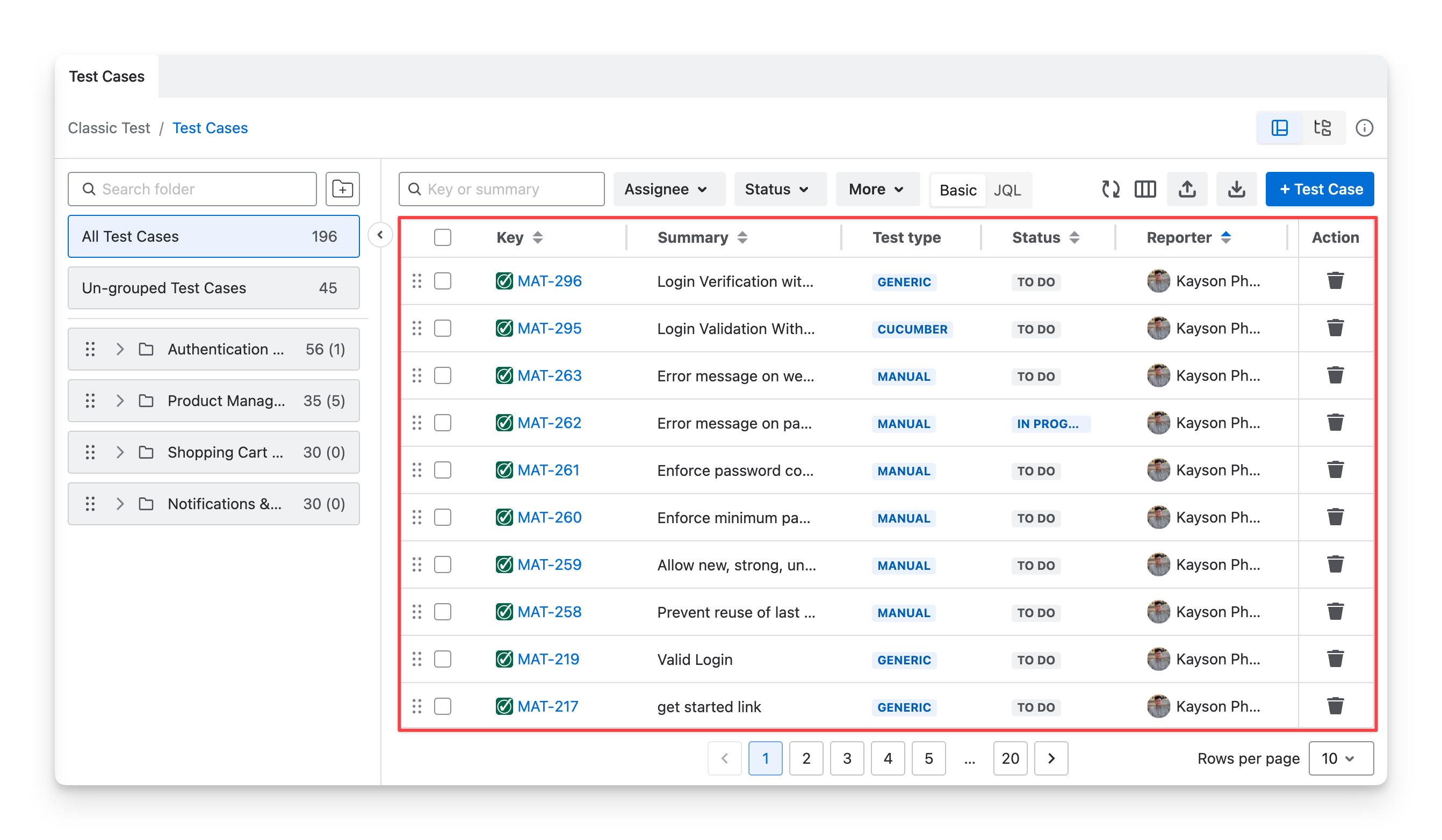
The list of test cases gives you information about:
|
Types of Information |
Description |
|---|---|
|
Key |
A Jira unique identifier for the test case, used to track and link it. |
|
Summary |
A brief title describing the purpose or scenario of the test case. |
|
Test Type |
The type of test case( Manual ; Cucumber ; Generic ) indicates how the test is designed and executed. |
|
Source |
Indicates how the test case was created
|
|
Status |
The current Jira status of the test case ticket ( todo ; in progress done ) indicates its lifecycle stage. |
|
Assignee |
The user responsible for working on or maintaining the test case. |
|
Labels |
Jira Custom tags, used to categorize test cases and make them easier to search and filter. |
|
Priority |
The importance and urgency of the test case help teams decide what should be addressed first. |
|
Reporter |
The user who originally created and reported the test case. |
|
Created At |
The date and time when the test case was first created in the system. |
|
Last Updated |
The most recent date and time when the test case was modified, reflecting the latest activity or changes. |
2. Test Case Table Actions
2.1 Show/Hide Column In The Table
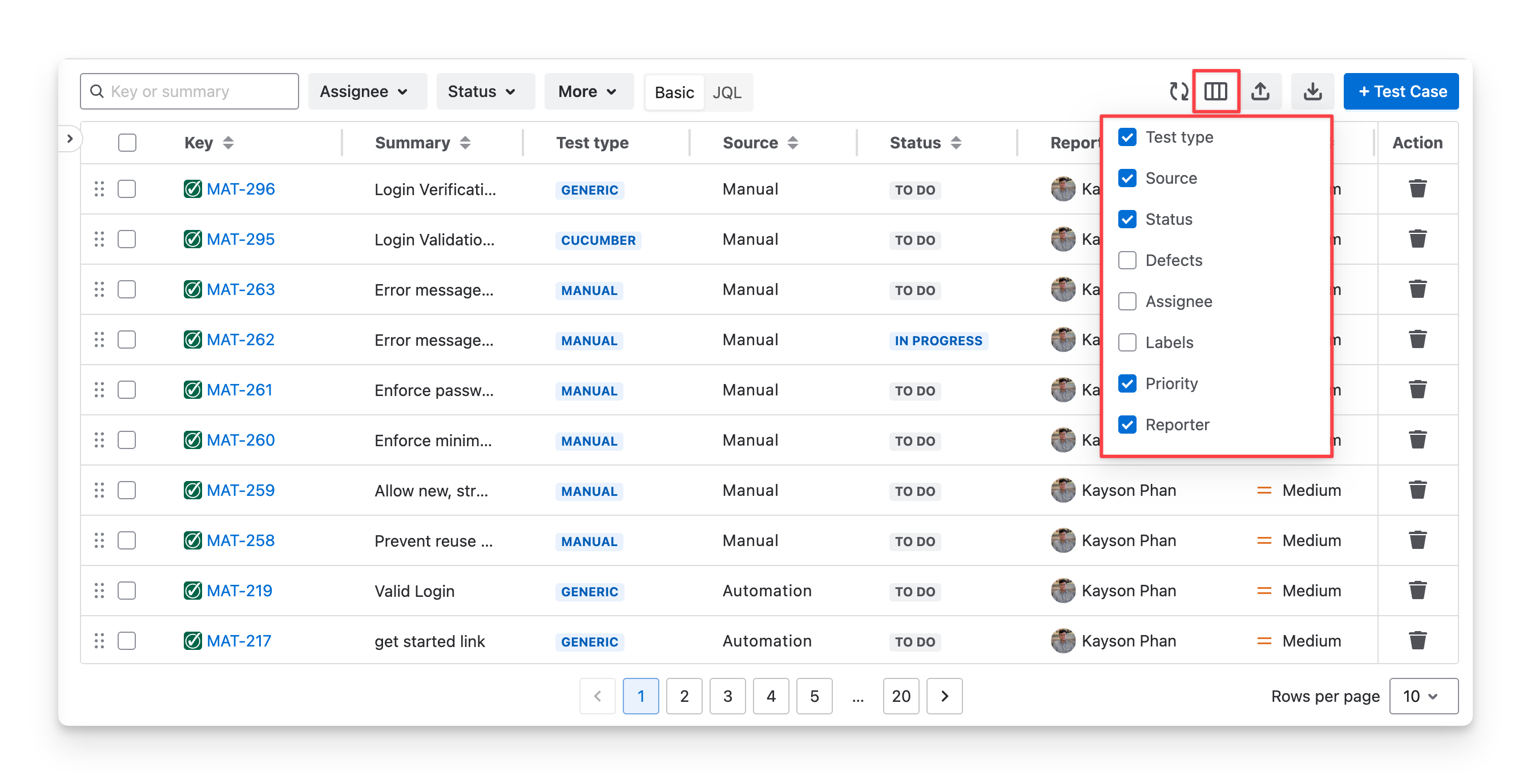
You can show or hide columns in the test case table by clicking the “Display” button and selecting/deselecting the checkbox to display/hide the desired columns.
The Key, Summary and Test Type Columns are System Fields, which cannot be hidden.
2.2 Rearrange Test Case Column Orders
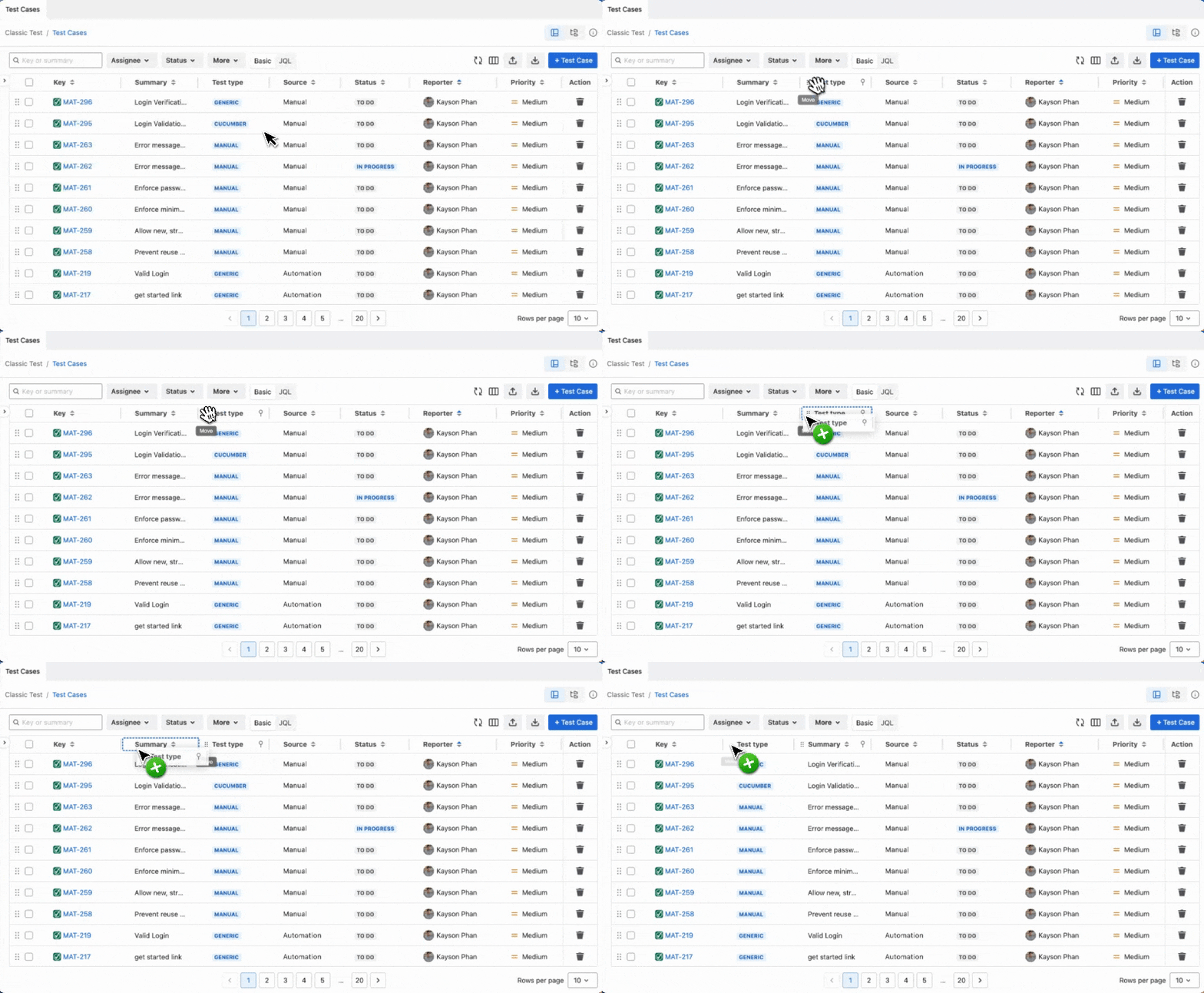
To change the display order of columns, drag and drop each column to your preferred position.
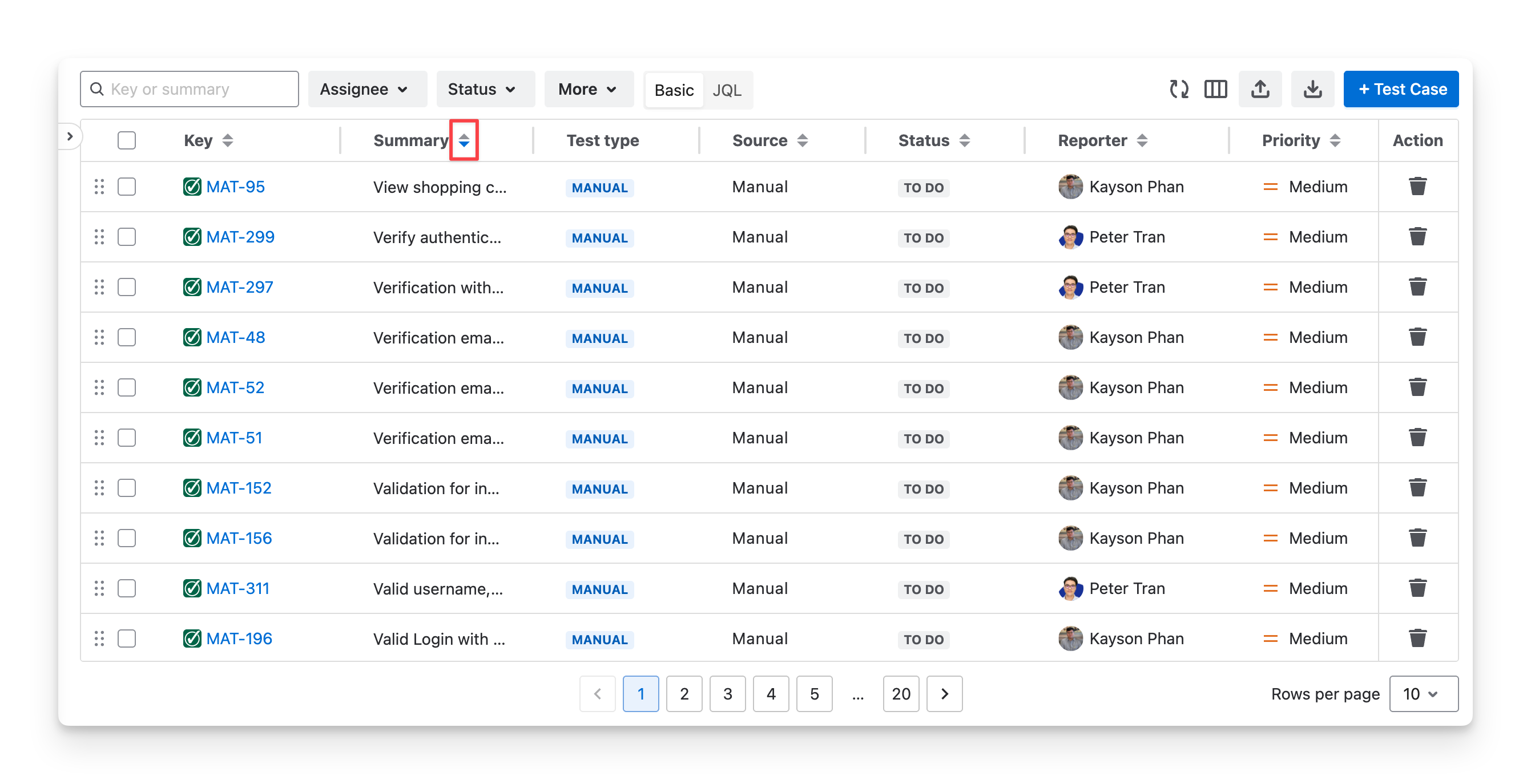
2.3 Sort Test Cases
To sort any column and view the data in ascending or descending order, you can:
-
Choose the 🔼 to sort ascending.
-
Choose the 🔽 to sort descending.
2.4 Filter Test Cases
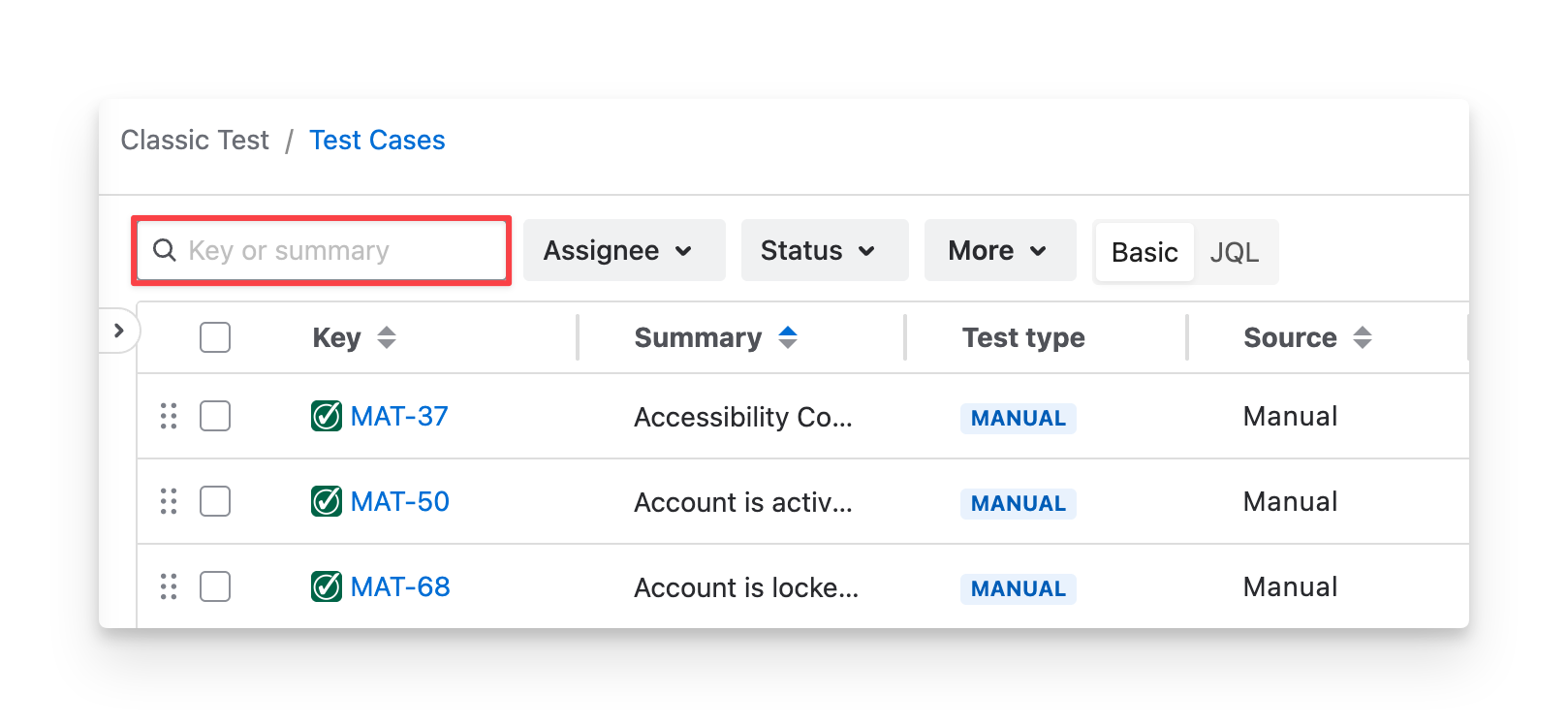
To quickly identify a specific test case, you can:
-
Provide Jira Key ID or the Test Case Summary to find the exact test case.
-
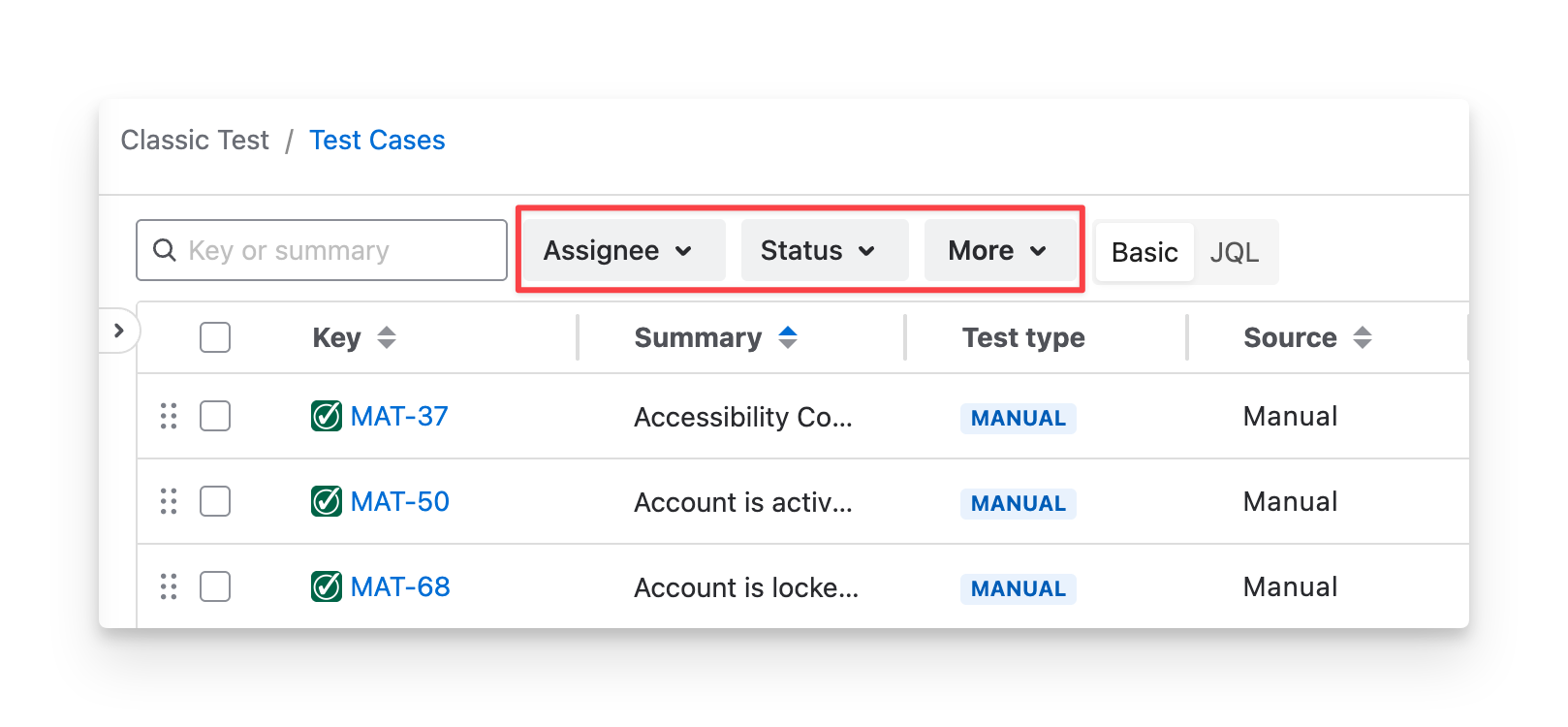
Apply Filters to narrow down the list
AgileTest supports you in filtering test cases by:
-
Assignee: your team members assigned to test cases.
-
Status: your Jira status of the Test Case ticket ( todo ; in progress ; done ).
-
Source: the source of test cases being created ( Manual ; Import ; Automation )
-
Priority: the test case priority ( Highest ; high ; medium ; lowest ; low ).
-
Reporter: your team members created test cases.
-
Test Plan: your test plans associated with the test cases.
-
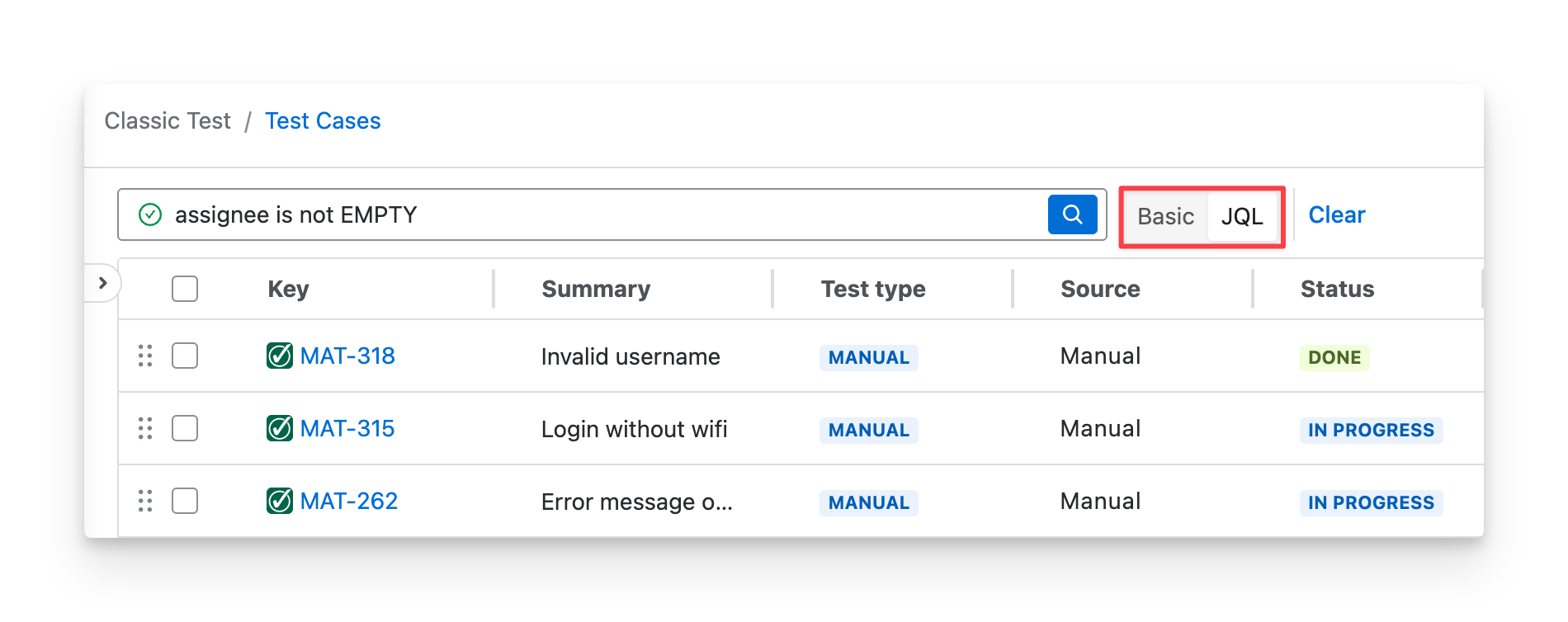
Or switch to JQL and enter your custom search.
2.5 Organize Test Cases Into Folders
In the test case section, there is a Test Case folder feature. This feature helps you categorize relevant test cases into the same group, making them easier to track, navigate, and maintain throughout the project lifecycle. By grouping test cases into folders, teams can improve visibility, keep test cases well-structured, and simplify test case management as the project grows.
One Test Case can only belong to one folder.
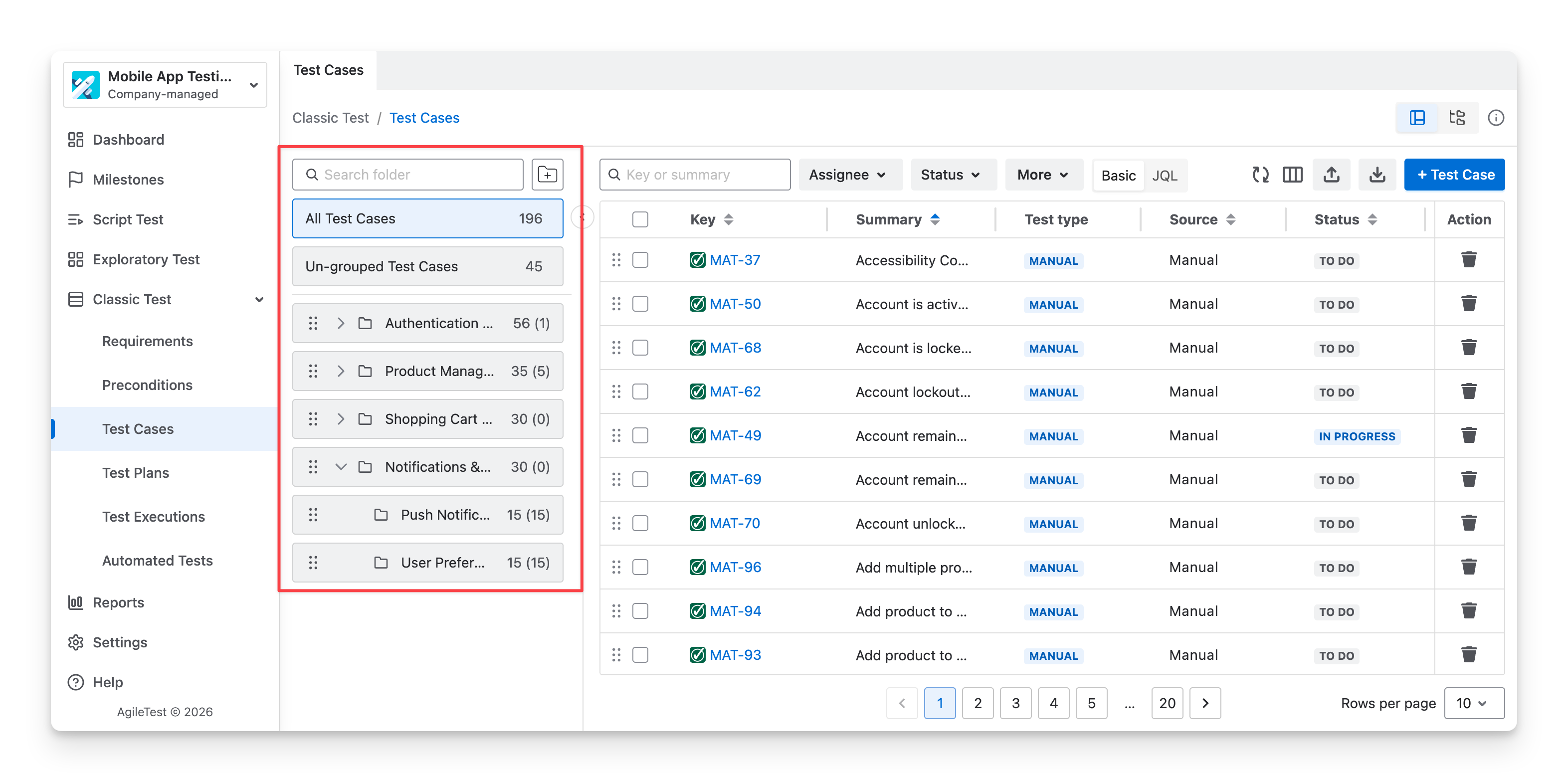
By default, in the Test Case section, you can see a test case folder feature on the left-hand side, which allows you to organize test cases in a hierarchical order.
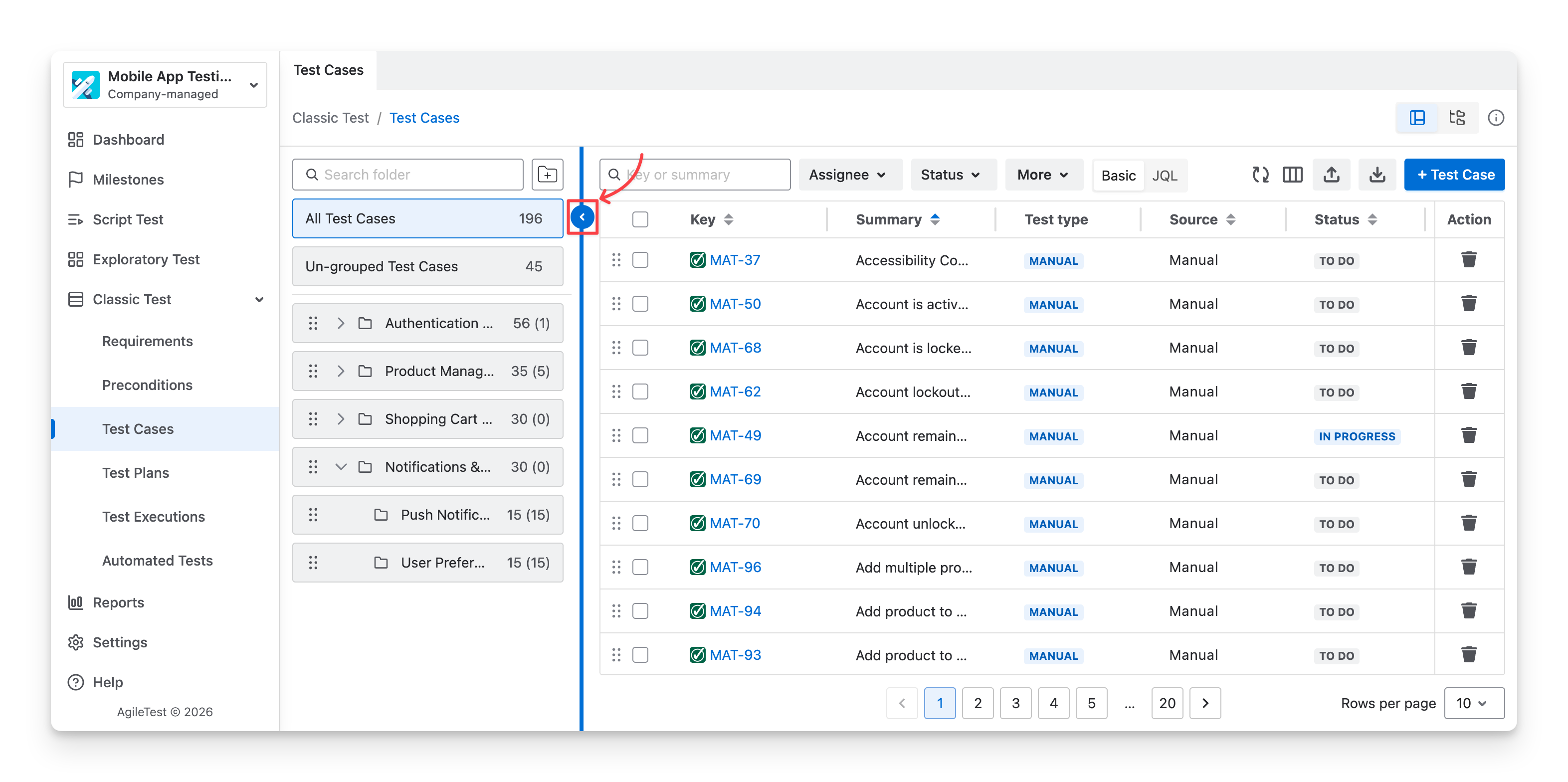
To open/close the folders, click on the ▶️ / ◀️ button on the left-hand side of the table.
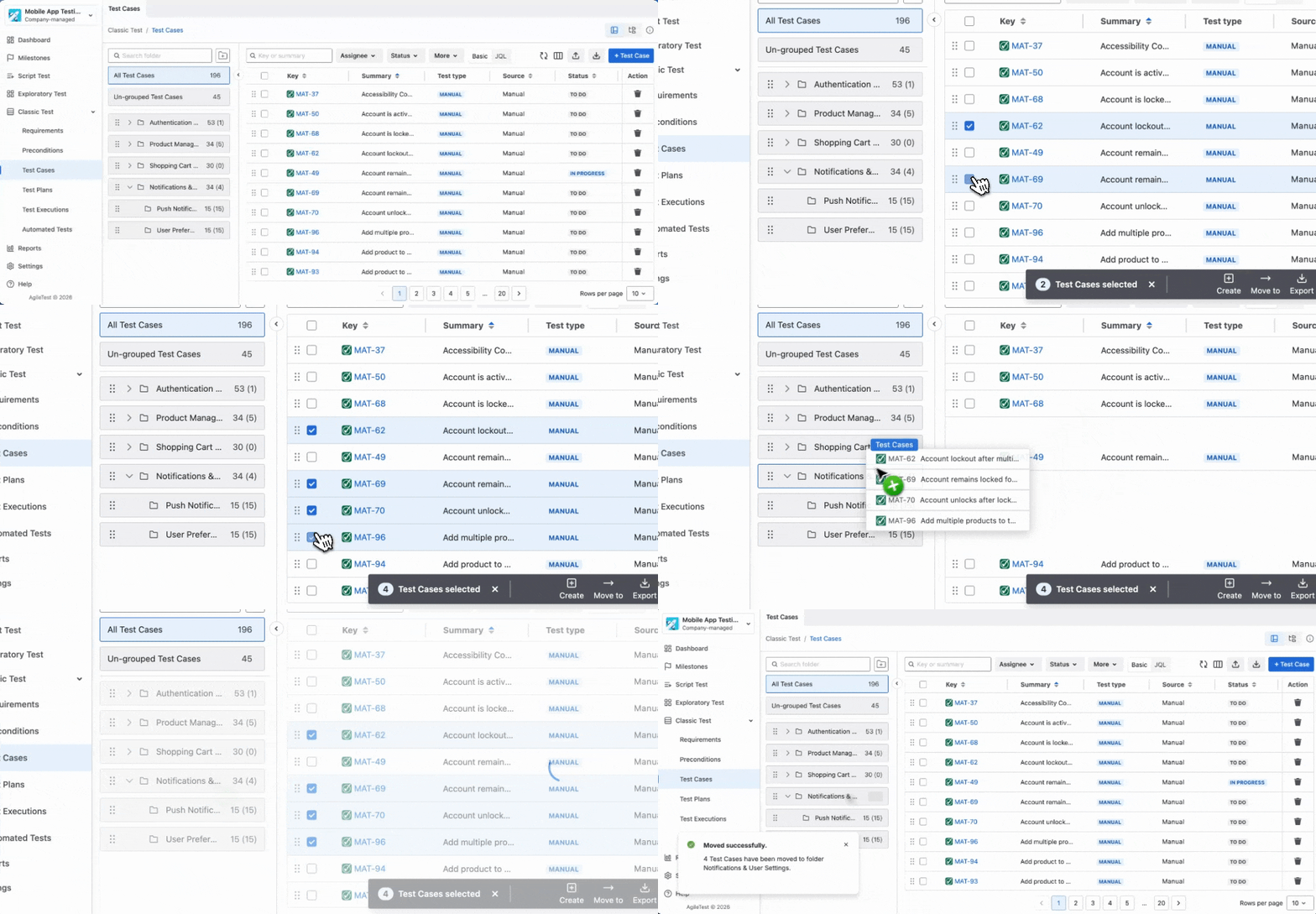
To add test cases into folders, you can multi-select these test cases and drag them into suitable folders.
2.6 Export Test Cases
To export Test Cases from AgileTest to CSV Files for tool migration or internal storage purposes, you can follow these steps:
-
Choose the “Export” button.
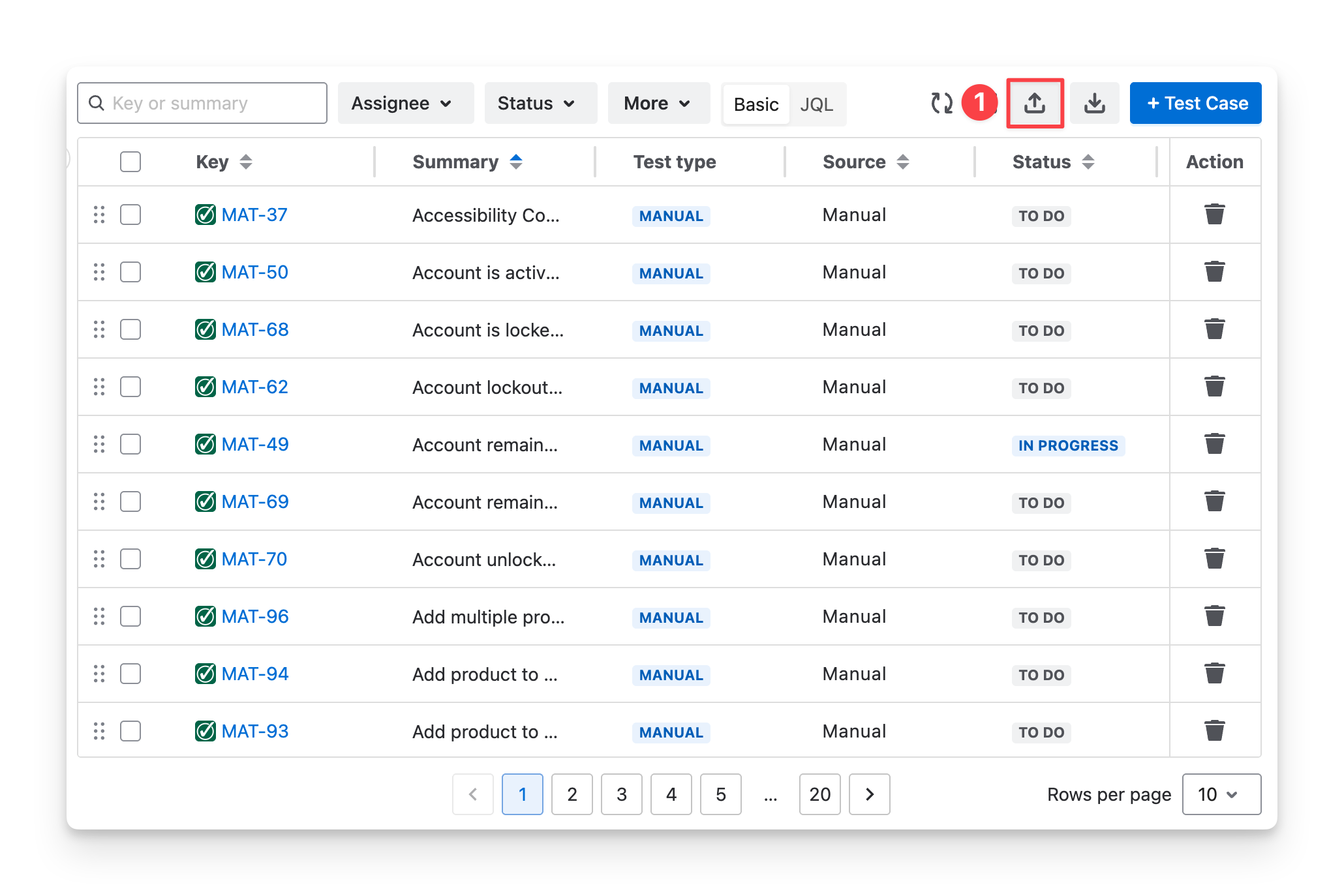
-
Select the type of CSV files. Currently, AgileTest allows you to download the test cases into:
-
Text Only Files: These files contain the plain text of your test cases without any formatting or styles. This option is useful for a straightforward, simple export of test data, ensuring compatibility across different tools and platforms.
-
Text With Styles: These files include the test case details along with any formatting or styles applied to the text. It is ideal for users who want to maintain the appearance of their test cases and are working in environments that support rich text formatting.
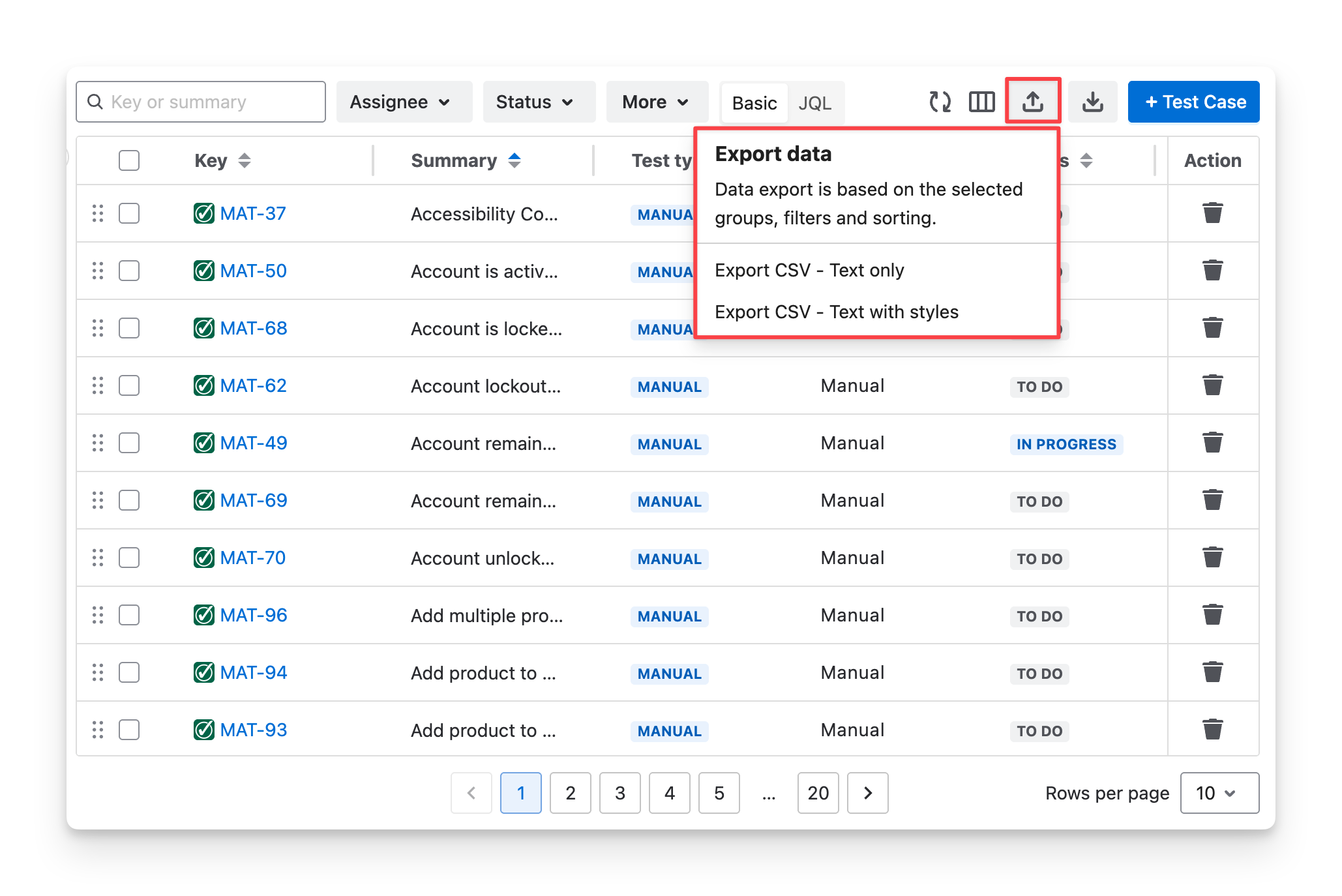
This approach downloads all sorted or filtered test cases on your screen without allowing the selection of specific test cases to exclude.
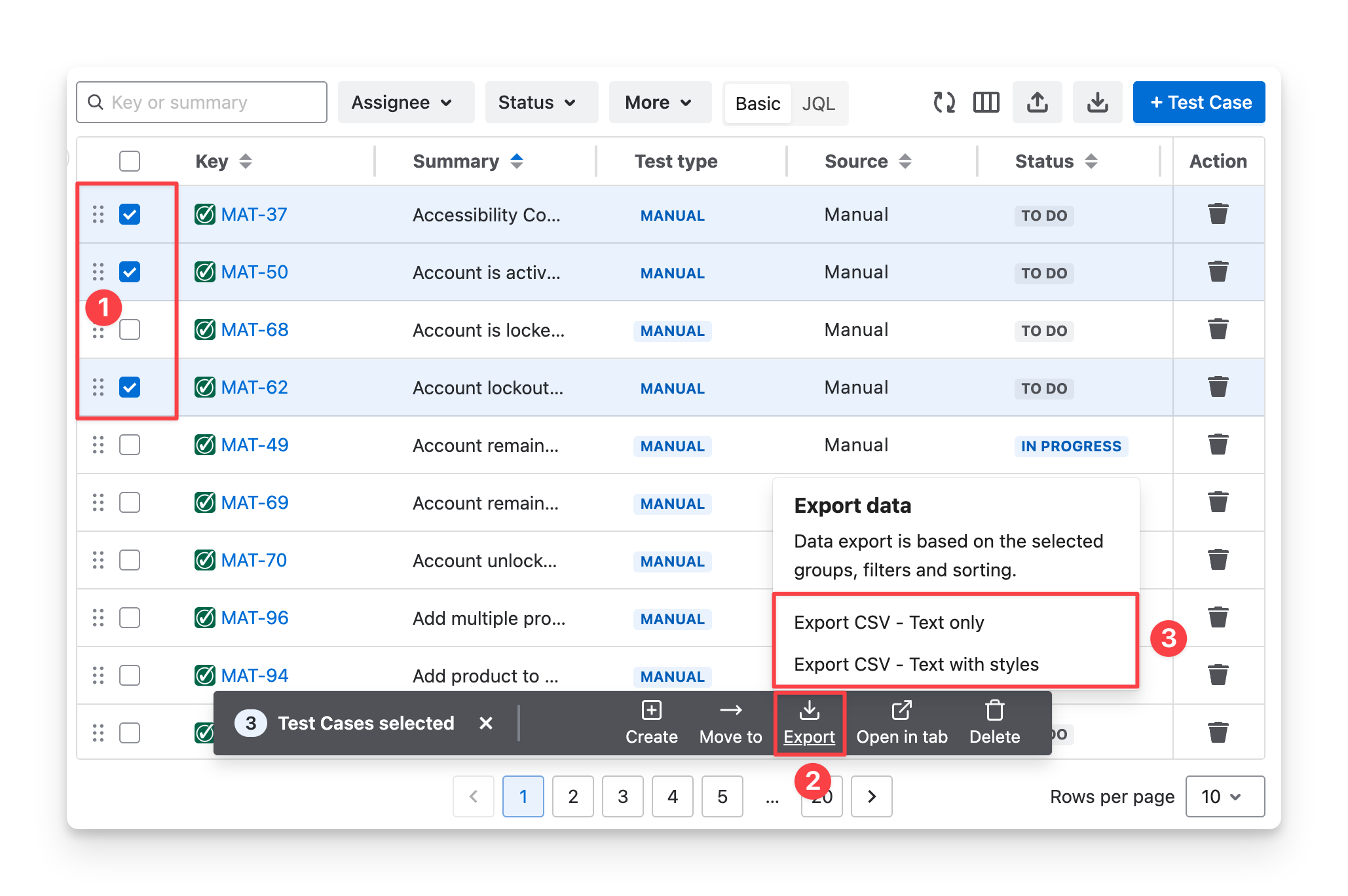
How can you export only some specific test cases?
-
Apply the Filters and select your desired test cases.
-
Click on the “Export” button on the smart toolbar.
-
Choose the CSV File Types you want to receive results for.
2.7 Clone Test Cases
AgileTest also supports you in duplicating a whole test case, which includes the following:
-
Test Case Details: All the attributes of the original test case, such as the summary, steps, expected results, and status, are copied to the new test case.
-
Work Item Links: Any associated work items, such as requirements, user stories, or defects, are also duplicated along with the test case, preserving the relationships.
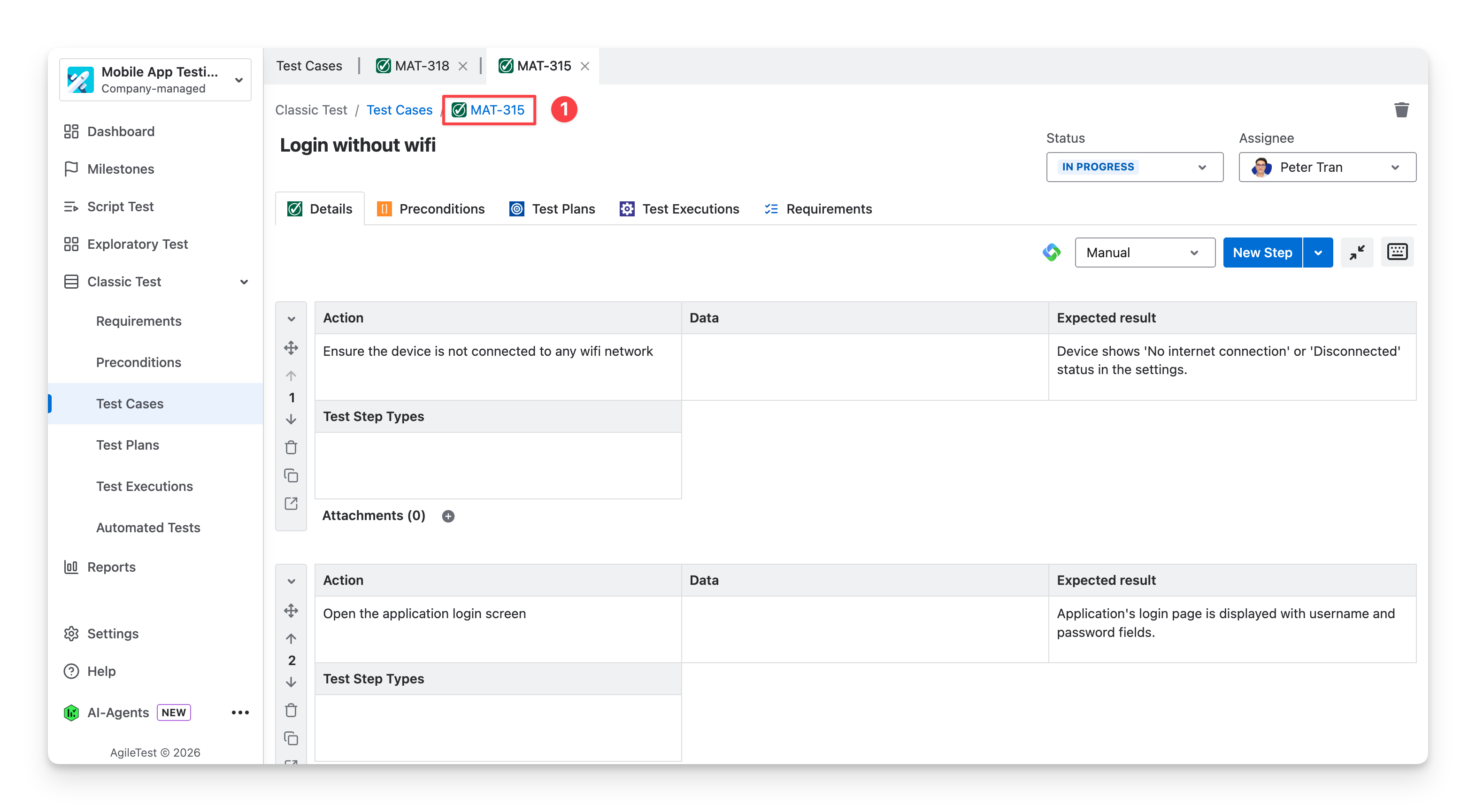
You can clone a test case by:
-
Select the test case you want to duplicate, then click on its Jira ticket link.
-
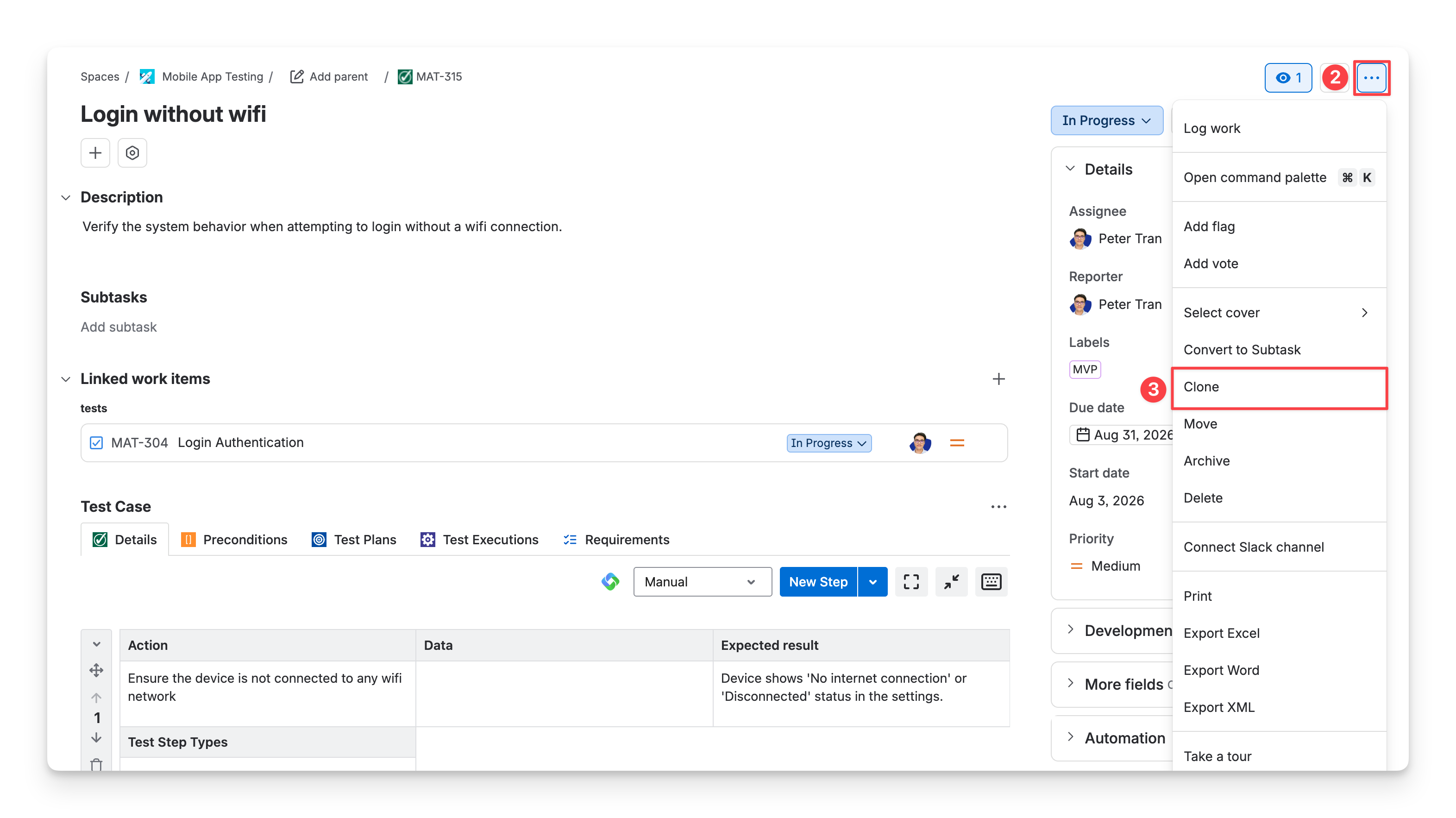
In the Test Case Jira ticket, click on the 3-dot button on the top right corner.
-
Choose the “Clone” option.
-
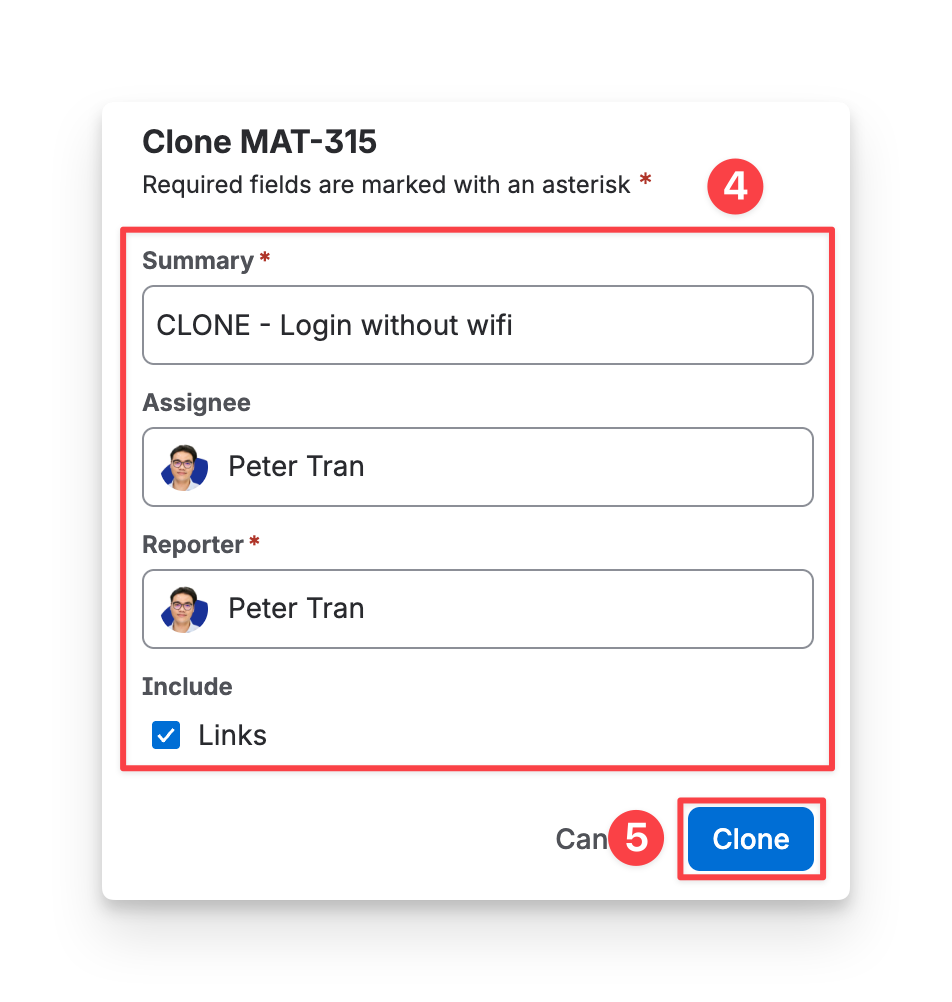
Fill in the details for the duplicated Test Execution:
-
Summary: Enter the summary for the new Test Execution.
-
Assignee: Select the assignee.
-
Reporter: Select the reporter.
-
Include: AgileTest automatically includes attachments, child work items, comments, and sprint values when you clone a Test Case.
-
Links: Select this option to link the cloned Test Case with the work items linked to the original Test Execution.
-
-
Click the “Clone” button to finish.
2.8 Delete Test Cases
You can delete a test case by:
-
Navigate to the Test Case you want to delete.
-
Click on the “Delete” button in the Action Column.
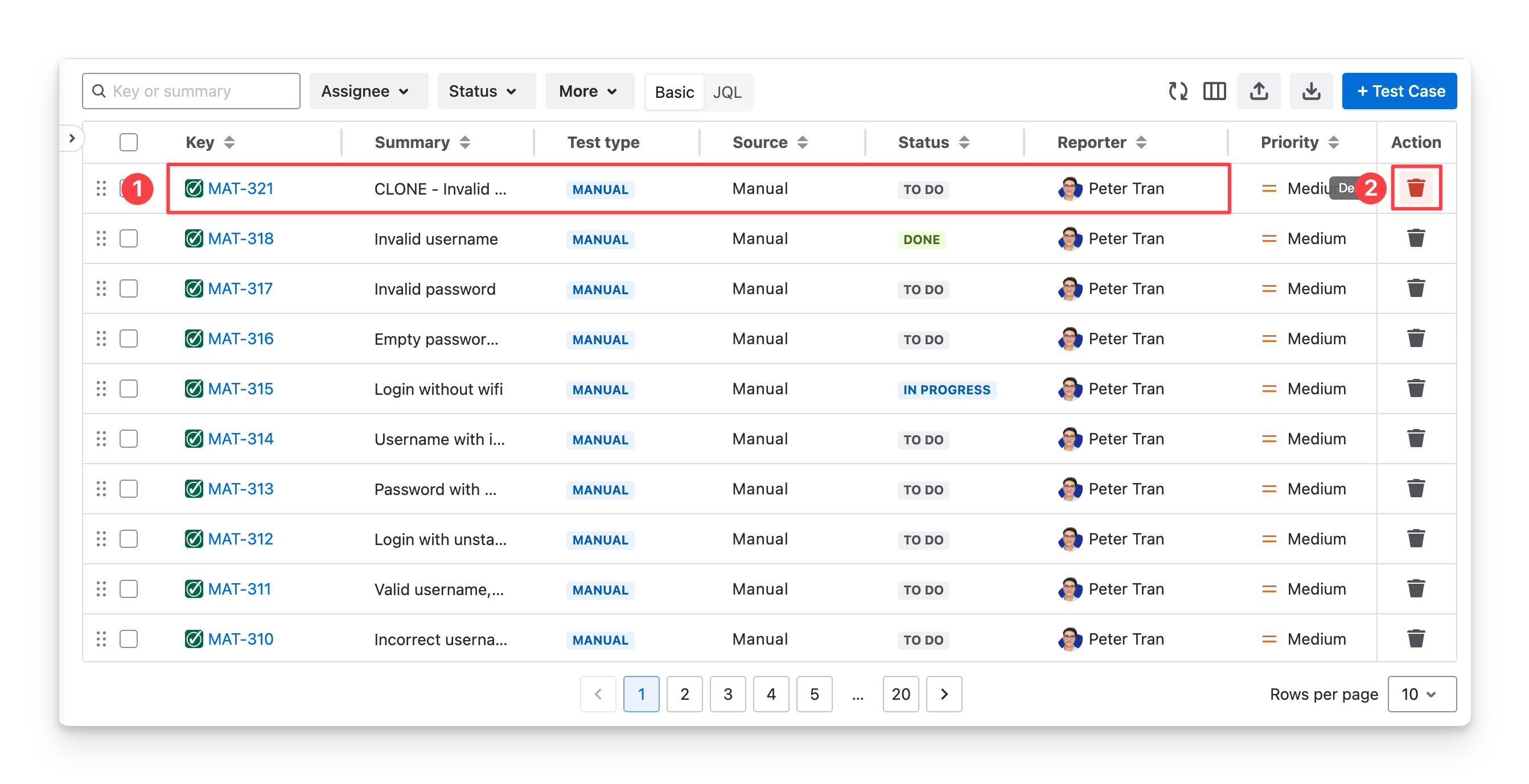
Deleting a test case permanently removes all its information and cannot be undone.
Should you need any assistance or further AgileTest inquiries, contact our 24/7 Support Desk!