.png)
Only App Admins or Client Admins can schedule tasks for clients. To grant these permissions, please visit here.
Scheduling tasks for clients in TimePlanner ensures that your projects remain organized, on track, and aligned with client expectations. It also gives you greater control over managing client-related work.
Assigning Clients for the new task
step 1 Go to the 
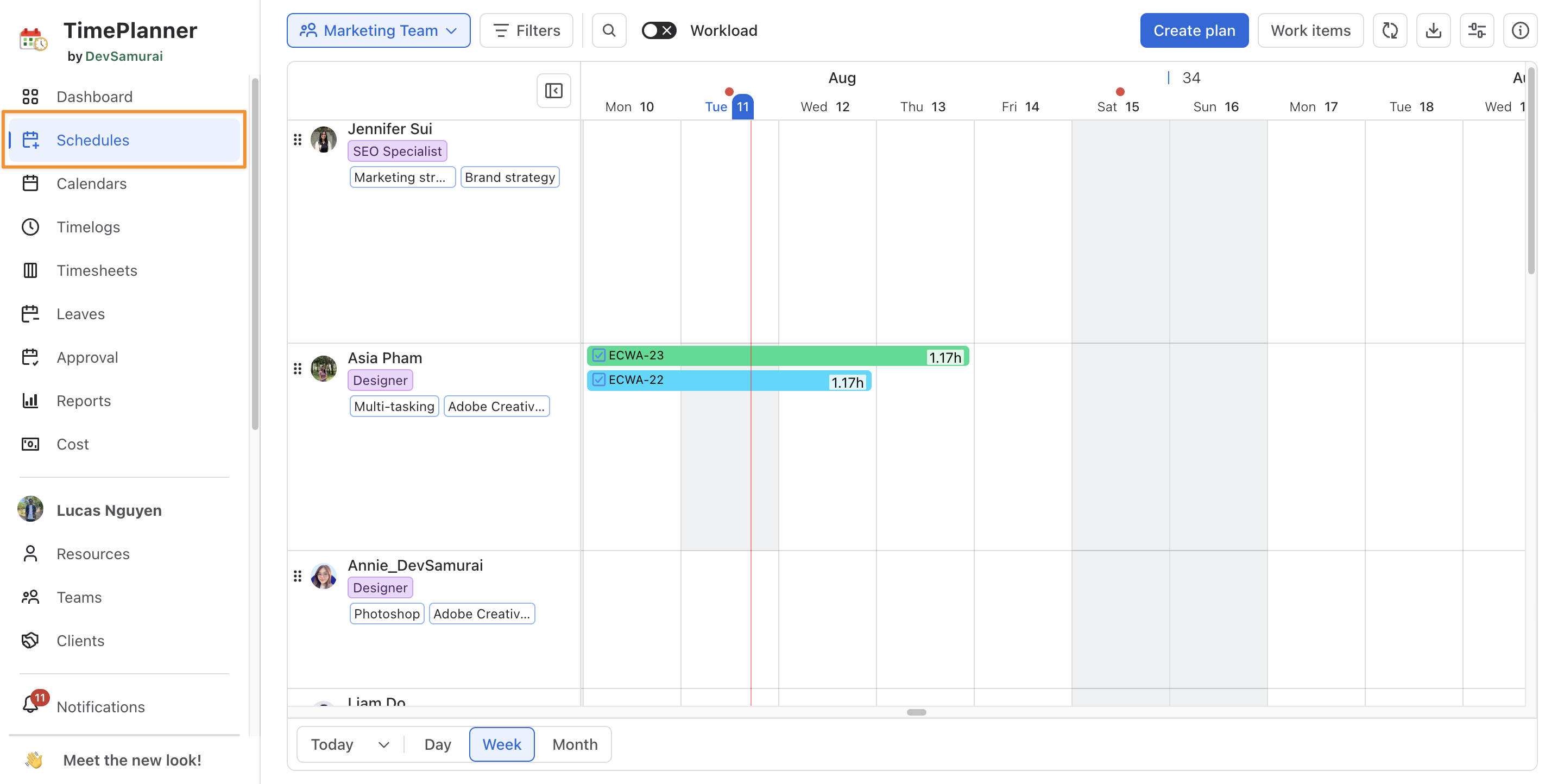
step 2 Open the Planning Dialog in two ways:
-
Click

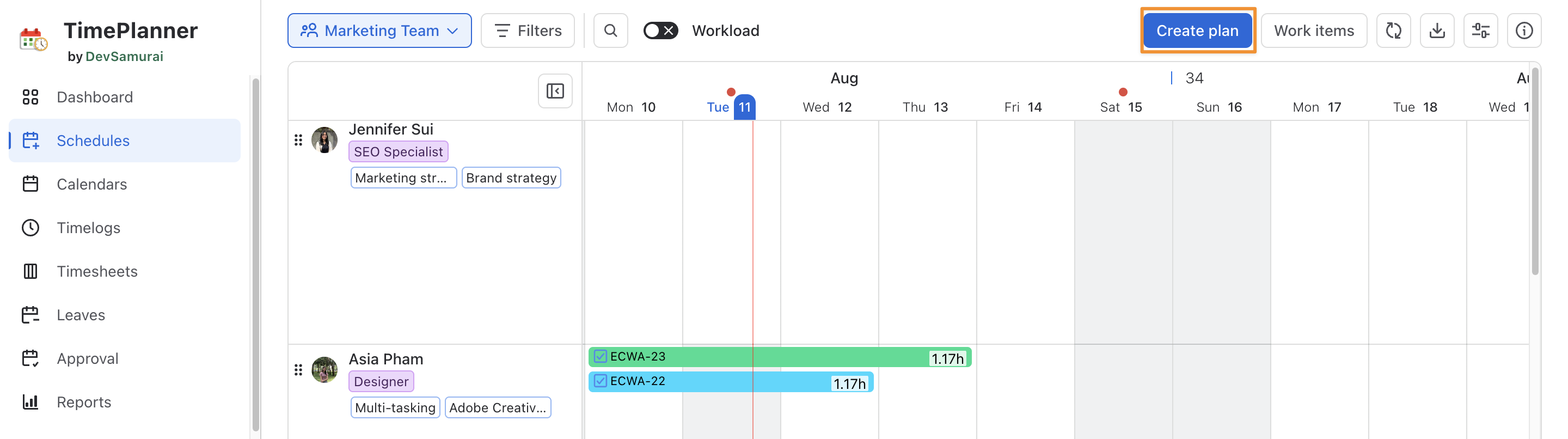
-
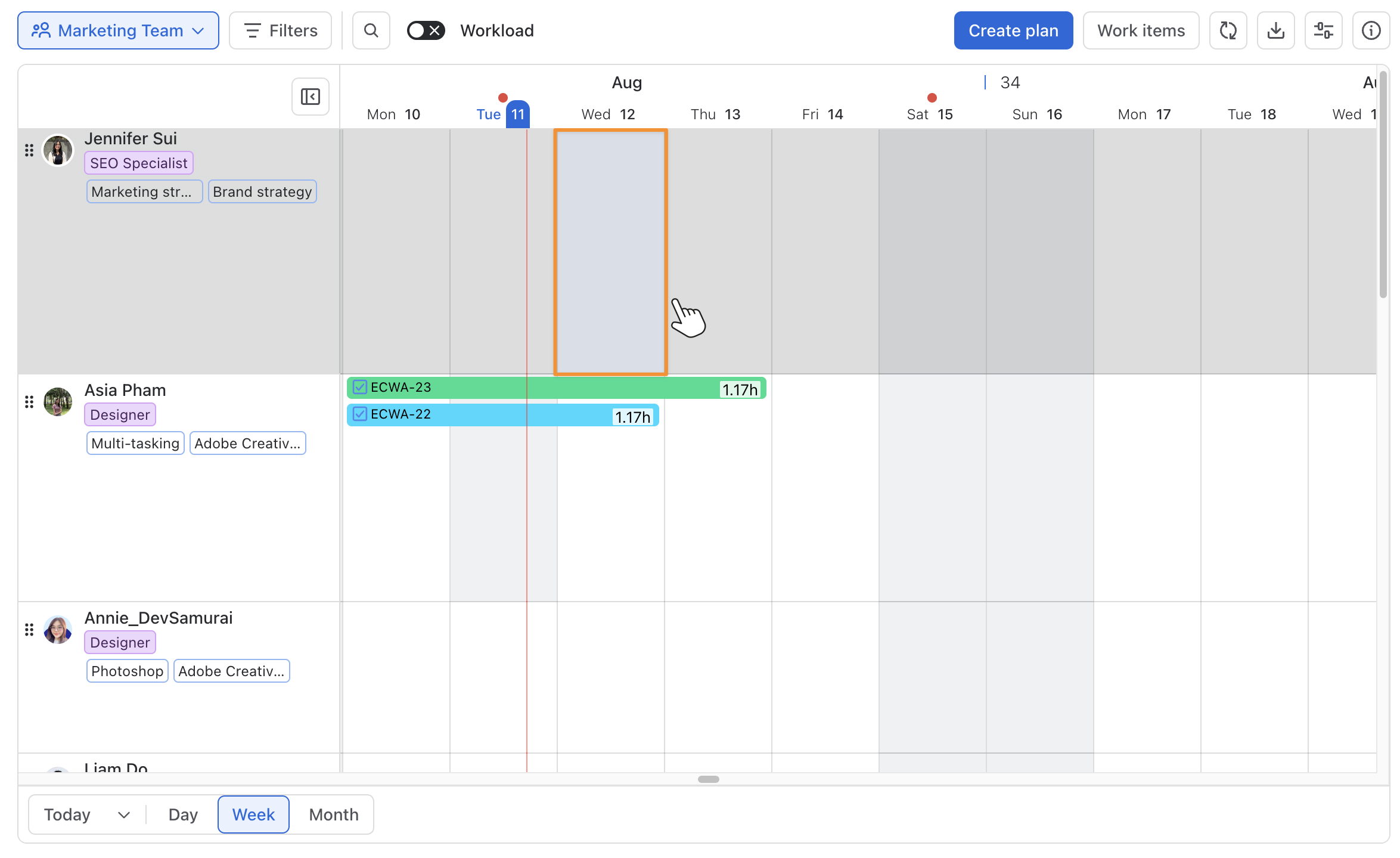
Click on a specific date or drag across a range of dates to open the Planning Dialog.
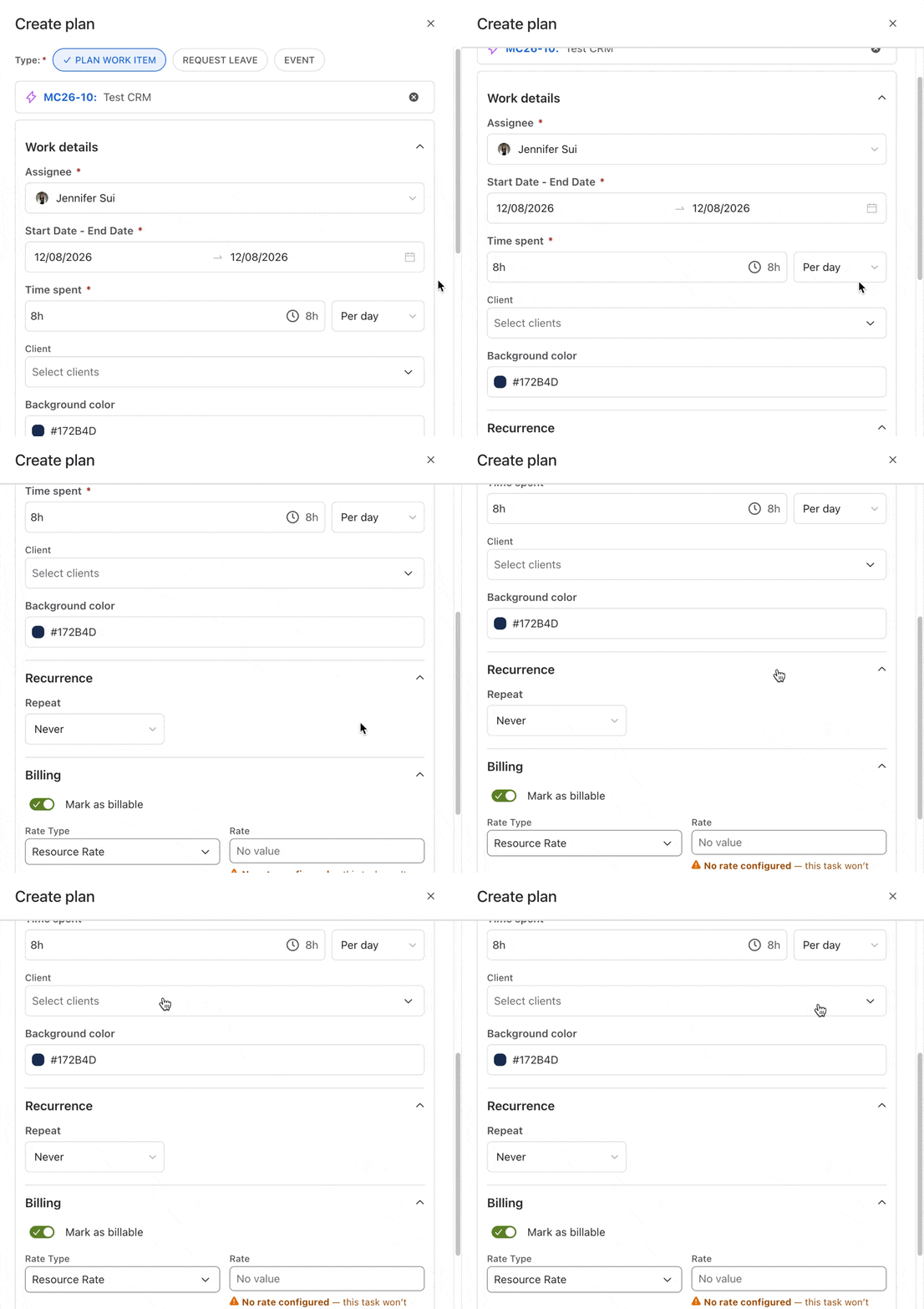
step 3 In the Planning Dialog:
-
Plan the Task for a Resource:
Follow the steps outlined here to assign the task to the appropriate resource. -
Assign Clients:
In the Client field, select the relevant client(s) for this task. You can assign multiple clients to the same task if needed.
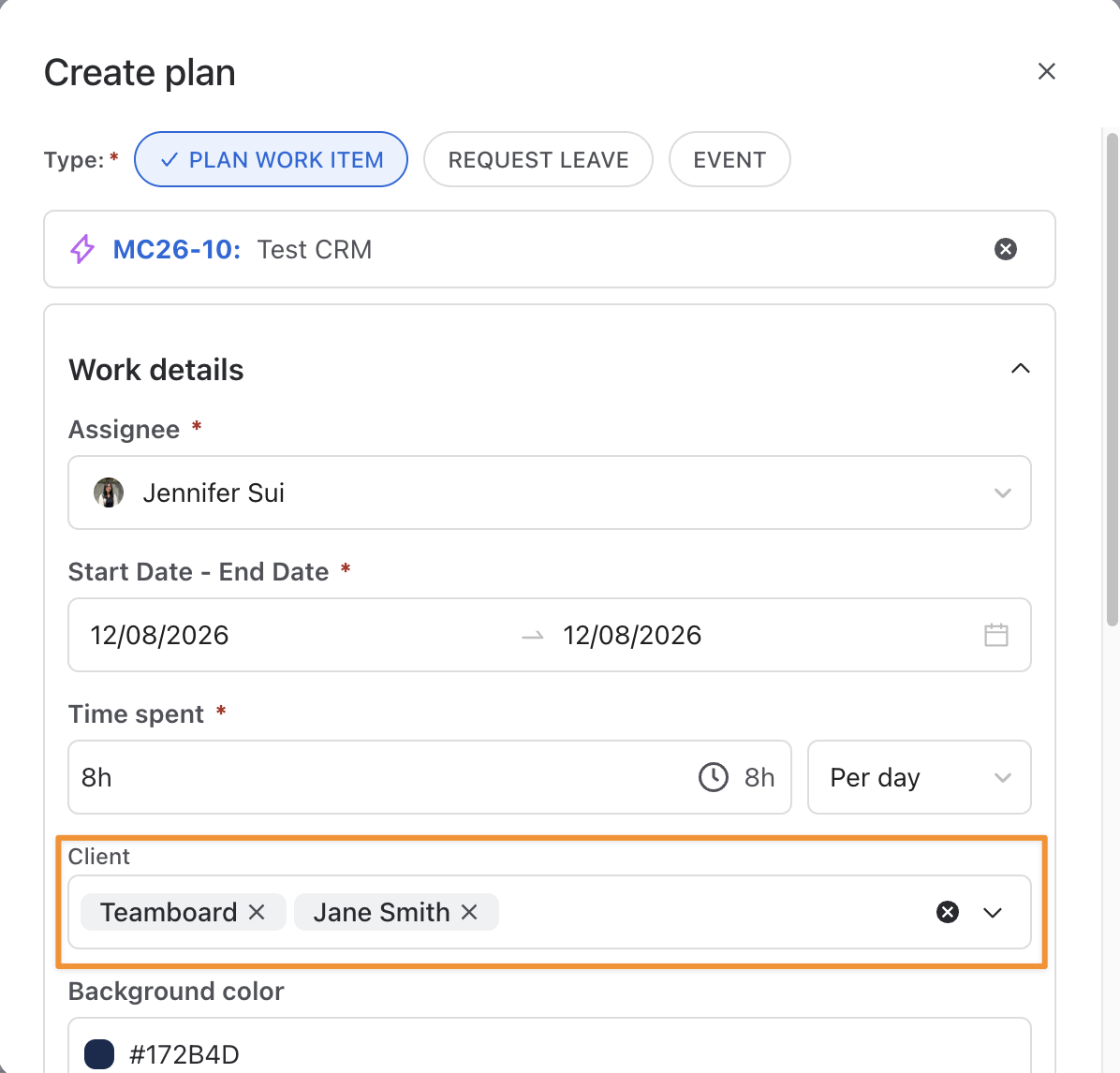
step 4 Click 
Assigning/Updating Clients for the existing task
To assign or update clients for an existing task in TeamBoard TimePlanner, follow these steps:
step 1 Open the Planning Detail Panel
-
Go to the
-
Click on the task to open the Planning Detail panel
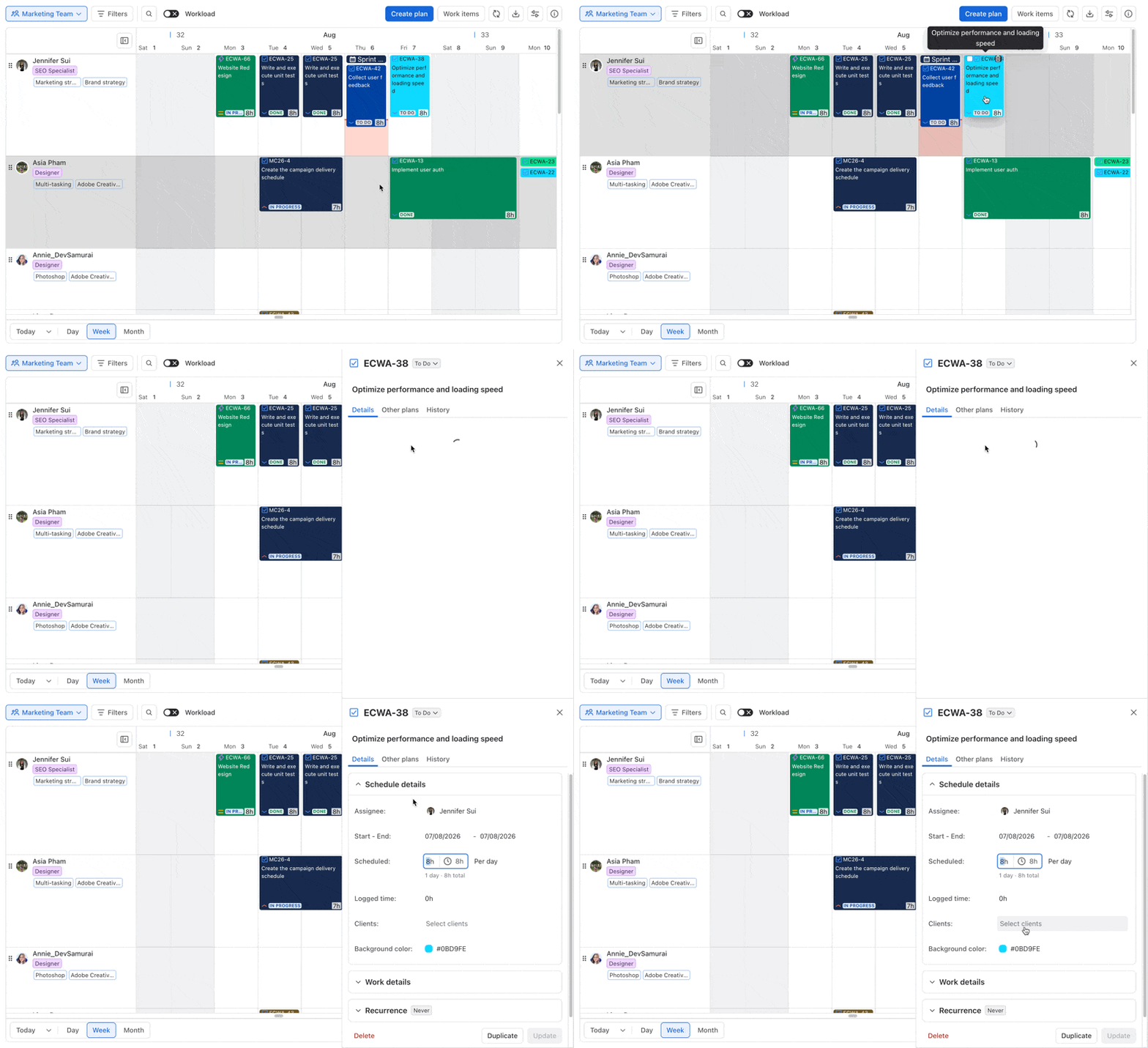
You can also open the Planning Detail Panel from the Calendar Board.
step 2 Select the ‘Details’ tab > locate the Clients field, then type the client’s name in the Clients field and select it from the dropdown list.
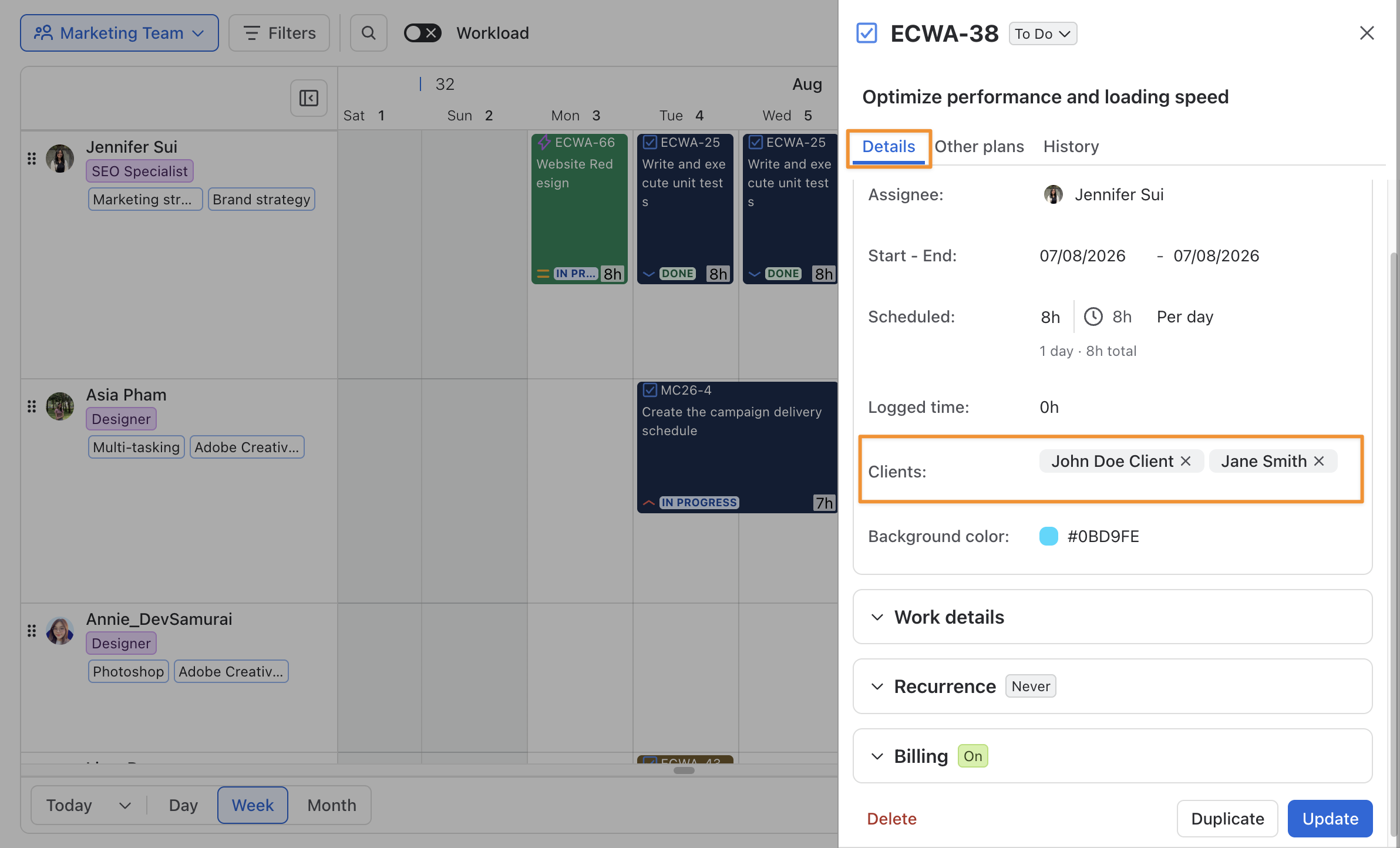
If you want to remove clients, click the X next to the client’s name to remove them from the task.
step 3 Click