.png)
Features in this use case:
Save View Quick filters Group by
One Jira project plan often needs to serve multiple audiences. Project managers may want dates, dependencies, and ownership; team leads focus on assignments and workload; executives usually care about milestones and overall progress.
Saved views let teams present the same plan in different ways for each audience without rebuilding the board. In ProScheduler, this can be done using Quick Filters, Group by, and Save view in Gantt.
Why one project view does not work for every stakeholder
A single board rarely fits everyone’s needs. Detailed views for the team can be overwhelming for executives, while simplified views for leadership may lack the detail needed for delivery.
This often leads to constantly adjusting filters and columns before meetings, inconsistent presentations, and confusion over which information each audience should focus on. The problem isn’t the plan itself — it’s that one view cannot communicate the right details to different stakeholders.
How tailored views make project plans easier to follow
The solution is to keep one shared plan but create audience-specific views. Filter the board so each audience sees only relevant work, organize it with Group by to match how the audience interprets the plan, simplify fields and layout to highlight what matters, and save the setup for repeated use.
This makes planning easier to understand, reduces setup work, and keeps everyone aligned. TeamBoard ProScheduler supports this workflow with Gantt’s saved views, Quick Filters, Group by, Hierarchy View, Critical Path, Baseline, and View settings, making it practical to tailor the same plan for multiple audiences.
How to create saved views for different stakeholders in ProScheduler
Once the plan is ready, the next step is to shape it for the audience. The idea is simple: keep one shared project plan in Gantt, then save different versions of that view for different meetings or stakeholder groups.
In practice, this usually comes down to three controls: Quick Filter, Group by, and Save view.
Step 1. Open the project plan in Gantt
Start in Gantt, since this is the main view for building and customizing saved views.
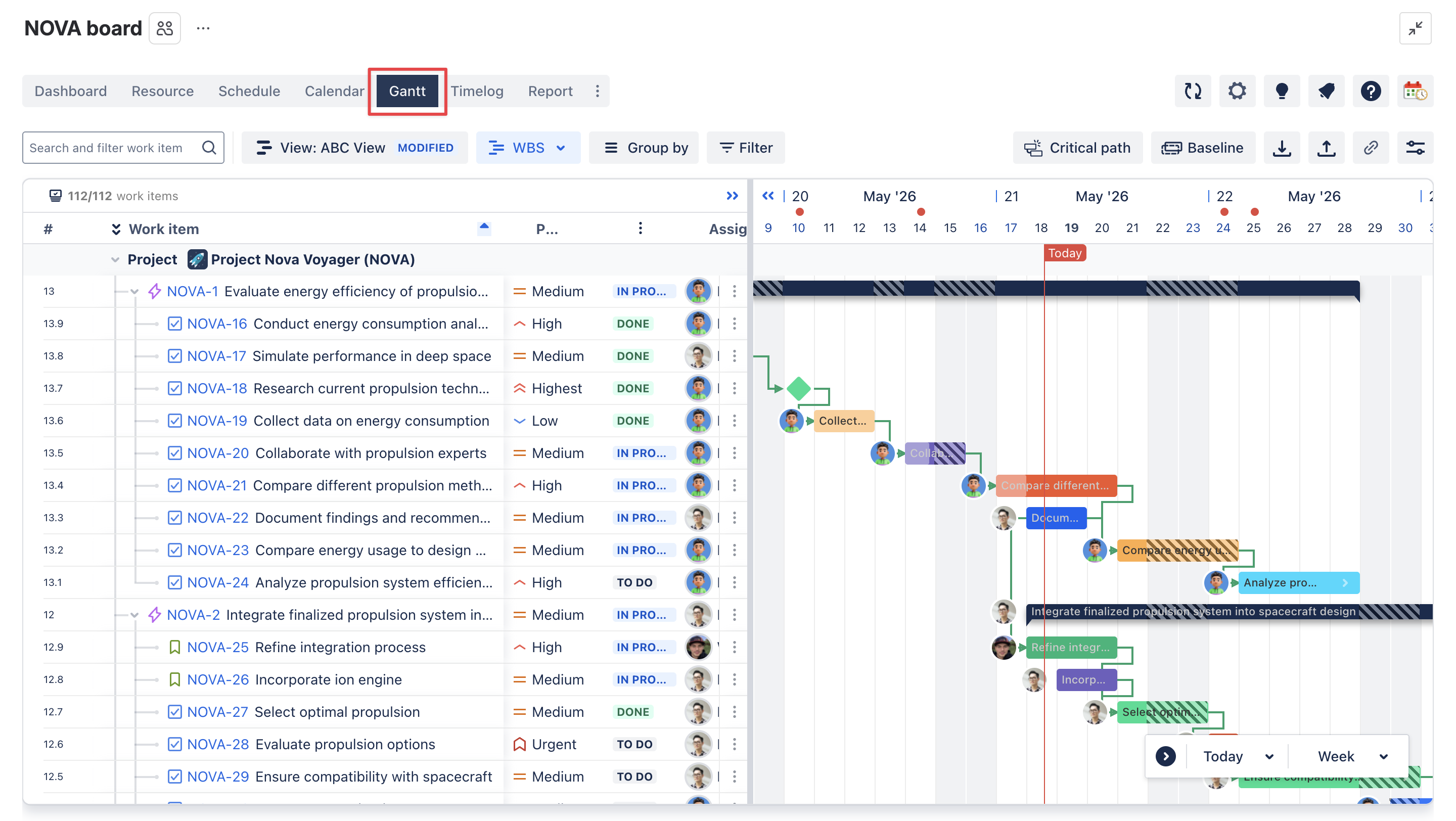
This is where you can prepare the view before saving it. From the Gantt toolbar, you can adjust how the board is structured, filtered, and displayed, which makes it the right place to create audience-specific views from the same underlying plan.
Step 2. Apply a Quick Filter to narrow the scope
Before changing the layout, decide what this audience actually needs to see. Then apply a Quick Filter to narrow the board to that scope.
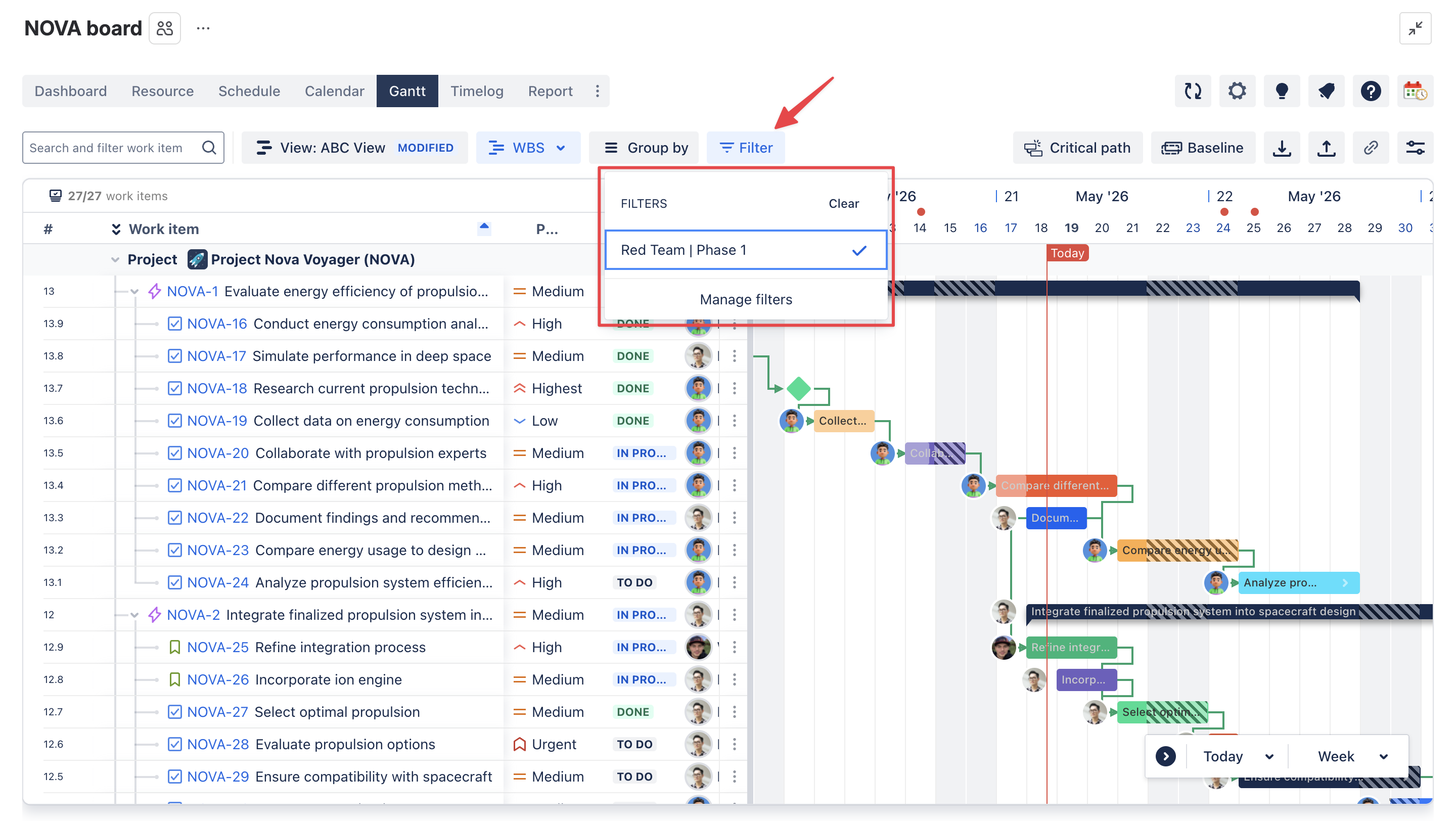
This works well when you want a view for:
-
one release,
-
one team,
-
one workstream,
-
one status slice,
-
or another focused planning context.
Quick Filters are based on predefined JQL queries. Admins set them up in Board Settings > Quick Filters, then users can apply them from the board through the Filter picker. That makes it much easier to turn one large plan into a more focused stakeholder view.
Step 3. Use Group by to organize the work in a way that fits the audience
Once the scope is right, use Group by to make the view easier to follow.
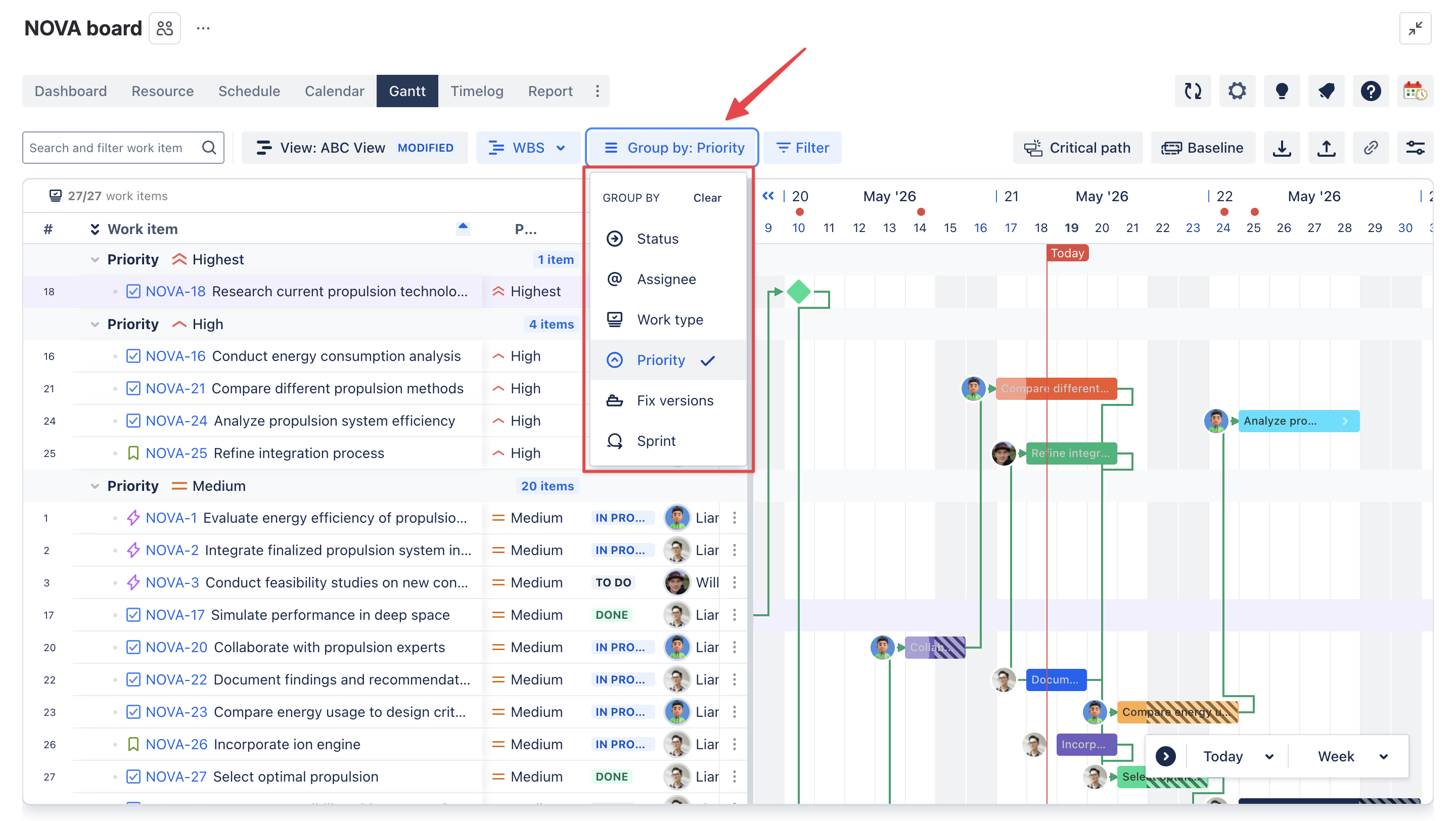
In Gantt, work can be grouped by fields such as:
-
Status
-
Assignee
-
Work type
-
Priority
-
Fix Version
-
Sprint for Scrum projects
This is useful because different audiences read the same plan differently. A team lead may want to see work grouped by assignee, while a delivery review may be easier to follow when grouped by status or sprint. Grouping helps the board tell the right story without changing the project itself.
Step 4. Adjust the visible details so the view is easier to read
After filtering and grouping, refine the visible details so the view is easier to read. This can include adjusting Hierarchy View, simplifying the fields shown, and using View settings to make the board clearer for that audience.
That may mean:
-
keeping only the most relevant fields,
-
reducing extra detail that does not help the discussion,
-
adjusting view settings to make the board easier to scan.
The goal here is not to show everything. It is to show the right information in the clearest way. Gantt supports this kind of customization before the view is saved.
Step 5. Save the setup as a named view
When the board looks right, save it. (Save a view)
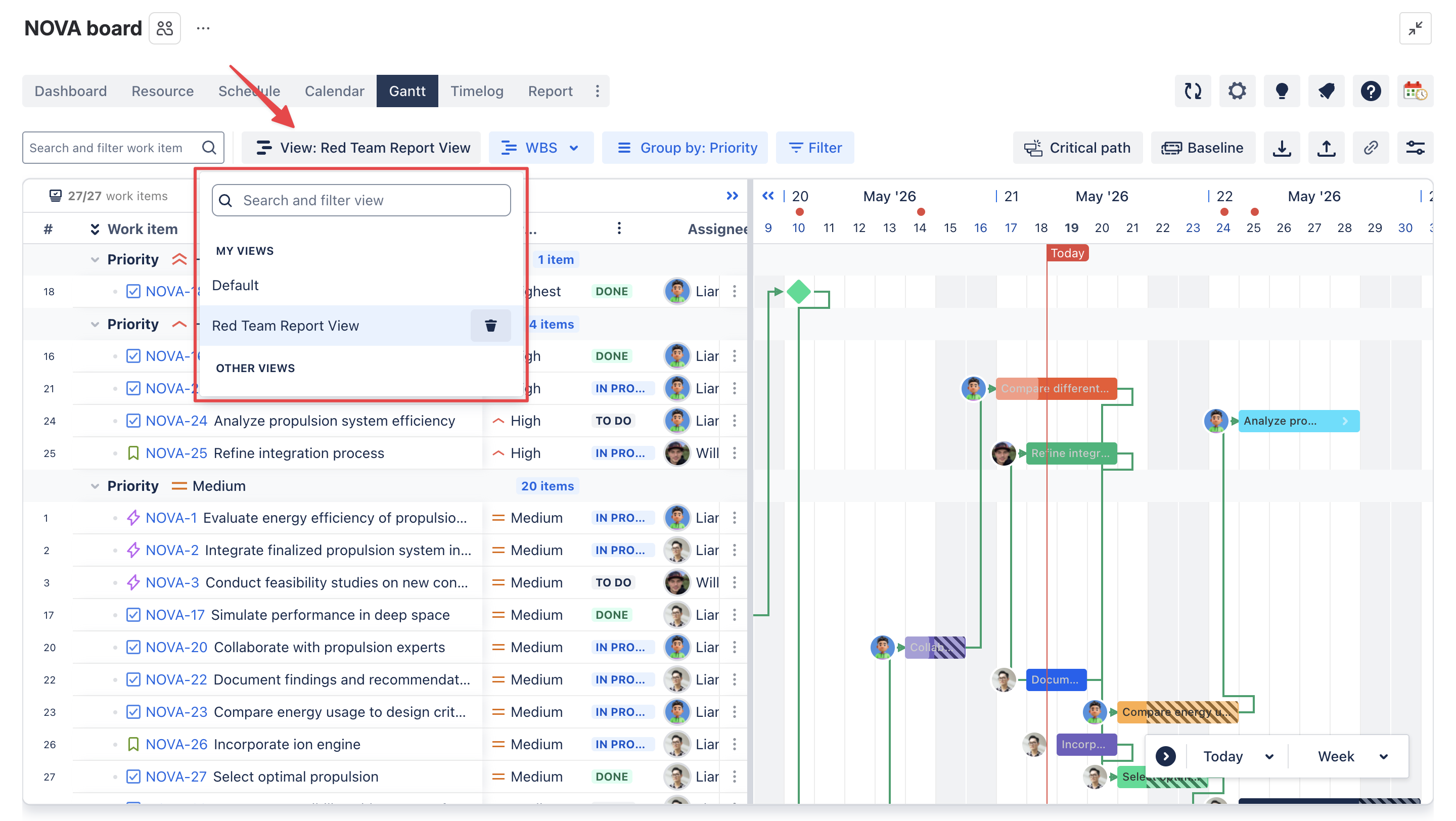
A saved Gantt view can preserve settings such as:
-
Group by
-
Quick Filter
-
Critical Path
-
Baseline
-
View settings
To do that, open Save view from the Gantt toolbar, enter a name, and apply the changes. If you want to keep the original version unchanged, use Save as new view instead. This is the step that turns a one-time setup into a reusable planning view.
Step 6. Save separate views for recurring audiences and switch between them when needed
Once one view is ready, repeat the same setup for the audiences you support most often.
For example, you might keep:
-
a leadership view focused on milestones and progress,
-
a PM view focused on dates, ownership, and dependencies,
-
a team view focused on assignments or sprint execution.
Because the filter, layout, and other Gantt settings are saved together, each view can return to its own context when selected later. That means teams can switch between stakeholder-specific views instead of rebuilding the board every time the audience changes. This saves time and makes recurring reviews more consistent.
Best practices for keeping saved views useful and easy to maintain
Saved views work best when they make planning simpler, not more complicated. A small set of clear, well-maintained views is usually more useful than too many overlapping ones.
-
Create each view for a specific audience or meeting purpose
-
Use clear, consistent names so people know which view to open
-
Keep leadership views simpler and more high-level than delivery views
-
Apply JQL filters first so each view stays focused on the right scope
-
Use Group by in a way that matches how that audience reviews the plan
-
Keep only the most relevant fields visible in each view
-
Review saved views regularly as project structure or reporting needs change
Conclusion
Saved views help teams get more value from the same project plan.
Instead of forcing every stakeholder to read the board in one way, teams can shape the view to match the discussion. That makes planning clearer, reduces repeated setup work, and helps each audience focus on the information that matters most.
With TeamBoard ProScheduler, teams can do this by combining Quick Filters, Group by, and Save view in Gantt. The result is a more practical way to manage one shared plan across different planning audiences.