
The Resources area in PlanCore gives team leaders and managers a centralized view of the people available in their Jira instance. Use this page to understand what information is shown, how to change views, and how to search or filter resources.
Purpose: Use Resources to review team member details, compare availability-related information, and navigate to individual profiles for deeper management.
Overview
The Resources screen includes all Jira members available on the connected Jira instance.
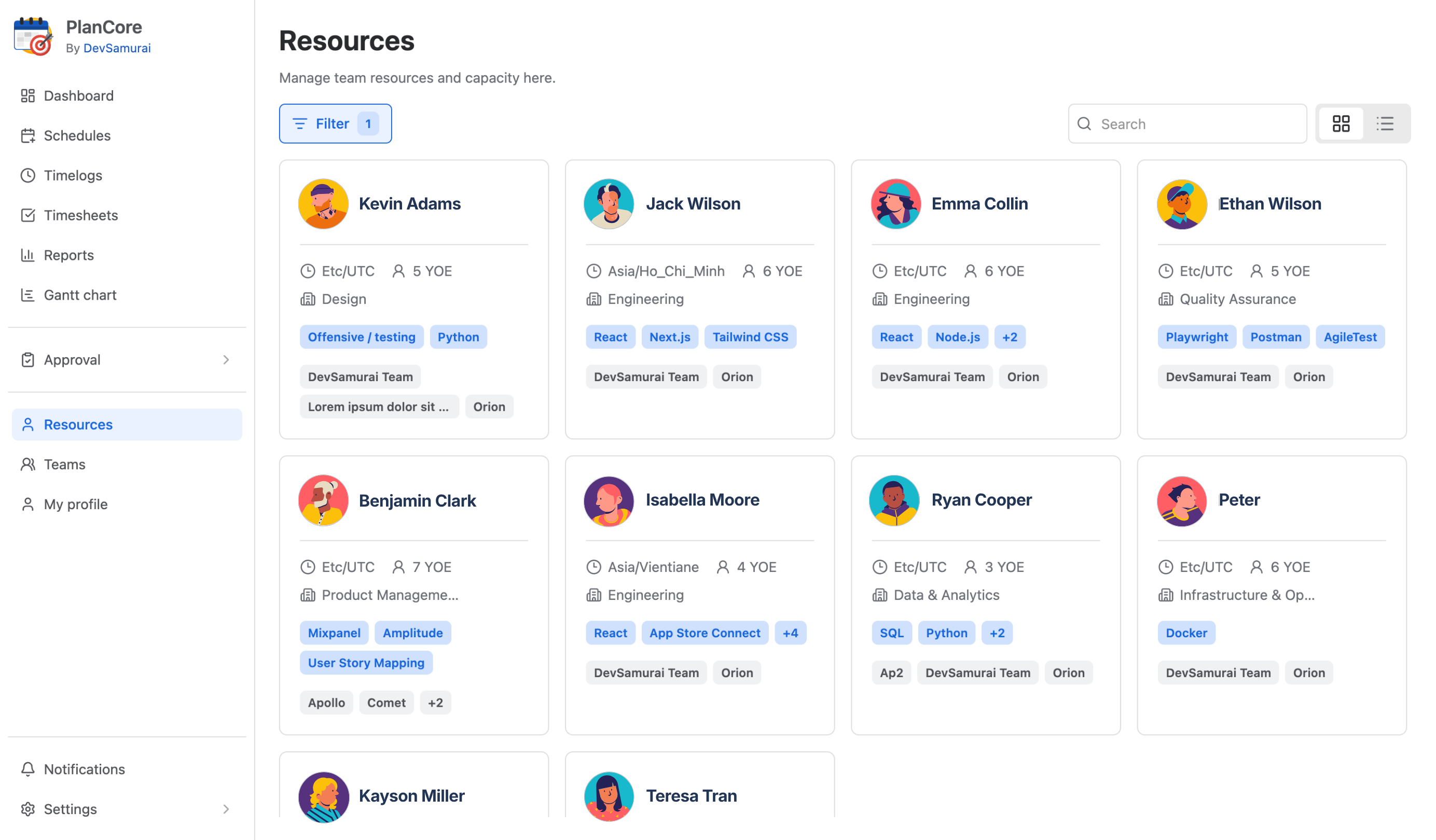
For each member, managers and team leaders can review key details, including:
-
Name
-
Timezone
-
Years of experience (YOE)
-
Department
-
Skills
-
Assigned PlanCore teams
Viewing resources
You can view resources in either Grid view or List view. Use the view switcher in the top-right corner of the Resources screen to change between the two modes.
-
Grid view: Displays members as cards for a quick visual overview.
-
List view: Displays members in rows for easier scanning and comparison.
Managing an individual profile
To manage a specific member, click the member’s card in Grid view or the member’s row in List view.
Learn more: Manage individual profile
Search and filter
Search by name
Use the search box to find a resource by name.
Filter resources
Use the Filter option to narrow the resource list by specific criteria:
-
YOE: Filter members by years of experience.
-
Department: Filter members by their department or functional area.
-
Skills: Filter members by one or more skills.
-
Teams: Filter members by assigned PlanCore team.