
Use the individual profile page to view, update, and manage a PlanCore member’s details, work capacity, rates, holiday calendars, and personal settings.
Common use case: Open a profile when you need to review a member’s workload, update their skills or experience, assign rates, check capacity, or manage profile-specific settings.
Open a member profile
You can open an individual profile in two ways:
-
Go to My profile to view and edit your own details.
-
Go to Resources, then click a member’s card or row to view that member’s profile.
Both entry points open a full-screen profile view with several tabs: Overview, Profile, Capacity, Rate, and Holiday. When opening your own profile, you may also see a Settings tab.
Profile tabs at a glance
|
Tab |
Purpose |
Typical actions |
|---|---|---|
|
Overview |
Summarizes time, utilization, and team workload insights. |
Review logged time, scheduled hours, capacity, overtime, undertime, and time off. |
|
Profile |
Stores personal, professional, and skill information. |
Edit personal information, introduction, technical skills, and experience. |
|
Capacity |
Shows the member’s current and previous capacity schemes. |
Check assigned capacity and review historical capacity changes. |
|
Rate |
Tracks cost and billing rates for the member. |
Add, edit, or review current rates and global rate usage. |
|
Holiday |
Shows assigned holiday calendars. |
Confirm which calendars apply to the member. |
|
Settings |
Available from My profile only. |
Configure personal preferences, notifications, formats, and integrations. |
Overview tab
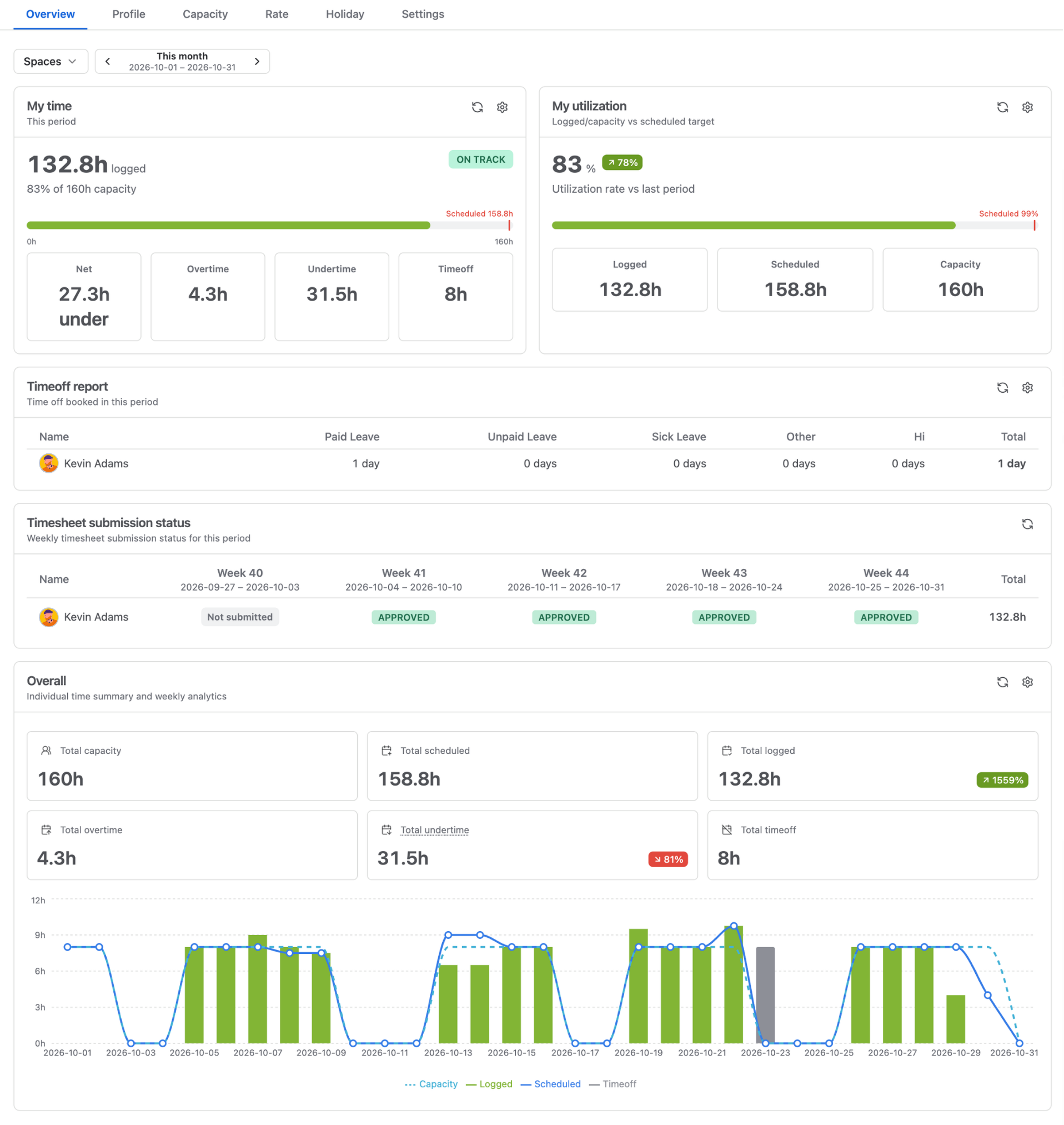
The Overview tab gives a quick summary of the member’s time and workload through 5 key widgets:
-
My time: Shows how many hours were logged during the selected period and whether the member is on track. This includes net time, overtime, undertime, and time off.
-
My utilization: Compares logged time and capacity against the scheduled target as a percentage. This includes logged hours, scheduled hours, and capacity hours.
-
Overall: Displays a team time summary and weekly analytics chart to show how workload is allocated across teams. This includes total capacity, total scheduled time, total logged time, total overtime, total undertime, and total time off.
-
Time off report: Provides an overview of leave recorded for selected members or teams during the chosen period.
-
Timesheet submission status: The Timesheet submission status widget shows the weekly timesheet status of selected members or teams.
Profile tab
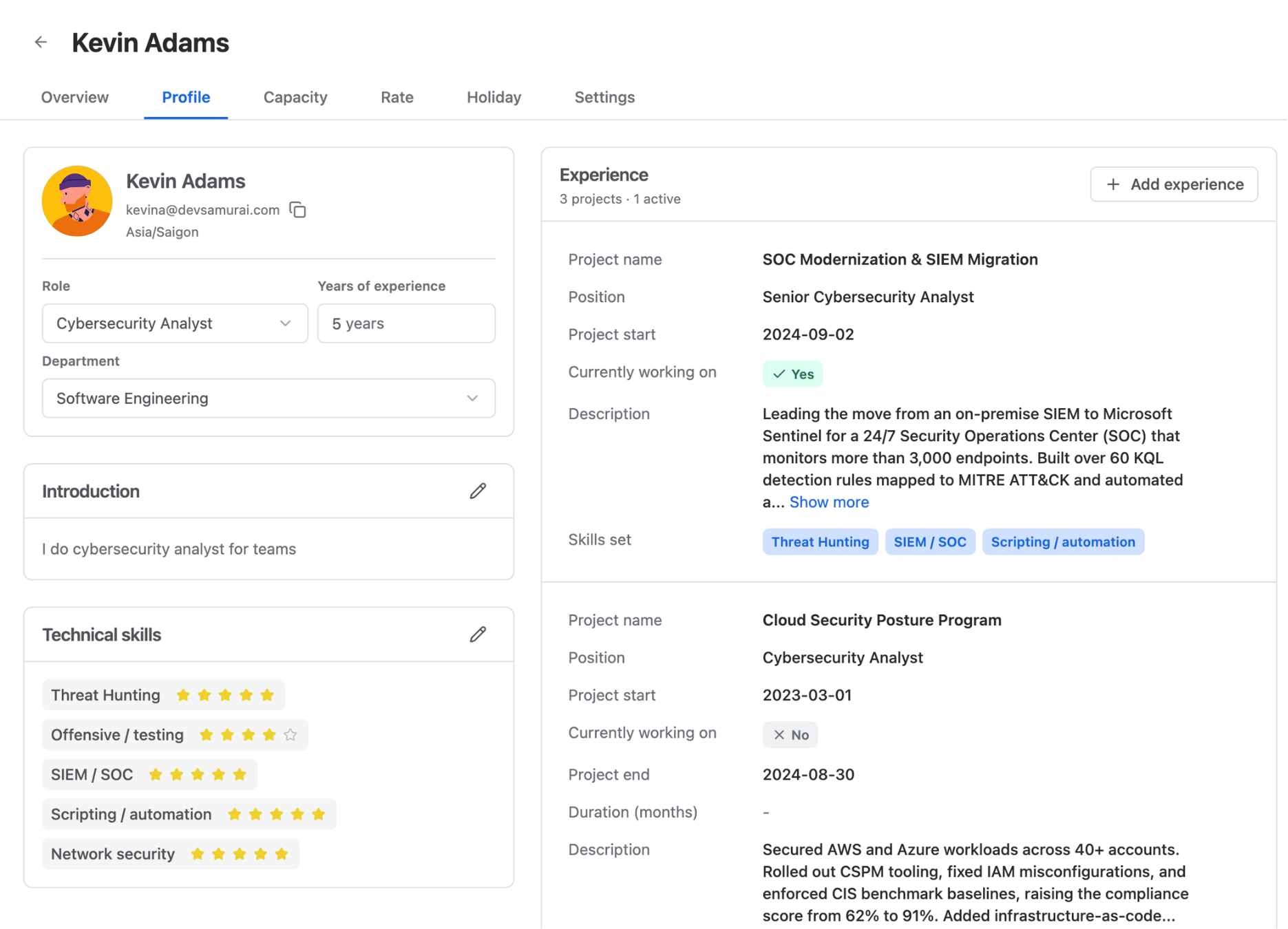
The Profile tab allows admins and members to update profile details, depending on their permissions.
-
Personal information: Update fields such as role, years of experience, and department. These options can be configured in Data fields settings.
-
Default timesheet approver: Assign a default approver for the member’s timesheets. This option is available to admins.
-
Introduction: Add a short profile summary or bio.
-
Technical skills: Add or edit skills. Skill options can be configured in Data fields settings.
-
Experience: Add one or more experience records. Each record can include project name, position, project start and end dates, working status, description, and skill set.
Capacity tab
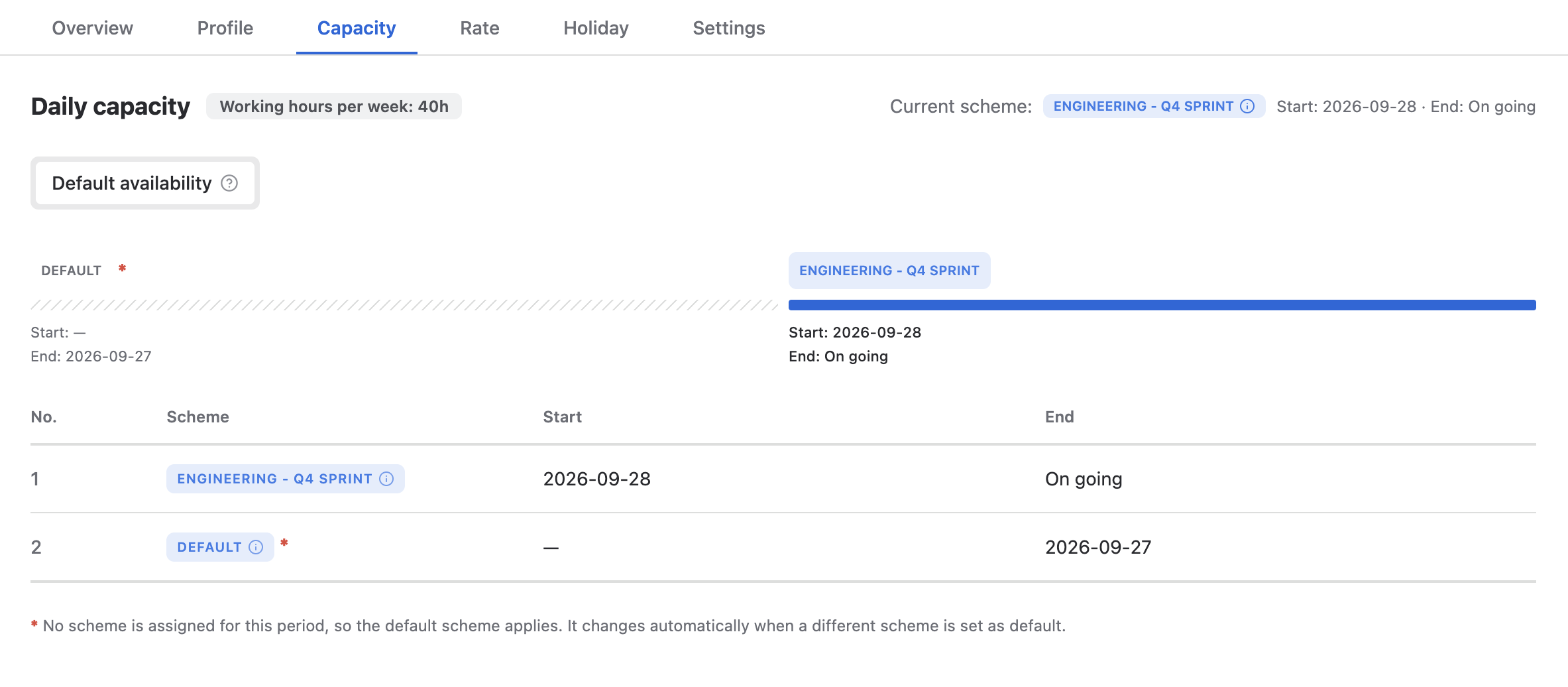
The Capacity tab shows the member’s assigned capacity scheme.
-
Review the current capacity scheme.
-
Check previous capacity schemes to understand historical capacity changes.
Rate tab
The Rate tab helps you track and manage the member’s cost and billing rates.
Only App Admins and users with Billing or Cost Admin permissions can access the Rate tab. Regular members cannot view or manage rate information.
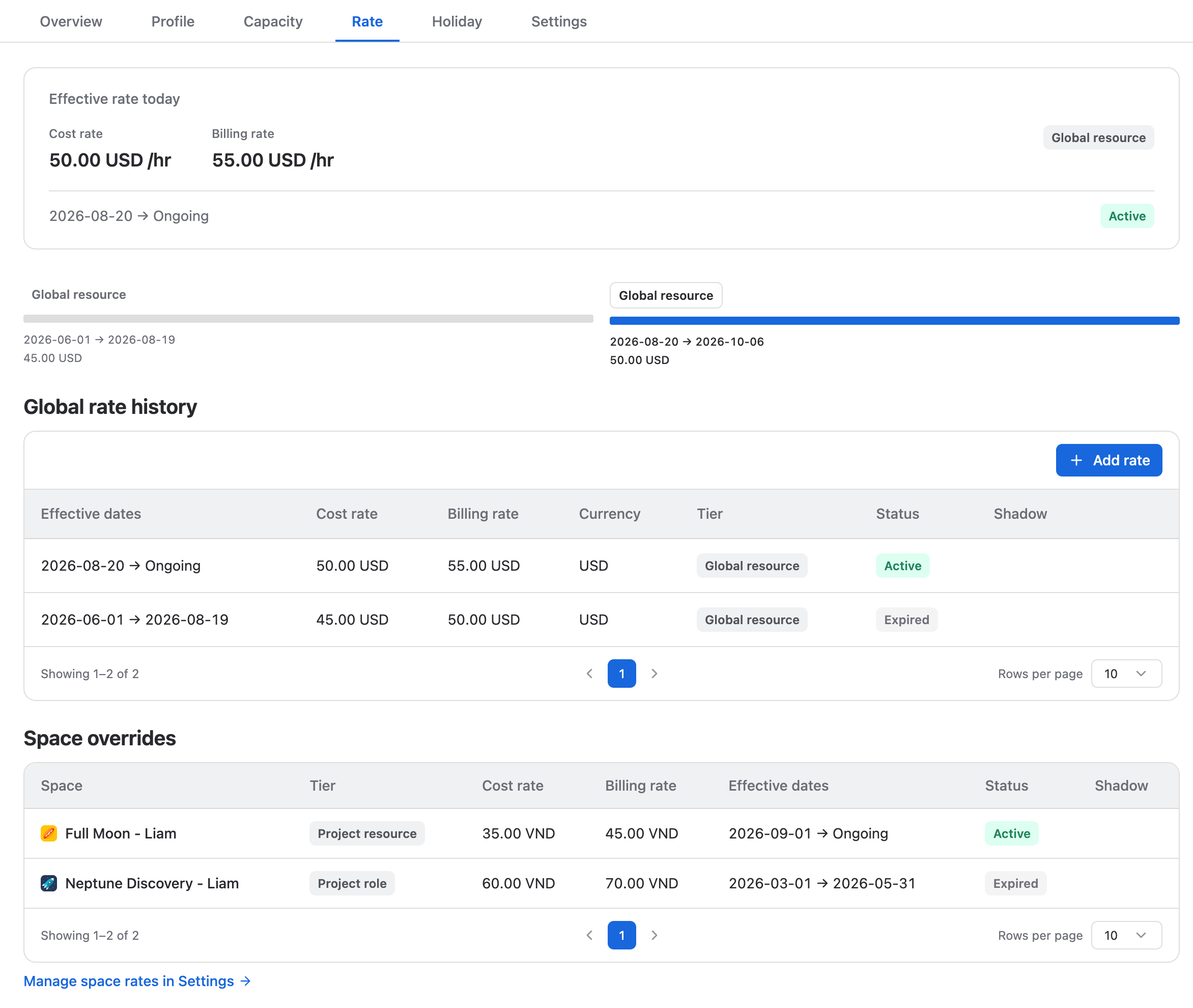
From this tab, you can:
-
Review the current rate.
-
Add a new rate.
-
Edit/remove existing rate details.
-
Use the global rate when applicable.
-
View which Space overrides the rate and its status
To add a new rate, click Add rate and complete the required fields:
-
Resource: Select the member the rate applies to.
-
Cost rate: Enter the internal cost rate.
-
Billing rate: Enter the external billing rate.
-
Currency: Select the currency for the rate.
-
Effective from: Set the start date for the rate.
-
Effective to: Set the end date, if applicable.
Tip: Use effective dates to preserve rate history instead of overwriting past rates.
Holiday tab
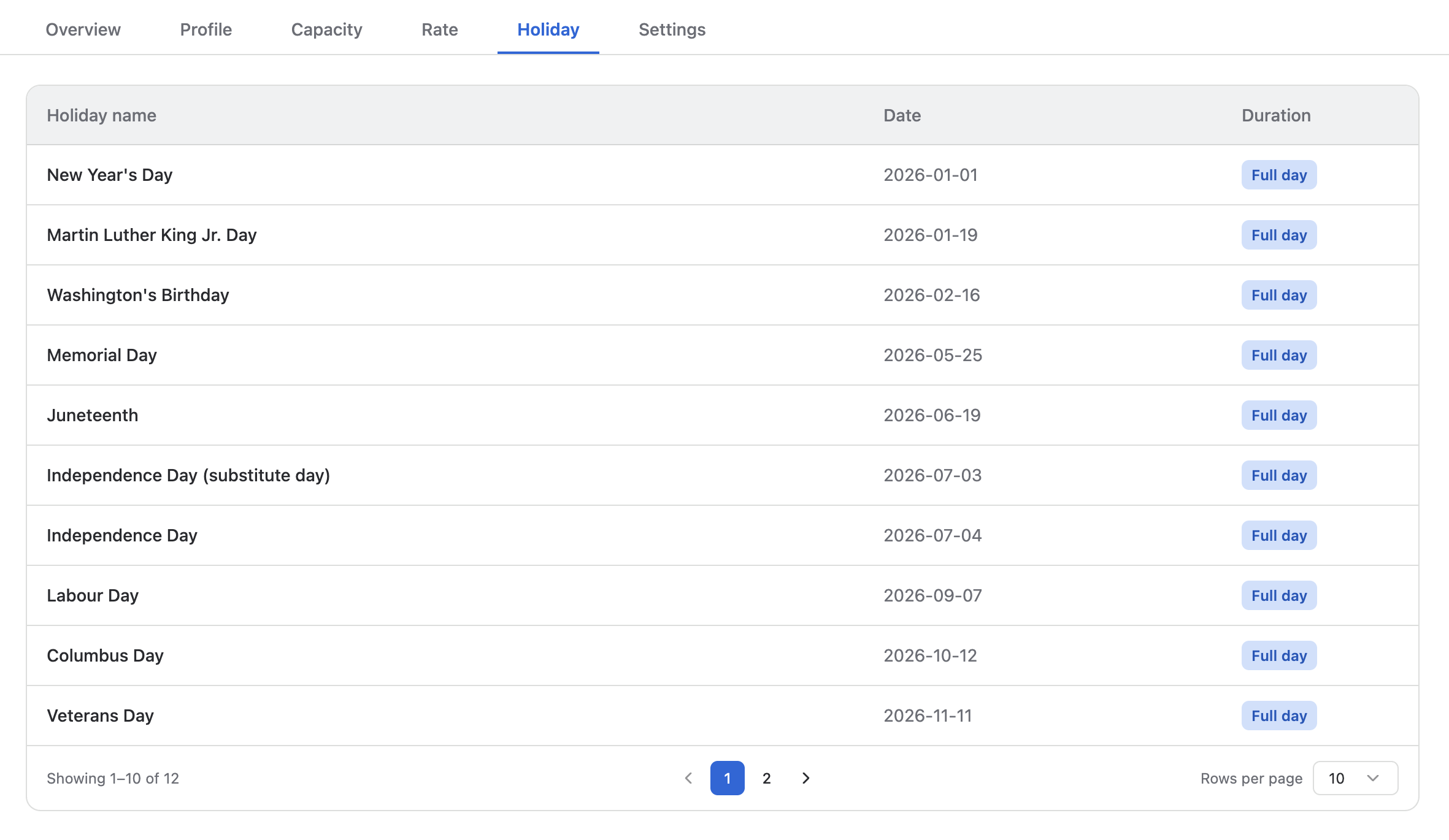
The Holiday tab shows which holiday calendars are assigned to the member. Use this tab to confirm whether public holidays, regional calendars, or organization-specific calendars apply to the member’s schedule.
Settings tab
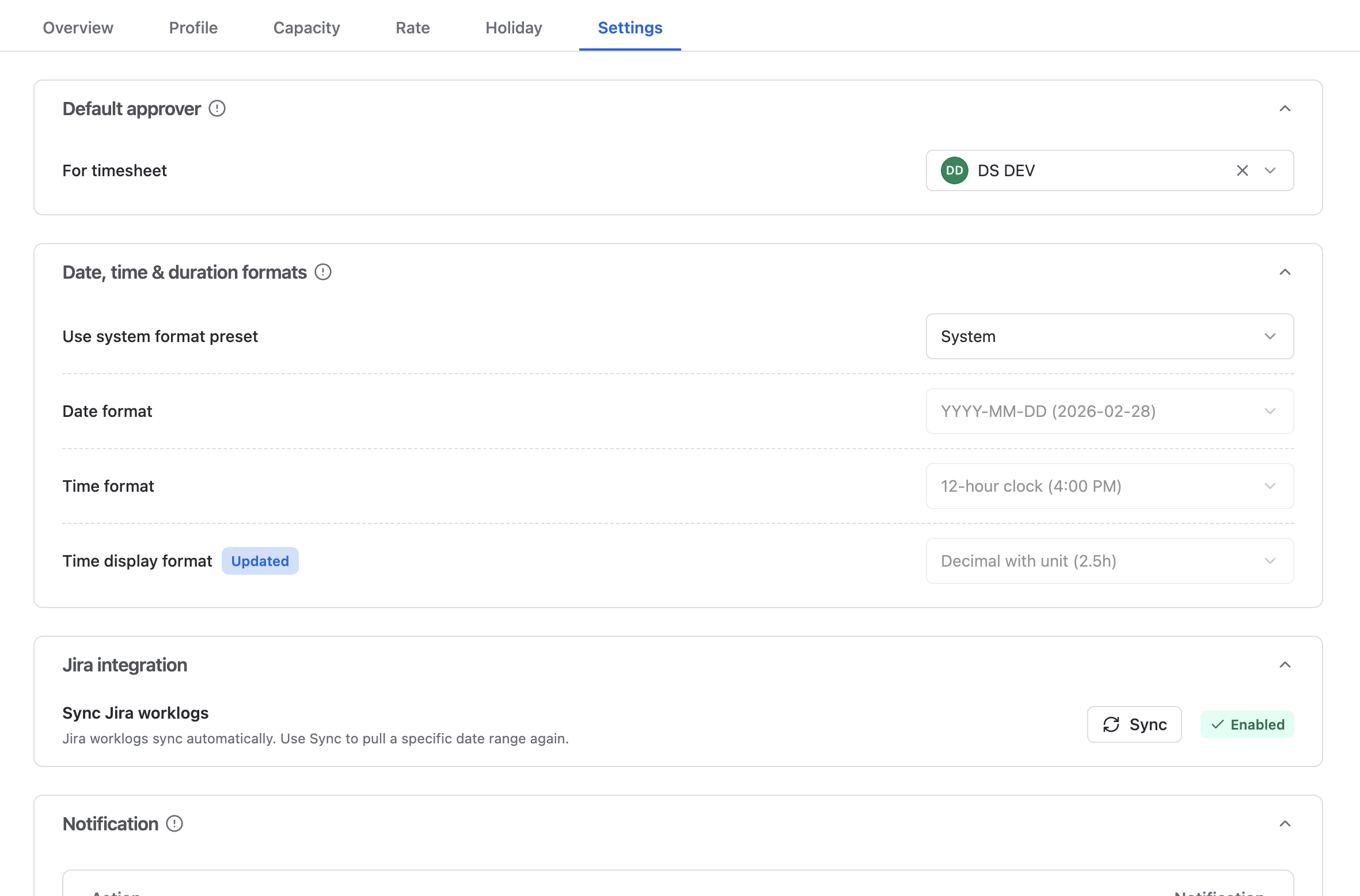
The Settings tab appears only when accessing My profile. It allows users to manage their personal preferences.
-
Default approver: Assign a default approver for your timesheets.
-
Date, time, and duration formats: Configure how dates, times, and durations are displayed in PlanCore.
-
Jira integration: Your Jira worklogs sync to PlanCore automatically. To pull worklogs for a specific date range again, use Sync button.
-
Notifications: Customize in-app notifications for member, approver, and submitter actions.
Recommended workflow: Start with the Overview tab to understand current workload, update details in the Profile tab, confirm Capacity and Holiday assignments, then review Rate details if the member’s billing or cost information needs to be managed.