
Use the Teams section to create, organize, and manage groups of people in PlanCore. Teams are used across key areas of the app, including Dashboard, Schedules, Timesheets, and Reports.
Common use case: Create teams that match your real working groups, then assign leaders and members so reporting, scheduling, and timesheet visibility stay aligned.
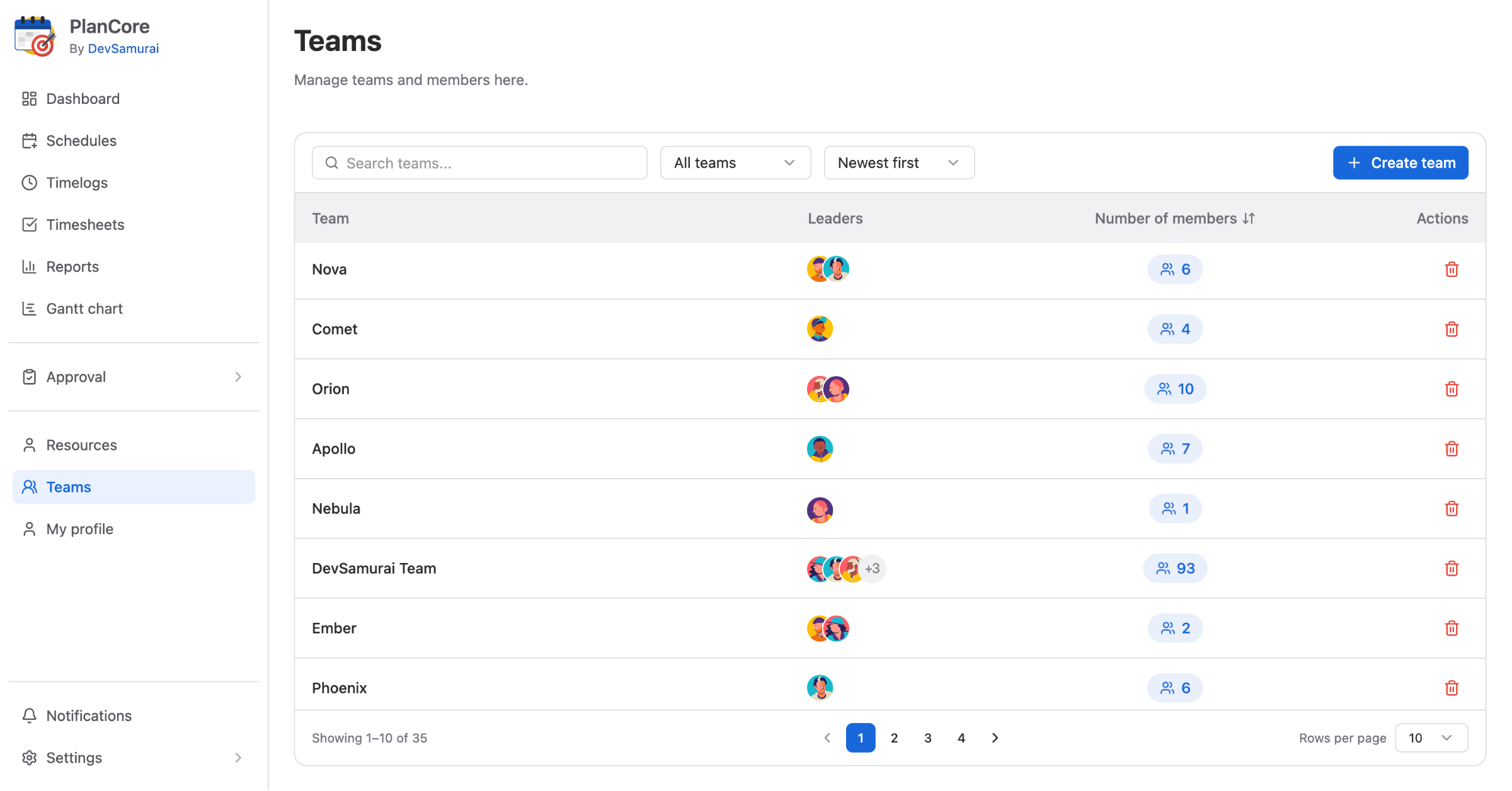
Teams overview
From the Teams screen, users can quickly review each team and take basic actions.
-
Team name: The name of the team.
-
Leaders: One or more users responsible for managing the team.
-
Members: The number of people assigned to the team.
-
Quick actions: Shortcuts for common actions, such as deleting a team.
Search and sort teams
Use search and sorting options to find the team you need faster.
-
Search: Enter a team name in the search box.
-
Team scope: Filter by My team, All teams, or Others.
-
Date created: Sort teams by Newest first or Oldest first.
Create a new team
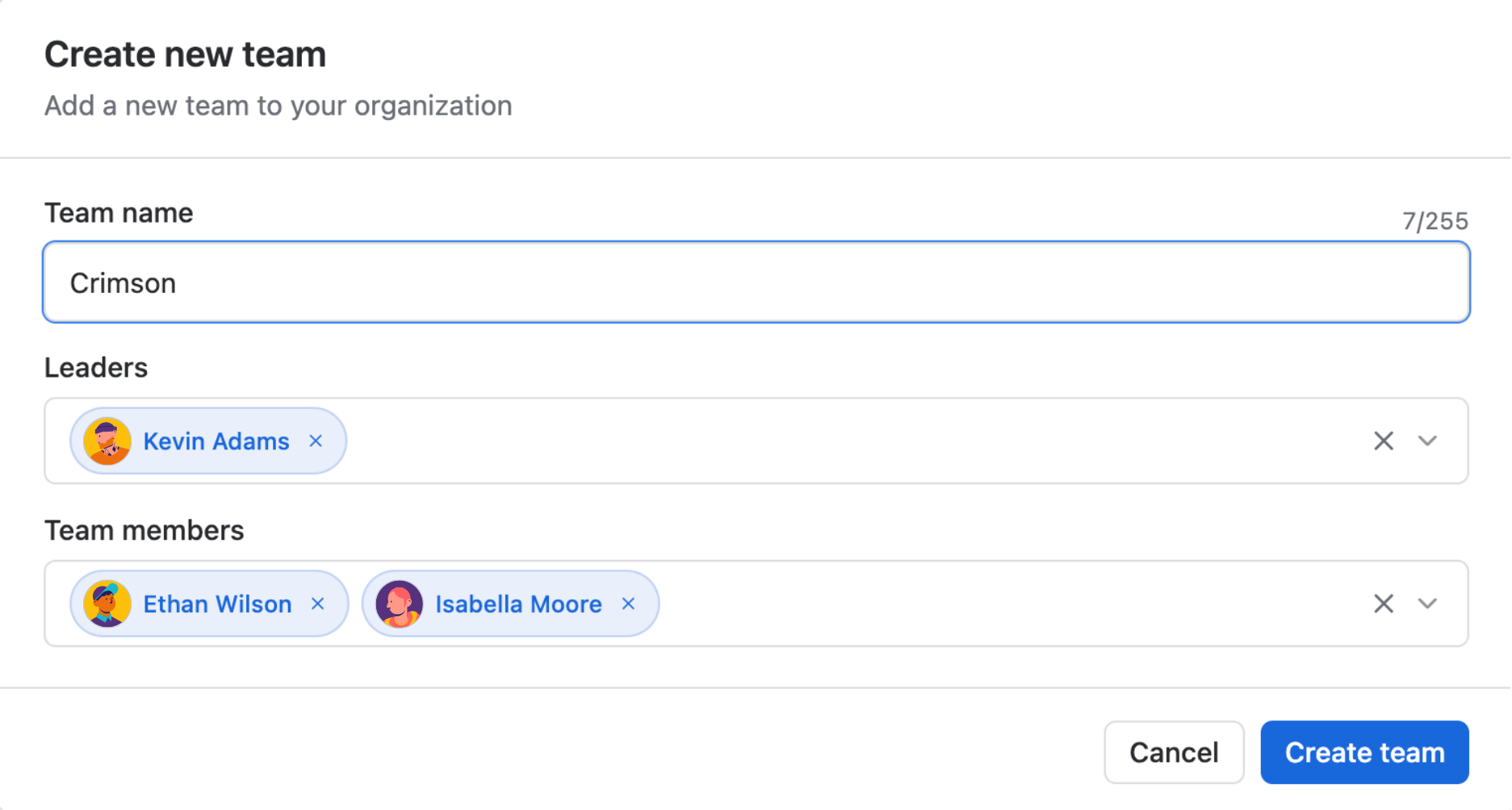
To create a team, click Create team, then complete the required details.
-
Enter the Team name.
-
Select one or more Leaders.
-
Add Team members.
-
Confirm to create the team.
Tip: A team can have more than one leader. Add multiple leaders when responsibility is shared across managers or senior team members.
Manage a team
Click a team to open its management screen. From there, users can review team members, update team details, and manage membership.
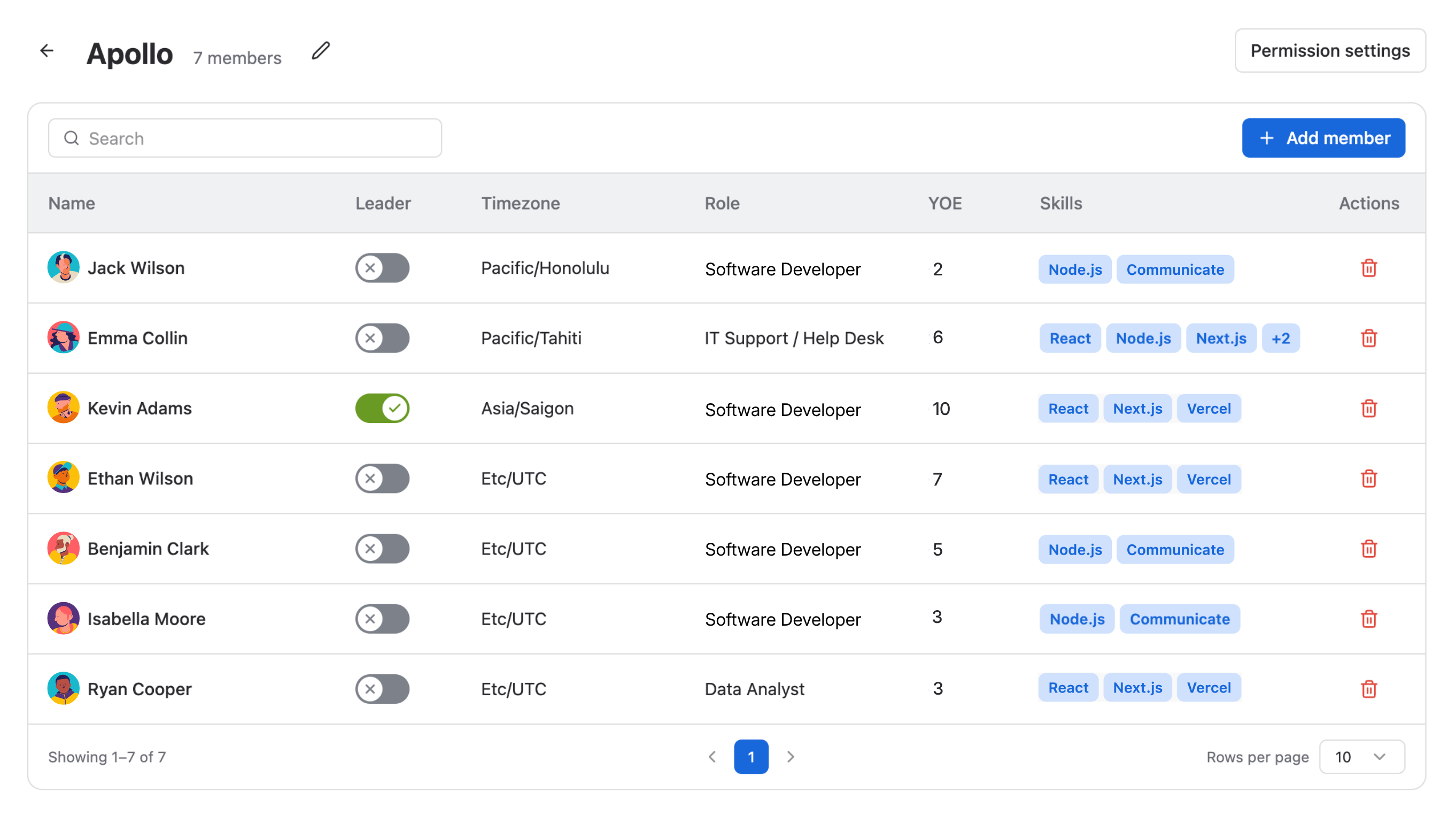
The team management screen includes member information such as:
-
Name
-
Leader allocation
-
Timezone
-
Role
-
Years of experience (YOE)
-
Skills
Available actions include:
-
Edit team name: Click the pencil icon to rename the team.
-
Add members: Click Add member, search for users, select the members to add, then confirm.
-
Remove members: Delete members from the team when they no longer belong to that group.
Permission settings
Permission settings allow leaders and managers to decide which actions each role can perform within the team.
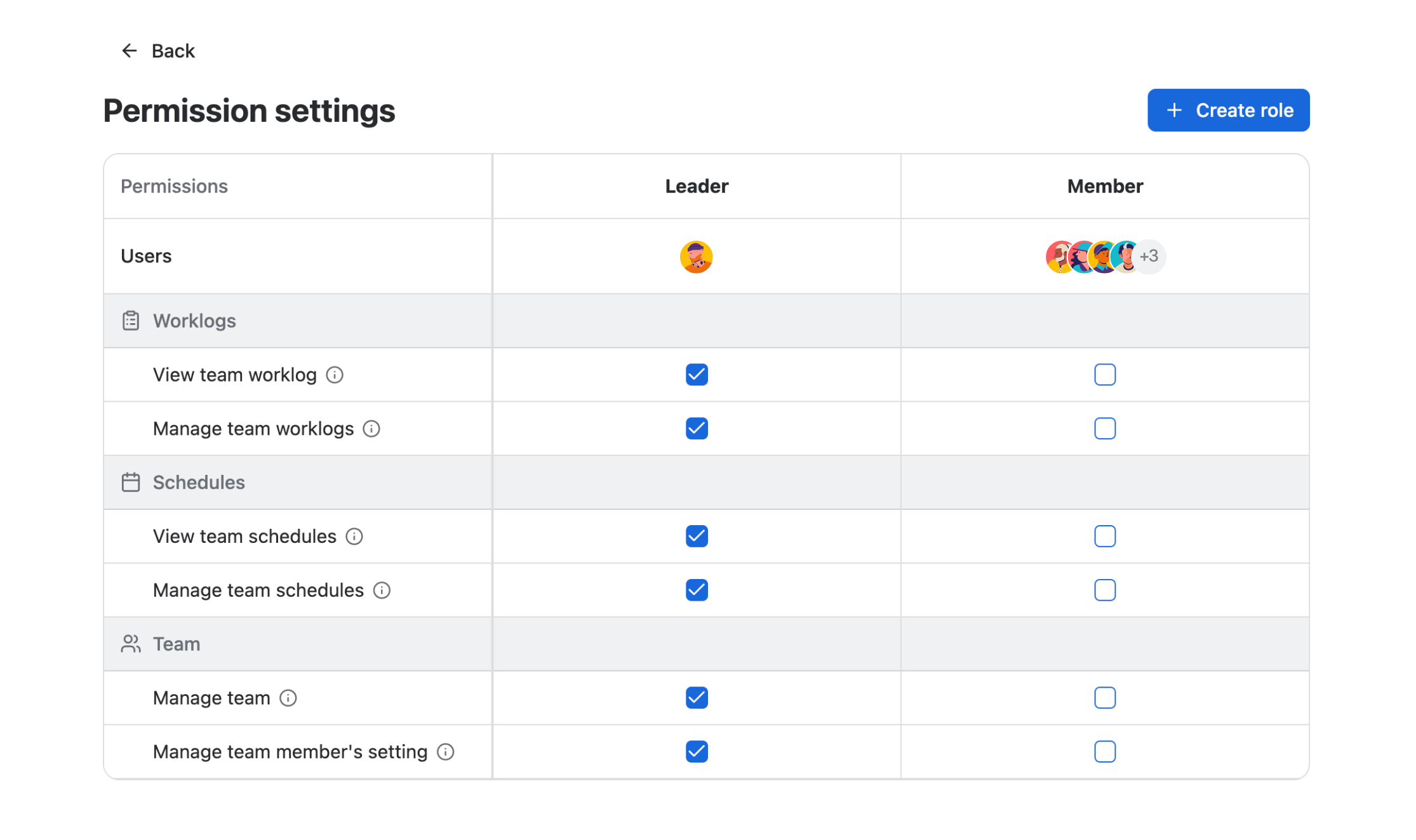
Permission areas
-
Worklogs
-
View team worklogs
-
Manage team worklogs
-
-
Schedules
-
View team schedules
-
Manage team schedules
-
-
Team
-
Manage team
-
Manage team member settings
-
Create a custom role
Users can create custom roles to match their team structure. Click Create role, then provide the following details:
-
Name: The role name.
-
Users: The users assigned to the role.
-
Permissions: The permissions available to users with this role.
Tip: Review permissions carefully before assigning a custom role. This helps prevent users from receiving more access than they need.