.png)
This is the user guide for users of Routemap’s Data Center edition who want to migrate data to the Cloud edition.
If you need migration assistance, please don’t hesitate to email us at atlassian@devsamurai.com or contact our Support Desk for 24/7 assistance!
1. Checklist before the migration
Before proceeding, please read these Atlassian guides:
Check these requirements before you plan the migration:
|
Requirement |
Why |
|---|---|
|
Routemap Data Center 2.0.13 or later (Jira 9.x and 10.x), or 2.0.13-j11 or later (Jira 11.x) |
Older versions do not send Routemap data to JCMA |
|
Routemap Cloud 4.10.0 or later installed on the target site |
Cloud receives the data only if the app is already there |
|
The Jira projects, users, and groups your roadmaps use are migrated in the same run or earlier |
Routemap links its data to Cloud work items, versions, sprints, users, and groups through JCMA's mappings |
|
Projects that share a roadmap are migrated together |
A roadmap keeps only the projects that reach Cloud |
|
Jira Cloud time zone matches Data Center |
Task bar, milestone, and release dates read the same on both sites |
2. Migration steps
Migrate the Jira projects and Routemap in one JCMA run. Routemap needs no separate step of its own.
Full migration only
Routemap only supports full migration. Each migration deletes all Routemap existing data on the Cloud site, then writes the Data Center data. This includes roadmaps, ideas, and public portals created in the cloud.
2.1 Install Routemap Cloud
Install Routemap Cloud 4.10.0 or later on the target Cloud site before you start.
Note: Before migration, make sure to open Routemap Cloud at least once. This will initialize the Forge Storage needed for migration.
2.2 Audit your apps
Review the apps you use today and decide which ones you need in Cloud.
See Audit apps for your migration to Cloud.
2.3 Assess Routemap
In Jira Data Center, go to Jira administration → System → Migrate to Cloud and open the app assessment. Set Routemap to Needed in cloud.
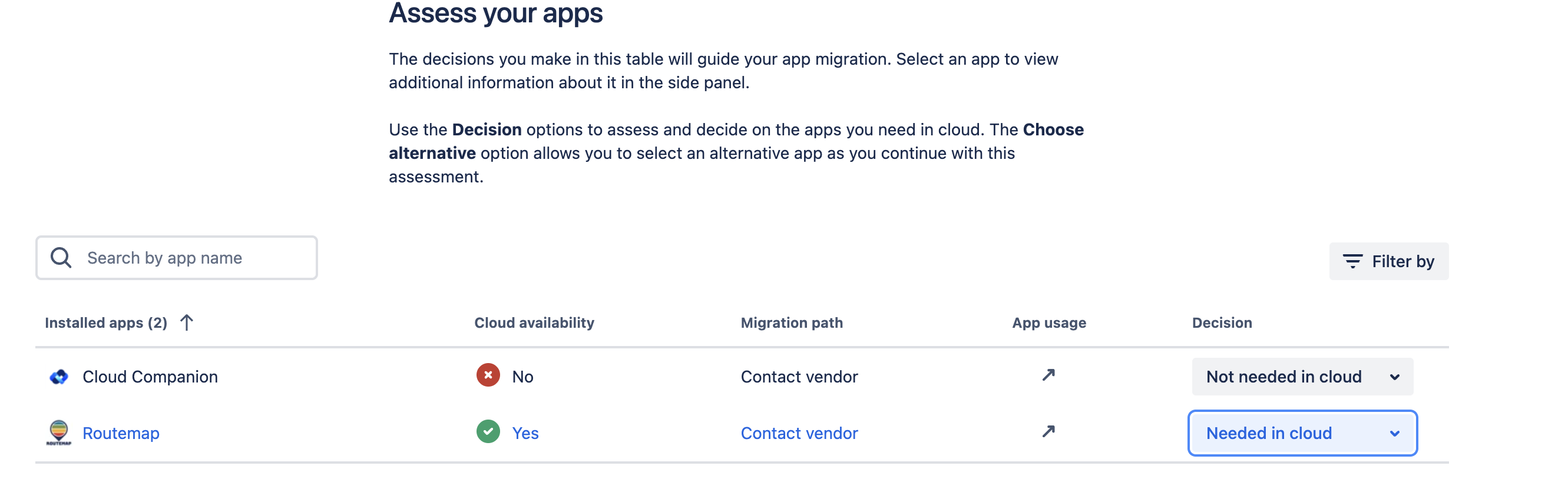
See Assess and migrate apps with the Cloud Migration Assistant.
2.4 Connect to cloud
At this step, you can link your chosen cloud instance.
If you already have a Cloud site, select Choose cloud site or choose it from the drop-down.
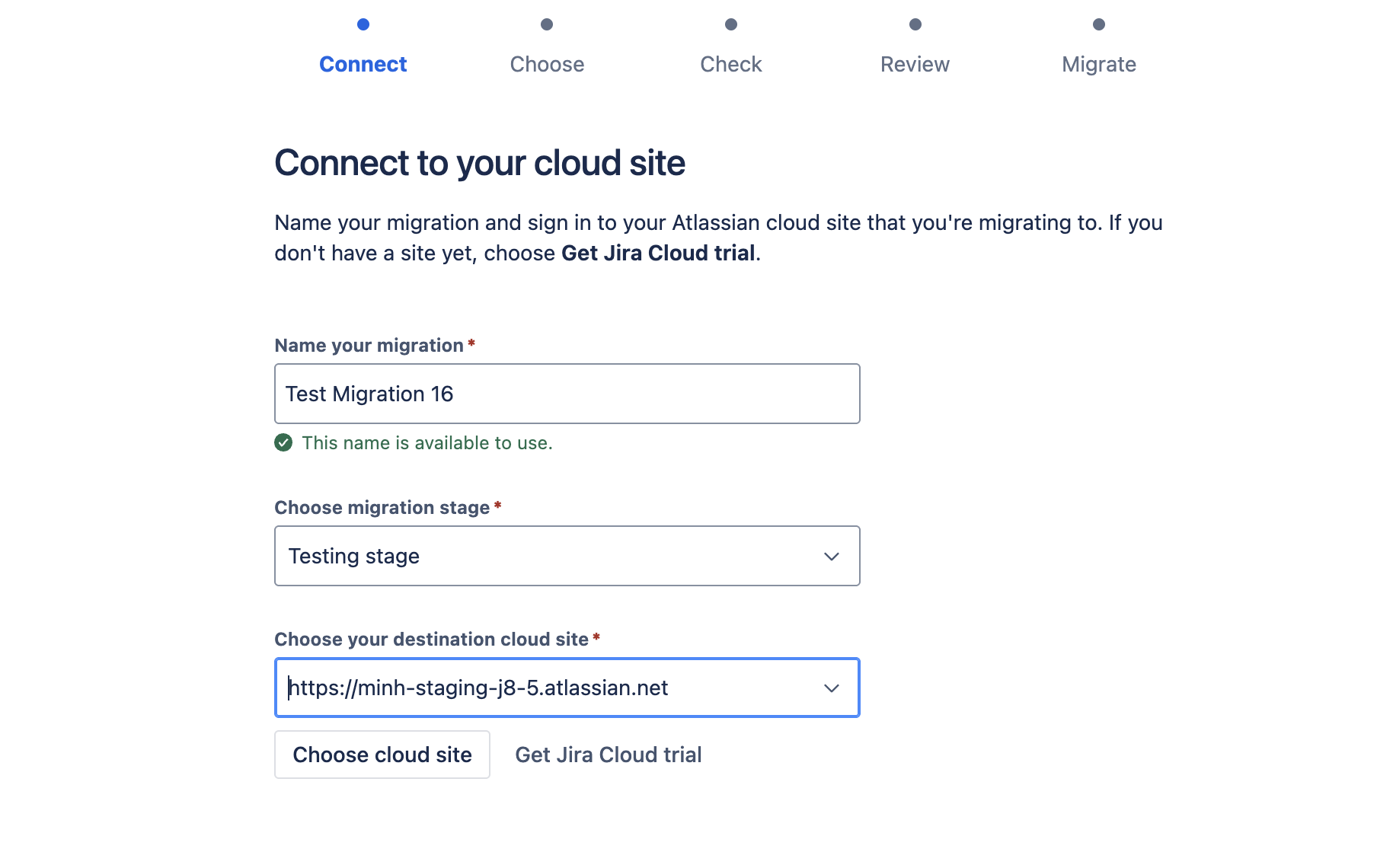
Note: destination cloud site option only appear after it has been chosen in Choose cloud site
If you don’t have a Cloud site yet, select Get Jira Cloud trial to try one for free.
You can learn more about Jira Cloud migration trials.
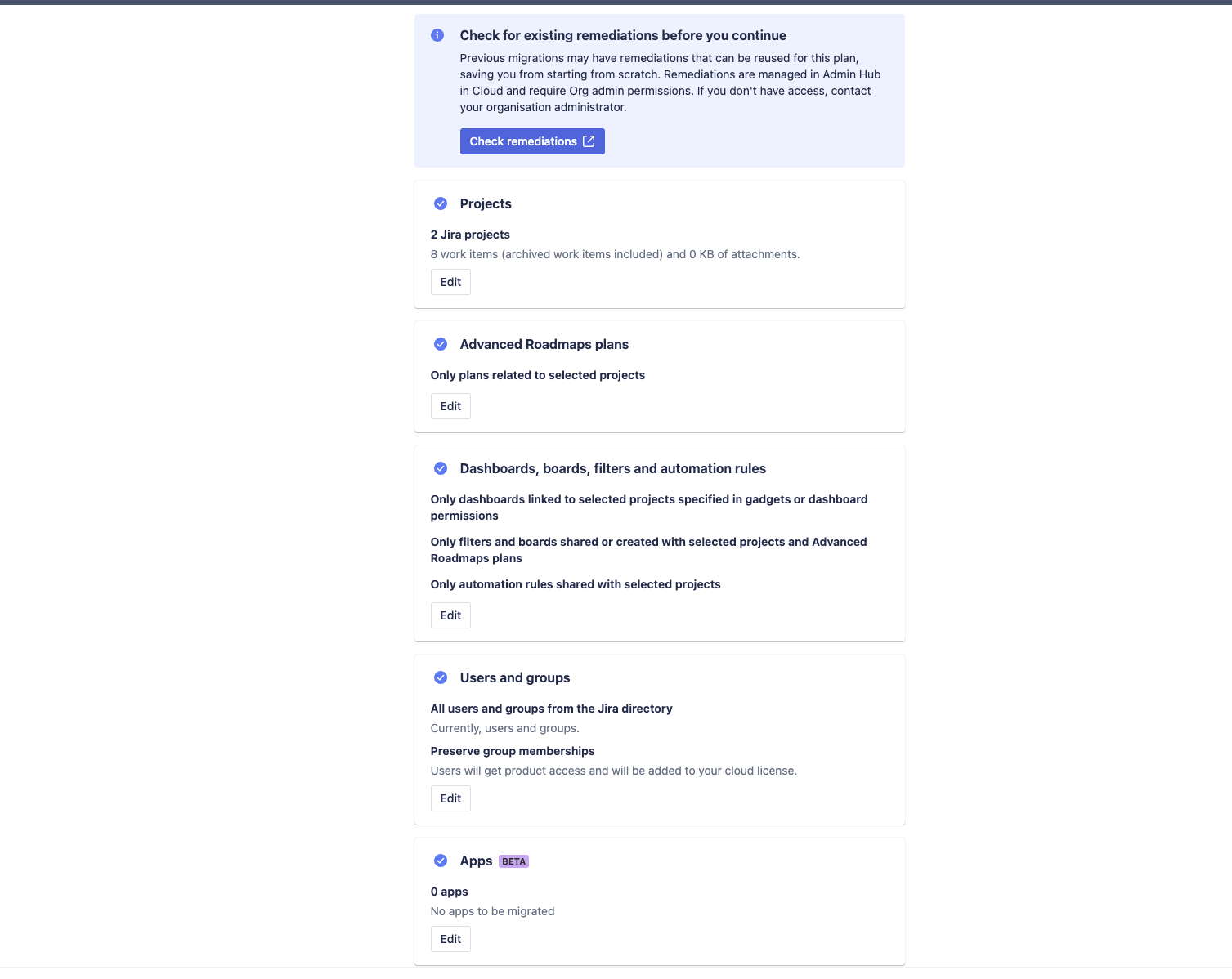
2.5 Choose what to migrate
You can migrate everything or break it up into phases. You can choose:
-
The projects your roadmaps use.
-
Users and groups, so roadmap owners, members, and admins map to Cloud accounts.
-
Apps you marked as Needed in Cloud when assessing your apps.
2.6 Check for errors
JCMA runs pre-migration looks for warnings or errors it should display as it runs pre-migration checks on:
-
System
-
Users and groups
-
Data preparation
-
Apps
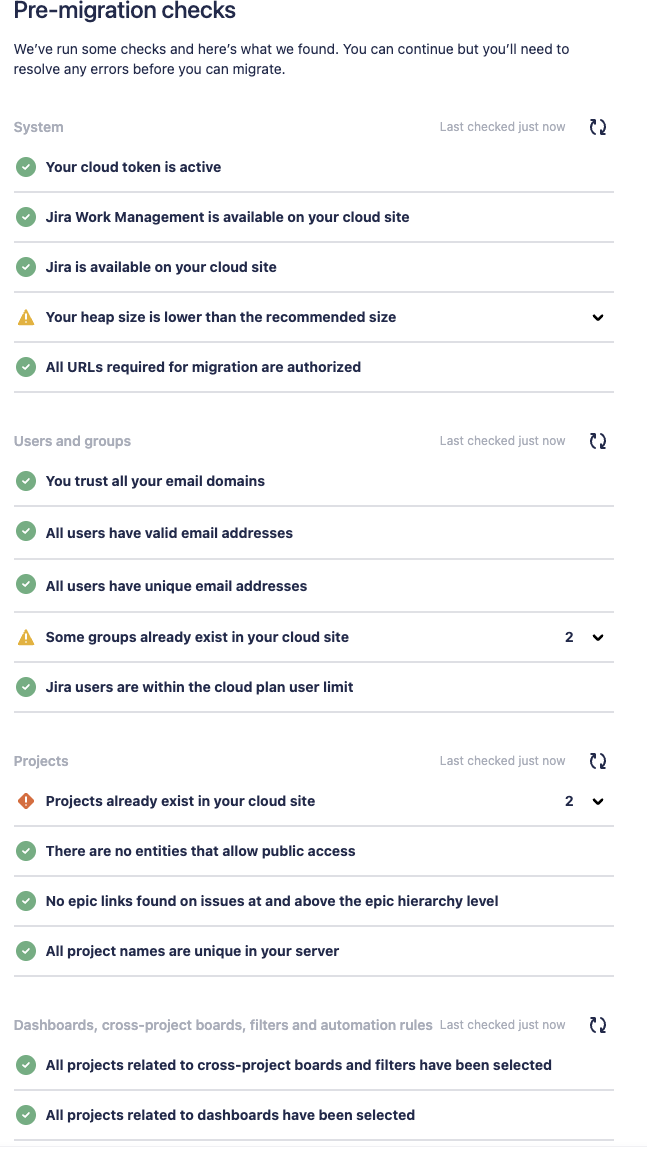
Fix any errors before you continue.
2.7 Review and run
If everything looks correct and you want to start the migration, select Run now. You can also Save to run it later.
Do not change Routemap data on Data Center while the migration runs.
2.8 Watch the progress
The migration dashboard shows each migration as Saved, Running, Finished, Stopped, Incomplete, or Failed.
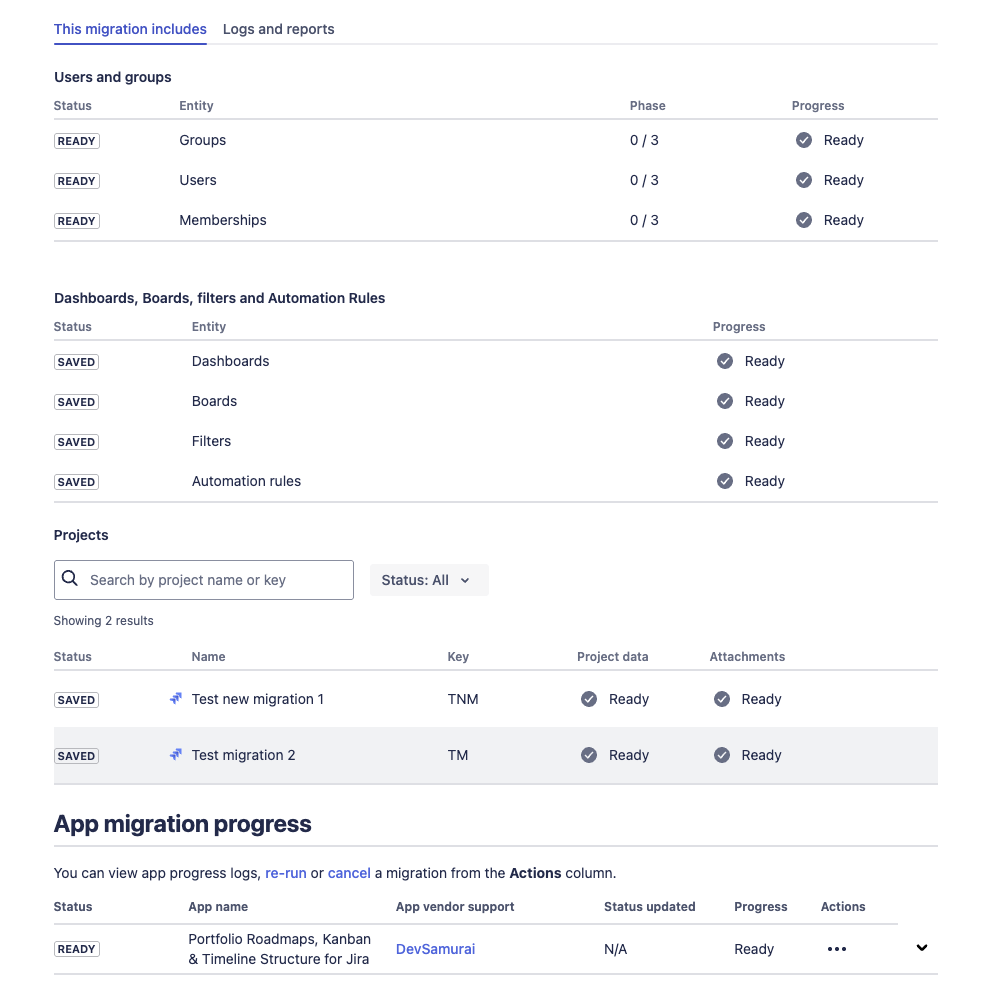
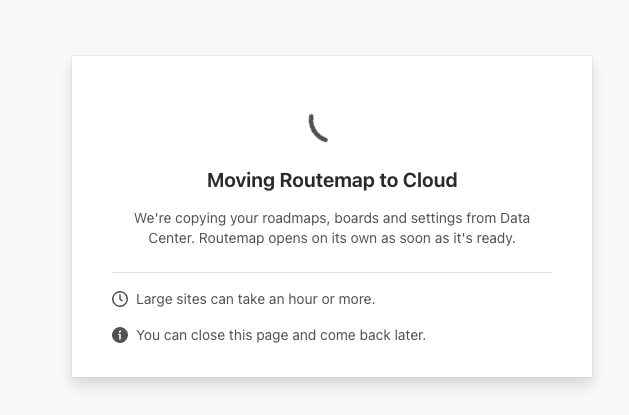
Routemap keeps writing data for a few minutes after the Jira part finishes.
Note: During this time, Routemap will be locked, this is expected to keep the integrity of the data.
3. What gets migrated
Routemap migrates all of its Data Center data except one site-level setting (see section 5). Issue, project, version, sprint, user, and group IDs are switched to their Cloud IDs on the way.
|
Data |
What moves to Cloud |
|---|---|
|
Roadmaps |
Name, projects, owner, members, admins, privacy and view settings |
|
Lanes and containers |
Name, project, order, and the user's expand/collapse state |
|
Bars |
Linked issue, lane, container, dates, and order |
|
Milestones |
Name, color, and date |
|
Messages |
Text, author, and date |
|
Releases |
Releases and the Jira versions in each one |
|
Release Kanban |
Columns, swimlanes, and items, with their order |
|
Filters and color schemes |
Name and JQL, rewritten to Cloud IDs |
|
Project configuration |
Start and end date field mapping per project |
|
User preferences |
User settings, sprint and version status settings, lane, container and swimlane preferences |
|
Prioritization scores |
Value/Effort and RICE scores on each issue |
|
Activities |
Activities from the last 30 days and who has read them |
4. After the migration
Open Routemap on Cloud and compare a few roadmaps with Data Center, then check Migration review for anything that did not carry over as is.
Check that:
-
Roadmaps show their lanes, containers, bars, milestones, and messages.
-
Release roadmaps show their releases and versions.
-
Release Kanban shows its columns, swimlanes, and items in the same order.
-
Value/Effort and RICE scores appear on issues in Prioritization.
-
Filters and color schemes return the same issues.
-
Members of a private roadmap can still open it.
Kanban items after a large migration. Jira Cloud can take a while to index migrated issues. Until it finishes, some Kanban items stay hidden; they appear on their own once Jira search returns their issues. Routemap does not delete them.
Running the migration again. Each migration replaces all Routemap data on the Cloud site with the Data Center data, so the two match afterwards. Changes made on Cloud since the last migration are lost.
5. Limitations and troubleshooting
Known limitations
|
Case |
What happens on Cloud |
|---|---|
|
Two Routemap Data Center instances migrated into one Cloud site |
Not supported |
|
Activities older than 30 days |
Not migrated. Cloud keeps activities for 30 days |
|
Activities longer than 16,000 characters, or that the activity panel cannot show |
Skipped |
|
Roadmap whose projects were not migrated |
Skipped |
|
Bar or Kanban item whose issue was not migrated |
Skipped |
|
Owner who was not migrated |
Item stays; roadmap admins can still edit it |
|
Member or admin whose user or group was not migrated |
Removed from the roadmap's access list |
|
JQL that refers to something not migrated |
Kept as is |
Migration notes
-
Test first: Run the migration on a test Cloud site before your production site.
-
Freeze Routemap data: Ask users not to change roadmaps on Data Center while the migration runs.
-
Turn on logging: Add the log category
com.devsamurai.atlassian.jira.routemap.migrationat INFO on the Jira Data Center logging page. -
Re-index first: Re-index Jira Data Center before you migrate to shorten data collection.
-
If a migration fails, run it again. The new run replaces whatever the failed one wrote. If it fails again, send us the migration name and the Data Center log.
Related guides
To see which features Data Center and Cloud each have, read the Routemap Data Center and Cloud comparison.