.png)
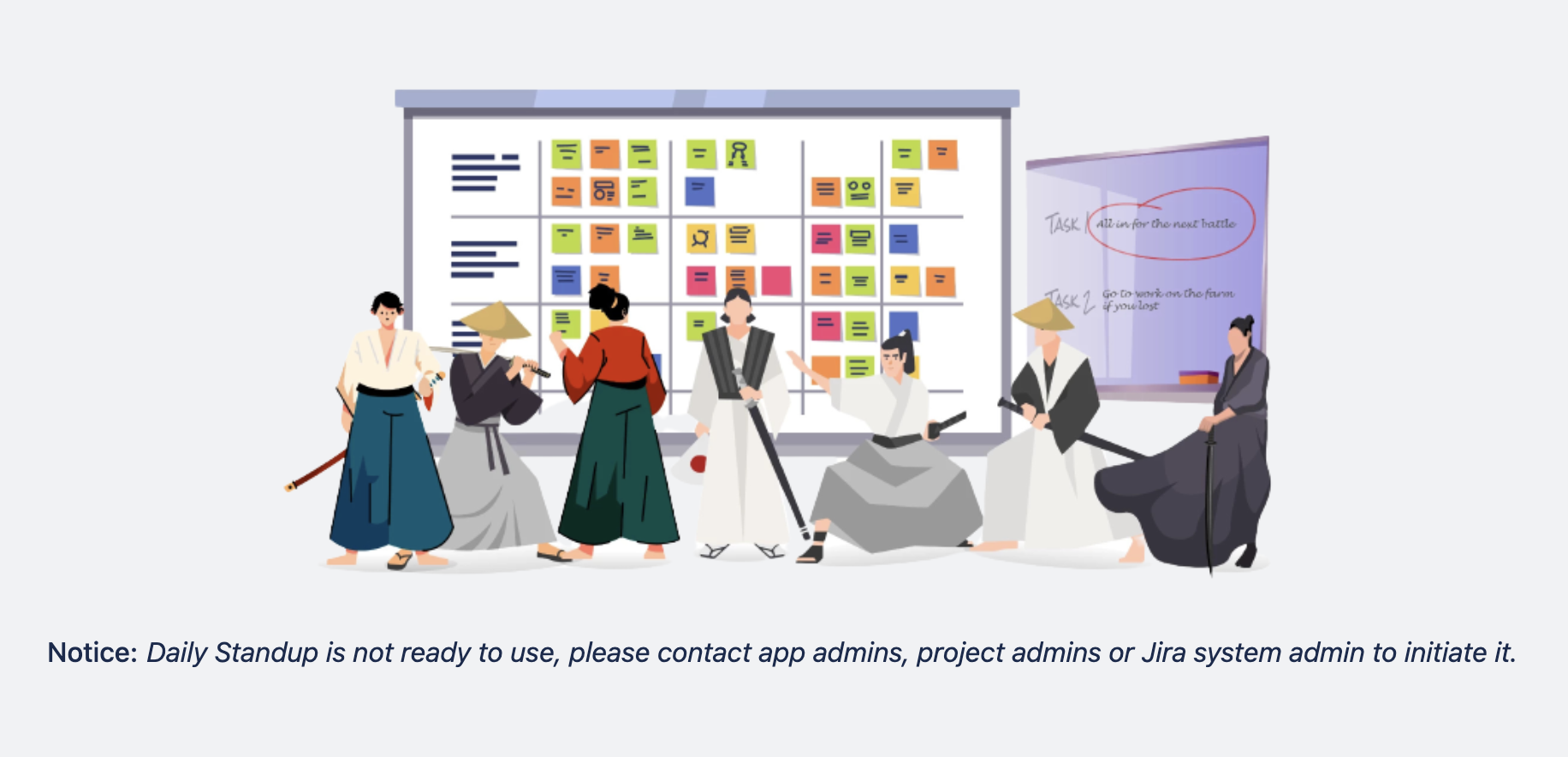
This feature requires initiation by a project admin, app admin, or Jira admin before use.
How to Initiate
-
Go to your Project, then select AgileBox from the navigation bar.
-
Click the Daily Standup button.
-
Select Setup a new daily standup.

If you lack admin permissions, a notice will inform you that creation isn’t permitted.
Now, the admins will fill out the form to initiate the standup meeting.
Step 1. General information
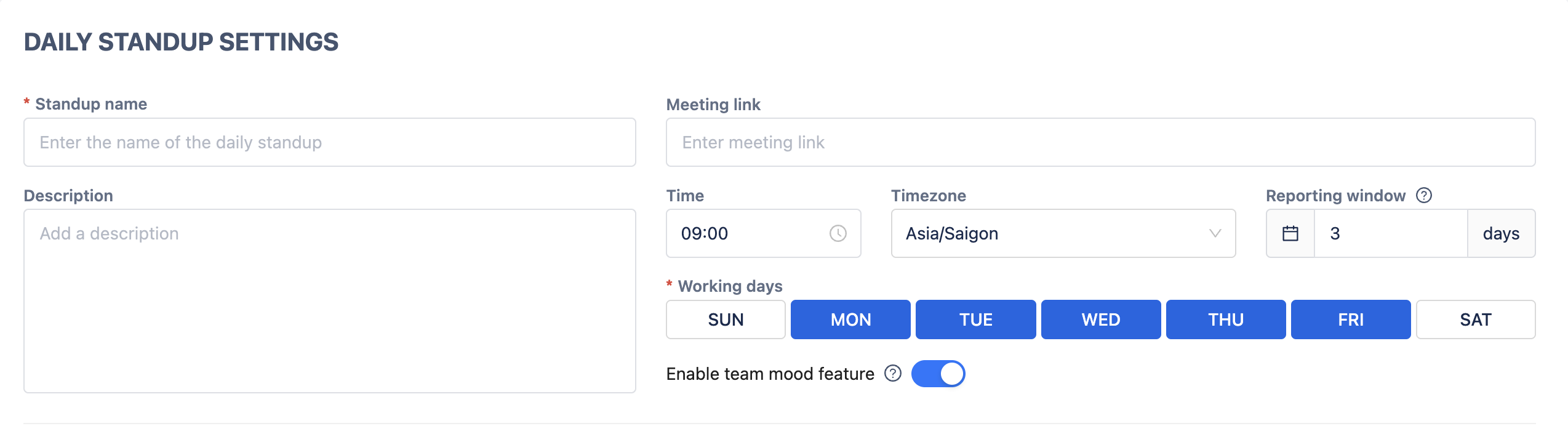
Admins fill out the following details:
-
Standup Name (required)
-
Description (optional)
-
Meeting Link (optional)
-
Reporting Window (days): Sets how many working days participants can report in advance. For example, if set to 3 with working days Monday to Friday, users can report for today plus the next three working days. Set to 0 to disallow advance reporting.
-
Time: The daily time for status updates.
-
Timezone: Adjust to your team’s location.
-
Working Days (required): Select which days are considered workdays in a week.
-
Enable Team Mood Feature: Toggle on to allow team members to share their mood with each daily report.
Scroll down for the next section.
Step 2. Questions
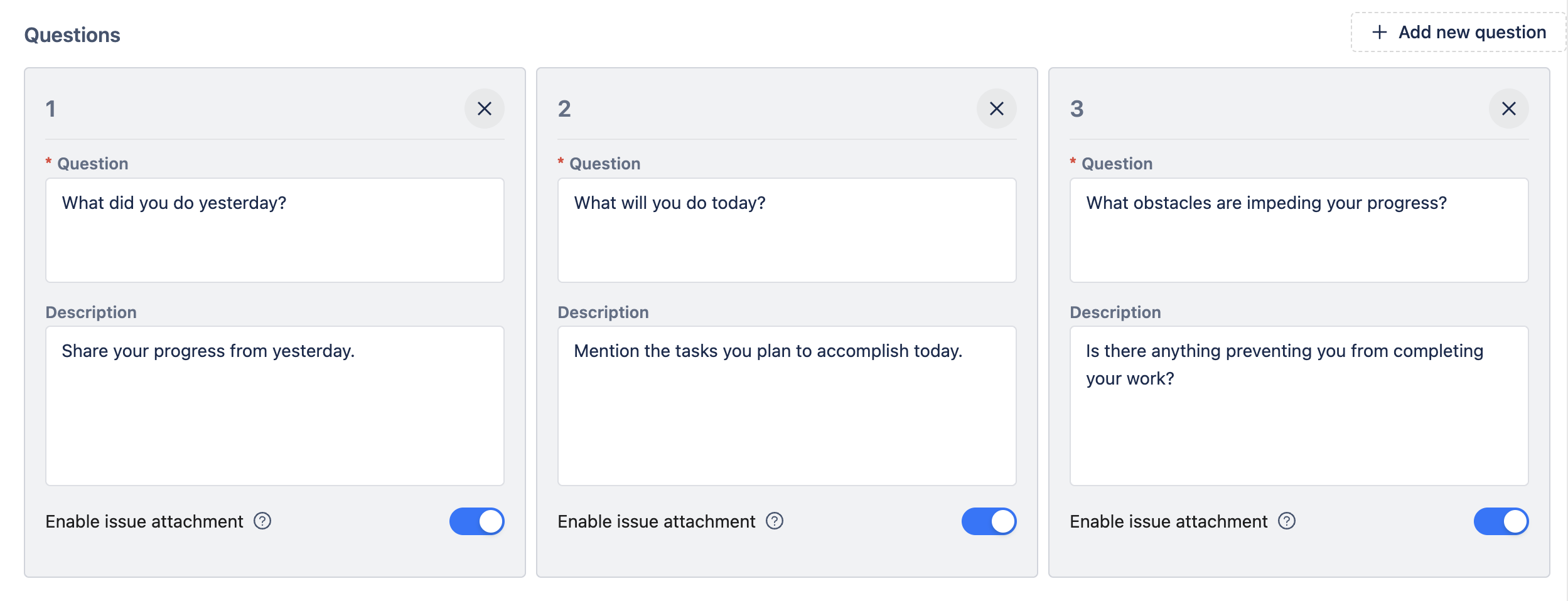
Admins can create, edit, or delete questions to guide participants’ daily reports. To create a new question, click on the Add new question button.
By default, three questions are included:
-
What did you do yesterday?
-
What will you do today?
-
What obstacles are impeding your progress?
Each question includes:
-
Question (required): The question text.
-
Description: Additional details or instructions.
-
Enable Issue Attachment: Option to allow participants to attach Jira issues to their answers.
To delete a question, click the X icon in the question box.
Step 3: Participants

Select the users who can submit and view daily standup reports.
Finalize Setup
Click Create and then Save to finish setup. You will be redirected to the daily standup’s main page.
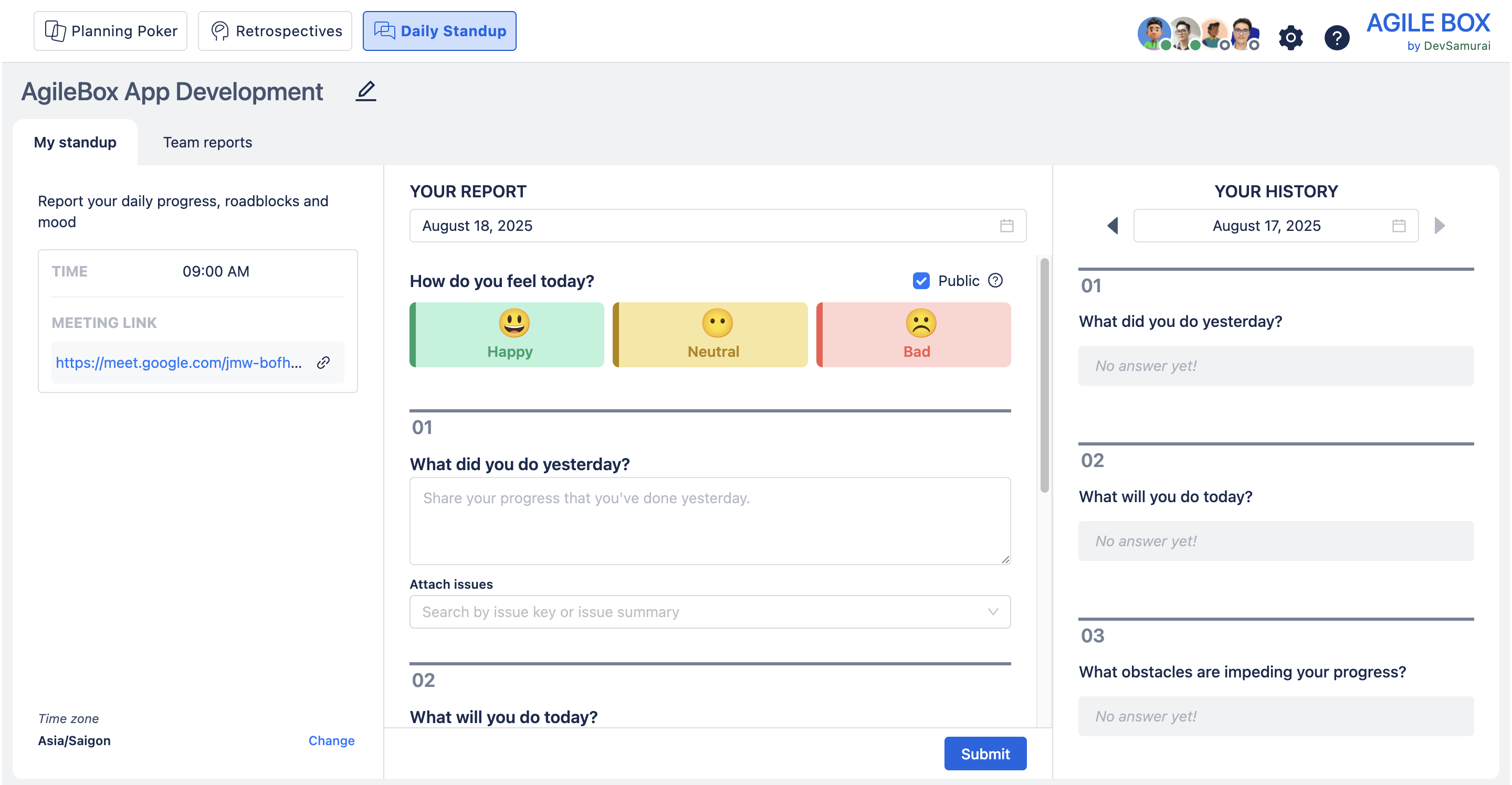
To edit the standup later, click the pencil :pen: icon next to the standup name or the gear ⚙️ icon in the top-right corner and choose Daily Standup.