.png)
AgileTest allows you to import test reports in XML or JSON format. Once imported, the system automatically parses the report and generates new test executions along with the associated test cases.
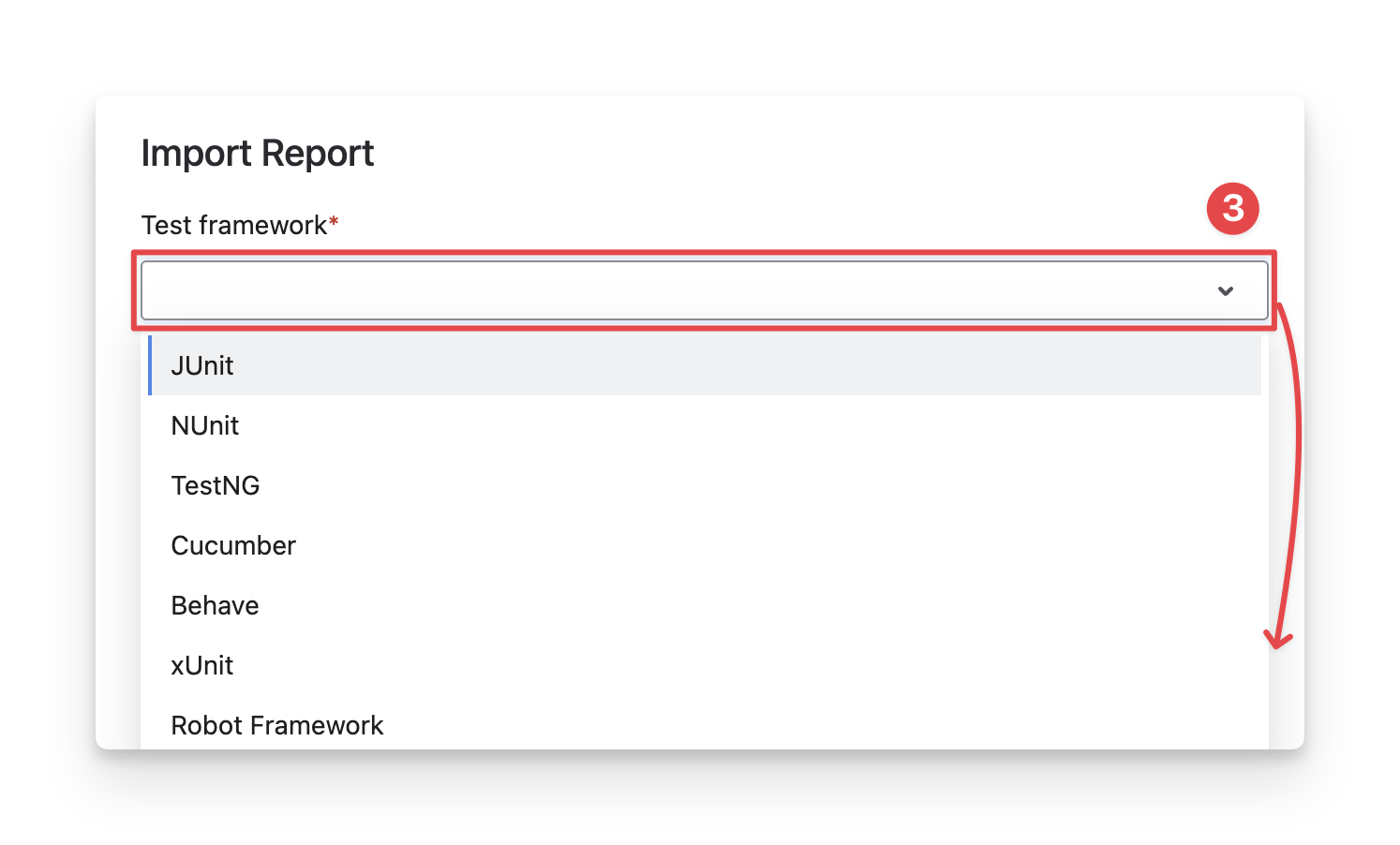
We support test result formats from many popular frameworks, including JUnit, NUnit, TestNG, XUnit, Robot Framework, as well as Cucumber and Behave.
There are 2 approaches to importing test results:
1. Import Test Results Manually
To upload your test results manually, follow these steps:
-
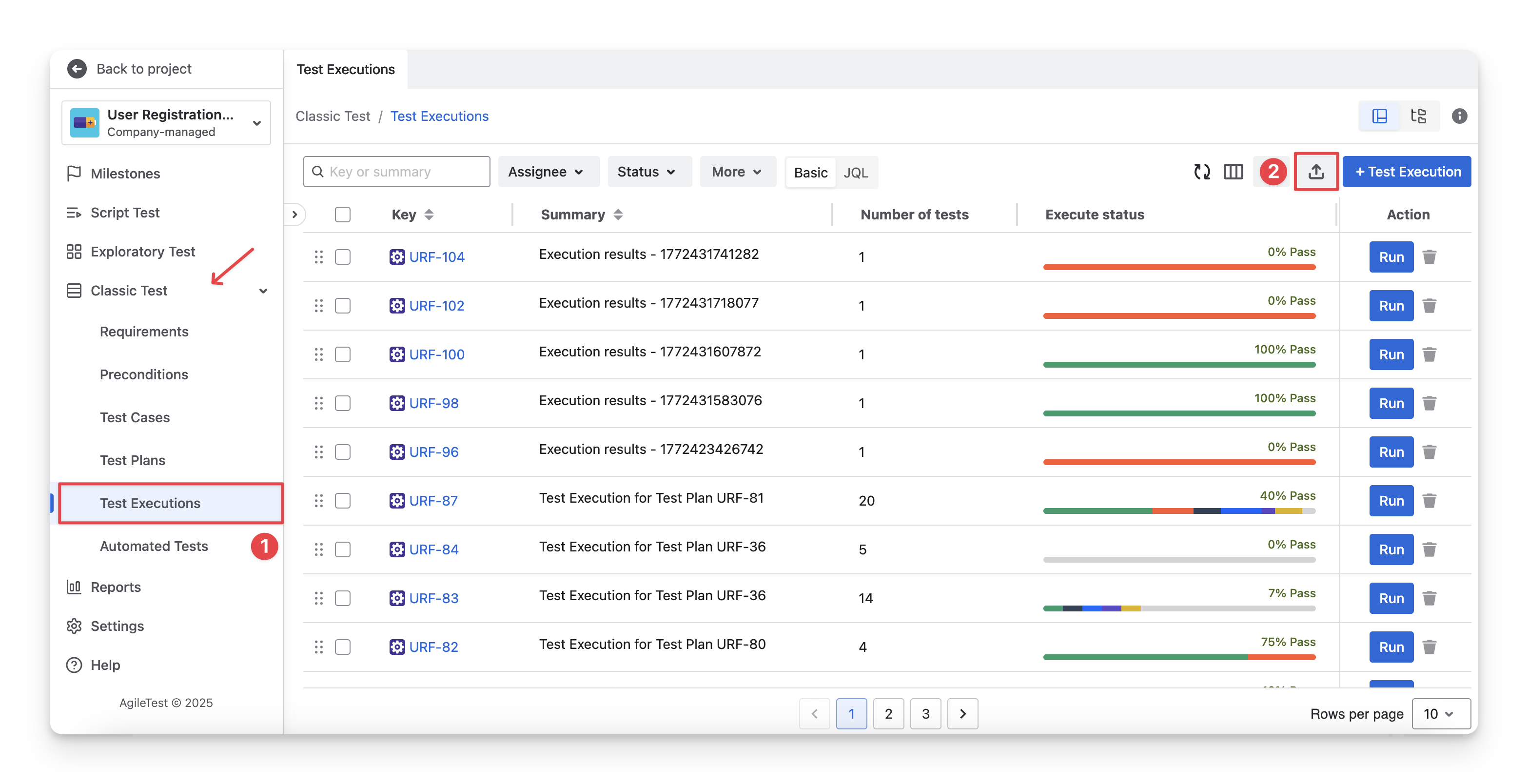
Navigate to the Classic Test section on the left-hand side menu bar, select the Test Executions.
-
Click on the “Import” button.
-
Select the Test Framework of your files in the dropdown.
-
Upload your files to the dropbox. Each file should not exceed 32MB.
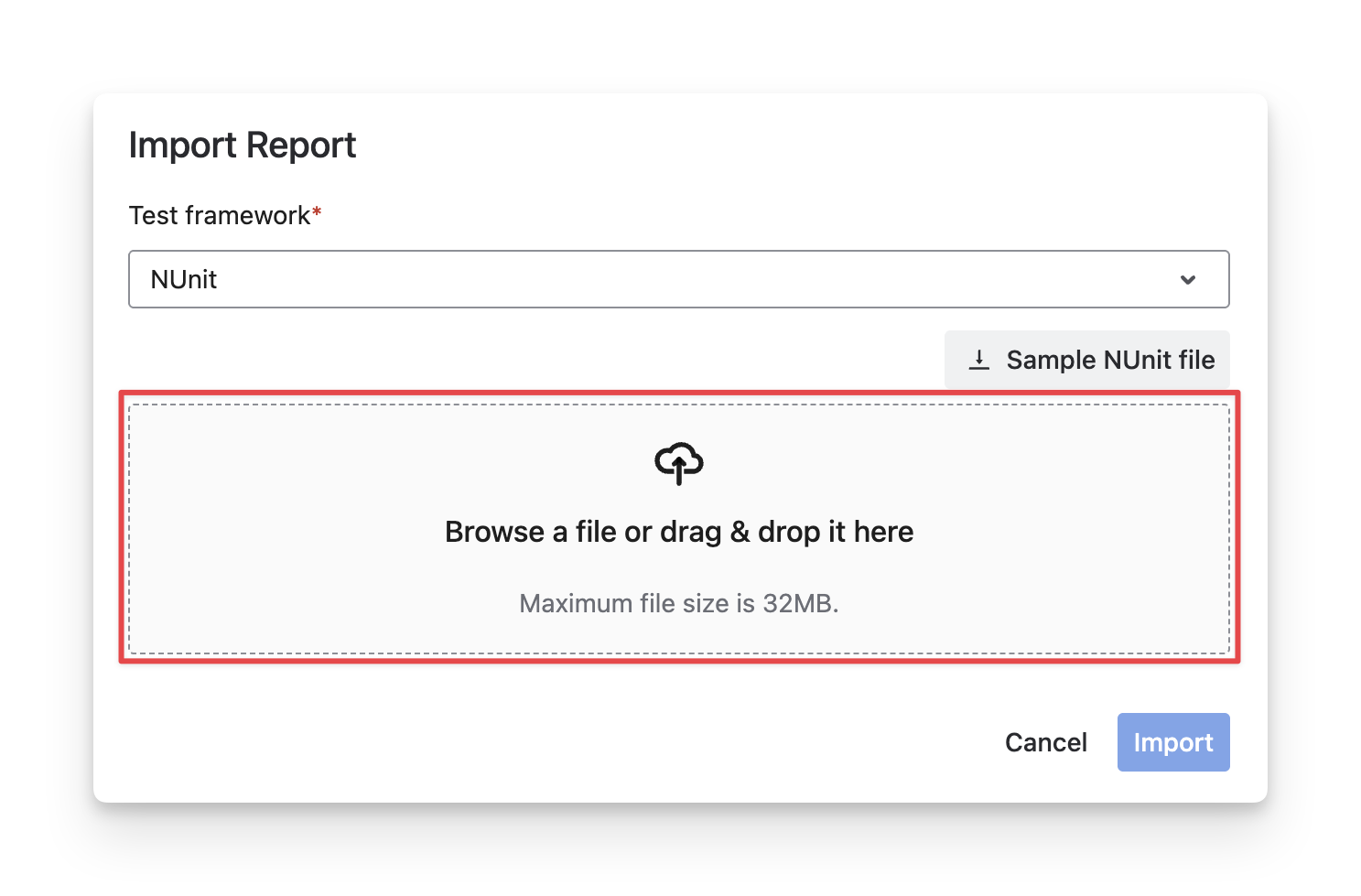
Reference: You can download the sample file to customize your data.
-
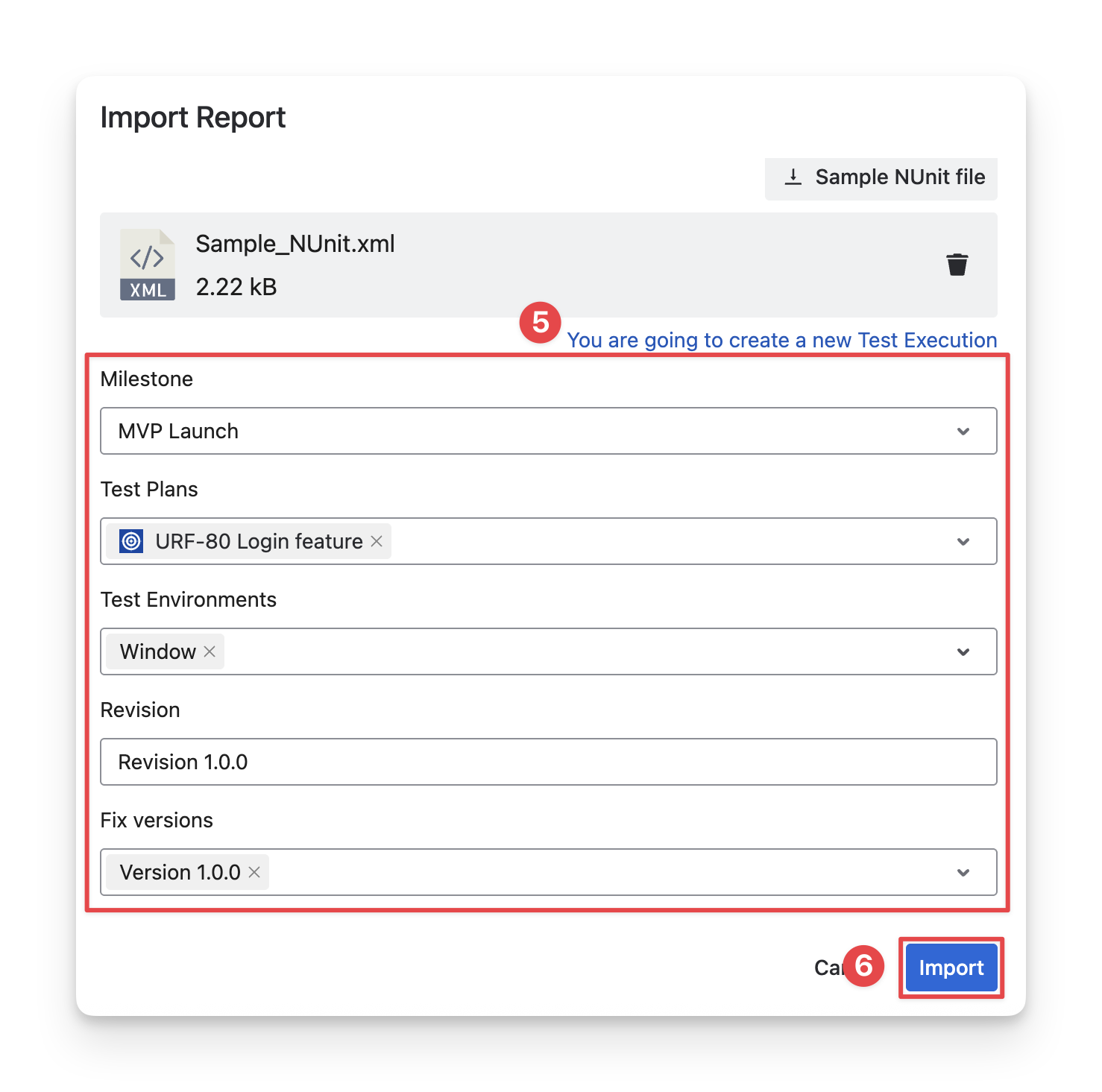
(Optional) Each test result file uploaded will create a new execution. Fill in the execution details.
-
Milestone: Select the milestone this execution result belongs to. This helps track progress and test coverage for a specific release or phase.
-
Test Plans: Select the test plans that this test execution belongs to.
-
Test Environment: Choose which test environment this execution executes in.
-
Revision: Enter the revision ID of this execution.
-
Fix versions: Select the Jira Fix Version related to this execution
-
Click on the “Import” button to finish.
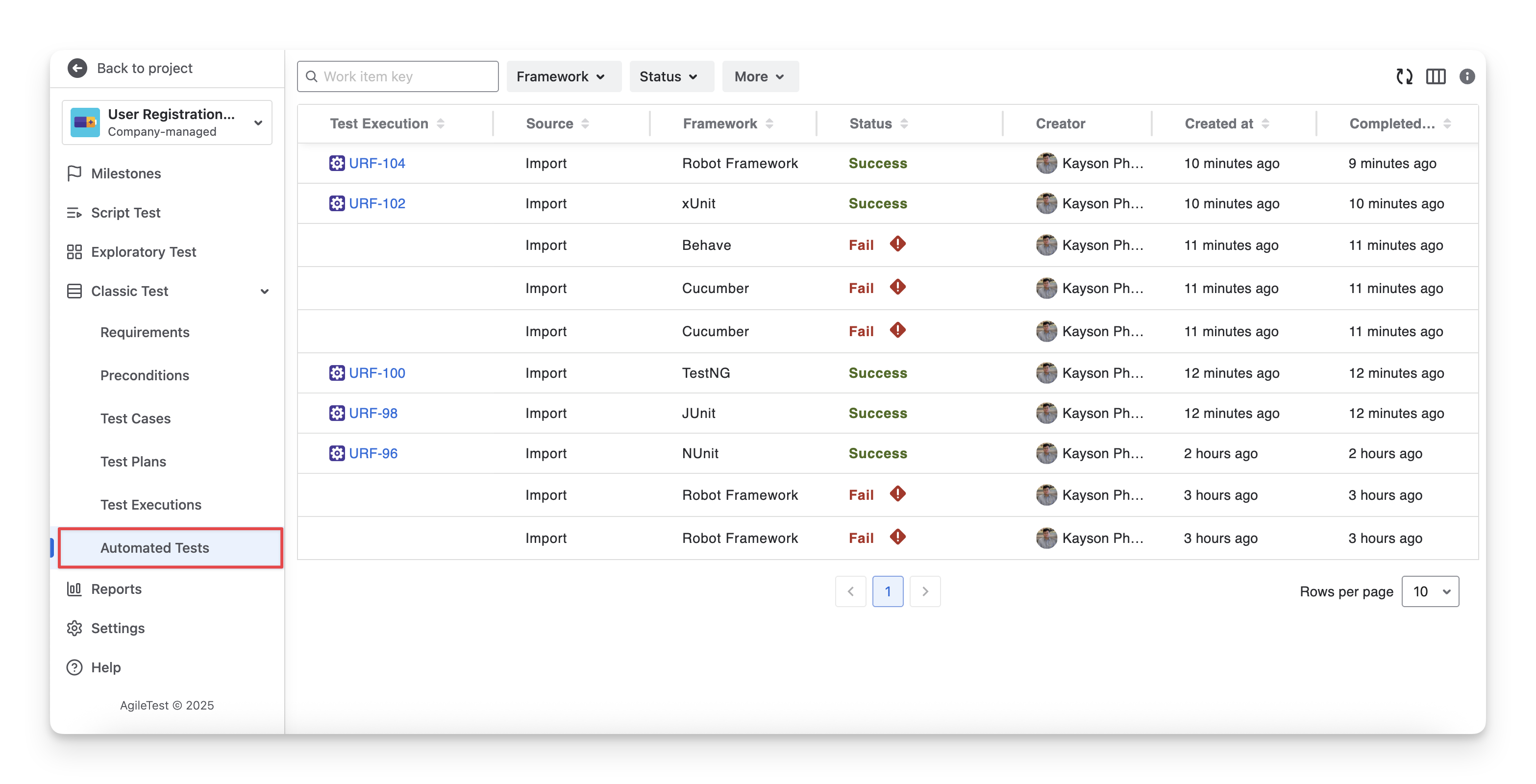
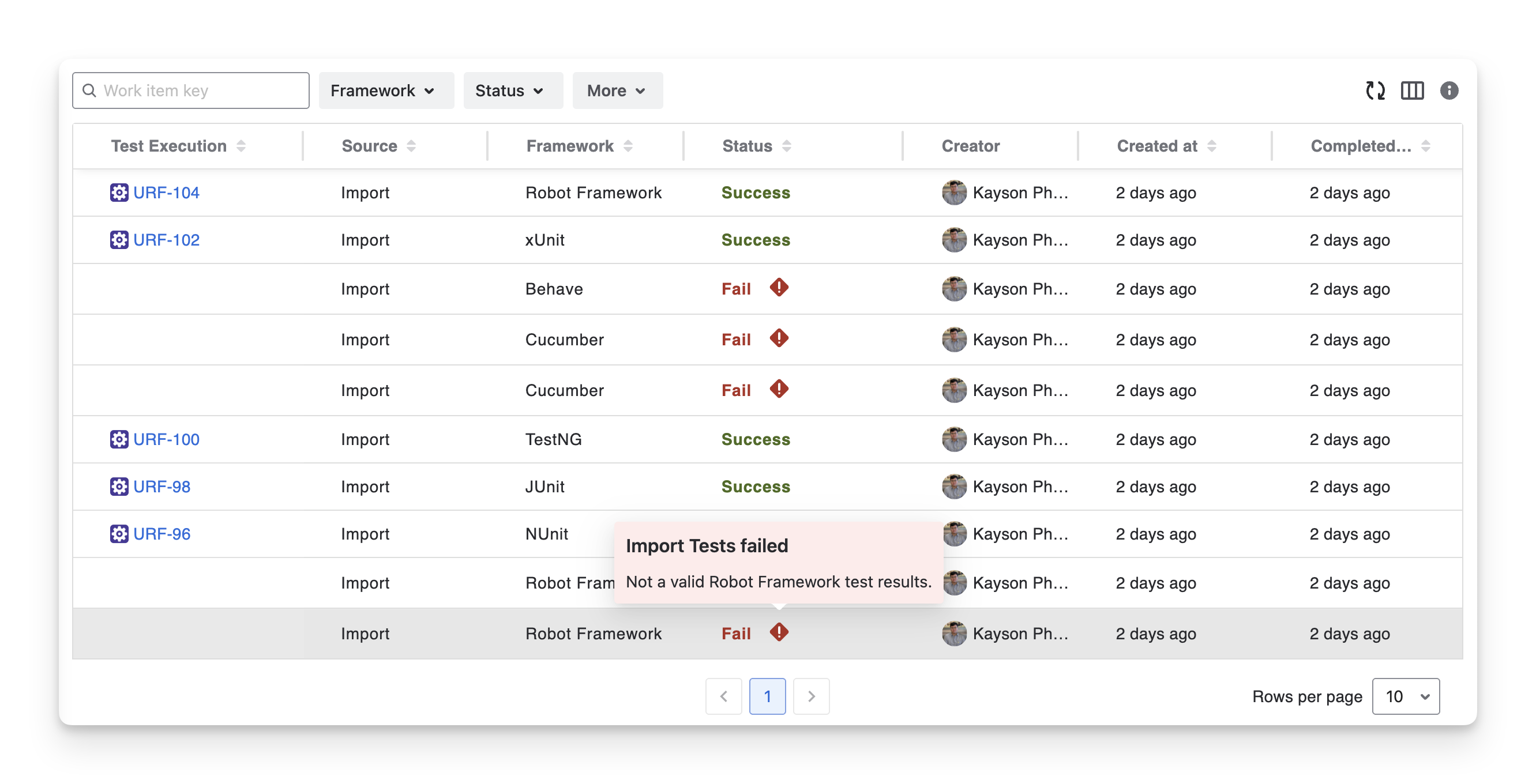
Switch to the Automated Tests section to check your uploaded files. Files uploaded successfully show the success status; those not uploaded show the Fail status. You can click the button to check for causes.
Common causes include selecting a test framework that does not match the test result files, using unsupported test case types, or improper formatting, etc.
2. Import Test Results Using API
Please refer to our API doc to learn more about the supported endpoints API document.
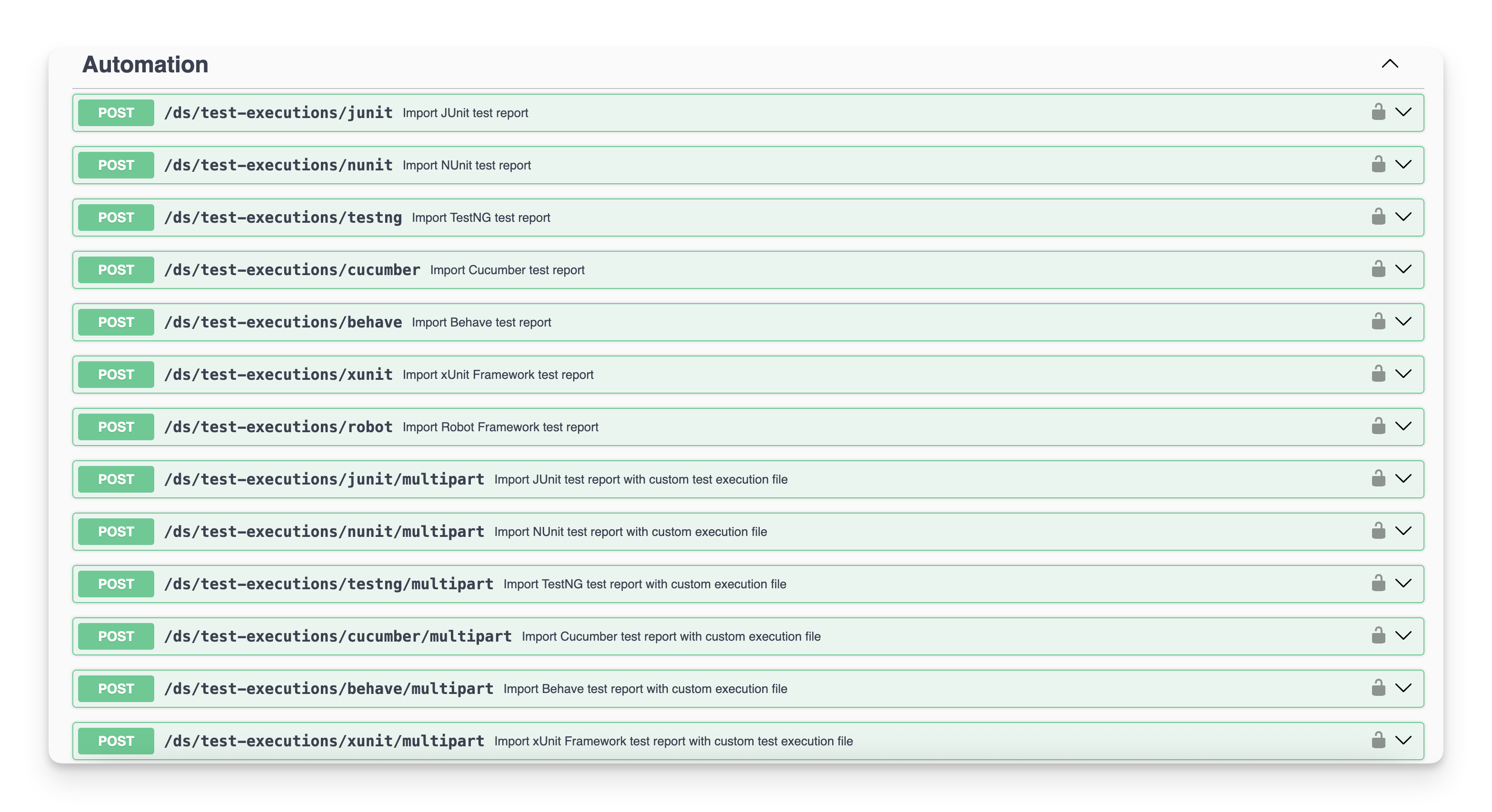
AgileTest supports the most commonly used test report types, including JUnit, NUnit, TestNG, Cucumber, Behave, XUnit, and Robot. All endpoints follow the syntax provided below.
<api.agiletest.app>/ds/test-executions/<report-type>
For example, with JUnit, the endpoint would be /ds/test-executions/junit. Similarly, the same pattern applies to other report types.
Next, we will use curl to send the request. You can use tools like Postman, Bruno, or the Visual Studio extension REST Client. There are many similar tools available, so feel free to choose the one you're most comfortable with.
2.1 Get authenticated
Authentication ensures that only authorized users can interact with the AgileTest API. Skipping this step will result in your API requests being rejected, as the system cannot verify your identity or permissions.
Before reaching this step, ensure you obtain your Client ID and Client Secret beforehand. If you have not done yet, please refer to the API Integration document for guidance.
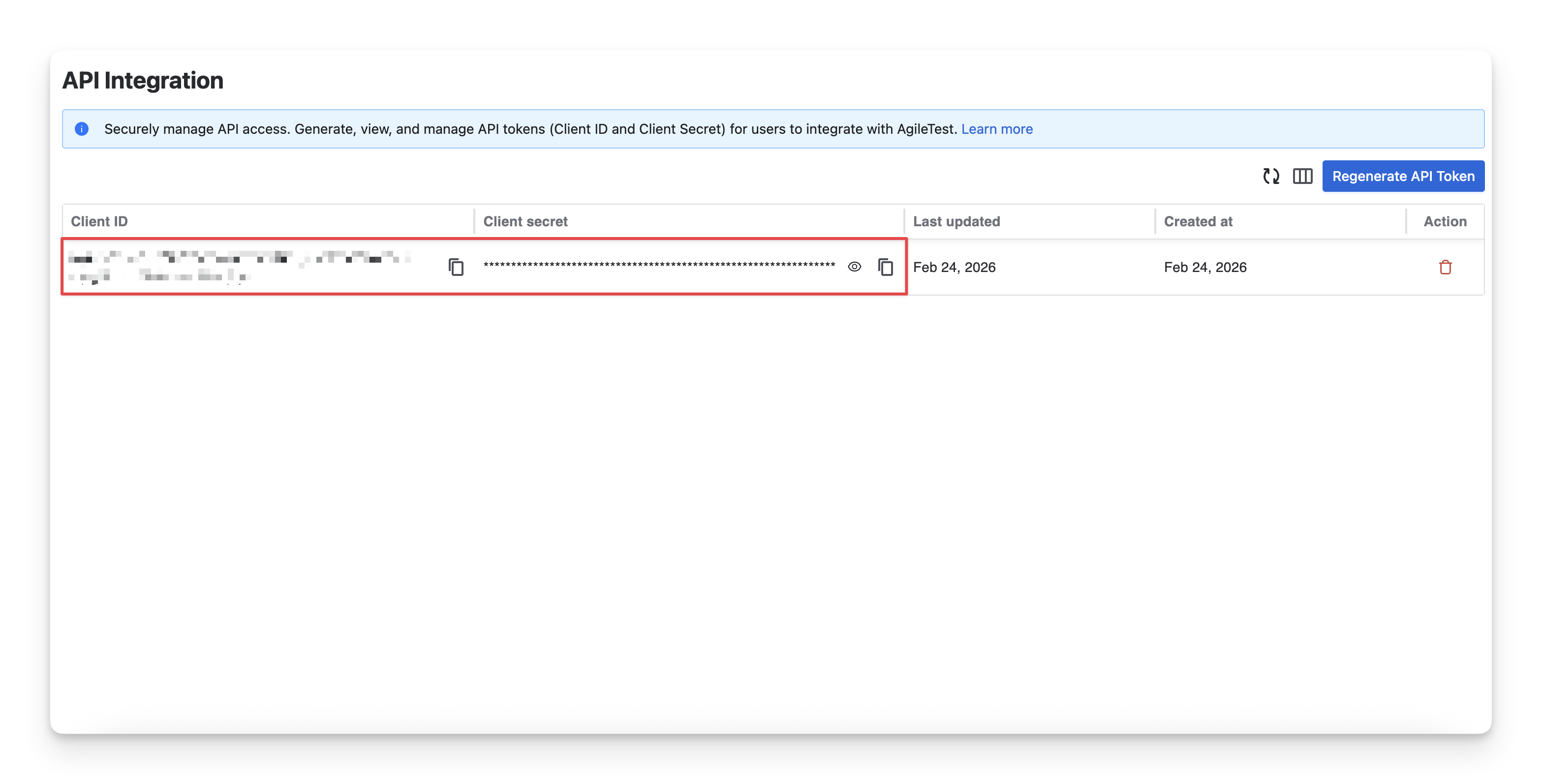
You can find the APIs below via our API document, then use them inside the Authorization HTTP header:
Post /api/apikeys/authenticate
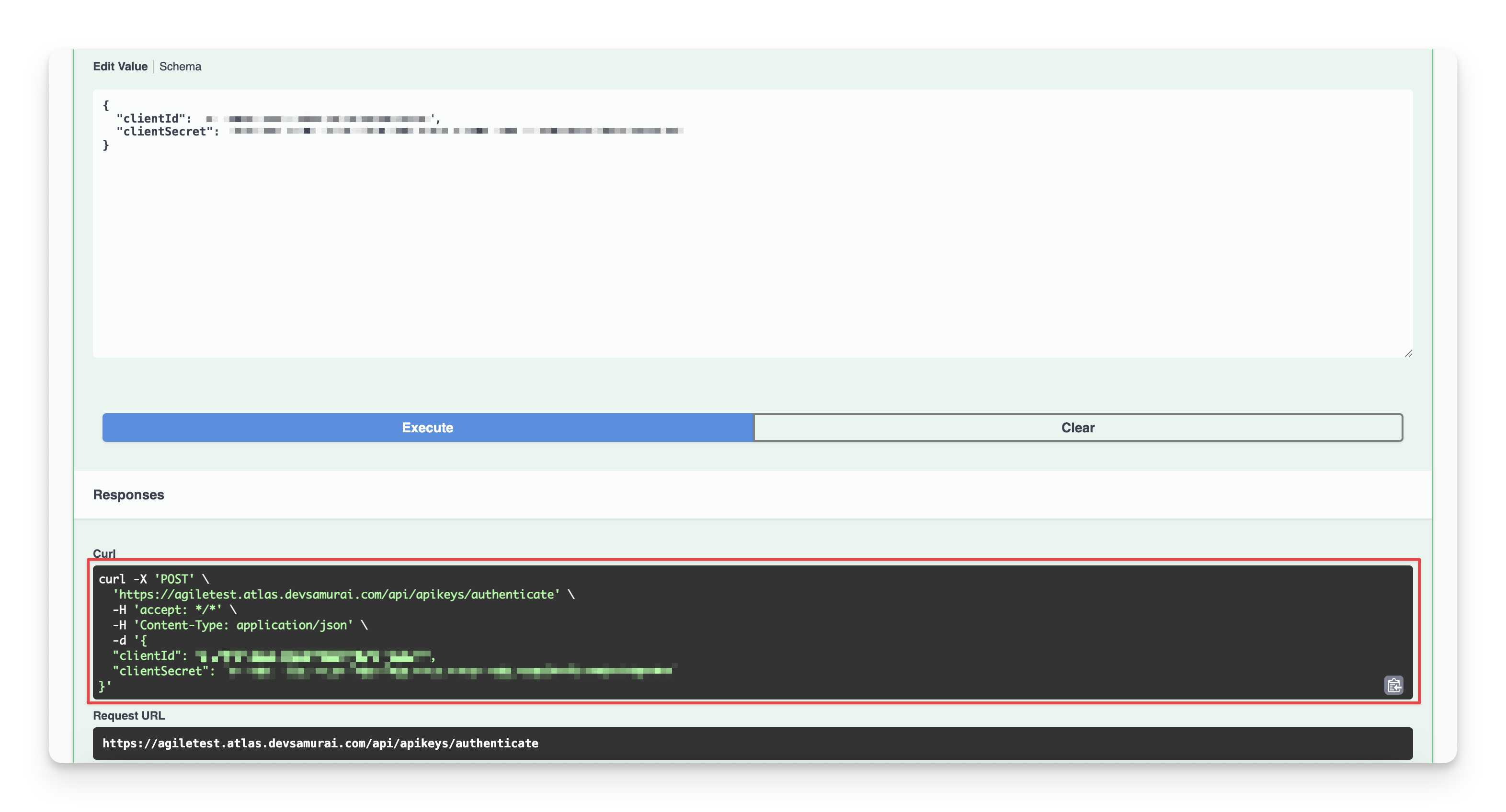
Here is the sample Curl:
curl -X 'POST' \
  'https://agiletest.atlas.devsamurai.com/api/apikeys/authenticate' \
  -H 'accept: */*' \
  -H 'Content-Type: application/json' \
  -d '{
  "clientId": "<client-id>",
  "clientSecret": "<client-secret>"
}'
You should receive a JWT token inside the Authorization HTTP header afterwards, which is required to complete the authentication process.
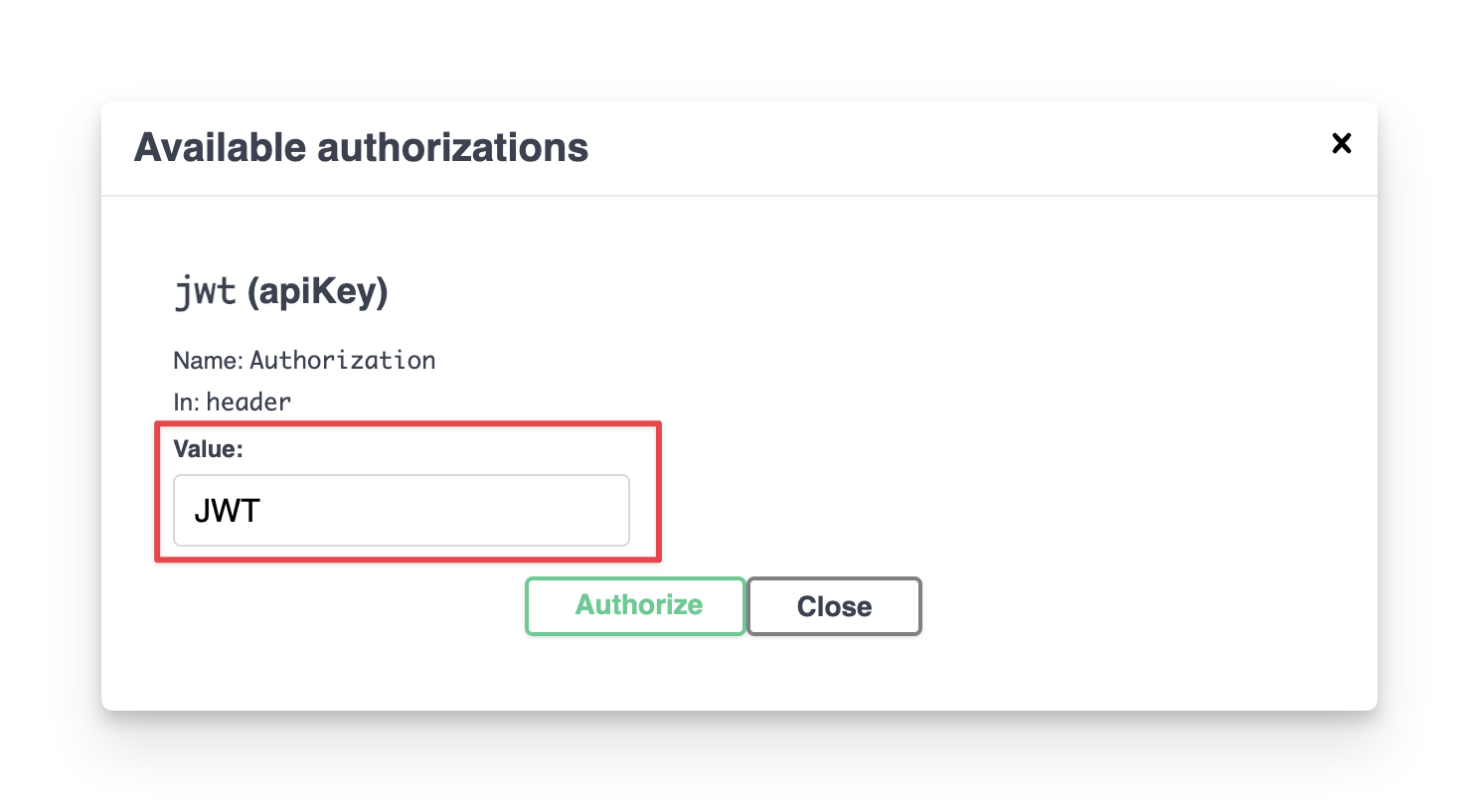
2.2 Submit your test result to Agile Test
Once you have successfully authenticated, you will be ready to submit your test results to AgileTest.
Below is a full list of import test result endpoints. You can find them in the API document.
What happens to your existing test cases when you import test result files into an existing execution?
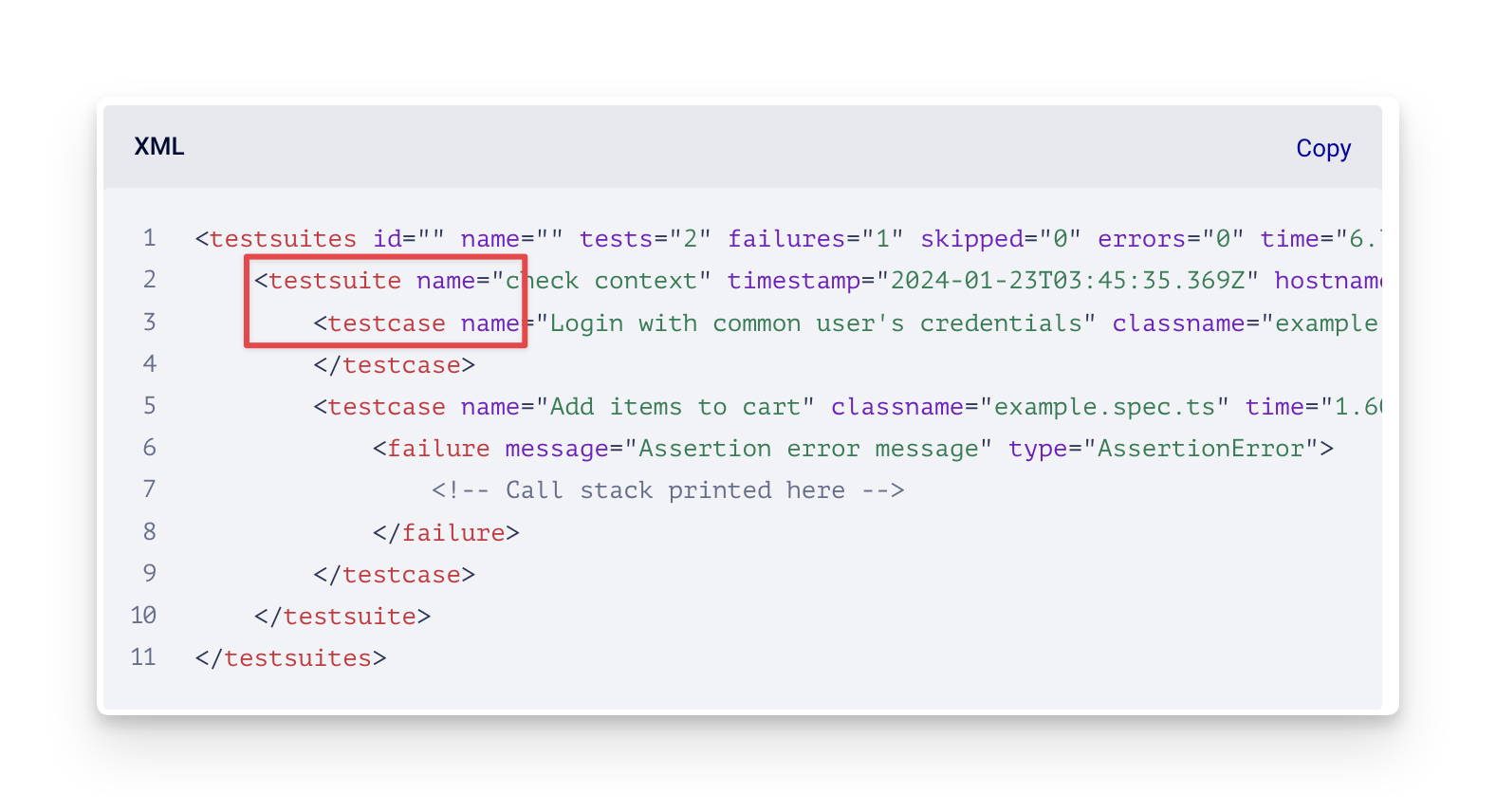
When you upload new test cases from test result files, AgileTest checks the testsuite and testcase names.
-
If new test cases match existing ones, AgileTest skips them to avoid duplicates.
-
If they don't match, AgileTest adds new test cases to the existing execution.
Learn more about these Test Results files:
Should you need any assistance or further AgileTest inquiries, contact our 24/7 Support Desk!