
The Approval feature in PlanCore allows managers, project leads, and designated approvers to review submitted plans, approve them, reject them for revision, or revoke a previous approval when updates are required. Use this page as a guide to understand how to access approval requests, review plan details, and complete approval actions.
Before you begin: Make sure you have the required PlanCore approval permission. If you cannot see approval requests or approval actions, contact your PlanCore administrator to confirm your role and permissions.
How to Access Plan Approvals
-
Open PlanCore.
-
From the left sidebar, go to the area for submitted plans or approval requests.
-
Select Approvals or Plan Requests to open the approval page.
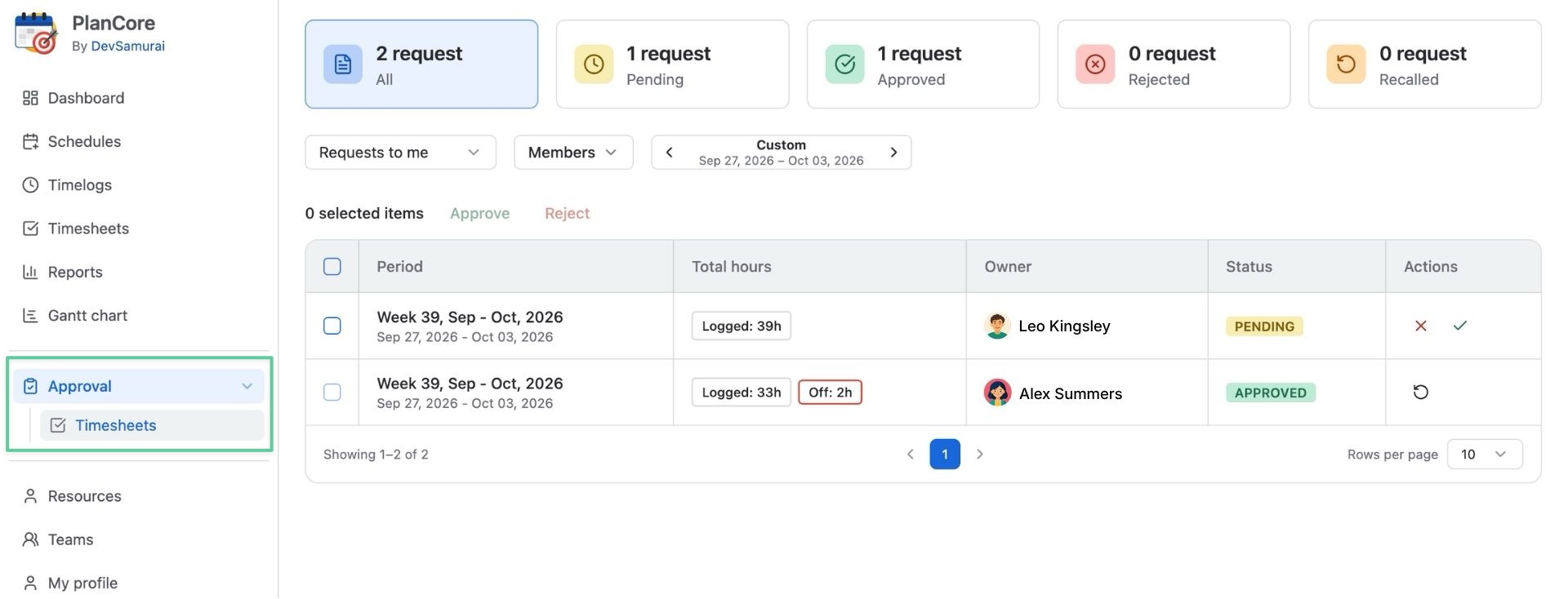
The approval page shows plans that have been submitted for review. Depending on your permissions, you may see all submitted plans or only the plans assigned to you for approval.
Plan Approval Page Overview
The Plan Approval page is typically divided into sections that help approvers find, review, and act on submitted plans efficiently.
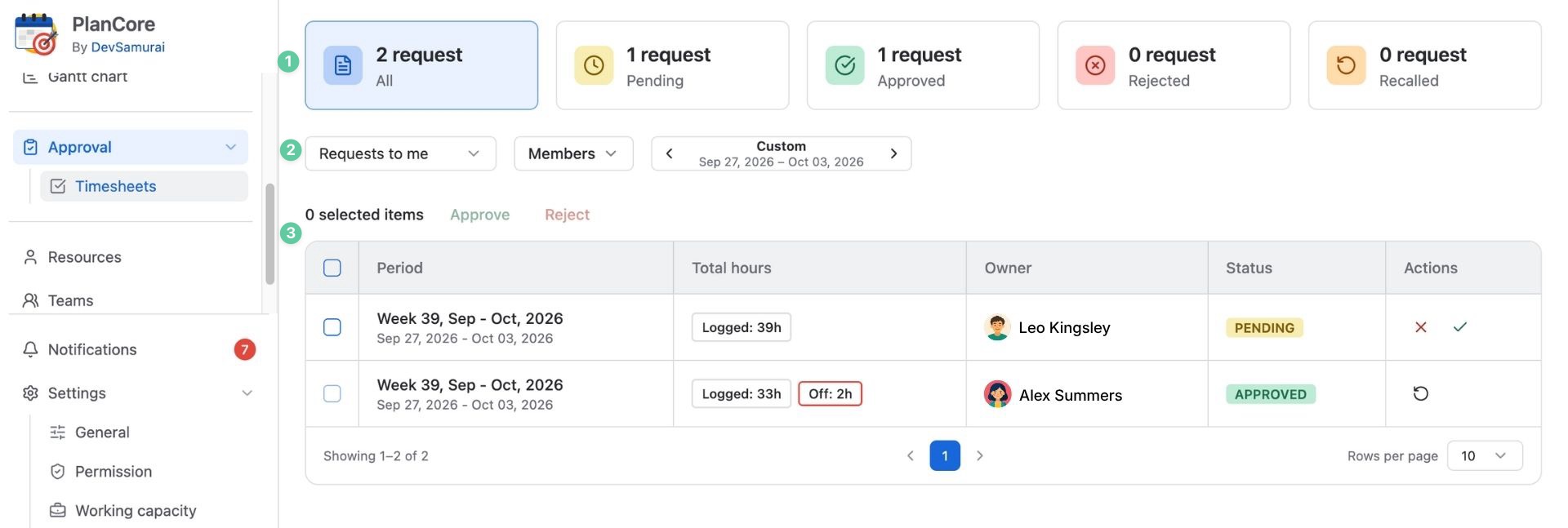
1. Filters and Selectors
Use filters to narrow down the list of plan approval requests:
-
All requests / Requests to me – View all submitted plans or only the plans that require your approval.
-
Owner or member filter – Filter requests by the person, team, or project associated with the plan.
-
Date range selector – Choose the planning period or submission period you want to review.
-
Status filter – Display plans by approval status, such as pending, approved, rejected, or recalled.
2. Status Summary
The status summary gives a quick view of how many plan requests are in each state:
-
All – Shows the total number of submitted plans.
-
Pending – Plans waiting for review.
-
Approved – Plans that have been accepted.
-
Rejected – Plans that were declined and may require changes before resubmission.
-
Revoked – Previously approved plans that were reopened for updates.
Tip: Click a status card to quickly filter the list to that category.
3. Plan Details Table
The table or list view displays the plan requests that match the selected filters. Common information may include the plan name, owner, team, planning period, submitted date, approver, current status, and available actions.
If column customization is available, use the column selector to show or hide fields that are relevant to your review process.
Approving or Rejecting a Plan
1. Select the Date Range, Owner, Team, or Project
On the approval page, use the available filters to focus on the plans you need to review.
-
Use the owner, member, team, or project filter to find specific plans.
-
Use the date range selector to choose the planning period you want to check.
-
Use Requests to me to quickly show plans that are waiting for your approval.
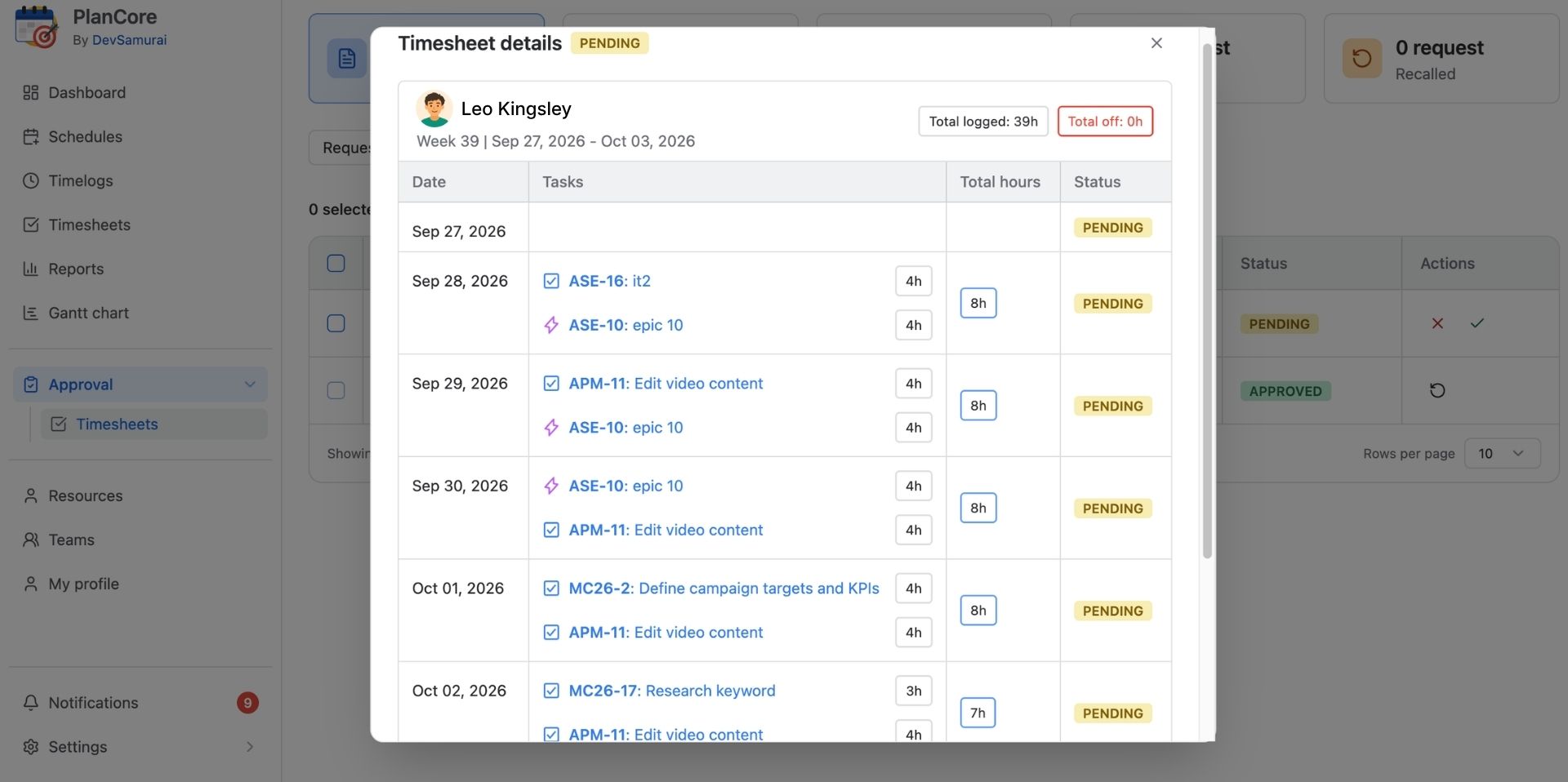
2. Open a Plan Request to View Details
-
Click a plan request in the list.
-
Review the plan details, including the plan period, assigned work, capacity, milestones, dependencies, and any notes submitted by the owner.
-
Check whether the plan aligns with project priorities, resource availability, deadlines, and organizational requirements.
3. Approve or Reject the Plan
-
Click Approve to accept the submitted plan.
-
Click Reject to decline the plan and return it for changes.
Optional: Add a comment or rejection reason so the submitter understands what needs to be updated.
After approval or rejection, the plan status updates automatically and becomes visible to the plan owner and other users with access.
Approving or Rejecting Multiple Plans
-
In the Plan Approval list view, check the boxes next to the plan requests you want to process.
-
Use the select-all checkbox to choose all visible requests, if appropriate.
-
When the bulk action bar appears, click Approve or Reject.
-
Confirm the action in the dialog box.
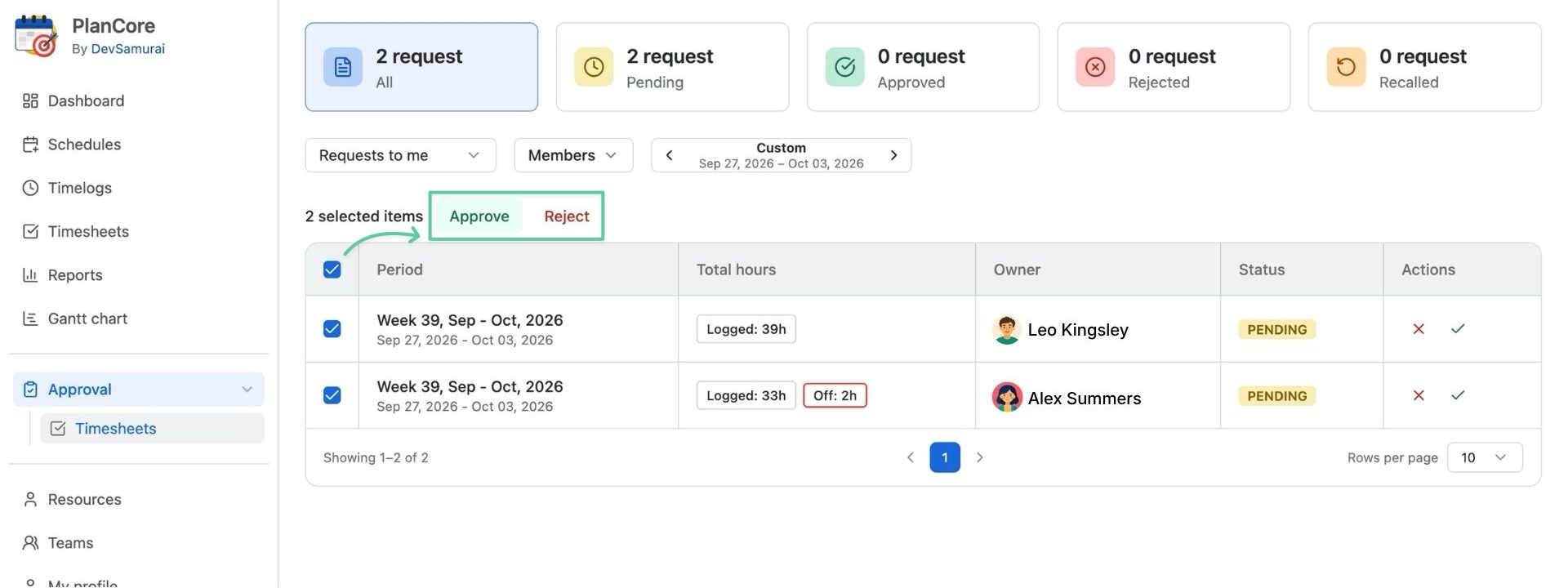
Note: Bulk approval should only be used after you have reviewed the selected plans and confirmed they meet approval criteria.
Revoking a Plan Approval
If a plan needs to be changed after it has already been approved, the owner may request a recall or an approver may revoke the approval, depending on the workflow configured in PlanCore.
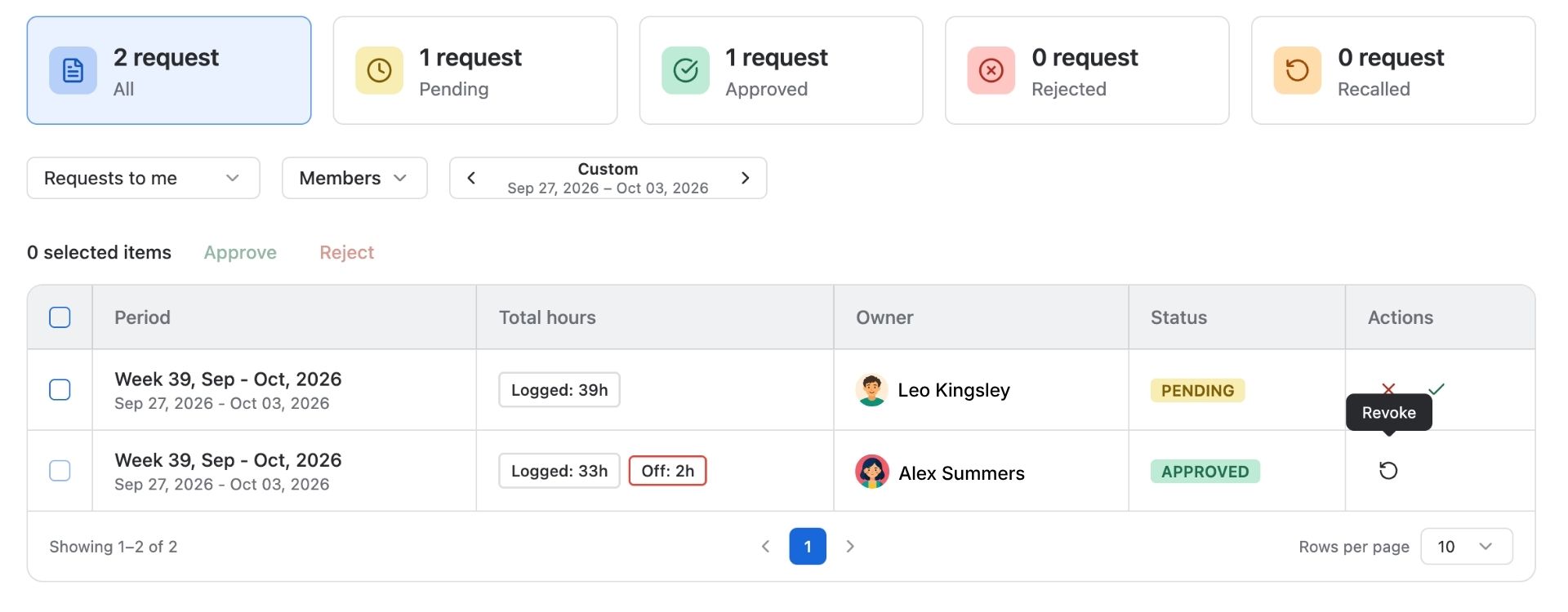
To revoke approval:
-
Find the approved plan in the approval list.
-
Click Revoke or open the plan details and choose the revoke action.
-
Confirm the action in the dialog box.
Once revoked, the plan returns to an editable or open state so the owner can make changes and submit it again for approval.