-
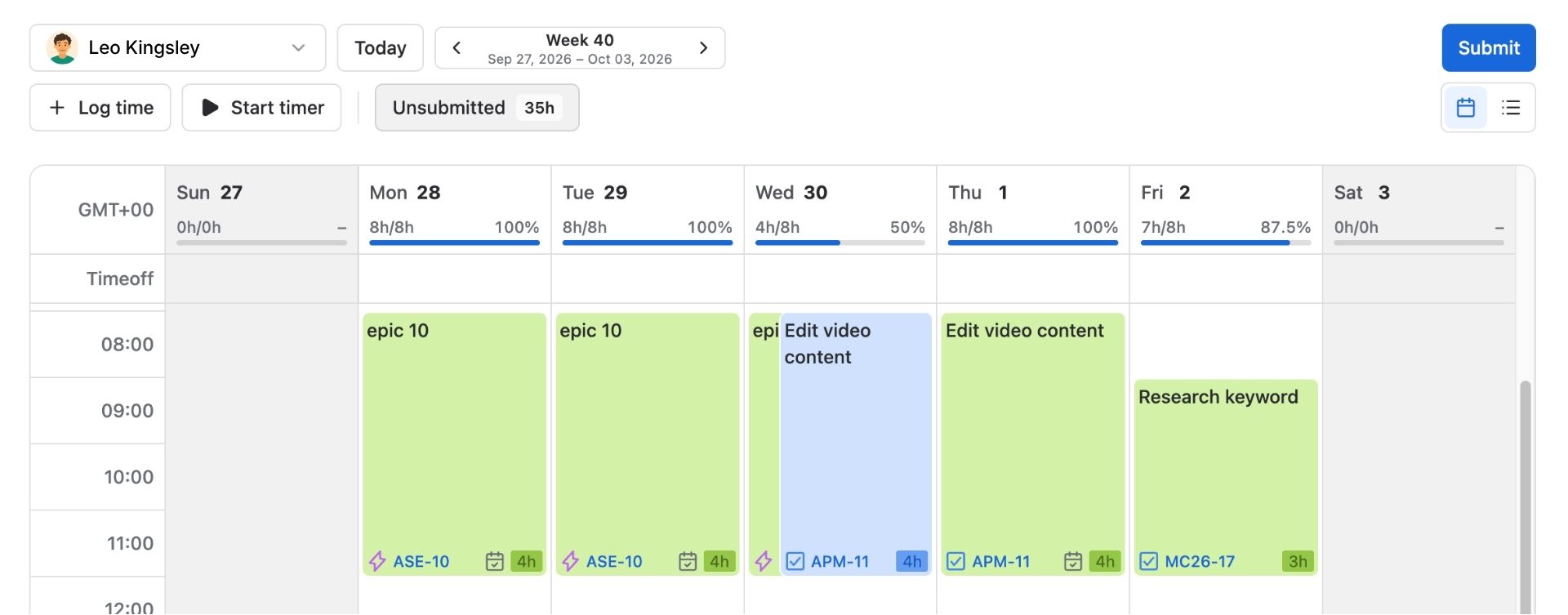
Regular members can only log their own time entries.
-
App Admins/Team Admins/Team Leaders can log and submit time on behalf of other team members.
Overview
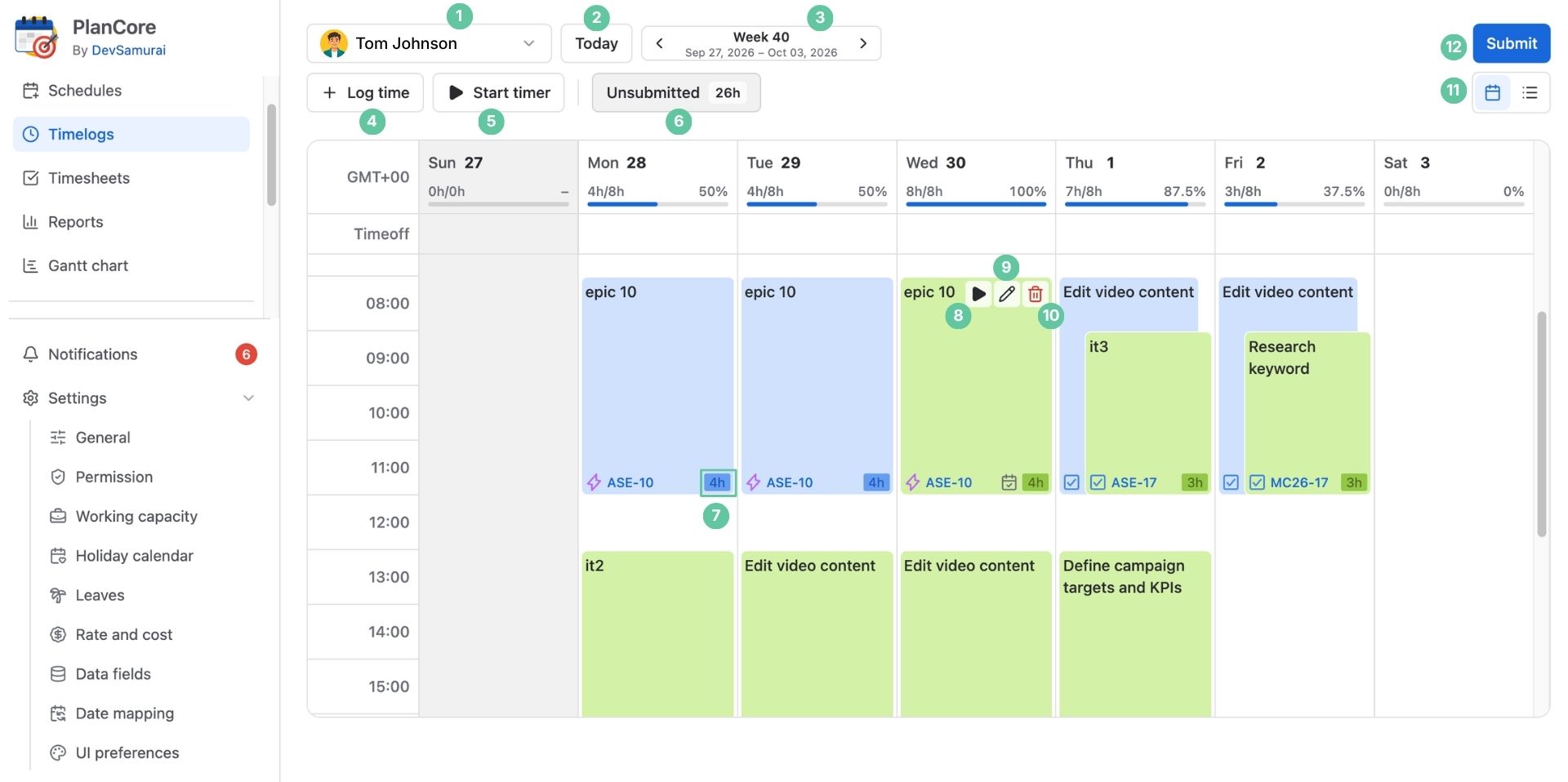
In PlanCore, the Timelog board provides a central place to log, track, and manage work hours directly in Jira. With its calendar-style view, users can easily record time against specific tasks and events, review their work schedule, keep track of progress, and submit logged hours for approval.
|
Field |
Description |
|---|---|
|
Choose whose timelog you want to view.
|
|
Allows going to today's week quickly. |
|
Allows switching between different weeks to view or log time entries for specific dates. |
|
Users can add time entries directly for Jira Work items, events, or custom tasks. |
|
Track time for a specific task in real time by the second, with the time automatically recorded when the timer stops. |
|
Displays the total hours that have not been logged across all tasks for the selected week. |
|
Displays the total time logged for each specific work item. |
|
Allows users to quickly start the timer to log entries directly on a specific task. |
|
Users can manually enter or change the time spent on a task or an event by clicking on the entries. |
|
Toggle between List and Calendar views to see your time logs in the format that suits you best. |
|
Remove an entry from the time log before submitting for approval. |
|
Submit your time logs for approval. |
In the Timelogs calendar view, there are two types of time entries after logging:
-
Scheduled time entry: time entries have been planned in the Schedules board but have not been logged yet (marked in blue).
-
Logged time entry: time entries have been scheduled and logged, ready to be submitted for approval (marked in green).