
PlanCore permissions control who can view, edit, and manage information in the app. Assign roles to users or Jira groups according to their responsibilities.
Only users with the App Admin role should manage permission settings.
Assign roles
-
Open Settings → Permission in PlanCore.
-
Find the role you want to assign.
-
Add a user or a Jira group to that role.
-
Review the resulting access and remove assignments that are no longer needed.
Permissions may be combined when a person needs more than one area of access. Grant only the roles required for their work.
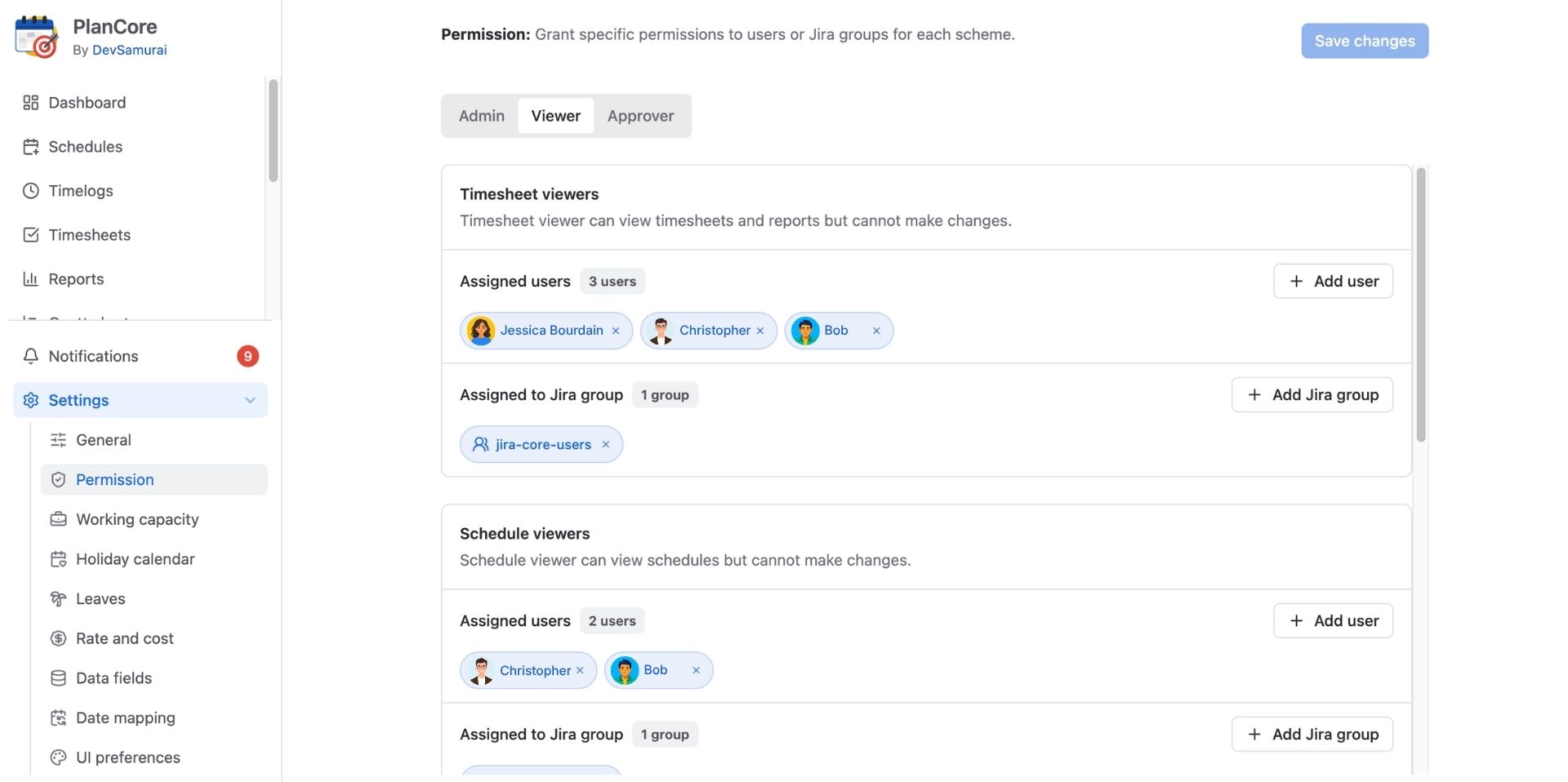
Role and permission overview
|
Group |
Role |
What the role is for |
Typical assignee |
|---|---|---|---|
|
Admin |
App Admin |
Full app access, including configuration and permission management. |
Organization or Jira administrators responsible for PlanCore. |
|
Team Admin |
Manage teams, membership, and team-related planning where those features are enabled. |
Team managers and team leads. |
|
|
Client Admin |
Manage client information and related planning where available. |
Client or portfolio managers. |
|
|
Billing/Cost Admin |
Manage rates, billing, and cost settings where available. |
Finance or billing managers. |
|
|
Viewer |
Timesheet Viewer |
View and manage personal work logs and timesheets where available. |
Users tracking their own time. |
|
Schedule Viewer |
View and manage personal schedules and planned work where available. |
Users planning their own work. |
|
|
Client Viewer |
View client information without changing it where available. |
Users who need client visibility. |
|
|
Billing/Cost Viewer |
View billing and cost information without editing settings where available. |
Users who review financial data. |
|
|
Approver |
Leave Approver |
Review and act on leave requests where available. |
HR staff and team leads. |
|
Timesheet Approver |
Review and act on submitted timesheets where available. |
Team or project leads. |