
The Dashboard gives you a quick view of key PlanCore metrics, including workload, capacity, logged hours, utilization, availability, and time off. Use it to monitor performance for yourself, selected members, a team, or the organization.
Dashboard data is displayed through widgets. You can add, configure, resize, move, refresh, export, or remove widgets to build a dashboard layout that matches how you work.
Access the Dashboard
From the left-hand navigation menu, select Dashboard. Your saved widgets and current dashboard layout will appear.
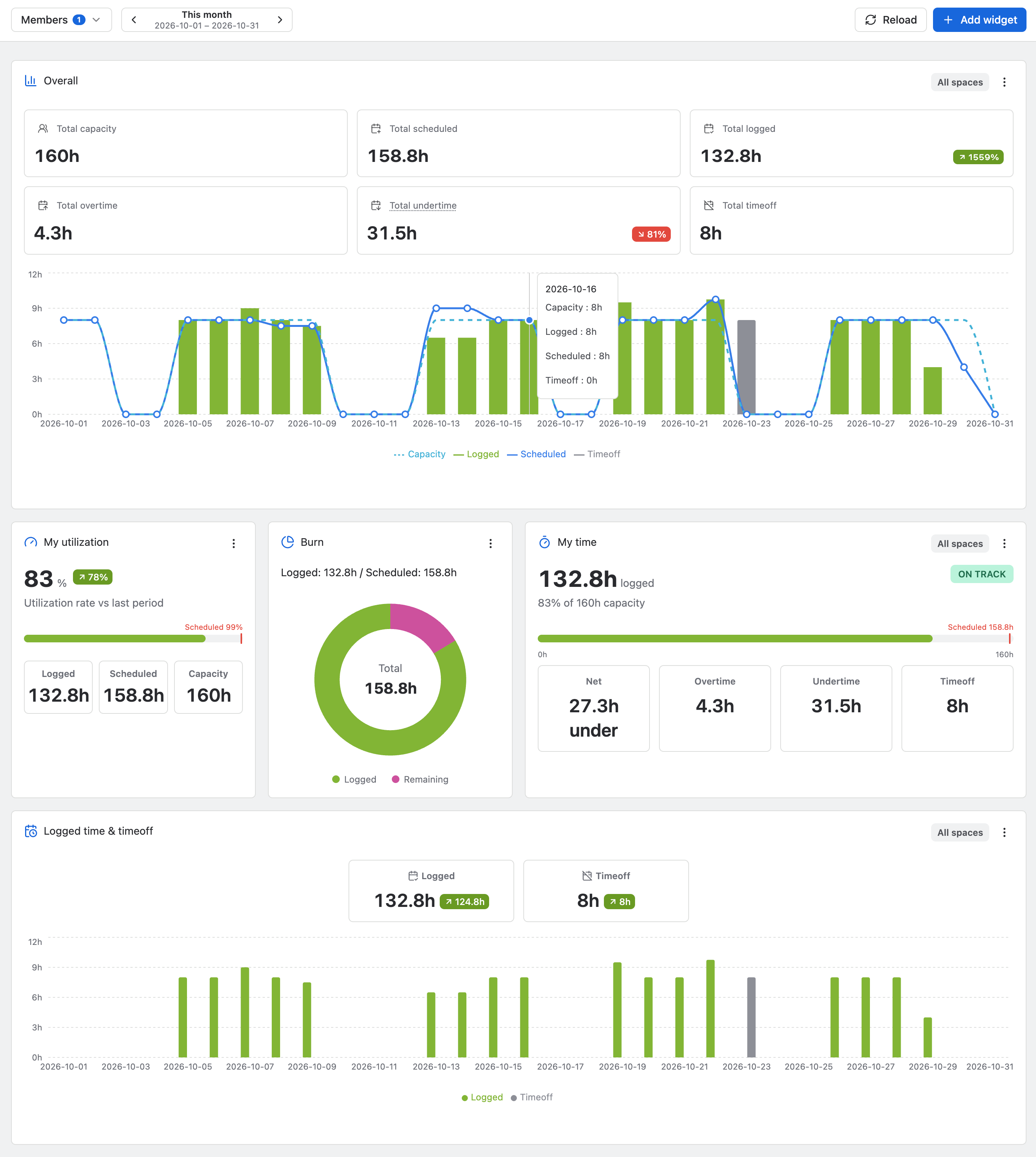
Dashboard controls
Use the main controls at the top of the Dashboard to adjust the data shown across supported widgets.
|
Control |
Description |
|---|---|
|
|
Select one or more members, or choose a single team, to focus the Dashboard on specific resource data. |
|
|
Choose the reporting period shown on the Dashboard. Use the arrows to move between periods and review the exact date range below the selected option. |
|
|
Open the widget library to add workload, capacity, scheduling, time tracking, leave, or reporting widgets. |
|
|
Reload data across all widgets to show the latest available information. |
|
|
View all added widgets in one place. Widgets can be moved and resized to fit your preferred layout. |
|
|
Refresh a widget, open its settings, export it as an image, or remove it from the Dashboard. |
Dashboard filters
Use the Dashboard filters to control the scope of your dashboard data. First choose who or what you want to review, then choose the reporting period.
Filter by resource
-
Select the resource filter at the top of the Dashboard.
-
Choose one or more members, a team, or another available resource.
-
Review the widgets that update to show data only for the selected resource scope.
Filter by time period
-
Select the time period control.
-
Choose the period you want to analyze, such as the current week, month, or a custom ranges available.
-
Use the previous/next arrows to move between periods.
-
Check the displayed date range to confirm the Dashboard is showing the correct timeframe.
Use Clear filters when you want to reset the Dashboard and return to the default view.