
The Reports feature in PlanCore helps you review planned work, actual logged time, capacity, utilization, and financial performance in one place. Use reports to understand how time is scheduled, how work is completed, and where plans differ from actual results.
When to use Reports
Use Reports when you need to:
-
Compare scheduled time with logged time.
-
Review team capacity, overtime, undertime, and workload balance.
-
Analyze time spent by project, member, task, event, or custom activity.
-
Track billable work, cost, billing, and margin.
-
Save recurring report views for regular planning, review, or stakeholder updates.
Open Reports
-
Go to the left sidebar in PlanCore.
-
Select Reports.
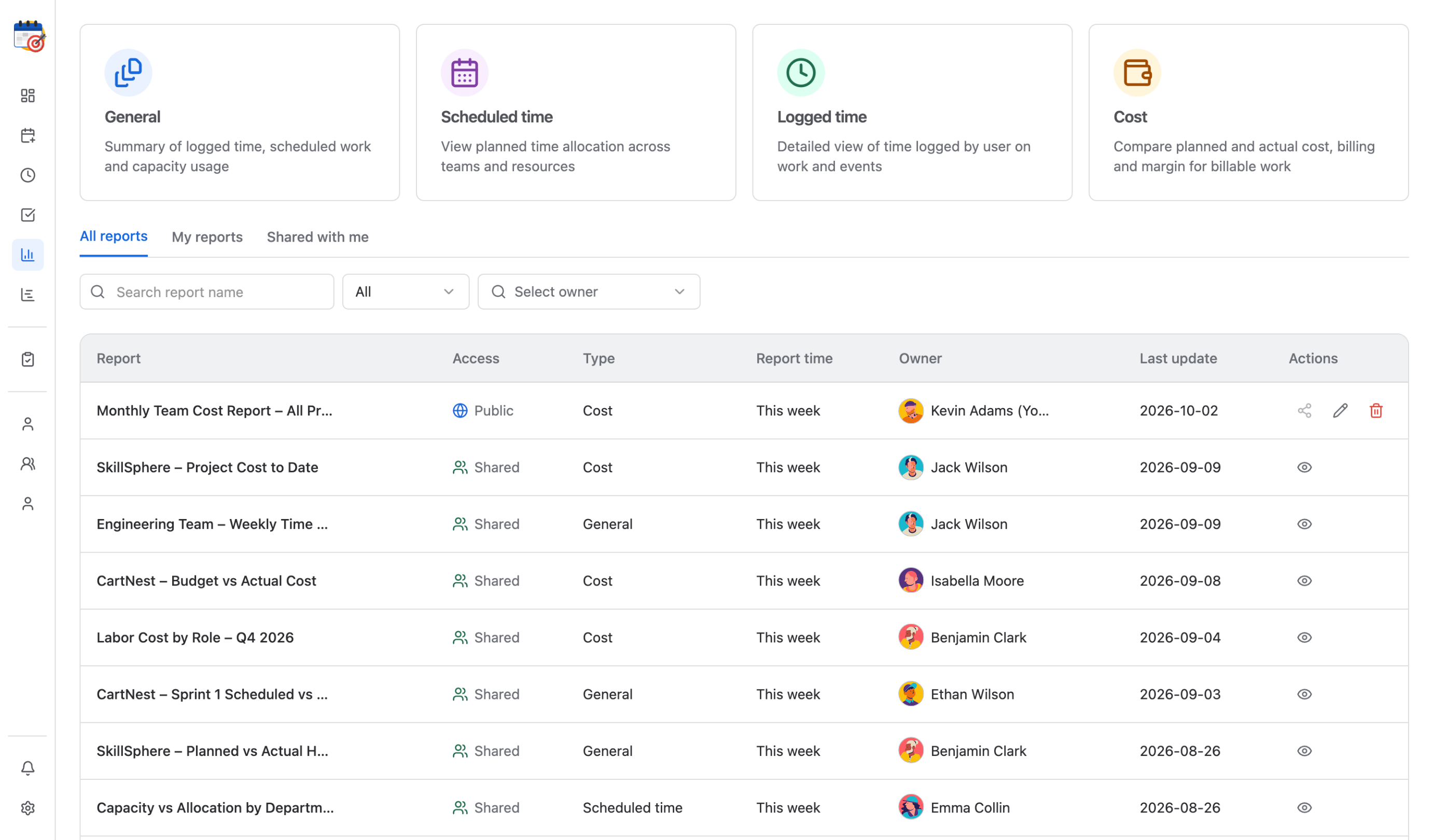
Report types
PlanCore supports four main report types. Choose the report based on the question you want to answer.
|
Report type |
Use it to |
Best for |
|---|---|---|
|
General Report |
Review scheduled time, logged time, capacity, overtime, undertime, net time, and time off in one combined view. |
Overall performance and plan-vs-actual analysis. |
|
Scheduled Time Report |
Review how planned hours are allocated across projects, teams, or members within a selected period. |
Workload planning and capacity review. |
|
Logged Time Report |
Review actual hours logged by team members on tasks, events, and custom activities. |
Productivity analysis and actual effort tracking. |
|
Cost Report |
Compare planned and actual cost, billing, margin, and billable hours. |
Financial performance analysis for billable work. |
Cost Reports are available only to users with permission to view financial data, such as Admins or Financial Managers.
Report list view
The report list shows saved reports that you can access and reuse. Use the tabs to quickly find the reports you need.
|
Tab |
Description |
|---|---|
|
All reports |
Shows all reports you have permission to access. |
|
My reports |
Shows reports created by you. |
|
Shared with me |
Shows reports created by other users and shared with you. |
Report list columns
Each saved report includes summary details to help you identify and manage it.
|
Column |
Description |
|---|---|
|
Report name |
The name of the saved report. |
|
Access |
The report visibility, such as private, public, or shared. |
|
Type |
The report type, such as General, Scheduled Time, Logged Time, or Cost. |
|
Report time |
The configured time period for the report. |
|
Owner |
The user who created the report. |
|
Last update |
The most recent time the report was changed. |
|
Actions |
Available actions, such as opening, editing, sharing, or deleting a report. |
Create a report
-
Select a report type: General, Scheduled Time, Logged Time, or Cost.
-
Enter the report details, including Name and Access.
-
Configure filters such as project, member or team, time range, and optional fields.
-
Choose whether to show charts, where available.
-
Select Save to create the report.
Discover every report type
Use the pages below for detailed instructions on each report type and report management.