.png)
Learn how to create and manage retrospective meetings in AgileBox.
Click the Retrospective button on the top-left menu bar of the AgileBox screen to open the Retrospective page.
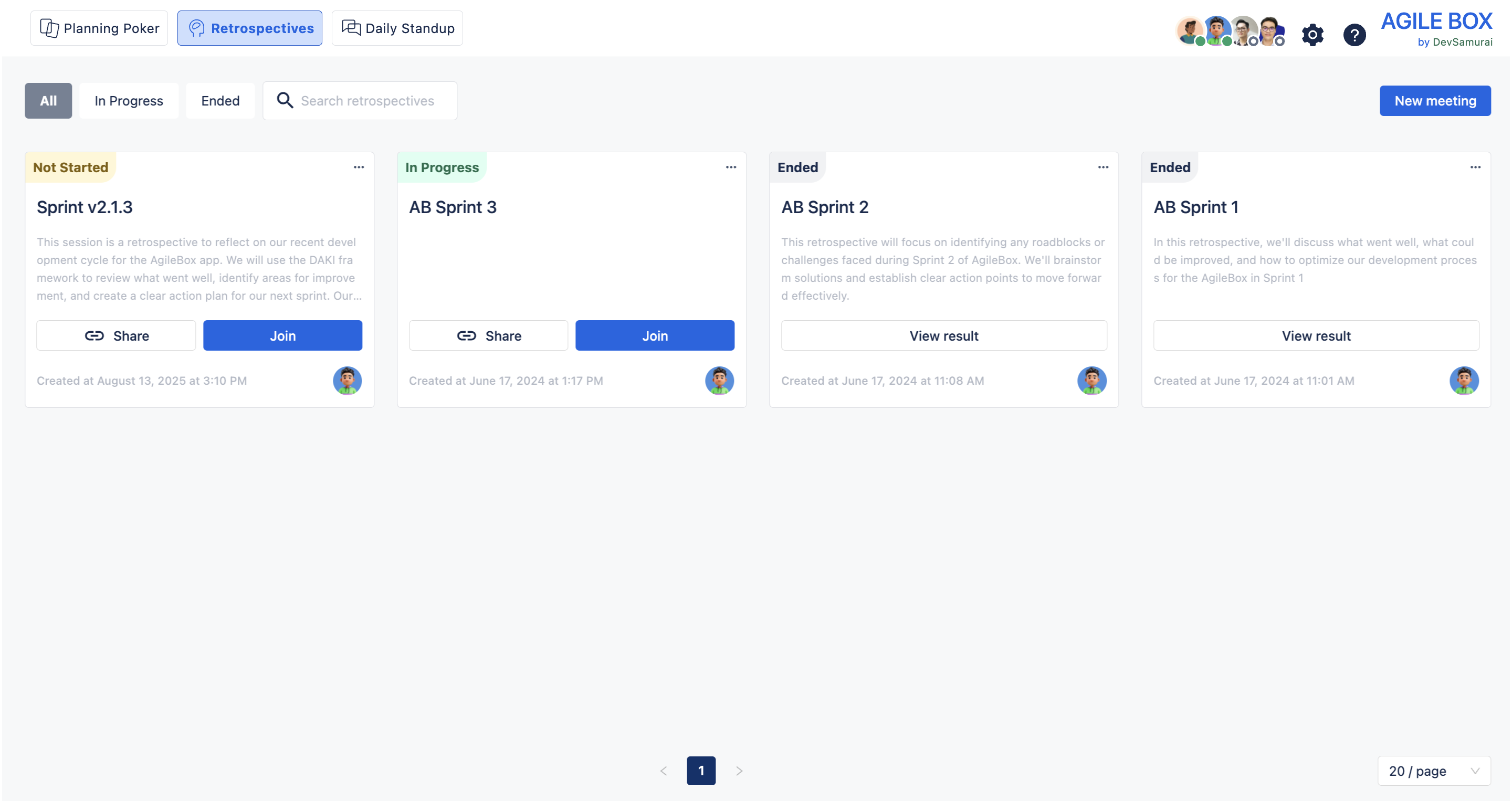
Retrospective page
Quickly view important details about each meeting at a glance:
-
Meeting Name: The name of the meeting
-
Description: Details about the meeting
-
Meeting Status: Not Started, In Progress, or Ended
-
Created Time: When the meeting was created
-
Meeting Creator: The person who created the meeting
For meetings that are Not Started or In Progress, use the Share button to get a shareable link, or click Join to enter the meeting.
For Ended meetings, click View Result to review the meeting outcomes.
Filtering and Searching meetings
Use the search box to find specific retrospective meetings in your project.
Filter options include:
-
All: Shows Not Started, In Progress, and Ended meetings
-
In Progress: Shows only Not Started and In Progress meetings
-
Ended: Shows only Ended meetings
By clicking the ellipse symbol on the card, these roles can modify the created meetings as follows:
-
Meeting creator: Edit, Duplicate, and Delete
-
Jira admin: Duplicate, and Delete
-
Facilitator: Edit and Duplicate
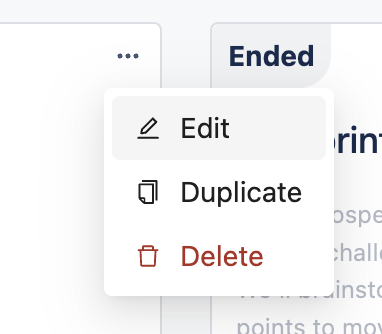
Creating a retro session
Step 1: Start a new meeting
Click the Add Meeting button at the top-right corner.
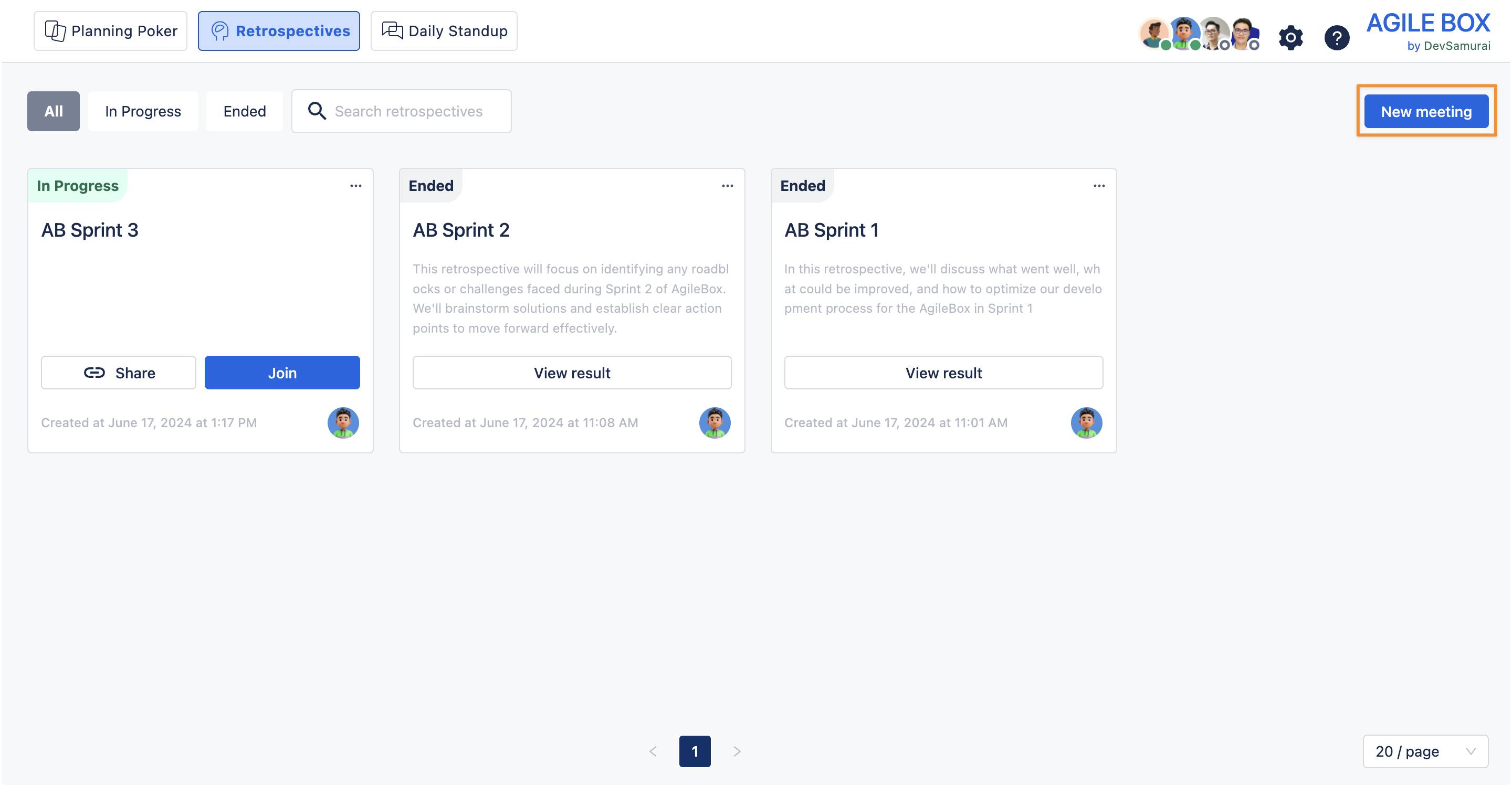
Step 2: Configure the retrospective meeting
Fill in the form with the following details:
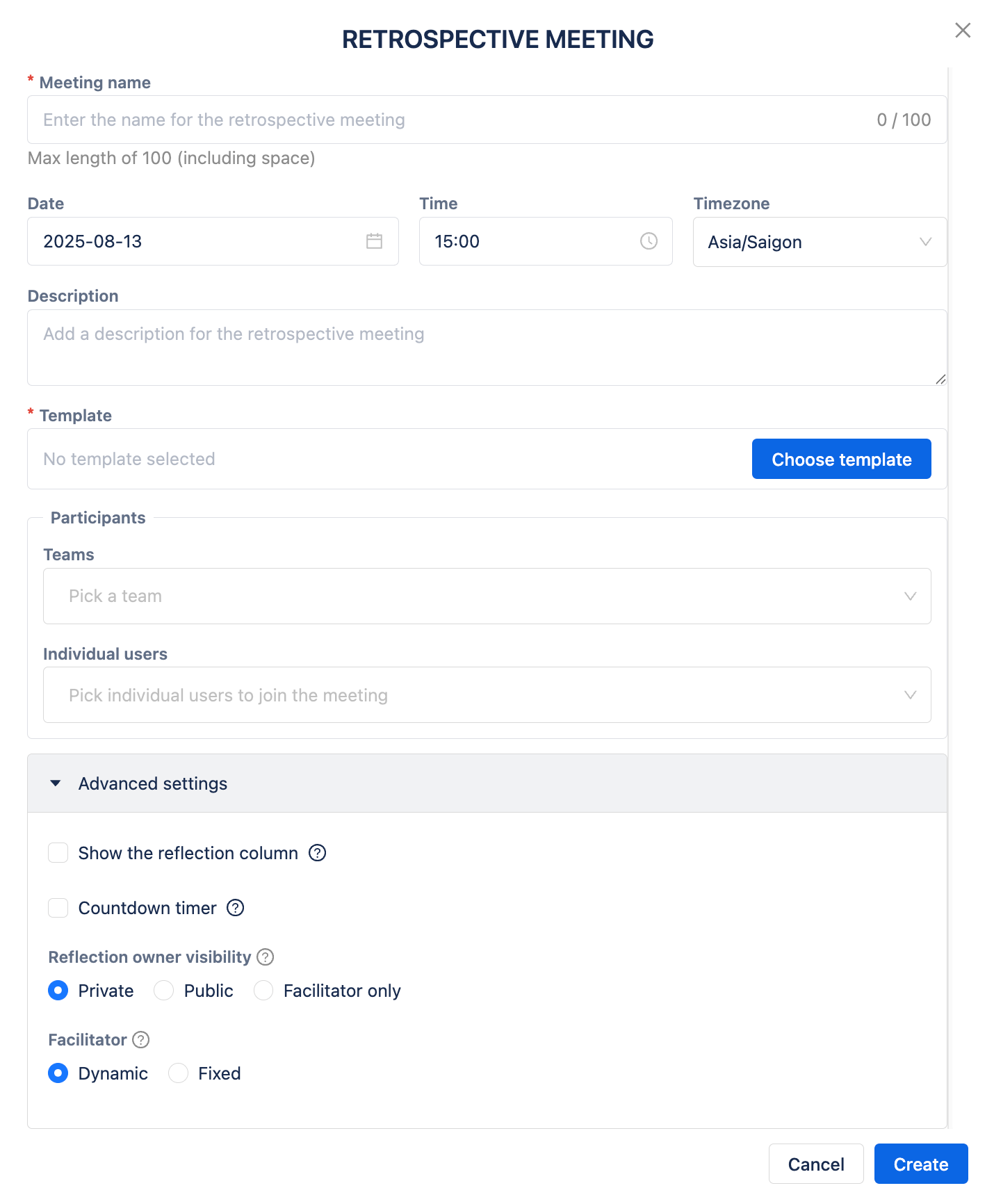
General Information
This section requires filling in the information:
-
Meeting Name*: Enter the name for your retrospective meeting.
-
Date and Time: Schedule the meeting time.
-
Description: Add any relevant details.
-
Template*: Choose a retrospective template. (See Retrospective templates for options.)
-
Participants*: Select teams or individual users to join the meeting.
Advanced settings
This section allows the creator to configure the advanced options for the meeting.
-
Show the reflection column: Display the title of the associated column for the reflection
-
Countdown timer: Set a timer for each stage of the meeting
-
Reflection owner visibility: Decide who can see reflection owners on cards:
-
Private: All owners hidden
-
Public: All owners visible
-
Facilitator Only: Only the facilitator sees the owners
-
-
Facilitator (this option is locked once the meeting starts): Choose between:
-
Dynamic: Facilitator role can change during the meeting
-
Fixed: One fixed facilitator for the entire meeting
-
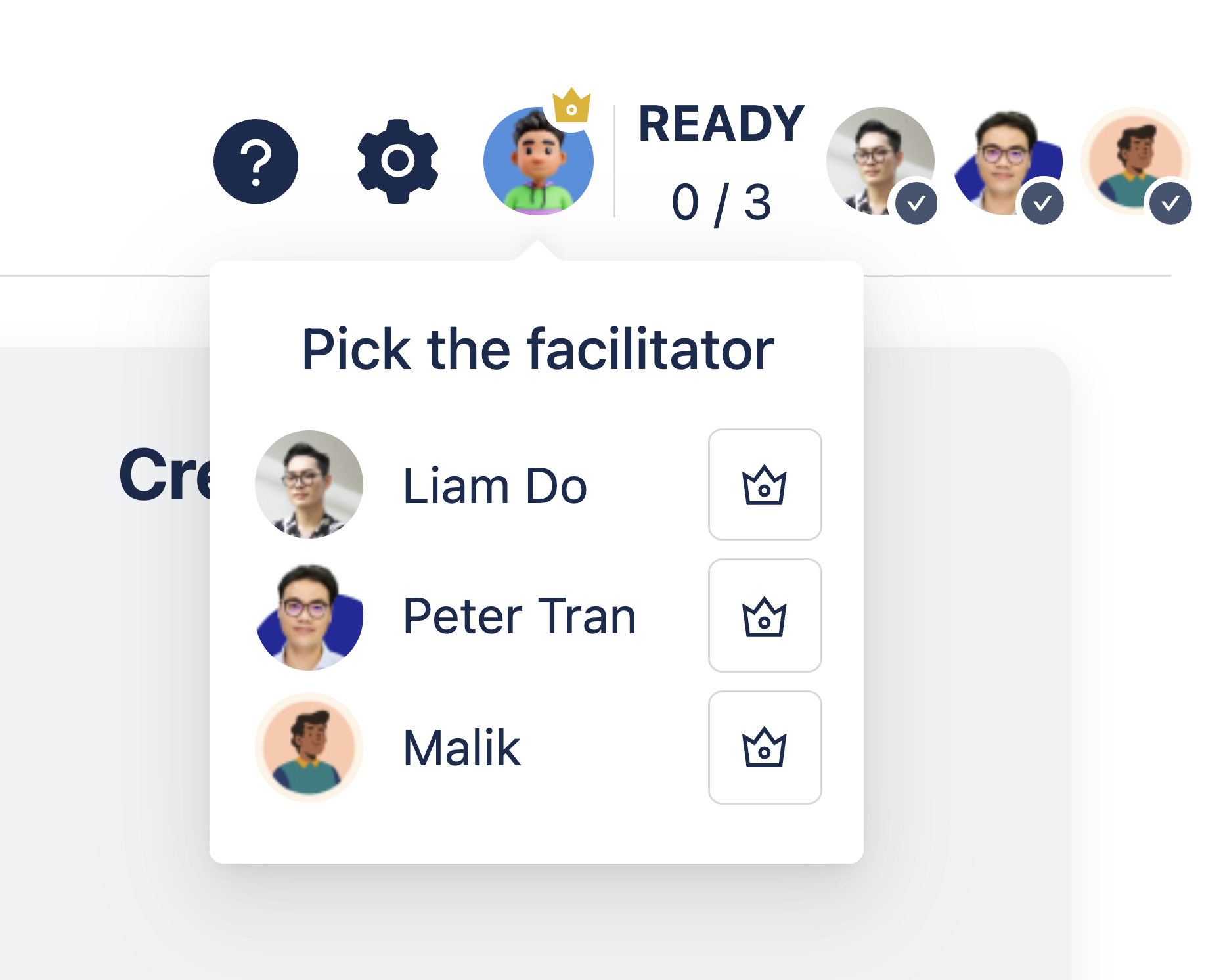
With the Dynamic type, the current facilitator can transfer their role during the meeting by clicking their avatar (marked with a crown) and selecting a new facilitator from the list.
When done, click Create to start your retrospective session.
Learn how to join a retrospective meeting: Joining a retrospective meeting