
Open your individual timesheet
In PlanCore, open Timesheets from the left navigation, then choose the Member tab. This view brings together the selected person’s recorded time, daily entries, and approval information.
Timesheet overview
Use the controls and summaries below to review time for a particular member and period.
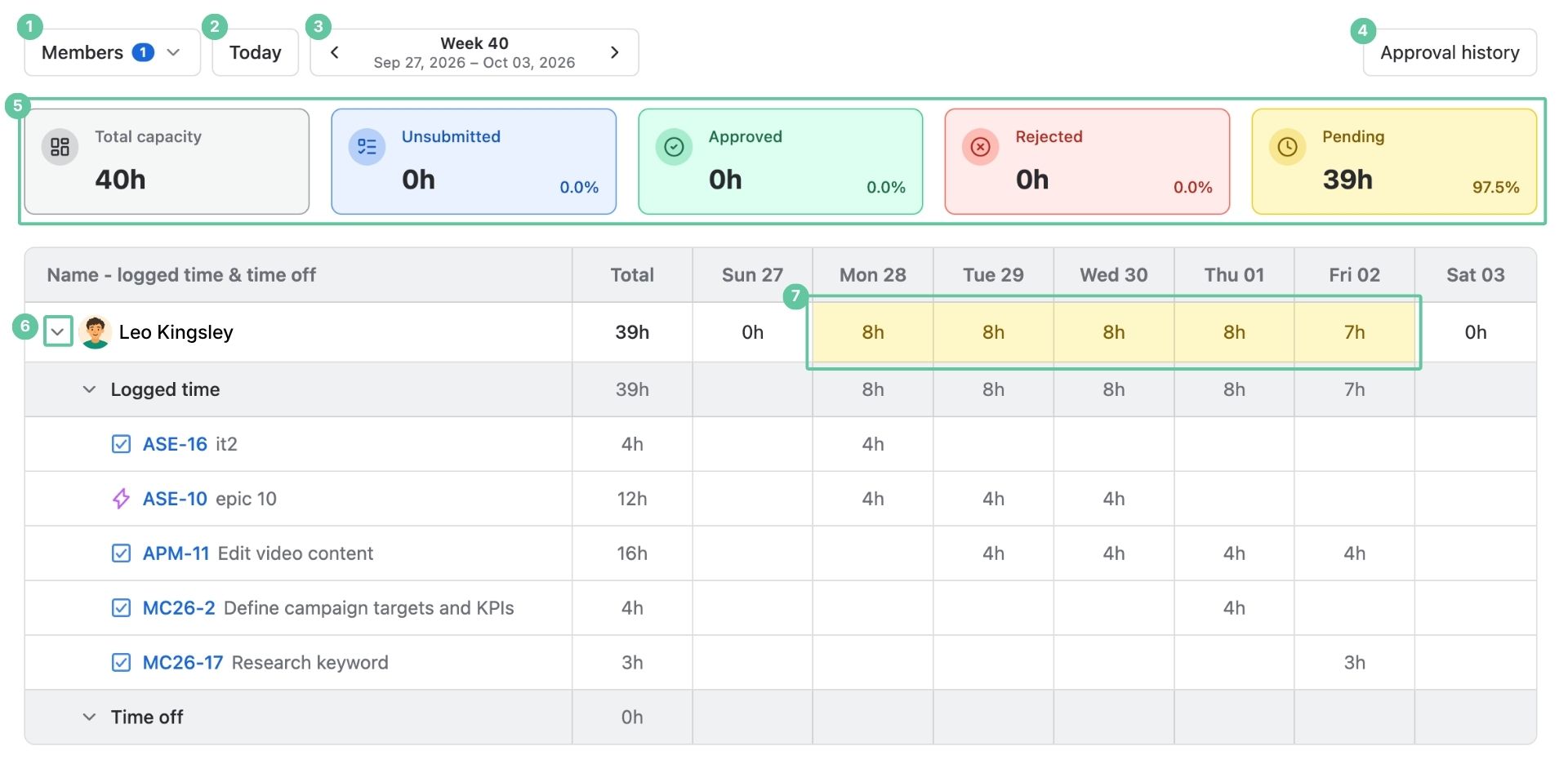
|
Element |
What it does |
|---|---|
|
Shows whose timesheet is on screen. Change the selection to inspect another person, or select multiple members when you need to compare their records. |
|
Quickly go to today’s timesheets. |
|
Focus on a week, a month, or a custom span of dates. |
|
Open the record of timesheet submissions and review decisions. |
|
See hours grouped as Total, Unsubmitted, Approved, Rejected, and Pending for the selected period. |
|
Expand or collapse recorded work and leave to review the relevant entries. |
|
Review each member’s logged-time and time-off totals, with a day-by-day breakdown. |
Review your approval history
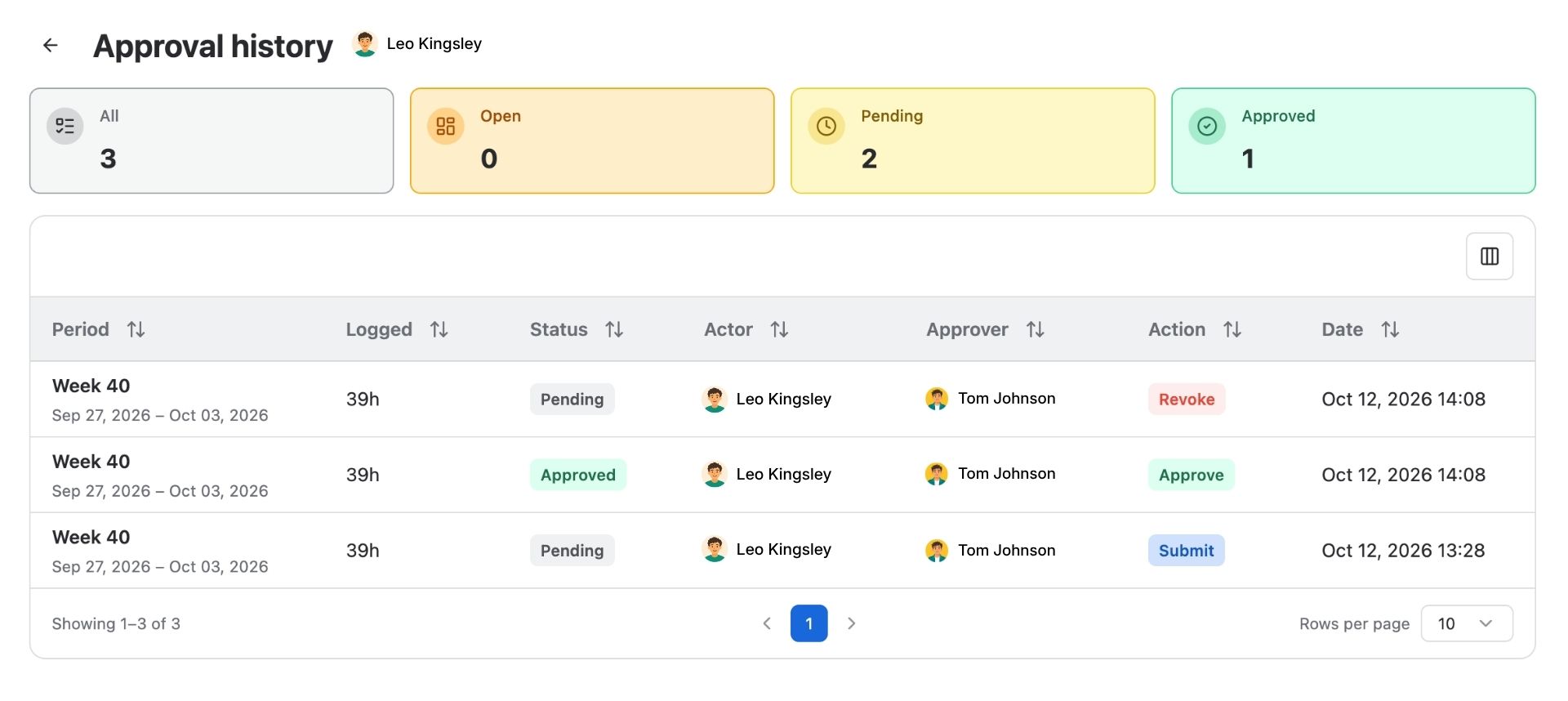
From Timesheets, select Approval History near the upper-right of the page. Use it to trace submissions and the decisions made on each period.
|
Column |
Meaning |
|---|---|
|
PERIOD |
The week or other date span covered by the timesheet. |
|
LOGGED |
The hours recorded during that period. |
|
STATUS |
OPEN means not submitted or returned for resubmission; PENDING means waiting for review; APPROVED means accepted. |
|
ACTOR |
The person who submitted the timesheet or updated it. |
|
APPROVER |
The person assigned to review and accept or reject the submission. |
|
ACTION |
The recorded event: Submitted when sent for review, Approved when accepted, or Rejected when declined. |
|
DATE |
When the action occurred. |