.png)
In Jira, a plan can look realistic until real availability gets in the way.
A sprint is fully loaded. A release timeline looks on track. Work is assigned across the team. Then someone goes on leave, a public holiday reduces working days, or a part-time contributor has less capacity than the plan assumed. What looked manageable in Jira suddenly becomes harder to deliver.
This is a common issue for project managers, team leads, and delivery teams. Jira helps organize work well, but delivery still depends on whether the right people are actually available at the right time. If availability is not considered early, teams often discover the problem too late – when workloads are already uneven, or milestones are already under pressure.
The solution: plan with real capacity from the start
The best approach is to make availability part of planning from the beginning.
That means understanding the real capacity behind the work before the schedule becomes too fixed. Teams need to know who is available, who is out, which dates are affected by holidays, and where reduced hours or shared responsibilities may affect delivery. Once that picture is clear, they can shape the plan around those conditions instead of reacting later.
This leads to several practical benefits:
-
More realistic timelines
-
Earlier visibility into risk
-
Better workload balance
-
Fewer last-minute schedule changes
It also helps teams make better decisions when availability changes. Instead of scrambling after the impact is already visible, they can adjust assignments, protect important milestones, and rebalance work with more control.
How to plan around real team availability in Jira
Once availability starts affecting delivery, the goal is not just to “track leave” or “move a few tasks.” The goal is to connect real team availability to the actual delivery plan.
That is where the two apps work well together. TimePlanner helps teams manage the people side of planning – leave, holidays, and working capacity – while ProScheduler helps teams reflect that reality in the project timeline, workload view, and delivery plan.
TimePlanner and ProScheduler share several synced planning foundations, so teams can work in either app without starting from scratch each time.
-
TimePlanner is stronger for managing people’s availability and tracking time across your Jira site (teams, capacity, holidays, leave)
-
ProScheduler is stronger for turning that capacity into a project/program delivery plan and understanding timeline impact
Step 1. Set up real team availability
This step can be set up in both apps: ProScheduler and TimePlanner.
Start by making sure the team’s real availability is reflected correctly in TimePlanner or ProScheduler.
This usually means reviewing three things:
-
working capacity, which defines how many hours a person is expected to work each day,
-
holiday calendars, which can be set differently for different groups,
-
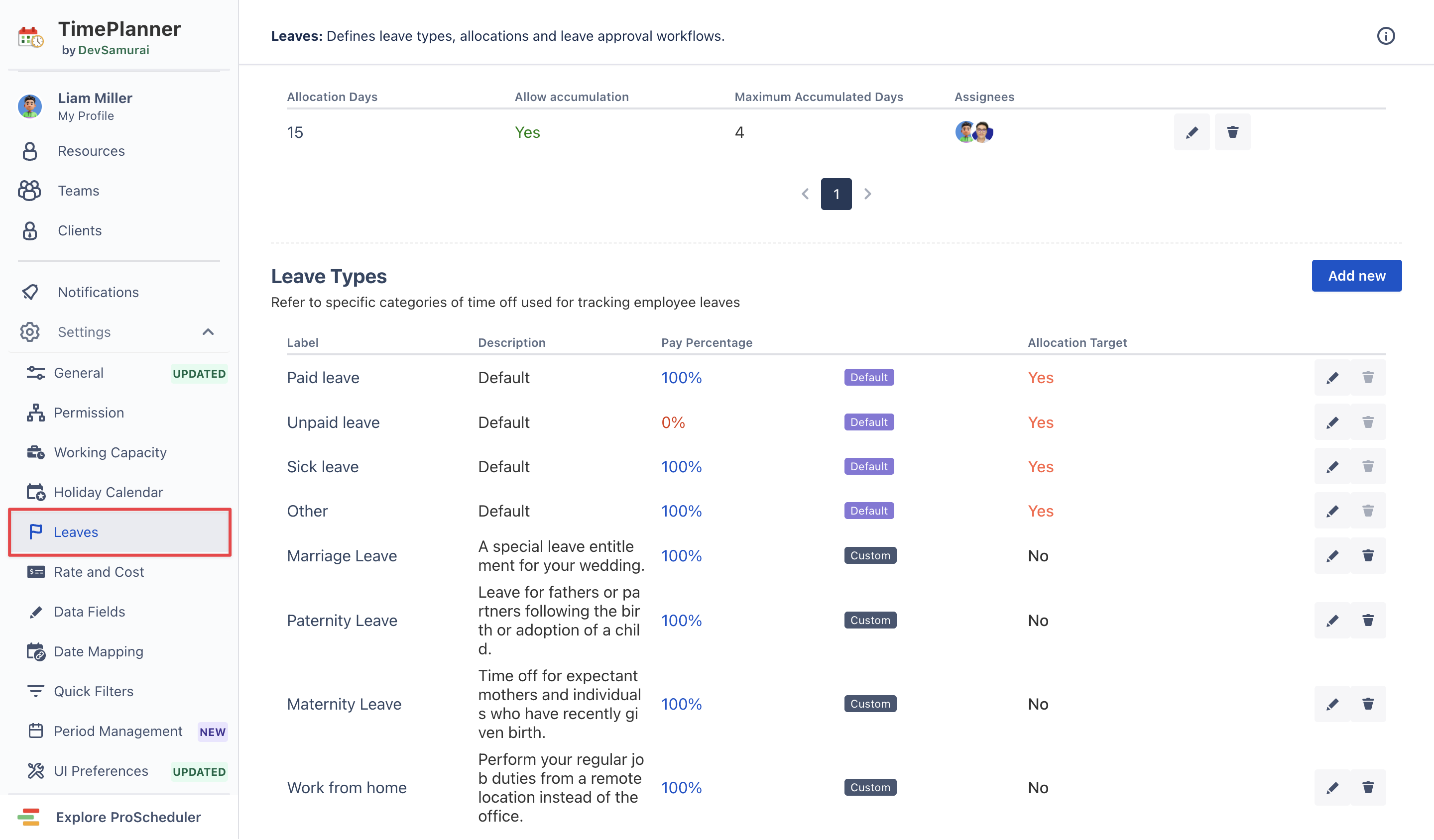
leave settings and leave types, so time off can be planned consistently.
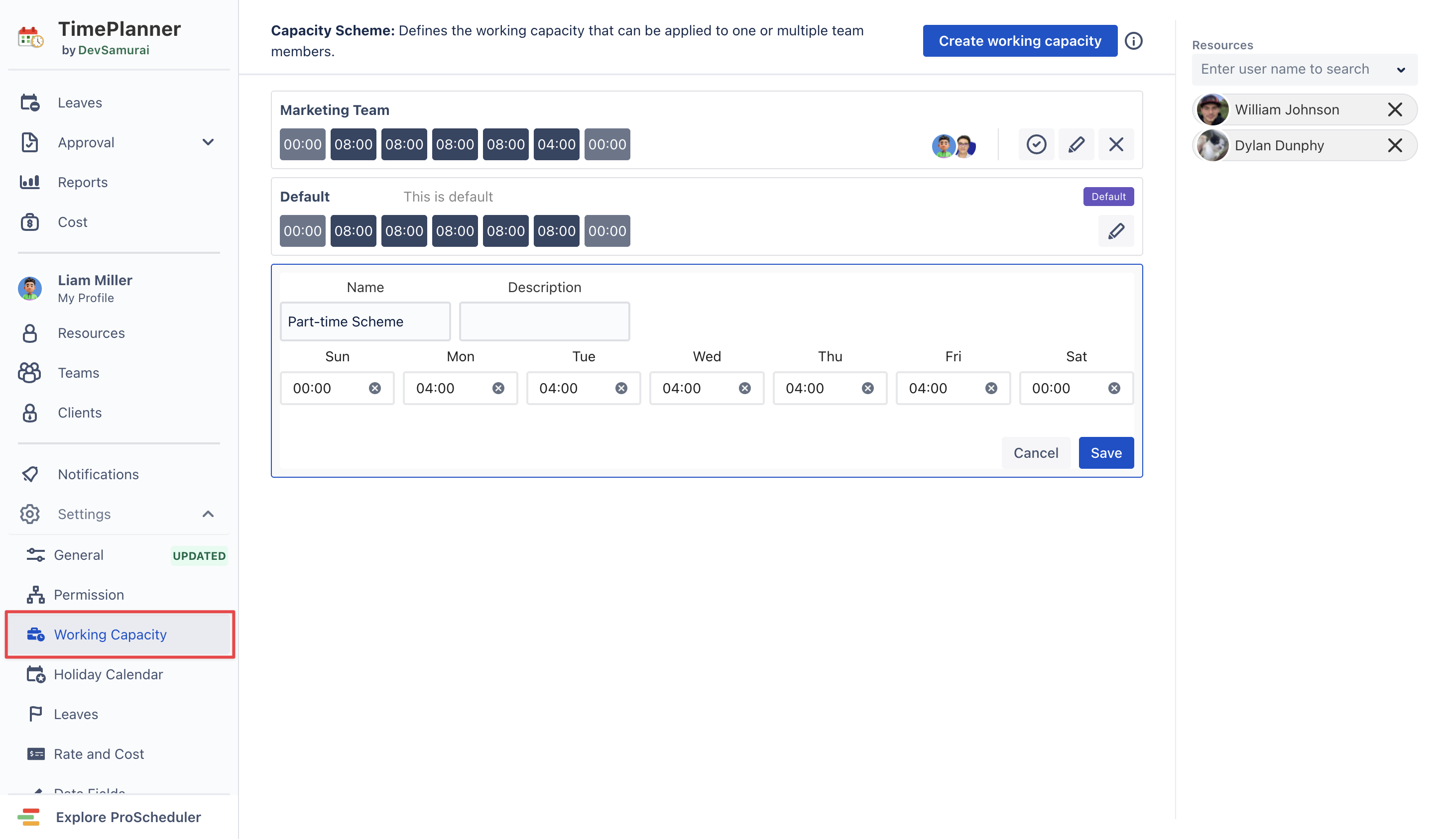
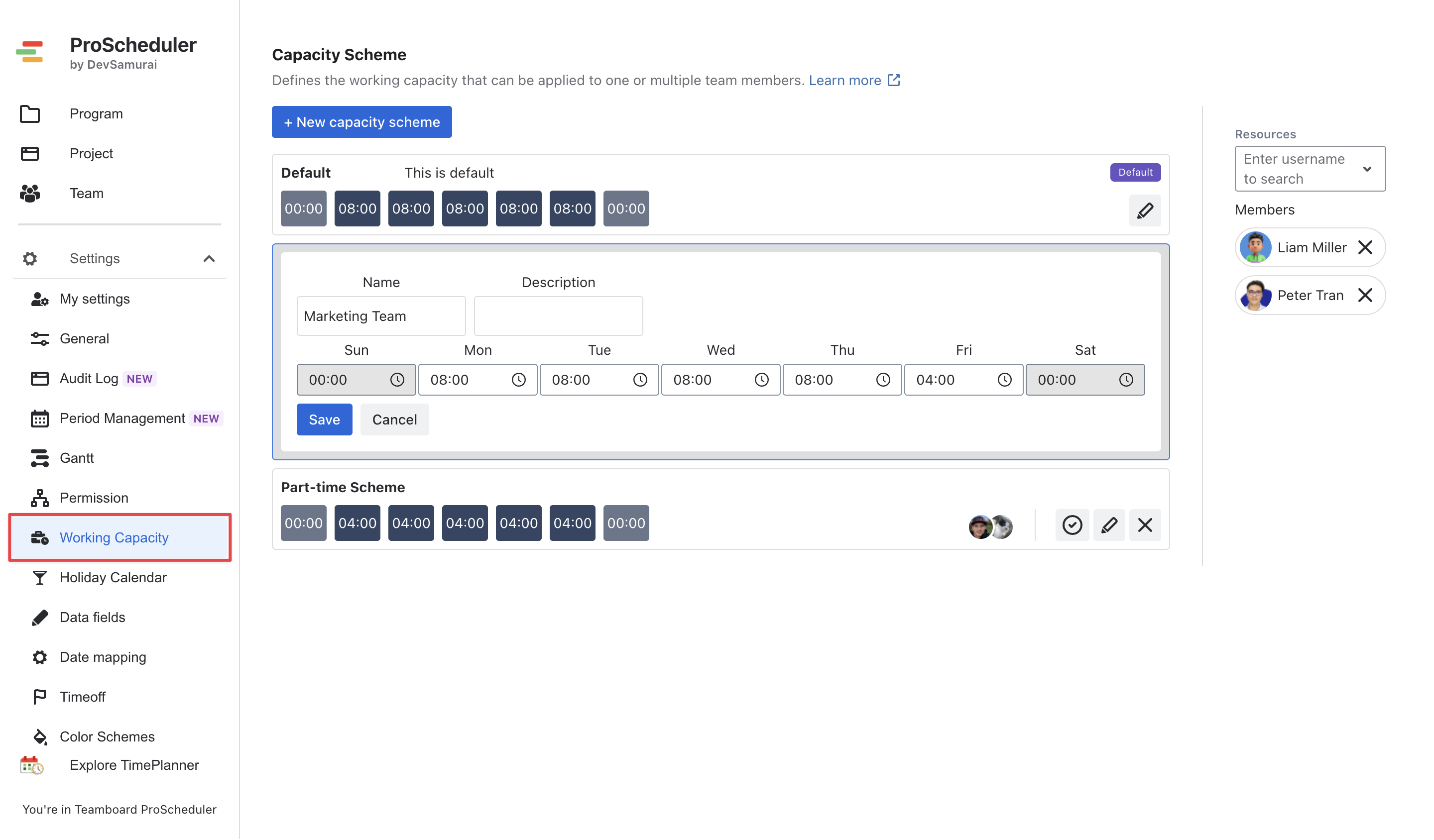
This step matters because availability planning becomes unreliable if everyone is treated as a standard full-time resource by default. TimePlanner’s docs describe working capacity as being managed through Capacity Scheme, which can be customized for full-time, part-time, and different shift patterns.
Make sure part-time members are assigned to the correct Capacity Scheme; otherwise the default scheme applies.
Step 2. Use TimePlanner to manage leave and day-to-day resource availability
Once the base capacity is in place, use TimePlanner to manage the real people side of planning.
Teams can support different kinds of non-working or special working arrangements through leave and resource planning settings. That can include standard leave such as vacation or personal time off, and it can also support visibility for days when someone is not in the office, such as work-from-home days, so teammates and managers can understand availability and location context more clearly during planning.
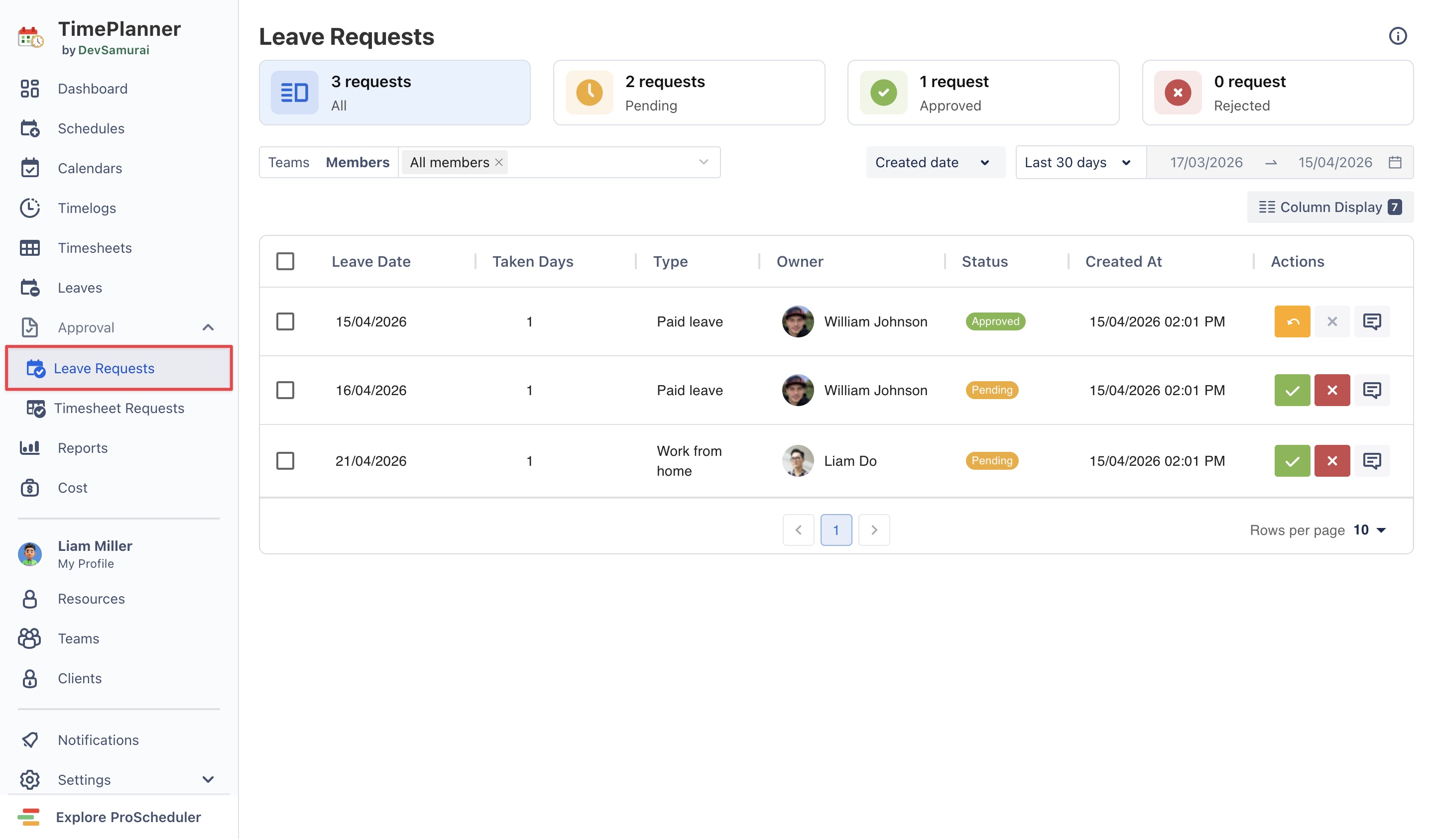
TimePlanner also lets employees request leave from planning boards, with the approval workflows.
This step matters because it turns availability assumptions into something the team can actually see and manage.
Learn how to manage and configure leave and vacation days: Leaves and Vacation Days
Step 3. Review the availability picture before adjusting delivery
This step can be set up in both apps: ProScheduler and TimePlanner.
Before touching the delivery plan, review the overall availability picture.
This can be done through the Schedule Board, Team Calendar, and workload-oriented planning views. TimePlanner is documented as supporting resource planning by matching availability to tasks, balancing workloads, and managing leave, events, and recurring work. Its Team Calendar is designed to provide a visual overview of schedules and tasks for resource planning.
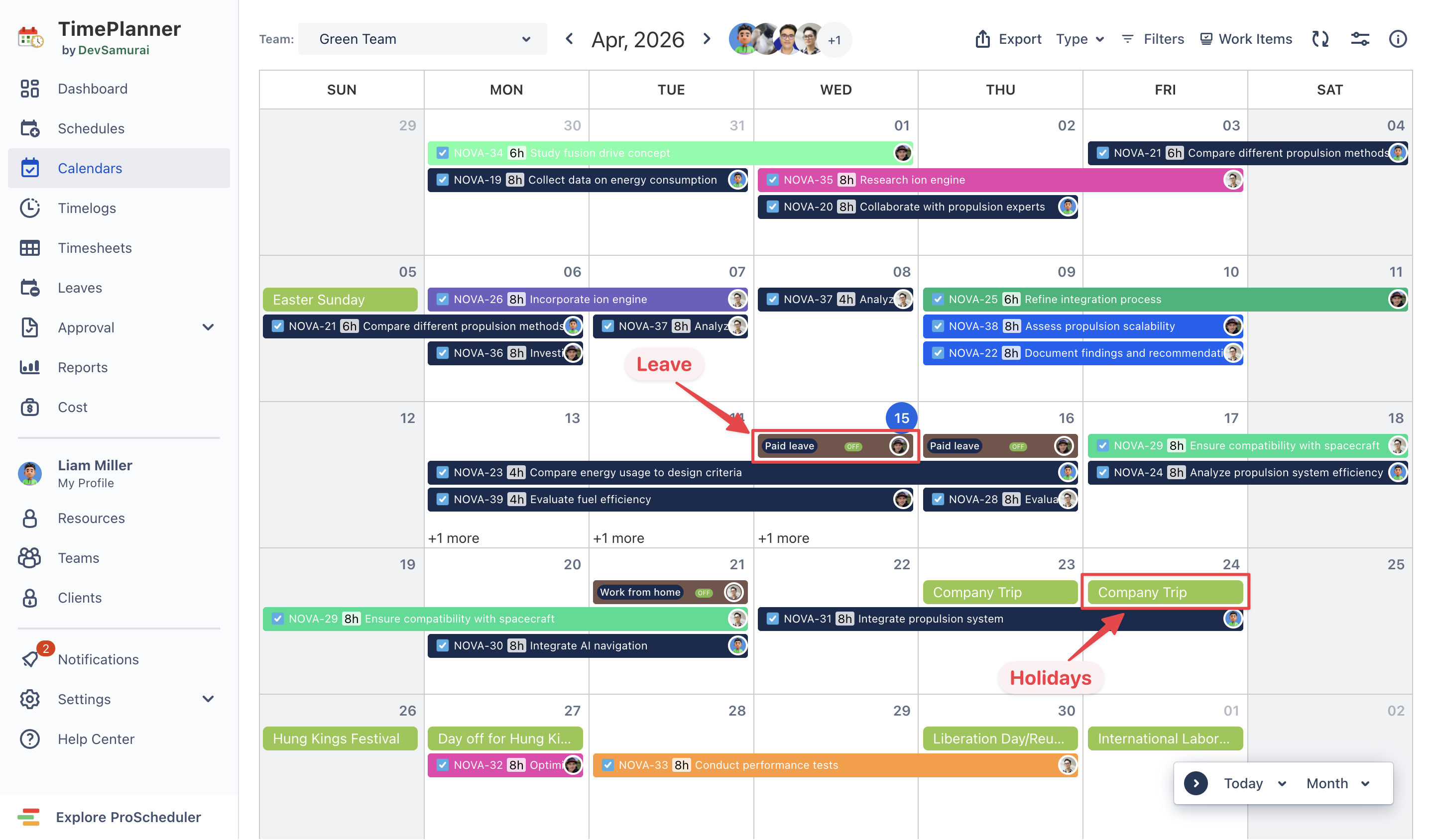
At this stage, teams should answer simple questions:
-
Who will be unavailable?
-
Which dates are affected by holidays?
-
Which contributors have reduced hours?
-
Where is capacity already tight?
This gives the team a realistic starting point before making delivery decisions.
Step 4. Move into ProScheduler and review the delivery plan in context
Once the availability picture is clear, switch to ProScheduler to understand what it means for the project plan.
This is where ProScheduler becomes especially useful. Its Gantt view brings together the timeline, milestones, dependencies, baseline, and critical path in one place, while its Schedule Board and Calendar Board help teams view tasks, deadlines, holidays, and availability in a more calendar-oriented layout.
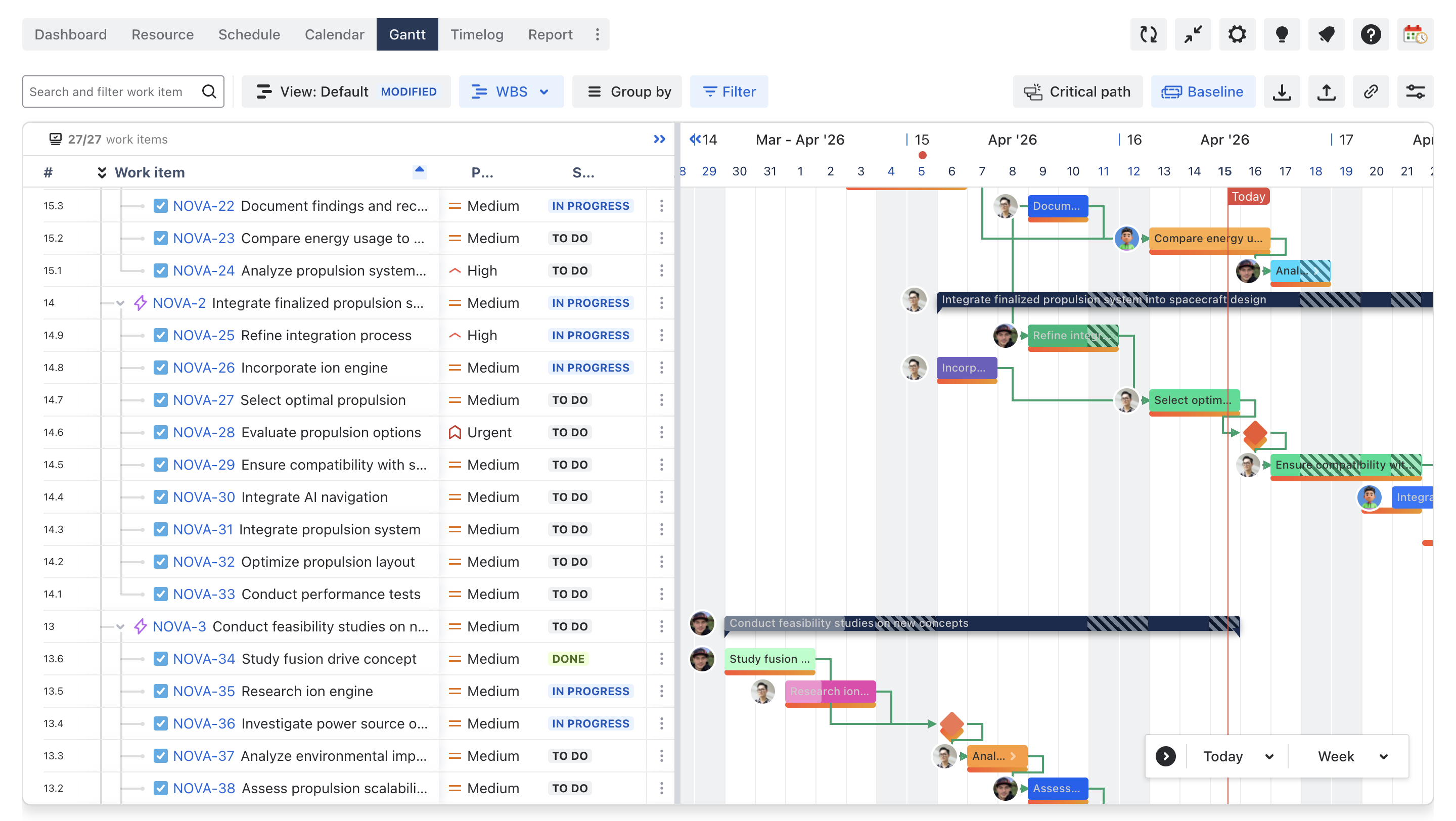
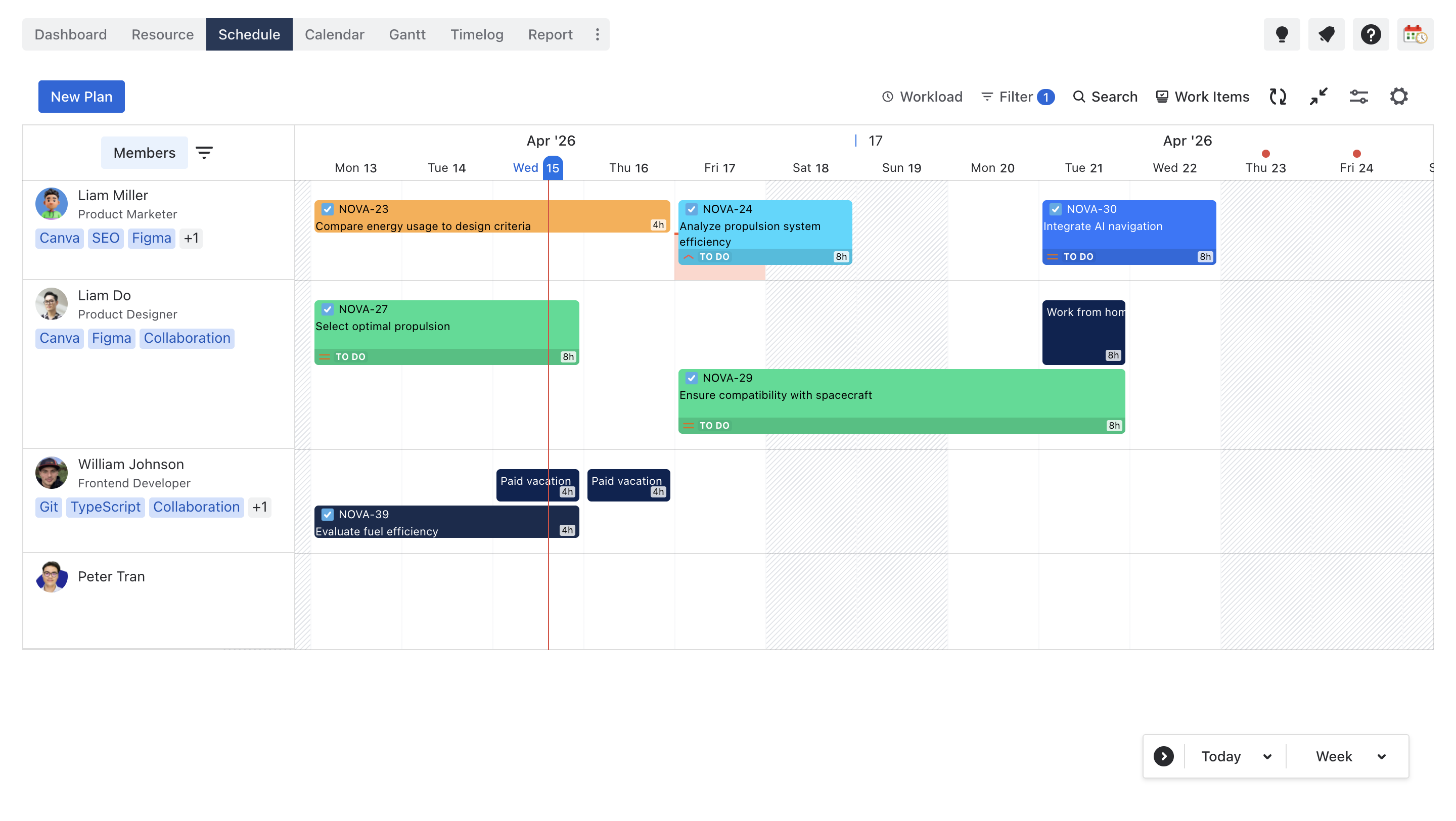
In other words, TimePlanner helps answer who is available, and ProScheduler helps answer what that means for delivery.
Step 5. Adjust the plan around real capacity
Now the team can make planning decisions based on real availability.
In practice, this usually means one or more of the following:
-
Shifting work away from periods affected by leave or holidays,
-
Reassigning work when part-time or unavailable contributors cannot support the original schedule,
-
Reducing overload by redistributing work across the team,
-
Protecting the most important milestone while moving lower-priority work if needed.
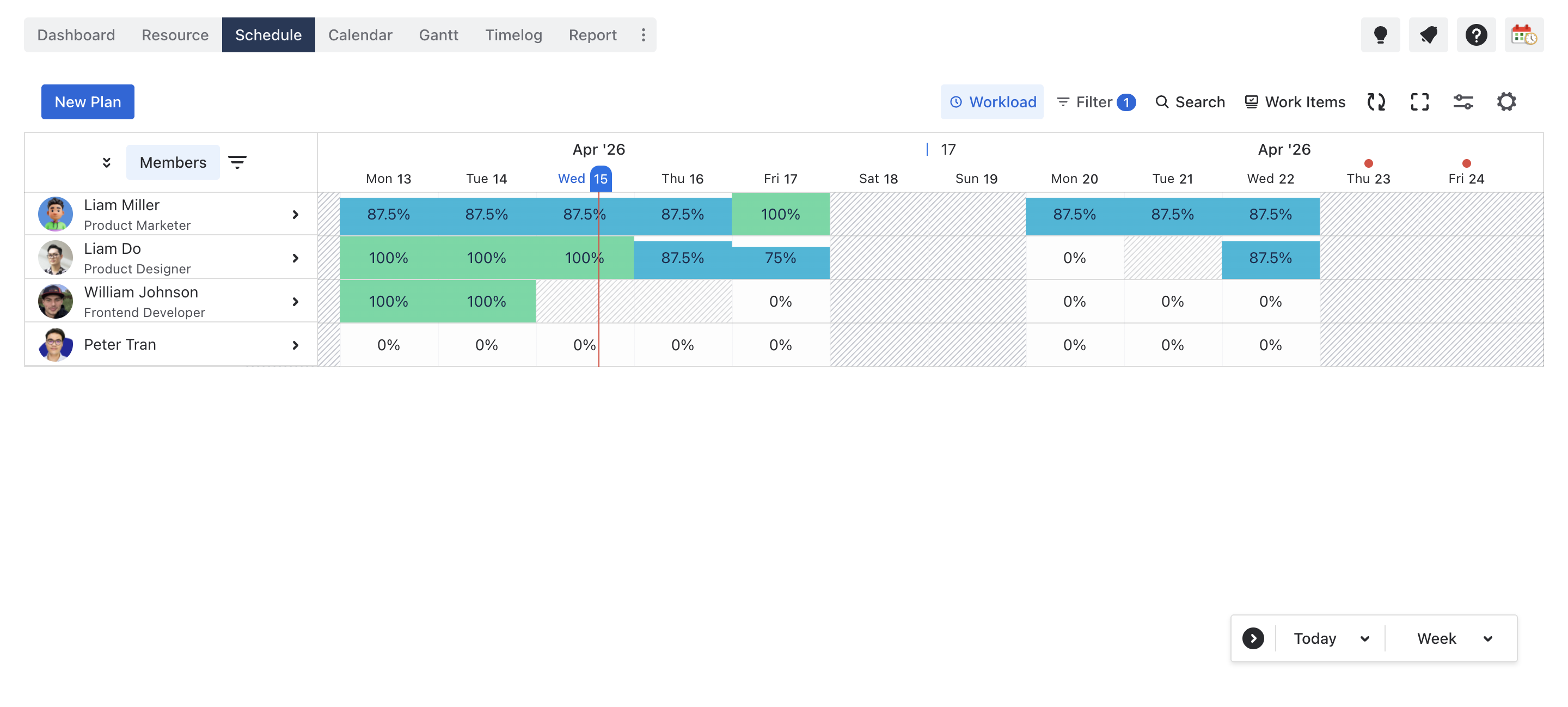
ProScheduler supports drag-and-drop planning, task assignment, and workload-based resource balancing in Gantt and Schedule Board. It also supports capacity schemes, holidays, and leave as part of workload calculation.
Step 6. Check whether the updated plan is still realistic
After adjusting the schedule, check whether the updated plan is still realistic.
This is the point where both apps can help with Schedule Board view, but TimePlanner has a stronger operational advantage.
Through its native integration with ProScheduler, time logs sync between both apps, and TimePlanner is explicitly positioned for time tracking, timesheet management, and reporting or billing. It also supports individual timesheets, while billing-related features such as Client Costs help teams connect tracked work to client reporting and financial visibility.
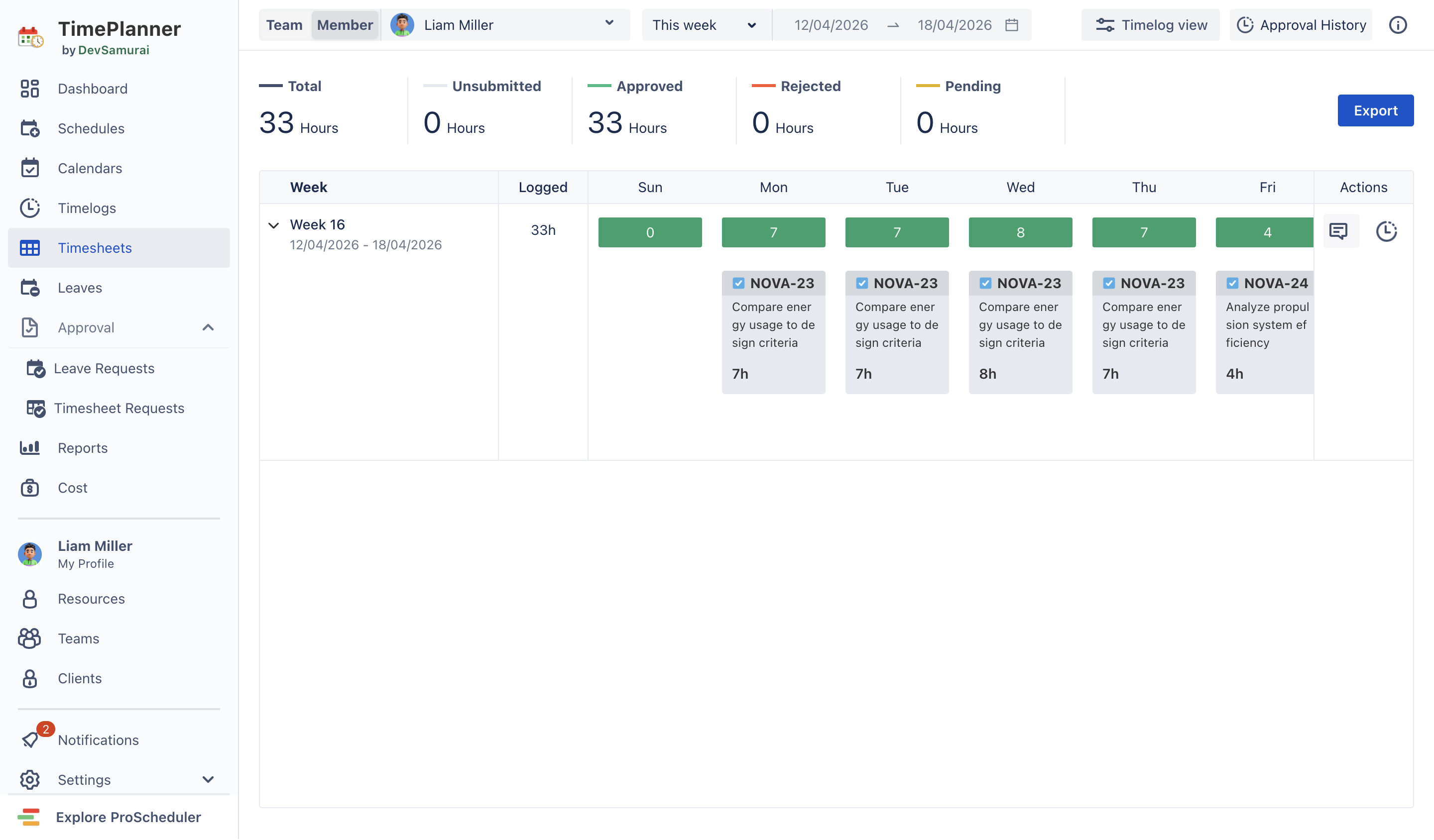
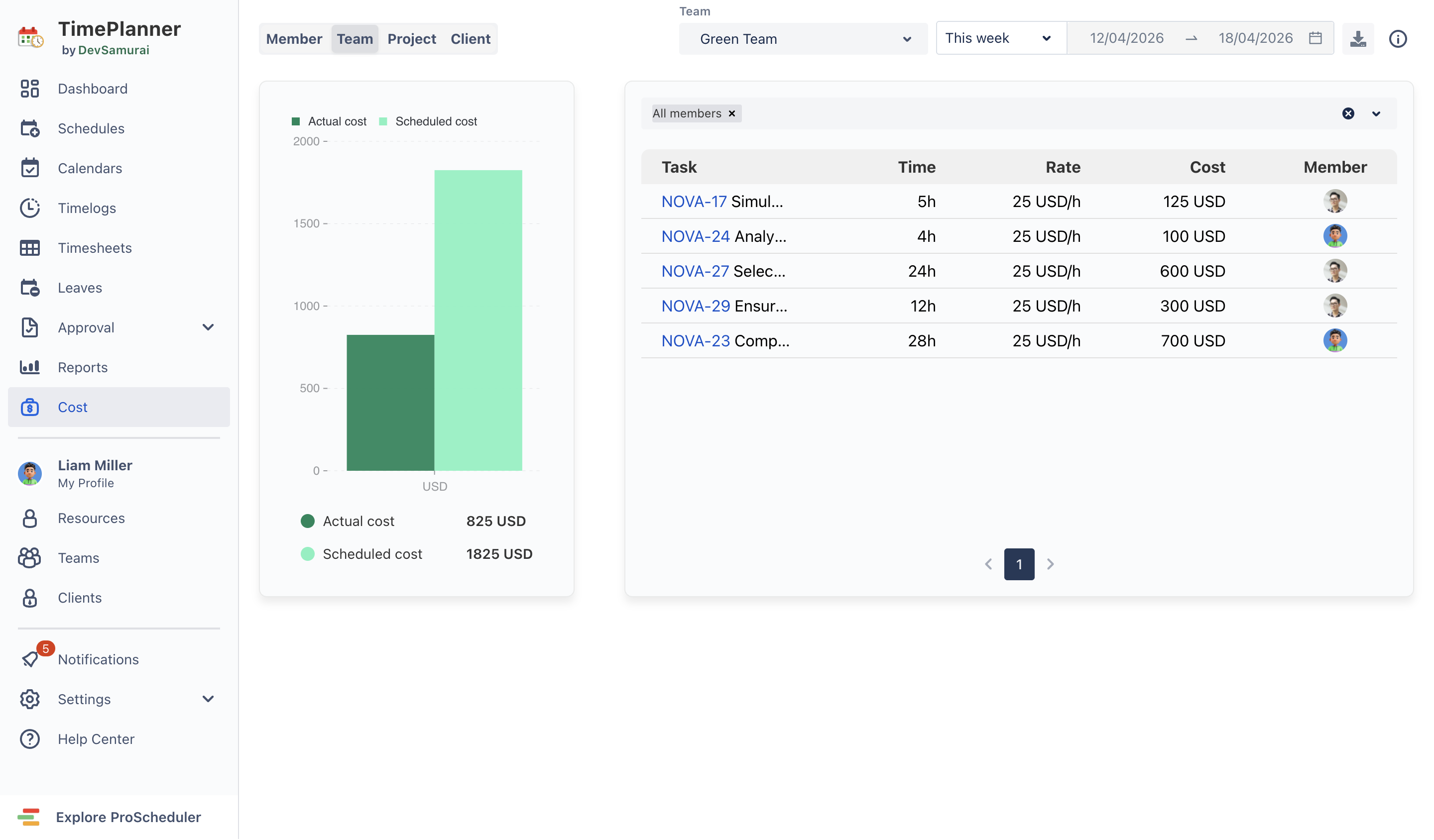
This makes it easier to check not just whether the plan looks clean, but whether it matches how time is actually being spent.
Step 7. Use both apps as one planning cycle, not two separate tools
The real value of this use case is not in using two separate tools side by side. It is in using them as one connected planning cycle.
A practical way to think about it is:
-
Use TimePlanner to manage real team availability, leave, and time tracking,
-
Use ProScheduler to turn that reality into a realistic delivery plan,
-
Then revisit both views as availability, workload, and priorities change.
Because the apps sync key planning elements like capacity, holidays, teams, tasks, and time logs, teams can move between resource planning and delivery planning without losing context. Both also support exporting schedules to ICS for use in external calendars, which can be helpful when teams want broader calendar visibility outside Jira.
Best practices for planning around leave, holidays, and part-time schedules
To make this workflow consistent and repeatable, teams should align on a few simple habits that keep availability, delivery plans, and time tracking in sync.
-
Define capacity schemes for full-time, part-time, and shift patterns in TimePlanner; assign them to every user (don’t rely on defaults).
-
Apply the right holiday calendar per team/region so ProScheduler schedules avoid non-working days automatically.
-
Keep Jira tasks current: assignee, dates/duration, and status. Stale tasks break workload and timeline accuracy in both apps.
-
Rebalance in ProScheduler when availability changes: shift tasks, adjust dependencies, and protect milestones before sprints start.
-
Validate reality weekly: compare planned vs. logged time in TimePlanner timesheets; fix estimates or scope if drift appears.
-
Use ICS export thoughtfully (individual or team calendars) to broadcast key schedules externally – avoid over-sharing sensitive plans.
Conclusion
Planning in Jira works better when teams account for real availability from the start.
Leave, holidays, and part-time schedules all affect workload and delivery. If those factors are only noticed later, teams often end up replanning under pressure.
Used together, TeamBoard TimePlanner and TeamBoard ProScheduler help connect availability with delivery planning. TimePlanner gives teams visibility into leave, schedules, and tracked time. ProScheduler helps turn that into a more realistic plan with clearer workload and timeline visibility.
In simple terms, TimePlanner helps teams understand real capacity, and ProScheduler helps them plan delivery around it. That makes project plans more reliable and easier to maintain when availability changes.