
This is where you can configure your portfolio board in PlanCore and make it work for everyone else on your team.
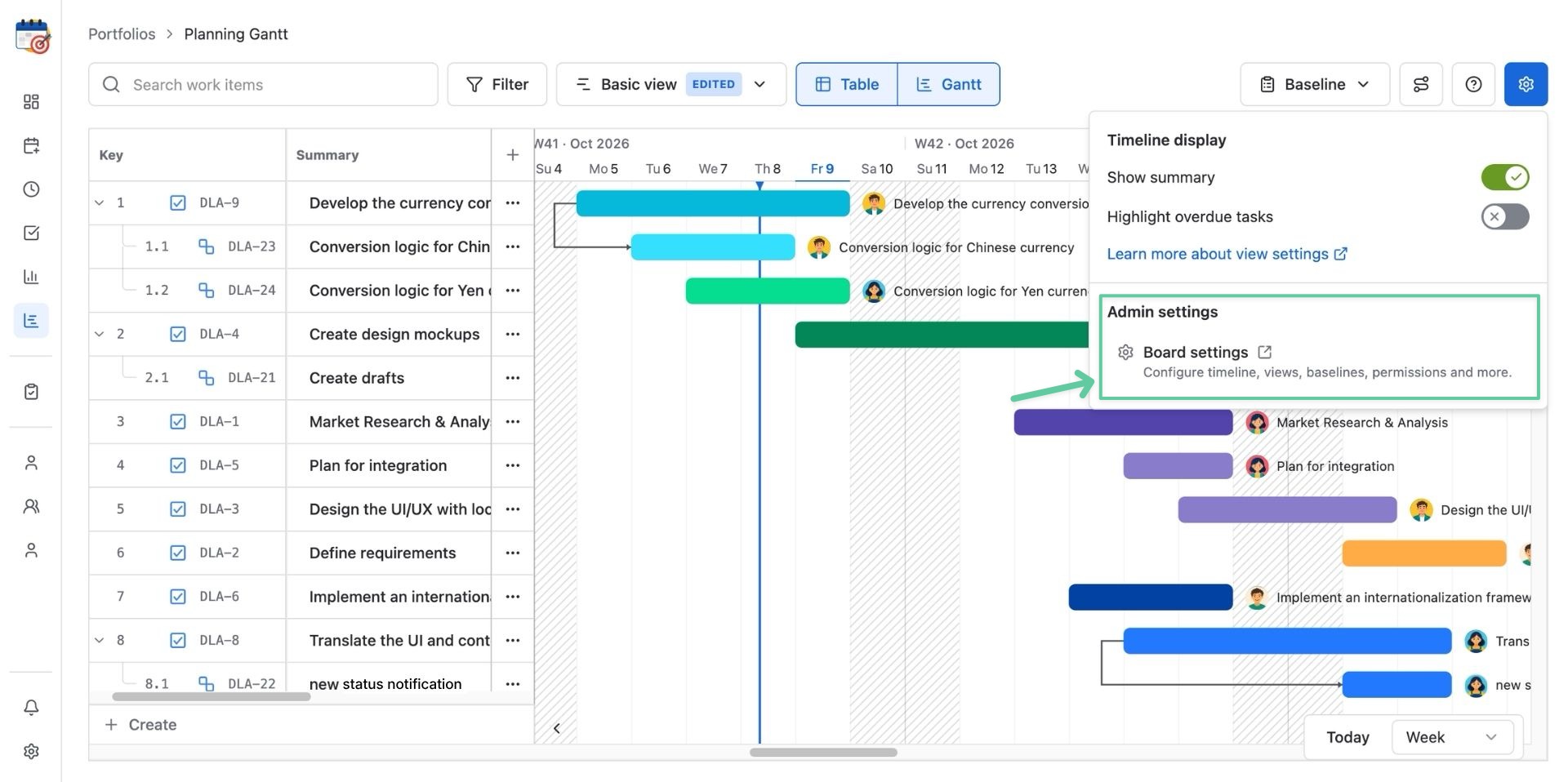
These settings are available only to the board admin or Jira admins.
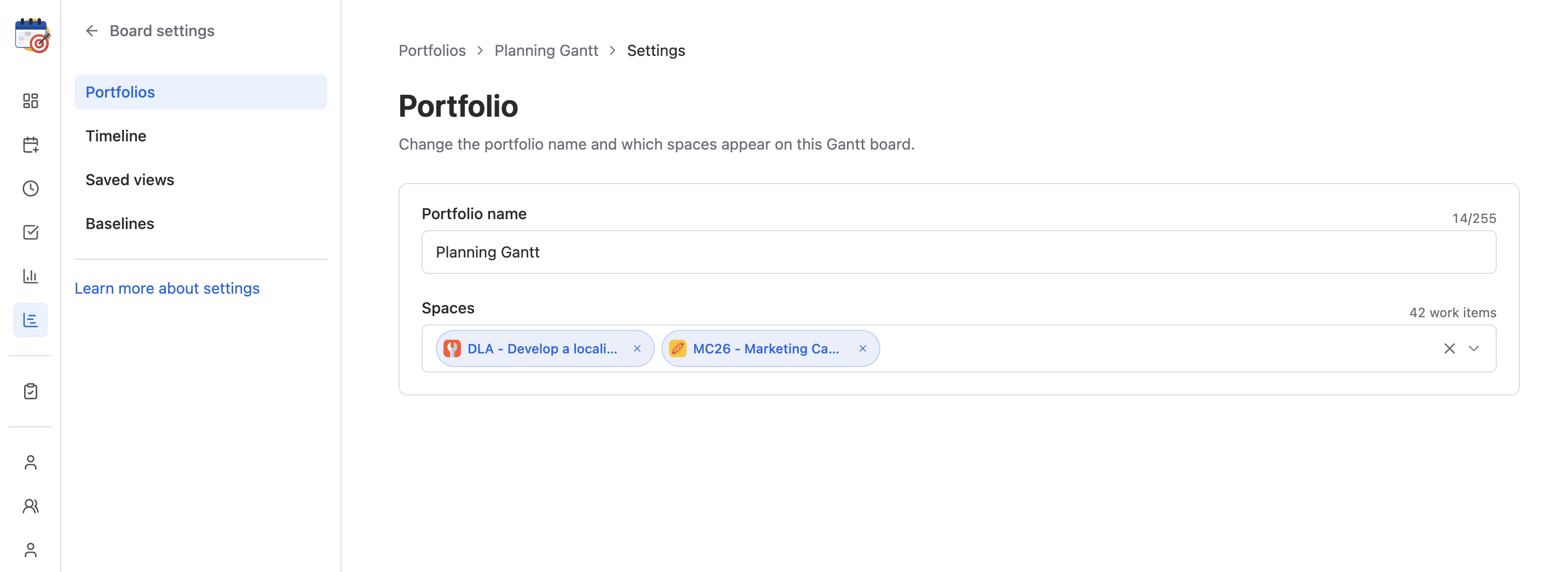
Portfolio
You can change the portfolio’s name after creating it so your team can easily identify the board. This changes the board’s display name, not the names of its Jira spaces or work items.
Users can manage the Jira spaces included in this portfolio under Work item sources. Add a space by typing in the project’s name to include its work items, or remove a space to stop showing its work items on this board by clicking the x button next to the project’s name.
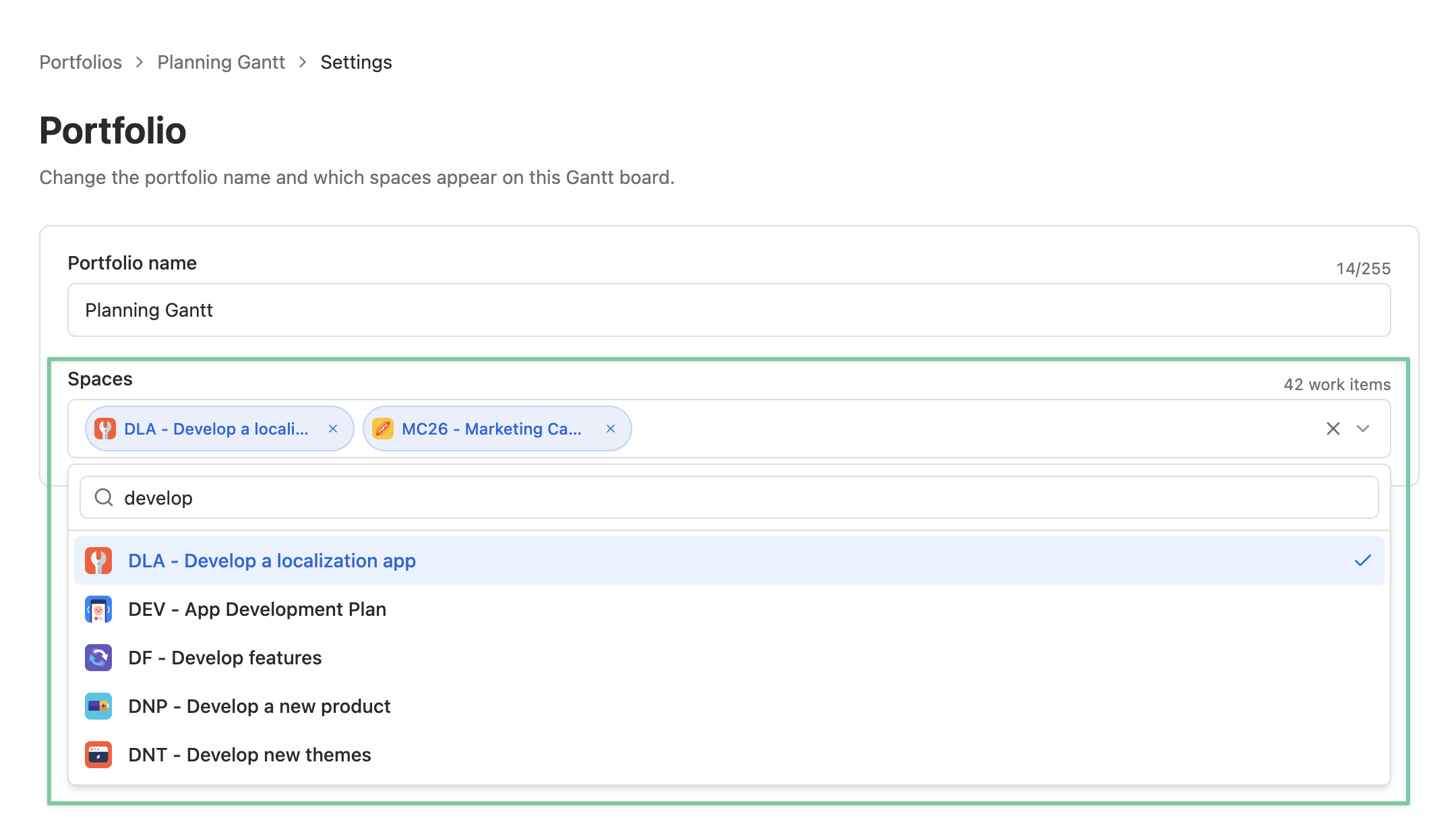
Check the selected sources if expected work items are missing from the portfolio.
Timeline
Use the Timeline settings to control how work items are scheduled and displayed on the Gantt chart. Review these mappings before moving dates or creating dependencies so the timeline stays aligned with Jira.
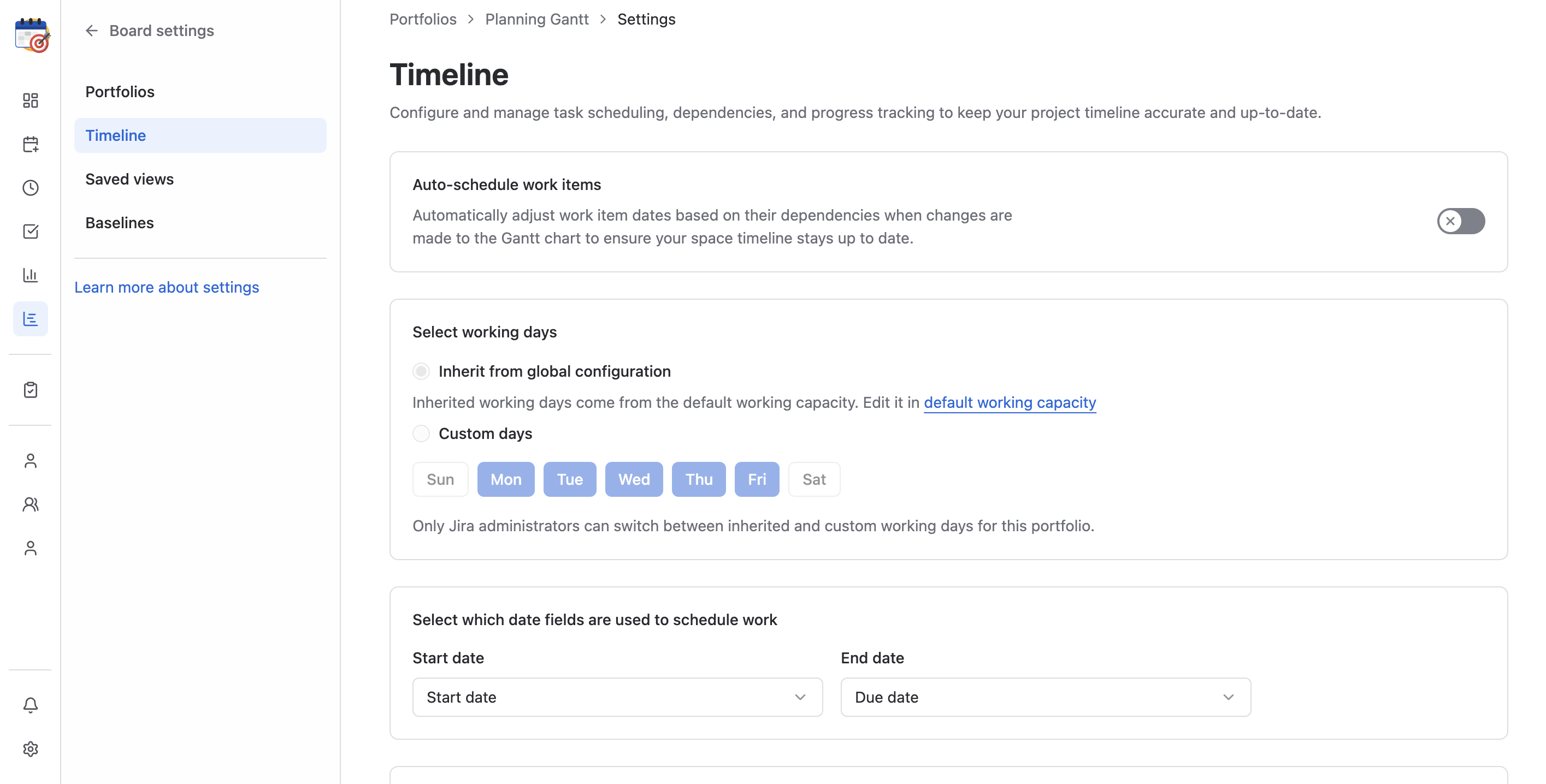
1. Auto-schedule work items
Turn on auto-scheduling to adjust task dates when changes to the timeline or dependencies require downstream work items to move. Review the resulting dates before saving changes to your plan.

2. Working days
In PlanCore, you can select working days of the week and visualize them on the Gantt chart. With it, you can avoid Non-working days and plan tasks more effectively.

For the Work schedule source, you can switch between 2 options:
-
Inherit from Global configuration (Default working capacity)
-
Custom days
Note
Only admins can switch between inherited and custom working days.
3. Date field mapping
Map the Jira start and end date fields to PlanCore’s timeline dates. The Gantt chart uses these fields to place work items on the schedule.

If dates are missing, ask a Jira admin to check that the fields are configured and available for the relevant work items.
4. Dependency mapping
Map Gantt dependencies to the corresponding Jira issue link types so relationships between work items appear on the timeline. PlanCore supports 4 types of link dependencies:
-
Finish to Finish
-
Start to Start
-
Start to Finish
-
Finish to Start
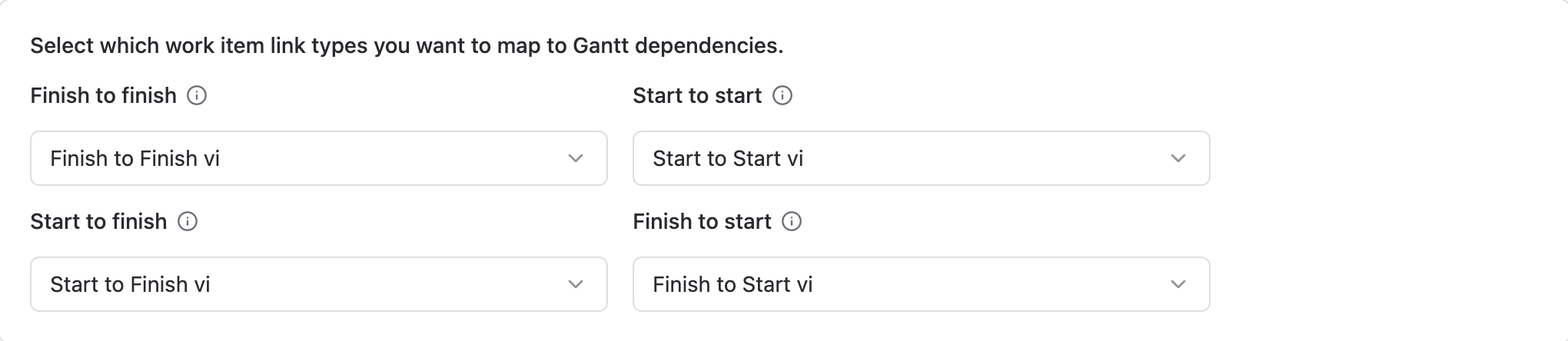
Check the direction of each link type to ensure predecessor and successor relationships are represented correctly.
Date-field configuration may require access to PlanCore’s Admin settings or Jira administration. Board settings alone cannot make an unavailable Jira field appear in the mapping list.
Saved views
Saved views let your team return to useful board layouts without rebuilding them each time.
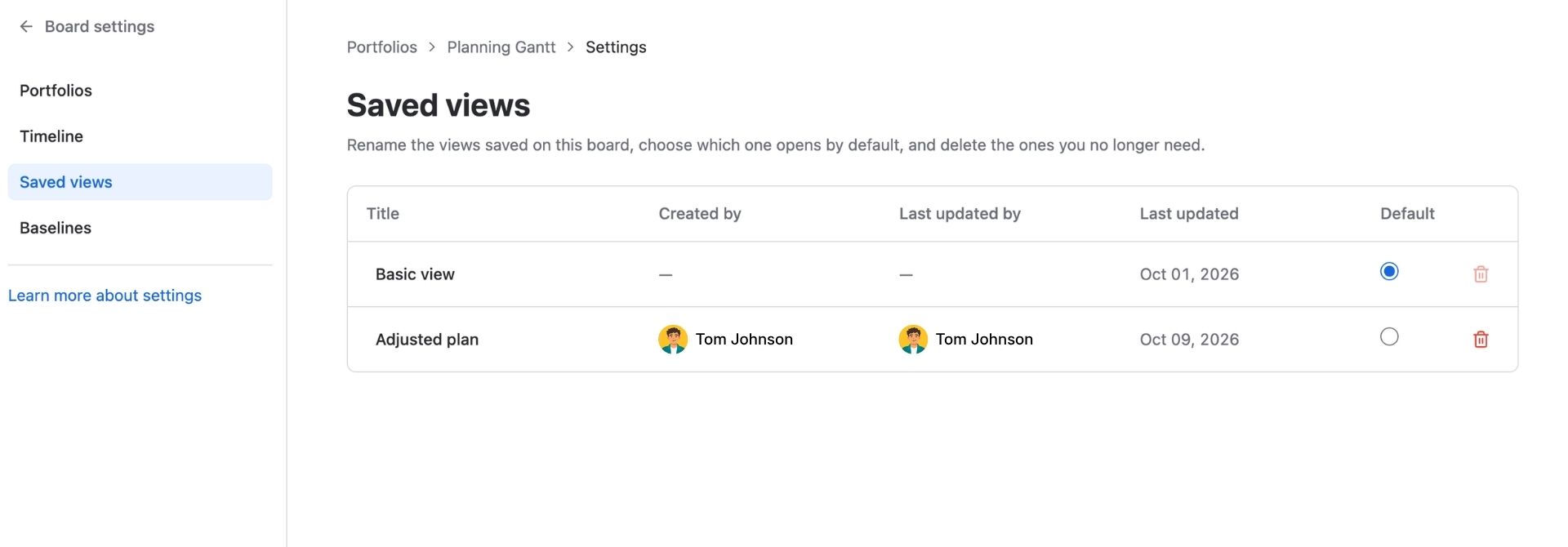
In Saved views, review the views available for this portfolio, choose a view to use as the team’s default, or delete a view that is no longer needed. Confirm the view is no longer required before deleting it.
Baselines
Use Baselines to manage snapshots of the project schedule. Baselines also help you compare the current timeline with the original plan in the Gantt view.
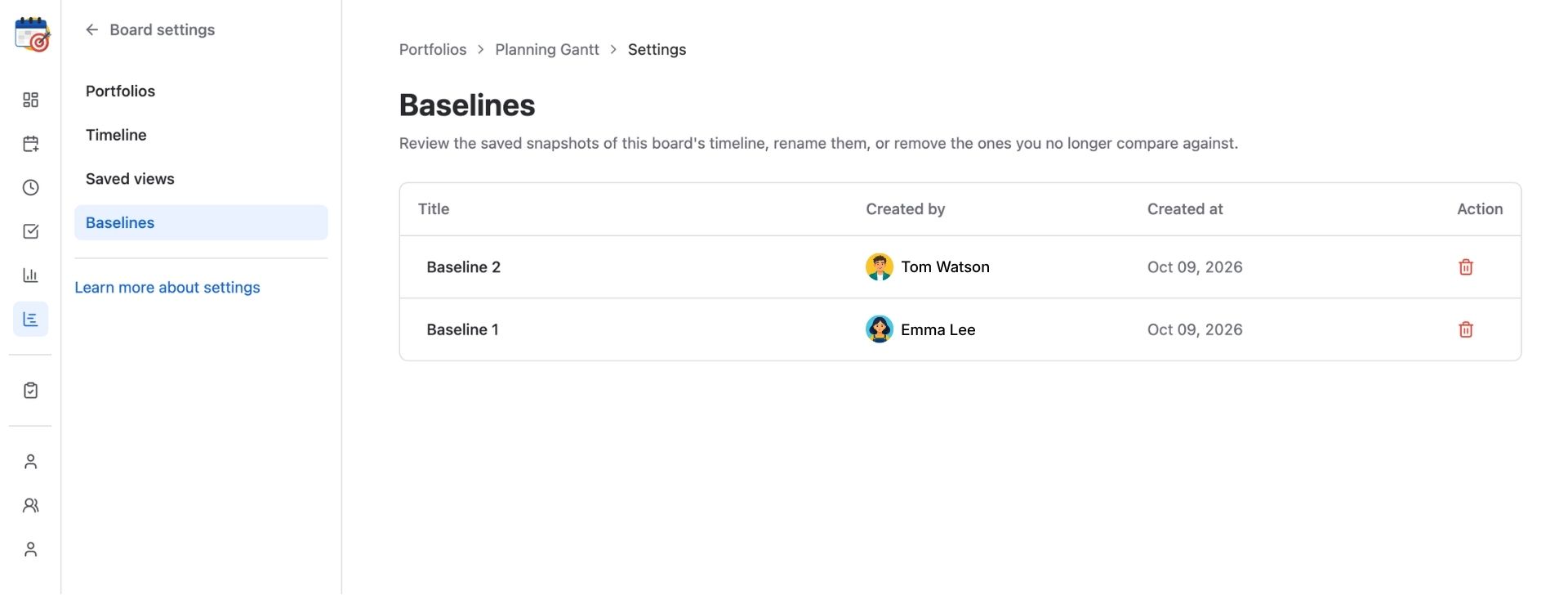
You can:
-
See who created the baseline and when
-
Change the baseline’s titles
-
Delete a baseline
To edit a baseline’s title, simply click once on that title.