
Schedules gives teams a timeline-based planning view for organizing work, events, time off, and workload across members or teams.
The board displays time horizontally and resources vertically, so you can quickly see who is working on what, when work is planned, and where availability or workload needs attention.
Use Schedules to:
-
Plan Jira work items for individual members or teams.
-
Create events that appear on the schedule board.
-
Record time off to reflect member availability.
-
Review workload and identify overbooked or underutilized members.
-
Customize the board view to focus on the information you need.
How the schedule board works
The schedule board is organized as a horizontal timeline with resources listed vertically. Each row represents a member or team, while each column represents a date or time period. Planned work items, events, and time off appear as blocks on the timeline, making it easier to understand resource allocation at a glance.
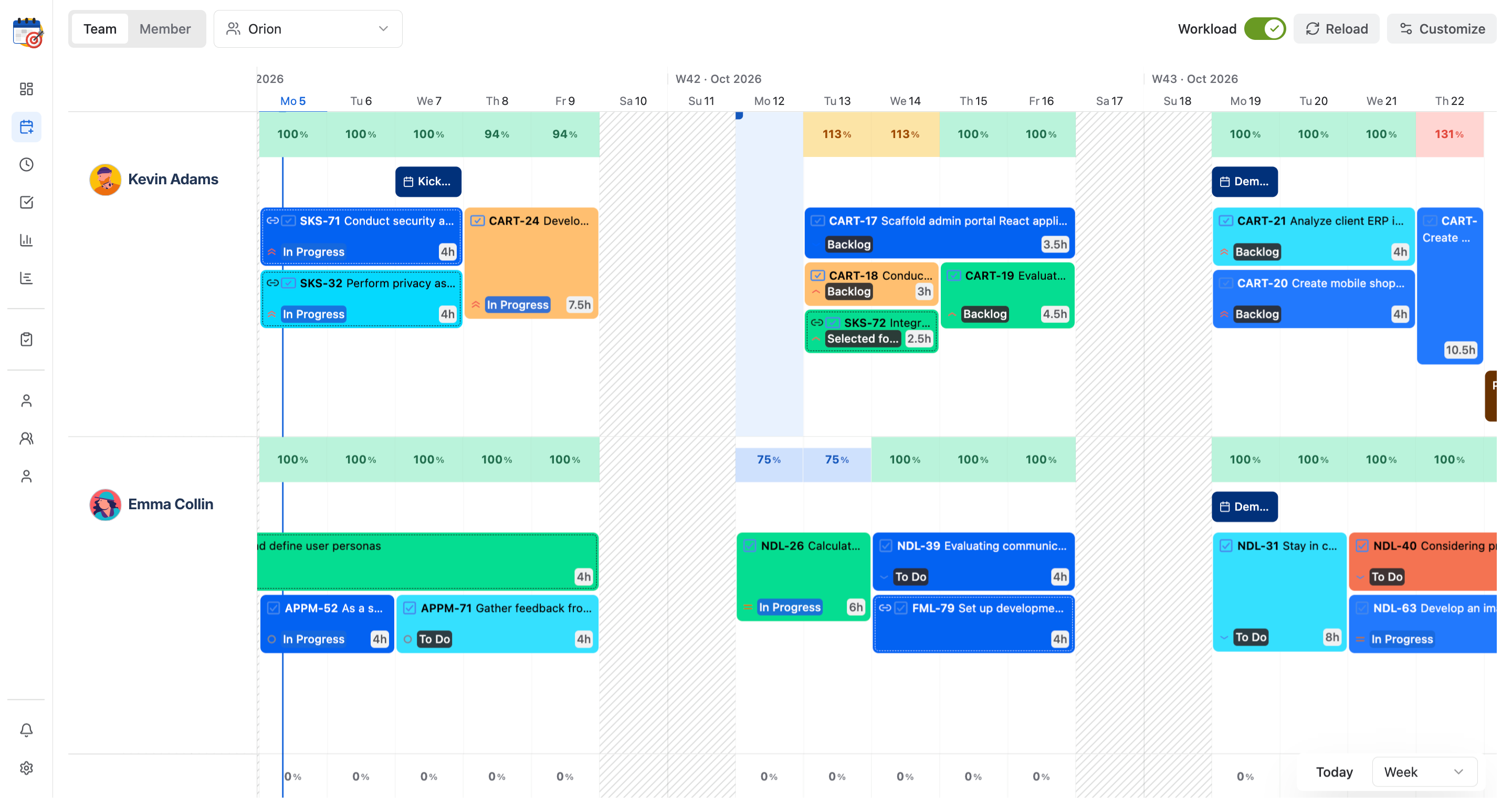
Work item plans on the schedule board also contribute to each member’s workload view. This helps managers and team leads balance assignments before work begins.
Planning permissions
Access to planning actions depends on the user’s role and permissions.
|
Role |
What they can do |
|---|---|
|
App Admins |
Can plan, update, and set recurring tasks for any team member. |
|
Team Admins / Team Leaders |
Can plan, update, and set recurring tasks for members within their team. |
|
Regular Users |
Can plan, update, and set recurring tasks only for their own tasks. |
Refer to Permission settings for the full permission configuration details.
Navigate the schedule board
-
Switch between Team and Member views: Use the switch option in the top-left corner of the board, then choose the relevant team or member from the dropdown beside it.
-
Jump to the current date: Use the Today button in the bottom-right corner to quickly return to the current date.
-
Change the timeline scale: Switch between Week and Month views using the button beside Today.