
Schedule work items on the timeline
You are now free to move and adjust your planned issues while working on the Gantt.
If you have already mapped the Start and end dates to your Jira projects, PlanCore will automatically plan their work items on the Gantt timeline view.
To plan a task, locate the work item row and click on the empty timeline view. Then, you can adjust its schedule by dragging the task bar.
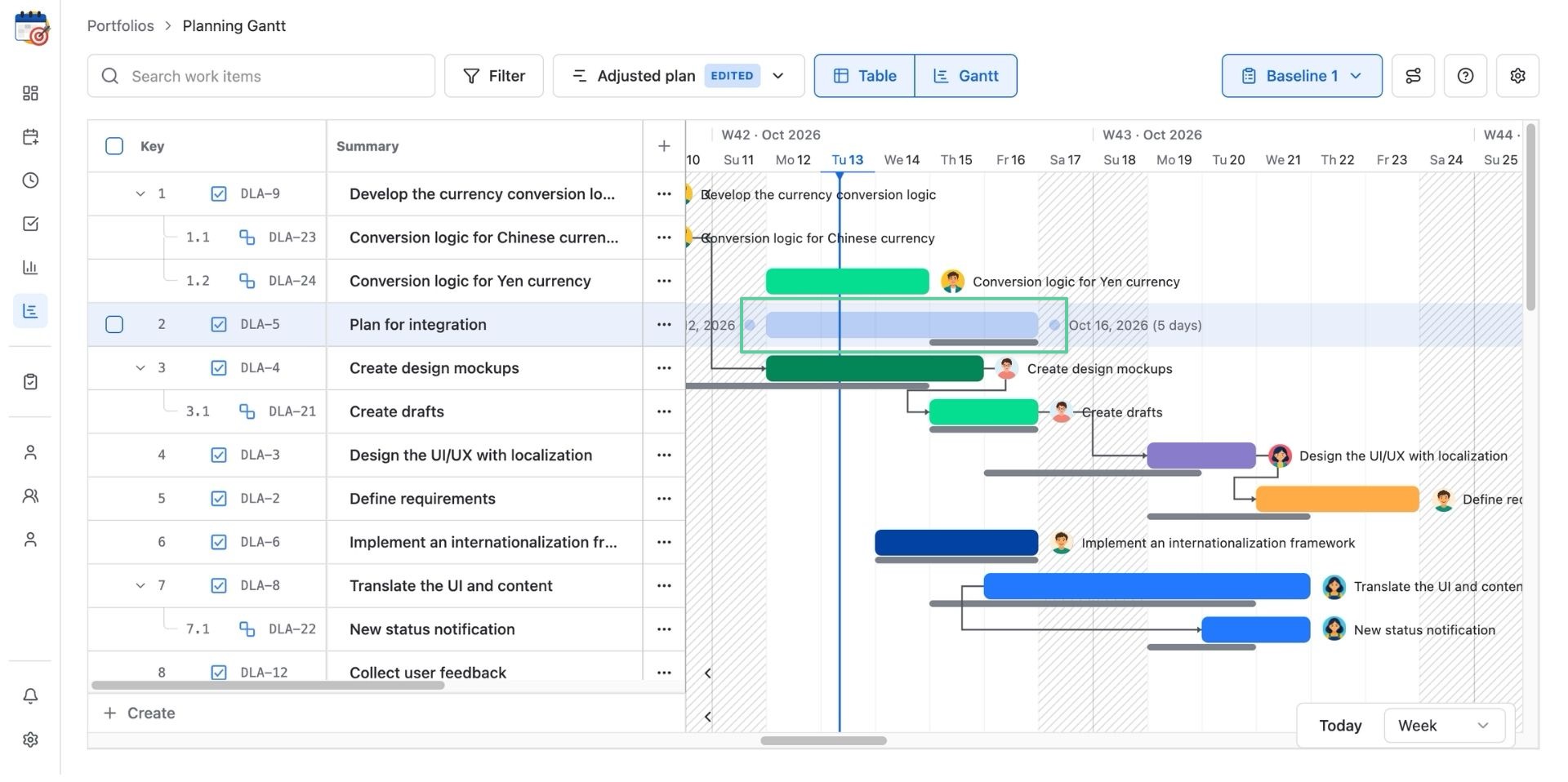
You can reschedule a planned task by dragging and dropping it to a new timeline.
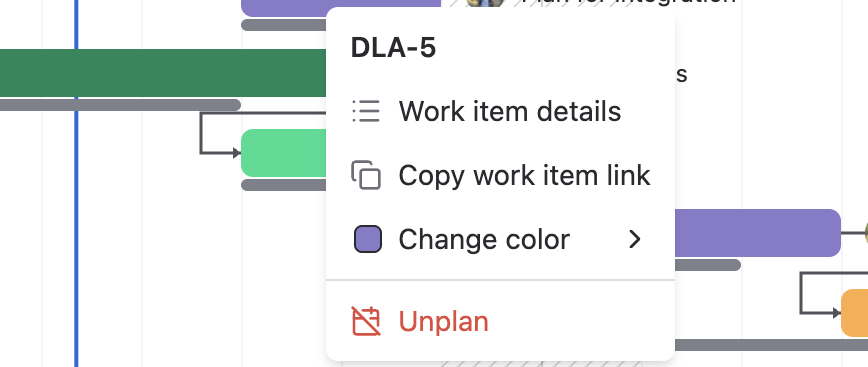
After planning a task, you can manage it by right-clicking on its bar to:
-
Open work item details
-
Copy work item link
-
Change color
-
Unplan a task from the Gantt
Dependencies
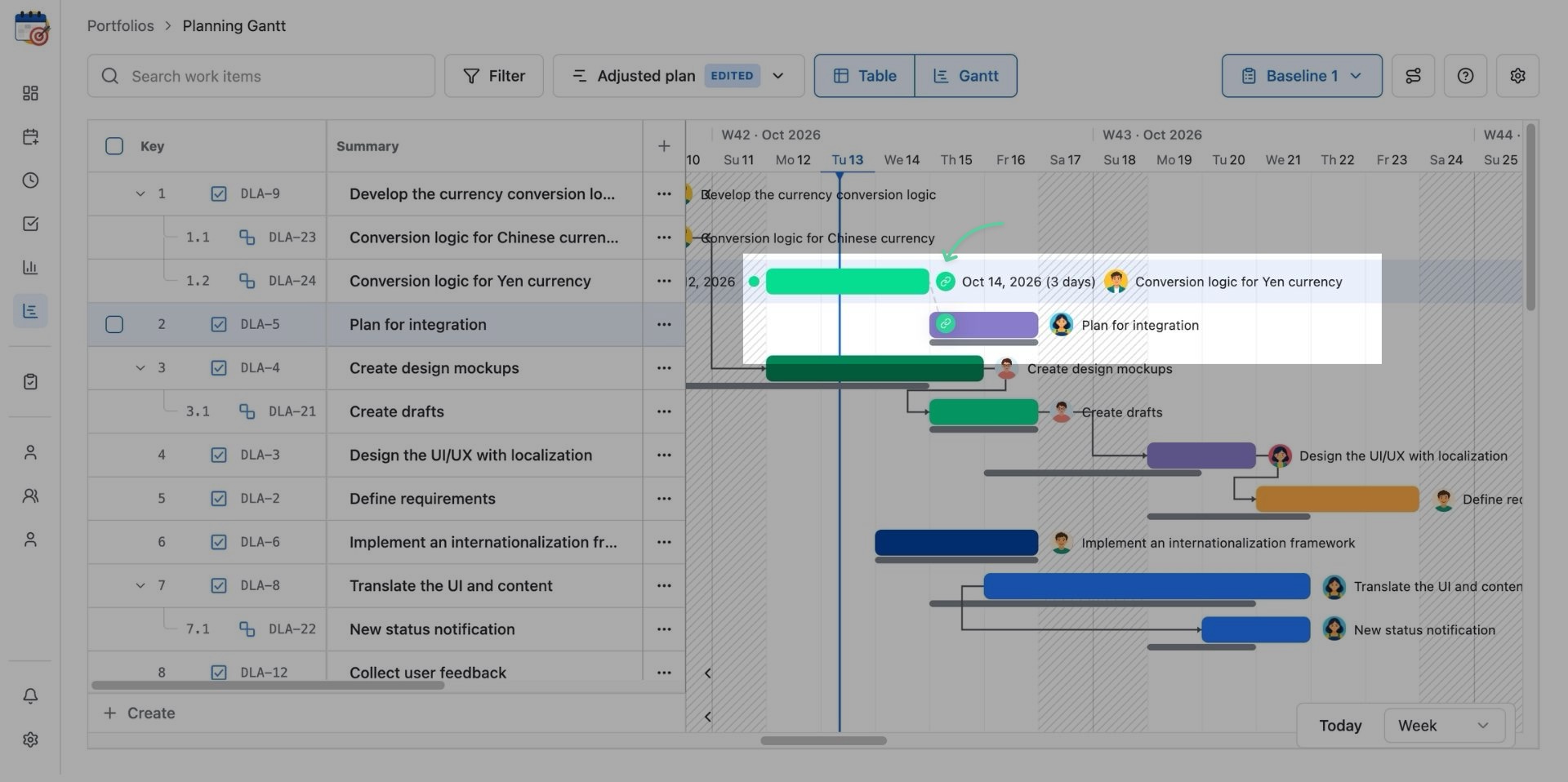
PlanCore’s Gantt chart supports visualizing dependencies or item links, showing the relationship between 2 Jira work items.
To create a dependency, hover the cursor over a task bar, locate a round dot at either end, then click and drag it to another bar you want to link work items.
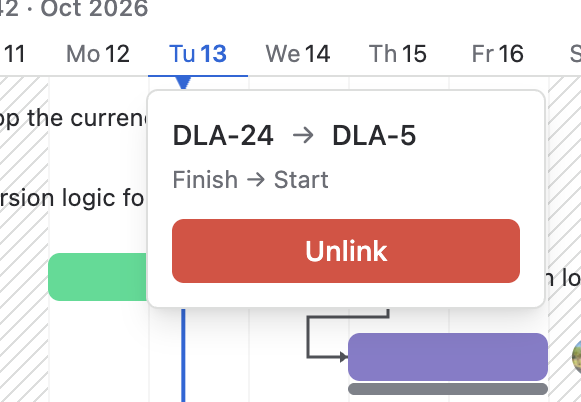
You can remove this dependency by clicking on the line and choose Unlink.
Baseline
A Gantt Baseline is a snapshot of the original project plan at a specific point in time, which includes the planned start and finish dates, task durations, and dependencies. It provides a "planned" timeline against which the actual performance of the project can be measured.
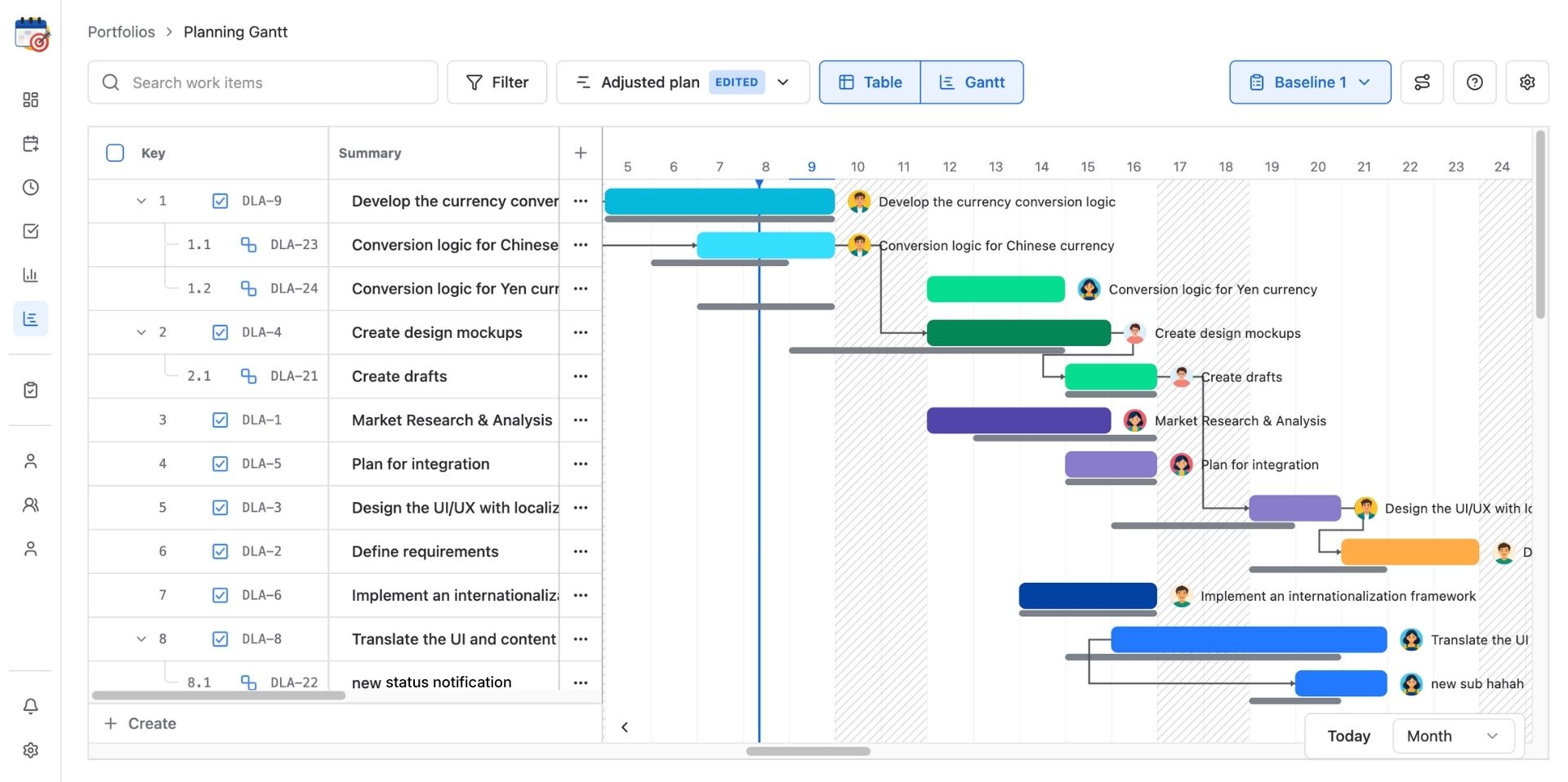
You can use the baseline as a reference point for comparing the actual progress of the project to what was originally planned.
1. Create a Baseline
Your current view of the portfolio serves as the original view of your project planning.
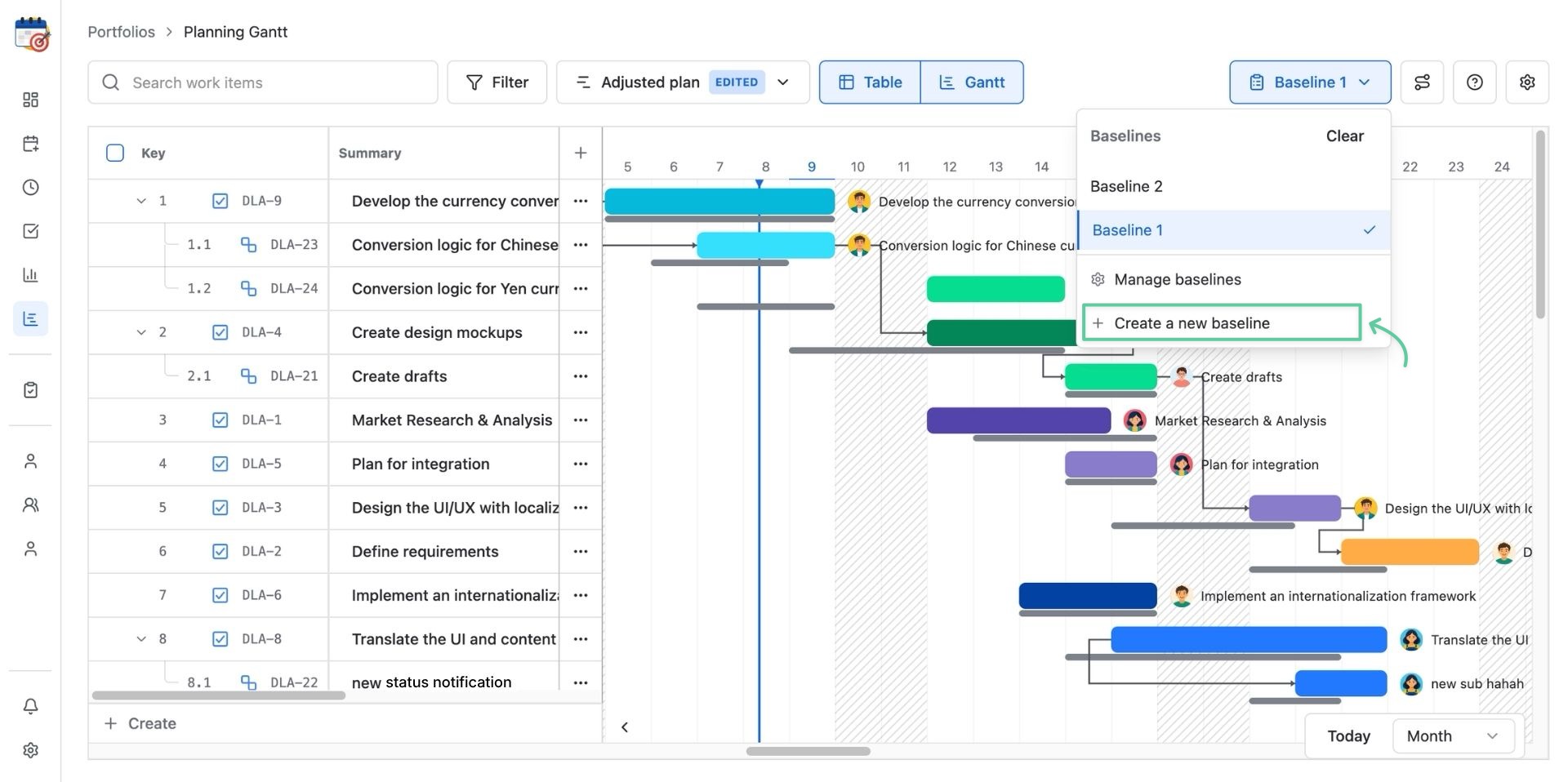
2. Enable/Disable the Baseline
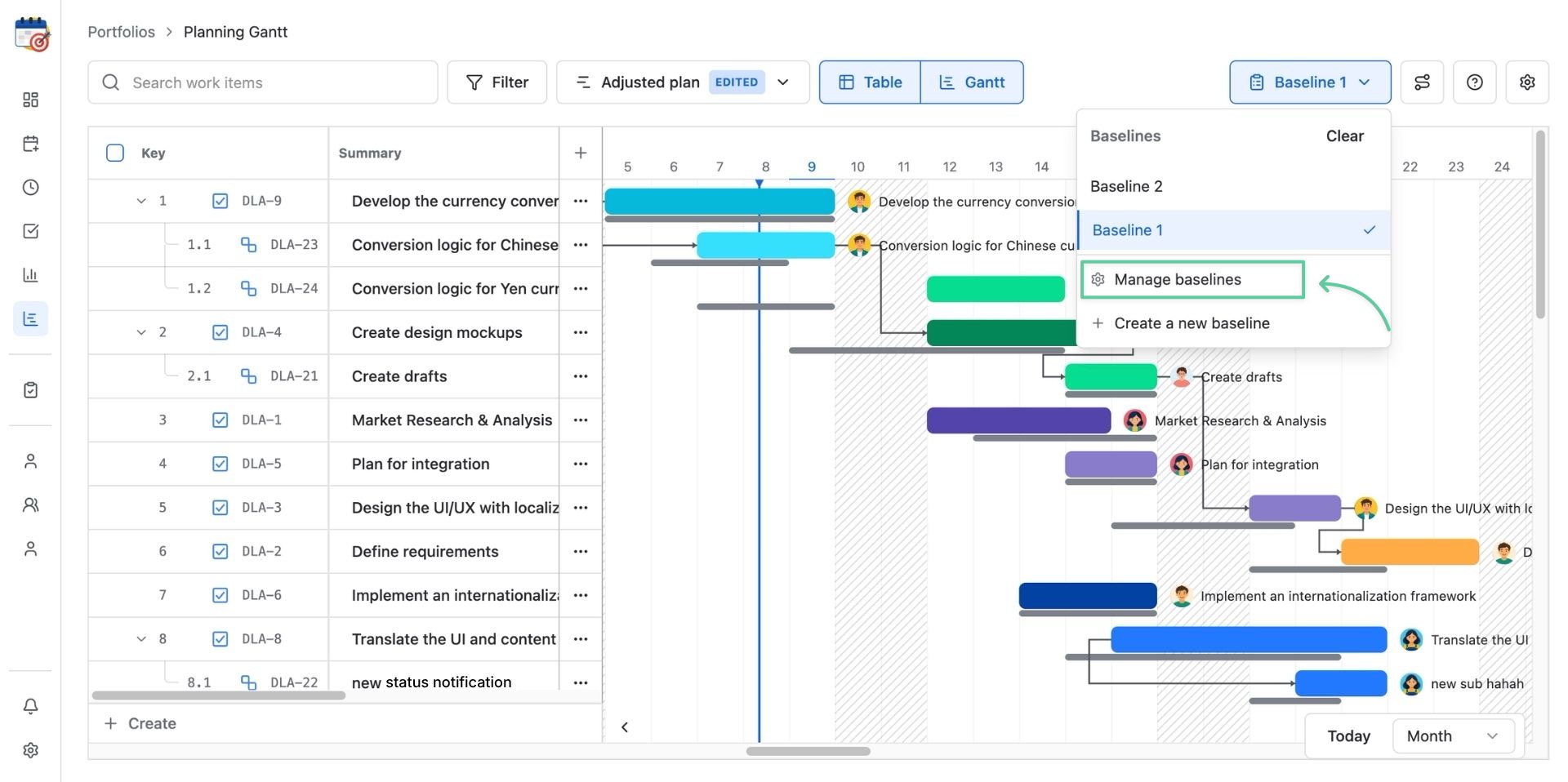
To enable a baseline, simply open the menu again and select the baseline you want.
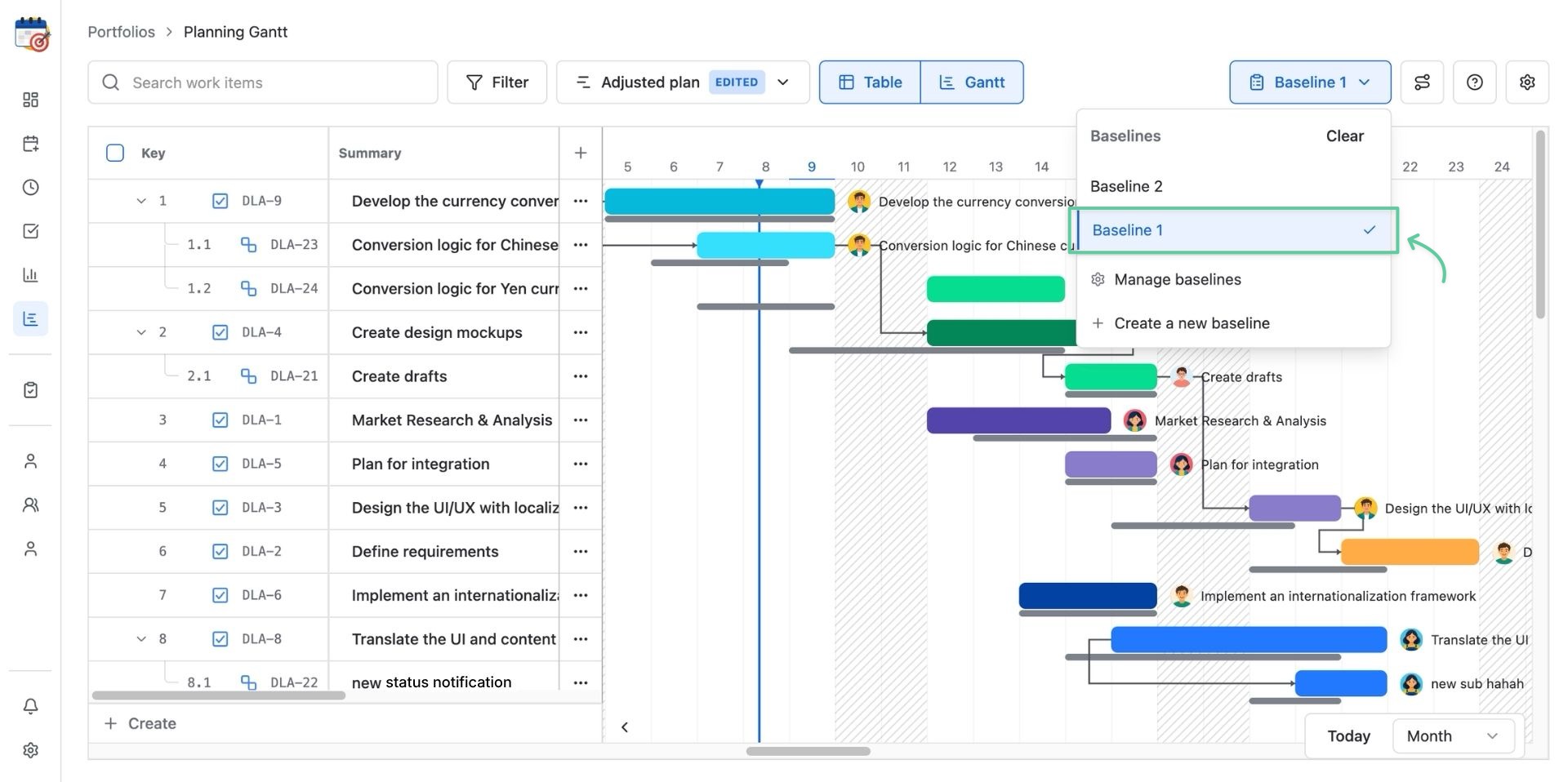
To disable a baseline, click Clear.
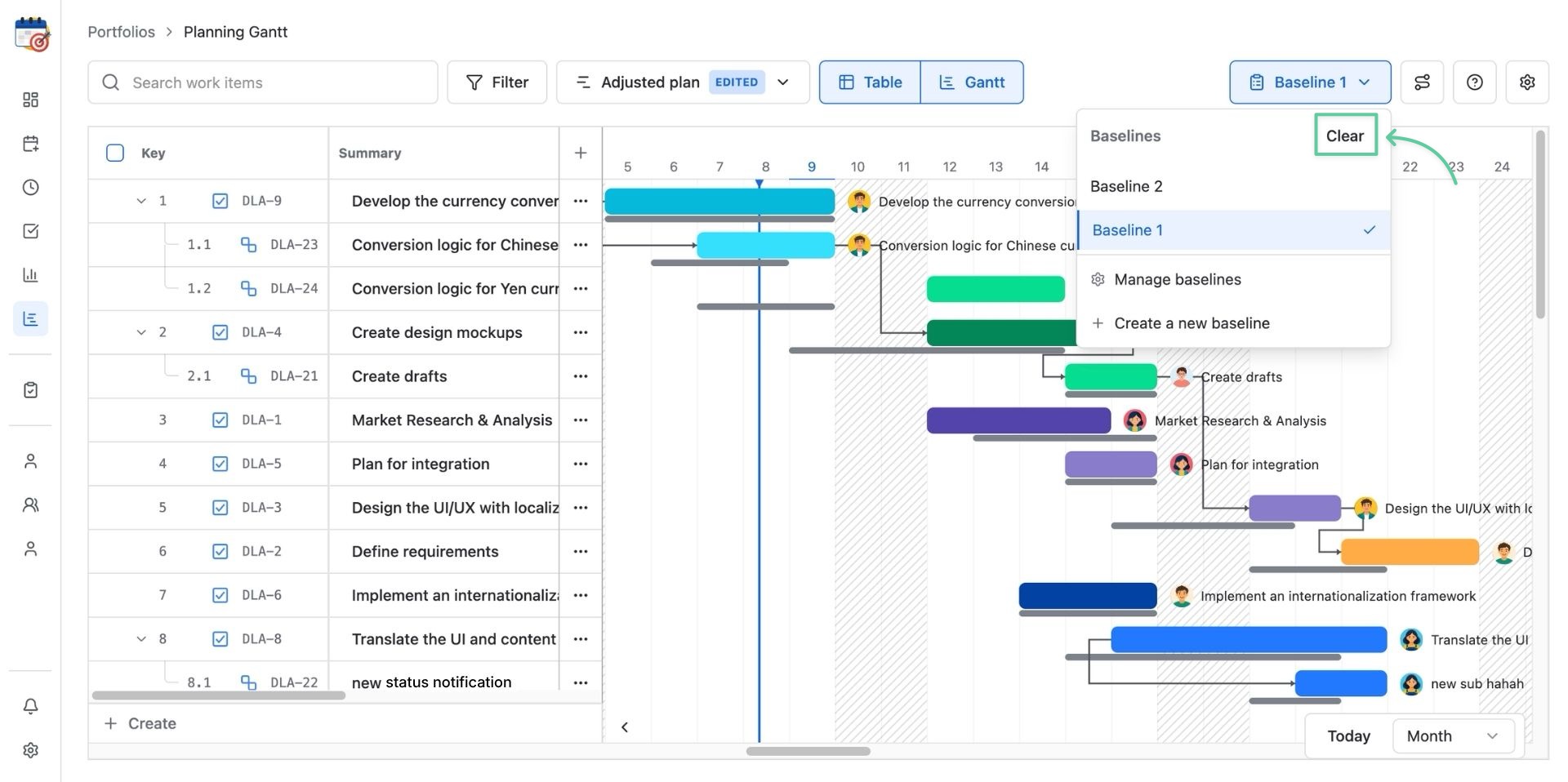
3. Manage baselines
To change the baseline’s title or remove it from your portfolio board, open the baseline menu and click Manage baselines.
Critical Path
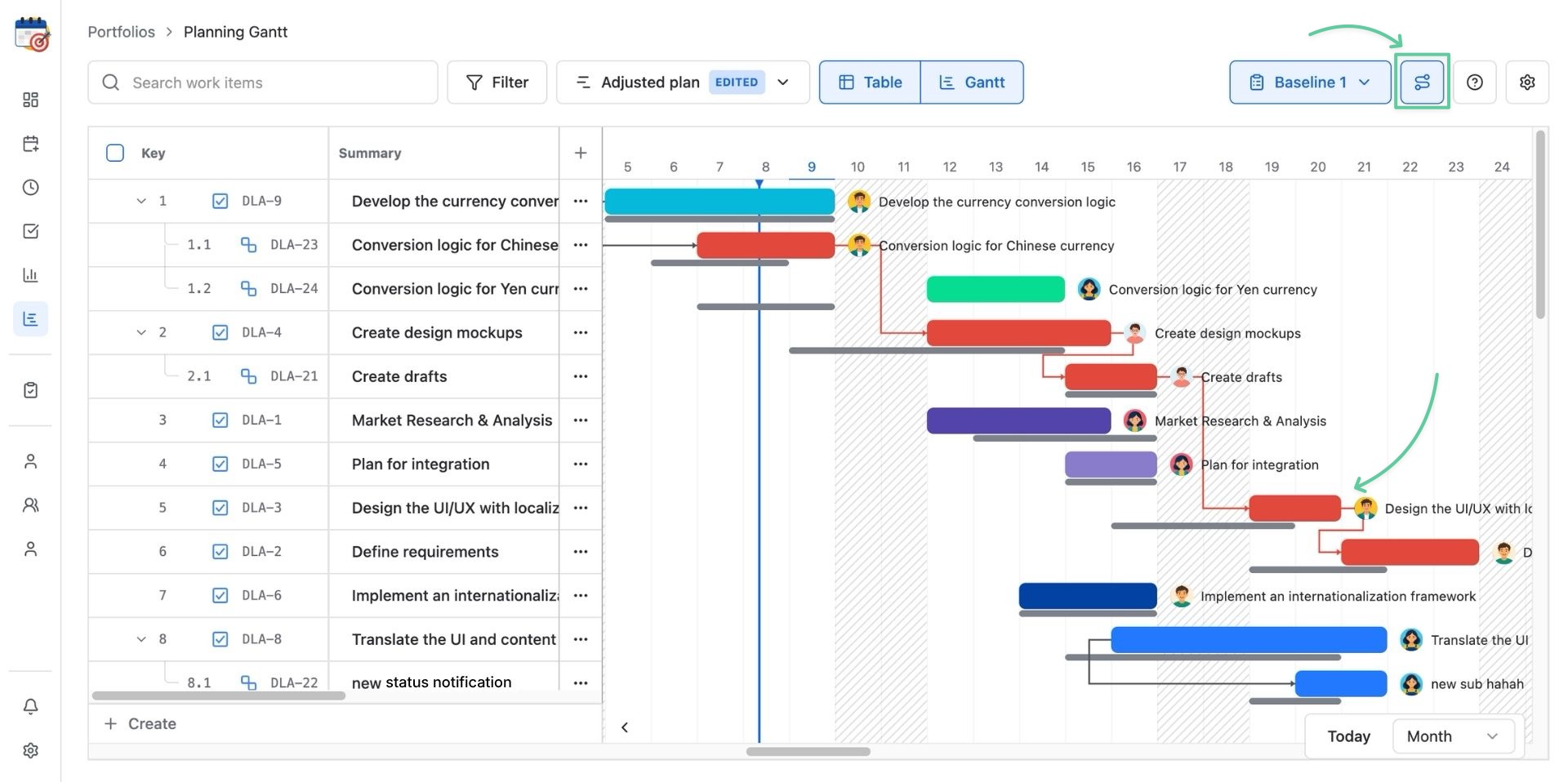
The Critical Path highlights the sequence of tasks to determine the project's overall duration & helps you focus on the most crucial activities to meet deadlines. It represents the longest path of interdependent tasks in the project schedule, and any delay in the critical path will result in a delay in the overall project timeline.
This critical path helps project managers stay focused on the tasks that determine whether a project will be completed on time.
*How to enable Critical Path
To enable this feature, click the Critical Path button on the toolbar.
Timeline display
You can access the Timeline display by locating the Settings option.
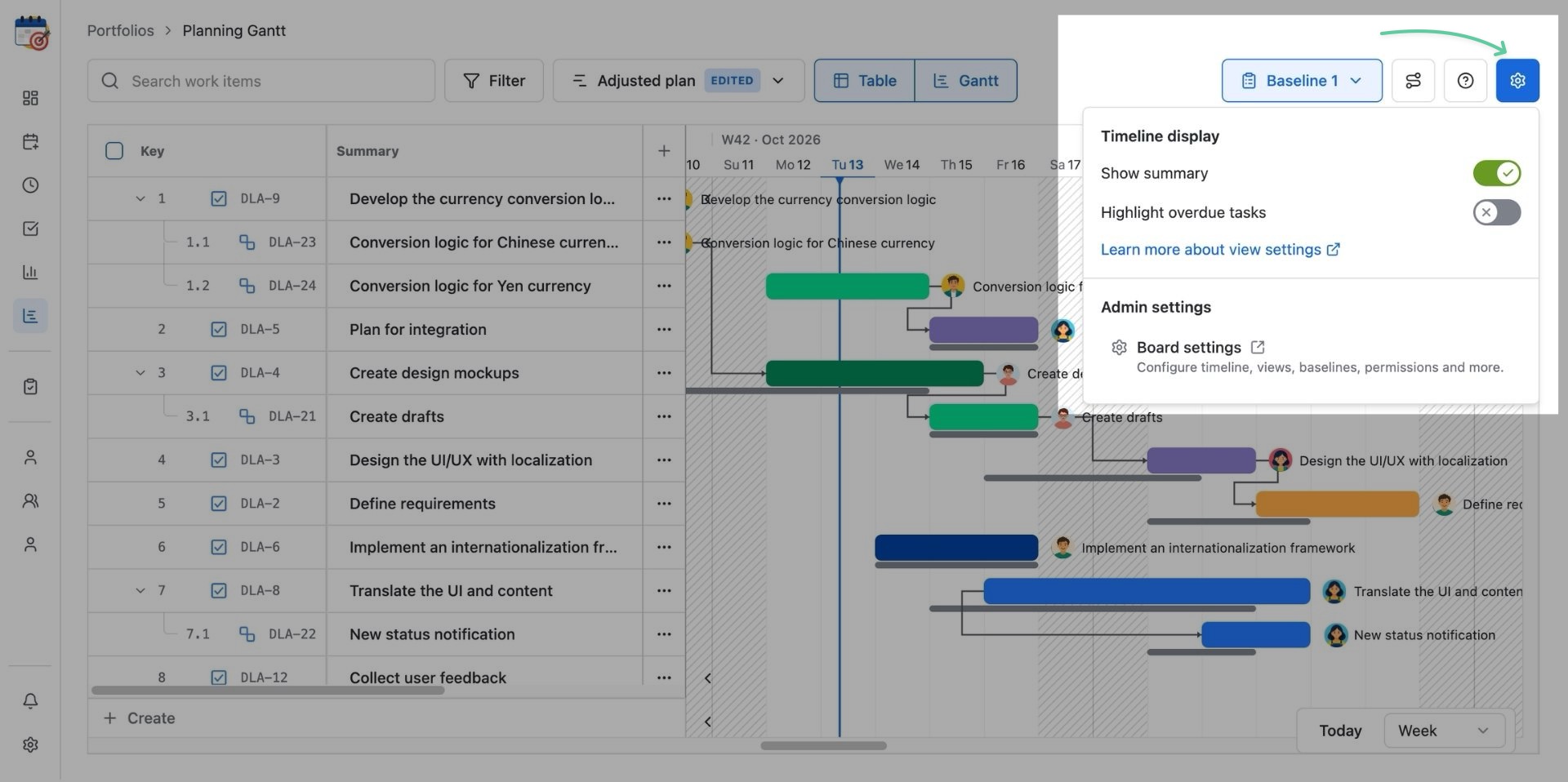
Here you can enable or disable:
-
Show summary: show work item summaries on the Gantt’s timeline view
-
Highlight overdue tasks: highlight tasks that have not been completed on time based on their end dates.