
In PlanCore, log time against Jira work items from the Timelogs calendar or list, or directly from the work item. Your entries are available across these views for review and editing.
Log time in Timelogs
1. From the Calendar view
Log time for scheduled tasks
-
Open Timelogs from the sidebar and choose the relevant date range.
-
Find the scheduled task on the calendar and click Log on its card.
-
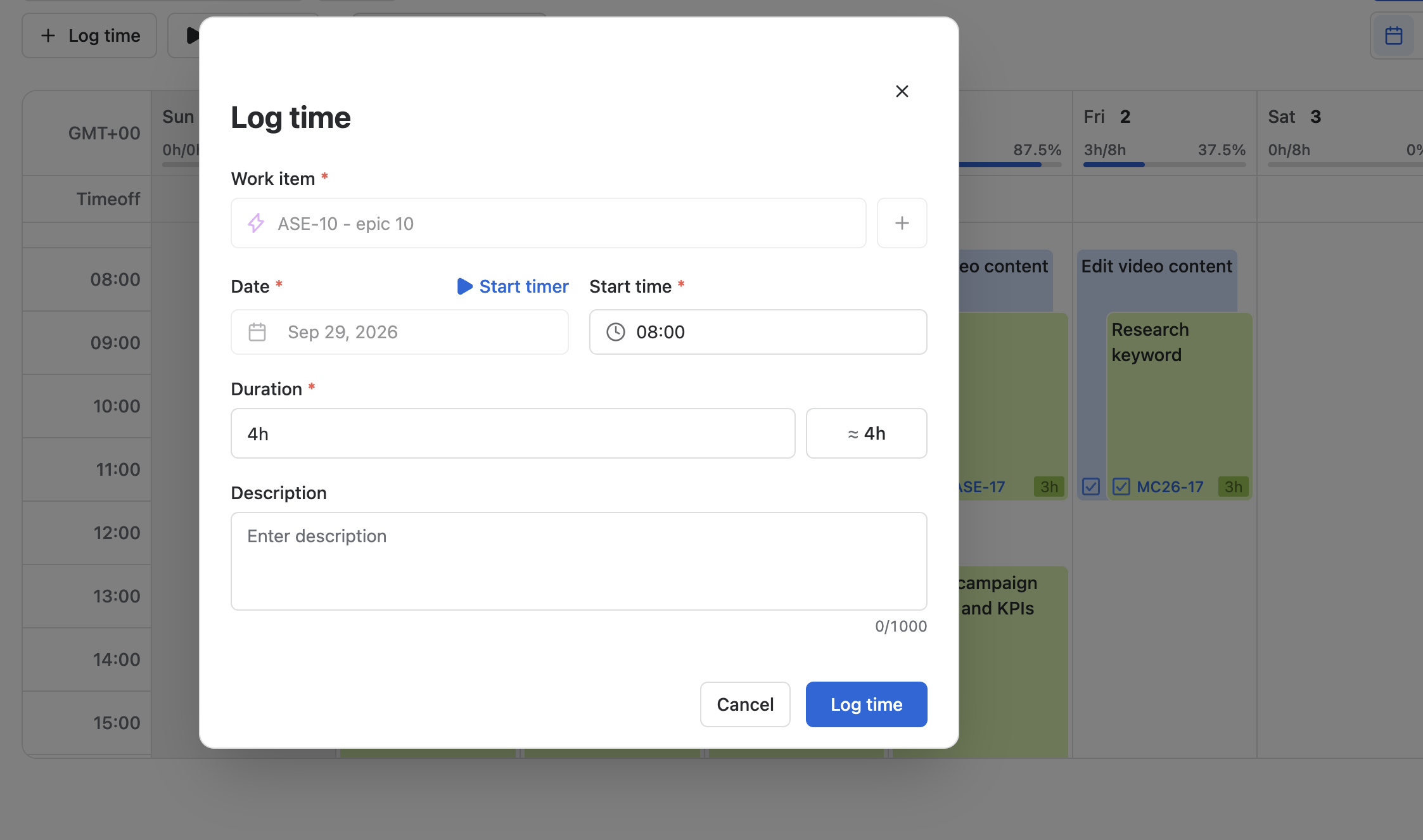
Choose the starting time of the task, enter the time duration, check the date and time, and add notes if needed.
-
Click Log time to save. To adjust an entry later, open the task card or click its logged-time value.
Log time for new tasks
-
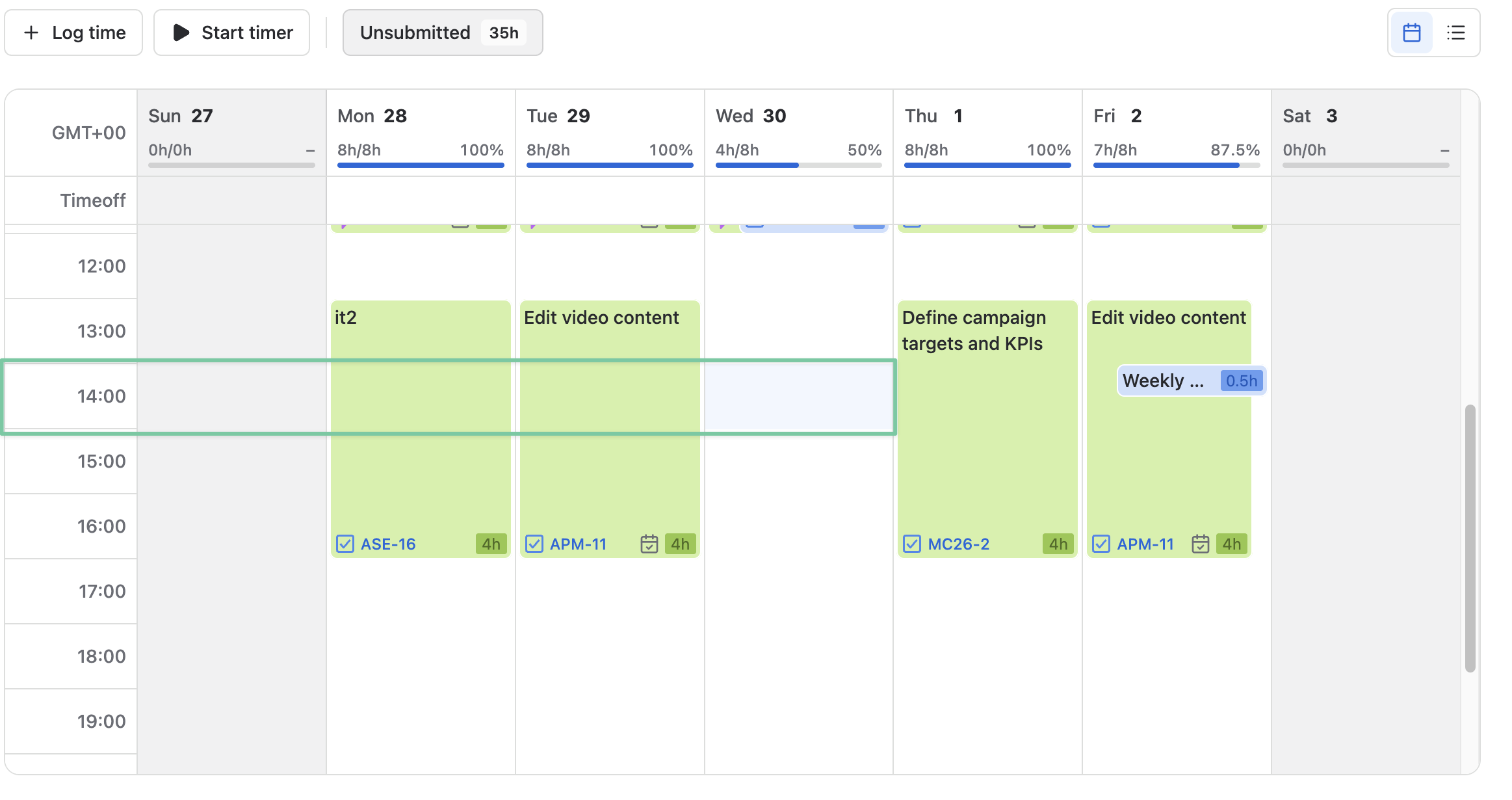
In Timelogs, click an empty space on the calendar or use the + Log time on the header action to open the logging dialog.
You can also log time for new tasks at a specific time in the day by clicking the corresponding cell in the calendar.
-
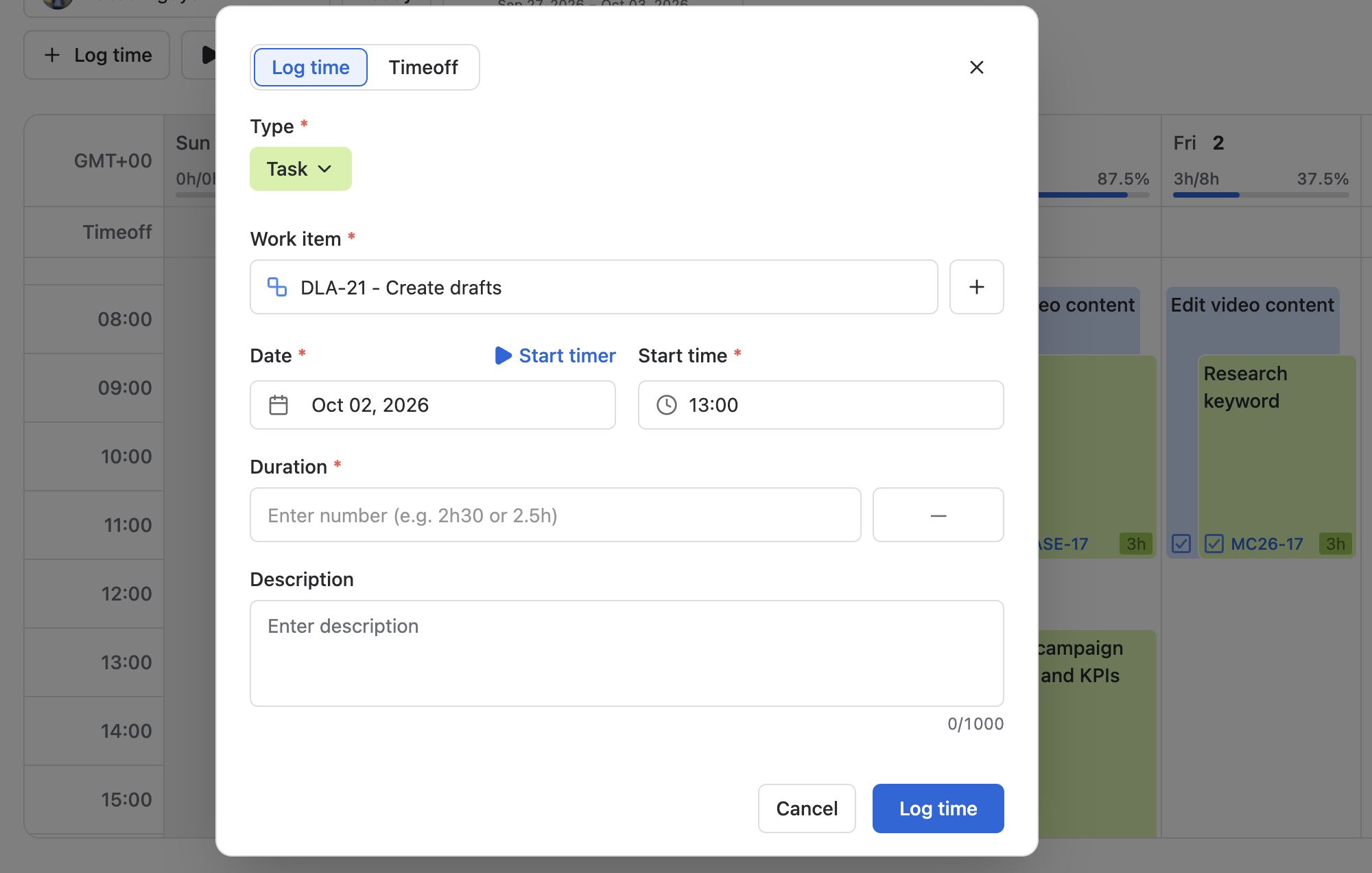
Select an existing Jira work item. If the dialog offers a create action, you can create a work item there instead.
-
Enter Date started, Starting time, Duration, and any Notes.
-
Click Log time to save the entry.
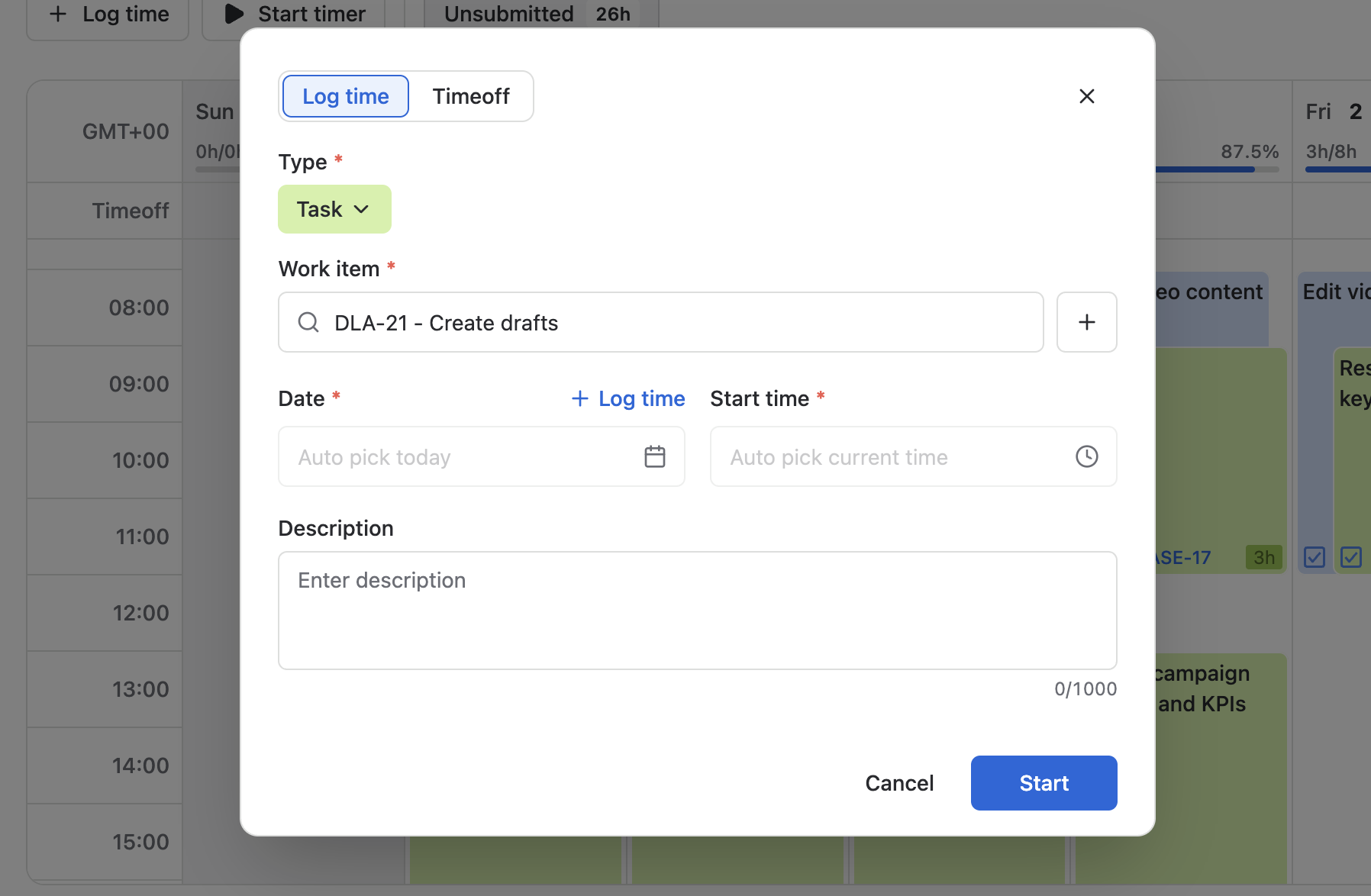
You can also click Start timer in the dialog to switch to using the timer and begin recording your time log more accurately.
2. From the List view
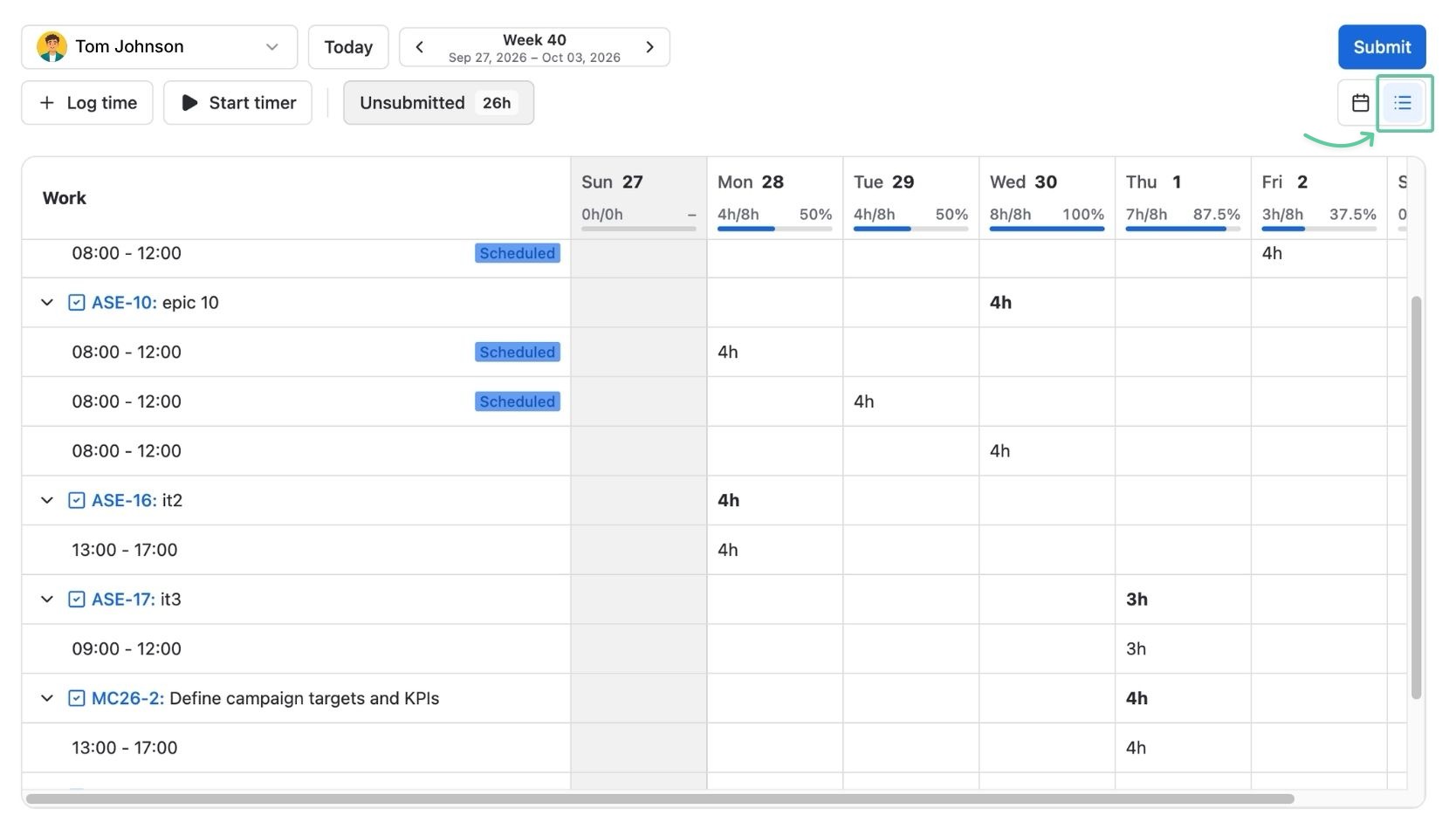
Log time for existing tasks
-
Open Timelogs and switch to List view.
-
Find the task and date, then hover over the empty cell and click on the empty cell.
-
Set the start time and duration, add notes if useful, and save the entry.
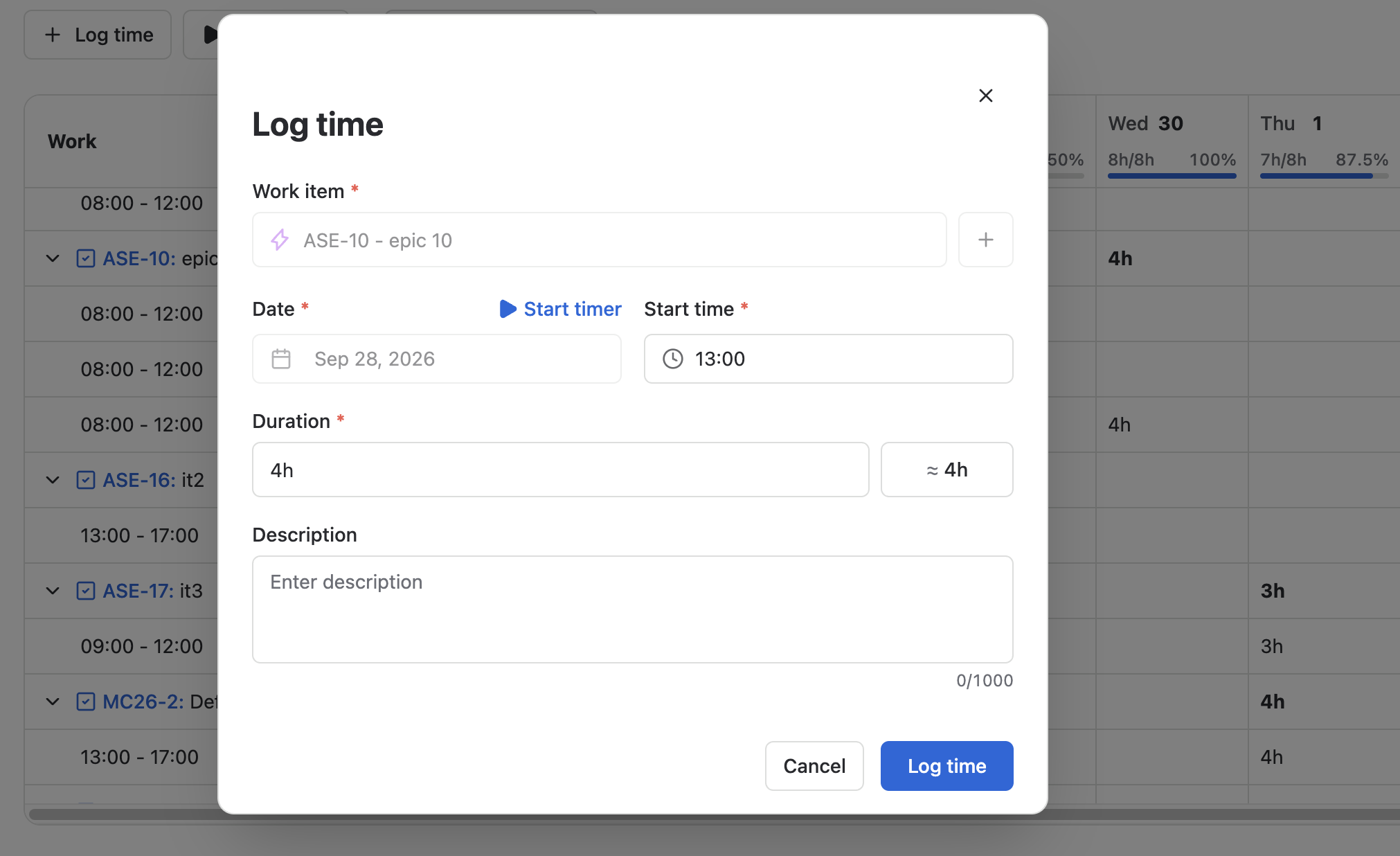
Log time for new tasks
-
Click + Log time below the list to open the logging dialog.
-
Select an existing Jira work item, or create one if available.
-
Enter the date, start time, duration, and notes, then click Log time.
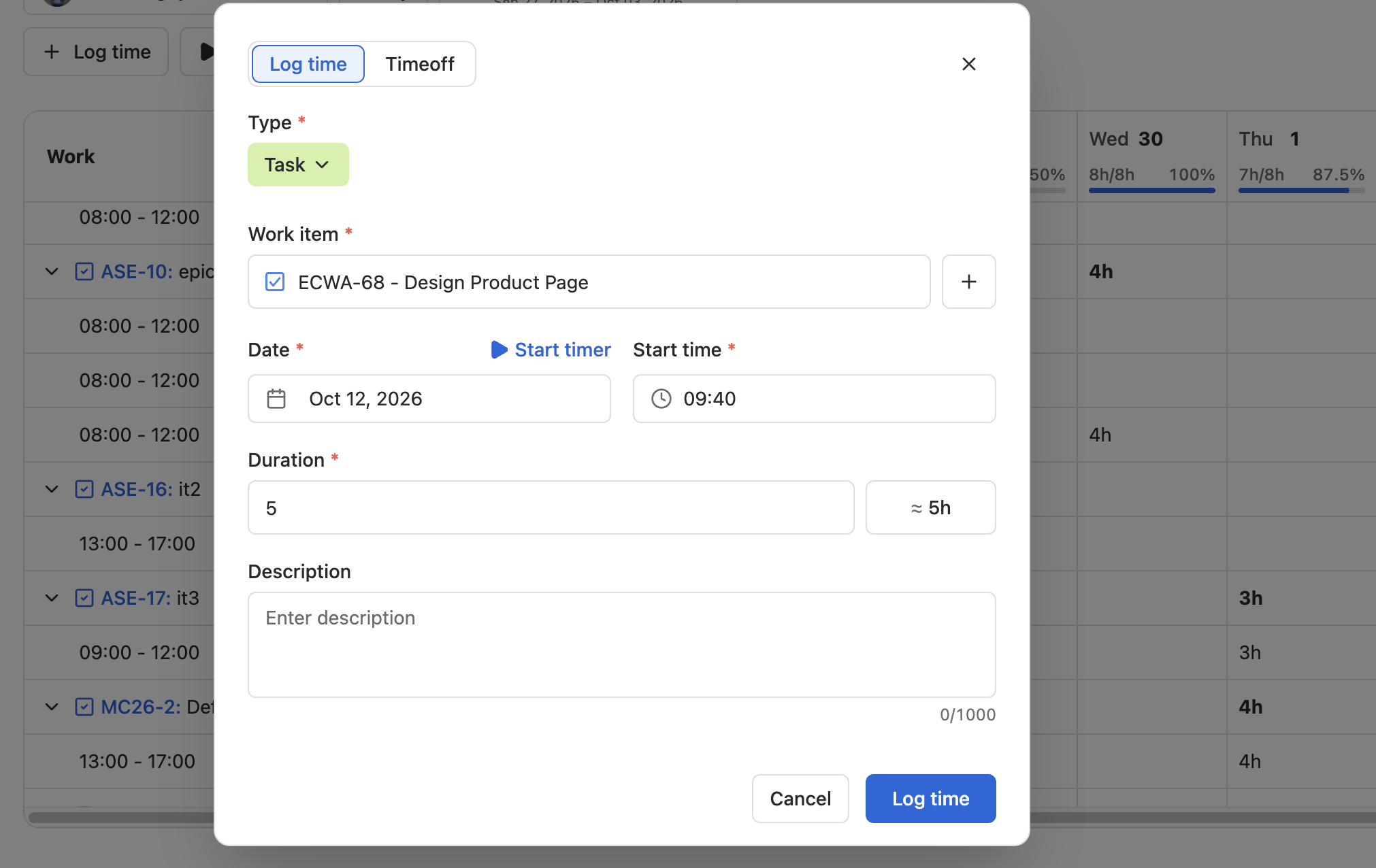
Track and log time using the timer
-
Locate the task card and click Start timer.
-
When you are done, click Finish and confirm saving the timelog entry.
You can also start a timer from the Timelogs header in calendar or list view: select a Jira work item, start the timer, then finish and confirm the entry when your work is complete.
Edit or delete a time entry
In calendar view
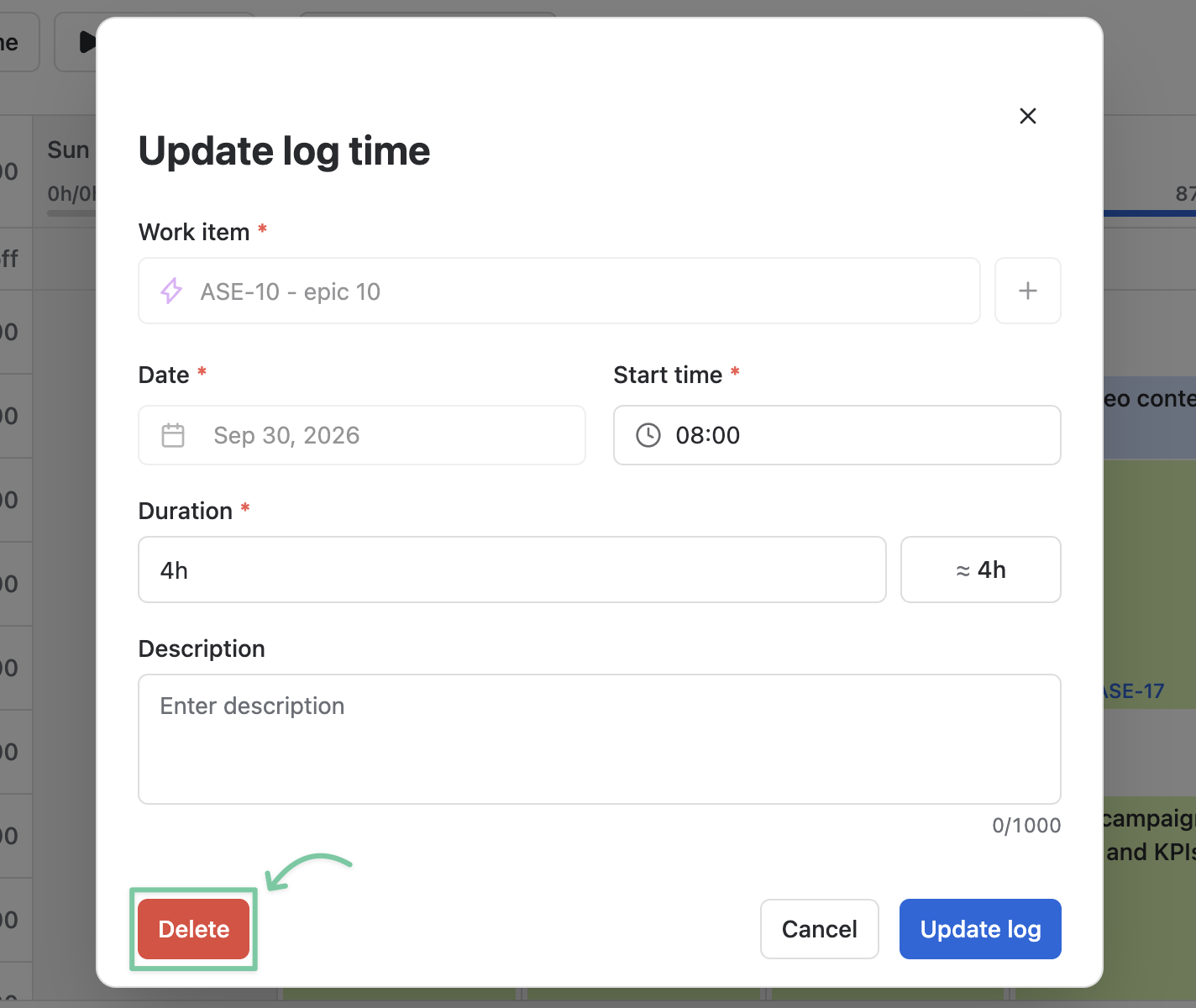
Open the relevant task card to view its time entries. Update the time spent, start time, or notes and click Update log.
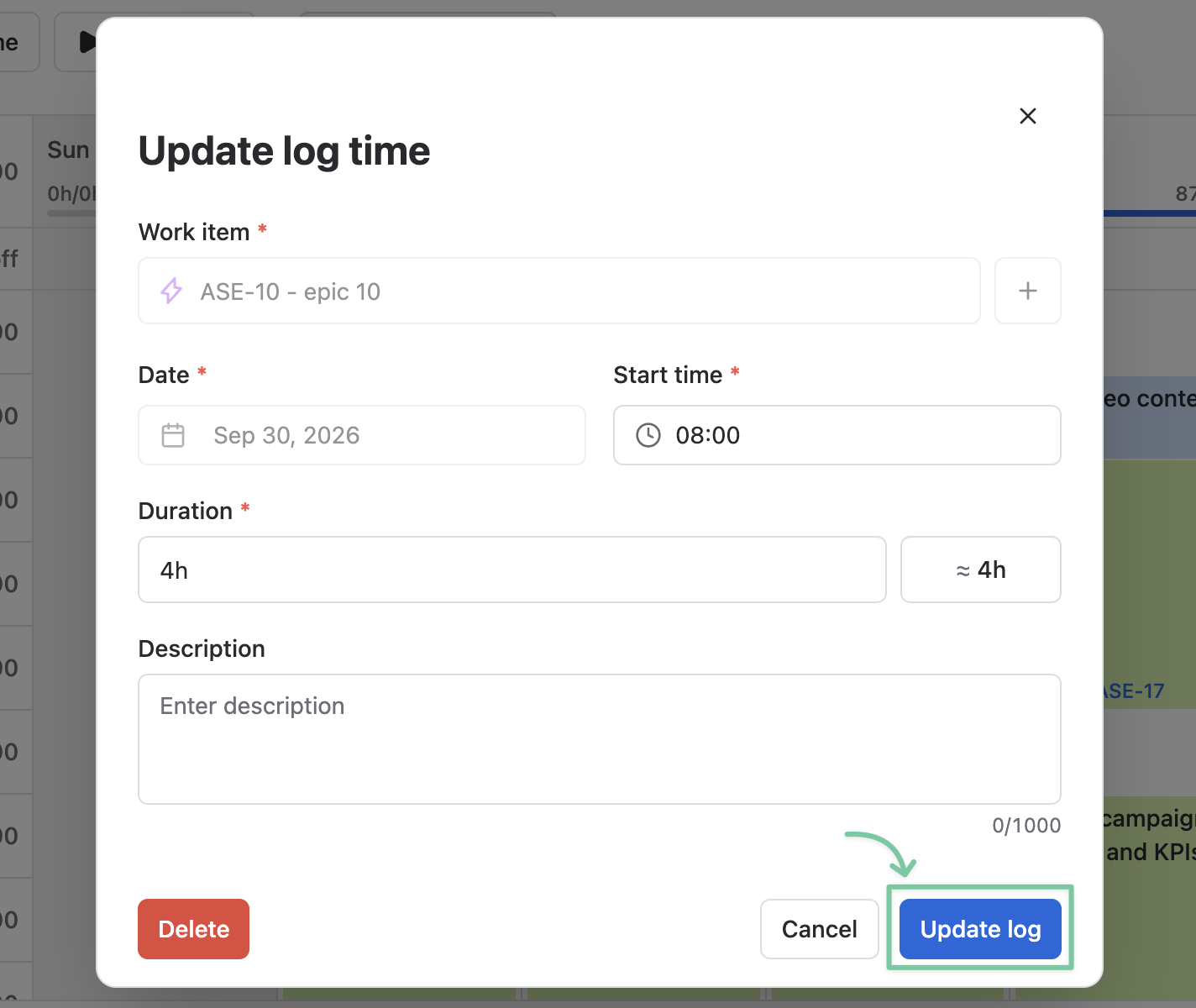
To remove an entry, click Delete and confirm if prompted.
In list view
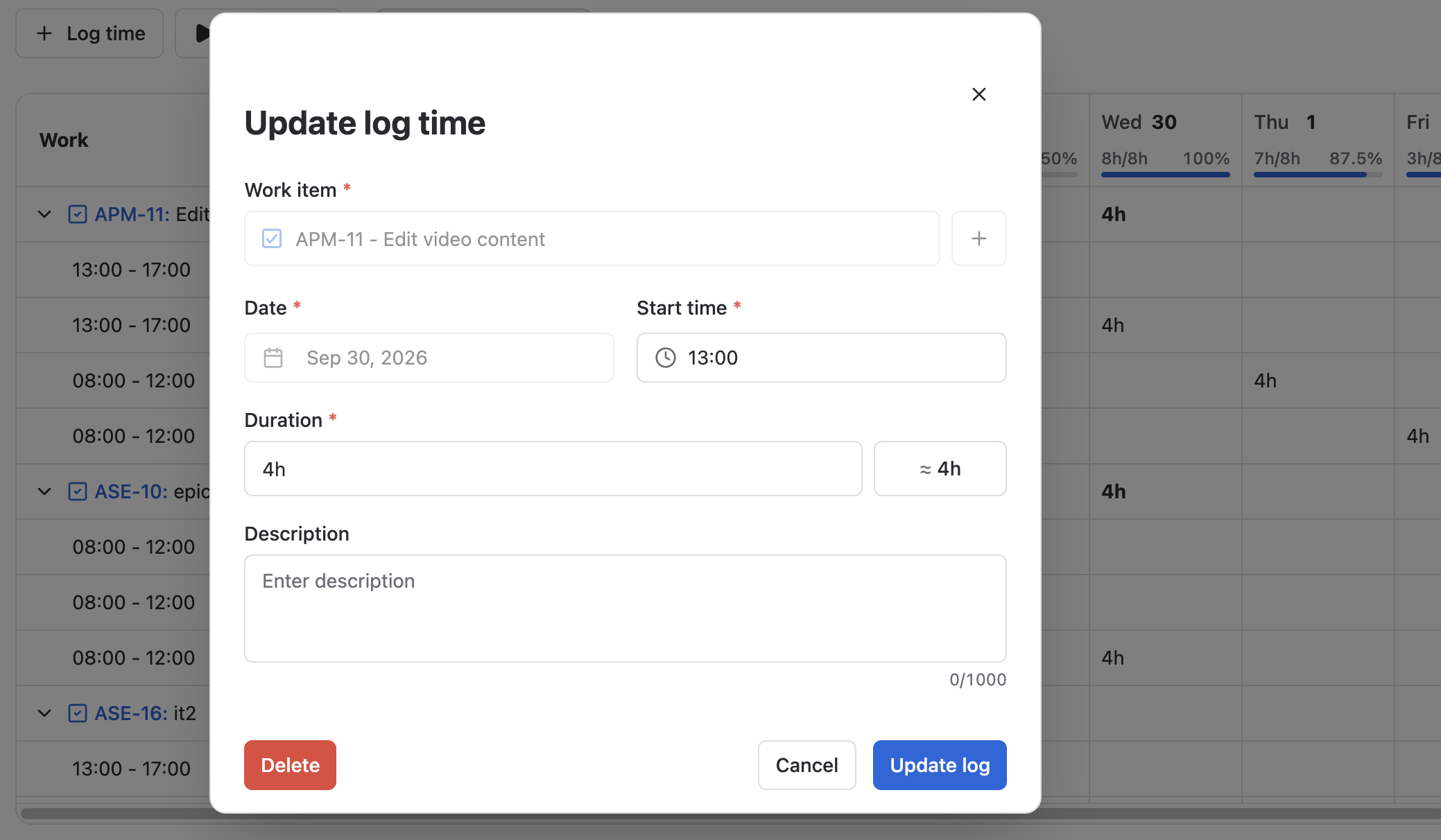
Click a logged-time cell and use the edit action to open its details. You can review total logged time, update the date, time, or notes, add another entry, or delete an existing one.
Tip: Verify the Jira work item and start date before saving, especially when logging time for an unscheduled task.