.png)
You must be a Jira Administrator or AgileBox Administrator to view and modify this setting.
This setting lets you customize the T-shirt decks used in all Planning Poker games in AgileBox.
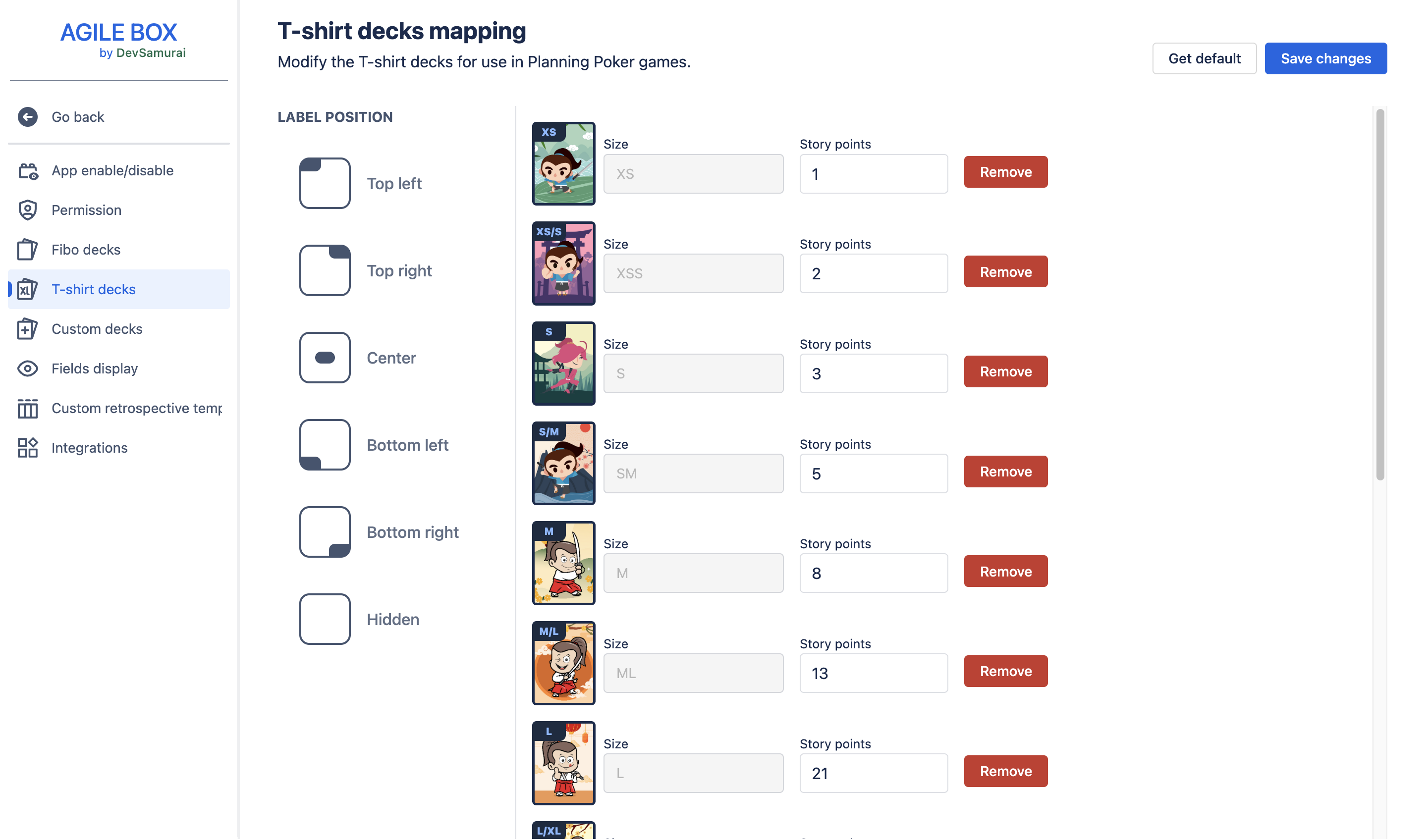
You can configure the following:
Label position
Choose where the label (story points or size) appears on each card:
-
Top left
-
Top right
-
Center
-
Bottom left
-
Bottom right
-
Hidden
Card configuration
Card image
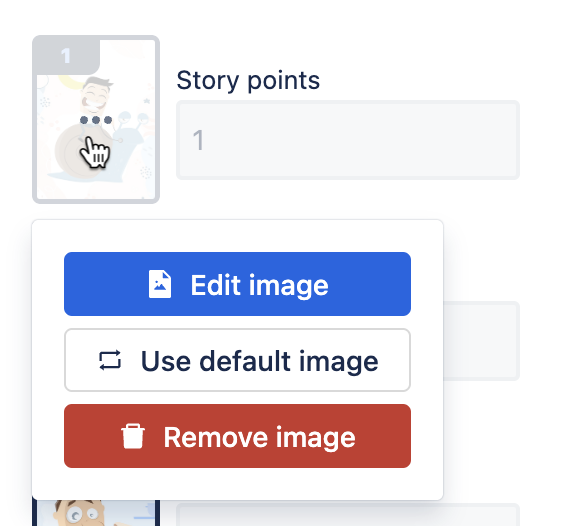
Hover over a card and click the ellipsis (three dots) icon to customize its image. You have three options:
-
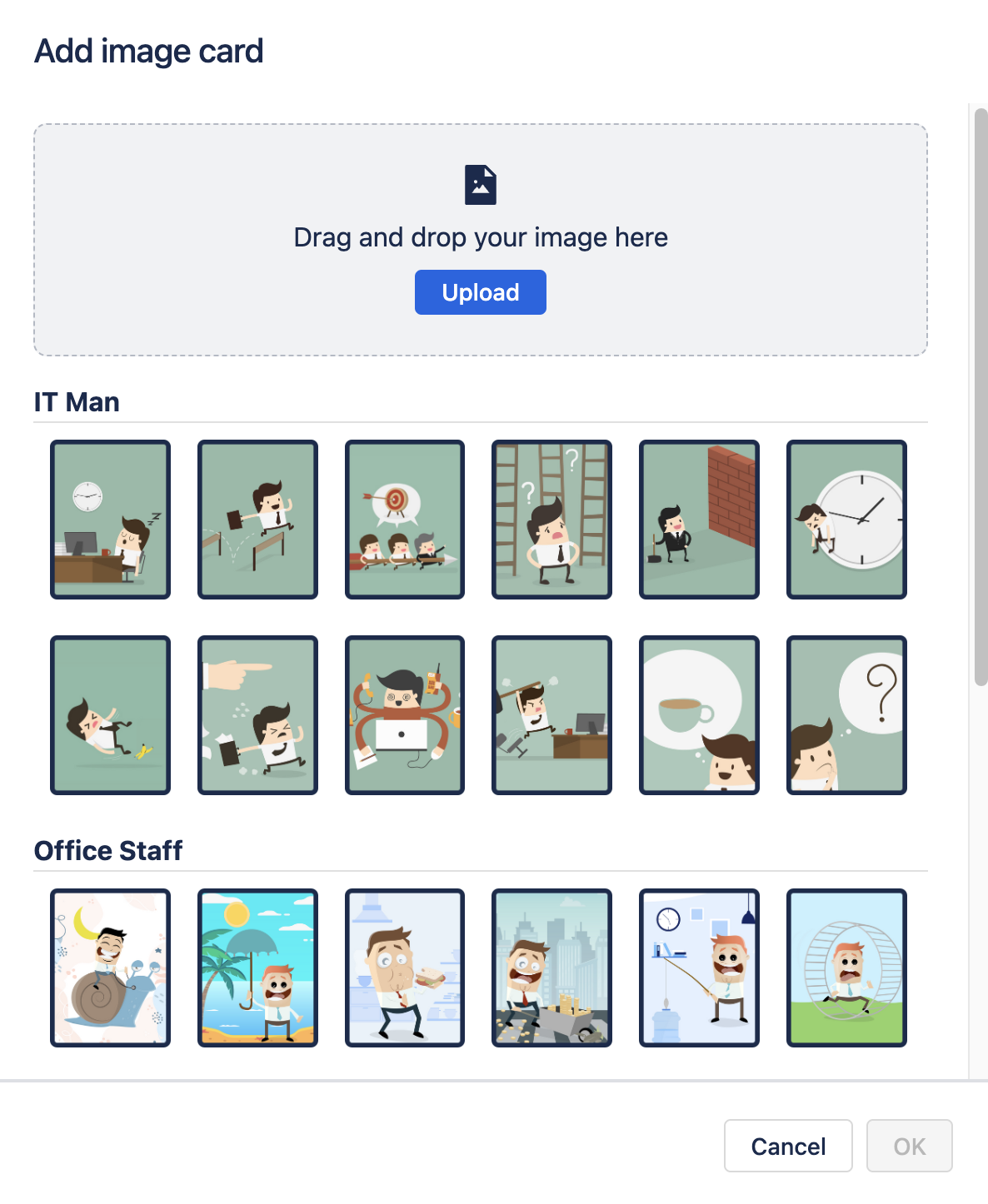
Edit image: Select an image from our templates or upload your own.
-
Use default image: Restore the card’s original image.
-
Remove image: Remove the card image, leaving a blank white card.
Story point value
Modify the story point value for each card in the deck.
Add/Remove card
Remove a card
To remove a card from the T-shirt deck, click the Remove button next to the card.
Add a card
To add a new card, scroll to the bottom of the screen and click the card with the + button.
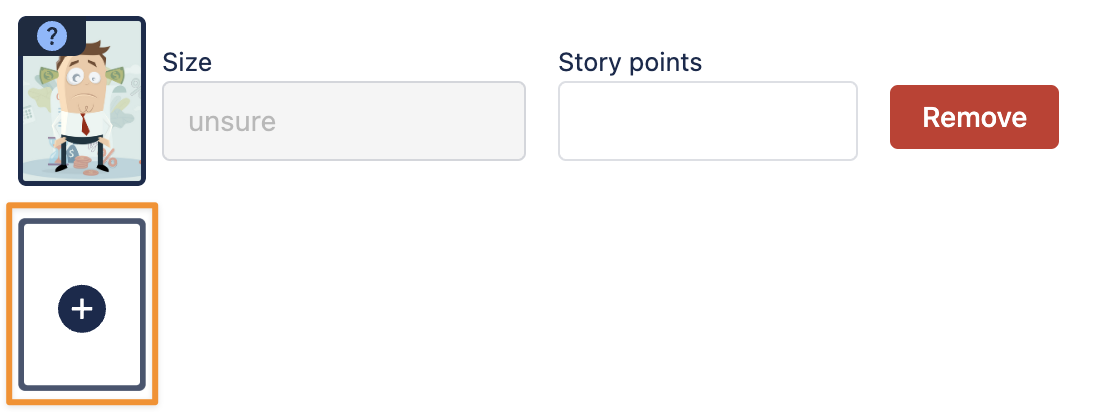
Then fill in the card details, including Image, Size, and Story Points.

After making changes, click the Save changes button at the top right to apply your settings.
To revert all changes and restore the default deck, click the Get default button.