.png)
Dashboard filters let you control which data appears across supported widgets from one place. You can focus the Dashboard on selected members or a single team, then choose the time period you want to review. This helps you narrow workload, capacity, and time data without updating each widget separately.
Filtering by member or team
To filter Dashboard data by member or team:
-
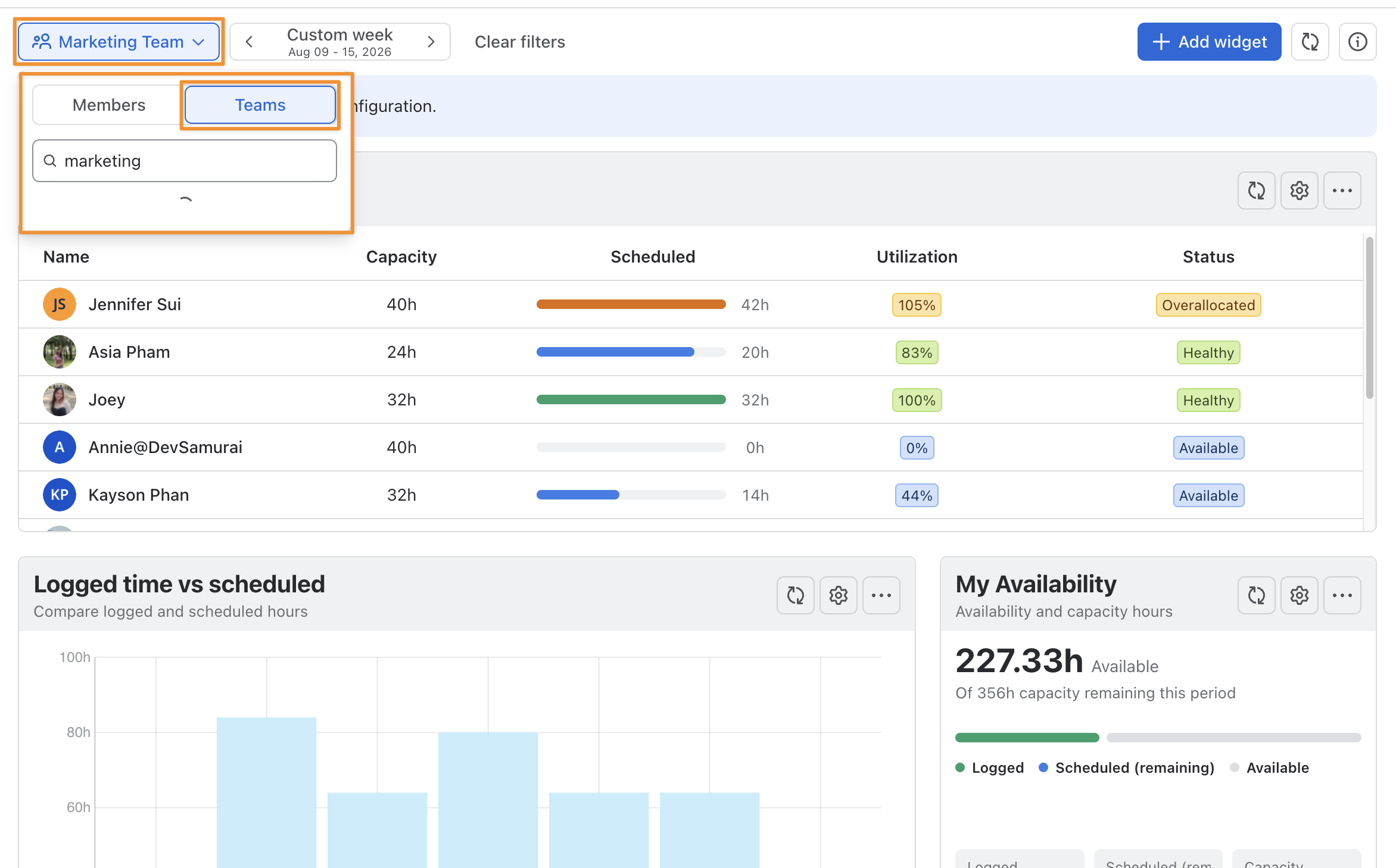
Select the Members filter from the dashboard’s header.
-
Choose the Members or Teams tab.
-
Apply your selection:
-
Under Members, select one or more members.
-
Under Teams, select one team.
-
Use the search field to find a specific member or team when needed.
-
Close the panel to apply the filter.
Setting the time period
Use the date selector to narrow dashboard data to the period most relevant to your review.
You can:
-
Move to the previous or next period using the arrow buttons. < >
-
Select a predefined period, such as:
This weekLast week
This month
Last month
-
Review the exact date range displayed below the selected period.
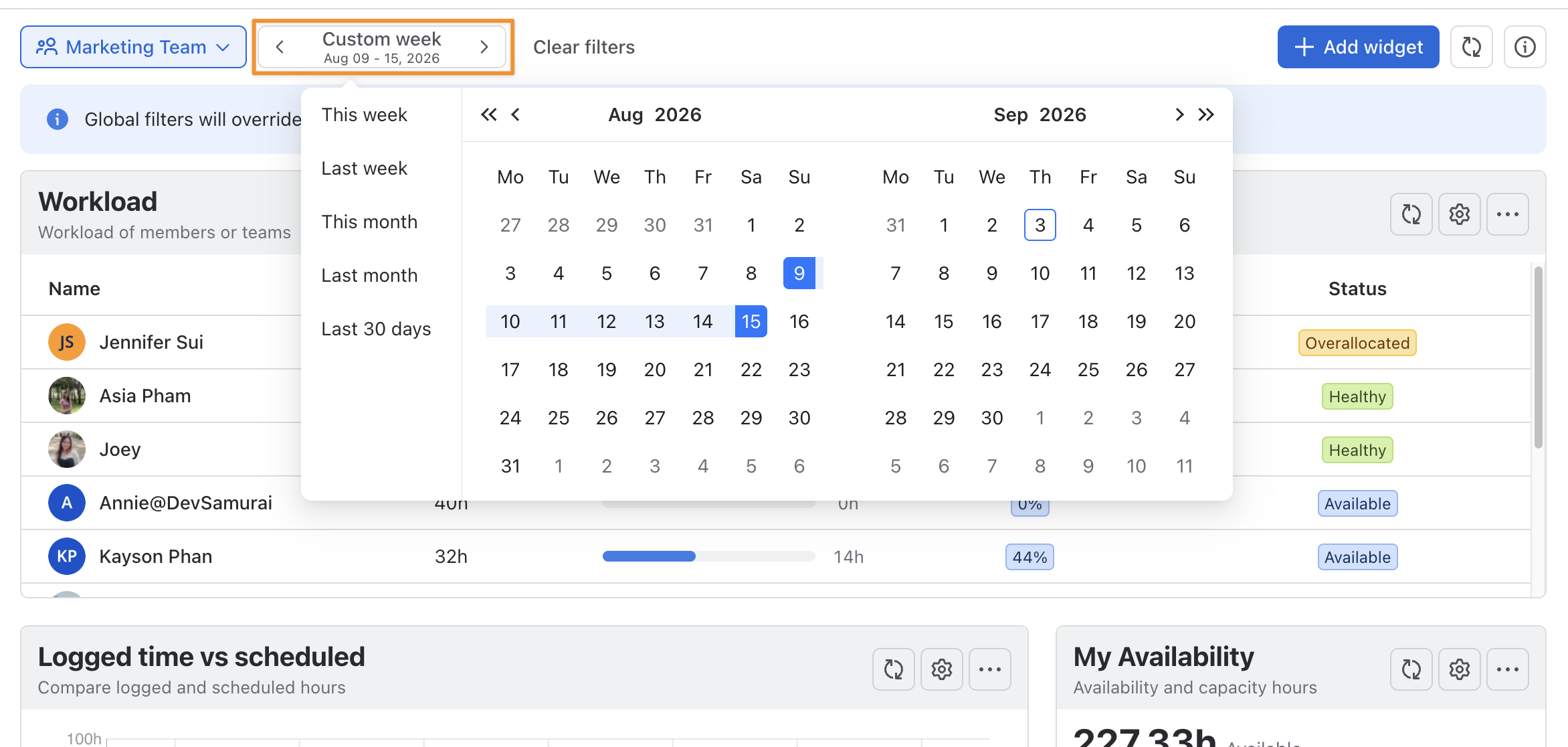
Global Dashboard filters take priority over filters configured inside individual widgets. When a global filter is applied, the corresponding widget-level filter is temporarily overridden.
Clearing dashboard filters
You can remove dashboard filters in either of two ways, depending on how much you want to reset.
Open the Members or Teams filter, then:
-
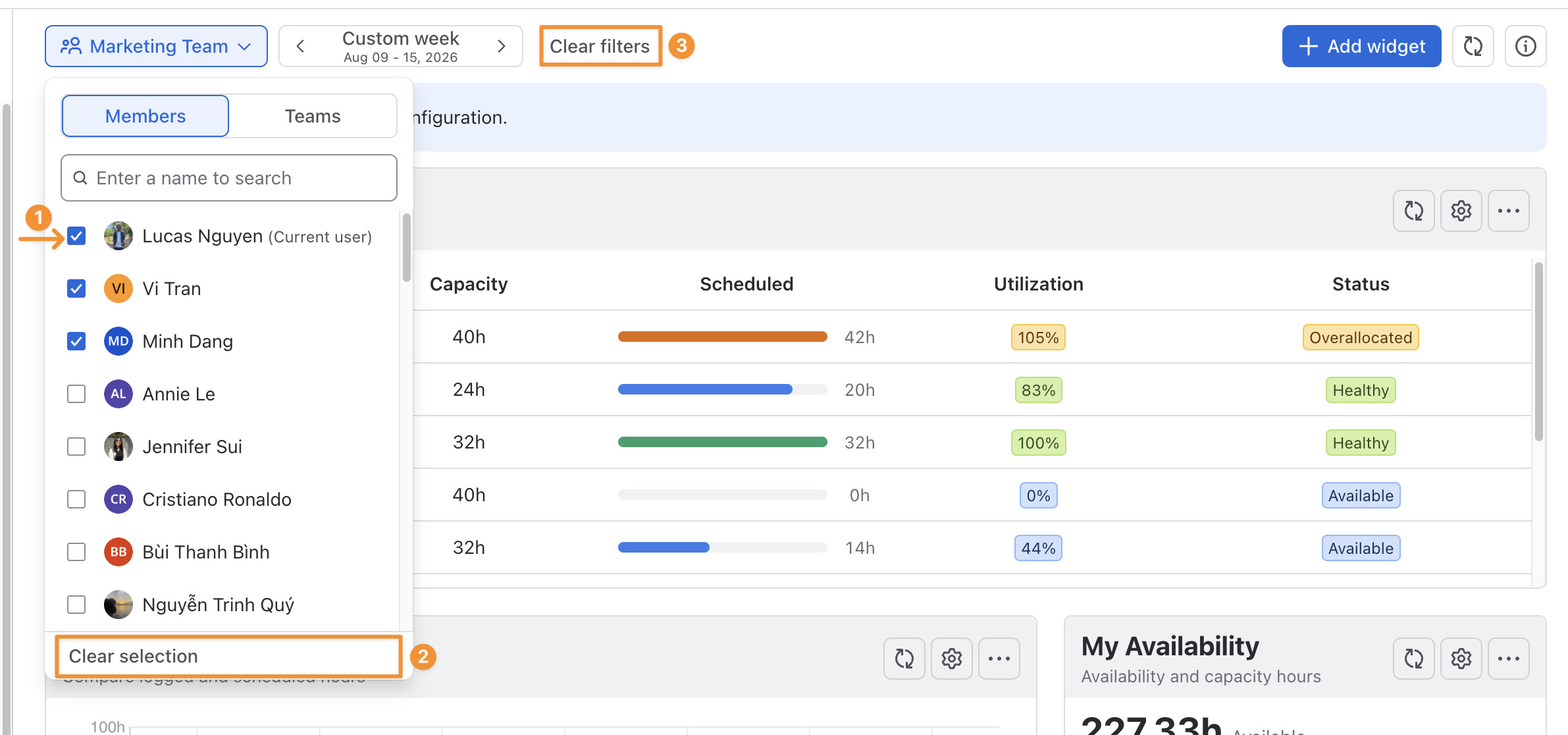
Deselect a checkbox to remove an individual member or the selected team.
-
Select Clear selection at the bottom of the panel to remove all selections from the current filter.
-
Select Clear filters at the top of the dashboard to remove all global filters and return the dashboard to its default view.