.png)
Attachments in AssetIT allow you to associate supporting files — such as invoices, warranties, manuals, or contracts — directly with your assets and licenses. You can find the Attachments tab on each asset and license detail page.
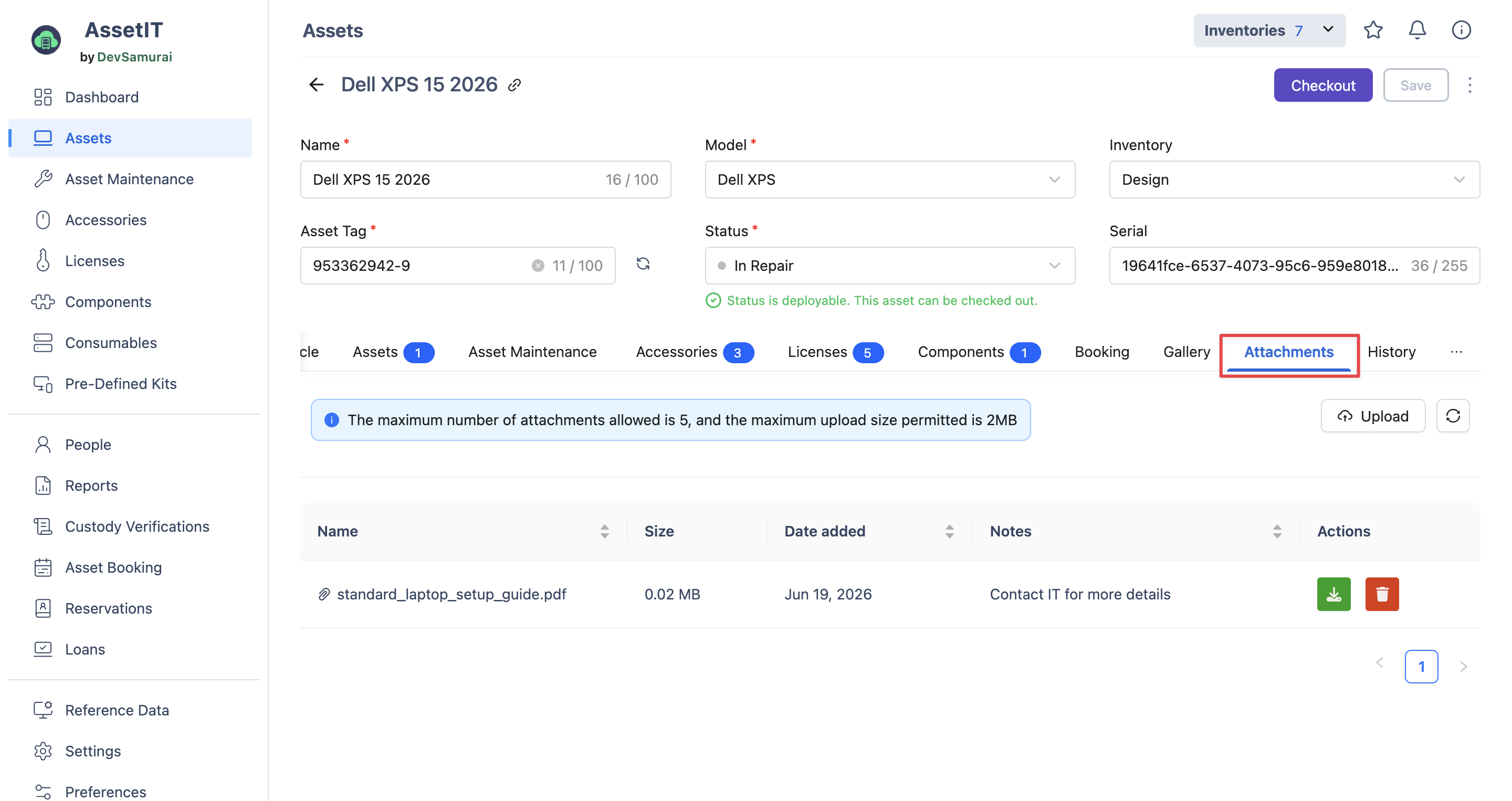
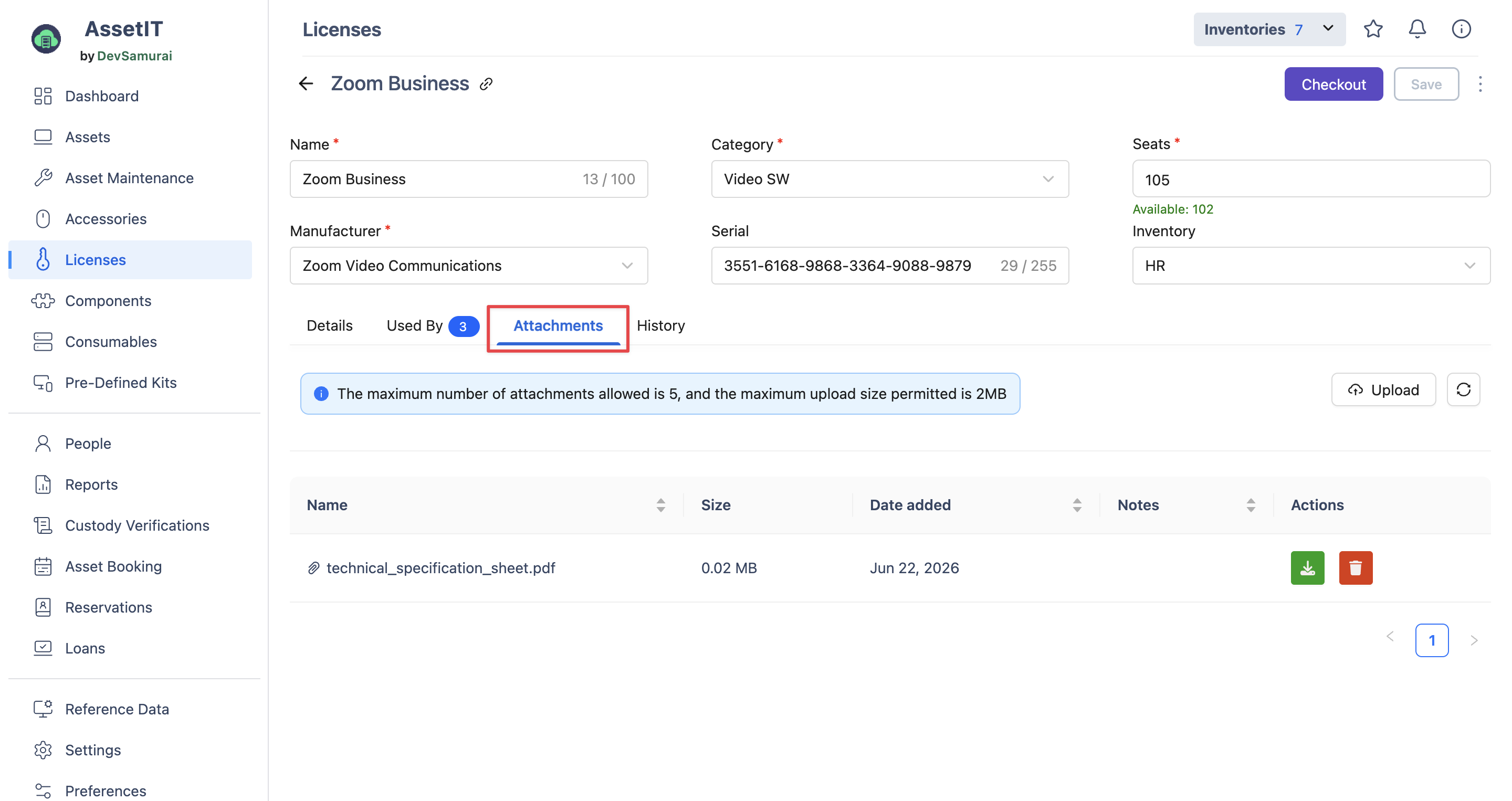
Attachment Limits
-
Supported formats:
.doc,.docx,.pdf,.xlsx,.txt,.xml,.zip,.rtf, and.rar -
Maximum attachments per asset/license: 5
-
Maximum file size per upload: 2 MB
How to upload an attachment
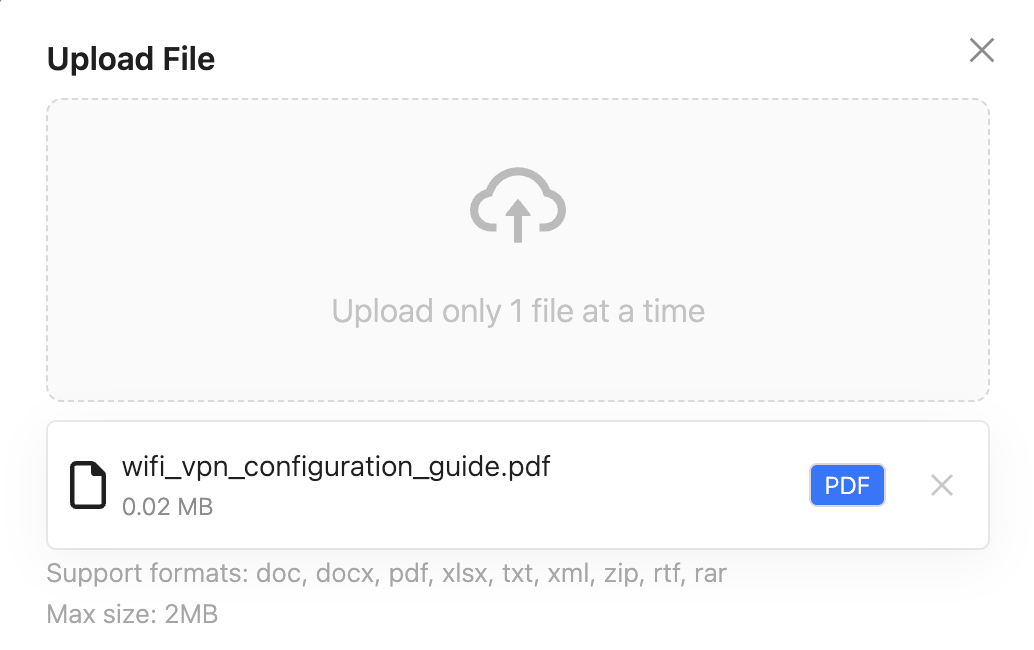
You can upload one file at a time. To add a file:
-
Navigate to the detail page of the asset or license you want to update.
-
Select the Attachments tab.
-
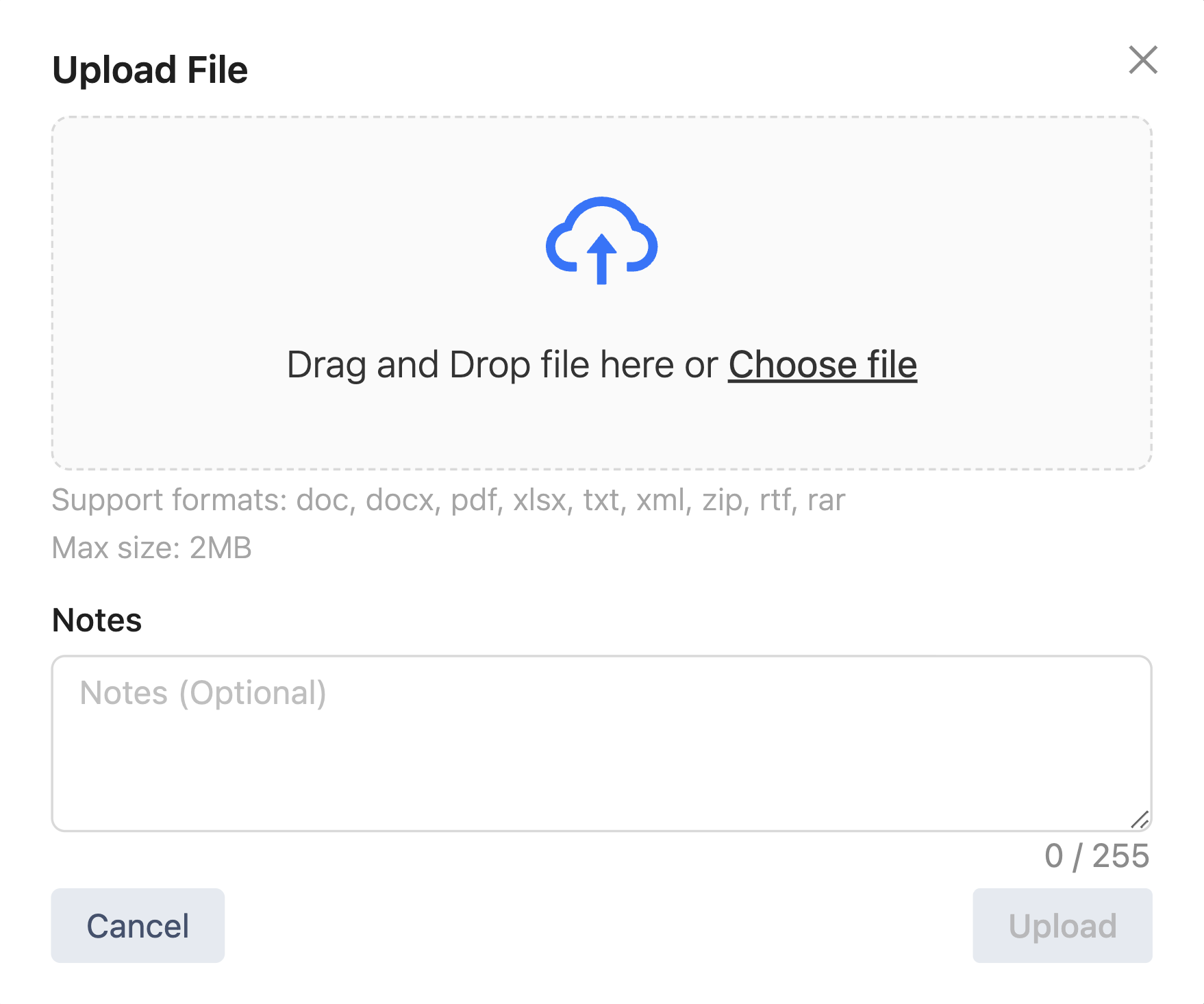
Click the Upload button on the right to open the Upload file dialog.
-
Choose your file and add Notes (optional) to describe the attachment.
-
Verify the file format is supported, then click Upload to finish.
If your file doesn't appear after uploading, click the 🔄 Refresh button to reload the data.
Managing attachments
After uploading, your attachments are displayed in a table with the following columns:
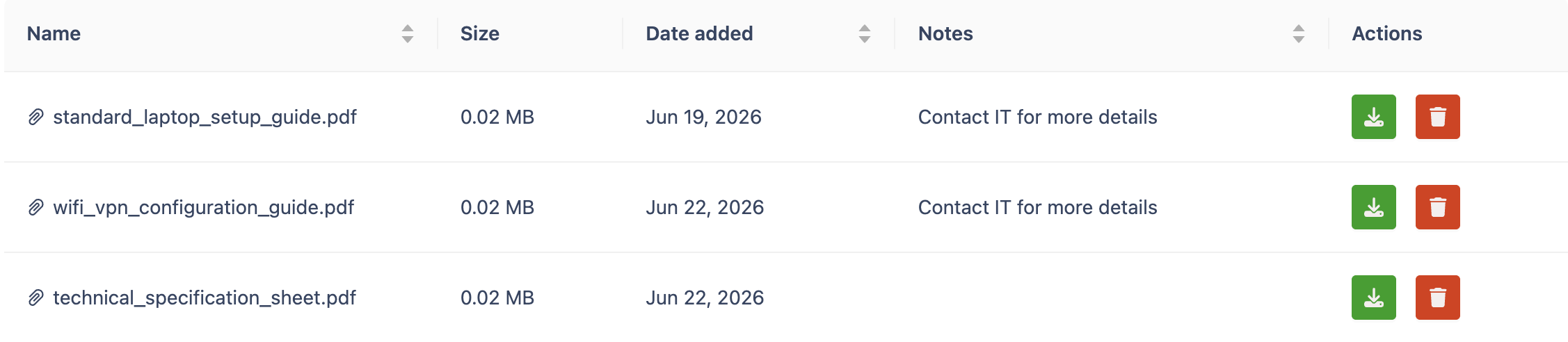
|
Column |
Description |
|---|---|
|
Name |
Full file name including extension. Sortable by text. |
|
Size |
File size in MB. |
|
Date Added |
The date the file was uploaded. Sortable by date. |
|
Notes |
Notes added during upload. Sortable by text. |
|
Actions |
Available actions for users with the appropriate permissions (see below). |
Available actions
Only admins and the user who uploaded the attachment can view or manage attachments. Other users can see the attachment list but cannot download or delete files.
-
Download — Save the file locally for viewing.
-
Delete — Remove the file from the attachments list.
Need assistance? Please reach out to us at our Support Desk.